A faint red light blinking on your iPhone front camera is the TrueDepth camera at work: Face ID and Attention Aware Features use infrared light, and Apple says a faint glow from it in a very dark room is expected.
This guide explains when the TrueDepth camera turns on, how it differs from the green and orange privacy dots, how to make it run less often, and the few cases where the light does point to a problem.
Why is a red light blinking on my iPhone front camera?
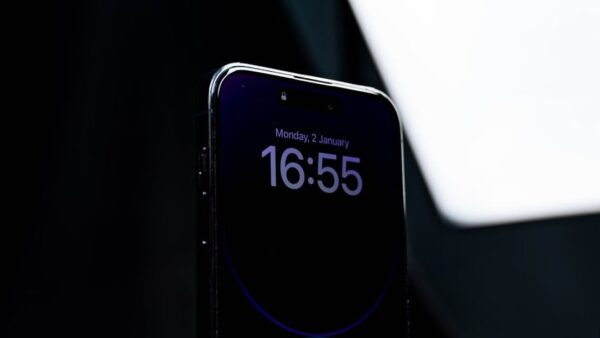
The light comes from the TrueDepth camera system at the top of the front of the iPhone, the hardware behind Face ID.
It is not a recording light. When an app uses the camera, iOS shows a green dot on the screen instead.
Treat a faint red flicker near the iPhone front camera as normal: it is the TrueDepth camera scanning with infrared light, and it needs no fix. Apple states that the TrueDepth camera captures an infrared image of your face, that some people notice a faint light from it in a very dark room, and that this is expected in extremely dark settings.
The glow has nothing to do with Camera app options, so there is no need to reset the iPhone camera settings to get rid of it. If it bothers you, the settings further down make the TrueDepth camera run less often.
What is the TrueDepth camera on iPhone?
The TrueDepth camera has a similar range of view to the front camera you use for photos and FaceTime calls. On iPhone 18 Pro models it is at the top of the device towards the left corner.
| Part of the scan | What it does |
|---|---|
| Infrared dot projection | Projects and reads thousands of invisible infrared dots to build a depth map of your face |
| Infrared image | Captures a 2D infrared image of your face alongside the depth map |
| Attention check | Confirms your eyes are open and looking at the screen before Face ID unlocks the phone |
| Secure Enclave matching | Turns the depth map and infrared image into a mathematical representation and compares it with your enrolled face |
| Extra image data (iPhone 18 Pro and later) | Adds supplemental image data, processed in a hardware-isolated Secure Exclave, to keep Face ID accurate |
Face ID data stays on the device. Apple says it is never available to apps or Apple and is never backed up to iCloud.
When does the iPhone Face ID light turn on?
The TrueDepth camera does not run all the time. It switches on for specific events, which is why the light looks like a short blink rather than a steady lamp.
| What you did or what happened | Why the TrueDepth camera turns on |
|---|---|
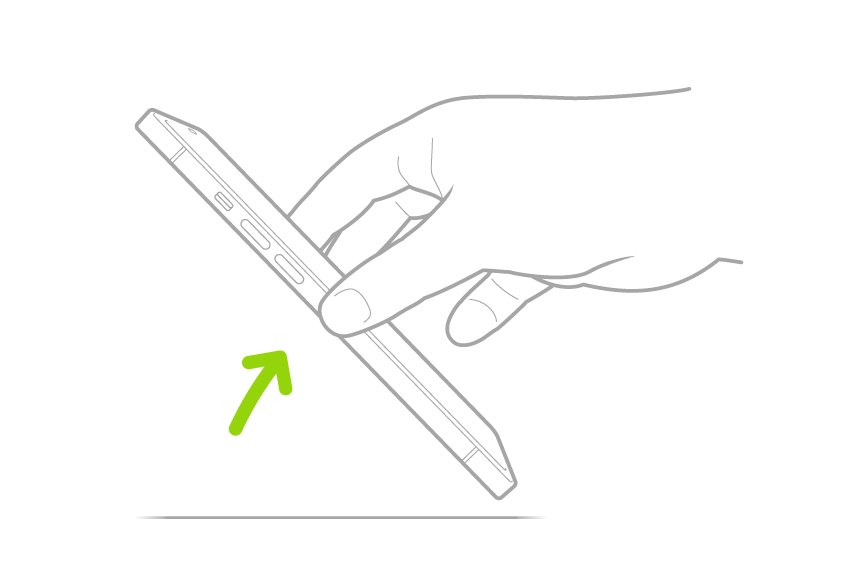
| You raised the iPhone (Raise to Wake) | It looks for your face so Face ID can unlock the phone |
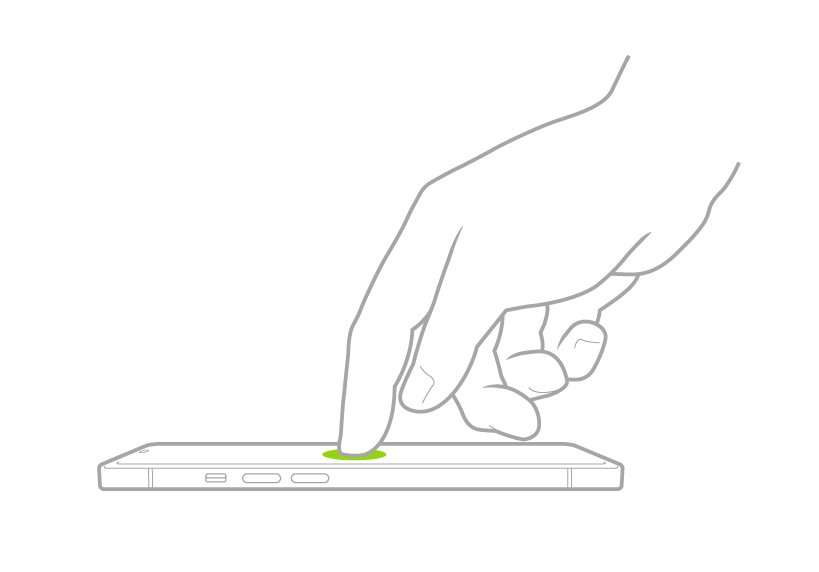
| You tapped the screen to wake it | It looks for your face so Face ID can unlock the phone |
| A notification woke the screen | It checks for you before showing the notification's content |
| An app, Apple Pay or the App Store asked for Face ID | It confirms your identity for the sign-in or purchase |
| You were reading or a quiet alert arrived | Attention Aware Features check whether you are looking before dimming the display, expanding a locked notification or lowering an alert's volume |
Attention Aware Features use the TrueDepth camera even if you never set up Face ID. That explains a glow on a phone whose owner does not use Face ID at all.
iPhone green dot, orange dot and red light: what each one means
iOS has two official privacy indicators, and both appear on the screen. Neither of them is a physical light on the camera.
| What you see | Where | What it means | What to do |
|---|---|---|---|
| Faint red glow or flicker | On the TrueDepth camera at the top of the phone, mostly in a dark room | The TrueDepth camera is scanning for Face ID or attention | Nothing, or turn off Attention Aware Features to make it run less |
| A light flashing on the iPhone in another camera's viewfinder | In a photo or video taken by another phone or camera | That camera's sensor picks up the TrueDepth camera's infrared light | Nothing; Apple says this is expected |
| Green dot | Status bar at the top of the screen | An app is using the camera, alone or with the microphone | Open Control Center to see which app |
| Orange dot | Status bar at the top of the screen | An app is using the microphone without the camera | Open Control Center to see which app |
| Red circle in the Dynamic Island, or a red timer at top left | On the screen | iPhone is recording the screen | Tap it, then tap stop |
How to stop the red light on iPhone front camera
Attention Aware Features make the TrueDepth camera check for your face before dimming the display, expanding a notification on the Lock Screen or lowering the volume of some alerts. Turning the setting off removes those extra scans; Face ID unlocking still uses the camera.
- Open the Settings app.
- Tap Face ID & Passcode, then enter your passcode if asked.
- Turn off Attention Aware Features.
- To use the accessibility route instead, go to Settings > Accessibility > Face ID & Attention and turn off Attention Aware Features there.
With the setting off, the screen dims and locks on its normal timer even while you are reading, because iPhone no longer checks for attention.
iPhone settings that wake the TrueDepth camera, and how to turn them off
Each of these settings cuts a different trigger. Pick the ones whose trade-off you can live with.
| Setting | Where to find it | What changes | Trade-off |
|---|---|---|---|
| Attention Aware Features | Settings > Face ID & Passcode | No attention scans for dimming, notifications or alert volume | The screen dims on its timer while you read |
| Raise to Wake | Settings > Display & Brightness | Picking up the phone no longer wakes the screen and starts a Face ID scan | Press the side button or tap the screen to wake it |
| iPhone Unlock | Settings > Face ID & Passcode | Face ID stops unlocking the phone | You type the passcode every time |
| Reset Face ID | Settings > Face ID & Passcode | Deletes your face data from the device | No Face ID for unlock, apps or Apple Pay; attention features can still use the camera |
How to tell if an app is using your iPhone camera
Whenever an app uses the camera, iOS shows a green indicator. A red glow with no green dot is the TrueDepth camera, not an app filming you.
- Look at the status bar at the top of the screen for a green dot (camera) or an orange dot (microphone only).
- Swipe down from the top-right corner of the screen to open Control Center. On iPhone SE, swipe up from the bottom.
- Read the message at the top of Control Center, which names the app that used the camera or microphone recently.
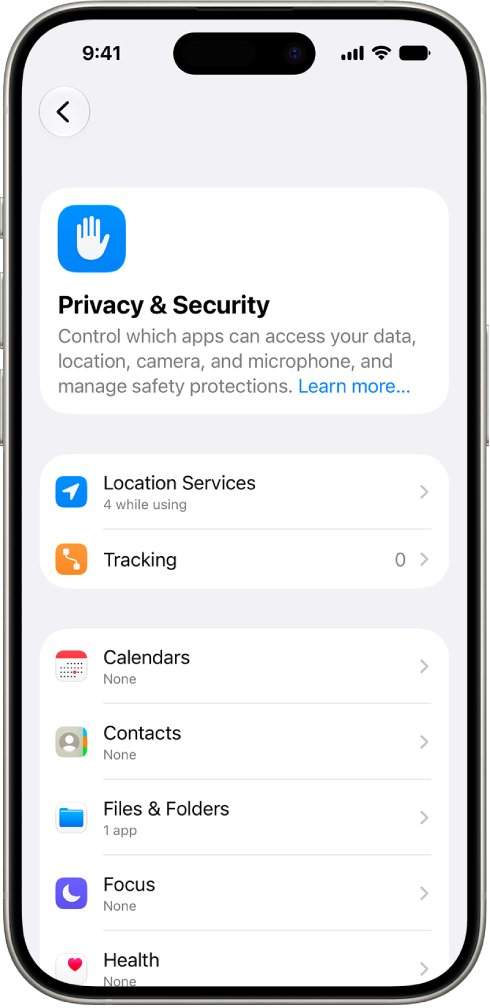
- Go to Settings > Privacy & Security > Camera to see every app that asked for camera access.
- Turn off access for any app you do not recognise or no longer want using the camera.
How to see which apps used your iPhone camera with App Privacy Report
App Privacy Report logs how many times, and when, each app accessed the camera, microphone, location and other sensors over the past 7 days. It only starts collecting after you turn it on.
- Open Settings and tap Privacy & Security.
- Scroll down and tap App Privacy Report.
- Turn on App Privacy Report.
- Use the iPhone normally for a day or two so the report has data.
- Return to App Privacy Report and tap an app or the Camera data type to see when it was accessed.
The report is encrypted and stored only on your iPhone. Turning it off later also clears the data it collected.
iPhone front camera red light problems and fixes
The red light flickers every time you pick up the iPhone at night
Raise to Wake wakes the screen on every lift, and each wake starts a Face ID scan.
- Go to Settings > Display & Brightness and turn off Raise to Wake.
- Go to Settings > Face ID & Passcode and turn off Attention Aware Features.
- Wake the phone with the side button when you want to use it.
A green dot appears when you are not using the camera
An app is using the camera. This is the indicator to act on, not the red glow.
- Open Control Center and read which app is named at the top.
- Close that app.
- Go to Settings > Privacy & Security > Camera and turn off the app's access.
- Delete the app if you did not install it yourself.
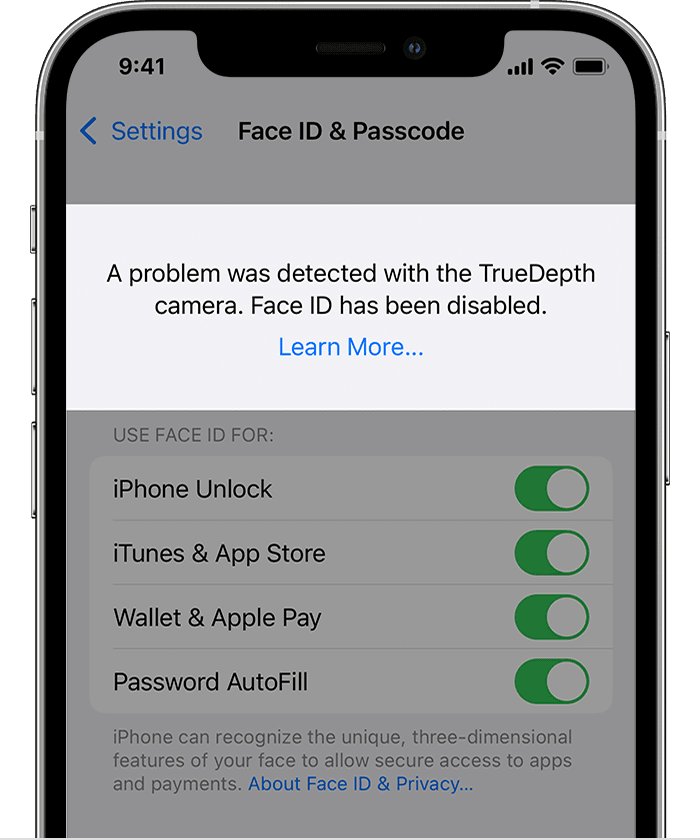
iPhone says "A problem was detected with the TrueDepth Camera. Face ID has been disabled"
iOS diagnostics found a TrueDepth camera fault, and its lasers were turned off for safety.
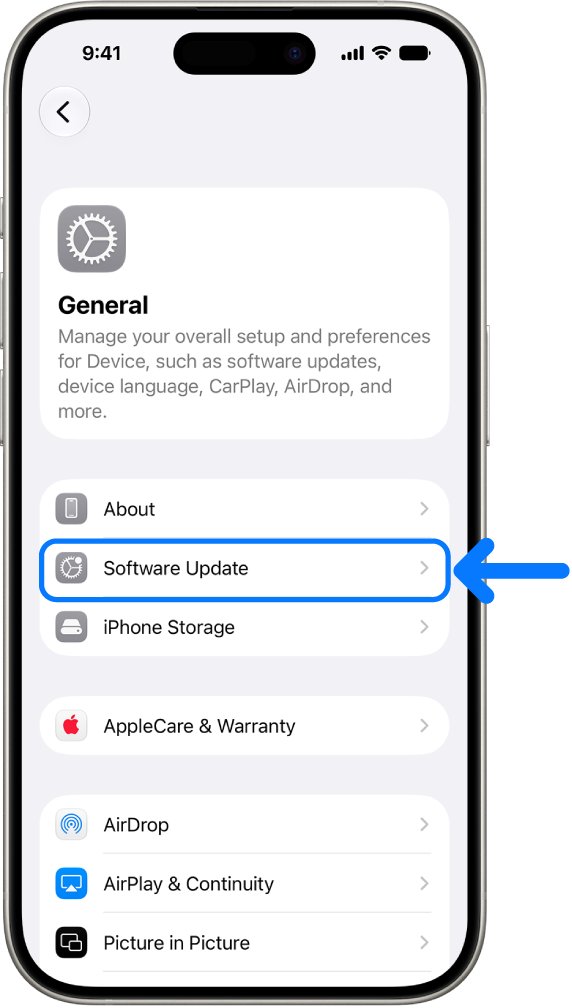
- Go to Settings > General > Software Update and install the latest iOS version.
- Try to set up or use Face ID again.
- If Face ID still fails, book service with Apple or a technician who uses genuine Apple parts.
You think someone else set up or controls your iPhone
A configuration profile or device management tool can give an organisation or another person access to data on the phone.
- Go to Settings > General > VPN & Device Management.
- If no profiles are listed, none are installed. Otherwise, select the profile you do not recognise.
- Tap Delete Profile and follow the onscreen instructions.
- Restart the iPhone.
On a work or school iPhone, check with the administrator before deleting a profile, because removing it also removes the settings and access it provides.
Is the iPhone Face ID light safe for your eyes?
Yes, under normal use. Apple says the TrueDepth camera system meets international safety standards and will not harm eyes or skin because of its low output. That protection depends on intact hardware. Apple disables the laser system if the device is damaged or malfunctions, and warns that repairs with non-genuine parts can stop the safety mechanisms from working and cause injury to eyes or skin.
If an iPhone shows a Face ID warning after damage or a repair, update iOS first, then have a trained technician check the TrueDepth camera.
Which iPhone models have Face ID and a TrueDepth camera?
Only iPhone models with Face ID have a TrueDepth camera, so only these models show the faint infrared glow. iPhone SE models use Touch ID in the Home button instead.
| iPhone series | Models with Face ID |
|---|---|
| iPhone X family | iPhone X, iPhone XS, iPhone XS Max, iPhone XR |
| iPhone 11 | iPhone 11, iPhone 11 Pro, iPhone 11 Pro Max |
| iPhone 12 | iPhone 12 mini, iPhone 12, iPhone 12 Pro, iPhone 12 Pro Max |
| iPhone 13 | iPhone 13 mini, iPhone 13, iPhone 13 Pro, iPhone 13 Pro Max |
| iPhone 14 | iPhone 14, iPhone 14 Plus, iPhone 14 Pro, iPhone 14 Pro Max |
| iPhone 15 | iPhone 15, iPhone 15 Plus, iPhone 15 Pro, iPhone 15 Pro Max |
| iPhone 16 | iPhone 16e, iPhone 16, iPhone 16 Plus, iPhone 16 Pro, iPhone 16 Pro Max |
| iPhone 17 | iPhone 17e, iPhone 17, iPhone Air, iPhone 17 Pro, iPhone 17 Pro Max |
| iPhone 18 | iPhone 18 Pro, iPhone 18 Pro Max |
iPhone front camera red light FAQ
What does the red blinking light near the iPhone front camera mean?
It means the TrueDepth camera is scanning with infrared light for Face ID or an attention check. Apple says a faint light from the TrueDepth camera is expected in very dark rooms, so the blink is normal behaviour, not a fault or a recording light.
Why is the red light blinking on my iPhone only in the dark?
Apple says people notice a faint light from the TrueDepth camera when the phone is viewed in a very dark room, and that this is expected in extremely dark settings. In a lit room the same glow is easy to miss.
Is a small blinking red light on my iPhone a sign of hacking?
No. The red glow is the TrueDepth camera. When any app uses the camera, iOS shows a green dot in the status bar, and Control Center names the app. Check for that green dot rather than the red light.
Why do iPhone lights flash red in photos or videos of the phone?
Many camera sensors pick up infrared light that your eyes cannot see. Apple says that when the iPhone is viewed through certain types of cameras, you might notice light output from the TrueDepth camera, and that this is expected.
Why is my iPhone light blinking when I pick it up?
Raise to Wake turns the screen on when you lift the phone, and the TrueDepth camera then looks for your face to unlock it. Turn off Raise to Wake in Settings > Display & Brightness if you want fewer scans.
Does an iPhone have a camera recording light?
Not a physical one. iOS shows camera use on the screen: a green dot when an app uses the camera, and an orange dot when an app uses only the microphone. Control Center also lists the app that used either one recently.
Can I turn off the red light on my iPhone camera completely?
You can reduce it, not remove it entirely while Face ID is in use. Turn off Attention Aware Features and Raise to Wake. Turning off iPhone Unlock or resetting Face ID removes unlock scans, but attention features can still use the camera unless they are off too.
Does the iPhone Face ID light work in total darkness?
Yes. Face ID is designed to work indoors, outdoors and in total darkness, because the TrueDepth camera uses its own infrared light instead of room light. That same infrared light is what shows as a faint glow in a dark room.