Windows 11 and Windows 10 update trusted root certificates automatically: the CTL Updater downloads Microsoft's trusted and untrusted certificate lists from Windows Update, and you can update them manually with certutil -generateSSTFromWU and Import-Certificate.
This guide covers both methods, how to turn automatic root certificate updates off or on, offline networks with Group Policy and Active Directory, and what still works on Windows 7 and Windows XP.
How to manually update root certificates on Windows 11 or 10
This pulls the current list of third-party root certificates from Windows Update and installs all of them into the local computer's Trusted Root Certification Authorities store. You need an administrator account and internet access.
- Open PowerShell as an administrator.
- Run
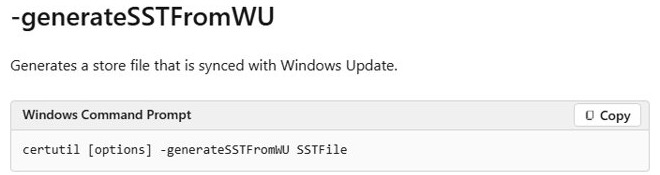
certutil -generateSSTFromWU C:\roots.sstto download the current root certificates from Windows Update into one serialized certificate store file. - Run
Import-Certificate -FilePath C:\roots.sst -CertStoreLocation Cert:\LocalMachine\Rootto import every certificate in the file into the local machine root store. - Press Windows key + R, type
certlm.mscand press Enter. - Expand Trusted Root Certification Authorities and select Certificates to see the imported roots.
Import-Certificate needs the .sst format to import several certificates at once; from a .cer or .p7b file it imports only the first certificate.
Managing trusted root certificates in Windows 10 and 11
The Trusted Root Certification Authorities store holds the root certificates of every CA that Windows trusts. By default it carries the public CAs that meet the requirements of the Microsoft Root Certificate Program.
| Tool or location | What it manages |
|---|---|
certlm.msc |
Certificate stores for the local computer, shared by every user on the device |
certmgr.msc |
Certificate stores for the signed-in user only |
| MMC with the Certificates snap-in | Local computer, current user or service account stores, with view, import, export and delete |
Store name root / Cert:\LocalMachine\Root |
The Trusted Root Certification Authorities store, as certutil and PowerShell name it |
| CTL Updater | Downloads the trusted and untrusted certificate trust lists from ctldl.windowsupdate.com |
HKLM\SOFTWARE\Microsoft\SystemCertificates\AuthRoot\AutoUpdate |
Registry cache for the trusted CTL (EncodedCtl) and untrusted CTL (DisallowedCertEncodedCtl) |
| Group Policy: Public Key Policies | Pushes chosen root certificates to every computer in a domain or OU |
Adding or removing roots needs administrator rights, and a wrong change can break secure sites or trust a bad CA. The Certificate Manager console and the certutil command-line tool handle every other store as well.
How to disable or enable automatic root certificate updates in Windows
Microsoft does not recommend turning automatic updates off. Without them, apps and websites can stop working because they never receive a new root certificate, and the list of untrusted certificates stops updating.
| Goal | Where | Setting |
|---|---|---|
| Turn off all automatic root certificate updates | Group Policy: Computer Configuration > Administrative Templates > System > Internet Communication Management > Internet Communication settings | Turn off Automatic Root Certificates Update set to Enabled |
| Turn automatic updates back on | Same Group Policy setting | Set Turn off Automatic Root Certificates Update to Not Configured or Disabled |
| Stop trusted CTL updates but keep untrusted ones | HKLM\SOFTWARE\Policies\Microsoft\SystemCertificates\AuthRoot |
DisableRootAutoUpdate (REG_DWORD) = 1 and EnableDisallowedCertAutoUpdate (REG_DWORD) = 1 |
| Turn trusted CTL updates back on | Same registry key | DisableRootAutoUpdate = 0 |
| Default behavior | No values under that key | Trusted and untrusted CTL updates are both on |
To set the registry value from an elevated prompt, run reg add "HKLM\SOFTWARE\Policies\Microsoft\SystemCertificates\AuthRoot" /v DisableRootAutoUpdate /t REG_DWORD /d 1 /f.
Microsoft recommends disabling trusted CTL updates only when you manage your own root list, and keeping untrusted CTL updates on. Turning updates off means every client and server must be updated by hand when a new root rolls out.
Certificate trust list (STL) in Windows
Windows keeps trusted and untrusted root certificates in certificate trust lists (CTLs), downloaded as CAB files whose names end in stl.cab. Untrusted roots are certificates publicly known to be fraudulent.
| File | What it contains |
|---|---|
authrootstl.cab |
The trusted CTL of non-Microsoft root certificates |
disallowedcertstl.cab |
The untrusted CTL of certificates Windows must refuse |
disallowedcert.sst |
A serialized certificate store with the untrusted certificates themselves |
<thumbprint>.crt |
One file per non-Microsoft root certificate, named by its thumbprint |
The CTL Updater fetches the two lists from http://ctldl.windowsupdate.com/msdownload/update/v3/static/trustedr/en/authrootstl.cab and http://ctldl.windowsupdate.com/msdownload/update/v3/static/trustedr/en/disallowedcertstl.cab. Computers that reach Windows Update can receive updated CTLs daily.
To read the cached lists on a PC, run certutil -verifyCTL AuthRoot for the trusted CTL and certutil -verifyCTL Disallowed for the untrusted one.
Update root certificates automatically via GPO in an isolated environment
In a disconnected network, one server downloads the CTL files and a GPO points domain computers at it instead of ctldl.windowsupdate.com. The download server needs HTTP on TCP port 80 and DNS on port 53, and the files take about 1.5 MB.
- Create a shared folder on a file or web server, for example
\\Server1\CTL. - From an elevated PowerShell prompt on a computer with internet access, run
Certutil -syncWithWU \\Server1\CTL. - On a domain controller, save the RootDirURL.adm template shown in the next section, ideally in
%windir%\inf. - Run
GPMC.msc, then right-click the domain or OU and select Create a GPO in this domain, and Link it here. - Edit the GPO. Under Computer Configuration > Policies, right-click Administrative Templates, select Add/Remove Templates > Add, pick RootDirURL.adm, then Open and Close.
- Expand Classic Administrative Templates (ADM) > Windows AutoUpdate Settings and double-click URL address to be used instead of default ctldl.windowsupdate.com.
- Select Enabled, enter
http://server1/CTLorfile://\\server1\CTL, then select OK. - Restart the client computers or run
gpupdate /forceon them. - Schedule a daily task that reruns
Certutil -syncWithWUso the share keeps up with Windows Update.
Settings from these ADM templates stay in the client registry after you unlink or delete the GPO. Reverse them in the GPO or in the registry to undo them.
RootDirURL ADM template for a local CTL server
CLASS MACHINE
CATEGORY !!SystemCertificates
    KEYNAME "Software\Microsoft\SystemCertificates\AuthRoot\AutoUpdate"
    POLICY !!RootDirURL
       EXPLAIN !!RootDirURL_help
       PART !!RootDirURL EDITTEXT
             VALUENAME "RootDirURL"
       END PART
    END POLICY
END CATEGORY
[strings]
RootDirURL="URL address to be used instead of default ctldl.windowsupdate.com"
RootDirURL_help="Enter a FILE or HTTP URL to use as the download location of the CTL files."
SystemCertificates="Windows AutoUpdate Settings"
Paste this into Notepad and save it as RootDirURL.adm, with the .adm extension and not .txt. The policy writes the RootDirUrl string value under HKLM\SOFTWARE\Microsoft\SystemCertificates\AuthRoot\AutoUpdate; without that value, Windows uses Windows Update.
You should see: Windows AutoUpdate Settings appears under Classic Administrative Templates (ADM) in the Group Policy Management Editor.
Publishing offline root certificates in Active Directory
To trust only part of the Microsoft root list, build a subset on a connected PC and push it to domain computers through Group Policy.
- On a computer with internet access, open an elevated prompt and run
Certutil -generateSSTFromWU WURoots.sst. - Run
start explorer.exe wuroots.sstto open the file in Certificate Manager, then expand it until you reach Certificates. - Hold Ctrl, select each root you want to allow (at least two), right-click one, and select All Tasks > Export.
- In the Certificate Export Wizard, choose Microsoft Serialized Certificate Store (.SST) and save the file, for example as
C:\AllowedCerts.sst. - Copy the file to a domain controller and open the Group Policy Management Editor for the GPO you use, such as Default Domain Policy.
- Go to Computer Configuration > Policies > Windows Settings > Security Settings > Public Key Policies.
- Right-click Trusted Root Certification Authorities, select Import, and follow the Certificate Import Wizard with your .sst file.
- Restart the clients or run
gpupdate /force.
Microsoft advises turning off the trusted CTL update when you manage your own root list, so pair this GPO with the DisableRootAutoUpdate setting above.
For the root certificate of your own offline CA, publish it to the Active Directory Trusted Root store with certutil -dspublish -f RootCA.crt RootCA, using your CA's certificate file name.
How to see when Windows last updated root certificates
certutil -verifyctl AuthRoot | findstr /i "lastsynctime"
certutil -verifyctl Disallowed | findstr /i "lastsynctime"
The first line reads the cached trusted CTL and the second the untrusted CTL, each filtered to its last sync time.
You should see: a LastSyncTime line with a recent date for each list. An old date on a connected PC can point to a policy or registry setting that turned the updater off.
How to update trusted root certificates in Windows 7
Windows 7 support ended on January 14, 2020, so treat this as a stopgap. Update KB2813430 adds the certutil sync options and the RootDirURL setting to Windows 7, so a domain-joined Windows 7 PC can also use the GPO method above.
- Install Service Pack 1 and update KB2813430 on the Windows 7 PC if they are missing, then restart it.
- On a computer with internet access, run
certutil -generateSSTFromWU C:\roots.sstfrom an elevated prompt. - Copy
roots.sstto the Windows 7 PC. - Sign in as an administrator, open the Start menu, type
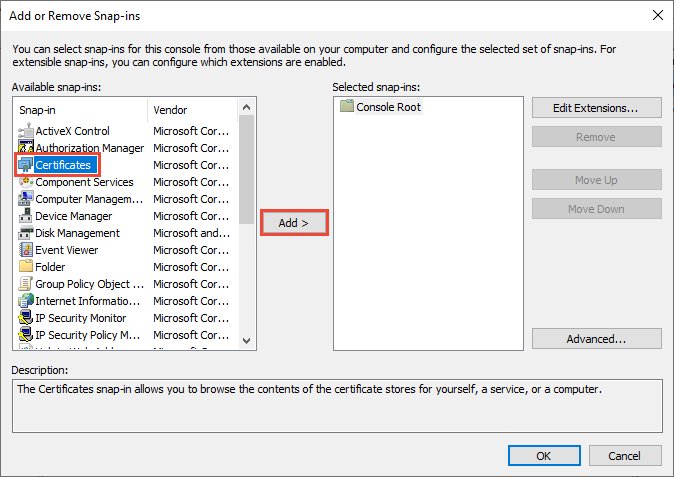
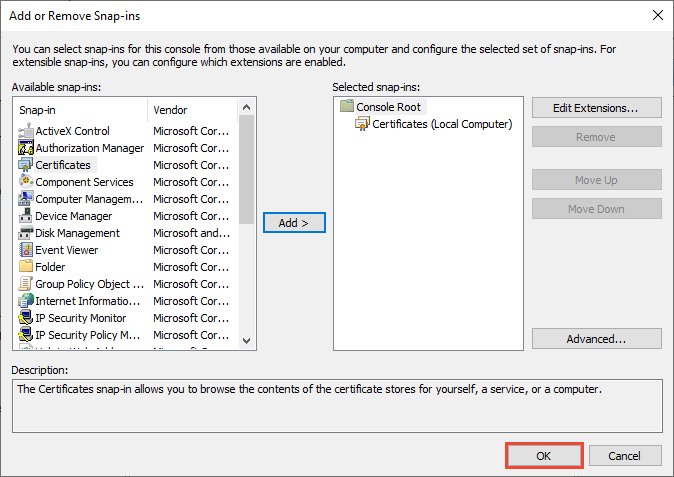
mmcand run it. - Select File > Add/Remove Snap-in, choose Certificates, select Add, then Computer account > Next > Local Computer > Finish > OK.
- Expand Certificates (Local Computer) > Trusted Root Certification Authorities > Certificates, right-click, and select All Tasks > Import….
- Pick
roots.sst, keep Place all certificates in the following store set to Trusted Root Certification Authorities, and finish the wizard.
Older Windows clients poll for root certificate updates about once a week. Microsoft's urgent Trusted Root update for Windows 7 SP1 lets them receive urgent root updates within 24 hours.
Updating root certificates on Windows XP using the Rootsupd.exe
Rootsupd.exe is the root certificate update package that older guides use on Windows XP. Microsoft's current root certificate guidance covers Windows 10, Windows 11 and Windows Server 2016 and later, and Windows XP has received no updates since April 8, 2014.
| Windows XP situation | What to do | Why |
|---|---|---|
| XP PC that still goes online | Move the work to Windows 11 or a supported Windows Server | XP gets no security updates, so current roots do not make it safe |
| Offline XP machine that must trust one specific root | Export that root as a .cer file from a current PC's Trusted Root Certification Authorities store, then import it into the XP machine's Trusted Root Certification Authorities store | A single known certificate is easier to check than a whole bundle |
| A rootsupd.exe copy from a download site | Do not run it | An executable from outside Microsoft that installs root certificates can make Windows trust any CA it adds |
Trusted root certificates in Windows FAQ
Does Windows update root certificates automatically?
Yes. The CTL Updater in Windows 11 and Windows 10 downloads the trusted and untrusted certificate trust lists from Windows Update and refreshes the local cache when a new version appears. It stays on unless a Group Policy or registry setting turns it off.
How often does Windows update root certificates?
Computers that can reach Windows Update can receive updated CTLs daily. Older clients such as Windows 7 SP1 polled about once a week, and Microsoft's urgent Trusted Root update let them receive urgent root changes within 24 hours.
Where are trusted root certificates stored in Windows?
They live in the Trusted Root Certification Authorities store, named root, which you open with certlm.msc for the computer or certmgr.msc for your account. The downloaded trust lists are cached under HKLM\SOFTWARE\Microsoft\SystemCertificates\AuthRoot\AutoUpdate.
Is it safe to turn off automatic root certificate updates?
Microsoft does not recommend it. Apps and websites can fail when a new root never arrives, and the untrusted certificate list goes stale. If you manage your own root list, turn off only the trusted CTL update and keep the untrusted one on.
What is authrootstl.cab?
Authrootstl.cab is the file that carries the trusted certificate trust list of non-Microsoft root certificates. Windows downloads it from ctldl.windowsupdate.com, alongside disallowedcertstl.cab for untrusted certificates, and certutil -syncWithWU copies both to a folder you choose.
What does certutil -generateSSTFromWU do?
It creates a serialized certificate store (.sst) file with the third-party root certificates currently published on Windows Update. Open it in Certificate Manager to pick a subset, or import it with Import-Certificate or a Group Policy Object.
Do you need WSUS to distribute root certificates?
No. Root certificate distribution works independently of Windows Server Update Services. In an offline network, a file or web server synced with certutil -syncWithWU and a GPO that sets RootDirURL deliver the trust lists instead.
Can you still update root certificates on Windows 7?
Yes, with Service Pack 1 and KB2813430 installed, by importing an .sst file built with certutil into the computer's Trusted Root Certification Authorities store. Windows 7 support ended on January 14, 2020, so the PC still lacks security fixes.