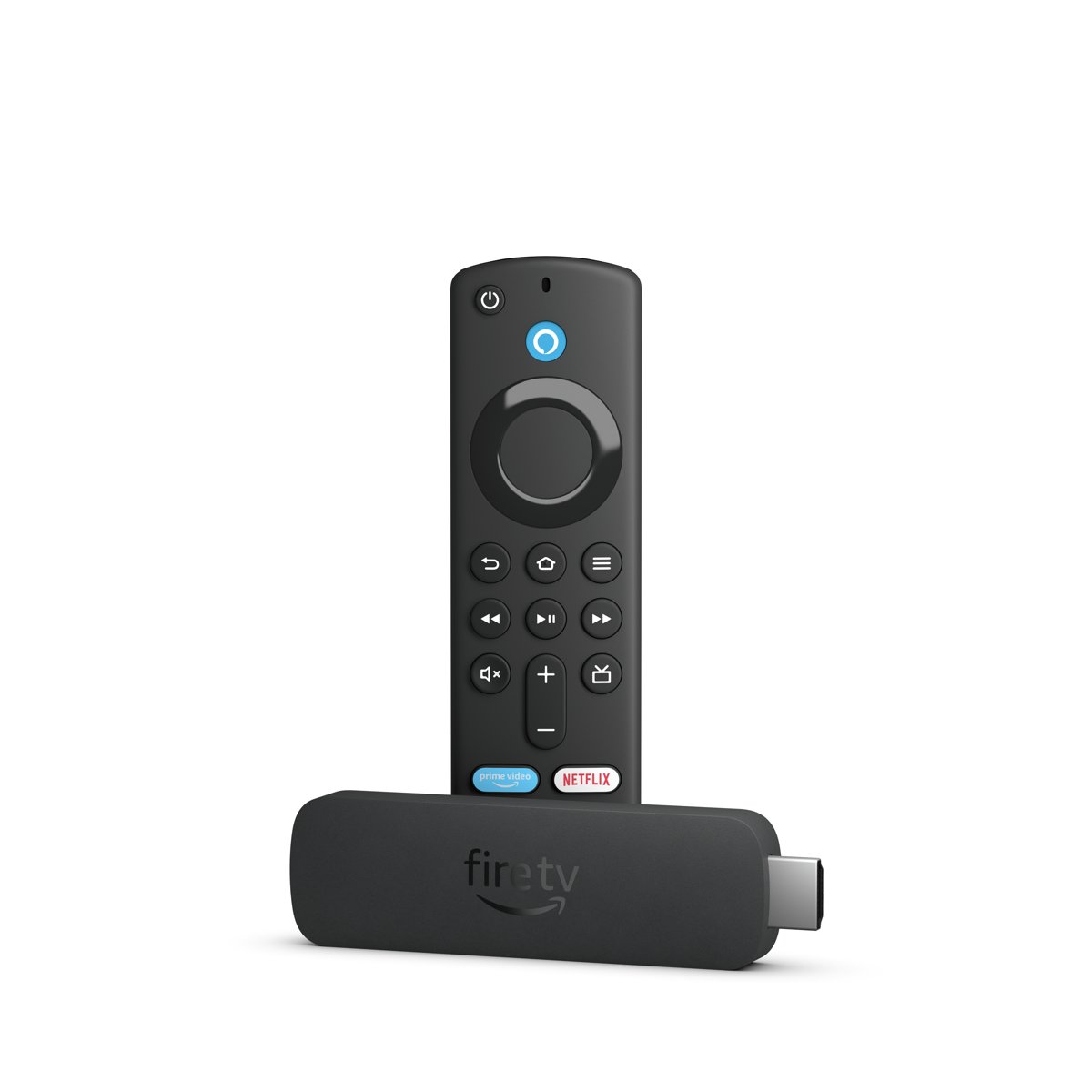
A Firestick (Amazon Fire TV Stick) is a small streaming computer that plugs into a TV's HDMI port, connects to the internet over Wi-Fi, runs apps such as Netflix, Prime Video and YouTube, and sends their picture and sound to the TV.
This guide explains each part, compares the current Fire TV Stick models and rival streamers, and covers setup, costs, screens it works on and fixes when the stick or its remote stops working.
What is a Firestick and how does it work?
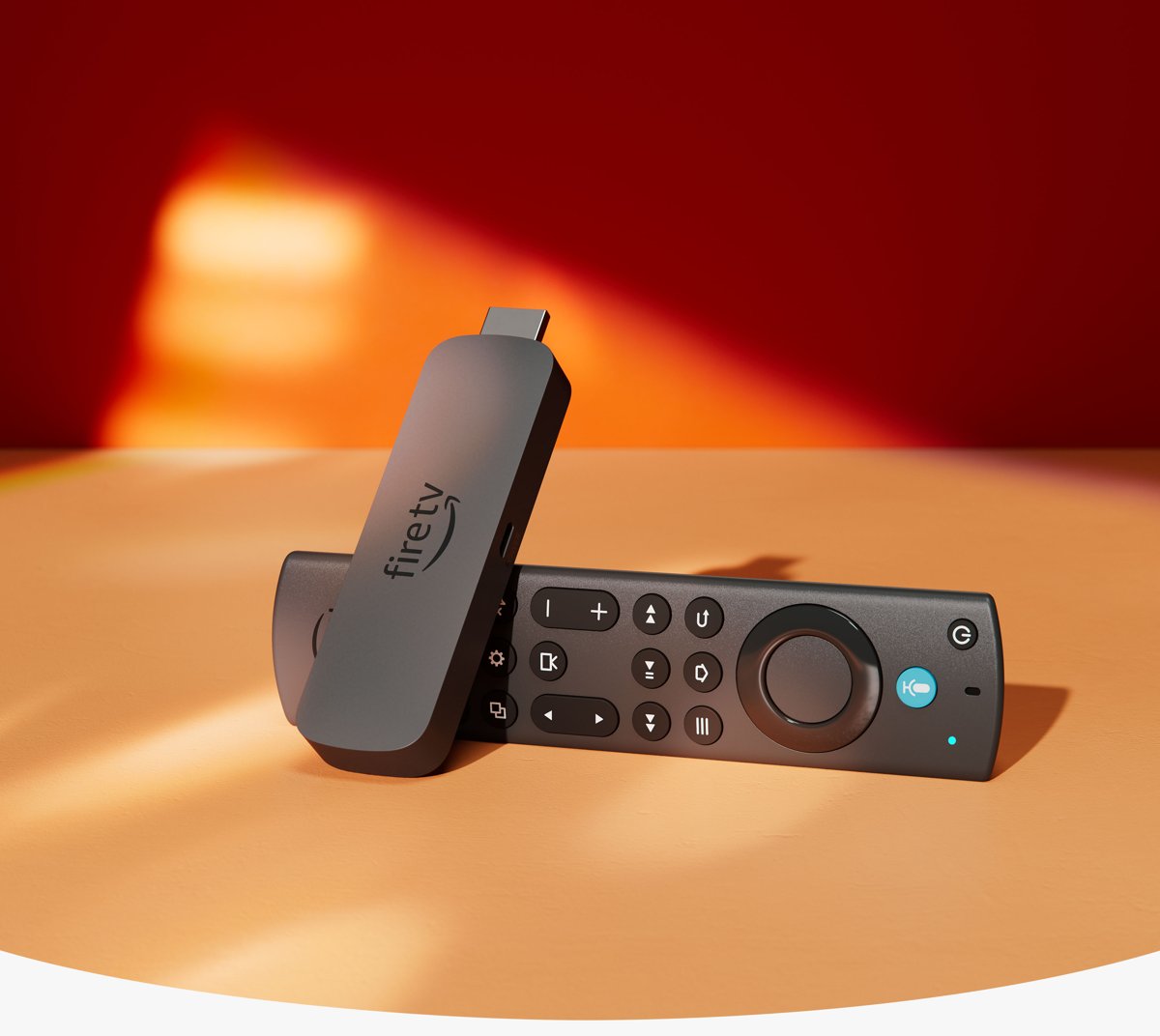
Three parts work together: the stick, the remote and your Amazon account with its apps. The TV only displays what the stick sends it over HDMI, so the TV does not need to be a smart TV.
| Part | What it does | What it needs from you |
|---|---|---|
| The stick | A small computer running Fire OS or Vega OS that streams video and audio from the internet and outputs it through the TV's HDMI port | A free HDMI input on the TV, power from the adapter in the box, and Wi-Fi |
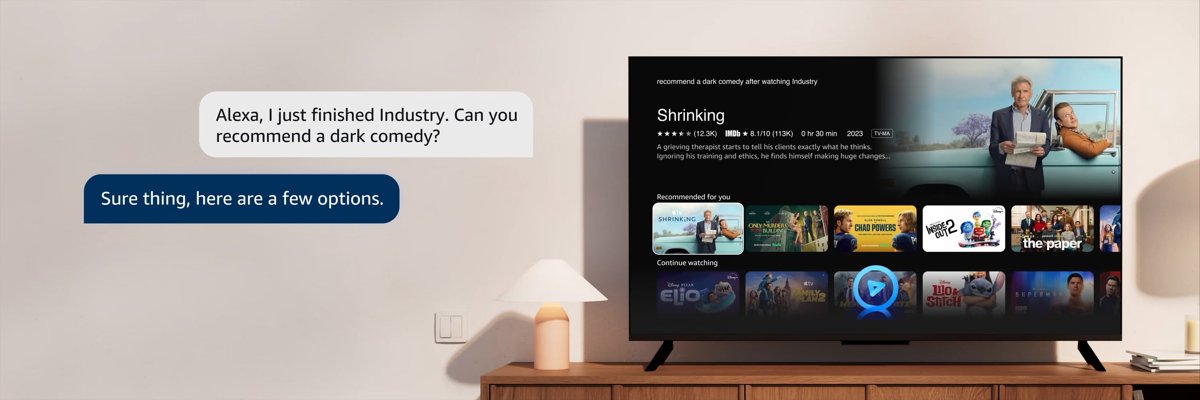
| The remote | Pairs with the stick to move through menus, and lets you press the voice button and speak to search or ask Alexa; most remotes also control the TV's power and volume | Two AAA batteries; the free Fire TV app on Android or iOS can stand in for it |
| Account and apps | Your Amazon account links the stick to Prime Video, the Amazon Appstore and Alexa; each streaming app signs in to its own service | An Amazon account, plus a subscription for paid services such as Netflix or Disney+ |
When you pick a show, the app streams it from the service's servers over your internet connection, and the stick decodes it and plays it on the TV in up to 1080p or 4K, depending on the model and the TV.
Which Fire TV Stick model is right for you?
Amazon's current sticks differ in resolution, HDR formats, Wi-Fi and the software they run. Models on Vega OS run apps built for Vega, so check the Works With section on an app's Appstore page before you buy for one app.
| Model | Picture and sound | Wi-Fi and storage | Software | Pick it if |
|---|---|---|---|---|
| Fire TV Stick HD (2026) | 1080p Full HD; HDR10, HDR10+, HLG; Dolby audio pass-through | Wi-Fi 6; 8 GB | Vega OS | Your TV is 1080p or 720p, so 4K would go unused |
| Fire TV Stick 4K Select (2025) | 4K; HDR10, HDR10+, HLG; Dolby/DTS pass-through | Wi-Fi 5; 8 GB | Vega OS | You want 4K on an older Wi-Fi 5 router |
| Fire TV Stick 4K (3rd Gen, 2026) | 4K; HDR10, HDR10+, HLG; Dolby pass-through | Wi-Fi 6; 8 GB | Vega OS | You want 4K and a stick that runs from the TV's USB port with no wall adapter |
| Fire TV Stick 4K Plus (2025) | 4K; Dolby Vision, HDR10, HDR10+, HLG; Dolby Atmos | Wi-Fi 6; 8 GB | Fire OS 8 (Android 11 based) | Your TV supports Dolby Vision and you want the Android-based Fire OS |
| Fire TV Stick 4K Max (2nd Gen, 2023) | 4K; Dolby Vision, HDR10, HDR10+, HLG; Dolby Atmos | Wi-Fi 6E; 16 GB | Fire OS 8 (Android 11 based) | You want the most storage, Wi-Fi 6E and the Alexa Voice Remote Enhanced with TV and channel buttons |
Fire TV Cube (3rd Gen) is the box alternative: it adds an Ethernet port, 16 GB of storage and eight far-field microphones for hands-free Alexa. A 4K stick still plays in HD on a 1080p TV, but 4K needs an Ultra HD TV with HDCP 2.2.
How to set up and use a Firestick
- Plug the Firestick into an HDMI port on the TV; use the HDMI extender cable if one came in the box and the port is cramped.
- Connect the power cable to the stick, then plug it into the power adapter and a wall outlet. The Fire TV Stick 4K (3rd Gen) plugs into the TV's USB port instead.
- Turn on the TV and switch its input to the HDMI port the stick is in.
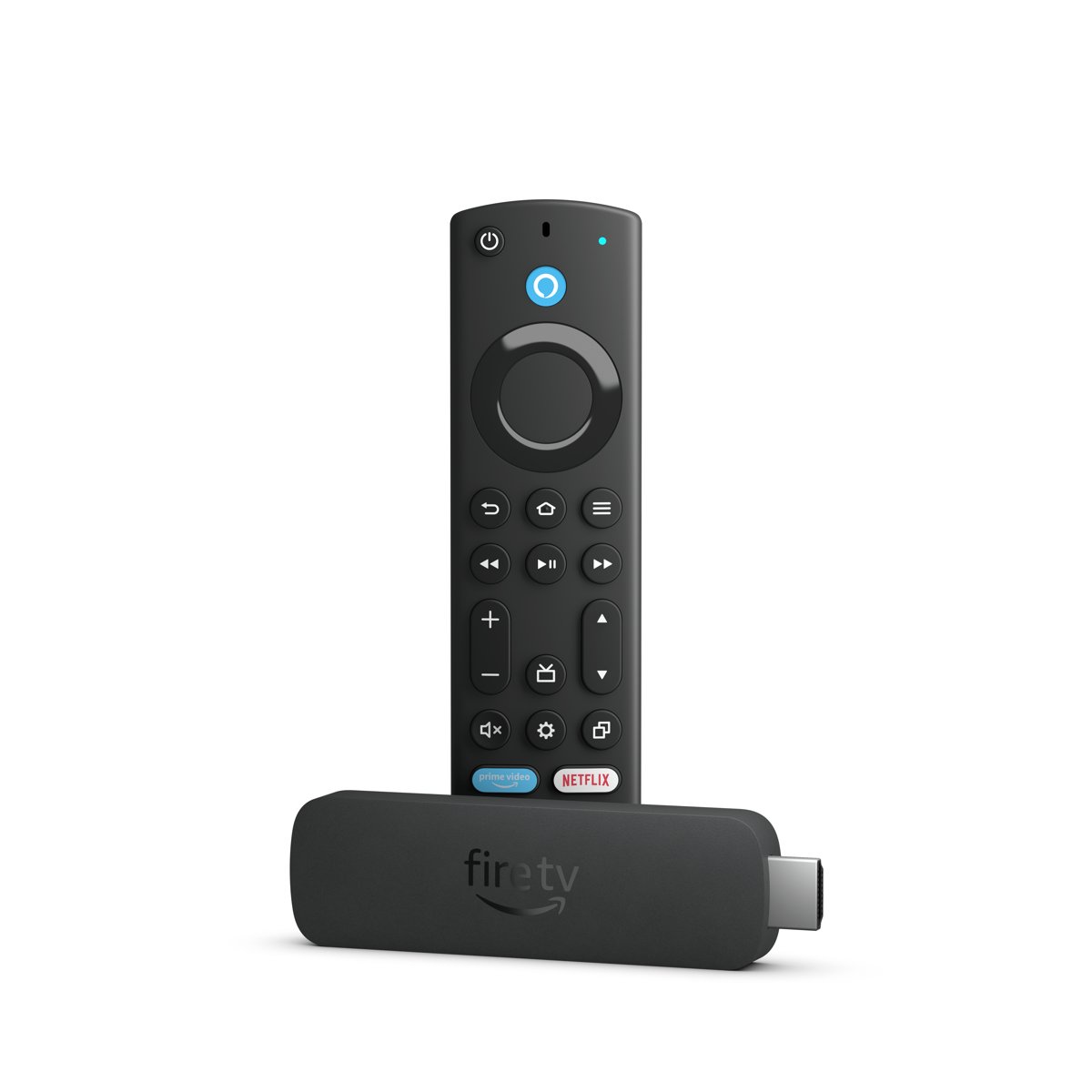
- Insert the batteries in the remote; it pairs automatically, and a confirmation appears in the lower-right corner of the screen.
- Pick your Wi-Fi network and enter its password when the setup screens ask.
- Sign in with your Amazon account when the setup screens ask.
- Download the apps you use, such as Netflix or YouTube, and sign in to each one to start streaming.
If the remote does not pair, keep it within 10 feet (3 m) of the stick and hold Home for about 10 seconds until the on-screen prompt appears. After setup, the Home screen lists your apps; press the voice button on the remote and say a title to search every app at once.
How does Firestick work without cable?
A Firestick replaces the cable box with apps that stream over the internet, so no cable or satellite subscription is needed. What you pay depends on which apps you use.
| What you want to watch | Where it comes from on a Firestick | Cost |
|---|---|---|
| Free movies and shows | Free apps such as Pluto TV and YouTube, plus free titles in Prime Video | No subscription |
| Live TV, news and sports | Live channels from installed apps, shown in the Live tab, the On Now row and the Channel Guide | Free or paid, depending on the app |
| Netflix, Disney+, HBO Max, Peacock and other services | Each service's own app, signed in with your account | That service's subscription |
| Movies and shows bought from Amazon | Prime Video, with free cloud storage for Amazon purchases | Pay per title |
| Music | Amazon Music, Spotify and other music apps | Varies by service |
| Games | Amazon Luna, the Xbox app with Xbox Game Pass, and NVIDIA GeForce NOW on supported models | Prime or a game subscription; Fortnite is free in the Xbox app |
Do I have to pay a monthly fee for a Firestick?
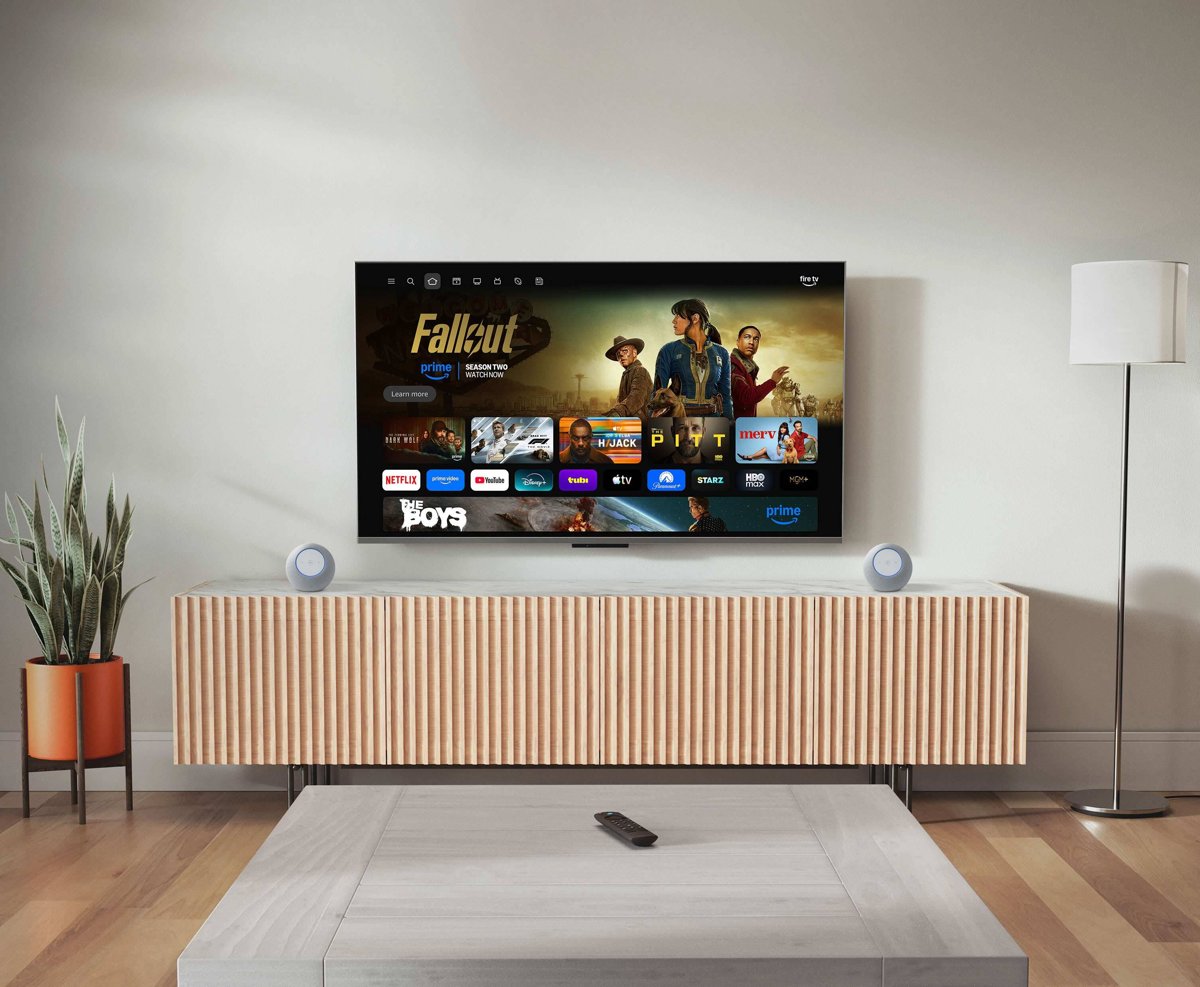
No Fire TV plan is required: you buy the stick once and can watch free apps such as Pluto TV, YouTube and free Prime Video titles without paying anything more. Monthly costs come only from the services you add. Netflix, Disney+ and other paid apps bill separately, a Prime membership unlocks Prime Video's included catalogue and full Alexa+, and Xbox Game Pass needs its own subscription and a compatible controller. A focused Alexa+ experience is included with the stick; full Alexa+ needs Prime or the Alexa+ Standard plan and a US-based Amazon account.
Does Firestick work on a smart TV, monitor or laptop?
Any screen with a high-speed HDMI input and HDCP support for protected video can show a Firestick. The brand does not matter.
| Your screen | Works with a Firestick? | What to check |
|---|---|---|
| Smart TV of any brand, including Sanyo, TCL or Samsung | Yes | A free HDMI input; the Fire TV home screen appears when you switch to that input |
| Non-smart HDTV | Yes | HDMI that handles 1080p or 720p at 50/60 Hz |
| 4K Ultra HD TV | Yes, in 4K with a 4K stick | HDMI with HDCP 2.2 and 2160p at 24-60 Hz |
| Computer monitor | Yes, if it has an HDMI input with HDCP | Sound plays through the monitor's speakers if it has them, or through Bluetooth headphones or speakers paired to the stick |
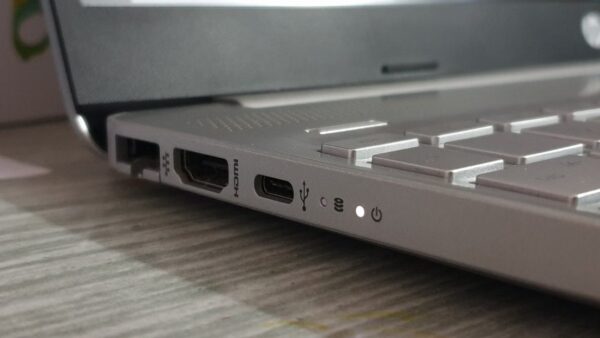
| Laptop | No, on almost every laptop | A laptop's HDMI port sends video out and cannot take a picture in from the stick |
| TV without HDMI | No | The stick outputs only HDMI |
How does Firestick work with internet?
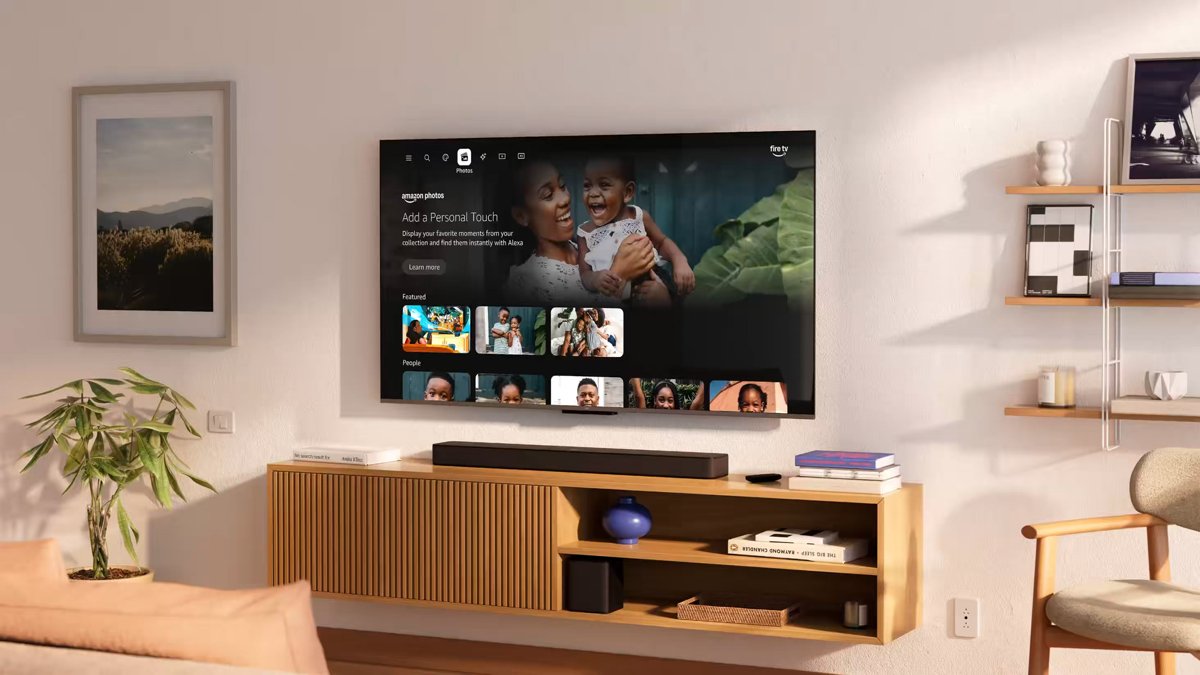
The stick needs a high-speed internet connection for everything it streams, and it gets it over Wi-Fi unless you add a wired adapter.
- Press Home on the remote and open Settings.
- Select Network.
- Select your Wi-Fi network from the list and enter its password.
- Wait for the network to show as connected, then press Home and open an app to test streaming.
- To see the stick's IP address, go to Settings > My Fire TV (or Device) > About > Network.
The Fire TV Stick 4K Max needs a Wi-Fi 6E router to use Wi-Fi 6E, though it works with older routers too. For a wired connection, the Amazon Ethernet Adapter for Fire TV devices is sold separately; Fire TV Cube has an Ethernet port built in.
How the Firestick compares to other streaming devices
| Device | Software and voice assistant | How it differs from a Firestick |
|---|---|---|
| Fire TV Stick | Fire OS or Vega OS with Alexa | Plugs straight into HDMI; Amazon Appstore apps, Prime Video and Alexa smart-home control on the TV |
| Roku players | Roku OS | Roku's own software, with The Roku Channel for free, live and premium TV |
| Google TV Streamer (4K) | Google TV with Gemini | A box at $149.99 with 32 GB of storage, an Ethernet port, casting from phones and laptops, and a Google Home and Matter hub with Thread |
| Apple TV 4K | tvOS with Siri | A box that needs an HDMI cable (sold separately), with Dolby Vision, HDR10+, Dolby Atmos and Siri voice control |
| Smart TV with Fire TV built in | Fire TV software inside the TV | No stick or spare HDMI port needed; the TV maker builds Fire TV into the set |
A Firestick suits homes that already use Prime Video or Alexa, while an iPhone household gets more from Apple TV 4K and a Google Home user from Google TV Streamer. Every one of them still needs a TV with an HDMI input and an internet connection.
Tips to get the most out of your Firestick
| Tip | Where to set it |
|---|---|
| Control the TV's power and volume with the Firestick remote | Settings > Equipment Control > Manage Equipment > TV, then check the TV brand under Change TV |
| Add a spare or replacement remote | Settings > Controllers & Bluetooth Devices > Amazon Fire TV Remotes > Add New Remote |
| Pair Bluetooth headphones, speakers or a game controller | Settings > Controllers & Bluetooth Devices |
| Use your phone as a remote | Install the free Fire TV app on Android or iOS |
| Lock purchases and mature content behind a PIN | Settings > Preferences > Parental Controls |
| Search every app at once | Press the voice button on the remote and say the title, actor or genre |
| Check that an app runs on your model before you buy | The Works With section on the app's Amazon Appstore page |
| Get steadier 4K streaming | Use a Wi-Fi 6 or 6E router near the TV, or the Amazon Ethernet Adapter |
If you forget the parental controls PIN, reset the Fire TV PIN before you try to turn the controls off. The equipment control steps do not apply to Fire TV smart TVs.
Why is my Firestick remote not working?
Firestick remote not pairing
The remote is out of range, its batteries are weak, or seven controllers are already paired.
- Move within 10 feet (3 m) of the Fire TV device.
- Press and hold Home for about 10 seconds, until the on-screen prompt appears.
- Remove the batteries for 30 seconds, put them back, and hold Home again.
- Try a new pair of alkaline batteries.
- If seven controllers are paired, remove one before pairing the remote.
Firestick remote stopped working
The remote has lost its link to the stick and needs a reset.
- Unplug the Fire TV from power and HDMI, then wait 60 seconds.
- Press and hold Left, Menu and Back together for 12 seconds.
- Release the buttons, wait five seconds, and remove the remote's batteries.
- Plug the Fire TV back in and wait for the remote detection message on screen.
- Put the batteries back and press Home; hold it for 10 seconds if the remote does not pair.
Volume, power or mute buttons not working on the Firestick remote
The remote is set up for the wrong TV brand.
- Go to Settings > Equipment Control > Manage Equipment > TV.
- Check that the brand under Change TV matches your TV.
- If it does not, select Change TV and follow the on-screen instructions.
The Basic Edition Remote and the first Alexa Voice Remote use different button sequences, so reset the Fire TV remote with the steps for your model. Until it works, the free Fire TV app on your phone can control the stick.
Firestick still not working? Quick troubleshooting
Firestick not working on TV (no signal or black screen)
The TV is on the wrong input, or the stick is not getting enough power.
- Switch the TV's input to the HDMI port the stick is plugged into.
- Power the stick from the adapter in the box and a wall outlet, not a TV USB port, unless it is the Fire TV Stick 4K (3rd Gen).
- Try another HDMI port, or connect through the HDMI extender if one came with the stick.
- Unplug the stick, wait five seconds, and plug it back in.
Firestick not connecting to Wi-Fi
The stick has lost the network, or the router needs a restart.
- Go to Settings > Network and select your Wi-Fi network again.
- Re-enter the Wi-Fi password if the stick asks for it.
- Restart your router, then restart the Firestick.
- For a weak signal, move the router closer or add the Amazon Ethernet Adapter.
Firestick stopped working or an app freezes
The system or an app has hung, or the app is not built for your model.
- Go to Settings > My Fire TV (Device or System on some models) > Restart.
- If the menu will not open, unplug the stick from power, wait five seconds, and plug it back in.
- Open the app again; on Vega OS sticks, check the app's Works With section in the Appstore.
- Uninstall and reinstall an app that keeps freezing from Settings > Applications > Manage Installed Applications.
Firestick FAQ
How does Amazon Firestick work, in simple terms?
The Firestick is a tiny computer for your TV. It plugs into an HDMI port, joins your Wi-Fi, and runs streaming apps; you pick a show with the remote or your voice, and the stick plays it on the TV screen.
What is the use of a Firestick?
A Firestick turns any TV with an HDMI input into a smart TV. It streams Netflix, Prime Video, YouTube, live TV and music, plays cloud games through Amazon Luna and Xbox Game Pass, and lets Alexa show camera feeds and control smart home devices on the TV.
Do I need a smart TV to use a Firestick?
No. Any HDTV with a high-speed HDMI input works, because the Firestick runs the apps itself and the TV only displays the picture. A smart TV works too; you switch to the stick's HDMI input to use Fire TV.
Does a Firestick need Wi-Fi to work?
Yes. Amazon lists a high-speed internet connection over Wi-Fi as a requirement, because every app streams from the internet. A wired connection is possible with the Amazon Ethernet Adapter, sold separately.
Does Firestick work on a laptop?
No, not on almost every laptop. A laptop's HDMI port is an output that sends the laptop's picture to another screen; it cannot accept the stick's picture. Use a TV or a monitor with an HDMI input instead.
Can a Firestick work on a monitor?
Yes, if the monitor has an HDMI input that supports HDCP for protected video. Sound plays through the monitor's speakers, or through Bluetooth headphones or speakers paired in Settings > Controllers & Bluetooth Devices.
Does Firestick work on a Sanyo TV?
Yes. A Firestick works on any brand of HDTV, including Sanyo, as long as the TV has a free HDMI input that handles at least 720p or 1080p at 50/60 Hz.
Can I use a Firestick in more than one house?
Yes. Unplug it, plug it into another TV's HDMI port and power, then join that home's Wi-Fi under Settings > Network. The stick stays signed in to your Amazon account, so your apps come with it.
Why did my Firestick stop working?
Most often the stick has hung, lost Wi-Fi, or is short of power. Restart it from Settings > My Fire TV > Restart or by unplugging it for a few seconds, rejoin Wi-Fi under Settings > Network, and power it from the wall adapter.