When Face ID stops working after a screen replacement, open Settings > General > About > Parts & Service History and tap Restart & Finish Repair, because Face ID stays off until the repaired parts are calibrated.
If no repair prompt appears, this guide covers updating iOS, resetting Face ID, the "Face ID has been disabled" TrueDepth camera alert, locked used parts and where to get the iPhone serviced.
Face ID not working after screen replacement
Face ID runs on the TrueDepth camera at the top of the iPhone, right next to the display a repair shop removes. Apple's Repair Assistant installs calibration data after a part swap, and Face ID will not unlock the phone, approve payments or sign in to apps until that finishes.
- Connect the iPhone to Wi-Fi and make sure the battery is above 20 percent.
- Open Settings and tap General.
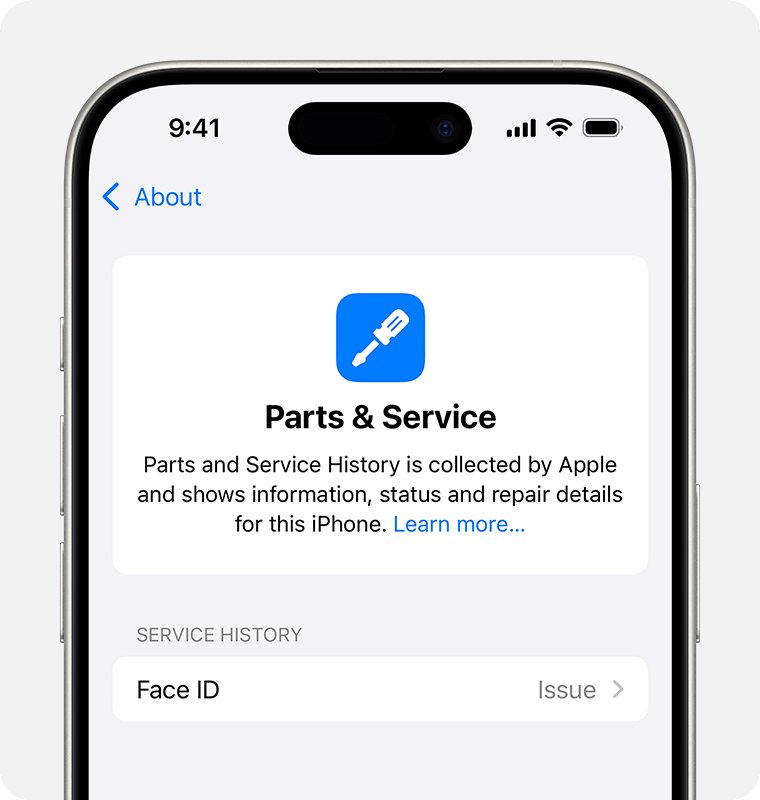
- Tap About, then tap Parts & Service History.
- If Finish Repair shows next to Display or TrueDepth Camera, tap Restart & Finish Repair.
- Follow the onscreen instructions until the iPhone restarts.
- Open Settings > Face ID & Passcode and set up Face ID again if it asks.
Parts & Service History appears in About only after a repair, on iOS 15.2 and later. If the section is missing, start with the iOS update below.
Why is Face ID not working after a screen change?
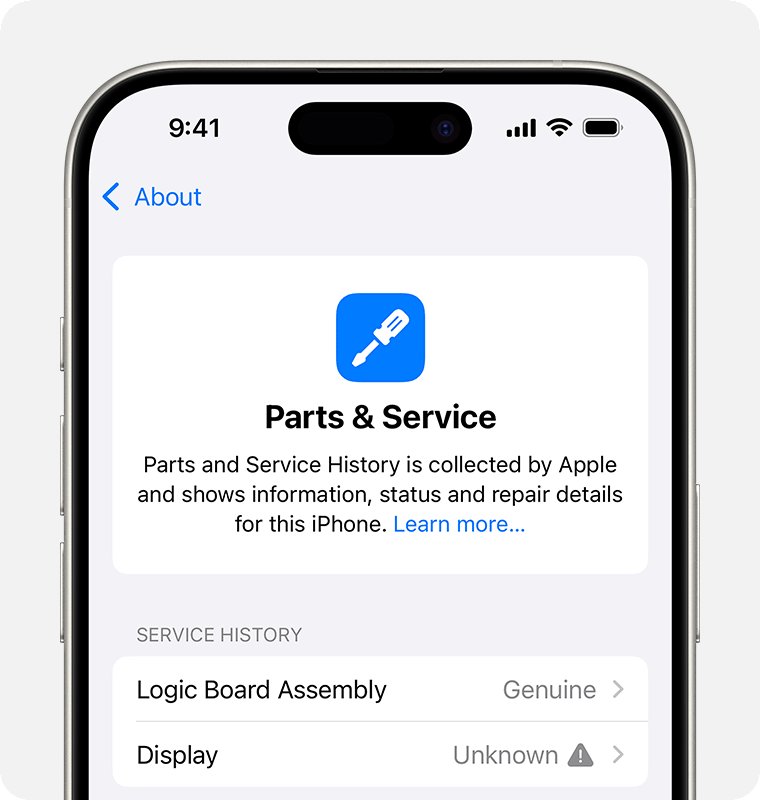
The label next to each part in Parts & Service History tells you what the repair left behind. Match yours to the table.
| What you see | What it means | What to do |
|---|---|---|
| Finish Repair next to Display or TrueDepth Camera | A new Apple part was fitted but not calibrated | Run Repair Assistant |
| Genuine | Genuine Apple parts and processes were used | Update iOS, then reset Face ID |
| Used | The part came from another iPhone and was calibrated | Reset Face ID; ask the shop if it still fails |
| Unknown | Nongenuine, not working as expected, or not verified and linked to this iPhone | Return to the repair provider |
| "A problem was detected with the TrueDepth Camera. Face ID has been disabled." | iOS diagnostics found a TrueDepth camera fault | Update iOS, then get service |
| No Parts & Service History section | Older iOS, or a model without part tracking | Update iOS and check again |
Apple says the TrueDepth camera contains lasers, and they can be disabled for safety if the camera is damaged. A repair that damages, disconnects or swaps those parts stops Face ID.
Update iOS to fix Face ID after a screen repair
Repair Assistant only runs on the latest iOS, and Apple's first fix for the TrueDepth camera alert is also an update. Back up the iPhone first.
- Plug the iPhone into power and connect to Wi-Fi.
- Open Settings and tap General.
- Tap Software Update to see the installed version.
- If an update is available, tap Download and Install and follow the onscreen instructions.
- After the restart, open Settings > General > About and check Parts & Service History again.
A VPN or proxy can stop the iPhone from reaching Apple's update servers. Turn it off if the update will not download.
Repair Assistant not working on iPhone after a screen replacement
Repair Assistant needs Wi-Fi, more than 20 percent battery and the latest iOS. Captive networks, such as hotel sign-in pages, and networks that need 802.1X sign-in are not supported.
- Join a Wi-Fi network that has no sign-in page.
- Charge the iPhone above 20 percent.
- Install the latest iOS from Settings > General > Software Update.
- Restart the iPhone and tap Restart & Finish Repair again.
- If you fitted the screen yourself, reseat the part and try again, or try another part.
- If a shop fitted it, ask that shop to finish the repair, because the part may be locked to another Apple Account.
Repair Assistant asks for another Apple Account after a used screen
A used display or front camera taken from another iPhone can carry Activation Lock. It stays on Finish Repair until the Apple Account linked to it unlocks it, and Apple cannot remove that lock for you.
- When Repair Assistant asks, enter the email address or phone number and password of the Apple Account that set up the part's original device.
- Wait a few minutes for the part to unlock.
- Without that sign-in, ask the part's seller or owner to go to iCloud.com/find and sign in.
- They select the device that held the part, then select Remove, and turn off Lost Mode if it is on.
- Return to Parts & Service History and tap Restart & Finish Repair.
If the part came from your own old iPhone and you no longer know that password, reset the Apple Account password before you run Repair Assistant again.
A part that stays locked is not covered by the Apple Limited Warranty or AppleCare, and the iPhone cannot be traded in.
Face ID issue detected after screen replacement
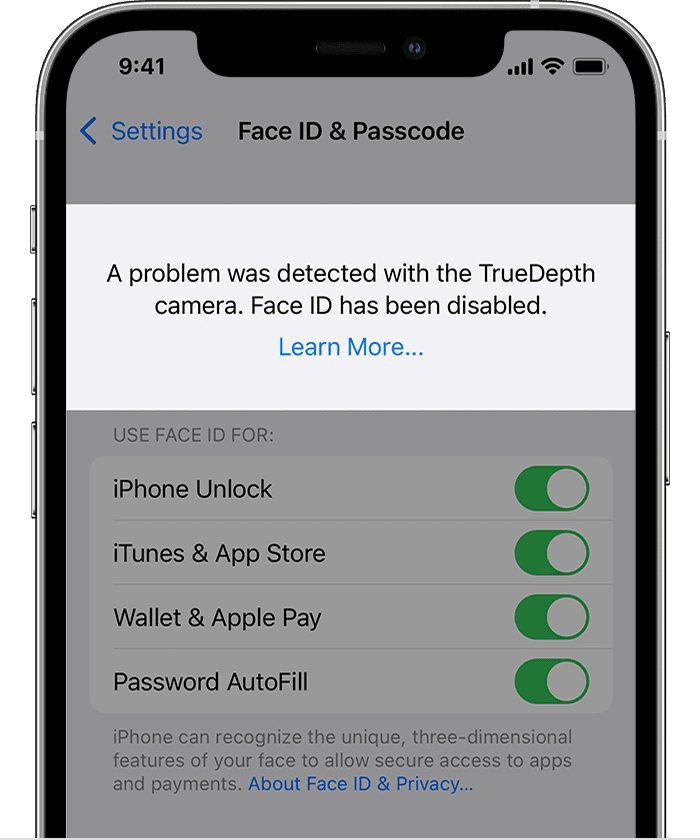
The alert reads "A problem was detected with the TrueDepth Camera. Face ID has been disabled." It comes from diagnostics in iOS 14.6 and later, and it can also appear in Parts & Service History.
- Update the iPhone to the latest iOS from Settings > General > Software Update.
- Open Settings > Face ID & Passcode and try to set up Face ID.
- If you still cannot enroll your face or unlock with Face ID, book service at getsupport.apple.com or with the shop that did the repair.
- Keep using your passcode until the camera is serviced.
The iPhone keeps working, but Face ID, Animoji, Memoji and some front camera features stay off until it is updated or serviced. Apple warns that only a trained technician should work on the TrueDepth camera's laser parts.
How to reset Face ID on iPhone after a repair
When Parts & Service History shows Genuine or Used and Face ID still fails, restart the iPhone and enroll your face from scratch.
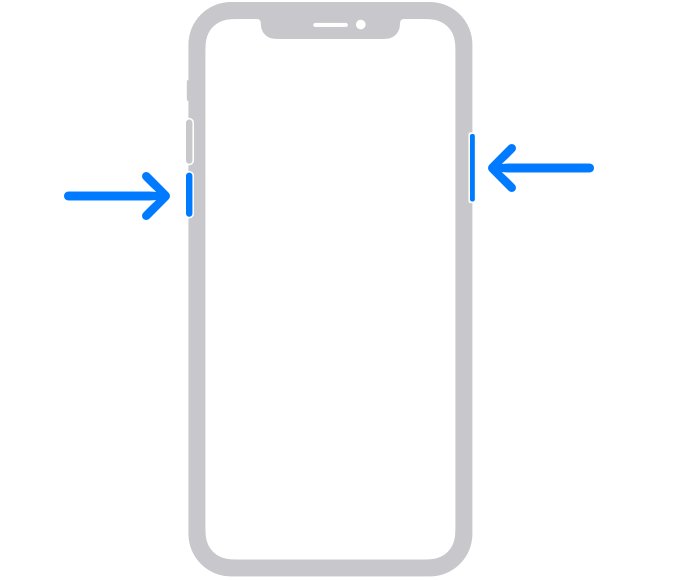
- Press and hold either volume button and the side button until the power-off slider appears.
- Drag the slider, wait 30 seconds, then hold the side button until the Apple logo appears.
- Enter your passcode and try Face ID once.
- If it fails, open Settings and tap Face ID & Passcode.
- Tap Reset Face ID.
- Tap Set up Face ID and follow the prompts.
In Face ID & Passcode, check that each feature you use Face ID for is turned on.
Screen protector blocking Face ID after a screen replacement
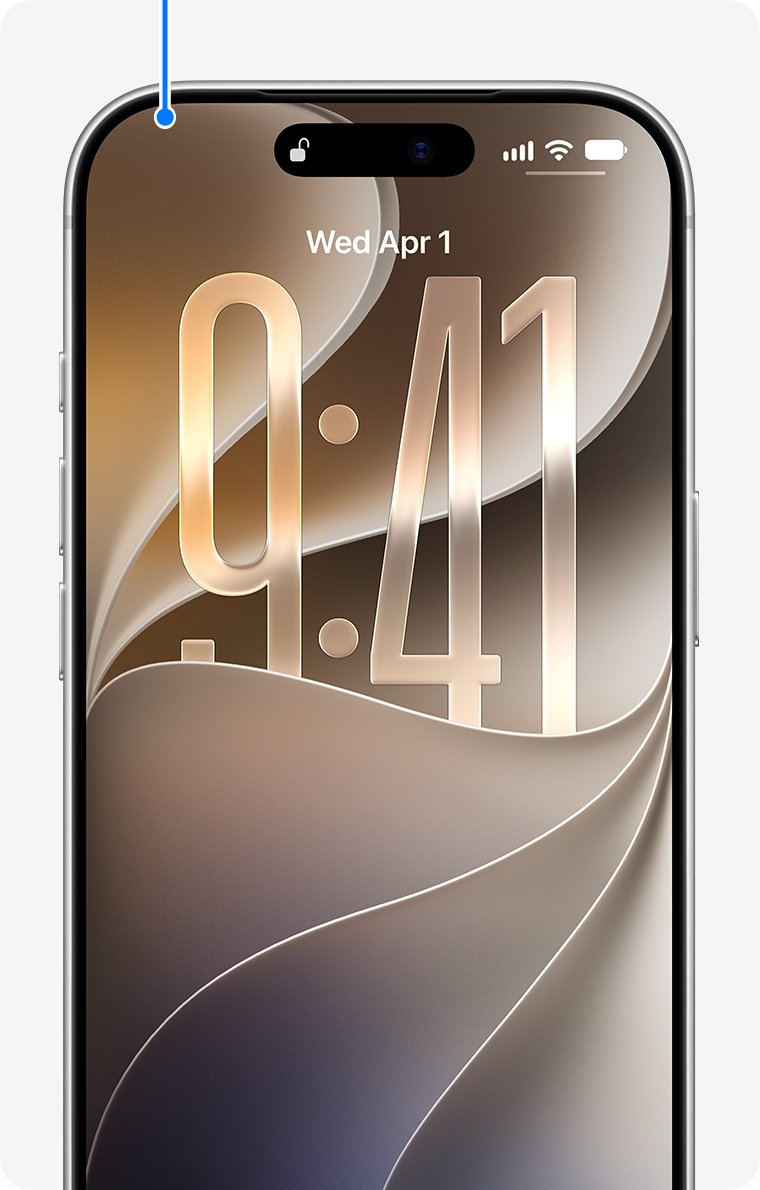
A new screen often gets a new screen protector or case, and either can cover the TrueDepth camera and the front speaker beside it. Rule these out before you pay for more service.
- Remove any screen protector that covers the TrueDepth camera at the top of the screen.
- Take the iPhone out of its case and wipe smudges off the camera area.
- Make sure your eyes, nose and mouth are fully visible to the camera.
- Hold the iPhone at arm's length or closer, 10 to 20 inches from your face.
- Try Face ID without sunglasses that block infrared light.
Where to fix Face ID after a third-party screen replacement
Apple recommends a provider that uses genuine Apple parts for any display or front camera work. The right option depends on who did the first repair and whether the iPhone is under warranty.
| Your situation | Go to | Why |
|---|---|---|
| Under warranty or AppleCare, or you want Apple's warranty on the work | Apple Store, Apple Authorized Service Provider or Apple Repair Center by mail | Genuine parts, and the repair is covered by Apple's warranty |
| Out of warranty and you want a local shop | Independent Repair Provider | Genuine Apple parts and tools, covered by the provider's own warranty only |
| The shop used a part locked to another Apple Account | The shop that did the repair | Only the account linked to the part can unlock it |
| You repair your own devices and have a supported model | Self Service Repair | Genuine parts, tools and manuals for out-of-warranty repairs |
Start a service request with Apple at getsupport.apple.com.
How to tell if Face ID works again after the repair
- Open Settings > General > About > Parts & Service History.
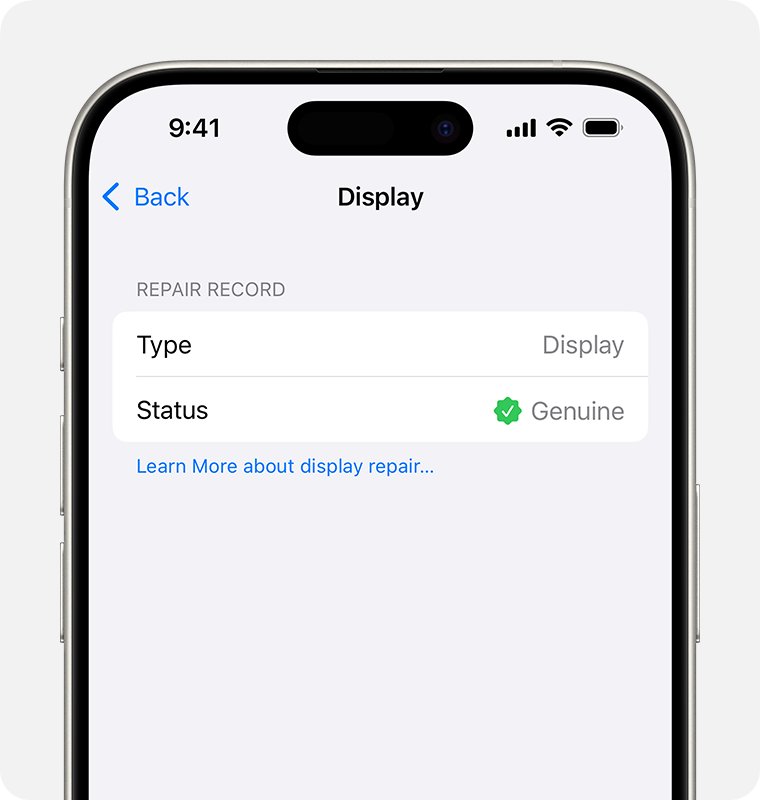
- Check that Display and TrueDepth Camera show Genuine or Used, not Finish Repair or Unknown.
- Open Settings > Face ID & Passcode and confirm Face ID is set up.
- Lock the iPhone, then wake it and unlock it with Face ID instead of the passcode.
- Test one app sign-in or payment that uses Face ID.
After the iPhone connects to the internet, tap a part in Parts & Service History to see the service date.
If Face ID unlocks the iPhone but Apple Pay still fails, check that Wallet & Apple Pay is turned on in Face ID & Passcode.
Face ID still not working after screen replacement
Face ID keeps asking you to position your face within the frame
Setup never completes when the TrueDepth camera is not working, which Apple treats as a service case.
- Update iOS and restart the iPhone.
- Try Set up Face ID once more with nothing covering the camera.
- Book service if setup still stalls.
Face ID and the front camera both stopped on iPhone 14 or later
A replaced front camera on iPhone 14 and later does not work until the repair is completed or the iPhone is restored.
- Open Parts & Service History and look for Finish Repair next to TrueDepth Camera.
- Tap Restart & Finish Repair on Wi-Fi with more than 20 percent battery.
- Ask the repair provider to complete calibration if the option is missing.
Camera not working on iPhone 18 Pro after a screen repair
On iPhone 18 Pro models and iPhone Duo, the camera stays off until the repair is finished or the iPhone is restored.
- Update to the latest iOS.
- Run Restart & Finish Repair from Parts & Service History.
- Contact the point of service if Repair Assistant cannot finish.
Face ID suddenly not working weeks after the repair
iOS diagnostics can flag a TrueDepth camera fault later, and an Unknown part triggers a notice on first unlock and again five days later.
- Read the latest notice in Settings > General > About.
- Install any iOS update.
- Take the iPhone back to the repair provider if a TrueDepth camera or Unknown part message shows.
Face ID not working after water damage during the repair
A damaged TrueDepth camera can have its lasers disabled for safety.
- Update iOS and look for the TrueDepth camera alert in Settings > General > About.
- Use your passcode to unlock in the meantime.
- Book service with Apple or an Apple Authorized Service Provider.
Face ID after screen replacement FAQ
Why is Face ID not working?
Face ID fails when the TrueDepth camera is covered, the iPhone needs an update, Face ID settings are off, or the camera is damaged or uncalibrated. After a repair, check Settings > General > About > Parts & Service History for Finish Repair or a Face ID message.
Can a screen replacement break Face ID?
Yes. The repair works next to the TrueDepth camera, and Face ID stops if that camera is damaged, not calibrated or replaced with a nongenuine part. Apple says Face ID will not unlock the iPhone until calibration is complete.
What does Finish Repair mean in Parts & Service History?
Finish Repair means a genuine Apple part was installed but its calibration data has not been applied. Tap Restart & Finish Repair to run Repair Assistant. The label stays until the repair is finished.
Do you need Wi-Fi to finish an iPhone repair?
Yes. Repair Assistant needs Wi-Fi, more than 20 percent battery and the latest iOS. Captive networks with a sign-in page and 802.1X networks are not supported, so use a network without a sign-in page.
Can I use Face ID before the repair is finished?
No. Until calibration is complete, Face ID cannot unlock the iPhone, authorize payments or sign in to apps. The rest of the iPhone keeps working, and the passcode still unlocks it.
Does an Unknown display stop the iPhone from working?
No. Apple says Parts & Service History messages do not affect your ability to use the iPhone unless stated. An Unknown part can lower trade-in value, and a nongenuine display can cause touch, brightness and True Tone problems.
Will resetting Face ID fix it after a screen repair?
Only when the TrueDepth camera works and is calibrated. If Parts & Service History shows Finish Repair, run Repair Assistant first. If the Face ID has been disabled alert appears, update iOS and then get service.