To change alarm volume on iPhone, open Settings, tap Sounds & Haptics and drag the volume slider that controls alarms: Alarms and Timers on iOS 27, or Ringtone and Alerts on iOS 26 and earlier.
This guide covers both slider layouts, the volume buttons, the separate wake up alarm slider in the Clock app, how to test the result and what to do when the alarm is too quiet.
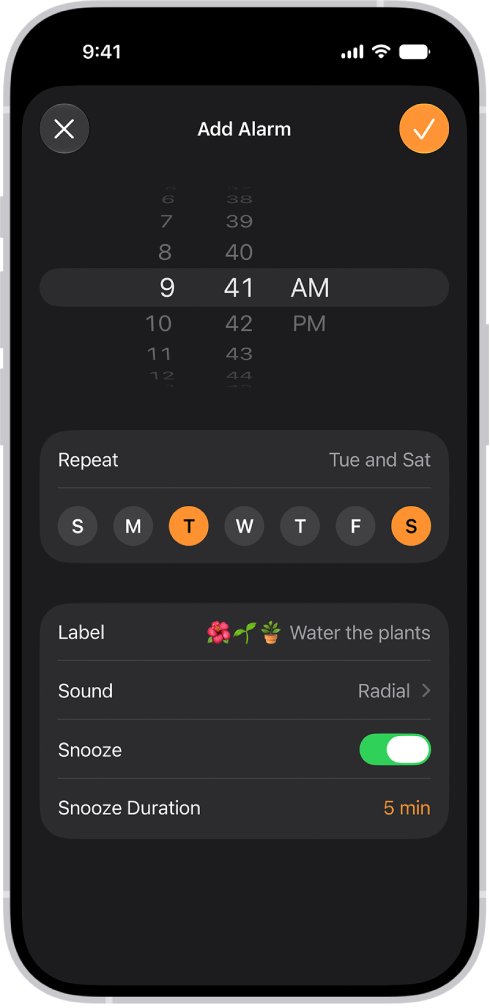
Step by step tutorial on how to change alarm volume on iPhone
Alarm volume is set in the Settings app, not inside the Clock app. The exact slider depends on your iOS version.
- Open the Settings app on your iPhone.
- Tap Sounds & Haptics.
- On iOS 27, go to Alarms and Timers, turn off Match Ringtone Volume, then drag the volume slider right to make alarms louder or left to make them quieter.
- On iOS 26 or earlier, drag the slider under Ringtone and Alerts (on iOS 18 the label reads Ringtone and Alert Volume).
- Leave Settings. The new level applies to every alarm you set in the Clock app.
On iOS 26 and earlier the same slider also sets your ringtone and alert volume, so a louder alarm means a louder ringtone. iOS 27 is the first version where alarms and timers get their own slider.
iPhone alarm volume settings by iOS version
| Your iOS version | Where alarm volume lives | What else the slider changes |
|---|---|---|
| iOS 27 | Settings > Sounds & Haptics > Alarms and Timers (turn off Match Ringtone Volume) | Alarms and timers only |
| iOS 26 | Settings > Sounds & Haptics > Ringtone and Alerts slider | Ringtone and alert sounds too |
| iOS 18 | Settings > Sounds & Haptics > Ringtone and Alert Volume slider | Ringtone and alert sounds too |
| Sleep schedule wake up alarm (any recent iOS) | Clock > Alarms > Change > Alarm Options > Alarm volume | That wake up alarm only |
Check your version in Settings > General > About if you are not sure which row applies.
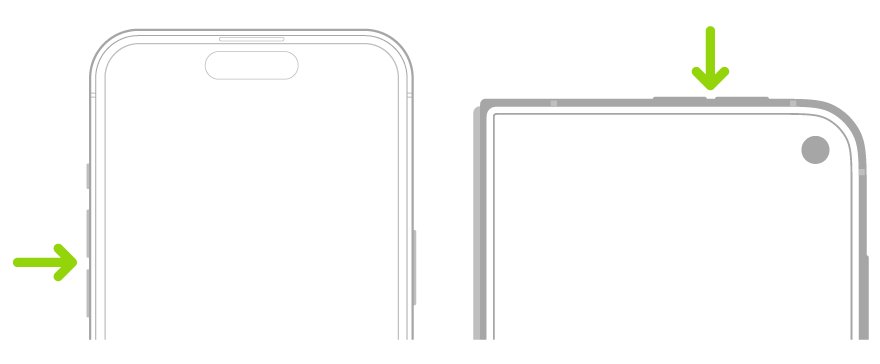
How to turn up or down alarm volume on iPhone using volume buttons
The side volume buttons change alarm volume only when nothing is playing and Change with Buttons is on. While music or a video plays, the buttons change media volume instead.
- Open Settings and tap Sounds & Haptics.
- Turn on Change with Buttons.
- Stop any music, podcast or video that is playing.
- Press the volume up button to raise the ringer and alert level, or the volume down button to lower it.
- Watch the on-screen indicator to confirm the level changed.
When Change with Buttons is off, the volume buttons only control media playback, which stops an accidental press from turning your alarm down. On iOS 27, if Match Ringtone Volume is off for Alarms and Timers, use the Settings slider to change alarm volume.
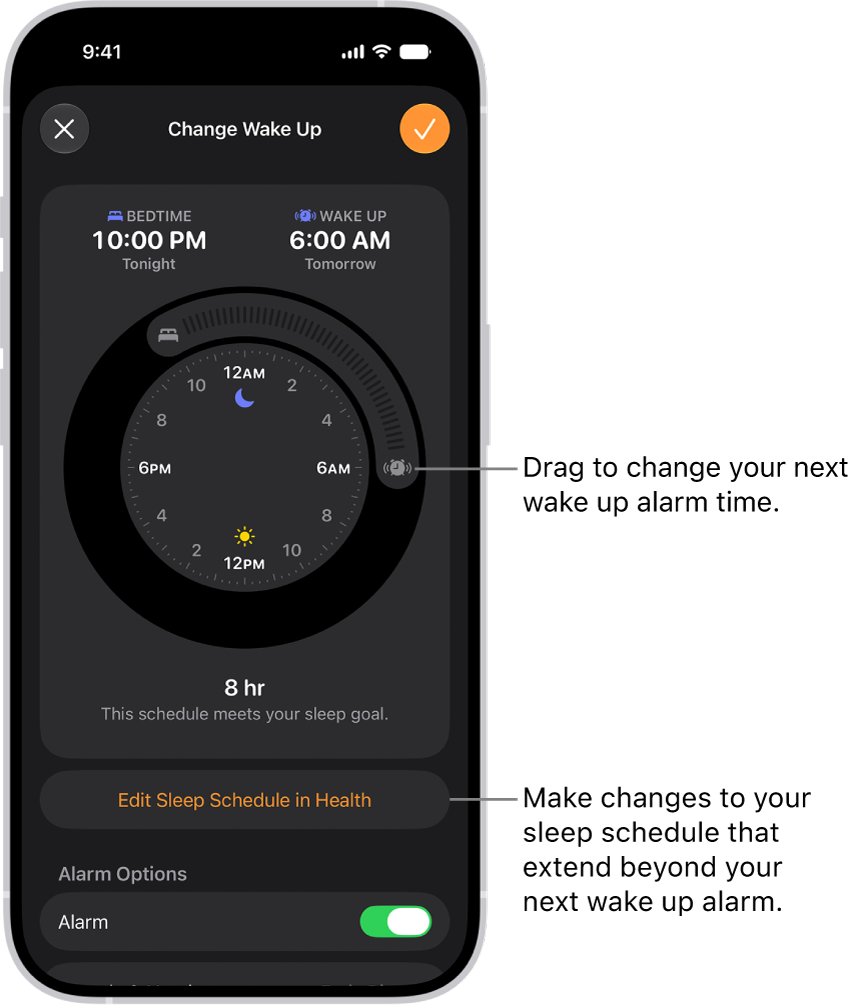
Change the wake up alarm volume in the iPhone Clock app
A wake up alarm that belongs to a sleep schedule in the Health app has its own volume slider. It does not follow the Sounds & Haptics setting.
- Open the Clock app and tap Alarms.
- Tap Change next to the wake up alarm.
- Scroll down to Alarm Options and make sure the alarm is on.
- Drag the Alarm volume slider.
- Tap the checkmark, then tap Change Next Alarm Only, or Change This Schedule to keep the new volume for the recurring alarm.
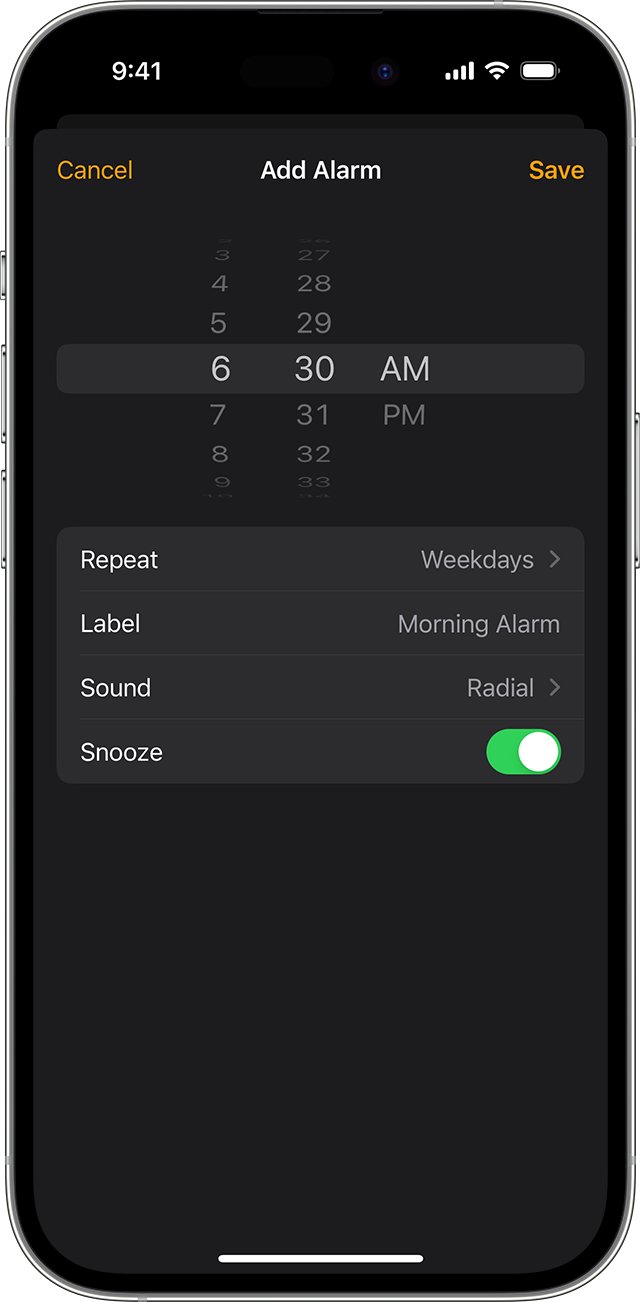
How to test iPhone alarm volume after changing it
- Open the Clock app and tap Alarms.
- Tap the add button and set an alarm for two minutes from now.
- Tap Sound and pick the tone you normally wake up to, then save the alarm.
- Lock the iPhone, put it where it usually sits overnight and wait for the alarm.
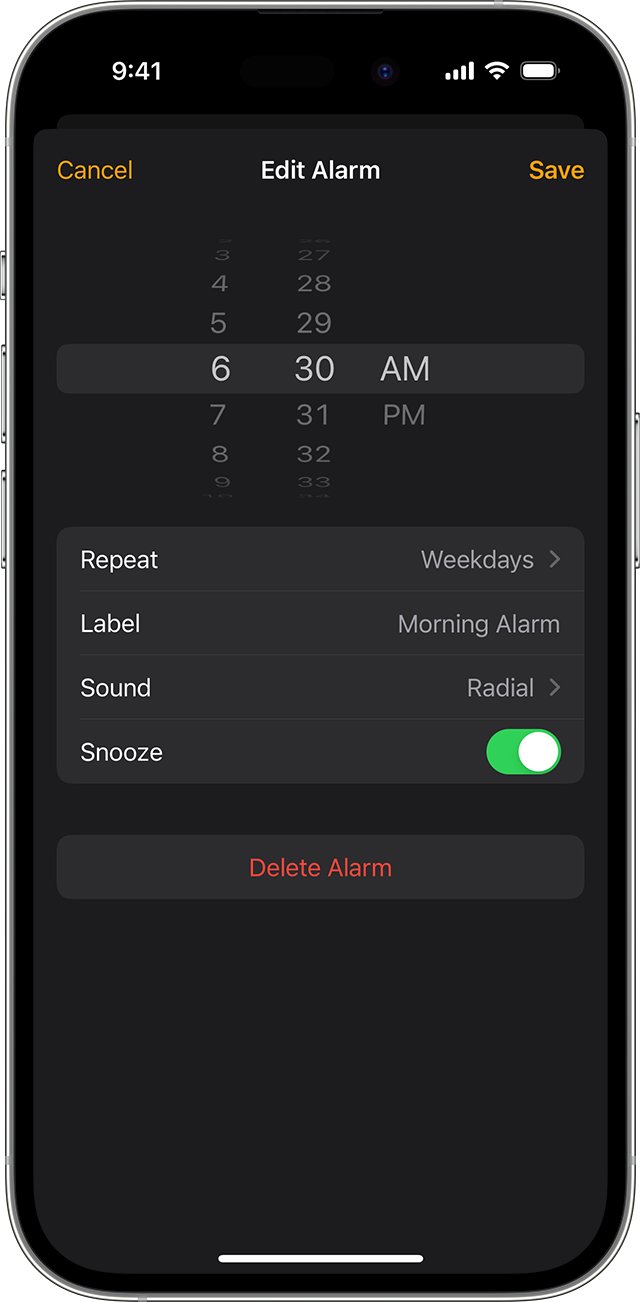
- Adjust the slider again if it is too loud or too quiet, then turn off the test alarm or swipe left on it to delete it.
While you drag the slider in Sounds & Haptics, the iPhone plays a sample at the new level, which is a quick check without waiting for an alarm.
Tips for changing alarm volume on iPhone
| Tip | Why it helps |
|---|---|
| Turn off Change with Buttons | Stops the side buttons from lowering ringer and alert volume by accident during the day |
| Use a separate Alarms and Timers volume on iOS 27 | Keeps a loud alarm without a loud ringtone |
| Pick a louder alarm sound | Tap the alarm in Clock, tap Sound, and choose a ringtone or song that carries better |
| Turn on Snooze and set Snooze Duration | Gives a second chance if the first ring does not wake you |
| Check the wake up alarm slider separately | Sleep schedule alarms ignore the Sounds & Haptics slider |
| Do not rely on Silent mode or Focus to mute it | Alarms still sound with Silent mode or Do Not Disturb on |
Fix iPhone alarm volume too low or getting quieter
Alarm volume lowers when you look at the iPhone
Attention Aware Features lowers the volume of some alerts when Face ID sees you looking at the screen.
- Open Settings and tap Accessibility.
- Tap Face ID & Attention.
- Turn off Attention Aware Features.
Alarm volume keeps changing on its own
With Change with Buttons on, a pressed volume button in a pocket or bag lowers the ringer and alert level.
- Open Settings > Sounds & Haptics.
- Set the alarm level with the slider.
- Turn off Change with Buttons so the side buttons only control media.
Alarm is too quiet even at full volume
A speaker volume limit or a quiet alarm tone caps how loud it gets.
- Open Settings > Sounds & Haptics and tap Volume Limit under Built-In Speaker.
- Turn off Limit Maximum Volume, or drag its slider higher.
- Turn off Reduce Loud Sounds under Built-In Speaker if it is on.
- Open the alarm in Clock, tap Sound and choose a different tone.
Wake up alarm ignores the new volume
Sleep schedule alarms use the Alarm volume slider in Alarm Options.
- Open Clock > Alarms and tap Change.
- Drag Alarm volume under Alarm Options.
- Save with Change This Schedule.
How to change the alarm volume on your iPhone FAQs
Frequently asked questions about iPhone alarm volume, answered for iOS 26 and iOS 27.
How do I change the volume on iPhone alarms?
Open Settings, tap Sounds & Haptics and drag the slider that controls alarms. On iOS 27 that is the Alarms and Timers slider after you turn off Match Ringtone Volume. On iOS 26 and earlier it is the Ringtone and Alerts slider, which also sets your ringtone volume.
How do I change alarm volume on iPhone 11?
An iPhone 11 uses the same steps as any other model: Settings, then Sounds & Haptics, then the alarm or ringtone slider for your iOS version. The model does not matter; the installed iOS version decides which slider label you see.
How do I make sure my alarm goes off even if my iPhone is on silent?
You do not need to do anything. Apple states that Clock alarms still sound when Silent mode is on and when Do Not Disturb or another Focus is on. Make sure the alarm volume slider is not at its lowest point.
Can I set different alarm volumes for different alarms?
Regular Clock alarms share one volume setting. The exception is the wake up alarm in a sleep schedule, which has its own Alarm volume slider under Alarm Options in the Clock app, so it can be louder or quieter than your other alarms.
Will changing the alarm volume affect my timer or music volume?
Music and video volume are separate and are not affected. On iOS 27 the Alarms and Timers slider changes timers too. On iOS 26 and earlier, the Ringtone and Alerts slider changes the ringtone and alert sounds along with alarms.
Is there a way to customize the vibration pattern for alarms?
Yes. Open the Clock app, tap the alarm time, then tap Sound. The Sound screen lets you choose a vibration as well as a song or ringtone for that alarm, so each alarm can carry its own vibration.
Can I adjust the alarm volume without going into Settings?
Yes, if Change with Buttons is turned on in Sounds & Haptics. Press the volume buttons while no audio is playing to change the ringer and alert level. On iOS 27 with a separate alarm volume, use the Settings slider instead.
Why does my alarm volume lower?
Attention Aware Features lowers the volume of some alerts when Face ID sees you looking at the iPhone. Turn it off in Settings, Accessibility, Face ID & Attention. A pressed volume button with Change with Buttons on can also lower the level.
Does the alarm play through headphones?
When headphones are connected, the alarm plays at a set volume through both the iPhone's built-in speakers and the headphones, so you still hear it if the headphones are out of reach.