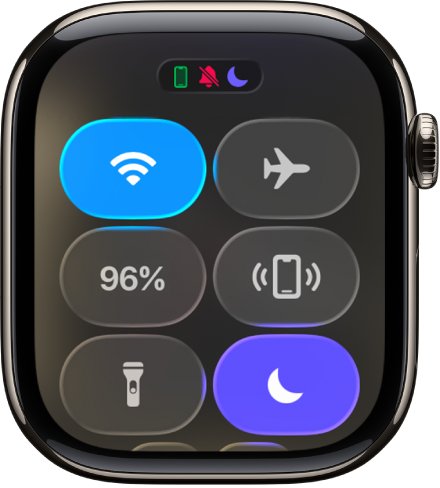
To get an Apple Watch out of sleep mode, press the side button to open Control Center and tap the Sleep Focus control to turn it off.
If the watch keeps going back to sleep mode while your iPhone stays normal, the cause is usually a sleep schedule, the Turn On at Wind Down setting, or a sync problem between the two devices, and this guide fixes each one.
How to get Apple Watch off sleep mode
Sleep mode on Apple Watch is the Sleep Focus. It turns off the watch display and limits distractions, so the screen looks dark or simplified until you turn it off.
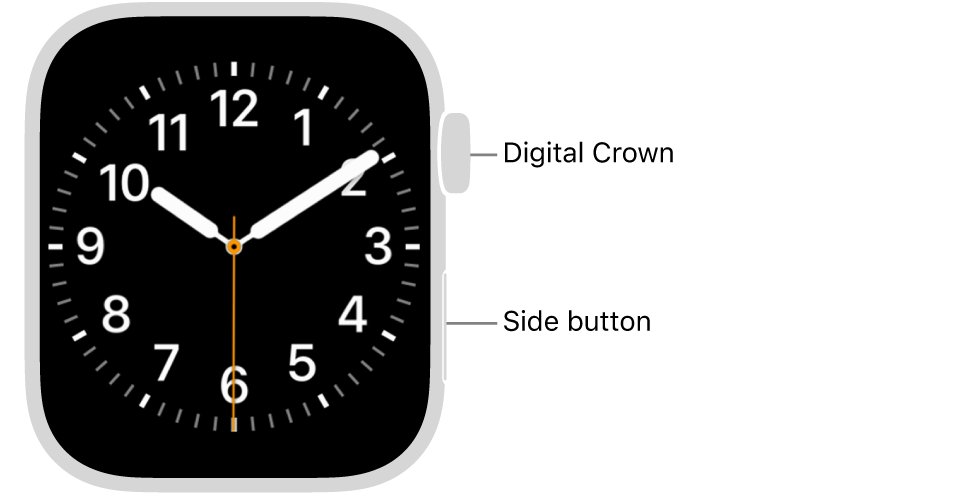
- Turn the Digital Crown if the screen asks you to unlock it while the Sleep Focus is on.
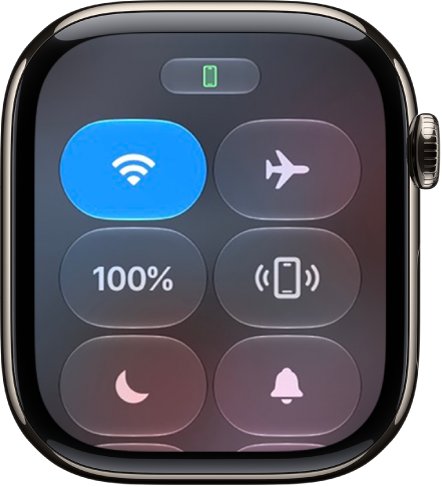
- Press the side button to open Control Center.
- Find the Focus control. It shows the bed icon while the Sleep Focus is active.
- Tap the Focus control to turn the Sleep Focus off.
- Check that the Focus icon is gone from the top of the watch face.
Turning a Focus on or off on Apple Watch also changes it on your iPhone when Focus settings are shared, so check the iPhone afterwards.
Why Apple Watch stays in sleep mode when the iPhone does not
Focus settings are shared between the iPhone and Apple Watch. When the two disagree, one of these causes is usually behind it.
| Cause | What you see | Fix |
|---|---|---|
| A sleep schedule starts the Sleep Focus at wind down | The watch goes dark at the same time every night | Edit or turn off the schedule in the Sleep app |
| Turn On at Wind Down is on | Sleep Focus starts before bedtime without you touching it | Turn the option off in Settings > Sleep |
| A Focus schedule for Sleep exists | Sleep Focus turns on at a set time even without a sleep schedule | Disable or delete the schedule in Settings > Focus |
| Share Across Devices is off | The iPhone and watch show different Focus states | Turn Share Across Devices on in iPhone Settings > Focus |
| The devices lost sync | The watch keeps the Sleep icon after you turned Sleep off on the iPhone | Restart both devices |
Stop Apple Watch sleep mode turning on at wind down
By default, the Sleep Focus begins at the wind down time set in the Sleep app. Turning this option off means the Sleep Focus starts only when you turn it on in Control Center.
- Open the Settings app on your Apple Watch.
- Tap Sleep.
- Turn off Turn On at Wind Down.
- Optionally turn off Sleep Screen if you do not want the simplified display at night.
You can change the same options on your iPhone: open the Apple Watch app, tap My Watch, then tap Sleep.
Apple Watch turn off sleep mode schedule
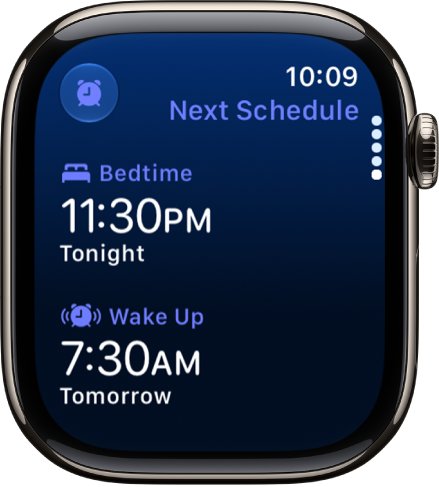
A sleep schedule tells the watch when to start wind down. Turn it off for a trip, or delete it if you never want sleep mode to start on its own.
- Open the Sleep app on your Apple Watch.
- Tap the schedule button at the top of the screen.
- Turn the Digital Crown to scroll down to Full Schedule.
- Turn off Sleep Schedule to pause every schedule.
- To remove one schedule instead, tap it, scroll down, then tap Delete Schedule.
- To shorten the time before bed, tap Wind Down and set a shorter period.
On iPhone, open the Health app, tap Browse, tap Sleep, tap Sleep again, then tap Edit below Your Schedule.
Disable a Sleep Focus schedule on Apple Watch
A Focus can carry its own schedule, separate from the Sleep app. A Sleep Focus schedule set months ago keeps switching the watch into sleep mode.
- Open the Settings app on your Apple Watch.
- Tap Focus, then tap Sleep.
- Tap the schedule listed there.
- Scroll down and turn off Enabled, or tap Delete to remove it.
Sync Focus between iPhone and Apple Watch
When you set up Focus on the iPhone, the watch uses the same preferences. If the iPhone shows no Focus while the watch shows Sleep, make sure the settings are shared.
- Open the Settings app on your iPhone.
- Tap Focus.
- Turn on Share Across Devices.
- Turn the Sleep Focus on, then off again, from iPhone Control Center so both devices pick up the change.
Apple Watch stuck in sleep mode fixes
Apple Watch stays in sleep mode after you turn it off
The watch and iPhone have stopped syncing the Focus state.
- Take the watch off the charger, because it cannot restart while charging.
- Press and hold the side button until the sliders appear.
- Tap the power button, then drag the Power Off slider to the right.
- Restart the paired iPhone the same way, or from Settings > General > Shut Down.
- Hold the side button on each device until the Apple logo appears.
Apple Watch frozen in sleep mode and will not turn off
The watch software is not responding to the side button.
- Hold down the side button and the Digital Crown together.
- Keep holding for at least 10 seconds, until the Apple logo appears.
- Use this force restart only when a normal restart does not work.
Apple Watch sleep mode turns the screen off every night
The Sleep Focus turns off the display by design during wind down and bedtime.
- Open Settings > Sleep on the watch.
- Turn off Turn On at Wind Down if you want to control it yourself.
- Turn on Show Time to keep the date and time visible while Sleep Focus is active.
Apple Watch not tracking sleep after you turned sleep mode off
Sleep tracking is a separate setting that can be off.
- Open Settings > Sleep on the watch.
- Turn on Sleep Tracking.
- Turn on Charging Reminders so the watch has enough battery for the night.
- Charge the watch above 30 percent before bed, because the watch prompts you to charge below that.
How to tell if Apple Watch is in sleep mode
- Look at the top of the watch face. An active Focus shows its icon there and next to the time in apps.
- Press the side button and check the Focus control in Control Center. A gray Do Not Disturb icon means no Focus is on.
- On the iPhone, check that the Lock Screen no longer shows the Sleep screen.
Apple Watch sleep mode FAQ
How do I get my iWatch off sleep mode?
Press the side button to open Control Center, then tap the Focus control that shows the Sleep icon. The Sleep Focus turns off, the display returns to normal, and the change carries over to your iPhone when Focus is shared across devices.
How do I set sleep on my iWatch?
Open the Sleep app on the watch, tap Continue, then set your active days, bedtime and wake-up time. Tap Next, choose whether to turn on overnight vitals, then tap Done. You can also set it up in the Health app on iPhone under Browse > Sleep.
Why is my Apple Watch not tracking sleep?
Sleep Tracking is probably off or the battery ran out overnight. Open Settings > Sleep on the watch, turn on Sleep Tracking and Charging Reminders, and wear the watch to bed with more than 30 percent charge. If the battery will not fill, troubleshoot Apple Watch charging first.
How does iWatch track sleep?
When you wear it to bed, Apple Watch estimates the time spent in REM, Core and Deep sleep and when you might have woken up. The Sleep app then shows your sleep score, last night's sleep and a 14-day average.
Does Apple iWatch track sleep?
Yes. Apple Watch tracks sleep through the built-in Sleep app once Sleep Tracking is on. It adds the data to the Health app on your iPhone, where you can view sleep history and your sleep score under Browse > Sleep.
Why does my Apple Watch keep going into sleep mode?
A sleep schedule or a Sleep Focus schedule is turning it on. Turn off Turn On at Wind Down in Settings > Sleep, then check Settings > Focus > Sleep for a schedule and turn off Enabled.
Can I use sleep tracking without sleep mode on Apple Watch?
Yes. Turn off Turn On at Wind Down in Settings > Sleep and leave Sleep Tracking on. The watch still records sleep while you control the Sleep Focus yourself from Control Center.