Host Process for Windows Tasks (taskhostw.exe) runs DLL-based scheduled tasks and background jobs, and Service Host (svchost.exe) loads Windows services from DLL files; both are genuine Windows 11 processes that you should not delete.
This guide explains what each one does, why Task Manager shows dozens of Service Host entries, how to find the exact service or task behind one, and how to fix high CPU, memory, disk or microphone use.
Is Host Process for Windows Tasks or Service Host safe?
Leave both processes running. They are part of Windows 11, and the copies in C:\Windows\System32 are genuine. Service Host is the shell Windows uses to load services, and Host Process for Windows Tasks runs scheduled work. Ending either one stops the services or tasks inside it. If one uses heavy resources, find the service or task it is hosting and fix that instead.
Malware sometimes copies these names. A file with the same name in another folder, such as under ProgramData or a user folder, needs a scan. The check is in the verify section below.
Host Process for Windows Tasks or Service Host
The two names look alike in Task Manager, but they host different things.
| Host Process for Windows Tasks | Service Host (Host Process for Windows Services) | |
|---|---|---|
| File name | taskhostw.exe | svchost.exe |
| What it hosts | DLL-based tasks, such as scheduled tasks that fire a COM handler instead of an .exe | Windows services that ship as DLL files |
| Started by | Task Scheduler and Windows background components | Windows, each time a hosted service starts |
| How many copies | Usually one or a few | Dozens: one per service or service group |
| How Task Manager labels it | Host Process for Windows Tasks | Service Host: followed by the service name, for example Service Host: Windows Audio |
| Where to see what it runs | Task Scheduler Library and the TaskScheduler Operational log | The expand arrow in Task Manager, the Services management console, or tasklist /svc |
Task Scheduler can run four kinds of action: start a program, fire a COM handler, send an email or show a message. Tasks that start a program run as that program. Tasks built on a COM handler need a host process, and that is the work Host Process for Windows Tasks does.
Why are there so many Service Host processes in Windows 11?
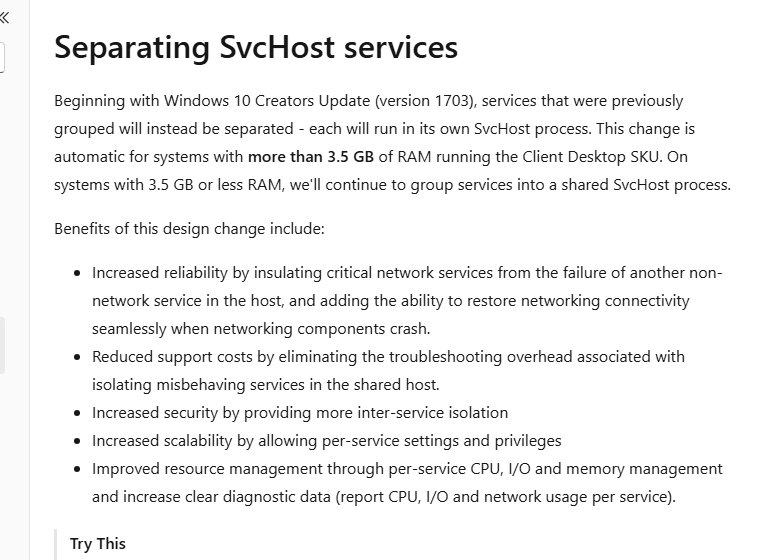
Since Windows 10 version 1703, Windows runs most services in their own Service Host process instead of packing many into one. Windows 11 keeps that design.
| PC memory | How services run | Typical Service Host count |
|---|---|---|
| More than 3.5 GB of RAM | Each service in its own svchost.exe, with a few exceptions | About 67 to 74 instances |
| 3.5 GB of RAM or less | Related services share one svchost.exe per group | About 17 to 21 instances |
Microsoft split them so a crash in one service does not take down others, and so Task Manager shows exactly which service uses which resources. The cost is a slightly higher total memory footprint.
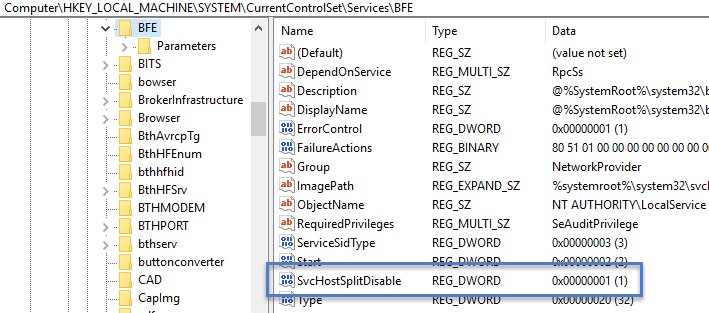
Some services stay grouped on every PC. Base Filtering Engine shares a host with Windows Defender Firewall, and RPC Endpoint Mapper shares one with Remote Procedure Call. A service that must stay grouped has the value SvcHostSplitDisable set to 1 under its key in HKEY_LOCAL_MACHINE\SYSTEM\CurrentControlSet\Services.
See which service is running inside a Service Host process
- Press Ctrl + Shift + Esc to open Task Manager.
- On the Processes page, scroll to Windows processes and find the Service Host entry that uses the most CPU, memory or disk.
- Select the arrow next to it to expand the entry and see the service it hosts.
- Right-click the service and select Open Services to see its description and startup type.
- To match a process ID, right-click the Service Host entry and select Go to details. Note the PID shown on the Details page.
Tasklist /svc command to list services in each svchost.exe
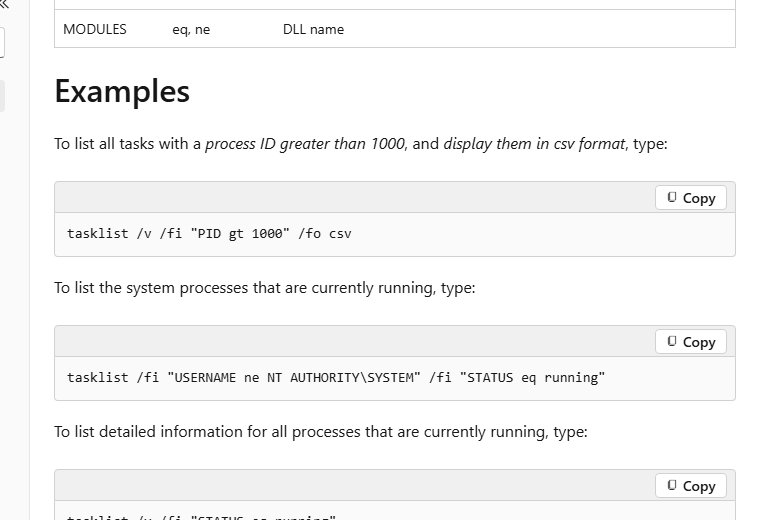
The Tasklist command-line tool shows every Service Host process with its PID and the services inside it, in one list.
tasklist /svc /fi "IMAGENAME eq svchost.exe"/svc lists the services hosted by each process, and the /fi filter limits the output to svchost.exe. Replace the filter with "PID eq 1234" to look up one process you noted in Task Manager.
You should see: A table with Image Name, PID and Services columns, with one row for each svchost.exe instance and the short names of the services it hosts.
To count Service Host instances and their total memory, run this in PowerShell: Get-Process SvcHost | Group-Object -Property ProcessName.
Find which scheduled task Host Process for Windows Tasks is running
- Select Start, type
Task Schedulerand open it. - Select Task Scheduler Library and look at the Status column for tasks shown as Running.
- Expand Microsoft > Windows to check the built-in tasks, which are grouped by feature.
- Select a running task and open the History tab to see when it started and whether it finished.
- Open Event Viewer and go to Applications and Services Logs > Microsoft > Windows > TaskScheduler > Operational for the full task log.
- If a third-party task keeps running, right-click it and select End, then Disable if you do not need it.
Leave Microsoft's own tasks enabled. They handle maintenance, updates and diagnostics, and Windows expects them to run.
Check that svchost.exe or taskhostw.exe is genuine
- In Task Manager, open the Details page.
- Right-click svchost.exe or taskhostw.exe and select Open file location.
- Confirm File Explorer opens
C:\Windows\System32. - If it opens any other folder, open Windows Security and select Virus & threat protection > Scan options.
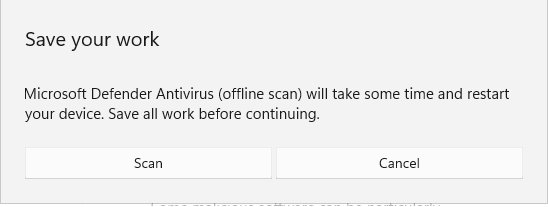
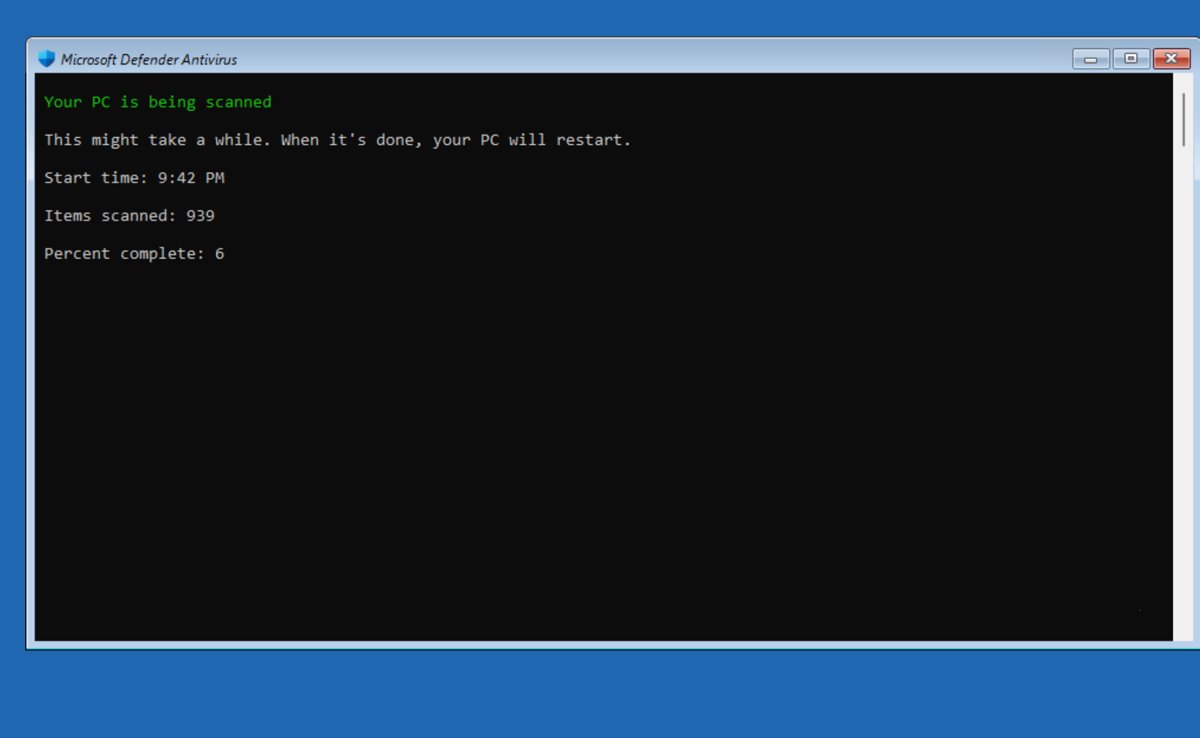
- Select Microsoft Defender Offline scan, then Scan now. Save your work first: the scan takes about 15 minutes and restarts the PC.
The offline scan runs outside Windows, so it can remove rootkits and other malware that hides from a normal scan.
Host Process for Windows Services has stopped working or consuming High resources
Host Process for Windows Services uses high CPU, memory or disk
One hosted service is busy or stuck, often Windows Update, search indexing or a third-party service.
- Expand the busy Service Host entry in Task Manager to name the service.
- If it is Windows Update or a Microsoft Store update, let it finish, then restart the PC.
- If it is a third-party service, update or reinstall the app that installed it.
- Run
tasklist /svc /fi "PID eq <PID>"to confirm the service name when the entry holds several. - Run a Microsoft Defender Offline scan if the usage stays high with no Windows activity.
Host Process for Windows Services has stopped working
A crashing service or damaged system files.
- Open Command Prompt as administrator.
- Run
DISM /Online /Cleanup-Image /RestoreHealthto repair the Windows image. - Run
sfc /scannowto check and repair protected system files. - Restart the PC.
- Open Event Viewer > Windows Logs > Application and look for an Application Error that names svchost.exe and the faulting module.
Host Process for Windows Services wants to make changes
A User Account Control prompt names the host process when a hosted service or task asks for administrator rights.
- Read the publisher shown in the prompt. A genuine Windows prompt shows Microsoft Windows as the verified publisher.
- Select No if you did not start anything that needs admin rights and the publisher is unknown.
- Check the file location on the Details page of Task Manager.
- Run a Microsoft Defender Offline scan if the prompt keeps returning.
Host Process for Windows Services using my mic
A service running inside svchost.exe opened the microphone, so the privacy indicator shows the host name instead of an app.
- Press Win + R, type
ms-settings:privacy-microphoneand press Enter. - Review which apps have microphone access and turn off any you do not use.
- Turn off Let desktop apps access your microphone if you do not need the mic in desktop apps.
- Check Task Manager for the Service Host entry that is active while the mic indicator is on.
Windows host process (Rundll32) not responding or using the microphone
Rundll32 runs functions from a DLL, so the real owner is the DLL it loaded.
- On the Details page of Task Manager, add the Command line column to see which DLL rundll32.exe loaded.
- Search the DLL name to identify the app or driver it belongs to.
- Update or reinstall that app or driver.
- End the rundll32.exe process if it stays unresponsive, then restart the PC.
Microsoft Cross Device Service high Memory or CPU usage
Microsoft Cross Device Service belongs to the features that link a phone to Windows 11, which Settings groups under Mobile devices. If you do not use a linked phone, turning that access off stops the work behind it.
- Open Settings and select Bluetooth & devices > Mobile devices.
- Turn off Allow this PC to access content and capabilities from your mobile devices if you do not use a linked phone.
- If you use a phone, select Manage devices and turn off only the features you do not need, such as Show mobile device in File Explorer or Get new photo notifications.
- Restart the PC and check the process in Task Manager again.
Turning a feature off changes what you can reach from the linked phone on the PC. Turn it back on from the same page whenever you need it.
Can you end or disable Host Process for Windows Services?
Do not end or delete svchost.exe or taskhostw.exe. Stop or disable the one service or task behind the problem instead. Ending a Service Host process stops every service inside it, which can drop networking, audio or Windows Update until you restart. Deleting the file damages Windows and does not stop the service from being needed.
Host Process for Windows Tasks and Service Host FAQ
What is Host Process for Windows Services?
Host Process for Windows Services is svchost.exe, the Service Host. It is a shell that loads Windows services from DLL files. Each service, or group of related services, runs in its own svchost.exe instance.
What is Host Process for Windows Tasks?
Host Process for Windows Tasks is taskhostw.exe. It runs DLL-based background work, such as scheduled tasks that fire a COM handler instead of starting a program. Task Scheduler and Windows components start it as needed.
What is host process for Windows?
It is the Task Manager name for a process that hosts other code. Service Host hosts services and Host Process for Windows Tasks hosts DLL-based tasks. Both are part of Windows 11 and run from C:\Windows\System32.
Why does Host Process for Windows use my mic?
A service running inside svchost.exe opened the microphone, and Windows shows the host name instead of the service. Check the microphone privacy page in Settings and the Service Host entries in Task Manager to find which one.
Why is Host Process for Windows using my mic all the time?
A service or app keeps the microphone open. Open Settings > Privacy & security > Microphone, turn off access for apps you do not use, and check Task Manager for the Service Host entry active while the mic indicator shows.
Why do I have so many Service Host processes?
On PCs with more than 3.5 GB of RAM, Windows runs most services in their own svchost.exe so one failure does not affect others. Microsoft lists about 67 to 74 instances on such PCs as normal.
Is Host Process for Windows Tasks a virus?
No. The genuine taskhostw.exe is part of Windows and lives in C:\Windows\System32. A file with the same name in another folder is suspicious, so run a Microsoft Defender Offline scan.
What is a host process?
A host process is a program that loads and runs code that cannot run on its own, such as a service or task stored in a DLL. svchost.exe and taskhostw.exe are the two main host processes in Windows 11.
Can I end Host Process for Windows Tasks in Task Manager?
You can, but the task it hosts stops, and Windows may start it again. Find the running task in Task Scheduler and end or disable that task instead if it is a third-party one.