To sync an iPhone and iPad, sign in to iCloud with the same Apple Account on both, then turn on the same iCloud apps in Settings on each device.
This guide covers the four setup steps, Messages, Photos, Calendar, Contacts, Notes and Mail, wired sync through a Mac, and fixes for data that will not appear on the other device.
How to sync iPhone and iPad
iCloud is the sync engine between an iPhone and an iPad. There is no cable or direct device-to-device sync; each device talks to iCloud, and iCloud keeps them matched.
Do these four steps on the iPhone first, then repeat them on the iPad.
- Step 1: Verify prerequisites. Update both devices to the latest iOS and iPadOS, open Settings, tap your name at the top and confirm both devices show the same Apple Account.
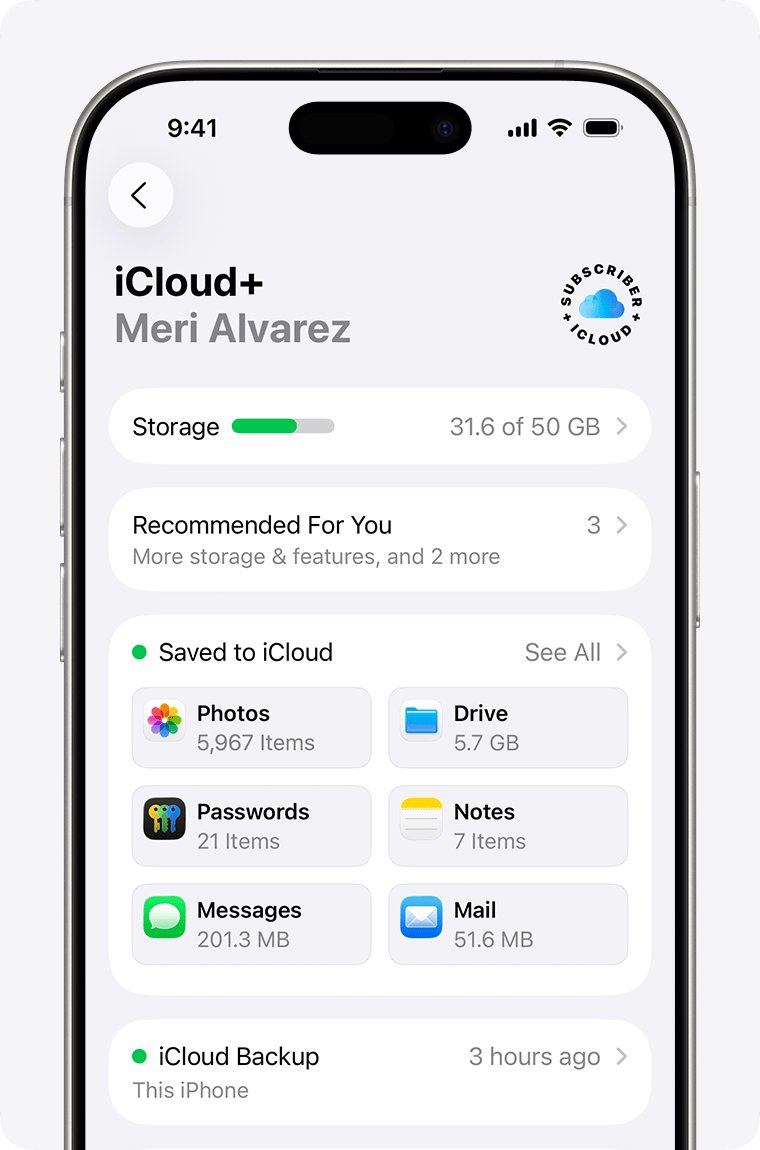
- Step 2: Enable iCloud Drive. In Settings, tap your name, tap iCloud, and under Saved to iCloud turn on Sync this [device] for iCloud Drive. Files in the Files app then match on both devices.
- Step 3: Configure app-specific sync. On the same iCloud screen, tap See All next to Saved to iCloud, then turn on each app you want matched, such as Contacts, iCloud Calendar, Notes, Mail and Messages in iCloud.
- Step 4: Set up Photos and backups. On the iCloud screen, tap Photos and turn on Sync this [device]. Leave both devices on Wi-Fi and power so the library uploads and downloads.
Any app left off on one device keeps its data only on that device, so the toggles must match on both. The sections below give the exact switch for each app.
How to sync iPhone and iPad messages
Messages in iCloud stores every conversation in iCloud, so the iPad shows the same history as the iPhone. It needs two-factor authentication and iCloud Keychain turned on for your Apple Account.
- On the iPhone, open Settings, tap your name, then tap iCloud.
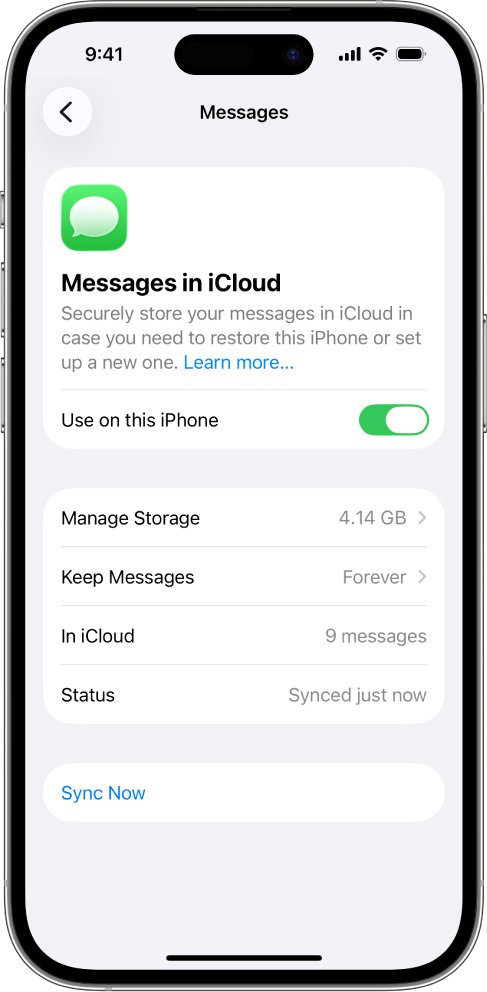
- Tap See All, tap Messages in iCloud, then turn on Use on this iPhone. In iOS 16 to 17.1, tap Messages and turn on Sync this iPhone.
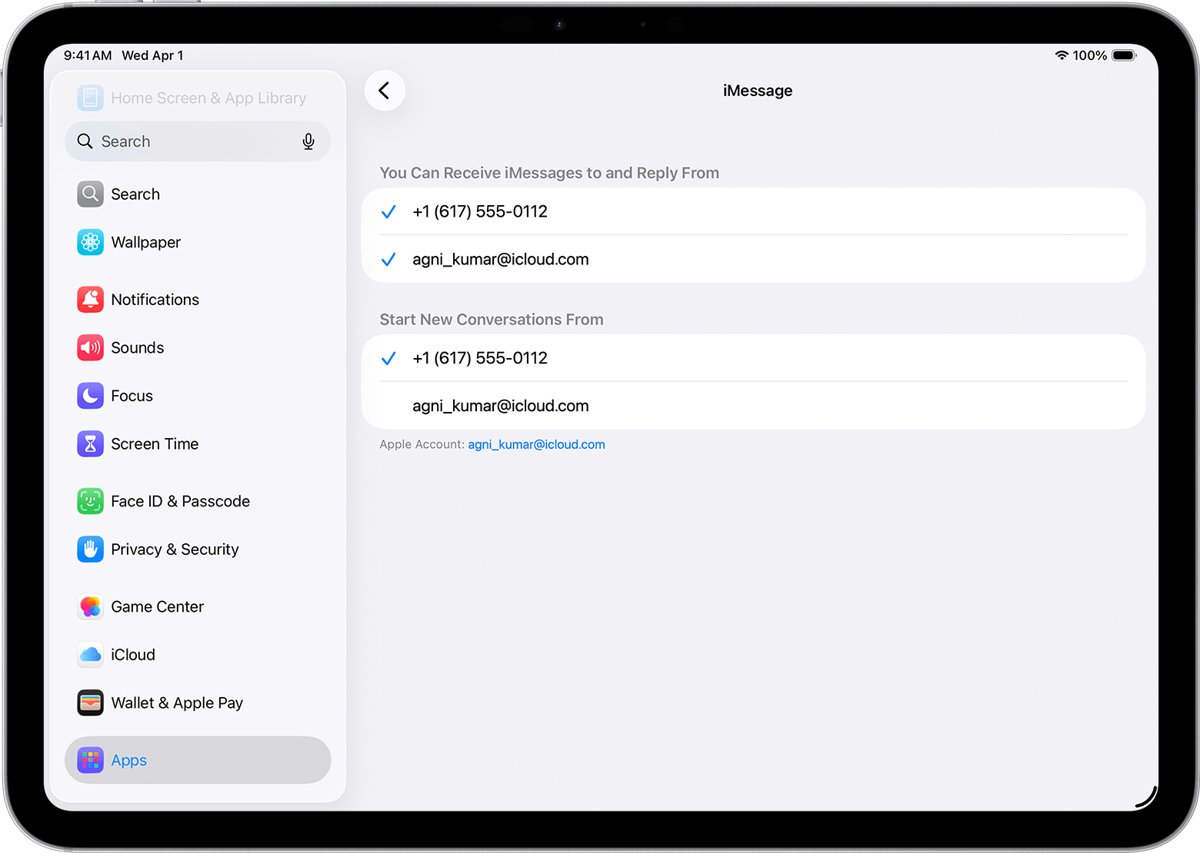
- Go to Settings > Apps > Messages > Send & Receive and confirm your phone number and Apple Account are both ticked.
- On the iPhone, open Text Message Forwarding in the same Messages settings and turn on the iPad, so green SMS and MMS threads reach it too.
- Repeat the first two steps on the iPad, then open Settings > Apps > Messages > Send & Receive and tick your phone number.
The first sync can take a while on a long history, and you can keep sending messages while it runs. The same phone number setting also lets you place and answer FaceTime calls from the iPad.
How to sync photos from iPhone to iPad
iCloud Photos keeps the full library on both devices, including edits. Photos are stored in their original formats, such as HEIF, JPEG, RAW, Live Photos and 4K video.
- On the iPhone, open Settings, tap your name, then tap iCloud.
- Tap Photos, then turn on Sync this iPhone.
- To save device space, tap iPhone Storage (or iPad Storage) on the same Photos screen and choose Optimize Storage. In iOS 26 or earlier, choose Optimize Storage directly.
- Repeat the first two steps on the iPad.
- Connect both devices to Wi-Fi and power and leave them overnight if the library is large.
Edits and deletions follow you: crop a photo on the iPhone and the iPad shows the crop; delete it and it goes from both. Deleted items stay in Recently Deleted for 30 days.
How to sync iPhone and iPad calendars and contacts
Contacts, calendars and reminders sync only when they are stored in iCloud. Entries saved to a Google, Yahoo or Exchange account follow that account instead.
- Open Settings, tap your name, then tap iCloud.
- Tap See All, then turn on Contacts.
- Tap iCloud Calendar, then turn on Use on this [device]. In iOS 16 or iPadOS 16, turn on Calendars instead.
- Go to Settings > Apps > Contacts > Default Account and select iCloud, so new contacts land in iCloud.
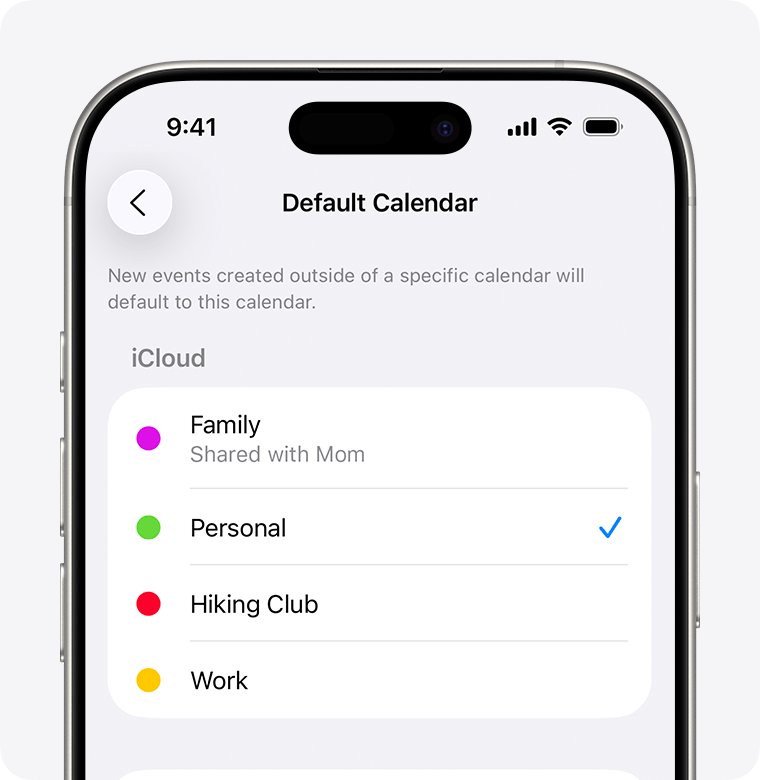
- Go to Settings > Apps > Calendar > Default Calendar and tap a calendar under iCloud.
- Repeat every step on the other device.
Changing the default account does not move existing entries from Google or another service into iCloud. Contact lists in vCard 3.0 format or later, the format you get when you export your iCloud contacts, can be imported into iCloud on iCloud.com.
How to sync Notes and emails between iPhone and iPad
Notes and iCloud Mail have their own switches. Notes saved under On My iPhone stay on that device; only the iCloud folders sync.
- Open Settings, tap your name, then tap iCloud.
- Tap See All, tap Notes, then turn on Sync this [device].
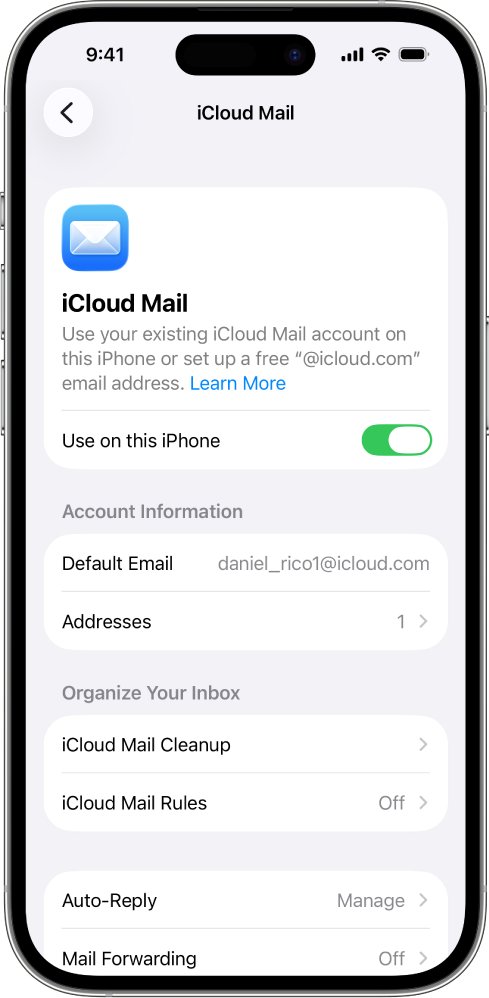
- Tap Mail, then turn on Use on this [device] to send and receive iCloud Mail.
- Keep iCloud Drive on as well, so mailbox order, VIPs and email address suggestions match on both devices.
- Repeat on the other device, then open Notes and select All iCloud in the folder list.
Gmail, Outlook and other email accounts sync from their own servers once the same account is added to Mail on both devices. Bookmarks follow the same pattern: turn on Safari in the iCloud app list to share bookmarks between Safari on iPhone and iPad.
Alternative methods
iCloud is the only route that keeps both devices matched continuously. The other routes suit specific content or people who avoid iCloud.
| Your situation | Use this | What it syncs |
|---|---|---|
| New iPad, old iPhone nearby | Quick start for new devices: place the old device next to the new one and tap Download from iCloud on the Transfer Your Data screen | A one-time copy of your data and settings, not ongoing sync |
| You keep music, films or photos on a Mac | Finder or iTunes (Mac/PC): connect each device by USB, select it in the Finder sidebar, tick Sync for a content type and click Apply | Music, movies, TV shows, podcasts, books, photos, contacts and calendars from one computer to both devices |
| Windows PC instead of a Mac | iTunes for Windows, or iCloud for Windows from the Microsoft Store | Media through iTunes; Photos, iCloud Drive and Outlook contacts and calendars through iCloud for Windows |
| You already use Google or Microsoft services | Third-party clouds: sign in to the same Google Drive, OneDrive or Dropbox app and account on both devices | Only what those apps store; Messages and iCloud Photos are not included |
| You only need to move a snippet now | Universal Clipboard: copy on one device, paste on the other | Text, images and files, briefly; needs the same Apple Account, Bluetooth, Wi-Fi and Handoff on |
A device syncs with only one Apple Music or Apple TV library at a time. If the Finder warns that the device synced with another library, Erase and Sync replaces that content type with the Mac's copy. The Finder route also covers how to sync iPhone and iPad to a Mac mini or any Mac on macOS Catalina or later, and Show this [device] when on Wi-Fi under General lets it sync without the cable.
Are my iPhone and iPad synced? Where to see it
- Open Settings on both devices and confirm the same name and Apple Account appear at the top, with no red badge.
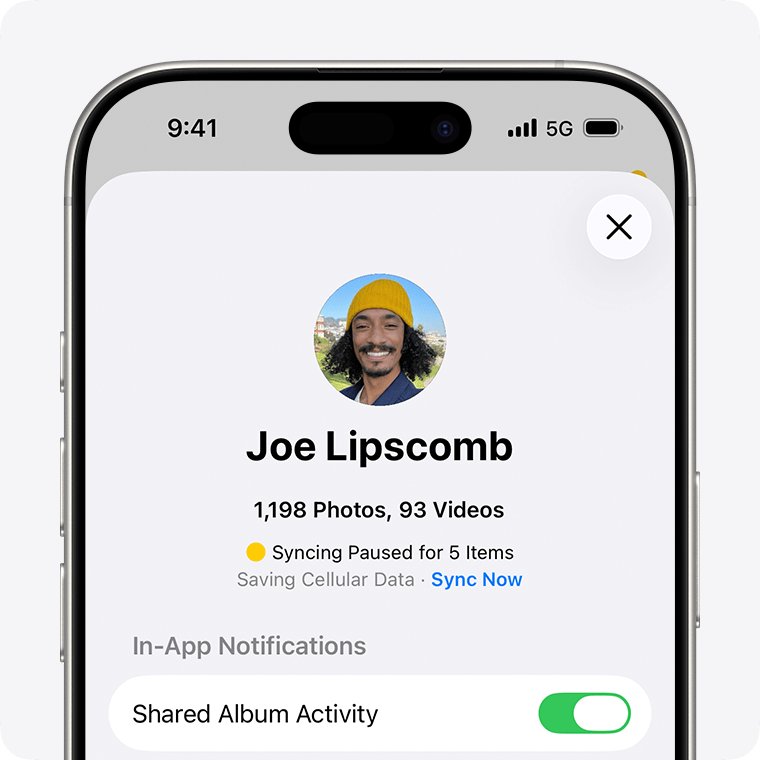
- Open Photos, tap Collections, then tap the profile button. The library status under your name should say the library is up to date rather than paused.
- Create a test note in an iCloud folder on the iPhone and wait a minute for it to appear in Notes on the iPad.
- Send a message from the iPad and confirm the reply thread shows on the iPhone too.
- Pull down on the contacts list in Contacts and on the Calendars list in Calendar to refresh both.
How to stop syncing iPhone and iPad
Turning off an app's iCloud switch stops it syncing on that device; the data then lives only on that device. Signing out of iCloud stops all sync and iCloud backup.
- On the device you want to separate, open Settings, tap your name, then tap iCloud.
- Tap See All and turn off each app you no longer want shared, such as Photos or Messages in iCloud.
- To stop iPhone messages and calls ringing on the iPad, go to Settings > Apps > Messages > Send & Receive on the iPad and untick your phone number.
- On the iPhone, open Text Message Forwarding and turn the iPad off.
- For FaceTime, go to Settings > Apps > FaceTime on the iPad and untick the phone number.
If two people share one Apple Account, each can see the other's conversations. Give each person their own Apple Account and use Family Sharing instead.
Troubleshooting tips
Why won't my iPhone and iPad sync? (mismatched Apple IDs or app toggles)
The devices use different Apple Accounts, or an app is on in iCloud on one device and off on the other.
- Open Settings and tap your name on both devices; sign out and back in on the one that differs.
- Open iCloud > See All on both devices and make the switches match.
- Check that the date and time settings on both devices are correct for your location.
- Update both devices to the latest iOS and iPadOS.
Why does my iPhone and iPad messages not sync?
Messages in iCloud is off on one device, or iMessage is signed in with a different Apple Account.
- Turn on Messages in iCloud on both devices, as in the Messages section above.
- On each device, open Settings > Apps > Messages > Send & Receive, tap your Apple Account and tap Sign Out.
- On the iPhone, turn iMessage back on, tap Send & Receive and choose Use your Apple Account for iMessage.
- Sign back in on the iPad with the same Apple Account and tick your phone number.
- If your number still cannot be selected, change your Apple Account password and repeat the setup.
Why is my iPad calendar not syncing with iPhone?
The events are in a non-iCloud calendar, the calendar is hidden, or the sync window is too narrow.
- Open Calendar, tap Calendars and make sure every iCloud calendar is ticked.
- Go to Settings > Apps > Calendar > Sync and switch between All Events and a set range such as Events 1 Month Back.
- Wait a few minutes, open Calendar, tap Calendars and pull down to refresh.
- Set an iCloud calendar under Default Calendar so new events are created in iCloud.
Sync delays or no data in Photos
iCloud Photos pauses for Low Power Mode, Low Data Mode, battery under 20 percent, heat or a poor connection.
- Connect both devices to Wi-Fi and power and leave them to sync overnight.
- Check the library status in Photos > Collections > profile button.
- Tap Sync Now if the status offers it, or turn off Low Power Mode and Low Data Mode.
- Do not turn iCloud Photos off and on; that restarts the whole upload.
Storage full or quota issues
Your iCloud storage is full, so new data stops uploading and the other device never receives it.
- Open Settings, tap your name, then tap iCloud to see what uses the space.
- Reduce the amount of iCloud storage you use, or upgrade your iCloud storage plan.
Persistent failures or an "iCloud Data Not Syncing" message
iCloud needs you to reauthenticate the account, or there is a service issue.
- Open Settings and tap any badge you see under your name.
- Follow the onscreen instructions and authenticate your account if prompted.
- Check Apple's System Status page for iCloud outages.
- Restart both devices, then contact Apple Support if the message returns.
Frequently asked questions (FAQs)
Do iPhone and iPad sync automatically?
Yes, once both devices are signed in to iCloud with the same Apple Account and the same apps are turned on in iCloud settings. After that, changes upload and appear on the other device without any button to press. Apps left off on one device do not sync.
Can I sync my iPhone to my iPad directly?
No. There is no direct device-to-device sync between an iPhone and an iPad. Both sync through iCloud, or through one Mac or PC with the Finder or iTunes. Quick Start copies data from one device to a new one only once, during setup.
How do I sync apps between iPhone and iPad?
Install the app on each device from the App Store with the same Apple Account. Apps that use iCloud then keep their data matched, and you can control which ones do under Settings, your name, iCloud, See All.
How do I sync iPhone and iPad contact lists?
Turn on Contacts under Settings, your name, iCloud, See All on both devices, then set iCloud as the Default Account in Contacts settings. Contacts stored in Google or another account sync through that account instead.
How do I sync emails between iPhone and iPad?
For iCloud Mail, turn on Mail in iCloud settings on both devices. For Gmail, Outlook or another provider, add the same account in the Mail app on each device; the provider's server keeps both in step.
How do I sync the Notes app between iPhone and iPad?
Go to Settings, your name, iCloud, See All, tap Notes and turn on Sync this device on both. Save notes in an iCloud folder; notes kept under On My iPhone or On My iPad stay on that device.
If I delete a photo on my iPad, will it delete on my iPhone?
Yes, when iCloud Photos is on for both devices. A deletion on one device removes the photo everywhere. It stays in Recently Deleted for 30 days, after which it is gone permanently.
How do I sync iPhone and iPad to a Mac mini?
Sign in to iCloud with the same Apple Account on the Mac mini for continuous sync. For media, connect each device by USB, select it in the Finder sidebar, tick Sync for each content type and click Apply.
Why won't my iPad sync with my iPhone?
Usually the devices use different Apple Accounts, an app is turned off in iCloud on one of them, or iCloud storage is full. Match the account and the iCloud switches on both, free up storage, and update both devices.