To always run Windows Terminal as administrator on Windows 10, add "elevate": true to the profile defaults in the Terminal settings, or use a desktop shortcut to wt.exe with Run as administrator ticked.
This guide covers both methods, how to elevate a single profile only, a one-time admin launch, a PowerShell check that proves the window is elevated, and how to switch the behaviour off again.
Always open Windows Terminal as an admin with Settings
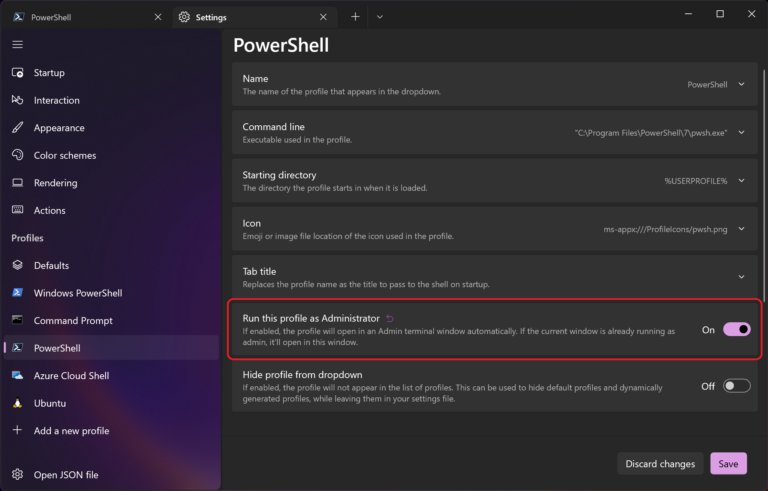
Windows Terminal has a profile setting named elevate. When it is true, the profile opens in an elevated window by default. Put it in the defaults block and every profile, including Windows PowerShell and Command Prompt, starts as administrator.
The Settings UI shows the same option as a switch on each profile's page. Editing the settings file sets it for all profiles at once.
- Open Windows Terminal from the Start menu.
- Hold Shift and select Settings in the dropdown menu next to the + button. The
settings.jsonfile opens in your default text editor. - Find the
"profiles"section and the"defaults"block inside it. - Add the line
"elevate": trueinside the braces after"defaults":. If the block already holds other settings, separate the lines with a comma. - Save the file and close the editor.
- Close every Windows Terminal window, then open Windows Terminal again.
- Select Yes on the User Account Control prompt.
F
r
o
m
n
o
w
o
n
,
e
v
e
r
y
n
e
w
W
i
n
d
o
w
s
T
e
r
m
i
n
a
l
w
i
n
d
o
w
o
n
t
h
i
s
P
C
s
t
a
r
t
s
e
l
e
v
a
t
e
d
.
T
h
e
s
e
t
t
i
n
g
i
s
p
e
r
u
s
e
r
,
b
e
c
a
u
s
e
`
s
e
t
t
i
n
g
s
.
j
s
o
n
`
l
i
v
e
s
i
n
y
o
u
r
o
w
n
p
r
o
f
i
l
e
f
o
l
d
e
r
.
Settings or shortcut: pick the right way to run Windows Terminal as admin
| Your situation | Use this | Why |
|---|---|---|
| Every profile should open as administrator, whatever way you launch Terminal | "elevate": true in the defaults block |
One line covers the Start menu, the taskbar, wt and new tabs |
| Only PowerShell (or one other shell) needs admin rights | "elevate": true inside that one profile |
Other profiles keep opening as a standard user |
| You want a separate admin icon next to a normal one | Desktop shortcut to wt.exe with Run as administrator ticked |
Normal launches stay unelevated; the shortcut always elevates |
| You need admin rights for one task only | Hold Ctrl and select a profile, or right-click Terminal and choose Run as administrator | Nothing changes permanently |
Always open Windows Terminal as an admin with shortcut
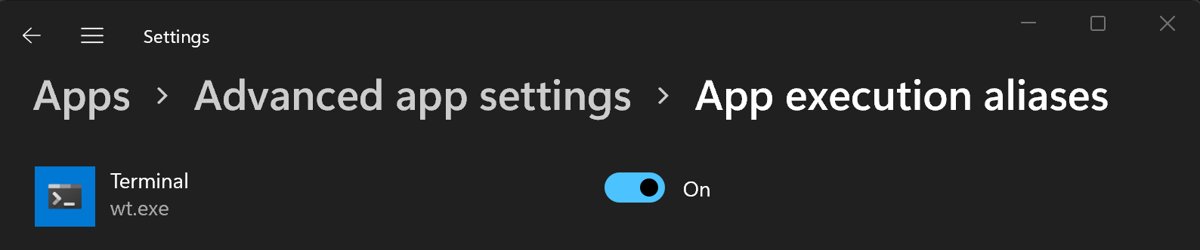
Windows Terminal is a Microsoft Store app, so its Start menu tile has no compatibility options. A desktop shortcut that points at the wt.exe execution alias does have them, including the Run as administrator check box.
- Right-click an empty area of the desktop and select New > Shortcut.
- Type
wt.exeas the location of the item and select Next. - Type a name such as
Windows Terminal (Admin)and select Finish. - Right-click the new shortcut and select Properties.
- On the Shortcut tab, select Advanced.
- Tick the Run as administrator check box and select OK.
- Select OK again to close the Properties window.
- Double-click the shortcut and select Yes on the User Account Control prompt.
T
o
o
p
e
n
a
s
p
e
c
i
f
i
c
s
h
e
l
l
f
r
o
m
t
h
i
s
s
h
o
r
t
c
u
t
,
c
h
a
n
g
e
t
h
e
l
o
c
a
t
i
o
n
t
o
`
w
t
.
e
x
e
–
p
"
W
i
n
d
o
w
s
P
o
w
e
r
S
h
e
l
l
"
`
,
u
s
i
n
g
t
h
e
p
r
o
f
i
l
e
n
a
m
e
e
x
a
c
t
l
y
a
s
i
t
a
p
p
e
a
r
s
i
n
t
h
e
T
e
r
m
i
n
a
l
d
r
o
p
d
o
w
n
.
Y
o
u
c
a
n
p
i
n
t
h
e
s
h
o
r
t
c
u
t
t
o
S
t
a
r
t
o
r
t
h
e
t
a
s
k
b
a
r
a
f
t
e
r
i
t
w
o
r
k
s
.
Run only one Windows Terminal profile as administrator
Set elevate on a single profile when only one shell needs admin rights. That profile opens in its own elevated window, while the rest open normally.
- Open Windows Terminal, hold Shift and select Settings in the dropdown menu.
- Scroll to the
"list"array inside"profiles". - Find the profile you want, for example the entry with
"name": "Windows PowerShell". - Add
"elevate": true,on its own line inside that profile's braces. - Save the file.
- Open the profile from the dropdown menu and approve the User Account Control prompt.
I
f
`
e
l
e
v
a
t
e
`
i
s
a
l
r
e
a
d
y
`
t
r
u
e
`
i
n
`
d
e
f
a
u
l
t
s
`
,
y
o
u
c
a
n
e
x
c
l
u
d
e
o
n
e
p
r
o
f
i
l
e
i
n
s
t
e
a
d
b
y
a
d
d
i
n
g
`
"
e
l
e
v
a
t
e
"
:
f
a
l
s
e
`
t
o
t
h
a
t
p
r
o
f
i
l
e
.
T
h
e
p
r
o
f
i
l
e
s
e
t
t
i
n
g
o
v
e
r
r
i
d
e
s
t
h
e
d
e
f
a
u
l
t
.
Open Windows Terminal as administrator once on Windows 10
These routes elevate one session and change nothing. They also work as a fallback when you cannot edit the settings file.
| Where you start | What to do | Result |
|---|---|---|
| Start menu | Open Start, scroll to Windows Terminal, right-click it and select More > Run as administrator | A new elevated Terminal window with your default profile |
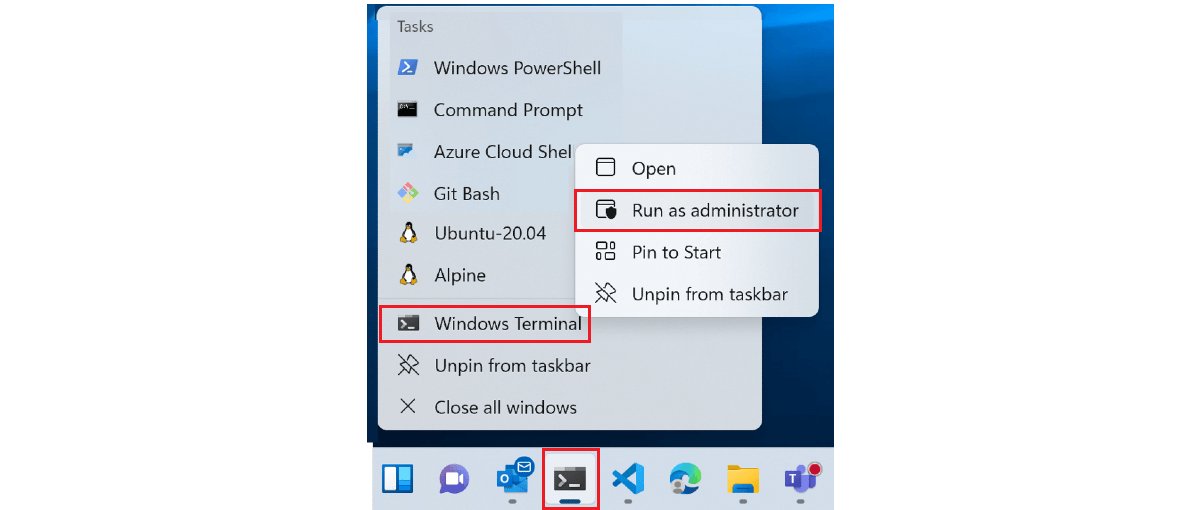
| Taskbar icon | Right-click the icon, right-click Windows Terminal in the jump list, then select Run as administrator | A new elevated Terminal window |
| An open Terminal window | Select the dropdown arrow next to +, hold Ctrl and select a profile | That profile opens as administrator in a new window |
| Win + X menu | Press Win + X and select Windows Terminal (Admin) when your menu lists it | An elevated Terminal window |
F
o
r
o
t
h
e
r
a
d
m
i
n
s
h
e
l
l
s
,
t
h
e
s
a
m
e
r
i
g
h
t
–
c
l
i
c
k
p
a
t
t
e
r
n
l
e
t
s
y
o
u
[
r
u
n
P
o
w
e
r
S
h
e
l
l
a
s
a
d
m
i
n
i
s
t
r
a
t
o
r
]
(
h
t
t
p
s
:
/
/
t
e
c
h
d
o
w
s
.
c
o
m
/
4
–
w
a
y
s
–
t
o
–
r
u
n
–
p
o
w
e
r
s
h
e
l
l
–
a
s
–
a
d
m
i
n
i
s
t
r
a
t
o
r
–
o
n
–
w
i
n
d
o
w
s
–
1
1
–
1
0
.
h
t
m
l
)
o
r
[
o
p
e
n
t
h
e
R
u
n
b
o
x
w
i
t
h
a
d
m
i
n
r
i
g
h
t
s
]
(
h
t
t
p
s
:
/
/
t
e
c
h
d
o
w
s
.
c
o
m
/
h
o
w
–
t
o
–
e
x
e
c
u
t
e
–
r
u
n
–
c
o
m
m
a
n
d
–
a
s
–
a
d
m
i
n
–
i
n
–
w
i
n
d
o
w
s
–
1
1
1
0
.
h
t
m
l
)
.
Check Windows Terminal admin mode with a PowerShell command
A User Account Control prompt at launch is the first sign the setting works. To prove the session is elevated, run this in a PowerShell tab of the new window.
([Security.Principal.WindowsPrincipal][Security.Principal.WindowsIdentity]::GetCurrent()).IsInRole([Security.Principal.WindowsBuiltInRole]::Administrator)Gets the account running the current shell and asks Windows whether its token holds the built-in Administrator role. Under User Account Control, an admin account in a normal window has only a standard token, so the answer is False until the window is elevated.
You should see: True means the tab runs as administrator. False means the window started as a standard user and the setting or shortcut did not apply.
I
n
a
C
o
m
m
a
n
d
P
r
o
m
p
t
t
a
b
,
s
t
a
r
t
`
p
o
w
e
r
s
h
e
l
l
`
f
i
r
s
t
a
n
d
t
h
e
n
p
a
s
t
e
t
h
e
s
a
m
e
l
i
n
e
.
Can admin and non-admin tabs share a Windows Terminal window?
No. Windows Terminal does not allow elevated and unelevated tabs in the same window, for security reasons. That rule explains why an admin profile sometimes opens a second window instead of a tab.
| What you do | What Windows Terminal does |
|---|---|
Open an elevate: true profile from a normal window |
Creates a new elevated window to host that profile |
Open an elevate: true profile from an elevated window |
Opens it as a new tab in the same window |
Open an elevate: false profile from an elevated window |
Opens it as administrator in the elevated window; it does not create a standard window |
Set elevate: true in defaults |
All profiles launch as administrator unless a profile sets elevate: false |
B
e
c
a
u
s
e
t
h
e
f
i
r
s
t
w
i
n
d
o
w
i
s
e
l
e
v
a
t
e
d
w
h
e
n
`
d
e
f
a
u
l
t
s
`
c
a
r
r
i
e
s
t
h
e
s
e
t
t
i
n
g
,
e
v
e
r
y
l
a
t
e
r
t
a
b
s
t
a
y
s
i
n
t
h
a
t
w
i
n
d
o
w
.
T
h
a
t
m
a
k
e
s
t
h
e
d
e
f
a
u
l
t
s
m
e
t
h
o
d
t
h
e
t
i
d
i
e
s
t
w
a
y
t
o
k
e
e
p
e
v
e
r
y
t
h
i
n
g
i
n
o
n
e
p
l
a
c
e
.
Is sudo for Windows available on Windows 10?
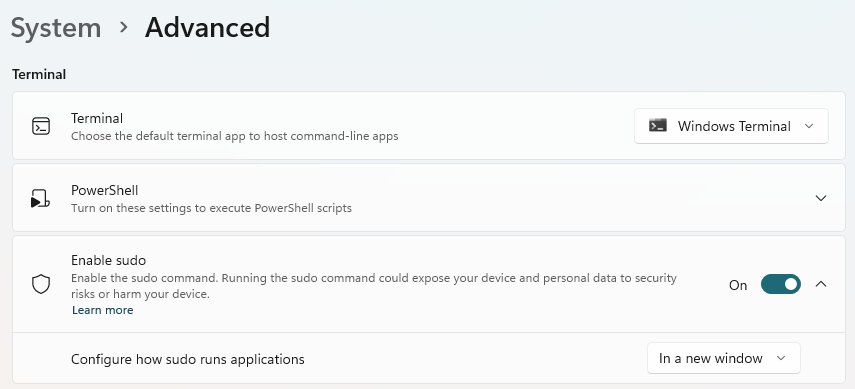
No. Sudo for Windows needs Windows 11, version 24H2 or later. On Windows 10, elevation in Windows Terminal comes from the elevate setting, an admin shortcut or a one-time Run as administrator launch.
| Option | Windows 10 | Windows 11, version 24H2 or later |
|---|---|---|
elevate profile setting |
Yes | Yes |
| Desktop shortcut with Run as administrator | Yes | Yes |
| Ctrl + select a profile in the dropdown | Yes | Yes |
sudo command in an unelevated window |
No | Yes, after you turn on Enable sudo in System > Advanced |
O
n
W
i
n
d
o
w
s
1
1
t
h
e
w
i
d
e
r
s
t
e
p
s
t
o
[
r
u
n
a
p
p
s
a
s
a
d
m
i
n
i
s
t
r
a
t
o
r
]
(
h
t
t
p
s
:
/
/
t
e
c
h
d
o
w
s
.
c
o
m
/
h
o
w
–
t
o
–
r
u
n
–
a
s
–
a
d
m
i
n
i
s
t
r
a
t
o
r
–
i
n
–
w
i
n
d
o
w
s
–
1
1
–
a
–
s
t
e
p
–
b
y
–
s
t
e
p
–
g
u
i
d
e
.
h
t
m
l
)
a
l
s
o
a
p
p
l
y
t
o
T
e
r
m
i
n
a
l
.
Stop Windows Terminal from always running as administrator
Running every shell elevated means any script or command you paste has full control of the PC. Turn the setting off when you no longer need it.
- Open Windows Terminal, hold Shift and select Settings in the dropdown menu.
- Delete the
"elevate": trueline fromdefaults, or change it to"elevate": false. - Remove or change any
"elevate": trueline inside individual profiles. - Save the file and close every Terminal window.
- If you made an admin shortcut, right-click it, select Properties > Advanced and clear Run as administrator, or delete the shortcut.
- Open Windows Terminal again and confirm no User Account Control prompt appears.
T
h
e
d
e
f
a
u
l
t
v
a
l
u
e
o
f
`
e
l
e
v
a
t
e
`
i
s
`
f
a
l
s
e
`
,
s
o
d
e
l
e
t
i
n
g
t
h
e
l
i
n
e
h
a
s
t
h
e
s
a
m
e
e
f
f
e
c
t
a
s
s
e
t
t
i
n
g
i
t
t
o
`
f
a
l
s
e
`
.
Windows Terminal run as administrator FAQ
How do I make Windows Terminal always open as administrator?
Add "elevate": true to the defaults block under profiles in the Windows Terminal settings.json file, then restart Terminal. Every profile then opens in an elevated window and Windows asks for User Account Control approval at launch.
Where is the Windows Terminal settings.json file?
For the Microsoft Store version it is at %LOCALAPPDATA%\Packages\Microsoft.WindowsTerminal_8wekyb3d8bbwe\LocalState\settings.json. The quicker route is to hold Shift and select Settings in the Terminal dropdown, which opens the file in your default text editor.
Can I run only PowerShell as administrator in Windows Terminal?
Yes. Add "elevate": true inside the Windows PowerShell profile in the list array instead of in defaults. That profile opens in its own elevated window, while Command Prompt and other profiles keep opening as a standard user.
Why does my admin profile open in a new Windows Terminal window?
Windows Terminal cannot mix elevated and unelevated tabs in one window. When you open an elevated profile from a normal window, Terminal creates a new elevated window for it. Opened from an elevated window, the same profile appears as a new tab.
Does running Windows Terminal as administrator skip the UAC prompt?
No. The elevate setting and the shortcut only request elevation. Windows still shows the User Account Control prompt each time a new elevated Terminal window starts, and you must select Yes or enter an administrator password.
How do I open Windows Terminal as administrator without changing settings?
Right-click Windows Terminal in the Start menu and select More, then Run as administrator. In an open Terminal window, hold Ctrl and select a profile from the dropdown menu to open that profile as administrator in a new window.
Can I use the sudo command in Windows Terminal on Windows 10?
No. Sudo for Windows is available only in Windows 11, version 24H2 or later. On Windows 10, use the elevate profile setting, an admin desktop shortcut or a one-time Run as administrator launch instead.
Can a standard user account run Windows Terminal as administrator?
Only with an administrator's credentials, so check your account's admin privileges first. When a standard account opens an elevated Terminal, the User Account Control prompt asks for the password of an administrator account. Without one, the elevated window does not open.