WMI Provider Host (WmiPrvSE.exe) uses high CPU when another program keeps sending it Windows Management Instrumentation queries, so restart the Windows Management Instrumentation service for quick relief and then find and stop the program behind the queries.
This guide covers the quick restart, how to trace the exact WmiPrvSE.exe process, provider and client app with Task Manager, Event Viewer and Performance Monitor, and whether you can disable the service on Windows 11 and Windows 10.
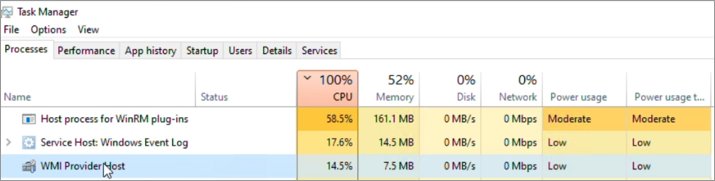
How do I stop WMI Provider Host using so much CPU?
Restarting the WMI service clears a stuck query and usually drops CPU use within seconds. It is a temporary fix if a program keeps sending the same queries.
- Press Win + R, type
services.mscand press Enter. - Scroll to Windows Management Instrumentation.
- Right-click it and select Restart.
- Confirm if Windows asks to restart the services that depend on it.
- Open Task Manager with Ctrl + Shift + Esc and check the WMI Provider Host entries on the Processes tab.
If CPU use climbs again within minutes, a program is driving it. The sections below show how to find that program and stop it.
What is WMI Provider Host (WmiPrvSE.exe)?
WMI is the Windows component that apps, scripts and management tools use to read system information. WMI Provider Host is the WmiPrvSE.exe process that runs the providers answering those requests.
| Fact | Detail |
|---|---|
| Process name | WmiPrvSE.exe, shown as WMI Provider Host in Task Manager |
| What it does | Loads WMI providers (DLLs) in a separate process, so a failing provider does not stop the WMI service |
| Related service | Windows Management Instrumentation, service name winmgmt, hosted in svchost.exe |
| How many copies | More than one WmiPrvSE.exe can run at once, each under a different account |
| Accounts it runs under | LocalSystem, NetworkService or LocalService |
| Why CPU rises | A client app or script submits WMI queries, and the provider handling them uses the CPU |
The CPU is almost always consumed by WmiPrvSE.exe itself. In a few cases the svchost.exe process hosting the WMI service is the one at the top of Task Manager.
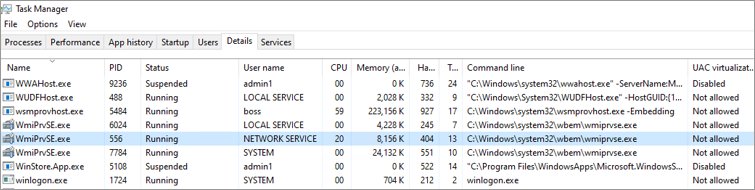
Find which WmiPrvSE.exe process is using high CPU in Task Manager
You need the process ID (PID) of the busy WmiPrvSE.exe before you can trace what it is doing.
- Press Ctrl + Shift + Esc to open Task Manager.
- Select the Details tab.
- Right-click a column header, choose Select columns and tick PID if it is not shown.
- Sort by Name and find each WmiPrvSE.exe entry.
- Note the PID of the one using the most CPU.
- Watch when the CPU rises: at sign-in, at set times or constantly, and note any app or script running at that moment.
Consistent use, regular spikes and random bursts point to different causes. A spike every few minutes usually matches a monitoring tool polling on a timer.
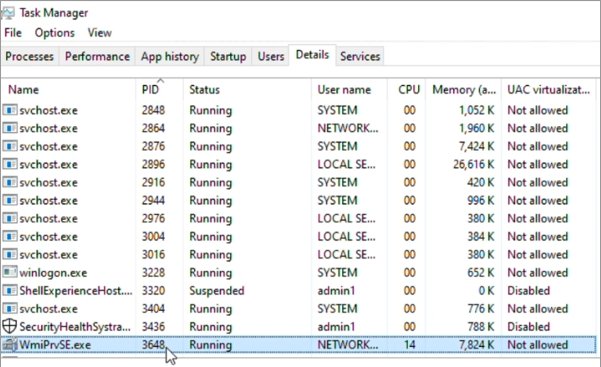
Check if svchost hosting the WMI service is using the CPU
If the busy process is svchost.exe rather than WmiPrvSE.exe, confirm it hosts the WMI service. Run this in an elevated Command Prompt.
tasklist /svc /fi "Services eq Winmgmt"Lists the svchost.exe process that hosts the Winmgmt service and its PID. If that PID matches the busy svchost.exe, WMI is involved. To isolate it, run sc config Winmgmt type= own, restart the WMI service, and check again with tasklist /svc.
You should see: One svchost.exe line with Winmgmt in its services list. After the change, Winmgmt runs in its own svchost.exe. Undo it later with sc config Winmgmt type= share and another WMI restart.
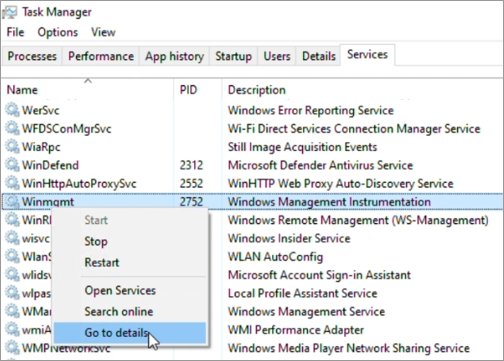
Find the program causing WMI Provider Host high CPU in Event Viewer
Windows logs WMI activity in the Windows Event Viewer, including the process ID of the client that sent each query. That client is the real cause.
- Press Win + R, type
eventvwr.mscand press Enter. - Go to Applications and Services Logs > Microsoft > Windows > WMI-Activity > Operational.
- Look for event ID 5857, which names each provider, its HostProcess and the ProcessID of the WmiPrvSE.exe hosting it.
- Match that ProcessID to the busy PID from Task Manager to learn the provider and its DLL.
- For per-query detail, select View > Show Analytic and Debug Logs, right-click Trace under WMI-Activity and select Enable Log.
- Reproduce the high CPU, then read the trace events for ClientProcessId: that number is the PID of the program sending the queries.
- Find that PID on Task Manager's Details tab to get the program name, then disable the trace log and turn off Show Analytic and Debug Logs.
The analytic and debug logs add logging for almost every event source, so switch them off as soon as you have the client PID.
Find the WMI provider DLL with tasklist /m
If the busy WmiPrvSE.exe closes and a new one starts, its PID changes. Once you know the provider DLL from Event Viewer, this finds whichever WmiPrvSE.exe has it loaded now.
tasklist /m ntevt.dllReplace ntevt.dll with the provider DLL from event 5857. The command lists every process that has that DLL loaded, with its PID. ntevt.dll is the event log provider, a common example.
You should see: A WmiPrvSE.exe line with a PID. Compare it with the busy PID in Task Manager.
Track WMI Provider Host CPU usage in Performance Monitor
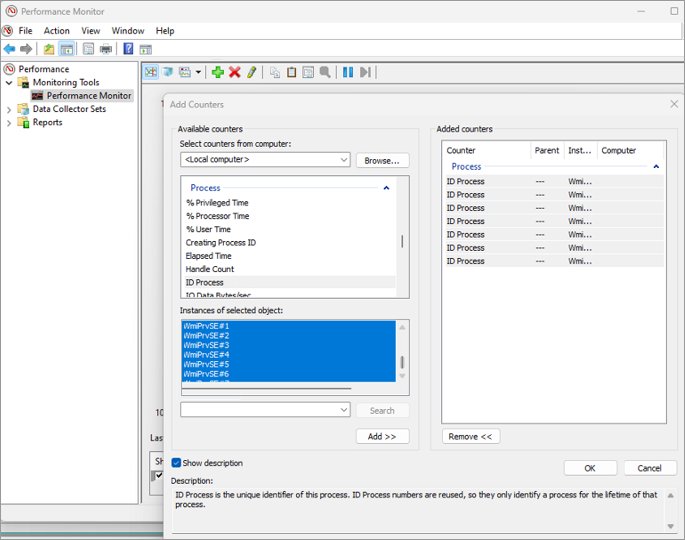
Performance Monitor graphs the CPU use of one WmiPrvSE.exe instance over time, which shows whether a fix worked.
- Open an elevated Command Prompt, type
perfmonand press Enter. - Select Performance Monitor in the left pane, then the plus sign (+) to open Add Counters.
- Expand Process, select ID Process, select all WmiPrvse# instances, then select Add > OK.
- Find the instance whose Last value equals the busy PID, and delete the other instances from the list.
- Open Add Counters again, expand Process, select %Processor Time for that same WmiPrvse# instance, then select Add > OK.
Fix WMI Provider Host high CPU caused by an app or script
Once you know the client program, test the fix by turning that program off and watching the CPU.
- Look up the client PID on Task Manager's Details tab to get the program name.
- If it is a monitoring tool, hardware utility or third-party app, close it or temporarily stop its service.
- If it is powershell.exe, find the script or scheduled task running WMI queries and stop or reschedule it.
- On a managed work PC, report a Configuration Manager agent or monitoring host to your IT team rather than removing it.
- Watch WMI Provider Host CPU for a few minutes; if it stays low, update, reconfigure or uninstall the program you stopped.
For broader tips on spotting busy processes, you can check and reduce CPU usage in Windows 11 from Task Manager and Settings.
Can I disable WMI Provider Host?
No. Do not disable the Windows Management Instrumentation service or end WmiPrvSE.exe as a fix. Other services depend on WMI. Stopping it with net stop winmgmt also halts dependents such as Windows Firewall, and WMI restarts automatically when the next app requests it. Ending a WmiPrvSE.exe in Task Manager only kills that host; WMI starts a new one when the next query arrives, so the CPU use returns until the client program is dealt with.
Is WmiPrvSE.exe a virus?
No, the genuine WmiPrvSE.exe is a Windows component, but malware can use the same name or send it heavy WMI queries. Right-click WMI Provider Host in Task Manager and select Open file location: a genuine copy sits inside the Windows folder, not in Downloads, AppData or a program folder. If it is anywhere else, or the client program you traced is unknown, run a full scan with Windows Security before removing anything.
Check WMI Provider Host CPU usage is back to normal
- Open Task Manager and sort the Processes tab by CPU.
- Confirm WMI Provider Host no longer sits near the top while the PC is idle.
- Repeat the trigger you noted, such as signing in or launching the suspect app, and watch for a new spike.
- If you added the %Processor Time counter, check the Performance Monitor graph stays flat over several minutes.
- Check the fan noise and the Power usage column, which should drop with the CPU load.
Short bursts while an app queries system information are normal. Sustained high use with nothing running is not.
WMI Provider Host high CPU usage keeps coming back
WMI Provider Host returns to high CPU minutes after a restart
A client program or script keeps submitting WMI queries, so restarting the service only clears the current backlog.
- Trace the ClientProcessId in the WMI-Activity trace log in Event Viewer.
- Look up that PID on Task Manager's Details tab.
- Close, update or uninstall that program and watch the CPU.
WMI Provider Host taking 100% CPU constantly
One provider is busy with a long-running or repeated query, often from a monitoring tool.
- Note the busy WmiPrvSE.exe PID on the Details tab.
- Match it to event 5857 in the WMI-Activity Operational log to find the provider DLL.
- Stop the app whose queries reach that provider.
WMI Provider Host high CPU at sign-in
Startup apps and scheduled tasks often query WMI when a user signs in.
- Open Task Manager and select the Startup apps page (the Startup tab on Windows 10).
- Disable third-party utilities one at a time and sign out and back in.
- Keep disabled the one that stops the spike.
svchost.exe hosting the WMI service is using the CPU
The Winmgmt service shares an svchost.exe with other services, so Task Manager cannot show which one is busy.
- Run
tasklist /svc /fi "Services eq Winmgmt"to confirm the PID. - Run
sc config Winmgmt type= ownin an elevated Command Prompt and restart the WMI service. - Check whether the isolated svchost.exe is still busy, then restore it with
sc config Winmgmt type= share.
WMI Provider Host high CPU FAQ
How do I stop WMI Provider Host high CPU usage?
Restart the Windows Management Instrumentation service from services.msc for quick relief. Then find the program sending the WMI queries through the WMI-Activity log in Event Viewer, and close, update or uninstall it so the CPU use does not return.
What is WMI Provider Host high CPU?
It is WmiPrvSE.exe using a large share of the processor while it answers Windows Management Instrumentation queries. The process is not the cause; an app, script or monitoring tool sending repeated or heavy queries is, and the provider handling them uses the CPU.
Can I end WMI Provider Host in Task Manager?
You can, but it does not fix anything. WMI starts a new WmiPrvSE.exe as soon as the next query arrives, and an app relying on that provider may fail. Restart the WMI service instead and deal with the program sending the queries.
Is it safe to disable the Windows Management Instrumentation service?
No. Other services depend on WMI, and stopping it also halts dependents such as Windows Firewall. WMI starts again automatically when an app requests it, so disabling it breaks features without solving the high CPU use.
Why are there several WMI Provider Host processes?
WMI loads providers into separate WmiPrvSE.exe host processes, and each can run under a different account: LocalSystem, NetworkService or LocalService. Several copies at once are normal. Only one using sustained high CPU needs attention.
Is WMI Provider Host a virus?
The genuine WmiPrvSE.exe is part of Windows and stored inside the Windows folder. Use Open file location in Task Manager to check where it runs from, and run a full Windows Security scan if it sits elsewhere or an unknown program is sending it queries.
Why does WMI Provider Host show high power usage?
Task Manager's power usage column follows CPU and disk load, so a busy WmiPrvSE.exe shows high power use too. Once the program flooding WMI with queries is stopped, both CPU and power usage for WMI Provider Host fall back.
Does WMI Provider Host high CPU happen on Windows 11 and Windows 10?
Yes. WMI works the same way on both, so the fixes are identical: restart the service, find the busy WmiPrvSE.exe PID, trace the client process in Event Viewer and stop that program. Only Task Manager's layout differs slightly.