To run HTML code in Notepad on Windows 11 or Windows 10, type the code, save the file with a .html extension, and open that file in a web browser, because Notepad only edits the code and the browser runs it.
This guide covers a starter HTML template, saving the file correctly, opening it in Edge or Chrome, running it from Command Prompt or PowerShell, Notepad settings that help, and fixes for pages that show raw code.
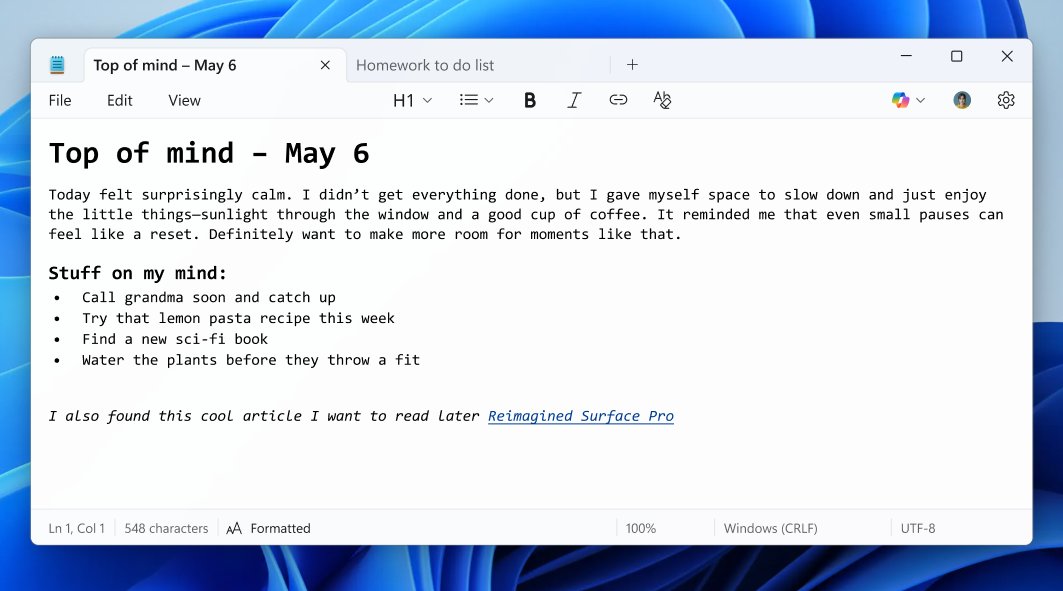
How to write and run HTML code with Notepad
- Open Start, type Notepad and open it.
- Type or paste your HTML code. The template in the next section works as a first test.
- Select File > Save As (or press Ctrl + Shift + S).
- Pick a folder, such as a new folder called first-website on your desktop.
- In the File name box, type index.html and select Save.
- Open File Explorer, go to that folder and double-click index.html.
- The page opens in your default web browser and shows the result of your code.
To see changes, edit the code in Notepad, save with Ctrl + S, and reload the browser tab. The file name must end in .html; the .html extension is what tells Windows to open it in a browser instead of a text editor.
Basic HTML code to test in Notepad
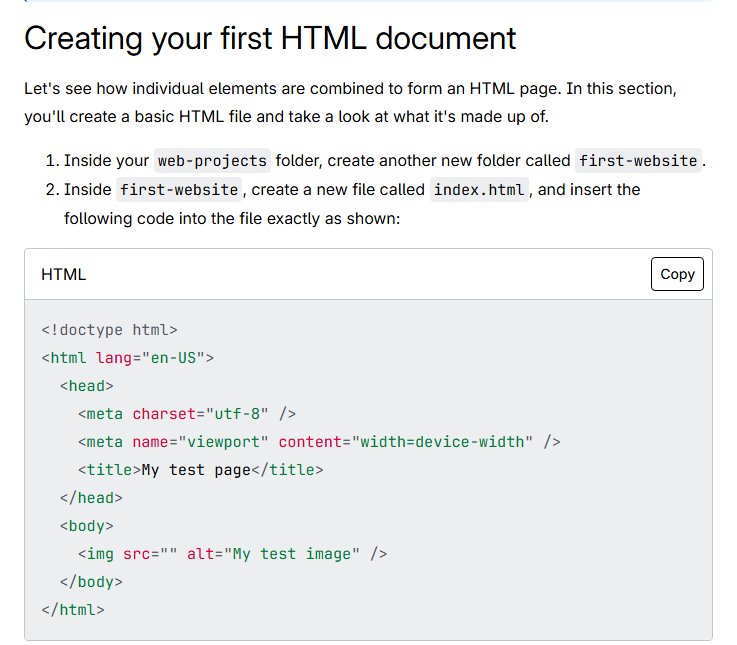
Paste this into an empty Notepad window. It is the minimal structure a browser needs to display a page correctly.
| Line of code | What it does |
|---|---|
<!doctype html> |
Required first line; makes the browser treat the file as a modern HTML document |
<html lang="en-US"> … </html> |
Wraps the whole page and sets its language |
<head> … </head> |
Holds settings that are not shown on the page, such as the title and character set |
<meta charset="utf-8"> |
Tells the browser the file uses UTF-8, so symbols and accented letters display correctly |
<meta name="viewport" content="width=device-width"> |
Makes the page fit the screen width on phones |
<title>My test page</title> |
Sets the text shown on the browser tab |
<body> … </body> |
Holds everything visible on the page |
<h1>Hello from Notepad</h1> |
A top-level heading inside the body |
<p>This page runs from a file on my PC.</p> |
A paragraph of text |
Type the lines in that order, closing each element after its content. Most elements have an opening tag and a closing tag with a slash, such as <p> and </p>.
Save an HTML file in Notepad with the right name and encoding
Most "HTML won't run" problems come from how the file was saved, not from the code.
- Select File > Save As in Notepad.
- Type a name in lowercase with no spaces, such as index.html or about-me.html.
- Leave the encoding as UTF-8. Notepad uses UTF-8 without a byte order mark for new files, which suits web pages.
- Select Save.
- Check the Notepad status bar: it shows the file's encoding, and an asterisk in the title bar means there are unsaved changes.
Use hyphens instead of spaces in file names. Spaces turn into %20 in web addresses, and many web servers treat MyPage.html and mypage.html as different files.
Open an HTML file in Edge, Chrome or another browser
- Open File Explorer and go to the folder where you saved the file.
- Double-click the .html file to open it in your default browser.
- To use a different browser, right-click the file, select Open with, and choose the browser.
- Keep the browser tab open while you work.
- After each save in Notepad, reload the tab to see the change.
The browser shows the file from your PC, so the address bar starts with file:/// rather than https://. Nobody else can see the page until you upload it to a web server.
Run an HTML file from Command Prompt or PowerShell
Windows opens a document in the app associated with its file type when you type the file name as a command, so an .html file opens in your default browser.
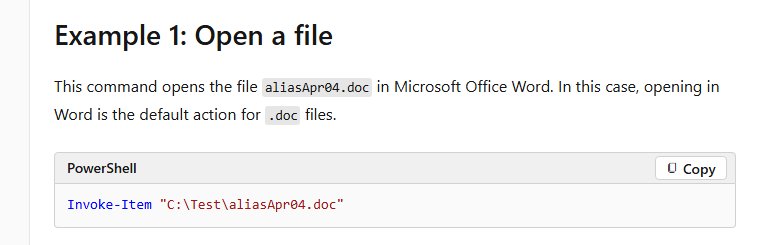
start index.htmlRun this in Command Prompt from the folder that holds the file (use cd to get there). In PowerShell, Invoke-Item index.html does the same: it performs the default action for the file, which for .html is opening it in the browser.
You should see: Your default browser opens a new tab showing the page.
Notepad tips and tricks for Windows users
Notepad has no syntax highlighting or tag completion, but a few settings make it easier to write HTML.
| Tip | How | Why it helps with HTML |
|---|---|---|
| Save As shortcut | Ctrl + Shift + S | Saves a copy under a new .html name quickly |
| Open a second window | Ctrl + Shift + N | Keeps two HTML files side by side |
| Watch the encoding | Read the encoding in the status bar | Confirms the file is UTF-8, matching the meta charset line |
| Spot unsaved work | Look for the asterisk in the title bar | Explains a browser that still shows the old version |
| Turn off text formatting | Disable formatting in Notepad settings (Windows 11) | Keeps the file plain text, so no Markdown formatting gets mixed into your code |
| Use forward slashes in paths | Write images/photo.jpg, not images\photo.jpg | HTML paths use forward slashes even on Windows |
| Keep related files together | Put images in an images folder next to index.html | Short relative paths such as images/logo.png then work |
Run HTML code in Notepad, Notepad++ or VS Code
| Your situation | Use this | Why |
|---|---|---|
| Quick test, nothing to install | Notepad + browser | Built into Windows; save as .html and double-click |
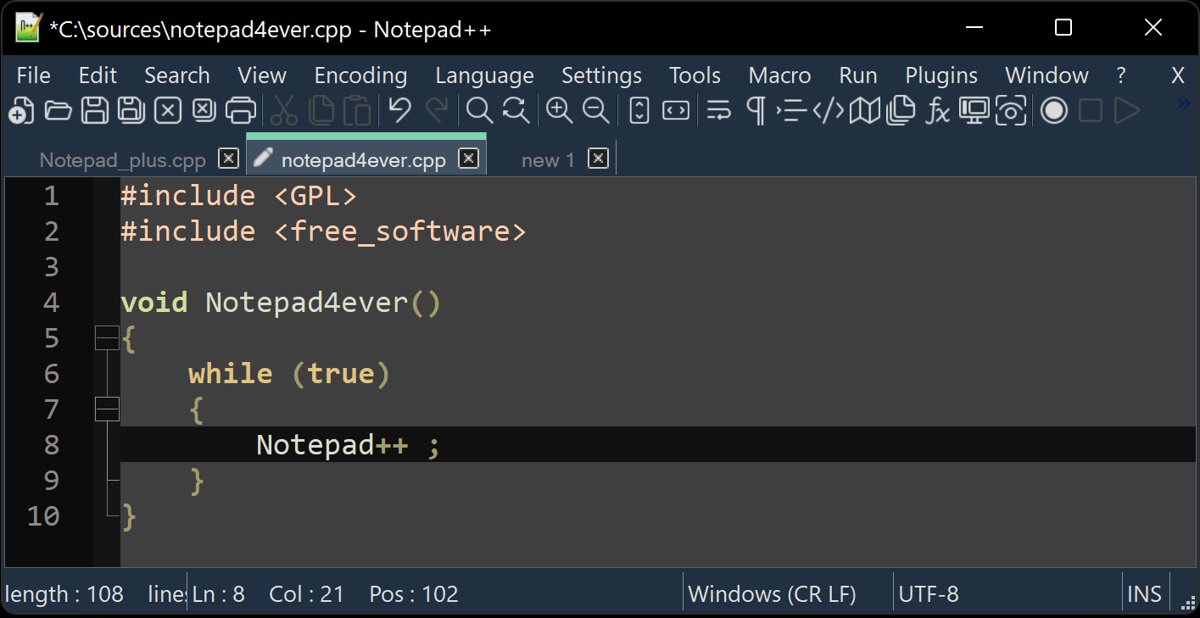
| Want a free source code editor | Notepad++ | A free Notepad replacement for Windows built for programming languages; saves .html files the same way |
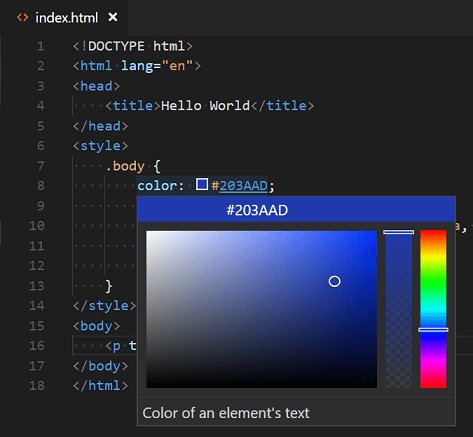
| Learning web development or building a site | Visual Studio Code | IntelliSense suggestions, Emmet, Format Document (Shift + Alt + F) and a live preview |
| No access to install software | Notepad + browser | Works on any Windows PC with a browser |
In VS Code, right-click an HTML file and select Open in Integrated Browser, or select the Show Preview icon in the editor title bar. The preview updates as you type.
Confirm your HTML code is running in the browser
- Look at the browser tab: it should show the text from your title element.
- Check the page: headings and paragraphs should appear as formatted text, with no angle brackets visible.
- Change the heading text in Notepad, save, and reload the tab; the new text should appear.
- Check the address bar shows a file path ending in .html.
HTML code not running from Notepad
Double-clicking the file opens Notepad instead of a browser
The file was saved as index.html.txt, so Windows still sees a text file.
- In File Explorer, open Folder options, clear Hide extensions for known file types, and select OK.
- Find the file and check whether its name ends in .txt.
- Rename it so it ends in .html only, and confirm the extension change.
The browser shows the code as plain text
The file still has a .txt extension, or the code is missing its HTML structure.
- Check the extension is .html, as above.
- Make sure the file starts with
<!doctype html>and contains<html>,<head>and<body>elements.
Changes in Notepad do not show in the browser
The file was not saved, or the browser tab was not reloaded.
- Look for an asterisk in the Notepad title bar and press Ctrl + S.
- Reload the browser tab.
- Confirm you are editing the same file the browser opened.
Accented letters or symbols show as odd characters
The file encoding and the declared character set do not match.
- Add
<meta charset="utf-8">inside the head element. - Save the file again with UTF-8 encoding in Notepad's Save As dialog.
Images do not load on the page
The src path or file name does not match the image file.
- Put the image in a folder next to the HTML file, for example images.
- Use a relative path with forward slashes, such as
images/photo.jpg. - Match upper and lower case exactly and keep the image's file extension.
Run HTML code in Notepad FAQ
Can you write HTML in Notepad?
Yes. HTML is plain text, so Notepad can write it. Save the file with a .html extension and UTF-8 encoding, then open it in a browser to see the result. Notepad itself does not display the page.
How do I run HTML code in Notepad on Windows 11?
Type the code in Notepad, choose File > Save As, name the file index.html, and save. Then double-click the file in File Explorer and it opens in your default browser, such as Microsoft Edge.
Which Notepad is best for HTML?
Windows Notepad is enough for small tests. Notepad++ is a free source code editor and Notepad replacement built for programming languages. Visual Studio Code is the stronger choice for real projects, with suggestions as you type, automatic formatting and a live preview.
Is Notepad still available for Windows 11/10?
Yes. Notepad is included with Windows 11 and Windows 10. On Windows 11 the redesigned Notepad has also added spellcheck and optional text formatting.
How do I run HTML code in a browser?
Save the code as a file ending in .html, then open it in the browser by double-clicking it or right-clicking and choosing Open with. Reload the tab after each change to see the new version.
How do I run HTML code in Notepad++?
Write the code, save the file with a .html extension, and open it in your browser from File Explorer the same way as with Windows Notepad. The saved file runs identically whichever editor created it.
How do I run HTML code in VS Code?
Open the .html file in Visual Studio Code, right-click it and select Open in Integrated Browser, or select the Show Preview icon in the editor title bar. The preview updates as you edit.
How do I run HTML code in the terminal on Windows?
Go to the file's folder in Command Prompt and type start index.html, or in PowerShell type Invoke-Item index.html. Both open the file in the default browser, because that is the default action for .html files.
Do I need the internet to run HTML code?
No. A browser opens .html files stored on your PC without an internet connection. You only need a web server or hosting when other people should be able to visit the page.
Notepad or a code editor for running HTML on Windows?
Use Notepad and a browser for a first page or a quick test, and move to Visual Studio Code once you write more than a page or two. Notepad plus any browser already runs HTML with nothing to install, while VS Code adds suggestions, formatting and a live preview that catch mistakes Notepad cannot show.