To fix system interrupts high CPU usage in Windows 10, restart the PC with Restart (not Shut down), then update or roll back the driver of the device that is flooding the processor with interrupts.
System interrupts is not a program you can end; it shows the time the CPU spends answering hardware, so every fix below targets a driver, a device or the firmware, on Windows 10 and Windows 11.
Restart the computer
A full restart reloads every driver from scratch. Shut down does not do that when Fast Startup is on, because Windows hibernates the kernel session and its drivers instead of closing them.
- Save your work and close open apps.
- Select Start > Power > Restart.
- After you sign in, wait two minutes for startup apps to settle.
- Press Ctrl + Shift + Esc, select Processes and find System interrupts under Windows processes.
- If the CPU column is back near zero at idle, the problem was a stuck driver state. If it climbs again, continue below.
What is a system interrupt?
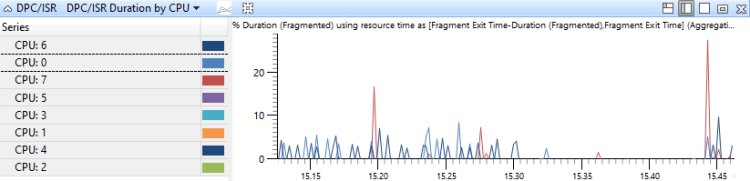
When a network card, USB controller, audio chip, timer or graphics card needs the processor, it raises an interrupt. Windows pauses the running thread and runs that driver's interrupt service routine (ISR). Long ISRs hand work to deferred procedure calls (DPCs), which run ahead of normal threads at any priority.
| Item | What it means | Why it matters for CPU usage |
|---|---|---|
| System interrupts in Task Manager | A placeholder for time spent in ISRs and DPCs | There is no process to end or delete |
| Interrupt | A hardware signal asking for the CPU | A faulty device can raise thousands per second |
| ISR | The driver code that answers the interrupt | Must finish quickly or the whole PC slows |
| DPC | Follow-up work scheduled by the ISR | Outranks every app thread, so it causes stutter and audio crackle |
| Root cause | A driver, device, power setting or firmware bug | Fixes target hardware, never the process itself |
How much CPU should system interrupts use?
Microsoft does not publish a fixed limit. Use the pattern instead: on an idle PC the entry normally sits at or near zero and only rises briefly during heavy network, disk or audio activity.
| What Task Manager shows | What it usually means | Do this |
|---|---|---|
| Near zero, short spikes during downloads or games | Normal hardware activity | Nothing |
| Steady few percent at idle that disappears after Restart | A driver got into a bad state | Restart when it returns and update the driver |
| Steady double digits at idle, survives Restart | A device or driver keeps raising interrupts | Update drivers, then disable devices one at a time |
| High only on battery or after waking from sleep | Power management or wake settings | Turn off Fast Startup and network wake as a test |
| High after a BIOS or Windows update | Firmware or driver incompatibility | Roll back the driver or check for a newer BIOS |
Update the drivers
Chipset, network, audio, USB and graphics drivers raise most interrupts. Start with Windows Update, then the PC or device maker's own site, which is also where to update the graphics driver from.
- Select Start > Settings > Windows Update > Advanced options > Optional updates on Windows 11.
- Expand the driver updates list, select the chipset, network, audio and graphics drivers offered, and select Download and install.
- On Windows 10, select Settings > Update & Security > Windows Update > Check for updates and install what is listed.
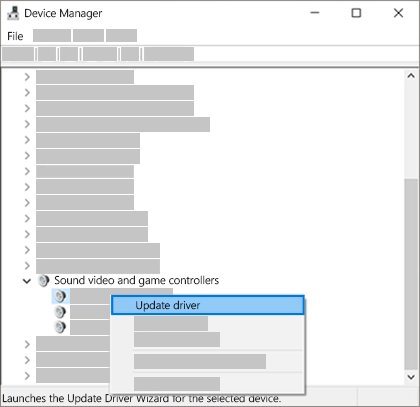
- Right-click Start, select Device Manager, expand Display adapters, right-click the graphics card and select Update driver.
- If the CPU usage started right after a driver update, choose Roll back driver for that device instead.
- Download anything Windows does not offer from the PC, motherboard or device maker's support site, then restart.
Windows does not install optional drivers on its own, so a chipset or network driver can stay outdated for months unless you pick it here. Avoid driver updater apps; they are a common source of wrong drivers.
Disable Fast Startup
Fast Startup saves drivers to disk at shutdown and reloads them at boot, so a driver stuck in a bad state survives every shutdown. Microsoft does not recommend leaving it off, so treat this as a test.
- Open Control Panel > System and Security > Power Options.
- Select Choose what the power buttons do.
- Select Change settings that are currently unavailable.
- Under Shutdown settings, clear Turn on fast startup (recommended).
- Select Save changes, shut down, and turn the PC back on.
- Check System interrupts in Task Manager over the next day of normal use.
To get a one-off full shutdown without changing the setting, run shutdown /s /t 0 from Command Prompt.
Disable Magic Packet
Wake on LAN keeps the network adapter listening for a special Ethernet packet, called a Magic Packet, that wakes the PC. On some adapters and drivers this listening raises a steady stream of interrupts. Switch it off if you never wake the PC over the network.
- Right-click Start and select Device Manager.
- Expand Network adapters, right-click your Ethernet adapter and select Properties.
- On the Power Management tab, clear Allow this device to wake the computer.
- Select the Advanced tab and set the Wake on entries, including the Magic Packet one, to Disabled where your adapter lists them.
- Select OK and restart the PC.
- Repeat for the Wi-Fi adapter if it shows the same options.
Disable hardware devices one by one
If updates did not help, find the device by switching non-essential devices off one at a time and watching Task Manager. Never disable Disk drives, Processors, System devices or the keyboard and mouse you are using.
- Open Task Manager next to Device Manager so you can see System interrupts.
- In Device Manager, expand Network adapters, right-click the Wi-Fi or Ethernet adapter and select Disable device.
- Wait 30 seconds and check whether System interrupts drops.
- If nothing changes, right-click the same device and select Enable device.
- Repeat with Sound, video and game controllers, Bluetooth, internal webcams, card readers and modems.
- When the usage drops, update, roll back or reinstall the driver for the device you just disabled.
Remove external hardware one by one
A failing USB device, hub, dock or cable can keep its controller busy. External hardware is quicker to test than internal devices because you only unplug it.
- Keep Task Manager open on the Processes tab.
- Unplug one external device: USB drive, hub, dock, printer, webcam, headset, game controller or external display.
- Wait 30 seconds and watch System interrupts.
- If the usage falls, that device or its cable is the cause. Try another port, another cable, or update its driver.
- If nothing changes, leave it unplugged and move on to the next device until only the keyboard and mouse remain.
Check for failing hardware
Failing memory and storage cause driver errors that show up as interrupt load, often with freezes or blue screens. Windows includes tools for both.
- Press Windows logo key + R, type
mdschedand press Enter. - Select Restart now and check for problems (recommended) and let the memory test finish.
- Read the result in the notification that appears after you sign in.
- Open This PC, right-click the Windows drive and select Properties.
- Select the Tools tab and select Check under error checking.
- If memory errors appear or the drive reports faults, contact the PC maker or replace the part.
Update BIOS
Firmware controls how devices hand interrupts to Windows, and PC makers ship BIOS updates that fix power and interrupt bugs. Update only with the maker's own package for your exact model.
- Find the exact model name on the PC's label or the maker's support app.
- Open the PC or motherboard maker's support site and enter the model.
- Compare the newest BIOS or UEFI version listed with the one installed, and read its notes for power or device fixes.
- Check Windows Update first; some makers deliver firmware there.
- Plug a laptop into a working power outlet before you start.
- Run the maker's update and never press the power button while it runs, even if the screen goes blank for a while.
Fix system interrupts high CPU usage in Windows 11
The fixes are the same on Windows 11, but a few paths moved; Task Manager is still where you check CPU usage on Windows 11. Windows 10 reached end of support on October 14, 2025, so moving to Windows 11 is the long-term way to keep receiving driver and security fixes.
| Fix | Windows 11 | Windows 10 |
|---|---|---|
| Find System interrupts | Task Manager > Processes > Windows processes | Task Manager > Processes > Windows processes |
| Driver updates | Settings > Windows Update > Advanced options > Optional updates | Settings > Update & Security > Windows Update |
| Fast Startup | Control Panel > Power Options > Choose what the power buttons do | Same path |
| Magic Packet wake | Device Manager > Network adapters > adapter Properties | Same path |
| Memory test | mdsched |
mdsched |
Confirm system interrupts CPU usage is back to normal
- Restart the PC with Start > Power > Restart.
- Leave it idle for five minutes after you sign in.
- Press Ctrl + Shift + Esc and select the CPU column to sort by usage.
- Check that System interrupts is at or near zero and not near the top of the list.
- Play audio, copy a large file or run a download for a few minutes; short spikes are normal, a steady high reading is not.
The system interrupts CPU usage is still too high
Match the symptom you still see. Other processes can also hold the CPU, so check whether something else, such as WSAPPX high CPU usage or Antimalware Service Executable, sits above System interrupts in Task Manager.
High usage only after waking from sleep
A device driver does not resume cleanly from low-power states.
- Turn off network wake on the adapter (Disable Magic Packet above).
- Update the chipset driver from the PC maker's site.
- Use Restart after waking to confirm the driver recovers.
High usage with crackling audio or stutter in games
Audio, network or graphics DPCs are running too long.
- Disable the device under Sound, video and game controllers for a test.
- Update or roll back the audio and graphics drivers.
- Unplug USB headsets and controllers one at a time.
High usage on a laptop only on battery
A power-saving state in a driver or the firmware.
- Plug the laptop in and compare the reading.
- Install the newest BIOS and chipset driver from the maker.
Nothing changes after every fix
Failing hardware or a damaged Windows installation.
- Run the memory test and drive check above.
- Back up your files and contact the PC maker with the results.
- As a last software step, reset Windows from Settings > System > Recovery > Reset PC with Keep my files.
System interrupts high CPU FAQ
Is System interrupts a virus?
No. System interrupts is a Windows placeholder in Task Manager that shows CPU time spent answering hardware interrupts. It has no file of its own, so malware cannot hide as it. High usage points at a driver or device, not an infection.
Can I end System interrupts in Task Manager?
No. System interrupts is not a real process, so Task Manager cannot end or disable it. Lower its usage by fixing the driver or device that raises the interrupts: update or roll back drivers, unplug external devices and disable internal ones one at a time.
What causes high system interrupts CPU usage?
A driver or device that raises too many interrupts, or takes too long to handle them, causes high System interrupts usage. Common sources are network, audio, USB and graphics drivers, failing external devices, power settings such as wake on LAN, and outdated BIOS firmware.
Does Fast Startup cause high system interrupts?
Fast Startup can keep a bad driver state alive because shutdown hibernates the drivers instead of closing them. Use Restart, which always does a full boot, or turn off Turn on fast startup (recommended) in Power Options as a test.
How do I find which device causes system interrupts?
Keep Task Manager open, then disable non-essential devices one at a time in Device Manager and unplug external devices one by one. When the System interrupts reading drops, the last device you switched off is the cause. Update or roll back its driver.
Is high system interrupts usage dangerous?
High System interrupts usage is not dangerous by itself, but it slows the PC, causes stutter and audio crackle, and can be an early sign of failing hardware. Run the Windows Memory Diagnostic and drive error check if the usage stays high after driver fixes.
Should I update the BIOS to fix system interrupts?
Update the BIOS only after driver fixes fail and only with the PC maker's package for your exact model. Check the release notes for power or device fixes, keep a laptop plugged in, and never switch the PC off during the update.