The Windows 11 26H2 registry tweaks worth knowing are the ones Microsoft documents: the Machine Identity Isolation value that fixes the 26H2 domain sign-in issue, the Windows Update policy values that control when updates install, and the UAC values under the Policies\System key.
Microsoft has not announced any change to Registry Editor itself in 26H2, so this guide covers each documented value, how to back up first, how to confirm a change and how to undo it.
The 26H2 registry tweaks at a glance
Match your goal to a row, then use the section below for the exact steps. Every key here sits under HKEY_LOCAL_MACHINE, so expect an administrator prompt when Registry Editor opens.
| Your goal | Registry key | Value to set |
|---|---|---|
| Fix the domain trust relationship failure after 26H2 | HKLM\SYSTEM\CurrentControlSet\Control\Lsa\MachineIdentityIsolation and HKLM\SOFTWARE\Policies\Microsoft\Windows\DeviceGuard\MachineIdentityIsolation | MachineIdentityIsolation from 2 to 0, only if it was set in the registry |
| Choose how Automatic Updates downloads and installs | HKLM\SOFTWARE\Policies\Microsoft\Windows\WindowsUpdate\AU | AUOptions (REG_DWORD) 2, 3 or 4 |
| Stop automatic restarts while someone is signed in | HKLM\SOFTWARE\Policies\Microsoft\Windows\WindowsUpdate\AU | NoAutoRebootWithLoggedOnUsers = 1 |
| Hide your organization's name in Windows Update notifications | HKLM\Software\Microsoft\WindowsUpdate\Orchestrator\Configurations | UsoDisableAADJAttribution = 1 |
| Let a provisioned VM start updating before its first sign-in | HKLM\SOFTWARE\Microsoft\Windows\CurrentVersion\WindowsUpdate\Orchestrator | ScanBeforeInitialLogonAllowed = 1 |
| Change how UAC prompts administrators | HKLM\SOFTWARE\Microsoft\Windows\CurrentVersion\Policies\System | ConsentPromptBehaviorAdmin (default 5) |
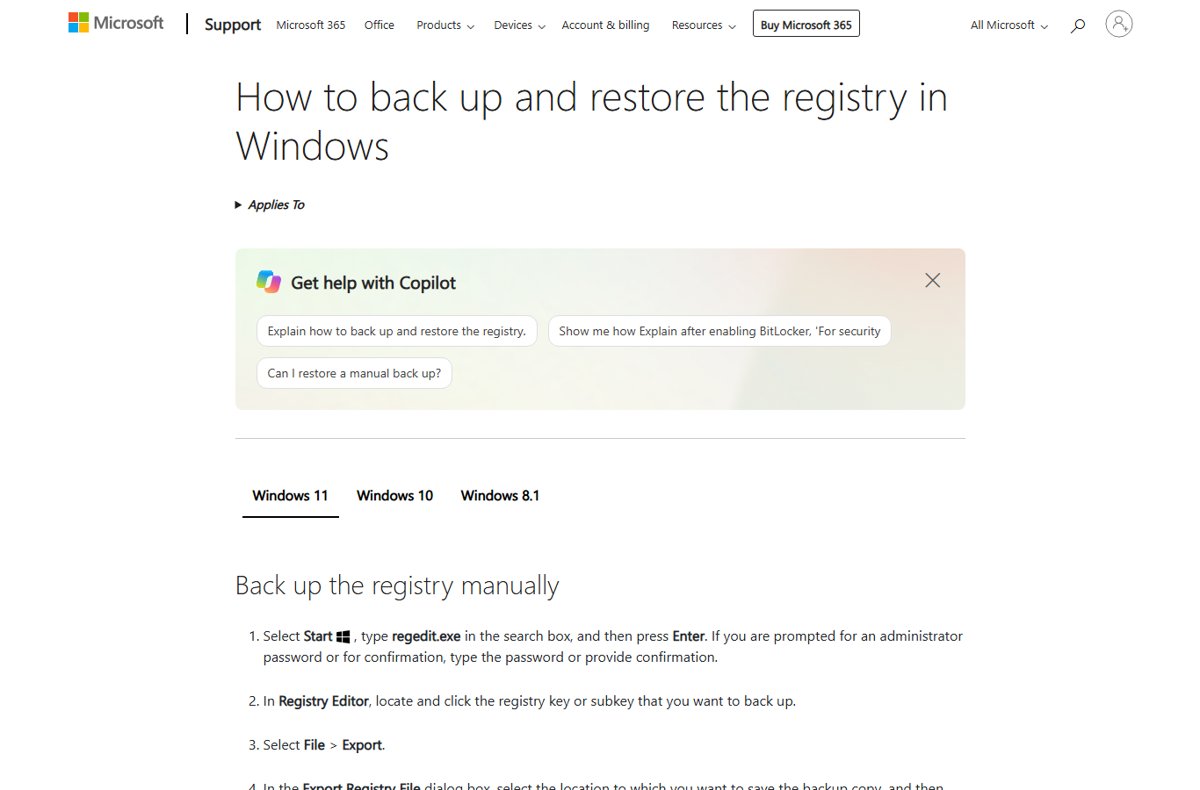
Back up the registry before you change anything
Microsoft warns that incorrect registry edits can force a reinstall of Windows. Export the key you plan to change so you can put it back in one step.
- Select Start, type
regedit.exein the search box, and press Enter. - Approve the administrator prompt if Windows shows one.
- In Registry Editor, select the key or subkey you want to back up.
- Select File > Export.
- In Export Registry File, choose a location and type a name in File name.
- Select Save.
To restore it later, open Registry Editor, select File > Import, pick the saved file and select Open.
Turn off Machine Identity Isolation to fix the 26H2 domain trust error
26H2 enables Machine Identity Isolation and starts honouring any existing setting that enforces it. On Credential Guard devices whose domain controllers are not at the Windows Server 2025 domain functional level, enforcement breaks the secure channel and users cannot sign in with domain credentials.
Use the registry route only if the feature was switched on in the registry. If Intune or Group Policy set it, turn it off there instead.
- Back up both keys listed below.
- In Registry Editor, go to
HKEY_LOCAL_MACHINE\SYSTEM\CurrentControlSet\Control\Lsa\MachineIdentityIsolation. - If the value MachineIdentityIsolation is 2, double-click it and change it to 0.
- Go to
HKEY_LOCAL_MACHINE\SOFTWARE\Policies\Microsoft\Windows\DeviceGuard\MachineIdentityIsolationand make the same change if the value is 2. - Restart the device.
- Open PowerShell and run
Test-ComputerSecureChannel -Repair -Credential (Get-Credential)to reset the secure channel, entering domain credentials when prompted.
Microsoft plans to temporarily block Machine Identity Isolation enforcement in a future update. The 26H2 known issues list tracks the fix.
Set Automatic Updates behavior in the registry
On a PC that is not managed through Active Directory, these policy values do what the Configure Automatic Updates Group Policy does. They override the choices a local administrator makes in Settings.
| Value under …\WindowsUpdate\AU (REG_DWORD) | Data | Effect |
|---|---|---|
| AUOptions | 2 | Notify before download and installation |
| AUOptions | 3 | Download automatically, then notify before installation |
| AUOptions | 4 | Download automatically and install on a schedule |
| ScheduledInstallDay | 0 to 7 | 0 is every day; 1 to 7 is Sunday to Saturday (used with AUOptions 4) |
| ScheduledInstallTime | 0 to 23 | Hour of the day in 24-hour format |
| ScheduledInstallEveryWeek | 1 | Install once a week on the set day and time |
| NoAutoRebootWithLoggedOnUsers | 1 | No automatic restart while a user is signed in |
| NoAutoUpdate | 0 | Automatic Updates enabled, which is the default |
Create the AU key under HKEY_LOCAL_MACHINE\SOFTWARE\Policies\Microsoft\Windows\WindowsUpdate if it does not exist, then add the values as DWORDs. Leave automatic updates on; security fixes for 26H2 still arrive every month.
Stay on 25H2 or pin 26H2 with the target version policy
The Select the target Feature Update version policy tells Windows Update which product and version to move to and stay on. It works on Pro, Enterprise, Education and IoT Enterprise, not Home, and Group Policy writes it under HKLM\Software\Policies\Microsoft\Windows\WindowsUpdate.
- In Group Policy, go to Computer Configuration > Administrative Templates > Windows Components > Windows Update > Manage updates offered from Windows Update.
- Open Select the target Feature Update version and select Enabled.
- In the product box, enter
Windows 11. - In Target Version for Feature Updates, enter the version you want, as Microsoft lists it on its release information page, for example 25H2 or 26H2.
- Select OK and restart the device.
Both the product and the version must be set; the version alone does nothing. Managed fleets set the same policy through Intune.
Hide the organization name and allow updates before first sign-in
Two Orchestrator values help managed PCs. Windows 11 shows the Microsoft Entra organization name in update notifications, such as "Contoso requires important updates to be installed", and new devices wait for the first sign-in before updating.
- To hide the organization name, go to
HKEY_LOCAL_MACHINE\Software\Microsoft\WindowsUpdate\Orchestrator\Configurations, creating the key if needed. - Create a DWORD named UsoDisableAADJAttribution and set it to 1.
- To let a VM update before its first sign-in, go to
HKEY_LOCAL_MACHINE\SOFTWARE\Microsoft\Windows\CurrentVersion\WindowsUpdate\Orchestrator. - Create a DWORD named ScanBeforeInitialLogonAllowed and set it to 1.
- Restart the device.
Use ScanBeforeInitialLogonAllowed only where the first sign-in is delayed by days. Microsoft warns it can slow the first sign-in on a normal PC because update work runs at the same time.
UAC values under Policies\System
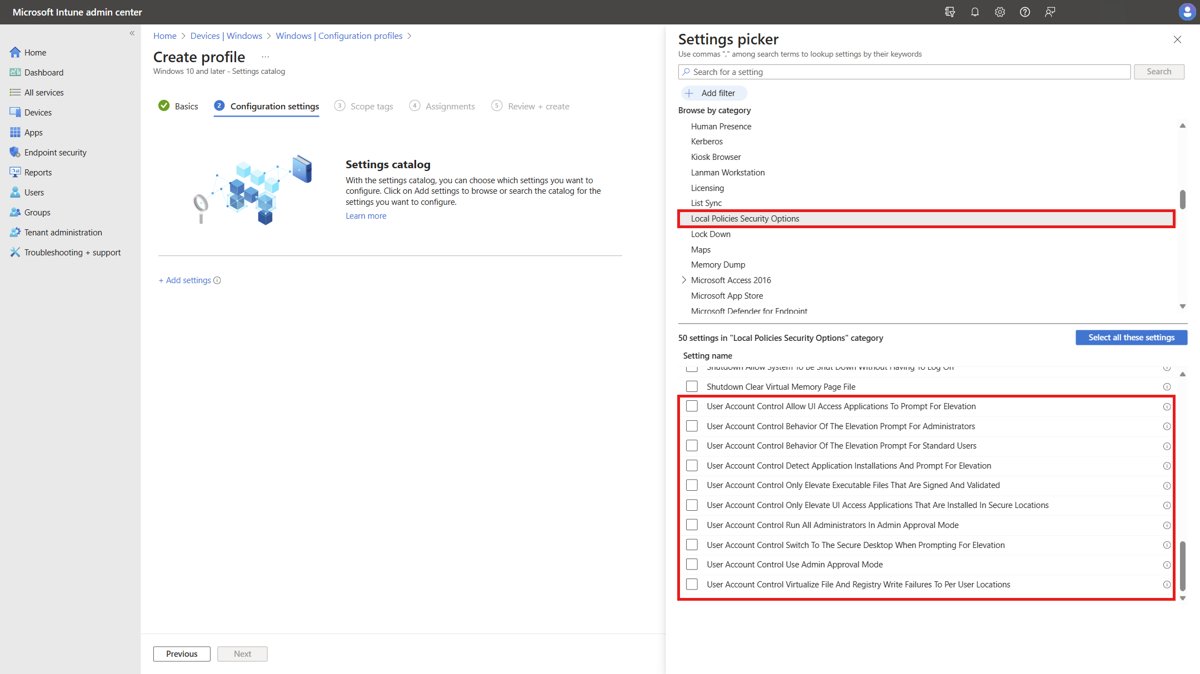
All User Account Control settings live in HKLM\SOFTWARE\Microsoft\Windows\CurrentVersion\Policies\System. The defaults are the safe settings; change one only for a specific reason.
| Value | What it controls | Default |
|---|---|---|
| ConsentPromptBehaviorAdmin | Prompt for administrators: 1 credentials on secure desktop, 2 consent on secure desktop, 3 credentials, 4 consent, 5 consent for non-Windows binaries | 5 |
| ConsentPromptBehaviorUser | Prompt for standard users: 0 automatically deny, 1 credentials on secure desktop, 3 credentials | 3 |
| PromptOnSecureDesktop | Show elevation prompts on the secure desktop | 1 |
| EnableInstallerDetection | Detect installers and prompt for elevation | 1 on Home, 0 elsewhere |
| ValidateAdminCodeSignatures | Only elevate signed and validated executables | 0 |
| FilterAdministratorToken | Admin Approval Mode for the built-in Administrator account | 0 |
| EnableVirtualization | Redirect failed writes to per-user locations | 1 |
| EnableLUA | Run all administrators in Admin Approval Mode; 0 turns UAC off and Windows Security warns you | 1 |
Administrator protection, available since KB5120998, is not switched on through a documented registry value. Turn it on with the User Account Control: Configure type of Admin Approval Mode policy in secpol.msc.
Check that a registry change took effect
reg query HKLM\SOFTWARE\Policies\Microsoft\Windows\WindowsUpdate\AUreg query lists every value under the key you name. Swap in any key from this guide, or add /v and a value name, such as /v AUOptions, to read a single value.
You should see: The output lists the key, then each value name with its type (REG_DWORD) and the data you set.
Run the check after the restart that ends each set of steps above, so you read the value Windows is actually using.
Undo a registry tweak
- Open Registry Editor and select File > Import.
- Select the backup file you exported before the change and select Open.
- If you did not export a backup, go to the key and delete only the value you added.
- For Windows Update policy values, deleting them hands control back to the choices made in Settings.
- Restart the device.
For the Machine Identity Isolation fix, do not set the value back to 2 unless your domain controllers run at the Windows Server 2025 domain functional level.
Registry tweaks that do not work on Windows 11 26H2
| Old tweak | Status on Windows 11 | Use instead |
|---|---|---|
| Disable web results in Search with a registry key | Not supported on Windows 11 | The related Group Policy setting, which Microsoft says is not affected |
| AUOptions = 5 (let the local admin choose) | Not available on Windows 10 or later | AUOptions 2, 3 or 4 |
| Turn on Administrator protection by registry | No registry value documented | The Security Options policy or Windows Security > Account protection (preview) |
| Target version policy on Home | The policy applies to Pro, Enterprise, Education and IoT Enterprise only | No equivalent policy on Home; upgrade to Pro if you need it |
Edition differences like this one are laid out in the 26H2 Home vs Pro comparison.
Frequently Asked Questions
How do I open regedit on Windows 11 26H2?
Select Start, type regedit.exe in the search box and press Enter, then approve the administrator prompt. Registry Editor works the same on 26H2 as on 24H2 and 25H2, and Microsoft has not announced any change to it in this release.
Did Windows 11 26H2 add new registry settings?
The main 26H2-specific registry change Microsoft documents is Machine Identity Isolation: 26H2 enables the feature and starts honouring the MachineIdentityIsolation values under the Lsa and DeviceGuard policy keys, which caused a domain sign-in known issue.
How do I fix the domain trust error after installing 26H2?
If Machine Identity Isolation was enabled in the registry, change MachineIdentityIsolation from 2 to 0 under the Lsa and DeviceGuard policy keys, restart, and run Test-ComputerSecureChannel -Repair -Credential (Get-Credential) in PowerShell. If Intune or Group Policy enabled it, disable it there.
Can I use the registry to stay on 25H2?
The supported route is the Select the target Feature Update version policy, set with Group Policy or Intune on Pro, Enterprise and Education. It stores its values under HKLM\Software\Policies\Microsoft\Windows\WindowsUpdate. Home does not support the policy.
Is it safe to change UAC values in the registry?
Only for a specific need. The defaults are the secure settings, and setting EnableLUA to 0 turns off Admin Approval Mode for all administrators, after which Windows Security warns that overall security is reduced.
How do I check a registry value without opening regedit?
Run reg query with the key path in Command Prompt, for example reg query HKLM\SOFTWARE\Policies\Microsoft\Windows\WindowsUpdate\AU. Add /v and a value name to read a single value. The output shows the type and data.
How do I back up the registry before a tweak?
In Registry Editor, select the key you plan to change, choose File > Export, pick a location and name, and select Save. To restore it, choose File > Import and open the saved file.




Windows 11 26H2 Game Mode: should you turn it on? - Techdows
[…] documents AutoGameModeEnabled as the value behind the Game Mode switch. Use the registry only when Settings is not an option, such as a script for several PCs, and back up the key […]