To run ScanPST.exe, close Outlook, open SCANPST.EXE from your Office folder (usually C:\Program Files\Microsoft Office\root\Office16), select Browse to pick your .pst file, select Start, and then select Repair if errors are found.
This guide covers where to find ScanPST.exe for each Outlook version, how to run it step by step and from Command Prompt, how to recover items afterwards, and what to do when the tool is missing.
How to run ScanPST.exe on Outlook
ScanPST.exe is the Inbox Repair tool that ships with classic Outlook for Windows. Back up your .pst file first, because the repair can remove items it cannot read.
- Close Microsoft Outlook completely.
- Open File Explorer and go to the folder that holds SCANPST.EXE for your Outlook version (see the location table below), then double-click SCANPST.EXE.
- Select Browse and choose the Outlook Data File (.pst) you want to scan.
- Select Start to begin the scan.
- If the scan finds errors, leave the backup option selected (it is on by default) and select Repair.
- When the repair finishes, start Outlook with the profile that uses the repaired file.
Run the tool again if the next scan still reports errors. Microsoft notes that several passes may be needed to fully repair a .pst file.
What is ScanPST.exe?
| Question | Answer |
|---|---|
| Official name | Inbox Repair tool (SCANPST.EXE) |
| What it does | Checks the internal structure of an Outlook data file and repairs corruption it finds |
| Files it scans | Personal Folders files (.pst) and offline Outlook data files (.ost) |
| How it is installed | Automatically, with English-language Microsoft Outlook installations for Windows |
| What it does not do | It does not connect to or analyze data stored in an Exchange mailbox |
| Safety net | It creates a .bak backup of the original file in the same folder before repairing |
A .pst file is a database, so ScanPST checks folders, message tables and properties, and removes blocks it cannot read. Accounts set up with POP or IMAP normally use Outlook PST files; Microsoft 365, Exchange and Outlook.com accounts keep mail on the server.
How the Inbox Repair tool validates and corrects errors
ScanPST works mainly on the low-level database structures inside the .pst file, such as BTrees and reference counts. If a block of a structure or table is unreadable, the tool removes it, and any Outlook item built on that block is removed too. Every such removal is written to the ScanPST log file.
| What ScanPST checks | What it does when something is wrong |
|---|---|
| Folder tables | Confirms each folder has the correct tables, and removes rows that point to a message or subfolder that no longer exists |
| Messages and subfolders listed in a folder | Validates each one; a message or folder that fails is deleted from the database |
| Damaged folders | Recreates them from scratch, without user data |
| Attachment and recipient tables | Validates them and syncs valid recipient data back to the message properties |
| Message class | Sets a missing class to IPM.Note |
| Creation, modification and submit times | Sets a missing required time to the current time |
| Search key | Generates a random GUID if it is missing |
| Message size | Recalculates it and writes the new value if it differs from the stored one |
| Orphaned messages | Collects messages with no valid folder into an Orphans folder |
Message bodies and subjects get no separate check beyond the low-level structure check, so a readable message keeps its text after the repair.
What causes Outlook PST data file corruption?
Most damage happens when Outlook cannot finish writing to the .pst file. Knowing the cause helps you stop the same file from breaking again after ScanPST repairs it.
| Cause | What happens to the file | How to prevent it |
|---|---|---|
| .pst file stored on a network share | Outlook sends every read and write over the network, and the file can be corrupted if the connection degrades or fails | Keep .pst files on a local drive; Microsoft does not support them over LAN or WAN links |
| Windows shut down before Outlook.exe fully closed | Outlook reports that the data file was not closed properly and checks it for problems on the next start | Wait for Outlook to close completely, or shut down Windows while Outlook is still running |
| Antivirus scanning the open data file | The scan can stop Outlook from closing the file cleanly | Exit Outlook before a scheduled full scan starts |
| Outlook add-ins | A faulty add-in can keep the data file from closing properly | Remove nonessential or out-of-date add-ins under File > Options > Add-ins |
| Very large .pst file | Outlook pauses while reading, moving or deleting mail; Outlook 2010 and later cap a .pst at 50 GB, with a default limit of about 25 GB | Archive old mail into a second .pst file and compact the original |
When you should run ScanPST.exe
| Your situation | What to do | Why |
|---|---|---|
| Outlook says it can't open your data file | Run ScanPST.exe on that .pst file | This is the main case the tool is built for |
| Outlook says it can't open the set of folders | Run ScanPST.exe | A damaged data file is a common cause |
| You suspect the .pst file is damaged (missing items, freezes when opening a folder) | Run ScanPST.exe, then repeat until no errors remain | Some damage needs several passes |
| You use a Microsoft 365, Exchange or Outlook.com account with an .ost file | Delete the .ost file and let Outlook recreate it | The mail lives on the server, so Outlook rebuilds the offline file |
| ScanPST.exe will not start or is missing | Repair your Office installation | Repair restores missing or damaged Office files |
Locate ScanPST.exe on your computer
SCANPST.EXE sits in the Office program folder, which depends on your Outlook version and whether Office is 32-bit or 64-bit and Click-to-Run or MSI-based. Replace C: if Windows is on another drive.
| Outlook version and install type | Folder that contains SCANPST.EXE |
|---|---|
| Outlook for Microsoft 365, 2019 and 2016, Click-to-Run, 64-bit | C:\Program Files\Microsoft Office\root\Office16 |
| Outlook for Microsoft 365, 2019 and 2016, Click-to-Run, 32-bit | C:\Program Files (x86)\Microsoft Office\root\Office16 |
| Outlook 2016, MSI-based, 64-bit | C:\Program Files\Microsoft Office\Office16 |
| Outlook 2016, MSI-based, 32-bit | C:\Program Files (x86)\Microsoft Office\Office16 |
| Outlook 2013, Click-to-Run, 64-bit | C:\Program Files\Microsoft Office 15\root\office15 |
| Outlook 2013, Click-to-Run, 32-bit | C:\Program Files (x86)\Microsoft Office 15\root\office15 |
| Outlook 2013, MSI-based | C:\Program Files\Microsoft Office\Office15 or C:\Program Files (x86)\Microsoft Office\Office15 |
| Outlook 2010 | C:\Program Files\Microsoft Office\Office14 (64-bit) or the matching Program Files (x86) folder (32-bit) |
| Outlook 2007 | C:\Program Files\Microsoft Office\Office12 or C:\Program Files (x86)\Microsoft Office\Office12 |
If none of these folders has the file, open File Explorer, go to C:\Program Files and C:\Program Files (x86), and type SCANPST.EXE in the search box.
Find and back up your Outlook .pst file before the scan
- In Outlook, select File > Account Settings > Account Settings.
- Select the Data Files tab. Each .pst and .ost file is listed with its account and full path.
- Note the path of the .pst file you want to repair, then close Outlook.
- In File Explorer, copy that .pst file to another folder or drive as a backup.
If Outlook will not open at all, you can still type or browse to the .pst path inside ScanPST.exe.
Run ScanPST.exe from Command Prompt with multiple passes
From Outlook 2016 version 1807 (build 16.0.10325.20082) and in Outlook for Microsoft 365, ScanPST.exe can repeat scans automatically until the file reaches a steady state. This only happens when you start it from a command line with one of these arguments.
"C:\Program Files\Microsoft Office\root\Office16\SCANPST.EXE" -file "C:\path\to\your-file.pst" -rescan 10 -log replace-file names the .pst or .ost to scan, -rescan sets the maximum number of scan and repair passes (0 to 20, default 10), and -log replace writes a new log. Add -force to run without clicking any options, -silent to hide the window, -backupfile <name> to set the backup name, or -no repair to scan only. Replace both paths with your own.
You should see: The phase counter keeps going past 8 (phases 9 to 16 for a second pass, and so on) and stops when a pass returns zero errors, two passes return the same result, or the pass limit is reached. Each pass is numbered in the log file.
The multi-pass mode does not support .pst files stored on a network share. Copy the file to a local drive first.
Restart Outlook
After the repair, open Outlook with the same profile and check what the tool recovered.
- Start Outlook. If you use several profiles, choose the one that contains the repaired .pst file.
- Press Ctrl + 6 to turn on the Folder List view.
- Look for a Recovered Personal Folders folder and a Lost and Found folder. Lost and Found holds items the tool recovered but could not put back in their original place.
- Create a new data file: select File > Info > Account Settings > Account Settings > Data Files > Add, name the file and select OK.
- Drag the items from Lost and Found into the new data file.
- When everything is moved, remove the Recovered Personal Folders file from your profile.
- Run ScanPST.exe once more on the file; a clean result confirms the repair worked.
The recovered default folders are often empty, because the tool rebuilds the file structure. Items missing from Lost and Found may be beyond repair.
Recover more items from the ScanPST .bak backup file
This works only if you could open the original .pst file before running the repair.
- Open the folder that contains your .pst file and find the file with the same name and a .bak extension.
- Copy the .bak file and rename the copy with a .pst extension, for example mail.bak.pst.
- In Outlook, select the File tab, select Open (Open & Export in newer versions), then select Import (Import/Export).
- Select Import from another program or file > Next, choose the .pst file type (Personal Folder File (.pst) or Outlook Data File (.pst)) and select Next.
- Select Browse, choose the renamed file and select Do not import duplicates, then Next.
- Select Include subfolders, choose Import folders into the same folder in with your new data file, and select Finish.
Fix ScanPST.exe problems: missing, won't start or keeps finding errors
I can't find ScanPST.exe on my computer
Office is installed in a different folder, or Office files are missing.
- Check every folder in the location table, including both Program Files and Program Files (x86).
- Search for SCANPST.EXE in File Explorer from
C:\Program FilesandC:\Program Files (x86). - If it is still missing, repair Office (next symptom).
ScanPST.exe is not on my computer or will not start
The Office installation is damaged.
- On Windows 11, right-click Start and select Installed apps. On Windows 10, select Apps and Features.
- Find your Microsoft 365 or Office product, select the three dots (Windows 11) and select Modify.
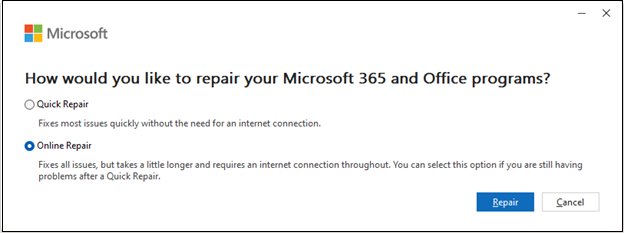
- For Click-to-Run installs, select Online Repair > Repair. For MSI-based installs, select Repair > Continue.
- Restart the PC when the repair finishes, then look for SCANPST.EXE again.
ScanPST.exe gives an access error when I run it
The tool or the .pst file needs elevated permissions, or Outlook still has the file open.
- Make sure Outlook is fully closed.
- Right-click SCANPST.EXE and select Run as administrator.
- Copy the .pst file to a local folder you own if it sits on a network drive.
ScanPST keeps finding errors after every repair
Some damage needs more than one pass, and some items are beyond repair.
- Run the tool again until a scan reports no errors.
- On Outlook 2016 version 1807 or later, use the
-rescancommand above to repeat passes automatically. - If errors remain, move what you can into a new .pst file and stop using the damaged one.
ScanPST.exe can't be found when Outlook is installed from the Microsoft Store or is the new Outlook
The location table covers Click-to-Run and MSI-based installs of classic Outlook. Other installs keep program files elsewhere, and the new Outlook for Windows is a separate app.
- Check which Outlook you have open. The new Outlook shows a Settings button in the top-right corner, while classic Outlook has a File tab.
- In classic Outlook, select File > Office Account (or Help) and then About Outlook to see the version, build and whether it is 32-bit or 64-bit.
- Search for SCANPST.EXE in File Explorer from
C:\Program FilesandC:\Program Files (x86). - If the search finds nothing, repair Office from Installed apps as described above, then search again.
If you are not sure how to elevate a program, run apps as administrator in Windows 11 from the right-click menu or Start search.
ScanPST.exe FAQs
Where is ScanPST.exe located in Windows 11?
For Outlook for Microsoft 365, Outlook 2019 and Outlook 2016 Click-to-Run, ScanPST.exe is in C:\Program Files\Microsoft Office\root\Office16 for 64-bit Office, or C:\Program Files (x86)\Microsoft Office\root\Office16 for 32-bit Office. Windows 11 does not change the folder.
How do I run ScanPST.exe in Office 365?
Close Outlook, open the root\Office16 folder under Program Files or Program Files (x86), double-click SCANPST.EXE, browse to your .pst file and select Start, then Repair. Microsoft 365 accounts usually use an .ost file, which you can delete so Outlook rebuilds it.
How do I run ScanPST.exe in Outlook 2007?
Close Outlook 2007 and open SCANPST.EXE from C:\Program Files\Microsoft Office\Office12, or the Program Files (x86) copy of that folder. Then browse to the .pst file, select Start and select Repair if errors are found.
What does ScanPST.exe do?
ScanPST.exe, the Inbox Repair tool, checks the internal structure of an Outlook data file and repairs errors it finds. It validates folders, message tables and properties, and removes blocks that are unreadable. It creates a .bak backup before repairing.
Will ScanPST delete my emails?
It can. If ScanPST finds an item that is corrupted beyond repair, it removes it, and every removal is written to the log file. The original file is kept as a .bak backup, and recovered items appear in a Lost and Found folder.
When should I run ScanPST?
Run it when Outlook says it can't open your data file or the set of folders, or when you think the .pst file is damaged. Close Outlook first and back up the .pst file before you start the repair.
How do I run ScanPST.exe as administrator?
Open the folder that contains SCANPST.EXE in File Explorer, right-click the file and select Run as administrator. This helps when the tool reports an access error. Make sure Outlook is closed before you start the scan.
Can ScanPST.exe repair an .ost file?
Yes, the tool accepts .ost files, and the command-line -file argument takes a .pst or .ost path. For Exchange, Microsoft 365 and Outlook.com accounts, deleting the .ost file is often simpler, because Outlook recreates it from the server next time it opens.