Yes, you can install classic Outlook on Windows 11: download it from Microsoft's Install or reinstall classic Outlook page, install it with your Microsoft 365 apps, or switch back from new Outlook with the toggle.
This guide covers all eight routes, how to stop Outlook from moving you to new Outlook, how to make classic Outlook the default mail app, and fixes when it will not open.
Can you still install classic Outlook on Windows 11?
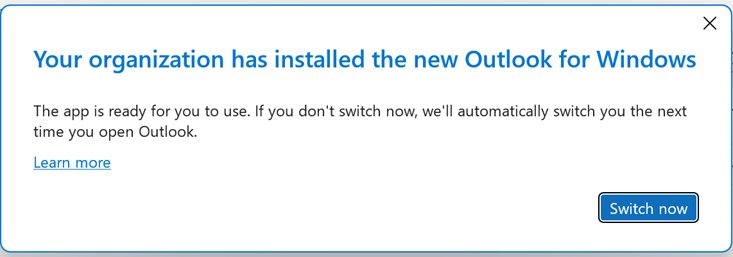
Many Windows 11 PCs sold since 2024 come with only new Outlook, so classic Outlook is missing or shows an error when you click its icon. Microsoft still offers classic Outlook and says existing perpetual and subscription installations stay supported until at least 2029.
If classic Outlook is already installed, select the toggle at the top right of new Outlook and choose Switch back to classic Outlook. If it is not installed, open Microsoft's Install or reinstall classic Outlook on a Windows PC support page, pick your language, select Download and follow the prompts. The toggle only works when classic Outlook is on the PC. The standalone installer on Microsoft's support page fixes the 'We couldn't verify and install this' error that new PCs show.
Which classic Outlook install method fits your PC
| Your situation | Use this method | Why |
|---|---|---|
| New PC, classic Outlook icon gives a Microsoft Store error | Method 1: download from Microsoft | The standalone installer replaces the broken placeholder |
| You have a Microsoft 365 plan that includes the desktop apps | Method 2: install Microsoft 365 | Classic Outlook is part of the desktop apps |
| Both versions installed, new Outlook keeps opening | Method 3: the toggle | Switches back without reinstalling anything |
| You want no subscription | Method 4: perpetual Office | Office Home & Business includes classic Outlook |
| Classic Outlook crashes or files are damaged | Method 5: repair or reinstall | Online Repair replaces the whole Office install |
| IT deployment across many PCs | Method 6: Office Deployment Tool | Controls exactly which Outlook is installed |
| Outlook keeps moving you to new Outlook | Method 7: registry values | Turns off automatic migration |
| Email links open new Outlook | Method 8: default apps | Sends mailto links to classic Outlook |
Method 1: Download and install classic Outlook from Microsoft
- Open the Install or reinstall classic Outlook on a Windows PC page on support.microsoft.com.
- Under Select a language and download classic Outlook, find your language in the table.
- Select Download next to that language.
- Run the downloaded installer and select Yes at the User Account Control prompt.
- Follow the prompts until setup finishes.
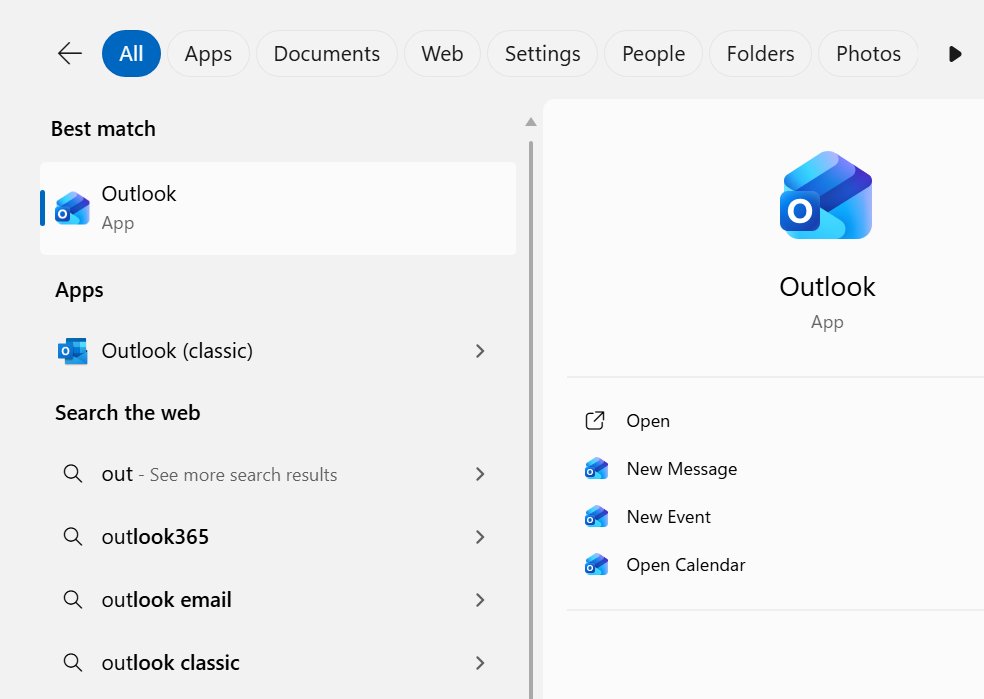
- Open Start, type Outlook and select Outlook (classic), the icon without a New tag.
The same support page notes that you can also try installing classic Outlook from the Microsoft Store. Open Microsoft Store, search for Outlook for Windows (classic) and install that listing. If Windows says it couldn't verify and install the app because it is not available in the Microsoft Store, use the language Download link above instead.
On a work or school account that blocks the install, ask your IT admin.
Method 2: Install classic Outlook with Microsoft 365
Classic Outlook is included with Microsoft 365 subscriptions that include the desktop apps. Installing the apps puts Outlook (classic) on the Start menu.
- Go to m365.cloud.microsoft/apps and select Sign in.
- Sign in with the Microsoft account or work or school account tied to your subscription.
- With a Microsoft account, select Install apps, then Install. With a work or school account, select Install apps and then Microsoft 365 apps.
- Run the setup file and select Yes at the User Account Control prompt.
- Wait for You're all set! Office is installed now, then select Close.
- Open Outlook (classic) from Start and accept the license agreement to activate it.
If you see no install option on a business plan, your organization has not assigned you a license that includes the desktop apps.
Method 3: Switch from new Outlook back to classic Outlook
- Open new Outlook.
- Select the toggle at the top right of the window.
- Choose Switch back to classic Outlook to return for good, or Use classic Outlook this time for one session only.
- Answer or skip the feedback form; new Outlook closes and classic Outlook opens.
- Launch classic Outlook from Start next time. It now opens normally instead of redirecting.
If the toggle is missing, classic Outlook is probably not installed, or your organization has hidden the toggle. Install it with Method 1 or Method 2 first.
To re-enable new Outlook later, open classic Outlook and turn on the Try the new Outlook toggle at the top right. Classic Outlook closes and new Outlook opens, and you can switch back again the same way. If the toggle is missing in classic Outlook, your organization may have hidden it with a policy.
Method 4: Install a perpetual version of Office that includes Outlook
A one-time purchase avoids a subscription. Office Home & Business includes classic Outlook, and Microsoft also lists a standalone Outlook 2024 product.
- Buy Office Home & Business 2024 or Outlook 2024 from Microsoft or an authorized retailer.
- Go to microsoft365.com/setup, sign in with a Microsoft account and enter the product key to redeem it.
- Go to m365.cloud.microsoft/apps, sign in with the same account and select Install apps.
- Run setup and approve the User Account Control prompt.
- Open Outlook (classic) from Start and add your email account.
Redeeming the key is a one-time step. Later reinstalls start directly from the sign-in page.
Method 5: Reinstall classic Outlook if it is missing or broken
Repair first; it keeps your accounts and settings. Repair covers the whole Office suite even when only Outlook misbehaves.
- Right-click the Start button and select Installed apps.
- Find your Microsoft 365 or Office entry, select the … menu and choose Modify.
- In How would you like to repair your Microsoft 365 and Office Programs, select Online Repair, then Repair.
- Restart the PC when the repair finishes.
- If Outlook is still missing, reinstall it with Method 1 or Method 2.
Quick Repair is faster but only detects and replaces corrupted files. On an MSI-based install, the window is Change your installation; select Repair and Continue.
Method 6: Install classic Outlook using Office Deployment Tool
The Office Deployment Tool (ODT) is two files, setup.exe and configuration.xml. In the configuration file, Outlook is classic Outlook and OutlookForWindows is new Outlook, so you can exclude either one.
- Get the Office Deployment Tool from the Microsoft Download Center and extract it to a folder such as C:\ODT.
- Build a configuration file in the Office Customization Tool at config.office.com, turning Outlook (classic) on and, if you want, Outlook (new) off.
- Or edit configuration.xml by hand: use a product ID such as
O365ProPlusRetailorO365BusinessRetail, and add<ExcludeApp ID="OutlookForWindows" />inside the Product element to skip new Outlook. - Open Command Prompt as administrator in the ODT folder.
- Run
setup.exe /download configuration.xmlto fetch the files. - Run
setup.exe /configure configuration.xmlto install.
Since Version 2502, new Microsoft 365 deployments install classic and new Outlook side by side by default. The ExcludeApp element is how admins change that.
Method 7: Stop Outlook from automatically switching to new Outlook
Three registry values control the switch. Back up the registry before you edit it, and on a managed PC check with IT first, because policy can override these values.
- Press Win + R, type
regeditand select OK. - Go to
HKEY_CURRENT_USER\Software\Microsoft\Office\16.0\Outlook\Preferences, double-click UseNewOutlook and set Value data to 0. - Go to
HKEY_CURRENT_USER\Software\Policies\Microsoft\office\16.0\outlook\preferences, creating the keys if needed, and add a DWORD named NewOutlookMigrationUserSetting with value 0 to block automatic migration. - If your organization ran admin-controlled migration, set the DWORD DoNewOutlookAutoMigration under
HKEY_CURRENT_USER\Software\Microsoft\Office\16.0\Outlook\Options\Generalto 0. - Close Registry Editor and open classic Outlook from Start.
Setting NewOutlookMigrationUserSetting to 0 blocks automatic migration and stops users changing that setting. It does not override a migration started by the Admin-Controlled Migration policy, which is why the DoNewOutlookAutoMigration value matters too.
Method 8: Set classic Outlook as the default mail app
- Open Settings > Apps > Default apps, or run
ms-settings:defaultapps. - Type
mailtoin the search box at the top of the page. - Select the MAILTO result.
- Choose Outlook (classic) from the list of apps.
- Repeat for any email file type that still opens in new Outlook.
You can also scroll the app list, select Outlook (classic), and assign each file or link type it can open.
Check that classic Outlook is installed and up to date
- Open Outlook and look at the top right. A Settings gear means new Outlook; a File tab and no gear means classic Outlook.
- In classic Outlook, select File > Office Account. The version and build number appear under Product Information.
- Select Update Options > Update Now to install the latest updates. Select Enable Updates first if Update Now is missing.
- Close the You're up to date! window when the check finishes.
- Select About Outlook on the same page to see whether you have the 32-bit or 64-bit version.
Classic Outlook vs new Outlook: how to tell the difference
| What to check | Classic Outlook | New Outlook |
|---|---|---|
| Start menu name | Outlook (classic) | Outlook, sometimes with a New tag |
| Top-right corner | No Settings gear; a toggle may offer Try the new Outlook | Settings gear plus a toggle back to classic |
| Ribbon tabs | A File tab that opens account, version and Options pages | Home, View and Help |
| Where version info lives | File > Office Account | Settings > General > About Outlook |
| How it is installed | Desktop app installed with Microsoft 365 or Office | Preinstalled on Windows 11 23H2 and newer, or from the Microsoft Store |
Classic Outlook vs new Outlook
Microsoft recommends keeping both where people depend on features new Outlook still lacks.
| Feature | Classic Outlook | New Outlook |
|---|---|---|
| Cost | Needs Microsoft 365 with desktop apps or a perpetual Office license | Free and preinstalled on newer Windows 11 PCs |
| .pst data files | Full support | Support still in progress |
| Mail merge from Word, People picker, People cards in Office apps | Works | These still rely on classic Outlook libraries |
| Add-ins | COM add-ins managed in File > Options > Add-ins | Web add-ins |
| Work or school mailboxes | Works with Exchange | Requires Outlook on the web enabled for the mailbox |
| Support timeline | Existing installs supported until at least 2029 | Microsoft's long-term replacement |
If you only need mail in a browser window, the Outlook PWA is a third option that installs from Outlook on the web.
Can you keep new Outlook and classic Outlook installed together?
Yes. Both apps can run side by side, appear separately on the Start menu as Outlook and Outlook (classic), and can each be pinned to the taskbar. Microsoft installs both by default in new Microsoft 365 deployments and recommends side-by-side use so features such as mail merge in Word keep working.
Why can't I find classic Outlook on my new Windows 11 PC?
| Cause | What you see | Fix |
|---|---|---|
| New PCs from 2024 onward ship with new Outlook only | No Outlook (classic) in Start, or only Outlook with a New tag | Method 1 or Method 2 |
| Placeholder icon without the app behind it | We couldn't verify and install this because it is not available in the Microsoft Store | Download the standalone installer (Method 1) |
| Microsoft 365 not yet installed on the PC | Word and Excel also missing | Install the apps from m365.cloud.microsoft/apps |
| Work or school policy blocks the install | Installer fails on a managed PC | Contact your IT admin |
Can I uninstall new Outlook after installing classic Outlook?
Yes, but the toggle between the two apps stops working, and Windows Mail and Calendar users are being moved to new Outlook. Run these commands in PowerShell as administrator.
- Select Start, type PowerShell, right-click Windows PowerShell and choose Run as administrator.
- Remove new Outlook for all users with
Remove-AppxPackage -AllUsers -Package (Get-AppxPackage Microsoft.OutlookForWindows).PackageFullName. - Stop it being added for new accounts with
Remove-AppxProvisionedPackage -AllUsers -Online -PackageName (Get-AppxPackage Microsoft.OutlookForWindows).PackageFullName. - Restart the PC and confirm only Outlook (classic) remains in Start.
After the provisioned package is removed, Windows updates do not reinstall new Outlook. The app can still return if someone installs it from the Microsoft Store.
Classic Outlook won't open after installation
Opening classic Outlook launches new Outlook instead
You switched to new Outlook earlier, so the classic shortcut redirects.
- Open Start and select Outlook (classic), not the icon with a New tag.
- In new Outlook, select the toggle and choose Switch back to classic Outlook.
- If it still redirects, set UseNewOutlook to 0 in the registry as in Method 7.
Error: We couldn't verify and install this
The Start icon is a placeholder; classic Outlook is not actually installed.
- Open Microsoft's Install or reinstall classic Outlook on a Windows PC page.
- Select your language and Download.
- Run the installer and open Outlook (classic) again.
Why won't my classic Outlook app open or it closes at start
A faulty add-in, a damaged profile or a damaged Office install.
- Press Win + R, type
Outlook /safeand select OK. If Outlook opens, an add-in is the likely cause. - In safe mode, select File > Options > Add-ins, set Manage to COM Add-ins, select Go and clear the add-ins.
- Re-enable add-ins one at a time, restarting each time, then remove the faulty Outlook add-in.
- If safe mode also fails, select File > Account Settings > Change Profile, then Options > New, name the profile and add your account.
- Run Online Repair as in Method 5.
How to update the Outlook classic app when Update Options is missing
A volume license install or Group Policy manages Office updates.
- Confirm the PC is online.
- Open File > Office Account and look for Update Options.
- If only About shows, use Microsoft Update or ask your help desk.
- If Outlook will not open at all, repair Office first, then update.
Classic Outlook on Windows 11: frequently asked questions
How do I get the old Outlook back on Windows 11?
Select the toggle at the top right of new Outlook and choose Switch back to classic Outlook. If classic Outlook is not installed, download it from Microsoft's Install or reinstall classic Outlook page or install your Microsoft 365 apps first.
What is the Outlook classic app?
Outlook (classic) is the long-standing Outlook desktop app that comes with Microsoft 365 desktop subscriptions and Office versions such as Office Home & Business. It has the File tab, full .pst support and COM add-ins, unlike the newer, free Outlook app.
Can I download classic Outlook for Windows 11?
Yes. Microsoft's support article Install or reinstall classic Outlook on a Windows PC lists a Download link for each language. It fixes new PCs where the classic icon shows a Microsoft Store error.
Is classic Outlook the same as old Outlook?
Yes. Classic Outlook is Microsoft's name for the traditional Outlook desktop app, the version people call old Outlook. New Outlook is the separate, redesigned app built on Outlook on the web.
Why does my Windows 11 PC only have new Outlook?
Starting in 2024, many new Windows devices come with new Outlook preinstalled and do not include classic Outlook. Windows 11 version 23H2 and newer also install new Outlook for all users.
Do I need Microsoft 365 for classic Outlook?
You need a license that includes it: a Microsoft 365 subscription with desktop apps, or a one-time Office purchase such as Office Home & Business. New Outlook is the free option.
How do I update the Outlook classic app?
Open classic Outlook, select File > Office Account, then Update Options > Update Now. Select Enable Updates first if Update Now is missing. Close the You're up to date window when it finishes.
Why won't my classic Outlook app open?
The usual causes are a faulty add-in, a damaged profile, or a redirect to new Outlook. Start it with Outlook /safe, disable COM add-ins, create a new profile, or run Online Repair from Installed apps.
Can new Outlook and classic Outlook run on the same PC?
Yes. They appear as Outlook and Outlook (classic) on the Start menu and can run at the same time. Microsoft recommends side-by-side use where people rely on features like mail merge in Word.
How long will classic Outlook be supported?
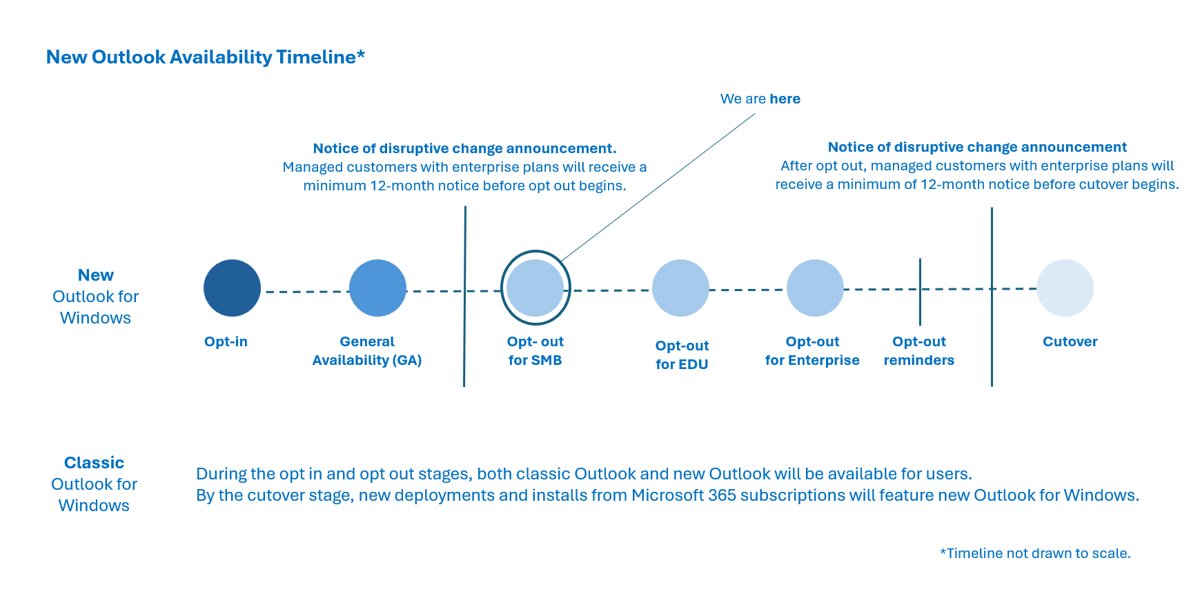
Microsoft says existing installations of classic Outlook through perpetual and subscription licensing will be supported until at least 2029. Organizations get at least 12 months' notice before any cutover stage.