When the WhatsApp desktop app is not showing a QR code, quit and reopen it, check for the yellow Computer not connected banner, then update or repair the app.
This guide covers each cause on Windows and Mac, what to do when the WhatsApp Web QR code will not load, and how to link without a QR code.
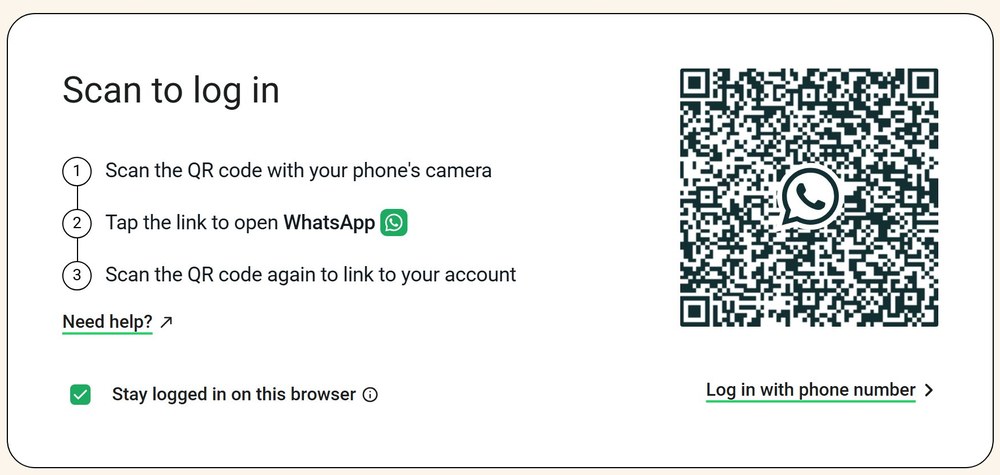
WhatsApp desktop QR code not showing: fastest fix
Work through these in order and stop as soon as the code appears.
- Quit WhatsApp Desktop completely, then open it again.
- Look for a yellow banner that says Computer not connected, and check the computer's internet connection if it appears.
- Restart the computer: turn it off, wait 30 seconds and turn it back on.
- Update WhatsApp Desktop from the Microsoft Store or the App Store.
- Open web.whatsapp.com in a current browser to see whether the QR code loads there.
- On Windows, click Link with phone number if the app shows that option and the code still does not appear.
If the code loads on WhatsApp Web but not in the app, the app is the problem, so repair or reinstall it. If the code fails in both places, look at the network first.
Why is my WhatsApp QR code not showing on desktop?
| What you see | Likely cause | What to do |
|---|---|---|
| Your chats load and no QR code appears | This computer is already linked, so WhatsApp has no reason to show a code | Use the app as normal, or log out to get a new code |
| Yellow Computer not connected banner | The computer has no active internet connection | Fix the connection, then quit and reopen the app |
| Blank or stuck screen on office, library or campus Wi-Fi | A managed network can block or limit WhatsApp connections | Try another Wi-Fi network or a hotspot |
| Code loads on WhatsApp Web but not in the app | The installed app is out of date or damaged | Update it, repair it, then reinstall it |
| App will not install or run at all | The computer is below the system requirement | Use WhatsApp Web, which needs only a supported browser |
| Code never loads on WhatsApp Web | An old browser, stale browser data or a network block | Update the browser, clear its data and try another network |
WhatsApp Desktop needs Windows 10 64-bit version 1903 or later, or macOS 11 or later. If the app does not open at all, the fixes for desktop WhatsApp not opening are the better starting point.
Why is WhatsApp Web QR code not loading?
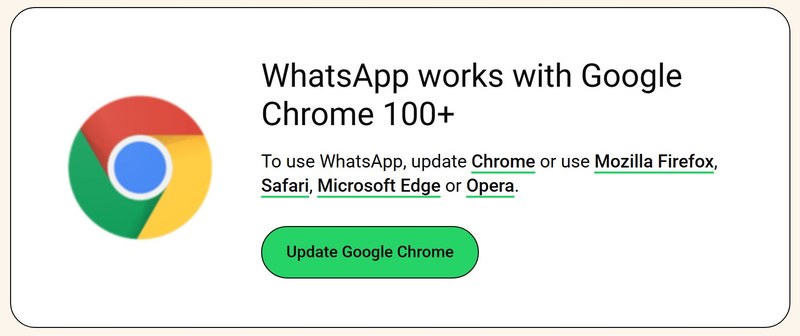
WhatsApp Web links the same way as the desktop app, and it makes a useful test. You can open it in your browser without installing anything. Its minimum browser versions are Chrome 100, Edge 100, Firefox 115, Safari 15 and Opera 86, and Internet Explorer is not supported.
- Refresh the web.whatsapp.com page.
- Update your browser to its latest version.
- Clear the browser's cache and cookies.
- Open web.whatsapp.com again and wait for the code to load.
- Restart the computer if WhatsApp Web still doesn't load.
- Connect to a different Wi-Fi network or a phone hotspot and reload the page.
How to clear cache for WhatsApp Web QR code in Chrome
Clearing cookies signs you out of sites you are signed in to, so have your passwords ready. Other browsers have similar options in their own settings.
- Open Chrome on your computer.
- Click More (three dots) at the top right, then choose Delete browsing data.
- Pick a time range, such as the last hour or all time.
- Select Cookies and other site data, plus any other items you want removed.
- Confirm the deletion, then reload web.whatsapp.com.
How to update WhatsApp Desktop on Windows and Mac
WhatsApp advises keeping linked devices up to date, because updates can contain bug fixes. You can also update WhatsApp on your phone while you are at it, since the phone does the scanning.
| Computer | Where to update | Steps |
|---|---|---|
| Windows | Microsoft Store | Open Microsoft Store, go to Downloads or your library, then check for and install updates |
| Mac, App Store copy | App Store | Open App Store, click Updates in the sidebar, then click Update beside WhatsApp |
| Mac, copy from WhatsApp.com | WhatsApp Download page | Download the current Mac file from the WhatsApp Download page and install it |
How to repair or reset WhatsApp Desktop on Windows
Try Repair first. Reset clears the app's local data, so expect to link the computer again afterward.
- Open Start > Settings > Apps > Installed apps.
- Find WhatsApp and select the More button (three dots) beside it.
- Select Advanced options.
- Select Repair and wait for it to finish.
- Open WhatsApp and look for the QR code.
- Return to the same page and select Reset if the code still does not appear.
On Windows 10, the path is Settings > Apps > Apps & features, then select WhatsApp and choose Advanced options under its name.
How to reinstall WhatsApp Desktop to get the QR code back
A clean install is the last step for an app that loads without a code. Download only from the official sources below, and skip any third-party installer.
Reinstall WhatsApp Desktop on Windows
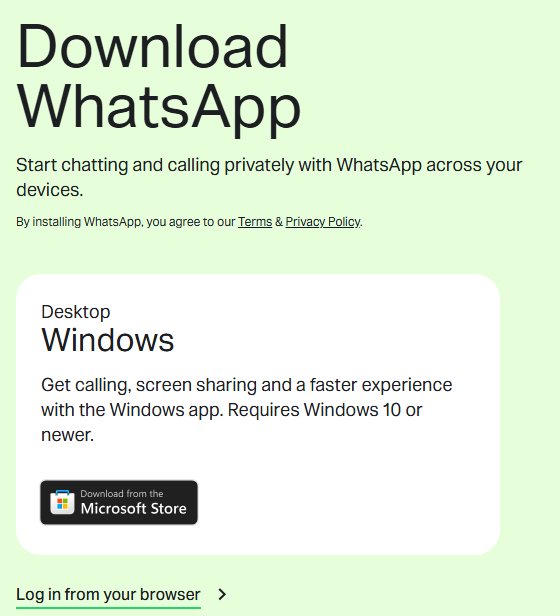
WhatsApp's Windows app comes from the Microsoft Store.
- Open Settings > Apps > Installed apps.
- Select More (three dots) beside WhatsApp, then Uninstall.
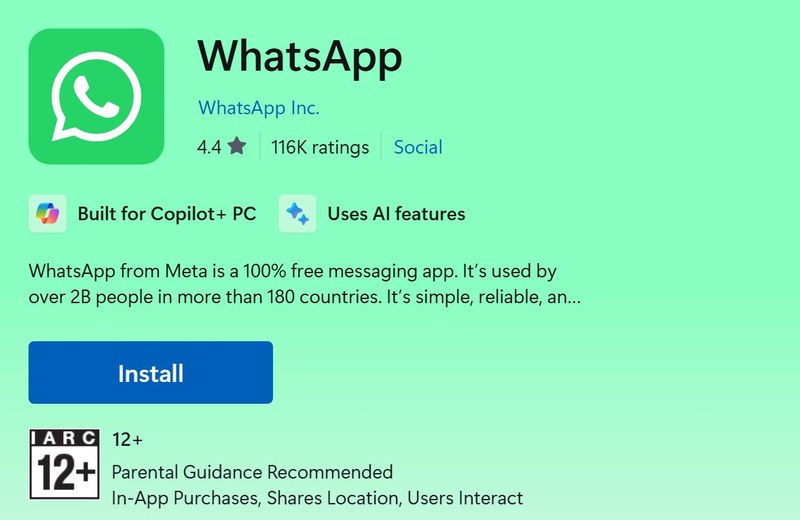
- Open Microsoft Store and search for WhatsApp.
- Install the app and open it.
Reinstall WhatsApp Desktop on Mac
The Mac app comes from the App Store or the WhatsApp Download page.
- Quit WhatsApp if it is open.
- Open Applications in Finder and drag WhatsApp to the Trash.
- Choose Finder > Empty Trash.
- Install WhatsApp again from the App Store or the WhatsApp Download page.
WhatsApp web app without QR code: use your phone number
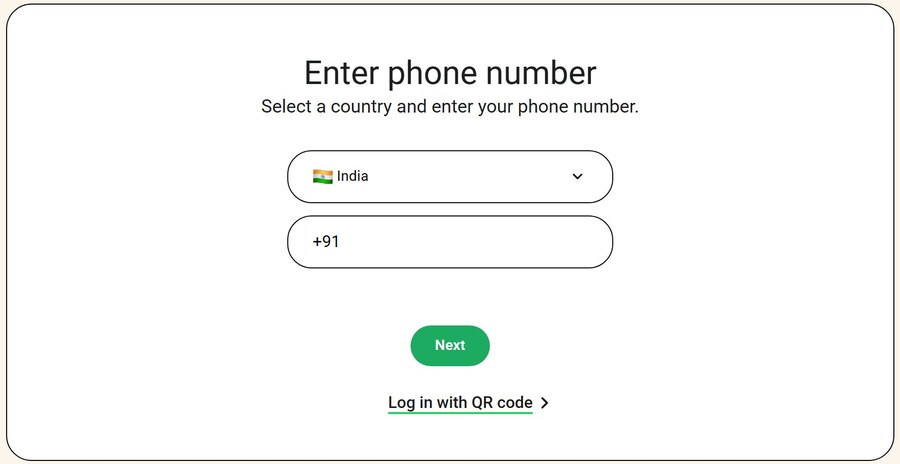
WhatsApp's phone number option works on WhatsApp for Windows and WhatsApp Web. It is not offered in the Mac app, so Mac users can run these steps on WhatsApp Web instead.
- Click Link with phone number or Log in with phone number on the computer.
- Select your country, enter your phone number and click Next.
- Note the eight-character code on the computer screen.
- Tap the Enter code to link new device notification on your phone.
- Check the device name and location, then tap Confirm.
- Verify your identity if asked, then enter the eight-character code.
No notification? In WhatsApp on the phone, open Linked devices, tap Link a device or Link device, then tap Link with phone number instead.
How to open WhatsApp on a laptop with QR code
Once the code is on screen, scan it from inside WhatsApp on your primary phone. If the code shows but the phone refuses it, you are dealing with WhatsApp not linking to the desktop app rather than a missing code.
| Phone | Where to start | Then |
|---|---|---|
| iPhone | Tap WhatsApp Settings or your profile picture, then Linked devices > Link device | Unlock with Face ID, Touch ID or your PIN, and scan the code |
| Android | Tap the three-dot menu, then Linked devices > Link a device | Use biometrics or your phone PIN, and scan the code |
The same steps apply to a business account, though WhatsApp Business linking problems have a few extra causes.
How to log out of WhatsApp Desktop to get a new QR code
A computer that is already linked goes straight to your chats. Logging out returns it to the link screen, where a new code should appear.
- On the computer, open WhatsApp Settings.
- Choose Log out, then confirm Log out.
- If the app will not respond, open WhatsApp on your phone and tap Linked devices.
- Tap the computer in the list, then tap Log out.
- Reopen WhatsApp Desktop and wait for the link screen.
WhatsApp QR code not loading on office or school Wi-Fi
Managed Wi-Fi at an office, library or university campus can block or limit connections to WhatsApp. Switching networks is the fastest way to confirm it.
- Disconnect from the managed Wi-Fi network.
- Connect the computer to a different network or a phone hotspot.
- Quit and reopen WhatsApp Desktop, or refresh WhatsApp Web.
- If the code loads, ask the network administrator to let traffic bypass
web.whatsapp.com,.web.whatsapp.comand.whatsapp.net.
How to get WhatsApp QR code
WhatsApp uses two different QR codes, and searches often mix them up. Only the one on the computer links a device.
| QR code | Where it appears | What it does |
|---|---|---|
| Device link code | On WhatsApp Desktop or WhatsApp Web, on the link screen | Links the computer to your account when scanned from Linked devices |
| Your personal code | On your phone, in WhatsApp Settings, beside your name | Lets someone add you as a contact |
| WhatsApp Business code | In the WhatsApp Business app | Lets customers start a chat with the business |
How to see linked devices in WhatsApp
After scanning, check the phone, which lists every device linked to your account.
- Open WhatsApp on your primary phone.
- Go to Linked devices.
- Find the computer in the list.
- Tap and log out any device you do not recognize.
- Open WhatsApp on the phone at least every 14 days to keep the computer connected.
WhatsApp allows up to four linked devices per primary phone. It also disconnects a linked device after 30 days of inactivity, which is why an unused desktop app can return to the link screen.
QR code WhatsApp not working: common problems
QR code on web.whatsapp.com not working when you scan it
The scan has to start from inside WhatsApp on the primary phone.
- Open Linked devices in WhatsApp on the phone.
- Tap Link device or Link a device, and complete the identity check.
- Point the phone at the computer screen and scan the code.
WhatsApp QR code not showing after a long time away
Linked devices log out when the phone goes unused for over 14 days.
- Open WhatsApp on the primary phone so it reconnects.
- Quit and reopen WhatsApp Desktop.
- Link the computer again when the screen asks for it.
WhatsApp QR not loading in an old browser
WhatsApp Web needs a current browser and does not support Internet Explorer.
- Update Chrome, Edge, Firefox, Safari or Opera to the latest version.
- Use one of those browsers in place of an old one.
- Reload web.whatsapp.com.
Site offers a WhatsApp web app with no QR code or phone step
Unofficial WhatsApp apps and websites are not supported, and linking to one can lead to a temporary or permanent account ban.
- Close the site or uninstall the app.
- Open Linked devices on the phone and log out anything you do not recognize.
- Use only WhatsApp Web, WhatsApp for Windows or WhatsApp for Mac.
WhatsApp QR code FAQ
How to get WhatsApp QR?
To link a computer, open WhatsApp Desktop or web.whatsapp.com and the QR code appears on the link screen. To share your own contact code, open WhatsApp Settings on your phone and tap the QR icon beside your name.
Why WhatsApp Web QR code not loading?
The usual causes are a poor internet connection, an outdated browser, stale browser data or a network that blocks WhatsApp. Refresh the page, update the browser, clear its cache and cookies, then try a different Wi-Fi network or hotspot.
Why is there no QR code in WhatsApp Desktop?
The computer may already be linked, in which case your chats load directly. If the screen is blank instead, check the connection, restart the app and update it. On Windows, Repair and Reset under Advanced options are the next steps.
Can I use WhatsApp web app without QR code?
Yes. WhatsApp for Windows and WhatsApp Web both offer Link with phone number, which uses an eight-character code entered on your primary phone. You still need that phone, because it approves every new linked device.
Why is web.whatsapp.com QR code not working?
The scan has to start from Linked devices inside WhatsApp on your primary phone. If the page itself will not load, use a current version of Chrome, Edge, Firefox, Safari or Opera, because older browsers such as Internet Explorer are not supported.
Does my phone need to be online for the QR code to appear?
The code appears on the computer, so the computer's connection comes first. You do need the primary phone to scan it. After linking, the desktop app keeps working with the phone offline, until the phone goes unused for over 14 days.
Why did WhatsApp Desktop ask me to scan the QR code again?
Linked devices log out if the primary phone goes unused for over 14 days, and WhatsApp disconnects a linked device after 30 days of inactivity. Open WhatsApp on the phone, then scan the new code on the computer.