Run DISM.exe /Online /Cleanup-image /Restorehealth and then sfc /scannow from an elevated Command Prompt to restore stability in Windows 11, then move up to System Restore, an in-place repair or Reset this PC only if the problem remains.
Windows 11 ships all of these repair tools built in, and no third-party cleaner is needed. The steps below run from the safest fix to the most invasive, with the separate route for a PC that won't boot.
How to fix Windows 11 stability problems without losing files
These commands keep your files, apps and settings, so they are the right first repair for crashes, freezes and missing system files on a PC that still starts.
- Select Start, type cmd, right-click Command Prompt and select Run as administrator.
- Run
DISM.exe /Online /Cleanup-image /Restorehealthand wait for it to finish. - Run
sfc /scannowand keep the window open until the scan reaches 100%. - Restart the PC if prompted, then test the program or task that was failing.
- If the problem remains, go to Settings > System > Recovery and select Reinstall now under Fix problems using Windows Update.
Background / overview
There is no single app called the Windows 11 repair toolkit. The term covers the built-in tools below, and what separates them is how much each one changes on your PC.
| Tool | What it repairs | What happens to your data |
|---|---|---|
| Troubleshooters | Audio, network, printer, Bluetooth, camera, Windows Update and similar faults | Nothing removed |
| DISM and SFC | The Windows image and protected system files | Nothing removed |
| Startup Repair | Startup faults such as damaged boot data or missing system files | Nothing removed |
| Uninstall updates | A recent update that caused the problem | Files and apps unaffected |
| System Restore | System files, registry settings and installed programs | Personal files unaffected; later programs can go |
| Point-in-time restore | The whole PC, as it was within the last 72 hours | Changes after the restore point are lost, including files |
| In-place repair | Windows system files and components | Files, apps and settings kept |
| Reset this PC | A full reinstall of Windows | Apps and settings removed; files kept only with Keep my files |
| Cloud rebuild | A fresh Windows and drivers from Windows Update | Everything on the PC removed |
Quick triage — what to check first
Match the symptom to the first tool, and back up important files before you go past DISM and SFC. Low disk space can cause these problems on its own, so free some up first if the drive is nearly full.
| What you see | Start with | Why |
|---|---|---|
| One feature fails, such as sound, Wi-Fi or printing | Step 1, troubleshooters | They target that one scenario and remove nothing |
| Crashes, freezes or missing file errors | Step 2, DISM and SFC | These check and replace damaged system files |
| Trouble began right after a Windows update | Uninstall the update | It removes the likely cause and leaves files and apps alone |
| Trouble began after a driver update | Roll Back Driver in Device Manager | Only that one driver changes |
| Trouble began after a new app or setting | Step 4, System Restore | It reverts programs and settings to an earlier point |
| Windows won't start or keeps restarting | Step 3, Startup Repair in WinRE | It runs outside Windows and targets startup faults |
| The PC stops before the Windows logo | Disconnect external devices and check the drive light | A stop at the BIOS stage can point to a hardware issue |
Step 1 — Run Windows troubleshooters (fast, non-destructive)
Microsoft lists this as the first option when the PC starts but something isn't right. Current troubleshooters run through the Get Help app and cover audio, Background Intelligent Transfer Service, Bluetooth, camera, network and internet, printer, program compatibility, video playback, Windows Media Player and Windows Update.
- Go to Settings > System > Troubleshoot > Other troubleshooters.
- Select Run next to the troubleshooter that matches your problem.
- Select Yes if Get Help asks for consent to run diagnostics.
- Wait for the scan to finish, then follow the prompts until the issue is resolved.
Step 2 — Repair system files: SFC and DISM (the essential duo)
DISM repairs the Windows image that SFC draws its replacement files from, so Microsoft runs DISM first. Both take several minutes, and DISM uses Windows Update as its default repair source.
- Open Command Prompt as administrator.
- Run
Dism /Online /Cleanup-Image /CheckHealthto see whether the image is healthy, repairable or non-repairable. - Run
Dism /Online /Cleanup-Image /ScanHealthfor a deeper scan if that check finds nothing but the problem continues. - Run
DISM.exe /Online /Cleanup-image /Restorehealthto repair the image. - If Windows Update is broken, run
DISM.exe /Online /Cleanup-Image /RestoreHealth /Source:C:\RepairSource\Windows /LimitAccesswith your own repair source in place of that path. - Run
sfc /scannowand let it reach 100%. - Restart the PC if prompted.
The System File Checker tool writes its details to %windir%\Logs\CBS\CBS.log. To pull only its entries to your desktop, run findstr /c:"[SR]" %windir%\Logs\CBS\CBS.log >"%userprofile%\Desktop\sfcdetails.txt".

sfc /scannow results explained
| Message | What it means | What to do |
|---|---|---|
| Windows Resource Protection did not find any integrity violations. | No missing or corrupted system files | Move on to the next tool, because system files aren't the cause |
| Windows Resource Protection found corrupt files and successfully repaired them. | Damaged files were fixed | Restart if prompted, then retest |
| Windows Resource Protection found corrupt files but was unable to fix some of them. | Some files couldn't be repaired | Read the CBS.log entries, run DISM again, then run SFC again |
| Windows Resource Protection could not perform the requested operation. | SFC couldn't run normally | Run the scan in Safe Mode and check that PendingDeletes and PendingRenames exist under %WinDir%\WinSxS\Temp |
Step 3 — Startup Repair and WinRE (when Windows won’t boot)
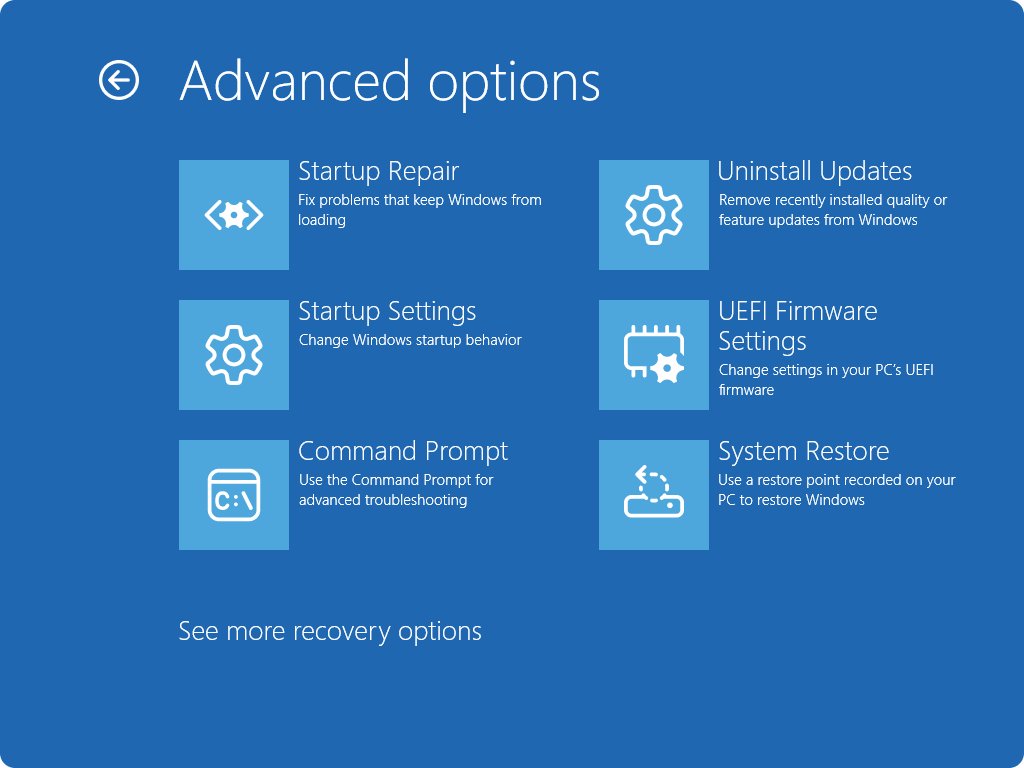
The Windows Recovery Environment (WinRE) starts by itself after two consecutive failed attempts to start Windows, or after two consecutive unexpected shutdowns within two minutes of boot completion. Startup Repair then looks for missing system files, corrupted boot configuration data, a damaged master boot record, incompatible drivers and registry errors.
- If Windows runs, go to Settings > System > Recovery and select Restart now next to Advanced startup. You can also hold Shift while you select Power > Restart.
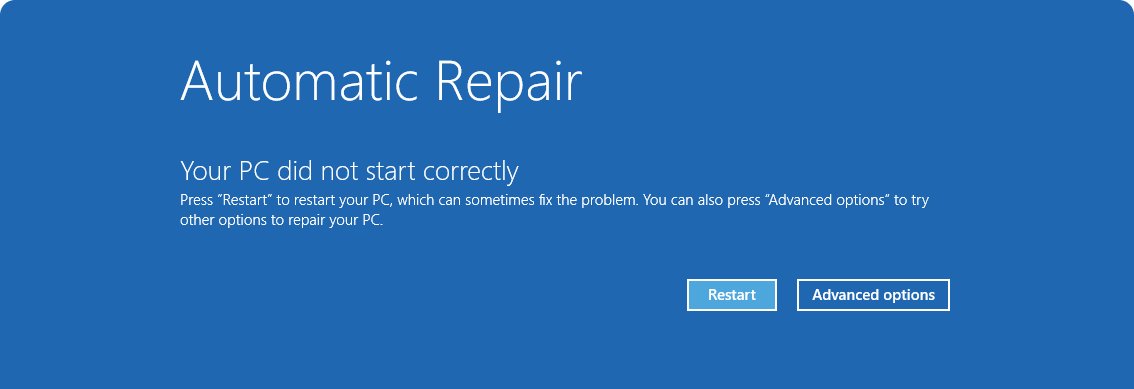
- If Windows won't run, hold the power button during the Windows logo to interrupt startup twice. On the third start, select Advanced options on the Automatic Repair screen.
- If that fails, boot from Windows installation media and select Repair my PC.
- Select Troubleshoot > Advanced options > Startup Repair.
- Select Restart and let the scan finish.
- Enter your BitLocker recovery key if the device is encrypted and asks for it.
Startup Repair saves its findings to %windir%\System32\LogFiles\Srt\SrtTrail.txt. On Windows 11 24H2 and later, quick machine recovery can also search Windows Update for a fix during repeated boot failures. It is on by default on Home and on unmanaged Pro devices.
Step 4 — System Restore (revert to a known good state)
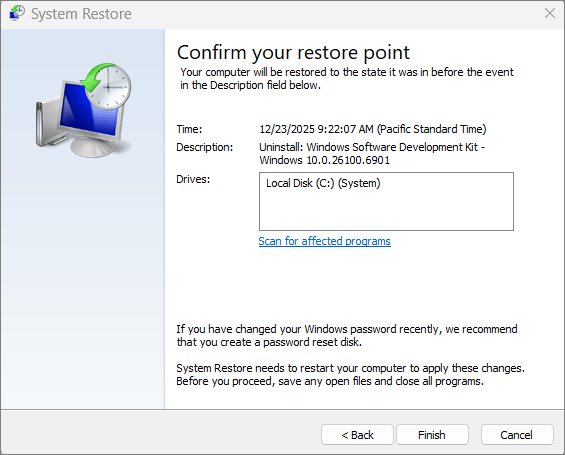
System Restore reverts system files, registry settings and installed programs to the state saved in a restore point, and it leaves personal files alone. It works only if a restore point exists, and it can reach further back than point-in-time restore.
- Press Win + R, type
rstrui.exeand press Enter. - Select Next in the Restore system files and settings box.
- Choose a restore point. Select Show more restore points if the one you want isn't listed.
- Select Scan for affected programs to see which apps will change.
- Select Next, then Finish. Windows restarts when the restore completes.
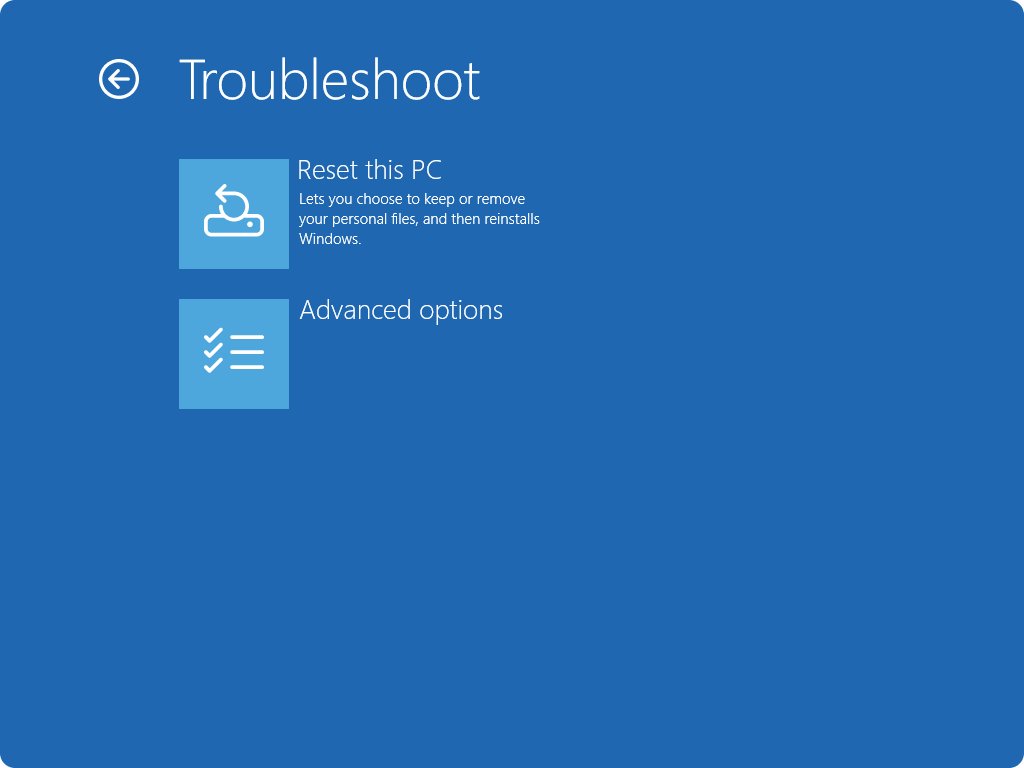
If Windows won't start, open WinRE and select Troubleshoot > Advanced options > System Restore, with your BitLocker recovery key ready on an encrypted device.
Point-in-time restore in Windows 11
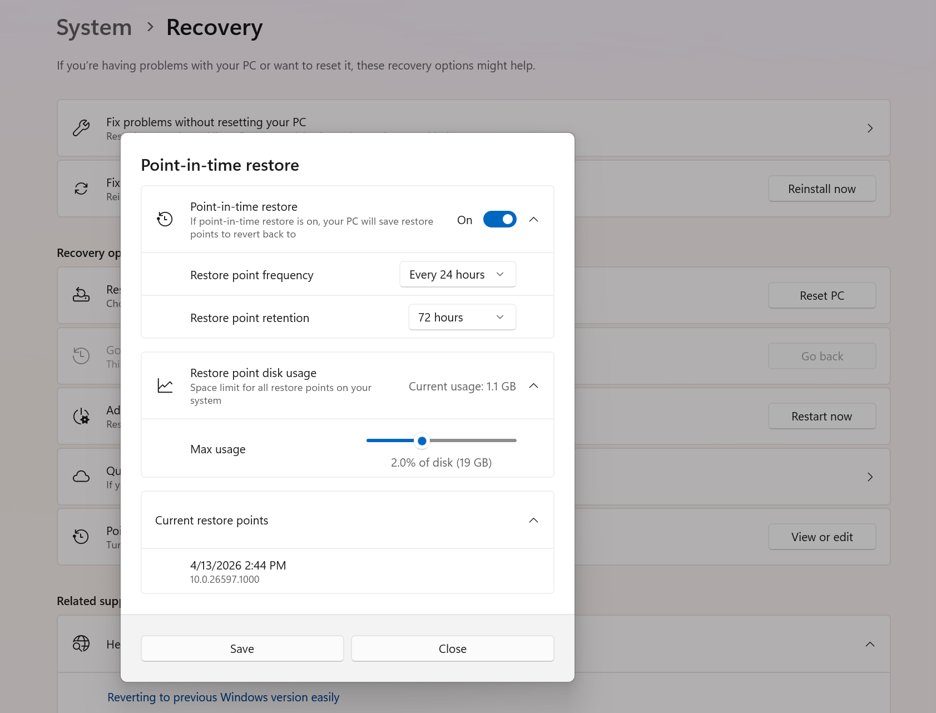
Point-in-time restore on Windows 11 24H2 and later rolls back the OS, apps, settings and local files to an automatic restore point. The point must be under 72 hours old, and the feature is on by default only on unmanaged Home and Pro devices with an OS volume of 200 GB or more.
- Go to Settings > System > Recovery > Point-in-time restore and check that restore points exist.
- Select Restart now under Advanced startup to enter WinRE.
- Select Troubleshoot > Point-in-time restore.
- Enter your BitLocker recovery key if asked.
- Select a restore point, then select Continue to acknowledge the risks.
- Review the restore point and the data loss warning, then select Restore.
Plug the PC into power and don't turn it off during the restore. Copy any files you changed after that restore point to OneDrive or an external drive first, because the restore removes them.
How to uninstall a Windows 11 update that causes problems
Files and apps are unaffected, although some updates can't be uninstalled. Microsoft advises trying a reinstall of Windows before you remove a security update on Windows 11.
- Go to Settings > Windows Update.
- Under More options, select Update history.
- Under Related settings, select Uninstall updates.
- Select the update you want to remove, then select Uninstall.
If Windows won't start, open WinRE and select Troubleshoot > Advanced options > Uninstall Updates. A recent version upgrade can be rolled back only within 10 days of upgrading.
Step 5 — Reset this PC (reinstall Windows quickly, keep files option)
Reset this PC reinstalls Windows and removes your apps and settings with either option. Back up your files first, even if you plan to choose Keep my files, and note which apps you will need to reinstall.
- Go to Settings > System > Recovery and select Reset PC under Recovery options. If Windows won't start, open WinRE and select Troubleshoot > Reset this PC.
- Select Keep my files to reinstall Windows and keep personal files, or Remove everything to clear them as well.
- Select Cloud download to get a fresh copy with the latest updates, or Local reinstall to use the files already on the PC.
- Enter your BitLocker recovery key if the device is encrypted and asks for it.
- Follow the on-screen instructions and leave the PC alone while it works.
Use Cloud download if the local files are corrupted or missing. Local reinstall suits a slow internet connection, but it may not include the latest updates. Cloud download isn't supported on LTSC editions of Windows.
In-place repair (repair install) — preserve apps and settings
This reinstalls the same Windows version and repairs system files and components, while your apps, files and settings stay in place.
- Go to Settings > System > Recovery.
- Under Fix problems using Windows Update, select Reinstall now.
- Choose whether the PC should restart automatically 15 minutes after the installation.
- Select OK. Windows Update downloads and installs a repair version of the last update that installed successfully.
- Keep the PC connected to power and the internet until the process ends, then restart if needed.
The option needs Windows 11 with the 2022 annual update plus the February 2024 optional update or later. Work or school management, Autopatch and some Windows Update policies can hide it.
How to repair install Windows 11 with installation media
Use this route when Reinstall now is missing or fails. The media must match your Windows edition, which you can read under Settings > System > About > Windows specifications, and your digital license should be linked to your Microsoft account first.
- Create installation media with the tool on Microsoft's software download page.
- Connect the USB drive or DVD while Windows is running.
- Open File Explorer and select the drive that holds the media.
- Open
setup.exefrom the root folder and select Yes to allow changes. - Select Change what to keep.
- Select Keep personal files and apps, then Next.
- Select Install. The PC restarts several times.
Advanced repairs and diagnostic checks
Reach the WinRE entries through Troubleshoot > Advanced options > Command Prompt. Check the Windows drive letter first, since these examples assume C:, and scan the hard drive with chkdsk if files corrupt repeatedly.
| Check | Command or location | Use it when |
|---|---|---|
| Disk errors | chkdsk C: /f to fix logical errors, chkdsk C: /r to also locate bad sectors |
Files corrupt repeatedly. On the system drive, answer Y to schedule it for the next restart |
| Offline system file scan | SFC /Scannow /OffBootDir=C:\ /OffWinDir=C:\Windows in WinRE |
A Stop error points to system file corruption and Windows won't start |
| Boot code repair | BOOTREC /FIXMBR and BOOTREC /FIXBOOT in WinRE |
A boot sector or MBR error appears, or a black screen with a blinking cursor |
| Boot data repair | Bootrec /ScanOS, then bootrec /rebuildbcd if the fault remains |
A Boot Configuration Data missing or corrupted error appears |
| Stuck pending update | DISM /Image:C:\ /Cleanup-Image /RevertPendingActions in WinRE |
Windows fails to start right after an update |
| Safe Mode | Troubleshoot > Advanced options > Startup Settings > Restart, then F4, or F5 for networking | Windows crashes in normal startup but you need to reach the desktop |
| Event logs | eventvwr.msc, then Windows Logs > System or Application |
You need to find what failed and when |
| Quick image check | Dism /Online /Cleanup-Image /CheckHealth |
You want the image state without making repairs |
How to clean boot Windows 11
A clean boot starts Windows without third-party services and startup apps, which shows whether one of them is causing the instability. Some functions can be missing while you test, and network policies can block these steps.
- Select Search, type
msconfigand open System Configuration. - On the Services tab, check Hide all Microsoft services, select Disable all, then select Apply.
- On the Startup tab, select Open Task Manager.
- On the Startup apps tab, select each Enabled item and select Disable. Write down what you disable.
- Close Task Manager, select OK in System Configuration and restart.
- Test the problem. If it has gone, re-enable items in small groups to find the cause.
- To return to normal, select Normal Startup on the General tab, clear Hide all Microsoft services, select Enable all and re-enable your startup apps.
Driver and firmware gotchas — what to watch for
Open Device Manager by right-clicking Start, then right-click the device to reach these options. Get drivers from Windows Update or the device manufacturer, and never from a third-party driver updater.
| Situation | What to do | Watch for |
|---|---|---|
| Problem began after a driver update | Properties > Driver > Roll Back Driver, choose a reason, select Yes | This needs administrator permissions |
| A device still misbehaves after a rollback | Uninstall device, then restart so Windows reinstalls the driver | Printers may need a manual install |
| Installing a driver from the manufacturer | Update driver > Browse my computer for drivers | The download must match your Windows version and architecture |
Stop error 0x7B, INACCESSIBLE_BOOT_DEVICE |
Try Safe Mode first, then review non-Microsoft storage filter drivers from WinRE | This involves registry edits, so back up the registry first |
| Secure Boot error at startup | WinRE opens automatically; UEFI Firmware Settings is under Advanced options | Microsoft's 2011 Secure Boot certificates began expiring in June 2026, so keep updates current |
| After Reset this PC | Restore preinstalled apps reapplies manufacturer customizations | Leaving it off drops manufacturer tools and desktop apps |
| After Cloud rebuild | Windows installs drivers from Windows Update | Install any manufacturer-only driver yourself afterwards |
Recommended, ordered checklist — repairs that work (fast → invasive)
Stop at the first step that clears the symptom, and retest between steps so you know which repair worked. Have your BitLocker recovery key and a backup ready before step 5.
| Order | Repair | Move on when | Data impact |
|---|---|---|---|
| 1 | Troubleshooter for the affected feature | It finds nothing or the fault returns | None |
| 2 | DISM /RestoreHealth, then sfc /scannow |
Both finish and the fault remains | None |
| 3 | Roll back the driver or uninstall the update | Nothing recent changed, or the fault remains | That driver or update only |
| 4 | chkdsk and a clean boot |
The disk is clean and third-party software isn't the cause | None, while startup items are off |
| 5 | System Restore or point-in-time restore | No suitable restore point exists | Later programs, or all later changes with point-in-time restore |
| 6 | In-place repair with Reinstall now | The fault survives the reinstall | None |
| 7 | Reset this PC with Keep my files | The fault survives the reset | Apps and settings |
| 8 | Remove everything or Cloud rebuild | The fault returns on a clean install, which points to hardware | Everything on the drive |
Time estimates and practical tips
Microsoft publishes timing for only some of these tools, and the rest depends on your hardware and connection. Keep laptops plugged in for all of them.
| Tool | What Microsoft says | Practical tip |
|---|---|---|
DISM /ScanHealth and /RestoreHealth |
Several minutes | Stay online so DISM can reach Windows Update |
sfc /scannow |
Several minutes | Keep the window open until 100% |
chkdsk /r on a large hard drive |
Can run for hours; SSDs finish faster | Don't interrupt it if you can avoid it, and run it again if you had to |
| Point-in-time restore | Minutes | Free space must at least match the total size of all restore points |
| Reinstall now | Optional automatic restart 15 minutes after install | Save your work before the timer runs out |
| Reset this PC | The screen may stay black for up to about 15 minutes | Don't restart it manually, because that can make the reset fail |
| Clean data in Reset this PC | Takes longer than a normal removal | Use it when you are giving away or selling the PC |
How to check Windows 11 system health after a repair
Run these from an elevated Command Prompt once the PC has restarted. None of them changes anything.
- Run
sfc /verifyonly, which scans protected system files without repairing them. - Run
Dism /Online /Cleanup-Image /CheckHealthand confirm the image reports as healthy. - Run
chkdsk C:with no switches for a read-only status report of the drive. - Open
eventvwr.msc, select Windows Logs > System and look for new errors since the repair. - Repeat the exact task that used to crash or freeze, because that is the real test.
Windows 11 repair not working
DISM fails with error 0x800f081f
DISM can't find the source files it needs, which Microsoft lists under component store corruption.
- Check that the PC is online and that Windows Update works, because DISM uses it by default.
- Run DISM with
/Source:pointing at a Windows folder on removable media or a network share, plus/LimitAccess. - Read
%windir%\Logs\CBS\CBS.logif it fails again. - Move on to an in-place repair.
Fix problems using Windows Update is missing
Work or school management can disable it, and older Windows 11 builds don't include it.
- Install the latest updates if the PC can reach Windows Update.
- Use the installation media route with Keep personal files and apps.
- Ask your IT administrator if the PC is managed.
PC stuck in an Automatic Repair loop
Startup keeps failing, so Windows returns to the recovery screen each time.
- Select Advanced options on the Automatic Repair screen.
- Try Startup Repair, then Uninstall Updates if the loop began after an update.
- Open Command Prompt and run
Bcdedit /set {default} recoveryenabled noto break the cycle, then restart. - Run
Bcdedit /set {default} recoveryenabled yesonce Windows is working again.
WinRE asks for a BitLocker recovery key
Encrypted devices need the key to use certain recovery tools.
- Sign in at
aka.ms/myrecoverykeyfrom another device, oraka.ms/aadrecoverykeyfor a work or school account. - Match the first 8 digits of the recovery key ID shown on screen.
- Check your printouts and USB drives if the key isn't in your account.
- Contact your IT department if an organization manages the device.
Reset this PC failed
A manual restart during the black-screen phase can make a reset fail, and corrupted local files can stop a local reinstall.
- Start the reset again from Settings or WinRE.
- Choose Cloud download so Windows doesn't use the local files.
- Leave the PC alone until it reaches the setup screen.
- Use Windows installation media if the reset fails again.
Risks, limitations, and when to stop
Stop repairing software once these signs appear, because another reinstall won't help and can cost you data.
| Sign or risk | Why it matters | What to do |
|---|---|---|
chkdsk /r reports bad sectors, or errors keep returning |
Physical disk errors can get worse with every write | Copy your files off the drive and replace it before you reinstall Windows |
| The PC stops before the Windows logo | This stage is firmware and hardware, so software tools can't reach it | Contact the device manufacturer |
| The fault returns after Remove everything | A clean install rules out most software causes | Have the hardware checked |
| You can't find your BitLocker recovery key | Microsoft Support can't retrieve, provide or recreate a lost key, and resets need it | Don't reset or remove anything until you have found the key |
| You suspect malware | A repair can leave an infection in place | Update your antivirus and scan; Microsoft suggests reinstalling from installation media if it stays |
| Point-in-time restore on a PC with new files | The restore also rolls back personal files | Copy recent work to OneDrive or an external drive first |
| A Remove everything reset or Cloud rebuild | Both delete personal files, apps and accounts | Confirm that your backup opens on another device first |
Windows 11 repair toolkit short FAQ (practical answers)
Does Windows 11 have a built-in repair tool?
Yes, several. Windows 11 includes troubleshooters, DISM, System File Checker, Startup Repair, System Restore, Reinstall now and Reset this PC. Most live under Settings > System > Recovery or in the Windows Recovery Environment, so you don't need to install anything.
Should I run SFC or DISM first?
Run DISM first, then SFC. Microsoft's own steps use that order, because DISM.exe /Online /Cleanup-image /Restorehealth repairs the image that SFC relies on for good copies. Then sfc /scannow checks and replaces any damaged protected system files.
Will repairing Windows 11 delete my files?
Troubleshooters, DISM, SFC, Startup Repair, System Restore and Reinstall now all keep personal files. Reset this PC with Keep my files removes apps and settings only. Remove everything, Cloud rebuild and point-in-time restore can all lose files, so back up first.
How do I repair Windows 11 without a USB drive?
Go to Settings > System > Recovery and select Reinstall now under Fix problems using Windows Update, or use Reset this PC with Cloud download. Both download what they need over the internet. WinRE is also already on the PC, so Startup Repair needs no media.
How do I repair Windows 11 if it won't boot?
Interrupt startup twice with the power button so that Automatic Repair opens on the third start, then select Advanced options. Try Startup Repair first, then Uninstall Updates, System Restore and Reset this PC. If WinRE won't open, boot from Windows installation media.
What is the difference between System Restore and Reset this PC?
System Restore rolls back system files, registry settings and installed programs to a saved point and leaves personal files alone. Reset this PC reinstalls Windows itself and removes apps and settings. Try System Restore first when you have a restore point from before the problem.
Do I need a third-party PC repair tool?
No. Every repair on this page is built into Windows 11 or provided by Microsoft. Third-party cleaners and driver updaters aren't part of Microsoft's recovery guidance, and they can add new problems to a PC that is already unstable.
Final verdict — a practical repair philosophy
Fix the smallest thing first, and change one thing at a time. Most of the toolkit keeps your data, so there is no reason to reach for a reset before DISM, SFC, a rollback and Reinstall now have had their turn. Keep a current backup and your BitLocker recovery key within reach, retest after every step, and treat a fault that survives a clean install as a hardware problem.