To save a route in Bing Maps, build it under Directions and bookmark the page, because the link stores your start, stops and travel mode.
The sections below cover browser bookmarks, a hand-built route link, sharing, printing, saving single places, and opening a saved route on your phone.
How to save a route in Bing Maps?
Microsoft's Bing Maps help documents no dedicated save-route button, so a browser bookmark does the job. It works without a Microsoft account, because Bing Maps shows directions to signed-out visitors.
- Go to
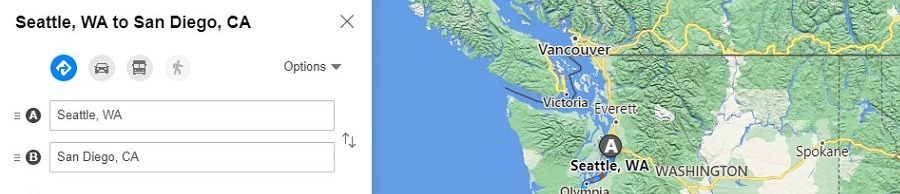
https://www.bing.com/mapsand select Directions. - Enter your starting point in box A and your destination in box B.
- Select Add stop if the trip has a stop along the way.
- Set the travel mode to Driving, Walking or Transit.
- Check the routes listed and select Details to read the turns.
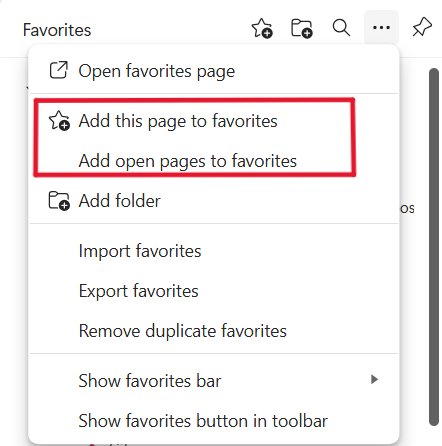
- Bookmark the page in your browser. In Microsoft Edge, select Add this page to favorites in the address bar, then select Done.
Open that bookmark later and Bing Maps loads the same trip again. You can manage your Edge favorites in a folder if you keep several routes.
Bookmark, share or print a Bing Maps route
Each route-saving option suits a different trip, so pick the row that matches where you need the route later.
| Your situation | Use this | Why |
|---|---|---|
| You repeat the trip from the same browser | A browser bookmark | One click reloads the trip with current route times |
| You want the route on your phone as well | A bookmark synced through Edge or Chrome | Signed-in browsers carry favorites and bookmarks across devices |
| Someone else needs the route | Share, or copy the page address | They only need the link to open the same trip |
| You will have no signal on the road | A printout or PDF copy | Paper or a file works offline, but it never updates |
| You plan trips in a spreadsheet or website | A hand-built route link | You can write the addresses straight into the URL |
| You only need to return to one address | My saves | It stores a place result, not a route |
How to bookmark Bing Maps directions in Edge and Chrome
Make the bookmark after the route looks right, because the page address changes as you edit the trip. Rename the bookmark to something like "Home to office" so you can find it again.
| Browser | How to bookmark the directions page |
|---|---|
| Microsoft Edge on a computer | Select Add this page to favorites in the address bar, rename it if you like, then select Done |
| Google Chrome on a computer | Select Bookmark this page, the icon just right of the address bar |
| Google Chrome on Android | Tap the More icon to the right of the address bar, then tap Add to bookmarks |
| Google Chrome on iPhone or iPad | Tap More, then tap Add to Bookmarks |
How to create a Bing Maps route link
Microsoft documents a URL format that opens Bing Maps with a route already drawn, and you do not need a Bing Maps key for it. Replace each space in an address with %20.
https://bing.com/maps/default.aspx?rtp=adr.Seattle,WA~adr.One%20Microsoft%20Way,Redmond,WA&mode=Drtp holds the route, adr. marks an address, the tilde (~) separates each point, and mode=D asks for driving directions.
You should see: Bing Maps opens the directions panel with both points filled in and a route drawn on the map.
Save the finished link as a bookmark, or paste it in an email or a note. Microsoft says these parameters are subject to change, so test a link before you depend on it.
Bing Maps route URL parameters
Add these values to the base address https://bing.com/maps/default.aspx? to control what the saved link shows. Join them with &.
| Parameter | What it sets | Example |
|---|---|---|
rtp |
Start, stops and end, separated by a tilde | rtp=adr.Seattle,WA~adr.Bellevue,WA |
adr. |
A point given as an address | adr.One%20Microsoft%20Way,Redmond,WA |
pos. |
A point given as latitude and longitude, plus an optional name | pos.45.23423_-122.1232_MyPlace |
rtop |
Route choice (0 quickest, 1 shortest), then traffic (0 off, 1 on), then 0 | rtop=0~1~0 |
mode |
Travel mode: D driving, T transit, W walking | mode=W |
limit |
D depart at, A arrive by | limit=A |
time |
The depart or arrive time as YYYYMMDDhhmm | time=202701151730 |
How to add stops to a Bing Maps route
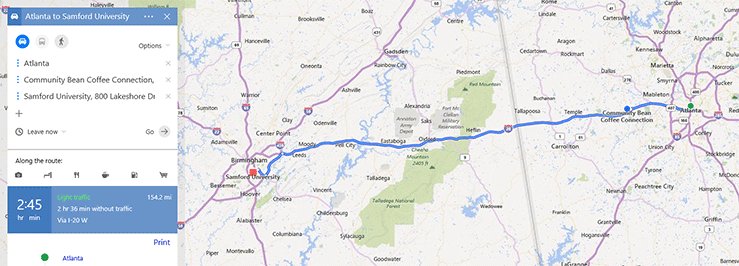
A saved link keeps every stop in order, shown on the panel as A, B, C and so on. Add the stops first and bookmark the page last.
- Open your route under Directions.
- Select Add stop.
- Enter the address of the stop in the new box.
- Check the updated times and distance in the route list.
- Bookmark the page again and delete the older bookmark.
In a hand-built link, add another tilde and point: rtp=adr.Seattle,WA~adr.Bellevue,WA~adr.Redmond,WA.
How to share a route from Bing Maps
Microsoft points people to the Share dialog when they want to email a map link or embed a map. Customize and preview in that dialog adjusts the size and imagery of an embedded map.
- Build the route under Directions.
- Select Share.
- Copy the link from the dialog, or select Customize and preview to change an embedded map.
- Paste the link in your email, chat or note.
If you do not see Share, copy the address from your browser's address bar instead. That address already holds the route.
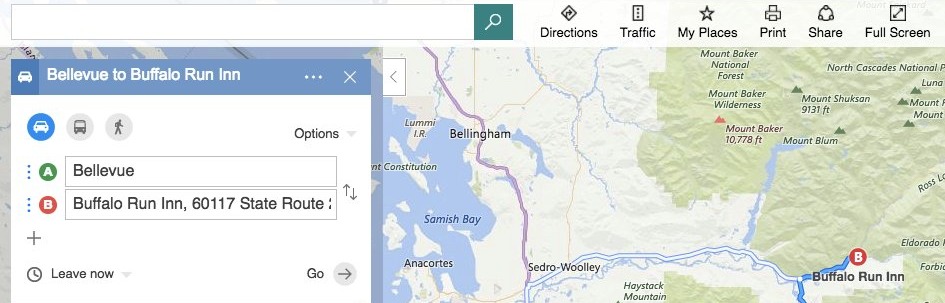
How to print directions from Bing Maps
A printout is the only option here that works with no signal, but it shows the route as it stood when you printed it. Open Details first if you want the turns on the page.
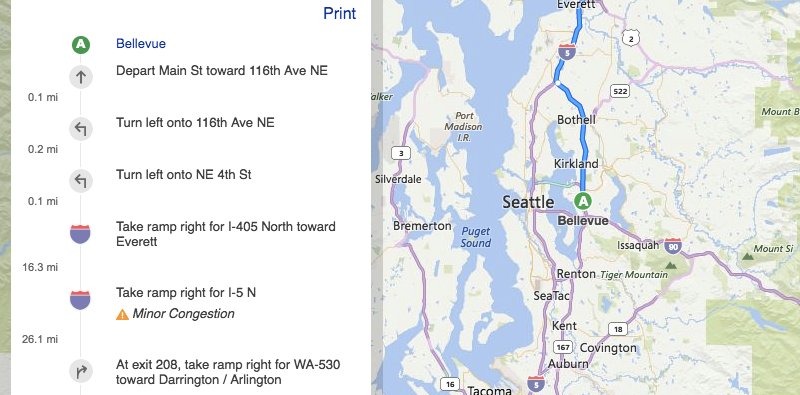
- Open the route and select Details on the route you want.
- Press Ctrl + P on Windows or Command + P on a Mac.
- Choose your printer, then set the layout, copies and pages.
- Select Print.
On Windows, you can send the page to the Microsoft Print to PDF printer to keep a file copy you can open without a connection.
How to save a place on Bing
My saves stores individual Bing place results rather than full routes. It suits a hotel or a client office that you want to route to later.
- Sign in to Bing with your Microsoft account.
- Search Bing for the place.
- Select the [+] on the place result to add it to My saves.
- To see it later, open Settings and select My saves.
- To remove it, select ••• on the result, then select Remove.
Without signing in, Microsoft says saves last only until you switch browsers or clear your cookies. Signed in, you can see them from any device.
How to open a saved Bing Maps route on your phone
A bookmark follows you only if your browser syncs it. Edge syncs favorites automatically once you sign in, and Google says signing in to Chrome brings your bookmarks to your other devices.
- On your computer, select your profile icon in Edge, choose your account, and select Sign in to sync data.
- On your phone, open the Edge app, tap your profile image, and select Accounts.
- Select the same account, then select Sign in to sync.
- Open your favorites in the Edge app and tap the route.
If the favorite does not appear, go to Settings > Profiles > Sync in Edge on your computer and check the favorites toggle. On a phone, you can also email yourself the link.
How to open a saved route in Bing Maps
A good bookmark restores the whole trip, so check it once before you rely on it on the road.
- Open a new browser tab and select the bookmark.
- Confirm that boxes A and B, plus any stops, show the right places.
- Confirm the travel mode reads Driving, Walking or Transit as you set it.
- Check the listed routes and select Details for the turns.
How to edit a saved route in Bing Maps
A bookmark is a fixed address, so editing the route does not update the bookmark. You replace the old one instead.
- Open the bookmark.
- Change the points, select Add stop, or switch the travel mode.
- Bookmark the updated page under a new name.
- Delete the older bookmark in your browser's favorites or bookmarks list.
Why a saved Bing Maps route shows different times
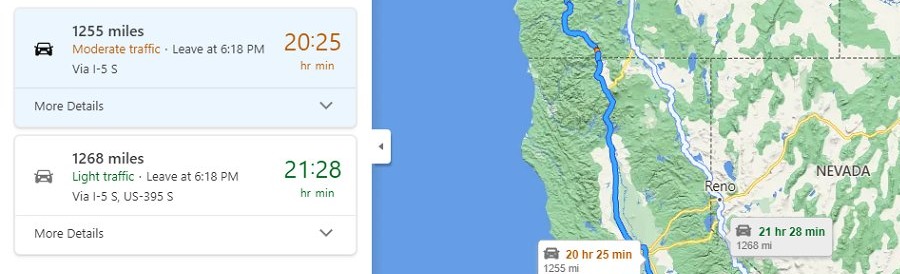
The saved link reopens the trip rather than a frozen copy of it. Bing Maps works out the routes again when the page loads, so times and delays can differ from the last visit.
| Part of the route | Kept in the link? | What to do |
|---|---|---|
| Start, stops and destination | Yes, in rtp |
Nothing, they reload as saved |
| Driving, walking or transit | Yes, in mode |
Nothing, the mode reloads as saved |
| Live traffic delays and arrival time | No, they are worked out on opening | Check them again before you leave |
| A particular alternate road | No documented parameter for it | Add a stop on that road to pull the route along it |
| Departure time | Only if you add limit and time |
Build a route link with those values |
Bing Maps saved routes FAQ
Can I directly save a route in Bing Maps?
Microsoft's Bing Maps help documents no dedicated save-route button. The reliable way is to bookmark the directions page, since its address stores the start, stops and travel mode and reloads the trip when you open it.
Do I need a Microsoft account to save routes?
No. Bing Maps shows directions without signing in, and a browser bookmark needs no Microsoft account. You do need to sign in if you want My saves results to follow you to other devices.
Can I access saved routes on my phone?
Yes, through a synced browser. Sign in to Edge on both devices and your favorites sync automatically, or sign in to Chrome to get your bookmarks. You can also email the route link to yourself.
Is bookmarking better than saving locations?
For a full trip, yes. A bookmark keeps the start, stops and travel mode, while My saves keeps one place result at a time. Saving locations suits an address you want to route to from different places.
Will my saved routes update automatically?
The route times do. A bookmark reopens the trip and Bing Maps works out routes again with current conditions, so delays can change. The points themselves stay fixed until you edit the route and bookmark it again.
Can I save a Bing Maps route with multiple stops?
Yes. Select Add stop under Directions, then bookmark the page after the last stop is in. In a hand-built link, separate each point with a tilde inside the rtp value, and the panel labels them A, B, C.
Can I save a walking or transit route in Bing Maps?
Yes. Choose Walking or Transit before you bookmark, because the address records the mode. In a hand-built link, use mode=W for walking or mode=T for transit, and mode=D for driving.