An Outlook PST file (Personal Storage Table, or Outlook Data File) is a single file on your computer that holds email, contacts, calendar items and tasks; use one for POP accounts, backups, exports and moving mail between accounts, but not as long-term storage for a work mailbox.
This guide explains how PST files differ from OST files, when they help, their size and network limits, how to create, export, open and repair one, and what to use instead.
What are Outlook PST Files and Why Use Them… or Not?
A PST file is a local copy of Outlook items that lives outside any mail server. Whether you should use one depends on your account and what you want to do.
| Your situation | Use a PST? | Why |
|---|---|---|
| You have a POP email account | Yes, Outlook uses one automatically | POP accounts keep all mail in a .pst on your PC |
| You want an offline backup of a mailbox | Yes, export to a PST | The file is portable and can be imported later |
| You are moving mail to another account or PC | Yes, export then import | Microsoft's own migration route for desktop Outlook |
| Your Microsoft 365 or Exchange mailbox is nearly full | Only short term | An archive mailbox keeps mail searchable on every device |
| You want to keep a PST on a network drive | No | Microsoft does not support PSTs over LAN or WAN links |
| You use Outlook.com, Microsoft 365 or IMAP day to day | No | Those accounts use an .ost cache that the server rebuilds |
How PST Files Work
Outlook keeps two kinds of data file. The difference decides whether you need to back the file up at all.
| .pst (Outlook Data File) | .ost (Offline Outlook Data File) | |
|---|---|---|
| What it is | The only copy of the items stored in it | A synchronized copy of a mailbox on a server |
| Used by | POP accounts, archives, exports, backups | Microsoft 365, Exchange, IMAP and Outlook.com accounts |
| Default location | Documents\Outlook Files | drive:\Users\user\AppData\Local\Microsoft\Outlook |
| Move to another PC? | Yes, copy the file and open it | No, Outlook recreates it when you add the account |
| Needs a backup? | Yes | No, the server holds the live data |
| Default size limit (Outlook 2010 and later) | 50 GB | 50 GB |
Microsoft's Exchange team created PST files so people could keep a copy of their messages locally, and as a message store for users without an Exchange server. A PST can be password protected when you create it.
Reasons to Use PST Files
| Reason | What the PST does for you |
|---|---|
| Backup | An exported PST is an offline copy of your email, contacts and calendar you can keep on another drive |
| Moving to a new PC | Copy the PST and import it after setting up Outlook on the new computer |
| Switching accounts | Export from the old account and import into the new one, for example from a personal to a business mailbox |
| Freeing mailbox space | Export older items when an online mailbox is nearly full |
| Archives and project files | Keep a closed project's mail in its own file and open it only when needed |
| POP email | Required: a POP account has no server copy, so the PST is your mailbox |
Potential Drawbacks of PST Files
| Drawback | What happens |
|---|---|
| Size limit | Outlook stops adding items at about 50 GB; moving items fails with "has reached its maximum size" |
| Network storage | A PST on a network share is unsupported, slow, and can be corrupted if the connection drops |
| Single device | Mail in a PST is not visible in Outlook on the web or on your phone |
| Corruption | A damaged file triggers "Outlook can't open your data file" and needs the Inbox Repair tool |
| Cloud sync folders | A large PST in OneDrive slows sync and can show "Processing changes" or "A file is in use" |
| New Outlook limits | New Outlook needs classic Outlook installed, a Microsoft 365 subscription and a non-ARM PC to open PSTs; it cannot import a PST into a mailbox yet |
How to create a new PST file in classic Outlook
- Open classic Outlook and go to the Inbox.
- Select New Items > More Items > Outlook Data File.
- Enter a File name.
- To protect the file, check Add Optional Password.
- Select OK, type the password in Password and Verify Password, and select OK again.
The new file appears in the folder pane, and you can drag messages or folders into it. A password must be entered every time the file opens.
How to export a mailbox to a PST file
Classic Outlook exports through the Import/Export wizard:
- Select File > Open & Export > Import/Export.
- Choose Export to a file and select Next.
- Select Outlook Data File (.pst) and select Next.
- Select the account to export, keep Include subfolders checked, and select Next.
- Select Browse, choose where to save the file, enter a file name and select OK.
- Select Finish, and set a password if prompted.
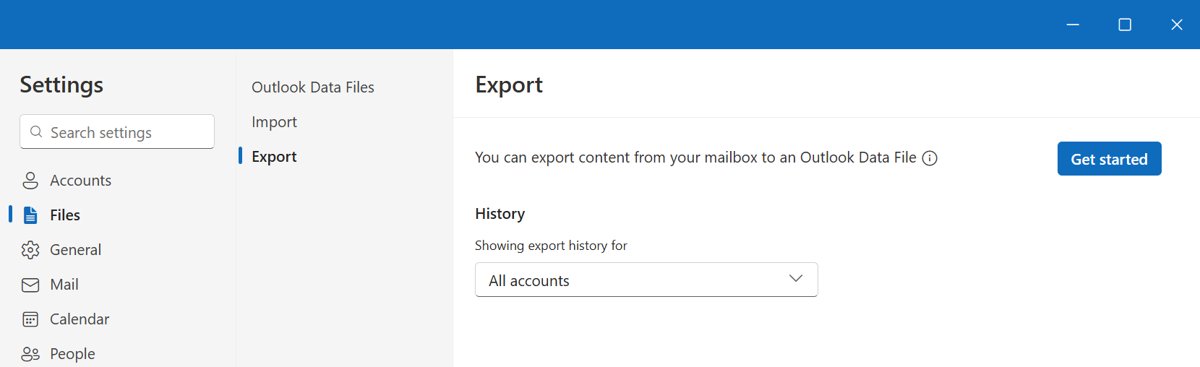
In the new Outlook, go to Settings > Files > Export, select Get started, and follow the wizard to pick the mailbox or folders.
How to open a PST file in new Outlook and classic Outlook
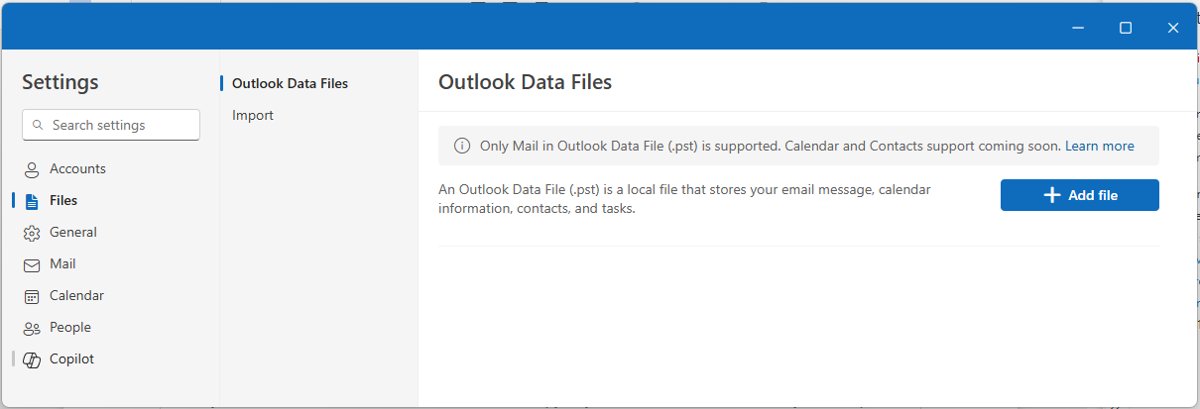
- New Outlook: go to Settings > Files > Outlook Data Files.
- New Outlook: select Add file, choose the .pst file and select Open.
- Classic Outlook: select File > Open & Export > Open Outlook Data File.
- Classic Outlook: choose the .pst file and open it.
- Expand the file's folders in the navigation pane and use search to find items.
New Outlook can read, search, move, copy and delete email in a PST and drag mail between the PST and your mailbox. Calendar and contact items stored in a PST are not available there yet.
Best Practices for Managing PST Files
| Practice | Reason |
|---|---|
| Keep PSTs on a local drive | Network-hosted PSTs are unsupported and risk corruption |
| Keep them out of OneDrive's synced folders | Large PSTs slow sync and get locked while Outlook is open |
| Split by year or project | Smaller files stay well under the 50 GB limit and open faster |
| Close Outlook before copying a PST | Prevents copying a file that is in use |
| Back up the PST, not the OST | The OST is rebuilt from the server; the PST may be the only copy |
| Use a password only if you will remember it | Outlook asks for it every time the file opens |
Fix a PST file that will not open or is full
Outlook can't open your data file or the set of folders
The PST is damaged.
- Back up the PST and exit Outlook.
- Open
SCANPST.EXE(for Outlook 2016 and 2019 it is inC:\Program Files (x86)\Microsoft Office\root\Office16). - Select Browse, choose the PST and select Start.
- If errors are found, select Repair; run it again if needed.
- Restart Outlook and check Recovered Personal Folders or Lost and Found for recovered items.
"The file has reached its maximum size"
The PST hit the 50 GB default limit.
- Permanently delete items you no longer need.
- Create a new PST and move older folders into it.
- Keep each file well below the limit from then on.
OneDrive shows "Processing changes" or "A file is in use"
A large PST sits inside a OneDrive-synced folder.
- Close Outlook.
- Move the PST to a local folder outside OneDrive.
- Reopen it in Outlook from the new location.
Alternatives to PST Files
| Alternative | Best for | Why it beats a PST |
|---|---|---|
| Archive mailbox (Microsoft 365 or Exchange) | Work mailboxes running out of space | Stays on the server, searchable from Outlook and the web |
| Cached Exchange Mode (.ost) | Working offline with a work mailbox | Local copy is synced and rebuilt automatically |
| Leaving mail in the cloud mailbox | Outlook.com and Microsoft 365 users | Available on every device with no file to manage |
| Outlook on a Remote Desktop Session Host | Organizations that must keep PSTs on servers | The one supported networked PST scenario |
Frequently asked questions
What is a PST file in Outlook?
A PST is an Outlook Data File that stores messages, contacts, appointments, tasks, notes and journal entries on your computer. POP accounts use one as their mailbox, and any account can export to one for backup or archiving.
What is an Outlook data file (.pst)?
Outlook Data File is Microsoft's name for a .pst file. It is saved by default in Documents\Outlook Files and can be moved to another computer, unlike the offline .ost file used by Microsoft 365 and Exchange accounts.
Are Outlook PST files going away?
No date has been announced. Microsoft plans to add bulk PST import to new Outlook and drop its need for classic Outlook, and says it has no further PST investments planned after that.
Does the new Outlook support PST files?
Partly. New Outlook can open, search and manage email in a PST and export to one, but it needs classic Outlook installed, a Microsoft 365 subscription and a non-ARM PC, and it cannot import a PST into a mailbox yet.
Does Outlook use PST files for Outlook.com or Microsoft 365?
Not for day-to-day mail. Those accounts, along with Exchange and IMAP, use an offline .ost file that syncs with the server. You only get a PST from them when you export or archive.
Where are Outlook PST files stored?
New PST files are saved in Documents\Outlook Files on Windows 10 and Windows 11. Offline .ost files are in AppData\Local\Microsoft\Outlook inside your user folder.
How big can a PST file get?
The default maximum for a Unicode PST in Outlook 2010 and later is 50 GB. Older ANSI-format PSTs are limited to about 2 GB.