Open Windows Tools in Windows 11 by selecting Start, typing Windows Tools and selecting the result.
This guide covers the three built-in routes to the folder, what it contains, direct commands for each admin tool, and fixes when Windows Tools will not open.
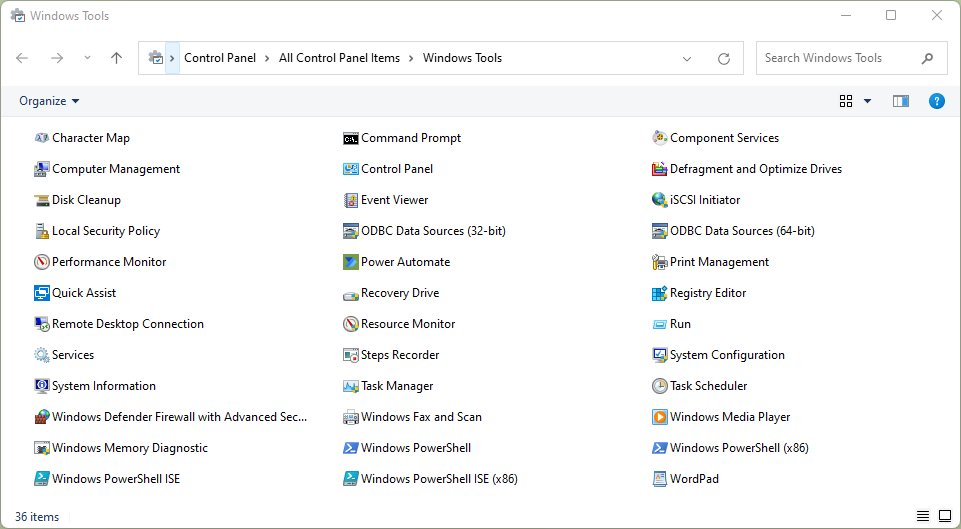
Open Windows Tools by searching for it
- Press Windows logo key + S to open search, or select the Start button.
- Type Windows Tools.
- Select Windows Tools in the results.
- Double-click the tool you need in the File Explorer window that opens.
Every app inside the folder is also searchable by its own name, so typing Event Viewer or Computer Management skips the folder entirely.
How to open Windows Tools in Windows 11
| Your situation | Use this | Why |
|---|---|---|
| Keyboard handy | Search: Windows logo key + S, type Windows Tools | Fastest; works from anywhere |
| You prefer browsing menus | Start > All apps > Windows Tools | No typing; the entry sits in the alphabetical list |
| You are already in Control Panel | Control Panel > Windows Tools | Windows Tools is a Control Panel folder |
| You know which tool you want | Run box command such as compmgmt.msc or eventvwr.msc |
Opens the tool without the folder |
Open Windows Tools from the Start menu programs list
- Select the Start button.
- Select All apps to show the full app list.
- Scroll to the W section.
- Select Windows Tools.
Windows Tools opens as a File Explorer window, and that window is where the old Administrative Tools shortcuts now live. Its apps can be pinned to Start or the taskbar like any other app.
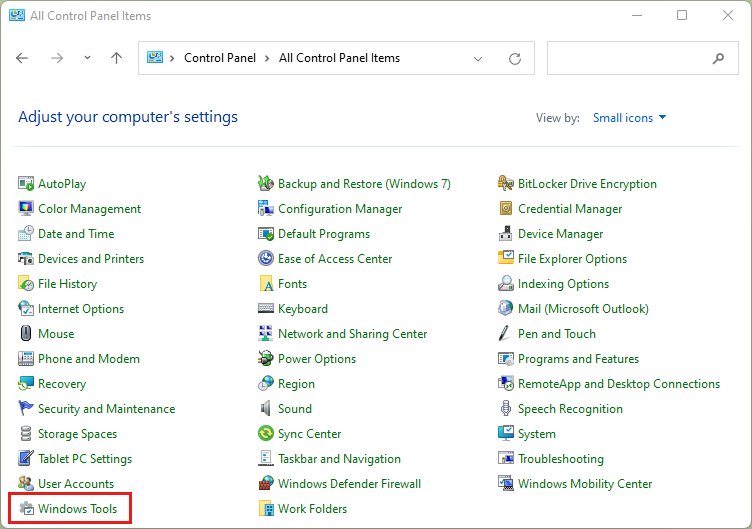
Open Windows Tools through Control Panel
- Press Windows logo key + R to open the Run dialog box.
- Type
controland press Enter. - Switch Control Panel to an icon view if Windows Tools is not visible.
- Select Windows Tools.
Control Panel also keeps other classic pages, such as Devices and Printers, that have not fully moved to Settings.
What is in Windows Tools in Windows 11?
Windows Tools is a Control Panel folder for system administrators and advanced users. It replaced four separate Start menu folders, and the tools offered inside it vary with your Windows edition.
| What moved into Windows Tools | Examples | Note |
|---|---|---|
| Windows Administrative Tools folder | Admin consoles for system management | The old admin shortcuts now live here |
| Windows System folder | System shortcuts formerly grouped in Start | Each one still launches from search |
| Windows PowerShell folder | Windows PowerShell shortcuts | Still searchable from Start |
| Windows Accessories folder | Windows Media Player Legacy | The classic player was renamed Windows Media Player Legacy |
| Moved back out | Quick Assist | Now listed directly in All apps for easier access |
What are Administrative Tools in Windows?
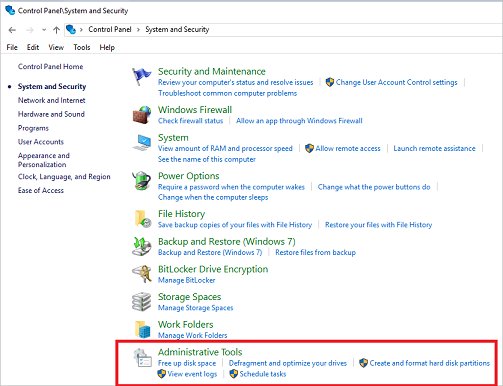
Administrative Tools is the Windows 10 name for the same idea. Microsoft renamed the Start folder Windows Tools during development to better organise the admin and system tools, and Windows 11 ships with the new name.
| Detail | Windows 11 | Windows 10 |
|---|---|---|
| Control Panel folder name | Windows Tools | Administrative Tools |
| Who it is for | System administrators and advanced users | System administrators and advanced users |
| Contents | Admin tools plus former System, PowerShell and Accessories shortcuts | Admin tools only |
| Edition differences | Tools vary by edition | Tools vary by edition |
| Where to find tools on Windows 10 | Not applicable | Control Panel > Administrative Tools, or search for each tool |
Open Windows management tools directly with Run commands
Press Windows logo key + R, type the command and press Enter. Each command works the same on Windows 11 and Windows 10.
| Tool | Run command | Other quick route |
|---|---|---|
| Computer Management | compmgmt.msc |
Right-click Start > Computer Management |
| Event Viewer | eventvwr.msc |
Right-click Start > Event Viewer |
| Disk Management | diskmgmt.msc |
Right-click Start > Disk Management |
| System Configuration | msconfig |
Search for it in Start |
| System Information | msinfo32 |
Search for it in Start |
| Registry Editor | regedit |
Search for it in Start |
| Local Group Policy Editor | gpedit.msc |
Not available on Windows 11 Home |
| Advanced system settings | SystemPropertiesAdvanced |
Search for it in Start |
| Control Panel | control |
Search for it in Start |
How do I get to System Tools in Windows 11?
System Tools is a node inside Computer Management, not a separate app. It holds consoles such as Local Users and Groups.
- Right-click the Start button, or press Windows logo key + X, to open the Quick Link menu.
- Select Computer Management.
- In the console tree, expand System Tools.
- Select the tool you need, for example Local Users and Groups.
What are Remote Server Administration Tools?
Remote Server Administration Tools (RSAT) let IT administrators manage roles and features on Windows Server machines from a Windows 11 PC. Once installed, the RSAT consoles sit alongside the built-in apps in Windows Tools.
| RSAT tool type | What it does | Examples |
|---|---|---|
| Server Manager | Central console for server tasks on local and remote servers | Add roles and features on several servers from one window |
| MMC snap-ins | Focused consoles for one service | DNS Server Tools, DHCP Server Tools, Failover Clustering Tools |
| PowerShell modules | Scripting and automation | Storage Replica and System Insights modules |
| Command-line tools | Direct server control from a command prompt | Tools that ship with each role's RSAT package |
Install Remote Server Administration Tools on Windows 11
Prerequisites: Windows 11 Pro or Enterprise (RSAT cannot be installed on Home), administrator rights on the PC, administrator rights on the remote servers for the service you manage, and a network connection to those servers.
- Select Start > Settings > System > Optional features. On some versions the page is under Apps instead.
- Open the panel to add a feature and type Remote in the search box.
- Tick the RSAT tools you need, such as RSAT: Server Manager or RSAT: DNS Server Tools, and install them.
- Open Windows Tools and launch the new console from the list.
To manage local and remote servers with Server Manager, install RSAT: Server Manager and use it to add and configure roles and features on several remote servers from one console. The Control Panel Turn Windows features on or off dialog does not install RSAT, except for a few snap-ins on Windows 11, version 25H2 Arm64 devices.
Show or hide Lock option from the user account profile picture in Start menu
The Lock entry in the menu under your account picture is controlled by a Group Policy setting. The Local Group Policy Editor is not available on Windows 11 Home.
- Press Windows logo key + R, type
gpedit.mscand press Enter. - Go to Computer Configuration > Administrative Templates > Windows Components > File Explorer.
- Double-click Show lock in the user tile menu.
- Select Disabled to hide Lock, or Enabled to show it.
- Select OK, then open Start and select your account picture to check the menu.
Windows Tools not opening in Windows 11
Windows Tools does not appear in search or All apps
The Start entry is missing or the search index has not caught up.
- Press Windows logo key + R, type
controland press Enter. - Select Windows Tools in Control Panel.
- If you only need one tool, open it with its Run command from the table above.
A tool you expect is missing from Windows Tools
The tools in the folder vary by Windows edition; Home lacks some admin consoles, such as the Local Group Policy Editor.
- Press Windows logo key + I, open System > About and check the edition.
- Search Start for the tool by name in case it moved, as Quick Assist did.
- On Home, use the Settings app or command-line equivalents for that task.
Windows Tools or a tool inside it fails to launch
Damaged protected system files can stop built-in consoles from starting.
- Select Start, type cmd, right-click Command Prompt and select Run as administrator.
- Run
Dism /Online /Cleanup-Image /RestoreHealthand wait for it to finish. - Run
sfc /scannowto scan and repair protected system files. - Restart the PC and open Windows Tools again.
Windows Tools in Windows 11 FAQ
Where is Windows Tools in Windows 11?
Windows Tools is in the Start menu's All apps list under W, and in Control Panel as its own folder. You can also type Windows Tools into Start search and select the result.
How do I access Windows Tools quickly?
Press Windows logo key + S, type Windows Tools and press Enter. The folder opens in File Explorer, where you double-click any tool to start it.
How do I open Windows management tools like Computer Management?
Right-click the Start button and select Computer Management, or press Windows logo key + R, type compmgmt.msc and press Enter. Event Viewer and Disk Management are in the same right-click menu.
How do I install Windows Tools?
There is nothing to install. Windows Tools is a built-in Control Panel folder in every Windows 11 edition, though the set of tools inside depends on the edition you run.
Where do I find tools on Windows 10?
On Windows 10 the folder is called Administrative Tools. Open Control Panel and select Administrative Tools, or search Start for the individual tool by name.
How do I open System Tools?
Open Computer Management from the Quick Link menu (Windows logo key + X) and expand System Tools in the console tree. It contains consoles such as Local Users and Groups.
How do I use Windows Tools?
Open the folder and double-click a tool to launch it. Tools that change system-wide settings ask for administrator approval through User Account Control before they apply a change.
How do I open developer tools in Windows 11?
Developer settings are in Settings > System > Advanced, under For developers, where you can turn on Developer Mode. Before Windows 11 25H2 they were on a separate For developers page.