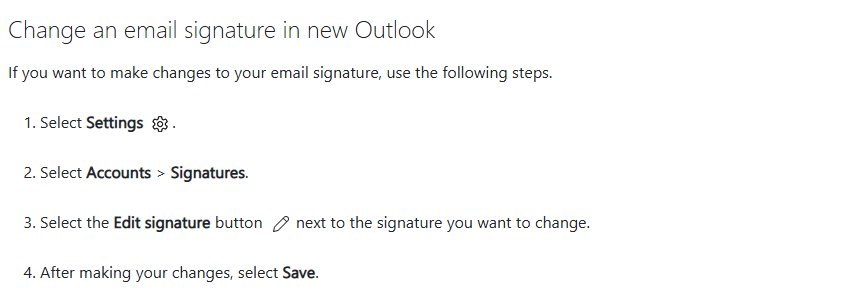
To change your signature in new Outlook for Windows or Outlook on the web, select Settings > Accounts > Signatures, select Edit signature next to the signature, make your changes and select Save.
Classic Outlook keeps the same editor under File > Options > Mail > Signatures, and Outlook for Mac, iPhone and Android each have their own path, all covered below with the default-signature settings and fixes for a signature that will not change.
How to change your signature in Outlook (step-by-step)
These steps are for new Outlook for Windows. If the Settings gear does not show an Accounts page, you are in classic Outlook; jump to the Windows 10 section below.
- Select Settings (the gear icon) at the top right of new Outlook.
- Select Accounts > Signatures.
- If more than one email account is added, pick the account whose signature you want to change.
- Select the Edit signature button next to the signature you want to change.
- Change the text in the editing box and use the font, color and style tools to format it.
- Tick or clear the checkboxes at the bottom to choose whether the signature goes on new messages and on replies and forwards.
- Select Save.
To create a second signature instead, select Add signature, give it a distinct name, type it and select Save. You can then pick either one while writing a message.
Why is the Outlook signature setting so hard to find?
Microsoft now ships several Outlook apps, and each one puts the signature editor in a different menu, like many other Outlook settings. Most people who cannot find it are following steps written for a different version.
| Outlook version | Where the signature setting lives | Why it trips people up |
|---|---|---|
| New Outlook for Windows | Settings > Accounts > Signatures | There is no File menu, so older instructions do not match |
| Classic Outlook (Microsoft 365, 2021, 2019, 2016) | File > Options > Mail > Signatures, or Signature > Signatures in a new message | The setting sits inside Options, several clicks from the inbox |
| Outlook on the web and Outlook.com | Settings > Accounts > Signatures | It is a separate signature from the one saved in classic Outlook |
| Outlook for Mac | Outlook menu > Settings > Mail > Signatures | Legacy Outlook for Mac used Email instead of Mail |
| Outlook for iPhone and Android | Settings > Mail > Signature | The mobile signature is set in the app, not copied from the desktop |
How to change signature in Outlook Windows 10
Classic Outlook is the desktop app included with Microsoft 365 and Office on Windows 10 and Windows 11. Its signatures are stored locally on the PC where you created them.
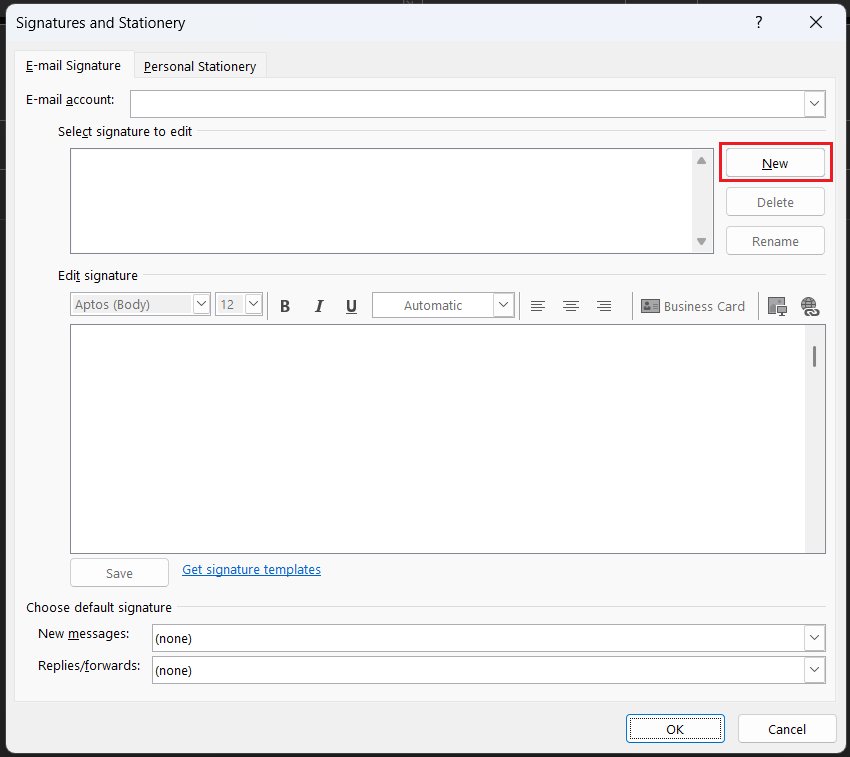
- Open classic Outlook and select File > Options.
- Select Mail, then select Signatures.
- In the E-mail account drop-down, pick the account the signature belongs to.
- Under Select signature to edit, select the signature you want to change.
- Make your changes in the Edit signature box.
- Select Save, then select OK.
To start a fresh signature, select New under Select signature to edit and name it. The message you have open while you create a signature does not receive it automatically, so insert it into that message by hand.
How to change signature in Outlook web
Outlook on the web for work or school accounts and Outlook.com for personal accounts use the same signature pane. A signature saved here does not appear in classic Outlook, so if you use both, set it up in both.
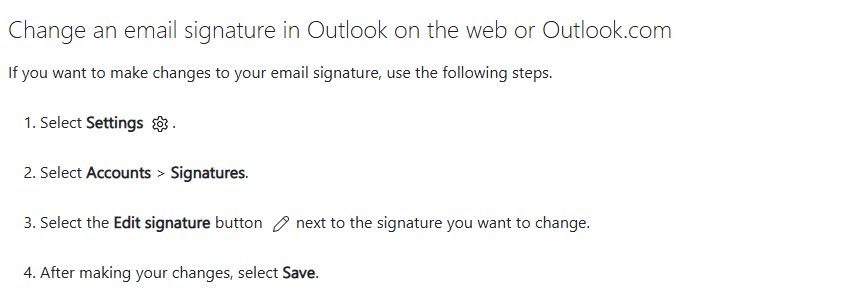
- Sign in to Outlook in your browser and select Settings (the gear icon) at the top of the page.
- Select Accounts > Signatures.
- Select the Edit signature button next to the signature, or select Add signature to make a new one.
- Type and format the signature in the editing box.
- Use the checkboxes at the bottom to add it to new messages and to replies and forwards, or leave them clear to insert it by hand.
- Select Save.
To insert a signature by hand, open a new message or reply, select Signature on the Message tab and pick the one you want.
How to change signature in Outlook for Mac
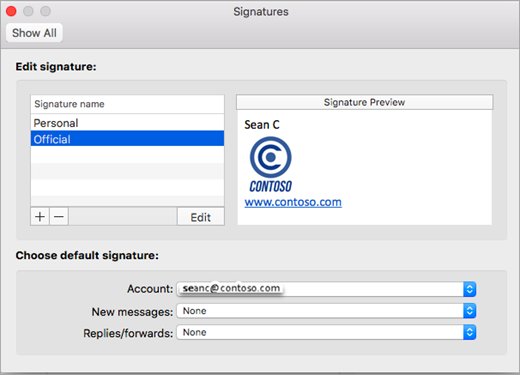
These steps are for the current Outlook for Mac. Microsoft lists October 2026 as the end of support for legacy Outlook for Mac, where the same list sits under Settings > Email > Signatures.
- Open the Outlook menu and choose Settings.
- Under Mail, select Signatures.
- Under Signature name, select the signature you want to change, then click Edit.
- Change the text and formatting; select the text first before you apply formatting.
- Use See more items (…) to add a picture, a link or a table.
- Close the Signatures window to keep your changes.
To make a new signature, click the + (Add) icon and enter a name. Microsoft lists a known issue in which signature edits made in the new settings pane are not saved; if your change disappears, check its status on the Outlook for Mac known-issues page and edit again after the next update.
How to change signature in Outlook on iPhone
Outlook for iOS and Outlook for Android use one signature for every account unless you split them. The mobile signature is separate from the one on your computer.
- Open the Outlook app and go to Settings.
- Under Mail, tap Signature.
- Delete the existing text in the signature box and type your own.
- To give each account its own signature, turn on Per Account Signature and enter a signature for each account.
- Go back to the inbox; the next message you write uses the new signature.
Changing your signature on other versions of Outlook
This quick summary shows where to edit the signature in each version and whether the change follows you to other devices.
| If you use | Change the signature here | Does the change reach other devices? |
|---|---|---|
| New Outlook for Windows | Settings > Accounts > Signatures > Edit signature | Classic Outlook signatures are not included; set those separately |
| Classic Outlook (2016, 2019, 2021, Microsoft 365) | File > Options > Mail > Signatures | No, classic signatures are stored on that PC |
| Outlook on the web or Outlook.com | Settings > Accounts > Signatures | Not to classic Outlook; set it there separately |
| Outlook for Mac | Outlook > Settings > Mail > Signatures > Edit | Set it on each Mac |
| Outlook for iPhone or Android | Settings > Mail > Signature | No, the app keeps its own signature |
If the steps for new Outlook do not match what you see, you are in classic Outlook. A quick way to tell: classic Outlook has a File tab, new Outlook does not, one of several differences between new and old Outlook.
How to set a default signature in Outlook for new messages and replies
Every Outlook app lets you pick one signature for new mail and another, often shorter one, for replies and forwards.
| Outlook version | Where to set the default | What to choose |
|---|---|---|
| New Outlook and Outlook on the web | Settings > Accounts > Signatures | The checkboxes for new messages and for replies and forwards |
| Classic Outlook | File > Options > Mail > Signatures > Choose default signature | A signature in New messages and in Replies/forwards, or (none) |
| Outlook for Mac | Outlook > Settings > Mail > Signatures > Set default signature | Pick the account, then set For new messages and For replies or forwards |
| Legacy Outlook for Mac | Settings > Email > Signatures > Choose default signature | New messages and Replies/forwards for each account |
On a Mac, repeat the default for each account that needs one. Leaving a default blank means you add the signature yourself from the Signature button while composing.
How to add a logo or image to an Outlook signature
Classic Outlook has an Image button in the signature editor. In Outlook for Mac, the picture option sits under See more items (…) in the signature editor.
- In classic Outlook, open File > Options > Mail > Signatures and select the signature.
- Click in the Edit signature box where the logo should go.
- Select the Image button, browse to your logo file and select Insert.
- Right-click the image, choose Picture and open the Size tab.
- Keep Lock aspect ratio checked and set a smaller size.
- Select OK, then select OK again to save the signature.
Insert the image with the Image button rather than pasting HTML. Microsoft notes that Vector Markup Language (VML) tags in a signature can make images arrive as attachments instead of inline pictures.
Tips for changing signature in Outlook Windows 10
A few details matter more than any design choice, and the best signatures stay short enough to read on a phone.
| Tip | Why it helps |
|---|---|
| Build tables, bullets or borders in Word and paste them in | The classic Outlook editor has no table or border tools of its own |
| Keep a separate short signature for replies and forwards | Long signatures repeat down every message in a thread |
| Give each email account its own signature | Classic Outlook ties each signature to the account picked in E-mail account |
| Resize logos inside the signature editor | A full-size image makes every message larger |
| Send yourself a test message after saving | You see exactly what recipients get, including how the image arrives |
| Re-create the signature on each PC that runs classic Outlook | Classic signatures are saved locally and do not follow your account |
Outlook signature still not working? Try these fixes
Why can't I change my signature in Outlook?
You are editing the signature in a different Outlook app from the one you send with, or your organization adds the signature on its servers.
- Check which app you use: classic Outlook has a File tab, new Outlook and the web version do not.
- Edit the signature in that app's own path from the table above.
- If a block of text still appears that you never added, ask your IT admin; it is an organization-wide signature applied after you send.
Why does my signature font change in Outlook?
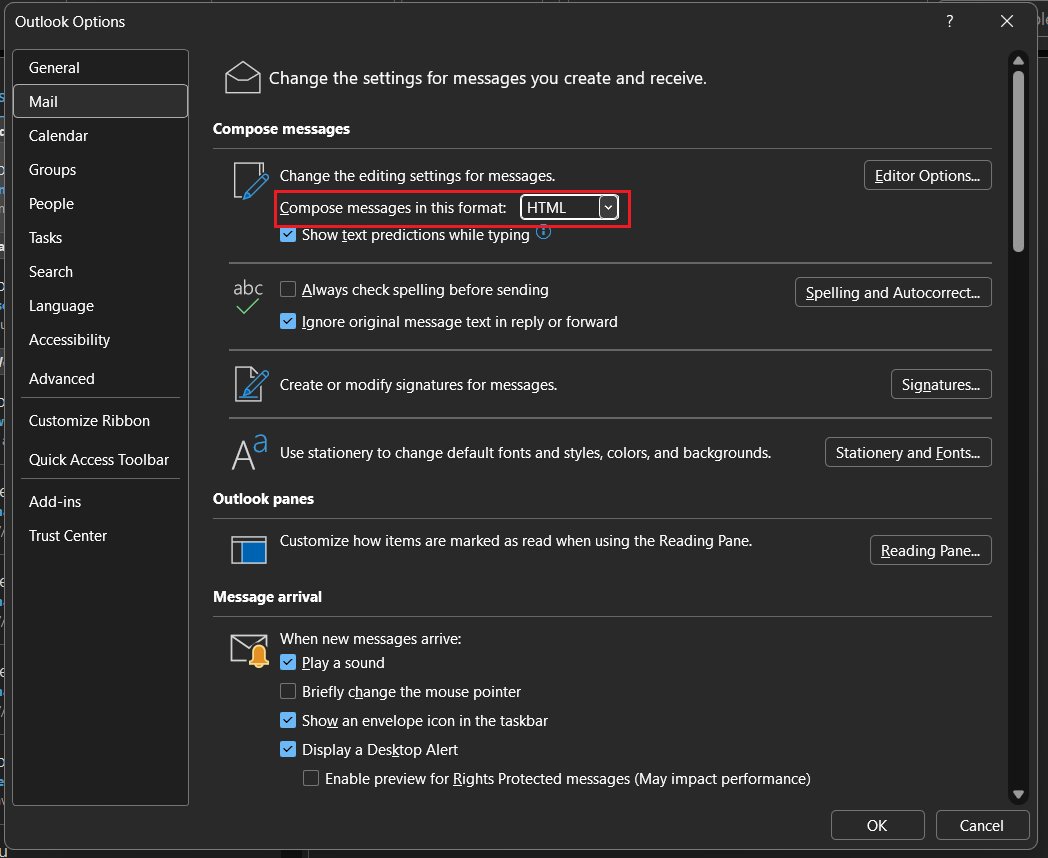
The message is in plain text, which does not support fonts, colors, bold or pictures.
- In classic Outlook, open the message, select Format Text and choose HTML.
- To change the default, select File > Options > Mail and set Compose messages in this format to HTML, then select OK.
- In new Outlook, select Settings > Mail > Compose and reply, set Message format to HTML and select Save.
Outlook signature not showing on new emails or replies
No default signature is set for that account, or the message was already open when you created the signature.
- Open the signature settings and pick the correct account.
- Set the signature for new messages and for replies and forwards.
- Close any message you were writing and start a new one, or insert the signature with Signature on the Message tab.
Outlook signature does not sync to my phone
Outlook for iPhone and Android keep their own signature, separate from desktop Outlook.
- Open the Outlook app and go to Settings.
- Under Mail, tap Signature and enter the signature.
- Turn on Per Account Signature if each account needs a different one.
Company signature keeps coming back after I delete it
An admin rule in Exchange appends a disclaimer to outgoing mail on the server, so it never appears in your editor or your Sent Items folder.
- Delete your own copy of the company text from your Outlook signature so it does not appear twice.
- Send a test message to a personal address to see the server-added text.
- Ask your Microsoft 365 admin to change the Apply disclaimers rule under Mail flow > Rules in the Exchange admin center.
Signature edits not saved in Outlook for Mac
Microsoft lists a known issue in which changes made in the new settings pane are not saved.
- Install the latest Outlook for Mac update.
- Open Outlook > Settings > Mail > Signatures and make the change again.
- Close the Signatures window and open a new message to check the result.
If the message body font changes too, you can set the default font and size in Outlook so new mail always starts the same way.
Outlook signature FAQ
How do I change my signature in Outlook 365?
In classic Outlook for Microsoft 365, select File > Options > Mail > Signatures, pick the signature, edit it and select Save, then OK. In new Outlook or Outlook on the web, use Settings > Accounts > Signatures and the Edit signature button.
How do I change my signature in Outlook classic?
Select File > Options > Mail > Signatures. Choose the account in the E-mail account list, select the signature under Select signature to edit, change it in the Edit signature box, then select Save and OK.
How do I change my signature in the Outlook app?
In Outlook for iPhone or Android, open Settings, tap Signature under Mail and type the new text. Turn on Per Account Signature if each email account needs its own signature.
How do I change my signature in Outlook in a browser?
Sign in to Outlook on the web or Outlook.com, select the Settings gear, then Accounts > Signatures. Select Edit signature next to the signature, make the change and select Save.
Why won't Outlook let me change my signature?
Usually the signature is being edited in a different Outlook app from the one used to send, because classic Outlook, the web and mobile each keep their own copy. A block of text your editor never shows is added by your organization's server and only an admin can change it.
Why did my Outlook signature format change?
The message was most likely sent as plain text, which removes fonts, colors and pictures. Switch the message to HTML, and set HTML as the default compose format in Outlook's mail settings so new messages keep the signature formatting.
Can I have different signatures for different email accounts in Outlook?
Yes. Classic Outlook ties each signature to the account chosen in the E-mail account list, new Outlook asks which account to use, Outlook for Mac sets defaults per account, and the mobile app has a Per Account Signature switch.
Will changing my Outlook signature affect emails I have already sent?
No. Outlook places the signature text into each message when you write it, so messages already sent keep the old signature. Only messages you start after saving the change use the new one.
How do I change my signature in Outlook on Windows 11?
On Windows 11, the new Outlook app uses Settings > Accounts > Signatures. If you run classic Outlook instead, which has a File tab, use File > Options > Mail > Signatures.