Install the Apple Devices app (or iTunes) from the Microsoft Store, then connect your unlocked iPhone and tap Trust; the Apple Mobile Device USB driver installs with Apple's app.
This guide covers both iTunes versions, how to check the driver in Device Manager, every common and uncommon install error, and how to remove the driver.
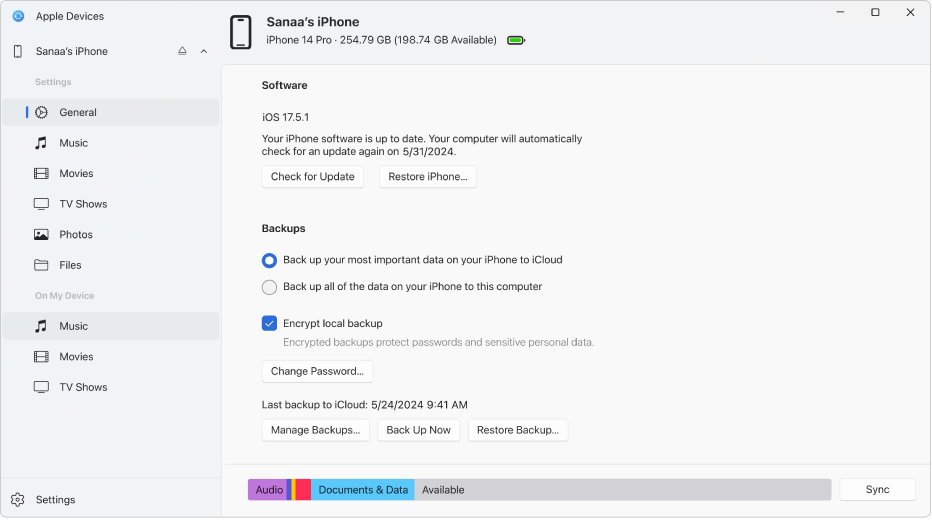
Full step-by-step guide to installing Apple Mobile Device USB driver on Windows 11
Apple does not ship the driver as a separate file any more. It arrives with Apple's Windows software, and Windows binds it to the phone the first time you connect.
- Open Microsoft Store, search for Apple Devices and select Get.
- Open the Apple Devices app once the install finishes.
- Unlock your iPhone and connect it with a USB cable that carries data.
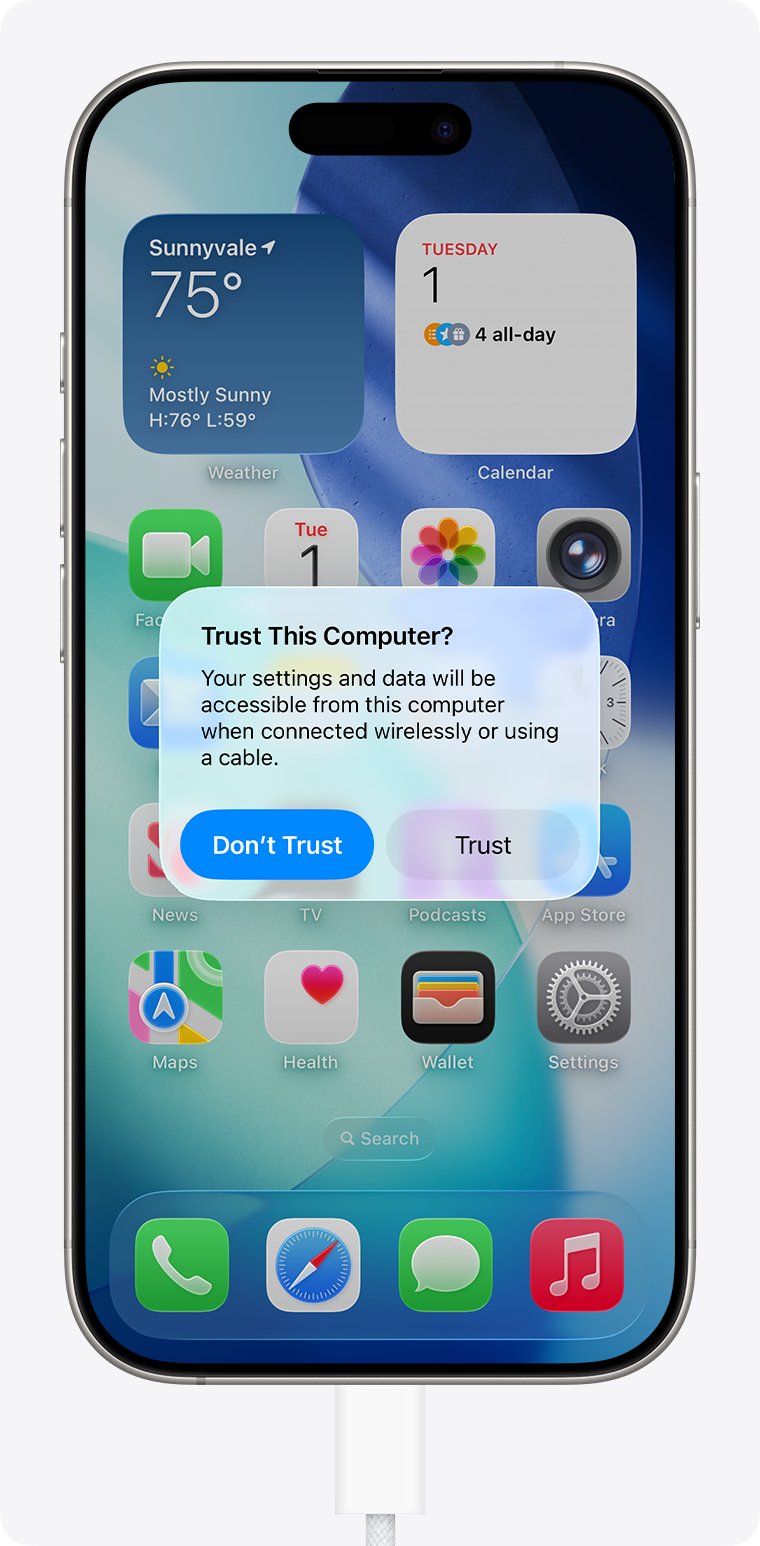
- Tap Trust on the iPhone when the Trust This Computer? alert appears, then enter your passcode.
- Wait for the iPhone to appear in the Apple Devices sidebar. The driver is now installed.
If the phone never appears, work through Step 3 and the troubleshooting sections below in order.
Understanding the Apple Mobile Device USB driver
The Apple Mobile Device USB driver lets Windows talk to an iPhone, iPad or iPod over a cable. A background service then hands that connection to Apple's apps.
| Component | What it does | Where it comes from |
|---|---|---|
| Apple Mobile Device USB driver | Lets Windows recognize the phone as an Apple device, not just a charger | Installed with Apple Devices or iTunes |
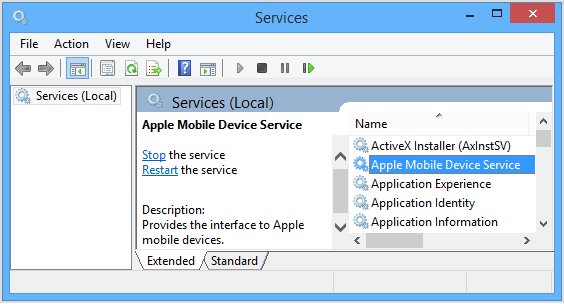
| Apple Mobile Device Service | Background service that lets iTunes recognize iPhone and iPod touch | Installed with Apple's software; set to start automatically |
| AppleMobileDeviceService.exe or AppleMobileDeviceProcess.exe | The process behind that service | Runs even when iTunes is closed |
| iTunes Mobile Device Helper | Startup item the Microsoft Store version of iTunes needs | Listed under Settings > Apps > Startup |
Apple advises against disabling these background processes, even when iTunes is not open.
Apple Mobile Device USB driver download for Windows 11
Get the driver by installing Apple Devices from the Microsoft Store, not from a driver download site. Apple's Windows apps download page lists Apple Devices, iTunes, Apple Music and Apple TV, and no separate driver package. Installing Apple Devices puts the driver and its service on the PC in one step.
If you also want iTunes for podcasts or audiobooks, get it from the same Store page search; it installs the same driver.
Why the driver may be missing or malfunctioning in Windows 11
| Cause | What you notice | Fix section |
|---|---|---|
| Apple Devices or iTunes never installed, or the install broke | Phone charges but no app sees it | Solution 1 |
| Windows bound a generic driver instead of Apple's | Apple entry shows a warning in Device Manager | Solution 2 and Solution 6 |
| Apple Mobile Device Service stopped | Error says the Apple Mobile Device Service is not started | Solution 3 |
| Security software stopped the service | Service will not stay running | Solution 4 |
| Driver package lost in a Windows upgrade | Code 28 after a feature update | Driver stability post-Windows updates |
| Phone not trusted | Phone appears briefly, then nothing | Solution 8 |
| Charge-only cable or dirty port | No chime or vibration on connect | USB hardware and cable sensitivity |
Step 1: Download and install iTunes (official Apple or Microsoft Store version)
Three Apple apps install the driver. Pick by what you need the PC to do with the phone, since iTunes differs from Apple Devices in what it manages.
| Your situation | Install this | Why |
|---|---|---|
| You want to back up, update, restore or sync an iPhone or iPad | Apple Devices (Microsoft Store) | Apple's current app for device management on Windows |
| You also manage podcasts or audiobooks | iTunes (Microsoft Store) alongside Apple Devices | Apple now limits iTunes to those tasks once its other apps are installed |
| The Microsoft Store versions will not install | Apple's iTunes 12.10.11 installer | Older 64-bit build hosted on Apple's support site |
Option 1: Apple's official iTunes installer
Apple still hosts iTunes 12.10.11 for Windows (64-bit) on its support site. The file is iTunes64Setup.exe, about 201 MB, and it needs 400MB of free disk space.
- Disconnect the iPhone from the PC.
- Open Apple's iTunes 12.10.11 for Windows (Windows 64 bit) page and select Download.
- Run iTunes64Setup.exe and follow the installer prompts.
- Restart the PC when the installer finishes.
- Open iTunes, then connect the unlocked iPhone and tap Trust.
- Select Help > Check for Updates in iTunes to pull any newer Apple build.
Option 2: Microsoft Store iTunes
The Microsoft Store build is the version Apple currently points Windows users to. It updates through the Store, not through an iTunes menu.
- Open Microsoft Store.
- Search for iTunes and select Get.
- Search for Apple Devices and select Get if it is not already installed.
- Select Start > Settings > Apps > Startup and make sure iTunes Mobile Device Helper is turned on.
- Open iTunes or Apple Devices, then connect the unlocked iPhone.
Step 2: Connect your iPhone, iPad, or iPod
- Unlock the device and leave it on the Home Screen.
- Plug the cable straight into a USB port on the PC.
- Listen for the chime or feel the vibration that shows the device is charging.
- Tap Trust on the Trust This Computer? alert and enter the device passcode.
- Select Continue in iTunes if it asks for permission to access the device.
- Keep the device unlocked until it appears in Apple Devices or iTunes.
With iOS 16 and later, the Trust alert can also appear when you start a backup.
Step 3: Verifying driver installation
- Open Apple Devices and look for your iPhone in the sidebar. If it is there, the driver works.
- Type Device Manager in Windows search and open it.
- Find the entry with Apple in its name and check it has no yellow warning icon.
- Press Win + R, type
services.mscand press Enter. - Find Apple Mobile Device Service and check its status reads Running and its startup type reads Automatic.

Using Device Manager
Device Manager shows whether Windows installed Apple's driver or failed. You can open Device Manager in Windows 11 from search or the Start button menu, then double-click the Apple entry and read Device status on the General tab.
| What you see | What it means | Do this |
|---|---|---|
| Apple entry with no warning icon | Driver installed and running | Nothing; open Apple Devices |
| "The drivers for this device are not installed. (Code 28)" | Driver install failed | Solution 2, then Solution 6 |
| Code 52 | Windows cannot verify the driver's signature | Reinstall Apple's app from the Store; never force an unsigned file |
| Code 10 or Code 43 | Device failed to start or reported a problem | Reconnect with another cable, then Solution 6 |
| No Apple entry, phone still charges | Windows sees power but no data | USB hardware and cable sensitivity |
| Faded Apple entries after View > Show hidden devices | Leftovers from past connections | Uninstall them, then reconnect |
Troubleshooting common installation problems
iPhone charges but Windows does not detect it
The cable only charges, or the port is dirty, so no data connection forms.
- Unplug the cable and check the iPhone charging port for lint or debris.
- Use a cable that supports both data and charging.
- Try another USB port, then another computer.
iPhone not showing in the Apple Devices sidebar
The phone is locked, untrusted or not charging.
- Confirm the phone shows it is charging.
- Unlock it and stay on the Home Screen.
- Tap Trust when asked, then reopen Apple Devices.
Error: the Apple Mobile Device Service is not started
Windows stopped the service, or it never started after install.
- Close iTunes and Apple Devices.
- Restart the service as shown in Solution 3.
- Restart the PC and reconnect the phone.
Issue: Apple Mobile Device USB driver missing or not installed
These signs mean the driver never installed. Work through Solutions 1 to 5 in order.
| Sign | Where you see it |
|---|---|
| No Apple entry at all while the phone is connected | Device Manager |
| Apple Mobile Device Service is not listed | services.msc |
| Apple Devices or iTunes missing from the app list | Settings > Apps > Installed apps |
| Phone never appears, even after tapping Trust | Apple Devices sidebar |
Solution 1: Reinstall or repair iTunes
- Disconnect the iPhone.
- Select Start > Settings > Apps > Installed apps.
- Select the More icon next to iTunes (or Apple Devices) and choose Advanced options.
- Select Repair. If it is missing or does not help, select Reset.
- If both fail, select More > Uninstall, restart, and install the app again from Microsoft Store.
- Reconnect the unlocked iPhone and tap Trust.
Solution 2: Install the driver manually
Device Manager can fetch Apple's driver or install it from a folder that Apple's own software placed on the PC. The same Browse route works to manually install any device driver.
- Connect and unlock the iPhone.
- Open Device Manager, right-click the Apple entry and select Update driver.
- Select Search automatically for drivers and let Windows finish.
- If that finds nothing, select Update driver again, then Browse my computer for drivers.
- Select Browse, pick the folder that holds Apple's driver files and select Next.
- Disconnect the phone, restart the PC and reconnect.
When Windows rejects usbaapl64.inf, you can fix usbaapl64.inf install errors with PnPUtil or a clean reinstall.
Solution 3: Restart the Apple Mobile Device Service
- Close iTunes and Apple Devices, and disconnect every Apple device.
- Press Win + R, type
services.mscand press Enter. - Right-click Apple Mobile Device Service and select Properties.
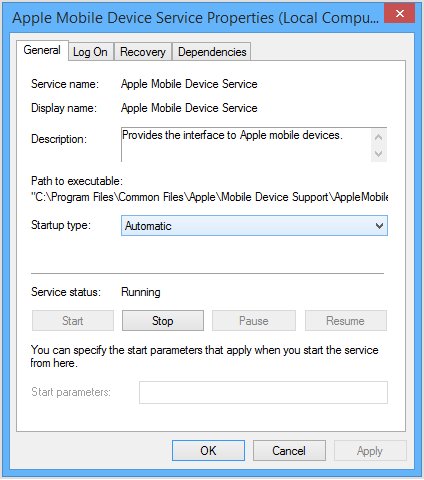
- Set Startup type to Automatic.
- Select Stop, wait for it to stop, then select Start.
- Select OK, restart the PC, then reconnect the phone.
Solution 4: Check security and USB settings
Third-party security software can stop the Apple Mobile Device Service. Keep your protection on and look for what it blocked instead.
- Open your security app's quarantine or blocked-items list.
- Restore any Apple Mobile Device Service files it caught, or ask the vendor how to allow Apple's service.
- Close any VPN app while you connect the phone.
- Plug the phone into a port on the PC itself, not a hub or keyboard port.
- Restart the Apple Mobile Device Service and reconnect.
Solution 5: Check for Windows updates
- Select Start > Settings > Windows Update > Check for updates.
- Install what Windows offers and restart.
- Return to Windows Update and select Advanced options > Optional updates.
- Expand driver updates, tick any Apple entry and select Download and install.
- Restart, then update iOS on the phone as well.
Issue: Driver shows error or device still not recognized
Here the driver is present but broken. Solutions 6 to 8 handle these cases.
| Sign | Likely cause | Go to |
|---|---|---|
| Yellow warning icon on the Apple entry | Damaged or wrong driver | Solution 6 |
| Store apps fail to install at all | Store or account problem on this PC | Solution 7 |
| Phone connects and drops, or Trust alert never appears | Trust settings on the phone | Solution 8 |
Solution 6: Reinstall the driver
- Connect and unlock the iPhone.
- Open Device Manager and right-click the Apple entry.
- Select Uninstall device, leave the driver box unticked, and select Uninstall.
- Unplug the phone and restart the PC.
- Reconnect the unlocked phone so Windows installs the driver again.
- Tap Trust and check the entry no longer shows a warning.
Solution 7: Try legacy iTunes installers
Use Apple's older installer only when the Microsoft Store versions will not install. It is an older iTunes build, so the Store apps stay the first choice.
- Uninstall iTunes from Settings > Apps > Installed apps and restart.
- Open Apple's iTunes 12.10.11 for Windows (Windows 64 bit) page.
- Download and run iTunes64Setup.exe; 64-bit Windows needs this 64-bit installer.
- Restart, open iTunes and select Help > Check for Updates.
- Connect the unlocked iPhone and tap Trust.
Solution 8: Check device trust
Tapping Don't Trust blocks the PC from the phone's content. Resetting the trust list brings the alert back.
- On the iPhone, open Settings > General > Transfer or Reset iPhone > Reset.
- Select Reset Location & Privacy and enter your passcode.
- Reconnect the iPhone to the PC.
- Tap Trust when the alert appears.
- With Microsoft Store iTunes, confirm iTunes Mobile Device Helper is on under Settings > Apps > Startup.
Uncommon issues and advanced fixes
Code 28 right after a Windows feature update
Microsoft notes the driver package is often left out when Windows migrates drivers during an upgrade.
- Repair or reinstall Apple Devices from Microsoft Store.
- Reconnect the unlocked phone.
- Run Update driver > Search automatically for drivers on the Apple entry.
Apple Mobile Device Service stops again after you start it
Third-party security software is the usual suspect, according to Apple.
- Check the security app's blocked list as in Solution 4.
- Set the service's Startup type to Automatic.
- Restart the PC and check the service still reads Running.
Case: “A service installation section in this INF is invalid” error
Windows returns this message (error 0x800F0217) when it cannot use the service install instructions inside a driver's INF file. Retrying the same file rarely helps.
- Unplug the phone.
- In Device Manager, select View > Show hidden devices.
- Right-click each Apple entry, select Uninstall device, tick Delete the driver software for this device and select OK.
- Repair Apple Devices or iTunes from Settings > Apps > Installed apps > Advanced options.
- Restart, reconnect the unlocked phone and tap Trust.
Case: iTunesMobileDeviceHelper.exe or AppleMobileDeviceProcess error
AppleMobileDeviceProcess.exe is the process behind the Apple Mobile Device Service. iTunes Mobile Device Helper is the startup item that the Store version of iTunes needs.
- Select Start > Settings > Apps > Startup.
- Turn on iTunes Mobile Device Helper if it is off.
- Restart the Apple Mobile Device Service as in Solution 3.
- If the error returns, repair iTunes from Advanced options.
- Restart the PC and reconnect the phone.
Case: Windows 11 security policies blocking driver
Memory integrity blocks drivers it considers incompatible, and work PCs can block device installs through Group Policy. Do not turn either protection off; get a compatible driver instead.
- Select Start > Settings > Privacy & security > Windows Security > Device security.
- Open Core isolation details and note any driver it reports as incompatible.
- Update Apple Devices or iTunes from Microsoft Store.
- Install any Apple driver listed under Windows Update > Advanced options > Optional updates.
- On a work or school PC, ask IT whether a device installation policy blocks phones.
Noteworthy strengths of Apple's driver approach
| Strength | What it means for you |
|---|---|
| Driver ships inside Apple's app | One Store install sets up the driver and service together |
| App updates come through Microsoft Store | No separate driver tool to remember |
| Service starts automatically | The phone is ready whenever you plug it in |
| Windows Update can offer driver updates | Fixes can arrive under Optional updates |
Seamless integration when functioning
Once the driver works, the phone shows up in the Apple Devices sidebar as soon as you plug it in and unlock it. From there you can update, restore, sync or back up an iPhone to the PC, and Microsoft Photos can import its pictures because Apple Devices is installed.
Broad compatibility
| App or device | Uses the driver for |
|---|---|
| Apple Devices | Updating, backing up, restoring and syncing iPhone or iPad |
| iTunes | Podcasts, audiobooks and older iPod management |
| Microsoft Photos | Importing iPhone photos and videos |
| iTunes 12.10.11 installer | PCs running Windows 7 or later (64-bit) |
AirPods, iCloud and the iPhone itself fit together in different ways when you use Apple devices on a Windows PC.
Observed risks and limitations
| Limitation | Effect | How to handle it |
|---|---|---|
| No standalone driver | You cannot install the driver without an Apple app | Install Apple Devices |
| Upgrades can drop the driver | Code 28 after a feature update | Repair Apple Devices, then reconnect |
| Security software can stop the service | Phone disappears mid-session | Allow Apple's service, keep protection on |
| Charge-only cables | Phone charges but never connects | Use a data cable |
Dependency on iTunes installation
You no longer need iTunes for the driver; Apple Devices installs it too. Apple moved device backup, update, restore and sync into Apple Devices, so iTunes is only needed for podcasts and audiobooks, or on PCs where you use the older Apple installer.
Microsoft Store limitations
| Limitation | What to do |
|---|---|
| Store iTunes needs a startup helper | Keep iTunes Mobile Device Helper on under Settings > Apps > Startup |
| No Help > Check for Updates route | Update from the Microsoft Store library |
| iTunes shrinks once Apple Music or Apple TV is installed | Use Apple Devices for the phone itself |
| Repairs go through Settings, not an installer | Use Advanced options > Repair or Reset |
Driver stability post-Windows updates
If the phone stopped connecting right after a driver update, roll that driver back. Roll Back Driver is greyed out when no earlier driver exists.
- Connect and unlock the iPhone.
- In Device Manager, right-click the Apple entry and select Properties.
- Open the Driver tab and select Roll Back Driver.
- Pick a reason, select Yes, then restart the PC.
- If the button is greyed out, use Solution 6 instead.
USB hardware and cable sensitivity
| Check | Why it matters |
|---|---|
| Chime or vibration on connect | No response means no power or data reaches the phone |
| Charging port free of debris | Lint can block the data pins |
| Cable supports data and charging | Charge-only cables never create a data link |
| Another USB port | Rules out one bad port or hub |
| Another computer | Shows whether the PC or the phone is at fault |
Security implications
| Point | Why it matters |
|---|---|
| Trust gives the PC access | A trusted PC can sync and read photos, videos and contacts |
| Trust lasts | It stays until you reset Location & Privacy or erase the phone |
| Third-party driver sites | Microsoft advises getting drivers from the device maker or Windows Update |
| Memory integrity | Blocks incompatible drivers; update the driver instead of turning it off |
Expert tips for smoother installations and usage
| Tip | Why |
|---|---|
| Open Apple Devices before you plug in | Apple's own connection steps start there |
| Keep Windows and iOS current | Apple lists both as checks when a PC misses a phone |
| Eject the device before you unplug it | Ends any sync cleanly |
| Encrypt local backups | Protects the backup on the PC with a password |
| Leave Apple's background processes running | Apple says not to disable them |
How do I remove the Apple Mobile Device USB driver?
- Unplug every Apple device first, or Windows may reinstall the driver at once.
- Select Start > Settings > Apps > Installed apps and uninstall Apple Devices and iTunes.
- Open Device Manager and select View > Show hidden devices.
- Right-click each Apple entry and select Uninstall device.
- Tick Delete the driver software for this device and select OK.
- Restart the PC.
Deleting the driver needs an administrator account. Windows Update can reinstall a driver it thinks is missing.
Looking ahead: Will Windows 11 gain native support for Apple devices?
Cable access to an iPhone still runs through Apple's apps on Windows 11. Neither Apple's nor Microsoft's support pages describe a built-in Windows driver for iPhone management. Microsoft's Phone Link pairs an iPhone running iOS 16 or later over Bluetooth for notifications and contacts, which does not involve the USB driver.
Apple Mobile Device USB driver FAQ
Can I use my iPhone as a flash drive without iTunes?
No. An iPhone does not mount as a USB drive on Windows. Apple Devices can copy files into apps that support file sharing, and Microsoft Photos can import pictures once Apple Devices is installed.
What if third-party software still doesn't see my device?
Make sure Apple Devices sees the phone first, because other tools rely on Apple's driver and service. If Apple Devices works and the other tool still fails, restart the Apple Mobile Device Service and contact that tool's maker.
Is it safe to download the driver from third-party sites?
No. Driver download sites can carry altered or outdated files. Microsoft advises getting drivers from the device maker or Windows Update, and Apple's driver comes with the Apple Devices and iTunes apps.
Do I need iTunes to install the Apple Mobile Device USB driver?
No. The Apple Devices app from the Microsoft Store installs the driver and the Apple Mobile Device Service. iTunes is only needed if you also use it for podcasts or audiobooks.
Why did my iPhone stop connecting after a Windows update?
A feature update can leave out third-party driver packages, which shows as Code 28 in Device Manager. Repair Apple Devices from Settings, reconnect the unlocked phone, and roll back any driver update that coincided with the problem.
How do I restart the Apple Mobile Device Service?
Close iTunes, disconnect the phone and open services.msc. Open Apple Mobile Device Service properties, set Startup type to Automatic, select Stop and then Start, select OK and restart the PC.