To install an update manually with the assistant, download the Windows 11 Installation Assistant from Microsoft's Windows 11 download page, run it as an administrator, select Accept and install, then select Restart now when it asks.
The Windows 10 version, called the Update Assistant, only moves a PC to Windows 10 version 22H2, and monthly KB updates come from Windows Update or the Microsoft Update Catalog instead.
How to Use the Windows 11 Installation Assistant
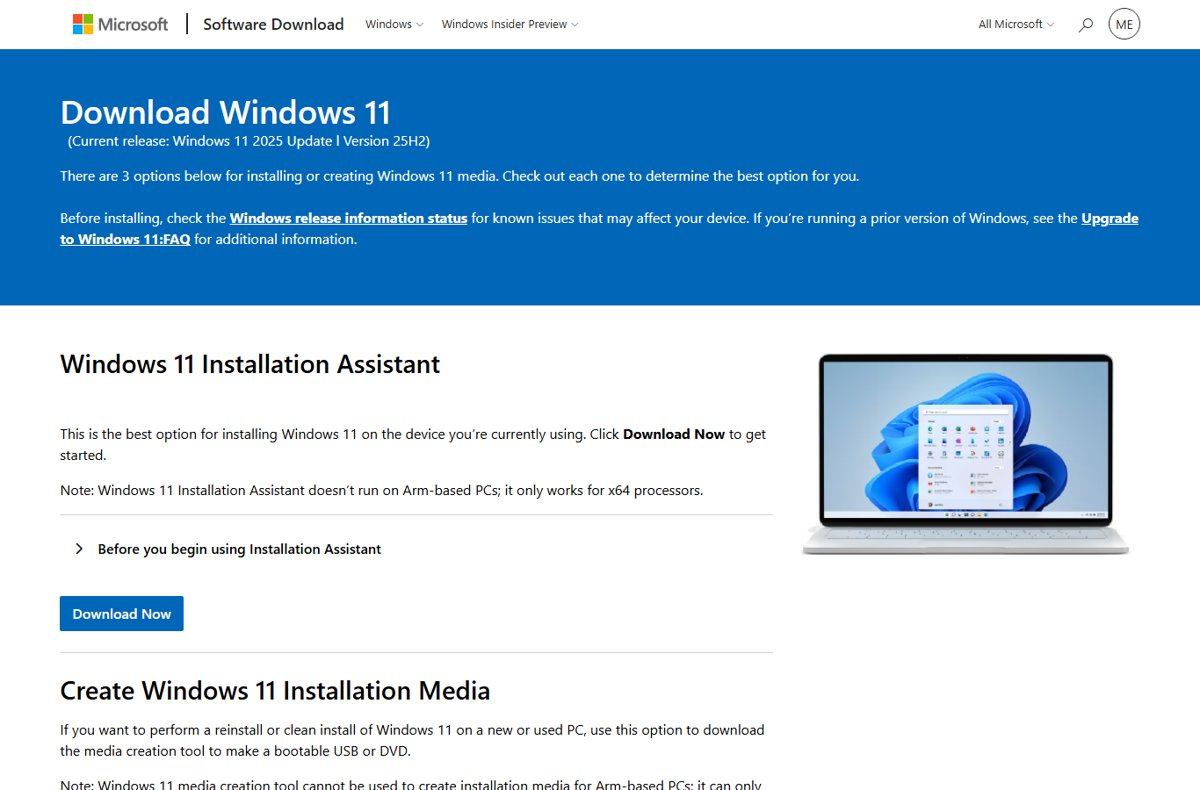
Microsoft calls the Installation Assistant the best option for installing Windows 11 on the PC you are using. Download it only from the official Download Windows 11 page, where it is the first option on the page.
You need an administrator account, a Windows 10 or Windows 11 license, and 9 GB of free disk space. The tool only runs on x64 processors, not on Arm-based PCs.
- Open the Download Windows 11 page and, under Windows 11 Installation Assistant, select Download Now.
- Open the downloaded file and select Run. Approve the User Account Control prompt with an administrator account.
- Wait while the assistant checks the hardware. If it asks you to use the PC Health Check app, run that app, then select Refresh in the assistant.
- When the license terms appear, select Accept and install.
- Keep using the PC while Windows 11 downloads and is verified in the background.
- When the tool is ready, save your work and select Restart now.
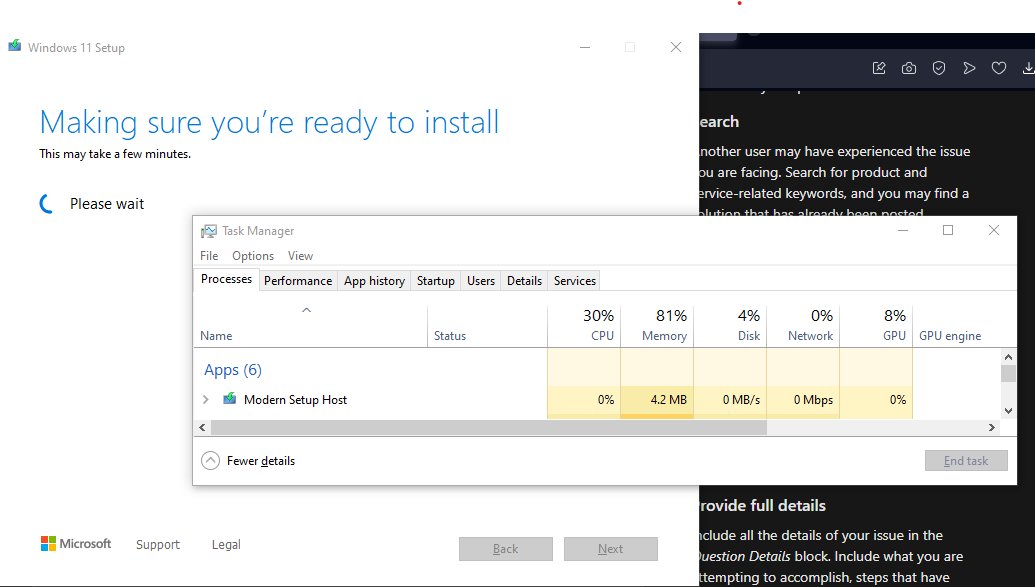
- Leave the PC on while it restarts several times. Microsoft warns not to turn it off during this stage.
- Sign in at the Windows sign-in screen to complete the update.
If the assistant shows This PC doesn't meet the minimum system requirements to install Windows 11, stop there. Microsoft recommends leaving that PC on its current Windows rather than forcing the install.
What the Windows Update Assistant Does
"Windows Update Assistant" is the name people use for two different Microsoft tools. Both install a whole new version of Windows over the current one and keep your files and apps. Neither one installs individual monthly KB updates.
| Tool | What it can install | What it does not replace | Where Microsoft offers it |
|---|---|---|---|
| Windows 11 Installation Assistant | The current Windows 11 release (Version 25H2 on the download page today) on the PC it runs on | Windows Update for monthly security and quality updates; installation media for clean installs | Download Windows 11 page, Download Now |
| Windows 10 Update Assistant | Windows 10 2022 Update, version 22H2, the last Windows 10 release | Windows Update, which still delivers ESU security patches to enrolled PCs | Download Windows 10 page, Update now |
| Windows Update (built into Settings) | Monthly updates, drivers, and feature updates, including the Windows 11 upgrade once your PC is offered it | Nothing – this is the default route the assistants supplement | Settings > Windows Update |
| Microsoft Update Catalog | Single KB packages (.msu), drivers and hotfixes you download and install by hand | Feature upgrades to a new Windows version | catalog.update.microsoft.com |
Assistant vs. Installation Media vs. ISO
Microsoft's Windows 11 download page lists three options. Pick by what you are trying to do, not by which one downloads fastest.
| Your situation | Use this | Why |
|---|---|---|
| Upgrade or update the PC you are sitting at, keeping files and apps | Windows 11 Installation Assistant | Microsoft names it the best option for the device you are using |
| Windows Update already offers the new version | Windows Update in Settings | Microsoft's recommended route; it only offers the upgrade once your PC is validated |
| Reinstall or clean install on a new or used PC | Media creation tool (bootable USB or DVD) | The assistant cannot build boot media |
| Arm-based PC | Windows Update, or the Arm64 ISO Microsoft links from the download page | The assistant and the media creation tool only work on x64 processors |
| Virtual machine or your own bootable media | Windows 11 multi-edition ISO for x64 | The ISO uses your product key to unlock the correct edition |
| You need one specific KB update | Microsoft Update Catalog | The assistants install whole Windows versions, not single updates |
Before You Start: Check Compatibility and Support
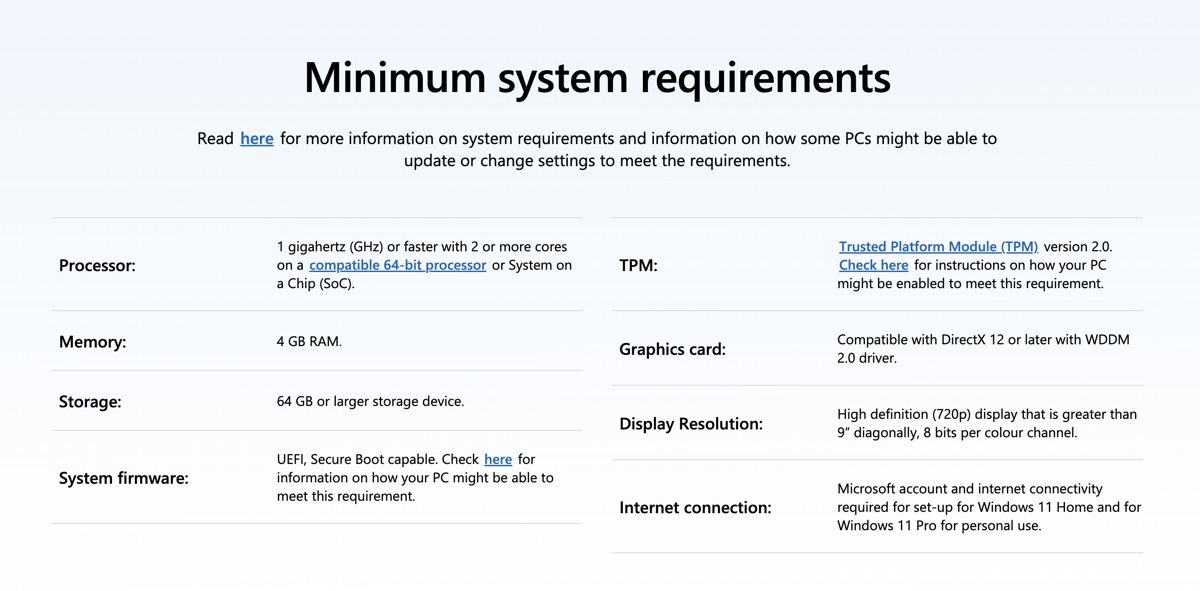
Check these before you download anything. The Windows 11 hardware minimums come from Microsoft's Windows 11 specifications page, and the PC Health Check app tests most of them for you.
| Requirement | Windows 11 Installation Assistant | Windows 10 Update Assistant |
|---|---|---|
| Current Windows | Windows 10, version 2004 or later | Windows 10 |
| License | A Windows 10 or Windows 11 license | A Windows 10 license |
| Free disk space | 9 GB for the assistant | Enough for the update; Microsoft cites 20 GB for a 64-bit upgrade |
| Processor | 1 GHz or faster, 2 or more cores, compatible 64-bit x64 CPU | Any PC already running Windows 10 |
| Memory and storage | 4 GB RAM, 64 GB or larger storage device | – |
| Firmware and security | UEFI with Secure Boot capable, TPM version 2.0 | – |
| Graphics and display | DirectX 12 compatible with WDDM 2.0 driver; 720p display larger than 9 inches | – |
| Account | Administrator | Administrator |
| Support status | Supported | Windows 10 support ended October 14, 2025; security updates continue only through ESU until October 12, 2027 |
Windows 10 Extended Security Updates require version 22H2, so the Windows 10 Update Assistant is still useful for a PC stuck on an older Windows 10 version that you plan to enroll in ESU.
Prepare Your PC for a Manual Update
A version upgrade replaces most of Windows, so a few minutes of preparation prevents most failed installs. Every step below comes from Microsoft's own upgrade guidance.
- Back up your files, for example to OneDrive or an external drive. Microsoft recommends this even though the upgrade keeps files by default.
- Sign in to Windows with a Microsoft account so your files, favorites and activation follow you.
- Open Settings > Windows Update, select Check for updates, and install everything offered, then restart. Pending updates can block the upgrade.
- Free up disk space until you have at least 20 GB free on a 64-bit PC.
- Unplug nonessential hardware such as printers, scanners, USB flash drives and external hard drives.
- Uninstall outdated or nonessential apps you no longer use.
- Plug a laptop into power and use a stable connection. Avoid a metered connection, because the Windows 11 download is large and your provider may charge for it.
- Check the Windows release health page for known issues that affect your device.
How Long the Update Takes
Microsoft does not publish a fixed time. It says the time varies and that installing Windows 11 usually takes longer than a typical Windows 10 feature update. This table shows where the time goes.
| Stage | What sets the duration | Can you use the PC? |
|---|---|---|
| Download and verification | Your internet speed and the size of the download | Yes |
| Installation before the restart | Disk speed and how much is installed | Yes, until the assistant asks you to restart |
| Restart phase | The PC restarts several times to finish installing | No – do not turn it off |
| First sign-in | Final setup of your account on the new version | Yes, once the desktop appears |
Through Windows Update, you can schedule the restart for a time you are not using the PC. The assistant instead waits for you to select Restart now.
Using the Assistant for Windows 10 Updates
The Windows 10 Update Assistant moves a Windows 10 PC to the latest Windows 10 version, version 22H2. It cannot install anything newer, because 22H2 is the final Windows 10 release and support ended on October 14, 2025.
- Open Microsoft's Download Windows 10 page.
- Under Windows 10 2022 Update | Version 22H2, select Update now.
- Open the downloaded file and approve the User Account Control prompt with an administrator account.
- Follow the on-screen prompts to check the PC and start the update.
- Save your work and restart when the assistant asks.
- After sign-in, open Settings > System > About and confirm the version reads 22H2.
If the PC meets the Windows 11 requirements, use the Windows 11 Installation Assistant instead; it works on Windows 10 version 2004 or later. If it does not, enroll in ESU from Settings > Update & Security > Windows Update to keep receiving security updates.
When to Use Windows Update Instead
Windows Update is Microsoft's recommended route for both monthly updates and the Windows 11 upgrade. Use it whenever it already offers what you need, because it only offers the upgrade after your PC has been validated.
- On Windows 11, select Start > Settings > Windows Update. On Windows 10, select Start > Settings > Update & Security > Windows Update.
- Select Check for updates.
- Install any updates for your current version and restart before looking for the upgrade.
- If Windows 11 is ready for the PC, select Download and install.
- Select Accept and install in the license terms window.
- When the status changes to Restart required, select Restart now.
No offer yet usually means the upgrade is not ready for your PC, a known compatibility issue is holding it back, or the hardware does not qualify. The assistant can install ahead of the offer, but Microsoft recommends waiting for it.
When to Use the Microsoft Update Catalog
Use the Microsoft Update Catalog when one specific KB update fails in Windows Update or when you need to install it on a PC without internet access. Microsoft recommends the catalog for advanced users and administrators.
- Find the KB number you need in Settings > Windows Update > Update history, or in Microsoft's release notes for that update.
- Open the Microsoft Update Catalog, type the KB number in the search box and press Enter.
- Pick the entry that matches your Windows version and architecture, such as x64 or arm64.
- Select Download, then select the file link in the pop-up window to save it.
- Double-click the downloaded .msu file and follow the prompts to install it.
- Restart the PC when asked, then confirm the KB appears in Update history.
On Windows 11, version 24H2 and later, some cumulative updates depend on earlier checkpoint cumulative updates. The catalog download pop-up lists every file you need; install them in the order shown, oldest first.
Defender definitions follow a different manual route, through downloading Windows Defender definitions directly.
How to Confirm the Update Installed Correctly
Check three things after the final restart: the version, the update record, and activation.
- Open Settings > System > About. Under Windows specifications, confirm the Edition, Version and OS build match the release you installed.
- Open Settings > Windows Update > Update history and confirm the feature update or KB appears as installed.
- Open Settings > System > Activation on Windows 11, or Settings > Update & Security > Activation on Windows 10.
- Confirm Activation status reads Windows is activated, or that it is activated with a digital license.
- Open Settings > Windows Update and select Check for updates to pick up any fixes released for the new version.
Cleaning Up After a Successful Update
A version upgrade keeps your previous Windows in the Windows.old folder so you can go back. Windows deletes it automatically after 10 days. Remove it sooner only when you are sure you will not roll back.
- Use the PC for a few days and confirm your apps, printers and drivers all work.
- Press the Windows logo key, then select Settings > System > Storage.
- Under your drive information, select Temporary files.
- Select the Previous version of Windows check box.
- Select Remove files.
- Delete the assistant's downloaded file from your Downloads folder.
Removing the previous version cannot be undone. After that, Go back disappears from Recovery settings.
How to Roll Back If Something Goes Wrong
After a version upgrade you usually have 10 days to go back and keep your personal files. Apps and drivers installed after the upgrade, and changes you made to Settings, are removed.
- Open Settings > System > Recovery.
- Select Go back if the option is available.
- Follow the prompts to return to the previous version and let the PC restart.
- To remove a single monthly update instead, open Settings > Windows Update > Update history > Uninstall updates.
- Select the update you want to remove, then select Uninstall.
Go back only works if the windows.old and $windows.~bt folders are intact, you removed any user accounts added after the upgrade, and you still have the USB drive if you upgraded from one. After 10 days, the only way back is to back up your files and do a clean install.
Going back from Windows 11 to Windows 10 returns you to a version that no longer gets free security updates.
Troubleshooting Common Update Assistant Problems
When the Windows Update Assistant is not working, match what you see to one of these symptoms. Start with the built-in Windows Update troubleshooter if nothing else fits.
The assistant says the PC is not compatible
The PC misses a Windows 11 requirement, or the assistant needs a fresh result from PC Health Check.
- Run the PC Health Check app and select Check now.
- Return to the assistant and select Refresh.
- If PC Health Check names a requirement such as TPM 2.0 or Secure Boot, check your PC manufacturer's site for how that model enables it.
- If the PC still does not qualify, stay on your current Windows and use Windows Update for security updates.
The assistant will not open on an Arm-based PC
The Windows 11 Installation Assistant only works on x64 processors.
- Open Settings > System > About and check the processor listed.
- On an Arm PC, use Settings > Windows Update instead of the assistant.
The download is stuck or keeps failing
A dropped connection, a metered connection, or a damaged Windows Update component.
- Check your connection in Settings > Network & internet.
- Restart the PC and run the assistant again.
- Select Start > Settings > System > Troubleshoot > Other troubleshooters.
- Next to Windows Update, select Run and apply any fix it suggests.
- Retry the assistant; if a KB update is the one stuck, install it from the Microsoft Update Catalog.
The installation fails and rolls back
Error 0xC1900101 points to a driver; 0xC1900208 means an incompatible app is blocking the upgrade.
- Unplug nonessential hardware such as USB drives, docks and printers.
- Open Device Manager and look for devices with an error mark.
- Expand Display adapters and Network adapters, right-click each device and select Update driver > Search automatically for drivers.
- Uninstall outdated or nonessential apps, then run the assistant again.
The assistant reports not enough disk space
Error 0x80070070 and some 0x800F0922 failures mean the drive or System Reserved partition is too full.
- Open Settings > System > Storage and remove temporary files.
- Move large files to an external drive or OneDrive.
- Uninstall apps you do not use until at least 20 GB is free, then retry.
For a stubborn KB that fails the same way every month, the steps for fixing a Windows 10 update that fails to install show the Catalog route in practice.
Best Practices for Manual Windows Updates
Keep manual installs for the cases Windows Update cannot handle. Download the assistant only from microsoft.com, check PC Health Check first, back up before you start, and confirm the version and activation afterward.
Let Windows Update deliver upgrades and monthly patches, and use the Windows 11 Installation Assistant only when you want the current Windows 11 release before Windows Update offers it on a PC that passes PC Health Check. Windows Update offers an upgrade only after Microsoft has validated it for your hardware, while the assistant installs as soon as the minimum requirements pass, so it skips the compatibility holds that protect some devices.
Frequently Asked Questions
What is Windows Update Assistant?
Windows Update Assistant is a free Microsoft tool that installs a newer version of Windows over your current one while keeping files and apps. The Windows 10 edition updates to version 22H2; the Windows 11 edition is called the Windows 11 Installation Assistant.
What does Windows Update Assistant do?
It checks that your PC qualifies, downloads the newest Windows version, installs it, and restarts to finish. It does not install individual monthly KB updates; Windows Update and the Microsoft Update Catalog handle those.
What does Windows 10 Update Assistant do?
The Windows 10 Update Assistant updates a Windows 10 PC to version 22H2, the final Windows 10 release. Windows 10 support ended on October 14, 2025, so 22H2 is also the version required for Extended Security Updates.
How do I launch or open Windows Update Assistant?
Download it from Microsoft's software download page, then open the file from your Downloads folder and approve the User Account Control prompt. Windows does not ship it preinstalled, so there is no Start menu entry until you download it.
How do I run Windows Update Assistant?
Open the downloaded file and select Run, signed in with an administrator account. The Windows 11 assistant then checks your hardware, shows license terms where you select Accept and install, and asks you to select Restart now when it is ready.
How do I use the Windows 10 Update Assistant?
Open Microsoft's Download Windows 10 page, select Update now, run the downloaded file as an administrator, and follow the prompts. Restart when asked, then check Settings > System > About to confirm the PC now runs version 22H2.
Where do I get the official Windows Update Assistant?
Get it only from microsoft.com/software-download. The Windows 11 Installation Assistant is under Download Now on the Windows 11 page, and the Windows 10 Update Assistant is behind the Update now button on the Windows 10 page.
Why is Windows Update Assistant not working?
The usual causes are a PC that fails the Windows 11 requirements, an Arm processor, low disk space, or a driver that blocks the upgrade. Run PC Health Check, free at least 20 GB, unplug extra hardware and update display and network drivers.







Windows 10 22H2: everything you need to know - Techdows
[…] on the Windows 10 page of Microsoft's software download site, and both install version 22H2. The Update Assistant upgrades the PC you run it on; the Media Creation Tool can also do that, or build installation […]