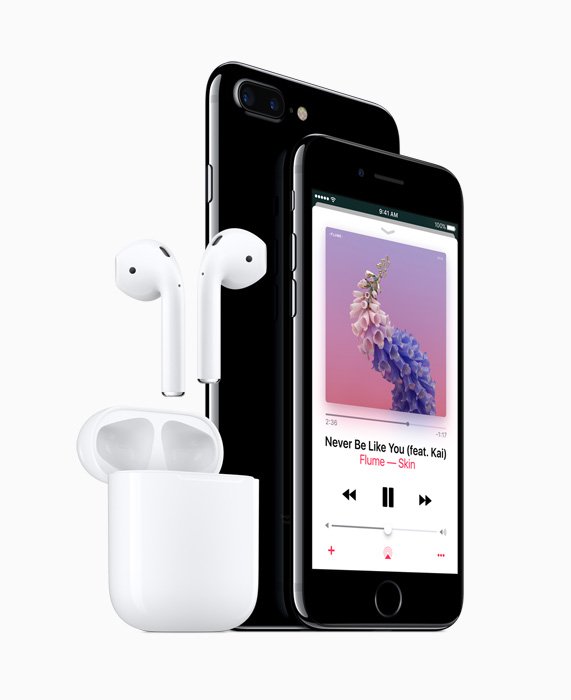
The iPhone 7 Plus has two speakers: one behind a grille on the bottom edge next to the Lightning connector, and the receiver (earpiece) in the slot above the display, which together give the phone its stereo sound.
This guide shows exactly where each opening is, what the other holes on the phone do, how to test each speaker, how to put a call on speaker, and what to do when sound is low, muffled or gone.
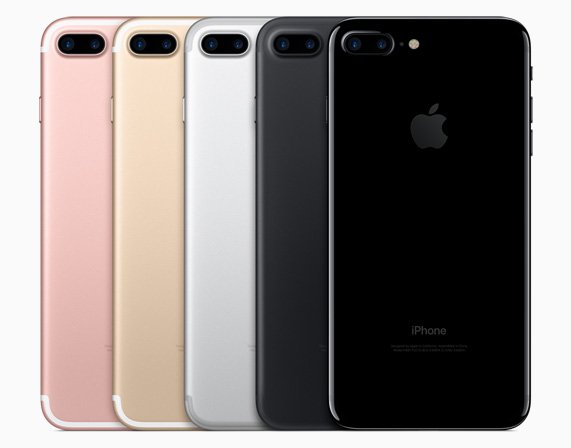
Where is the speaker on iPhone 7 Plus?
Apple lists a built-in stereo speaker for the iPhone 7 Plus, so sound comes from both ends of the phone. Find the two openings in under a minute.
- Hold the iPhone 7 Plus with the screen facing you and the Home button at the bottom.
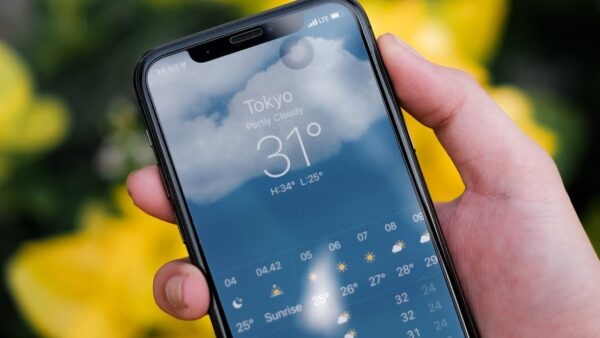
- Look at the top of the front glass, above the display. The thin slot in the middle is the receiver, the earpiece speaker you hold to your ear on calls.
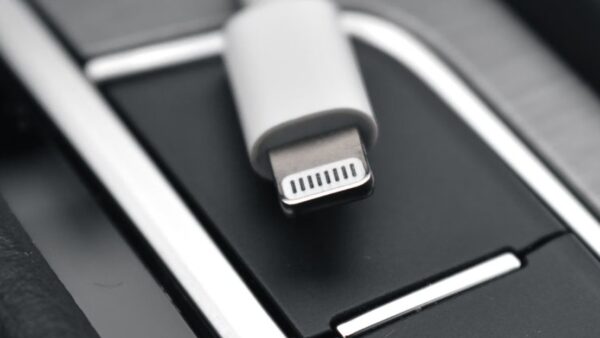
- Turn the phone so you can see the bottom edge. You will find the Lightning port in the middle with a row of small holes on each side of it.
- Open Settings > Sounds & Haptics and drag the Ringtone and Alerts slider to play a tone.
- While the tone plays, cover one bottom grille with a fingertip, then the other. The side that goes quiet is the loudspeaker grille.
There is no speaker on the back or the sides. The holes next to the rear cameras and inside the bottom grilles are microphones and vents, not speakers.
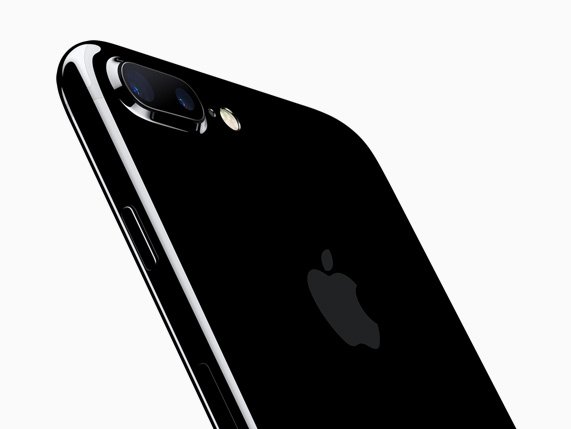
iPhone 7 Plus speaker, receiver and microphone locations
| Opening | Where it is | What it does |
|---|---|---|
| Receiver (earpiece) | Slot above the display, front of the phone | Plays call audio held to your ear and the second stereo channel for music and video |
| Bottom speaker grille | One of the two grilles beside the Lightning port | Main loudspeaker for ringtones, alerts, speakerphone and media |
| Second bottom grille | The other side of the Lightning port, where older iPhones had the headphone jack | Covers a vent for the internal barometer; it is not a speaker |
| Bottom microphone | Bottom edge, behind the grilles | Picks up your voice on normal calls and in Voice Memos |
| Top microphone | Top of the phone, near the receiver and cameras | Pick up sound for video recording, FaceTime and speakerphone |
| Lightning connector | Center of the bottom edge | Charging, and wired audio through EarPods with Lightning Connector or the 3.5 mm adapter |
The iPhone 7 Plus has no 3.5 mm headphone jack. Apple shipped it with EarPods with Lightning Connector and a Lightning to 3.5 mm Headphone Jack Adapter for older headphones.
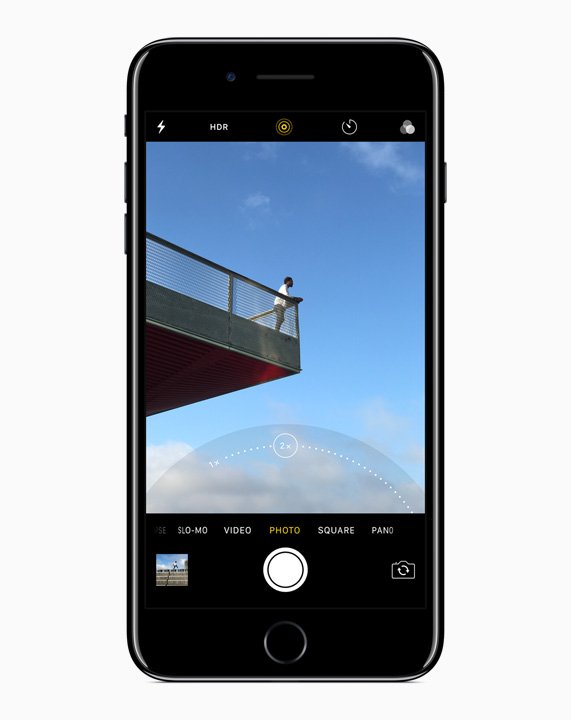
Does iPhone 7 Plus have stereo speakers?
Yes. The iPhone 7 and iPhone 7 Plus were the first iPhones with stereo speakers, and Apple rated them two times louder than the iPhone 6s speaker.
| Model | Speakers | Headphone jack | Model numbers |
|---|---|---|---|
| iPhone 7 Plus | Stereo: bottom speaker and receiver | No, Lightning only | A1661, A1784, A1785 |
| iPhone 7 | Stereo: bottom speaker and receiver | No, Lightning only | A1660, A1778, A1779 |
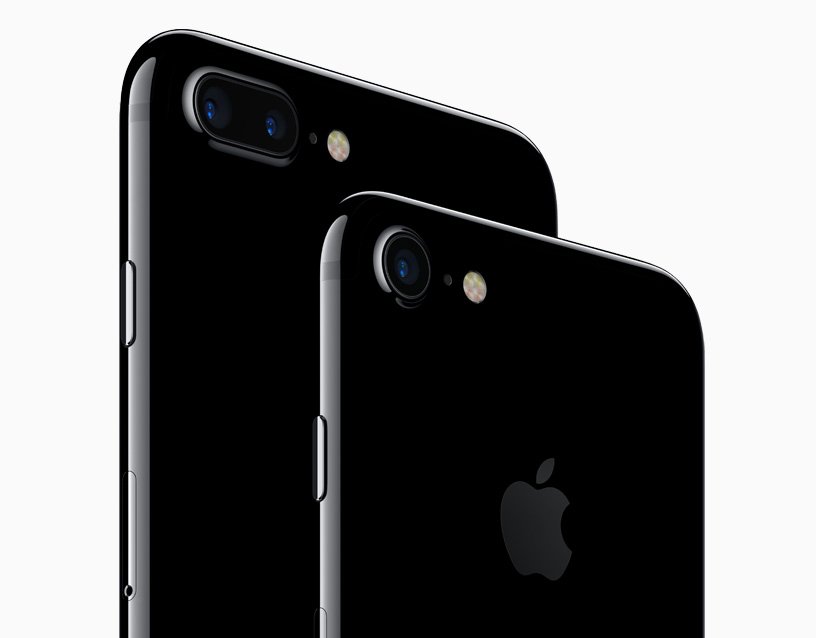
To check which model you have, read the model number printed on the back cover. The iPhone 7 Plus has a 5.5-inch display and dual 12 MP rear cameras; the iPhone 7 has a 4.7-inch display and one rear camera.
How to put iPhone 7 Plus on speaker during a call
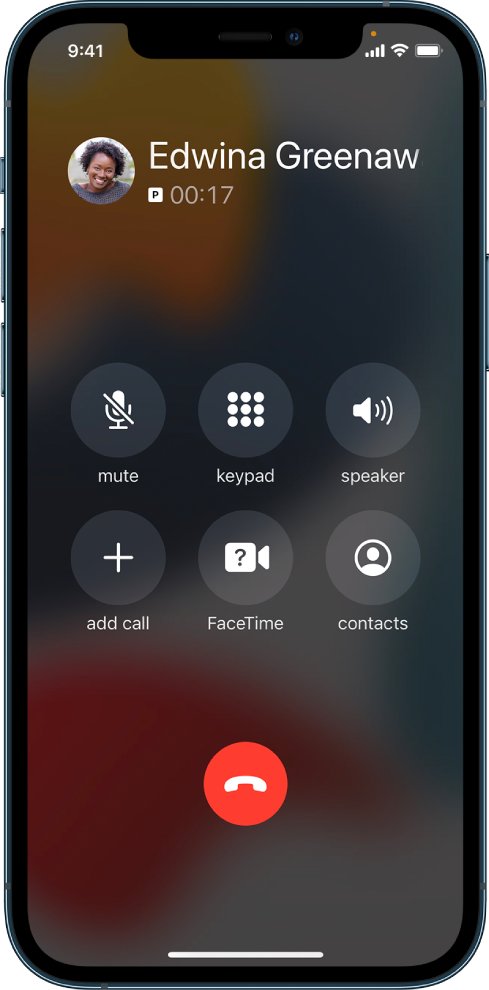
Speakerphone uses the bottom loudspeaker instead of the receiver. The control appears only on the in-call screen.
- Make or answer a call.
- On the call screen, tap Speaker.
- If the button reads Audio instead, a Bluetooth device is connected. Tap Audio and choose Speaker Phone.
- If you left the call screen, tap the green call indicator at the top of the screen to get back to the controls.
- Tap Speaker again, or tap Audio and choose iPhone, to move the call back to the receiver.
When the button keeps showing Audio, stop the Bluetooth device taking over the call to bring back the speaker phone icon.
How to make iPhone 7 Plus calls always use the speaker
- Open Settings.
- Tap Accessibility, then tap Touch.
- Tap Call Audio Routing.
- Choose Speaker to start every phone and FaceTime call on the bottom loudspeaker.
- Choose Automatic later to go back to the receiver by default.
How to test iPhone 7 Plus speakers one at a time
The Balance slider sends sound to one stereo channel, so you can hear the receiver and the bottom speaker separately.
- Open Settings > Accessibility > Audio/Visual.
- Make sure Mono Audio is off.
- Drag the Balance slider all the way to L, then play a song or video with no headphones connected.
- Listen at both ends of the phone and note which opening plays the sound.
- Drag the slider all the way to R and listen again. The other opening should now carry the sound.
- Drag the slider back to the center when you finish, or one speaker will stay quiet.
If one end stays silent on both sides of the slider, clean that opening first. If it is still silent, the speaker needs service.
How to clean iPhone 7 Plus speaker grilles
Lint and dust in the bottom grille or the receiver slot make sound quiet or muffled. Apple recommends a dry brush only.
- Take off the case. If a screen protector covers the front speaker, peel it back from the receiver slot.
- Look into the bottom grilles and the receiver for lint or dirt.
- Brush each opening gently with a small, soft-bristled brush that is clean and dry.
- Do not push pins, cotton swabs or liquid into the openings.
- Play the Ringtone and Alerts slider again to hear whether the sound is clearer.
The same soft-brush method works when you clean speaker holes on laptops and other phones.
iPhone 7 Plus speaker not working
Why are my iPhone 7 Plus speakers not working?
Silent mode or Do Not Disturb is muting ringtones and alerts.
- Move the Ring/Silent switch on the left side toward the screen so no orange shows.
- Open Settings > Focus > Do Not Disturb and turn it off.
- Drag the Ringtone and Alerts slider in Settings > Sounds & Haptics to test.
- If the slider is silent or its speaker icon is dimmed, the speaker needs service.
iPhone 7 Plus speaker sounds muffled after water
Liquid is still sitting in the grille, even though the phone is rated IP67.
- Wipe the phone with a soft, lint-free cloth.
- Tap the phone gently against your hand with the Lightning connector facing down.
- Leave it in a dry place with airflow; a fan blowing cool air into the connector can help.
- Do not use a hair dryer or other heat, and do not push a cotton swab or paper towel into the openings.
- Wait at least 5 hours before charging it with a cable.
Can hear callers only on speaker, not through the earpiece
The receiver slot is blocked or call audio is routed elsewhere.
- Remove the screen protector or film over the receiver.
- Brush the receiver slot with a soft, dry brush.
- Check that Settings > Accessibility > Touch > Call Audio Routing is not set to Speaker.
- If the earpiece is still silent, fix iPhone call audio that only plays on speaker.
Only one iPhone 7 Plus speaker plays sound
The Balance slider is moved to one side, or one opening is blocked.
- Open Settings > Accessibility > Audio/Visual.
- Drag Balance back to the center and turn off Mono Audio if you want stereo.
- Clean the silent opening with a soft, dry brush.
Speakerphone crackles or cuts out on calls
Weak reception, or a software glitch on the phone.
- Make a test call from another location; static on calls is often the network.
- Force restart: press and hold the side button and the volume down button together until the Apple logo appears.
- Update iOS in Settings > General > Software Update.
If the speaker stays silent after these checks, contact Apple for a speaker or receiver repair.
iPhone 7 Plus speaker location FAQ
Where is the speaker on my iPhone 7 Plus?
The loudspeaker is behind one of the two grilles on the bottom edge, beside the Lightning port. The second speaker is the receiver, the slot above the display. Together they play stereo sound for music and video.
Are the iPhone 7 Plus speakers stereo?
Yes. Apple lists a built-in stereo speaker for the iPhone 7 Plus, and it was one of the first iPhones with stereo speakers. Sound plays from the bottom speaker and the receiver at the same time.
Why are there two grilles on the bottom of the iPhone 7 Plus?
Only one bottom grille is a speaker. The other sits where earlier iPhones had a headphone jack and covers a vent for the internal barometer. Cover each grille while a ringtone plays to find the speaker side.
How do I put my iPhone 7 Plus on speaker?
During a call, tap Speaker on the call screen. If the button reads Audio, tap it and choose Speaker Phone. To make every call start on speaker, set Settings > Accessibility > Touch > Call Audio Routing to Speaker.
How do I get the speakers to work on my iPhone 7 Plus?
Turn off Silent mode with the Ring/Silent switch, turn off Do Not Disturb, remove any case or film, and brush the grilles clean. Then test with the Ringtone and Alerts slider in Settings > Sounds & Haptics.
Why is my iPhone 7 Plus speaker so quiet?
Lint in the grille, a case covering the bottom edge or the Balance slider moved to one side are the usual causes. Clean the openings with a dry brush and center Balance in Settings > Accessibility > Audio/Visual.
Does the iPhone 7 Plus have a headphone jack?
No. The iPhone 7 Plus has only a Lightning connector. Use EarPods with Lightning Connector, Bluetooth headphones, or the Lightning to 3.5 mm Headphone Jack Adapter for wired headphones.
Are iPhone speakers input or output devices?
The speakers are output devices: they play sound. The microphones beside them are the input devices that pick up your voice. On the iPhone 7 Plus both sit behind small openings on the bottom edge and near the receiver.