The Microsoft Authenticator QR code appears on your account's security page in a computer browser: account.microsoft.com/security for a personal Microsoft account, or mysignins.microsoft.com/security-info (short link aka.ms/mfasetup) for a work or school account.
This guide shows how to get that code, scan it with the Authenticator app on iPhone or Android, add accounts without the camera, and fix a QR code that will not show or will not scan.
Where do I find the Microsoft Authenticator QR code?
The QR code never appears inside the Authenticator app. The app only scans it, so open the page for your account type on a second screen, usually a PC.
| Your account | Open this page | Path to the QR code |
|---|---|---|
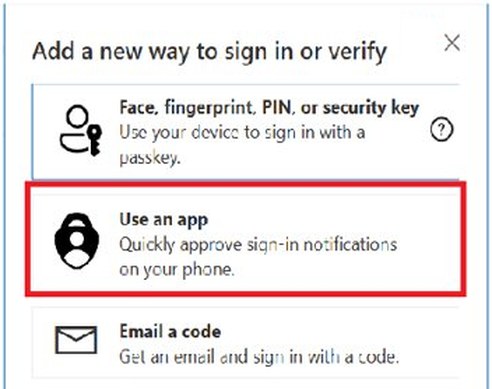
| Personal Microsoft account (Outlook.com, Hotmail, Xbox) | account.microsoft.com/security | Manage how I sign in > Add a new way to sign in or verify > Use an app > Next |
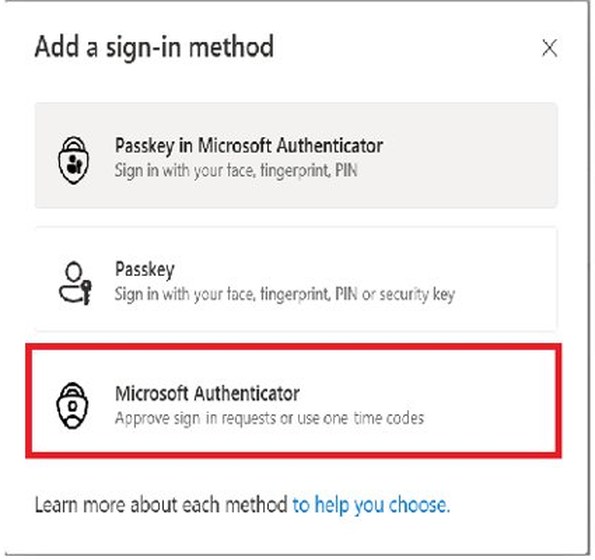
| Work or school account (Microsoft 365, Microsoft Entra ID) | mysignins.microsoft.com/security-info or aka.ms/mfasetup | Add sign-in method > Microsoft Authenticator > Add > Next |
| New work account asked to set up security info at sign-in | The Keep your account secure wizard that opens after you sign in | Next > Next until the Scan the QR code page appears |
| Google, Amazon, Facebook, Instagram and other sites | That site's own security or two-step verification settings | Turn on two-step verification, then choose the authenticator app option |
Keep the page open on the computer while you scan. Closing it before you finish means starting the steps again.
What is a Microsoft Authenticator QR code?
A Microsoft Authenticator QR code is a one-time setup image that links one account to the Authenticator app on your phone.
| Question | Answer |
|---|---|
| What the code carries | Your account details and a secret key, or seed, that the app uses to generate one-time codes |
| Why Microsoft uses it | Scanning it proves the phone you are registering is physically in your hands |
| What you get after scanning | An account tile with a six-digit code that changes every 30 seconds, plus sign-in notifications for Microsoft personal and work accounts |
| How often you scan it | Once per account on each phone |
| What it is not | The Microsoft Entra QR code sign-in method: a printed badge plus an 8-20 digit PIN that admins issue to frontline workers on shared iOS or Android devices |
How to get Microsoft Authenticator QR code for a personal account
Install Microsoft Authenticator on your iPhone or Android phone first, and update it if it is already there. Microsoft now requires the latest version to add an account.
- On a computer, go to account.microsoft.com/security and sign in with your Microsoft account.
- Select Manage how I sign in to list the ways you prove who you are.
- Select Add a new way to sign in or verify.
- Choose Use an app.
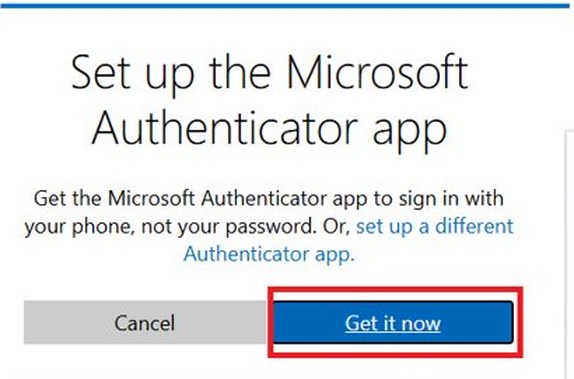
- If Authenticator is already on your phone, select Set up a different Authenticator app; if not, select Get it now and install it.
- Select Next to reveal the QR code, and leave the page open while you scan it.
Turning on Two-step verification from the same Manage how I sign in page also gives you a QR code to scan during setup.
How to scan Microsoft Authenticator QR code
These steps are the same on iPhone and Android. Only the camera permission prompt is worded differently.
- Open Authenticator on your phone and allow notifications if it asks.
- Tap the + icon at the top right, or Add account if the list is empty.
- Choose Personal account, Work or school account or Other account to match the page on your computer.
- Tap Scan a QR Code.
- Select Allow when the phone asks for camera access (on Android the prompt asks to take pictures and record video).
- Hold the phone so the whole QR code fills the frame on the computer screen until the new account tile appears.
- Return to the computer and select Next; for a work or school account, approve the test notification on your phone, then select Next again.
How to get Microsoft Authenticator QR code for work or school
Your organization decides which sign-in methods you can add, so the list you see may be shorter than the one below.
- Go to mysignins.microsoft.com/security-info in a computer browser and sign in with your work or school account.
- If an Additional security verification page opens instead, check the box next to Authenticator app and select Configure.
- Select Add sign-in method.
- Choose Microsoft Authenticator from the list and select Add.
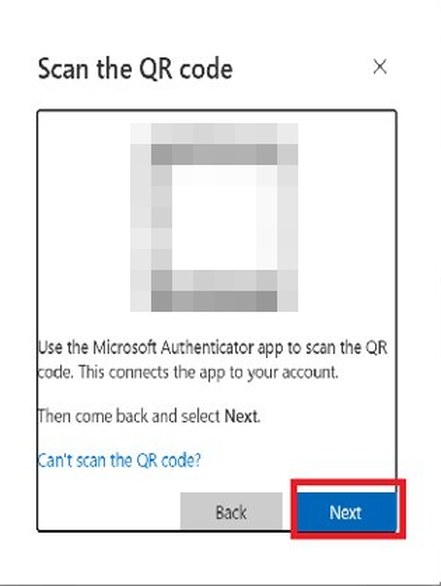
- Select Next once the app is installed on your phone; the Scan the QR code page appears.
- In the app, tap +, then Work or school account > Scan a QR Code, and scan the code.
- Select Next, approve the test notification in the app, and select Next to finish.
On Android phones in China, push notifications do not work, so select I want to use a different authenticator app and add the account in the app as Other account instead.
How to use aka.ms/mfasetup for Microsoft Authenticator
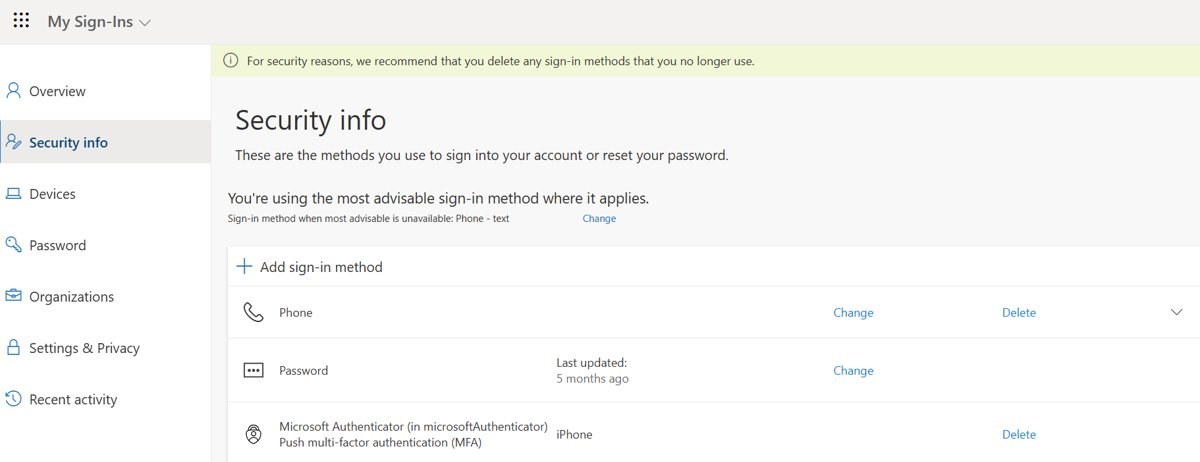
aka.ms/mfasetup is Microsoft's short link to the Security info page for work and school accounts. Type it into any computer browser, sign in, and you land on the page where the QR code is generated.
| Short link | Opens | Use it when |
|---|---|---|
| aka.ms/mfasetup | mysignins.microsoft.com/security-info | You need to add, replace or change Microsoft Authenticator on a work or school account |
| aka.ms/mysecurityinfo | The same Security info page | Your IT department gave you this link instead; it does the same job |
| aka.ms/MySecurityInfo-us | Security info for Azure US Government clouds | Your organization runs on GCC High or DoD |
| account.microsoft.com/security | Personal Microsoft account security | Your account is Outlook.com, Hotmail, Live or Xbox; aka.ms/mfasetup does not apply to it |
If the app shows To set up Microsoft Authenticator, you'll need to go to aka.ms/mfasetup on a web browser, your account does not have enough other sign-in methods yet. Open aka.ms/mfasetup on a computer, add the missing methods, then add the account in the app again.
How to add an account to Microsoft Authenticator
Authenticator holds several accounts at once, including personal Microsoft accounts, work or school accounts, and non-Microsoft accounts. Each one is added separately from the + icon.
| Account | In the app, tap | Then |
|---|---|---|
| Personal Microsoft account | + > Personal account | Tap Scan a QR Code, or sign in with your username and password to turn on sign-in notifications |
| Work or school account | + > Work or school account | Tap Scan a QR Code, or Sign in if your admin has turned on phone sign-in (a Temporary Access Pass works here) |
| Work account on a remote PC | + > Add work or school account > Sign in | Tap Sign in from another device and type the code Authenticator shows on the remote screen, if your admin allows remote sign-in |
| Google, Amazon, Facebook, Instagram | + > Other account | Scan the site's QR code or enter its code manually, then type the app's code on the site |
How to add a Google account to Microsoft Authenticator
Non-Microsoft accounts get a six-digit code only. Sign-in notifications work for Microsoft personal and work or school accounts, not for Google or Facebook.
- Sign in to the site on a computer and open its security settings; in a Google Account, that is 2-Step Verification.
- Turn on two-step verification if it is off, then choose the authenticator app option to show a QR code.
- In Authenticator, tap + > Other account.
- Tap Scan a QR Code and scan the code, or use the site's manual option to type the code and account name.
- Type the six-digit code from the new tile into the site to finish setup.
Google shows one QR code that any authenticator app can read, so the screen you reach to set up Google Authenticator is the same one Microsoft Authenticator scans.
Microsoft Authenticator QR code for Outlook
Outlook has no Authenticator QR code of its own. The code comes from the security page of whichever account your mailbox uses.
| Outlook you use | Account type | Where the QR code is |
|---|---|---|
| Outlook.com, Hotmail or Live mail | Personal Microsoft account | account.microsoft.com/security > Manage how I sign in > Add a new way to sign in or verify > Use an app |
| Outlook with a Microsoft 365 work or school mailbox | Work or school account | aka.ms/mfasetup > Add sign-in method > Microsoft Authenticator |
| QR code shown inside Outlook for Windows | Work or school account | Not an Authenticator code: it transfers your PC sign-in to Outlook on your phone |
| Outlook mobile with Authenticator Lite | Work or school account, if your organization enables it | No QR code needed: Outlook mobile itself approves sign-in requests or shows a one-time code |
The desktop Outlook code is scanned with the Outlook mobile app, which is how you sign in to Outlook with a QR code on a phone without typing your password.
How to get a new QR code for Microsoft Authenticator
Run the add-method steps again to get a fresh code. You need one after you reset the app, remove the account, or set up a phone that cannot restore a backup.
- Personal account: go to account.microsoft.com/security, select Manage how I sign in > Add a new way to sign in or verify > Use an app.
- Select Set up a different Authenticator app, then Next, to show a new QR code.
- Work or school account: go to aka.ms/mfasetup, select Add sign-in method > Microsoft Authenticator > Add > Next.
- Scan the new code from the matching account type in the app.
- Turn off verification for the old phone: for a personal account, use the two-step verification area of the Account Security page; for a work account, use My Apps or your company portal.
Deleting the app from an old phone is not enough on its own. Until the old device is unregistered, sign-in notifications can still go to it.
How to move Microsoft Authenticator to a new phone
Backups restore one-time codes for personal Microsoft accounts and third-party accounts. Work or school accounts are never backed up, so each one needs a new QR code on the new phone.
- On the old Android phone, open Authenticator, tap the menu, select Settings and turn on Cloud Backup, choosing a personal Microsoft account to store it.
- On the old iPhone, turn on iCloud Drive, iCloud Keychain and iCloud Backup, and open Authenticator at least once.
- Install Authenticator on the new phone of the same type; an iPhone backup does not restore on Android, or the other way round.
- Open Authenticator on the new phone and sign in to any account that shows Sign in to restore your account.
- For each work or school account, scan a new QR code from aka.ms/mfasetup while you still have the old phone.
- Remove the app from the old phone and turn off verification for that device on each account's security page.
From January 2027, Android backups move from a Microsoft personal account to Google One backup.
How to tell if Microsoft Authenticator is set up on your account
- Open Authenticator and find the new tile with your account name; tap it to see the six-digit code counting down.
- For a work or school account, reopen mysignins.microsoft.com/security-info and look for Microsoft Authenticator in the list of sign-in methods.
- Sign out of the account in a browser and sign in again.
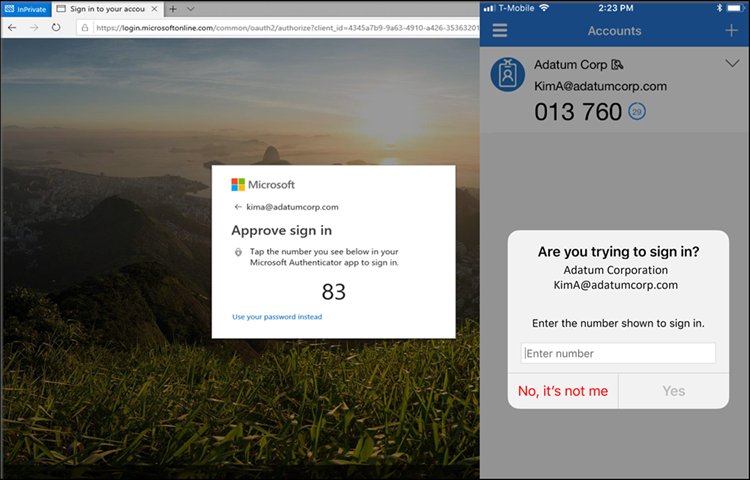
- Select Send notification if asked, then check the number shown on the screen.
- Tap or enter that number in Authenticator and select Approve; the browser finishes signing you in.
A sign-in that asks for a code instead of a notification is still working: type the current code from the tile into the Enter code box.
Microsoft Authenticator QR code not showing
Authenticator is already registered and the page skips the QR code
The page assumes you will use the app that is already linked, so it hides the code.
- On a personal account, select Set up a different Authenticator app after Use an app.
- Select Next to reveal the QR code.
- On a work or school account, select Next on the Authenticator step to display the code.
Microsoft Authenticator is missing from Add sign-in method
Your organization controls authentication methods and lists only the ones it supports.
- Open aka.ms/mfasetup and select Add sign-in method again to see every method you are allowed.
- Add one of the listed methods if Authenticator is not among them.
- Ask your IT admin to enable Microsoft Authenticator for your account.
"To set up Microsoft Authenticator, you'll need to go to aka.ms/mfasetup on a web browser"
The account does not have enough other sign-in methods to issue the strong token setup needs.
- Open aka.ms/mfasetup in a computer browser and sign in.
- Add the extra methods your organization asks for, such as a phone number.
- Return to the app and add the work or school account again.
Security info page does not open
Your organization still uses the older two-step verification page.
- Look for the Additional security verification page after you sign in.
- Check the box next to Authenticator app.
- Select Configure to show the QR code.
Microsoft Authenticator QR code won't scan
Camera does not open or stays black
Authenticator was denied camera access the first time it asked.
- On Android, open Settings > Apps, tap Authenticator, then Permissions.
- Tap Camera and choose Allow only while using the app.
- On iPhone, open the Settings app and turn camera access back on for Authenticator.
- Close and reopen Authenticator, then tap Scan a QR Code again.
Scanner opens but nothing happens
An older app version, a dim screen or glare stops the code from reading.
- Update Microsoft Authenticator from the App Store or Google Play; older versions can no longer add accounts.
- Turn up your computer screen brightness and remove glare from nearby lights.
- Move the phone closer or farther away until the whole code fits in the frame.
- Wipe the phone's camera lens.
"The account you're trying to add is not valid at this time"
The account itself cannot be added right now, which no camera fix will change.
- Restart the setup from the account's security page to get a fresh QR code.
- Contact Microsoft Support for a personal account, or your IT admin for a work or school account.
Code still will not read after every fix
Some screens and cameras just do not pair well.
- On the computer, select I can't scan the bar code (personal account) or Can't scan the QR image (work account) to show the code and URL.
- In Authenticator, tap Enter code manually on the account type screen.
- Type the code (and URL for a work account) exactly as shown, then finish the setup on the computer.
Can you scan a Microsoft Authenticator QR code on the same phone?
No. The scanner uses the phone's camera, so it cannot read a code shown on its own screen. Add the account on that phone with one of these routes instead.
| Account | Same-phone route | Limit |
|---|---|---|
| Personal Microsoft account | + > Personal account, then sign in with your username and password | None; this also turns on sign-in notifications |
| Work or school account | + > Work or school account > Sign in | Only if your admin has enabled phone sign-in |
| Work account without phone sign-in | Open the Security info page on the phone, choose Can't scan the QR image, then use Enter code manually in the app | You type the code and URL by hand |
| Google, Facebook and other sites | Use the site's manual setup option, then + > Other account > Enter code manually | Codes only, no notifications |
Can you use Microsoft Authenticator on a PC?
No. Microsoft Authenticator is available for Android and iOS only, with no Windows or Mac version. Microsoft keeps the second sign-in factor on a separate device, so a stolen or infected PC does not hold both your password and your codes. A phone also goes with you, so you can sign in away from your desk.
Your PC's role is to show the QR code; the phone scans it. Codes in the app work without an internet connection, so the phone still covers you when it has no signal.
Do you need to scan the QR code every time you sign in?
No. You scan the QR code once to link an account to a phone; after that you approve a notification or type a code.
| Situation | Scan a QR code again? |
|---|---|
| Normal sign-in on the same phone | No; approve the notification or enter the six-digit code |
| New phone with a restored backup | No for personal and third-party accounts; yes for every work or school account |
| New phone with no backup | Yes, for every account |
| You removed the account or cleared the app's data | Yes; clearing data deletes all accounts and has no undo |
| You want notifications on a personal account that only shows codes | No QR needed; add it again by signing in under Personal account |
Microsoft Authenticator QR code vs authentication code
| QR code | Authentication code | |
|---|---|---|
| What it does | Links an account to the app during setup | Proves it is you each time you sign in |
| Where it appears | On the account's security page on your computer | On the account tile in the Authenticator app |
| Format | A square image | Six digits |
| How long it lasts | Used once for setup | Changes every 30 seconds |
| Needs internet | Yes, to load the setup page | No; codes generate offline |
| Who should see it | Only you, at setup | Nobody; no real company asks you to read a code to them |
A caller who asks for your Authenticator code is trying to get past a sign-in prompt on your account. Hang up and keep the code to yourself.
Microsoft Authenticator QR code FAQ
Where do I find the QR code for Microsoft Authenticator?
Find it on your account's security page, not in the app. For a personal account go to account.microsoft.com/security, then Manage how I sign in, Add a new way to sign in or verify, and Use an app. For a work or school account go to aka.ms/mfasetup and select Add sign-in method.
How do I get a new QR code for Microsoft Authenticator?
Repeat the add-method steps. On a personal account, choose Use an app, then Set up a different Authenticator app and Next. On a work or school account, open aka.ms/mfasetup and add Microsoft Authenticator again. Then turn off verification for the old phone.
What is aka.ms/mfasetup?
aka.ms/mfasetup is Microsoft's short link to the Security info page at mysignins.microsoft.com/security-info. Work and school users open it to add, change or replace sign-in methods, including Microsoft Authenticator. It does not apply to personal Outlook.com or Hotmail accounts.
Where is the Outlook Authenticator QR code?
Outlook has no Authenticator QR code of its own. Outlook.com users get it from account.microsoft.com/security, and Microsoft 365 work users get it from aka.ms/mfasetup. The QR code inside Outlook for Windows signs Outlook mobile in; it does not set up Authenticator.
Why won't Microsoft Authenticator scan my QR code?
The usual causes are blocked camera access, an outdated app version, or a dim screen with glare. Allow camera access, update the app, and raise screen brightness. If it still fails, select the can't-scan option on the computer and enter the code manually.
Can I set up Microsoft Authenticator without scanning a QR code?
Yes. Add a personal Microsoft account by signing in under Personal account in the app. Work accounts can sign in directly if the admin enables phone sign-in. Otherwise, choose the can't-scan option on the setup page and use Enter code manually in the app.
Why does the Microsoft Authenticator code keep changing?
Each code is valid for 30 seconds, and the countdown shows when the next one replaces it. A code someone saw a minute ago is already useless to them, which is why you never need to remember it.