When a Mac is not detecting an external display, open System Settings > Displays, hold the Option key and click Detect Displays; if nothing appears, reconnect the display and its power, then sleep and wake the Mac.
This guide covers that quick fix, how many displays each MacBook Air and MacBook Pro supports, the accessory prompt on Apple silicon laptops, docks and hubs, lid-closed setups, and fixes for black, blurry or mirrored screens.
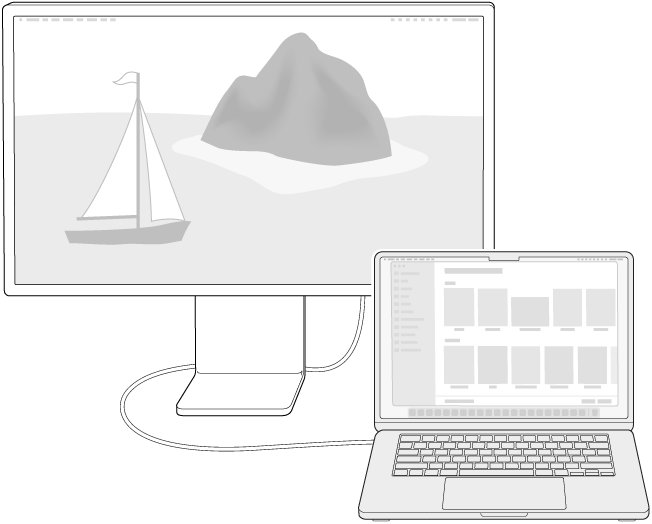
How to make a Mac detect an external display
- Make sure the display is turned on and set to the input your cable uses.
- Choose Apple menu > System Settings, then click Displays in the sidebar. You may need to scroll down.
- Press and hold the Option key. The Night Shift button changes to Detect Displays.
- Click Detect Displays while still holding Option.
- If the display still does not appear, disconnect it from the Mac and from its power source, then reconnect both.
- Put the Mac to sleep and wake it. On a MacBook, close the lid for a few seconds and open it again.
- Restart the Mac. If it will not restart, press and hold the power button for about 10 seconds, then press it again to turn the Mac back on.
On older macOS versions the same Displays pane is in System Preferences, and the Option key trick works there too.
Why is my Mac not detecting displays?
| Cause | What you see | Fix |
|---|---|---|
| Loose cable or the display is off | No signal on the monitor, nothing in Displays settings | Reseat the power and video cables at both ends and check the monitor input |
| Cable or adapter cannot carry video at that resolution | Black screen or a lower resolution and refresh rate | Use a cable rated for the display; a USB-C or Thunderbolt adapter must support DisplayPort Alt Mode, Thunderbolt 3 or Thunderbolt 4 |
| Too many displays for the Mac's chip | The extra display stays dark | Check the display limit for your model in the table below |
| Accessory not allowed on an Apple silicon laptop | Display stays dark after you dismissed a prompt | Allow the accessory in Privacy & Security > Accessories |
| Hub or dock in the chain | Display mirrors only, or does not appear | Plug the display straight into a port on the Mac |
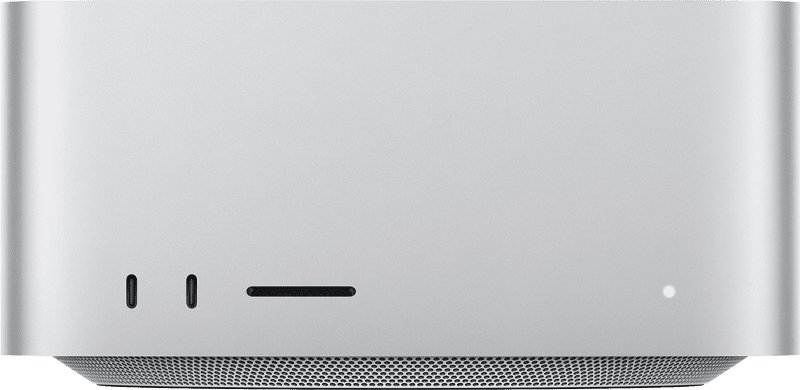
| Wrong port | Nothing from a front USB-C port on Mac mini or Mac Studio | Use a port with the Thunderbolt symbol on the back |
| Old macOS or monitor firmware | Detection is unreliable or resolutions are missing | Install macOS updates and the monitor maker's latest firmware |
How many external displays can a MacBook Air or MacBook Pro support?
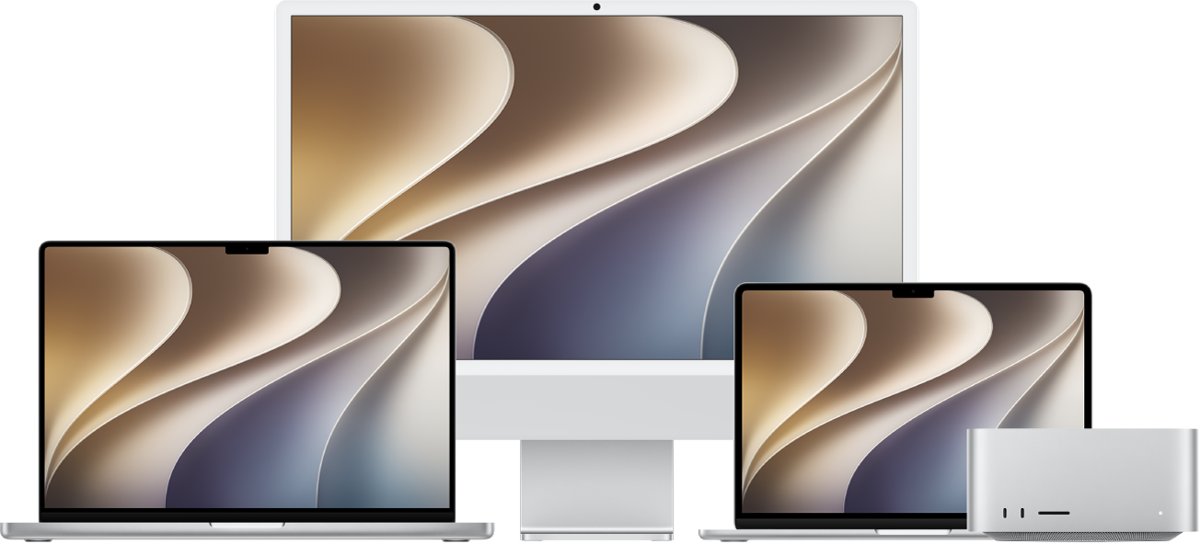
A display beyond your Mac's limit stays dark even when everything else is right. A hub or daisy chain does not raise the limit, so a MacBook Pro dual monitor setup through a dock still needs a chip that supports two displays.
| Mac | External displays supported | Note |
|---|---|---|
| MacBook Air with M1 or M2, and 13-inch MacBook Pro with M1 or M2 | One | Thunderbolt / USB 4 ports support a single external display |
| MacBook Air with M3 | Two, with the lid closed | Needs macOS Sonoma 14.3 or later, power and an external keyboard and mouse |
| MacBook Air with M4 or M5 | Two, with the lid open | Closing the lid does not add a third |
| 14-inch MacBook Pro with M3 | Two, with the lid closed | Needs macOS Sonoma 14.6 or later |
| MacBook Pro with M2 Pro, M3 Pro, M4, M4 Pro or M5 | Two | Resolution and refresh rate limits apply to each display |
| MacBook Pro with M5 Pro | Three | Closing the lid does not add more |
| MacBook Pro with M2 Max, M3 Max, M4 Max or M5 Max | Four | Over Thunderbolt and HDMI combined |
To check your own Mac, choose Apple menu > System Settings, click Help in the menu bar, choose your Mac's Specifications, and scroll to Display Support or Video Support.
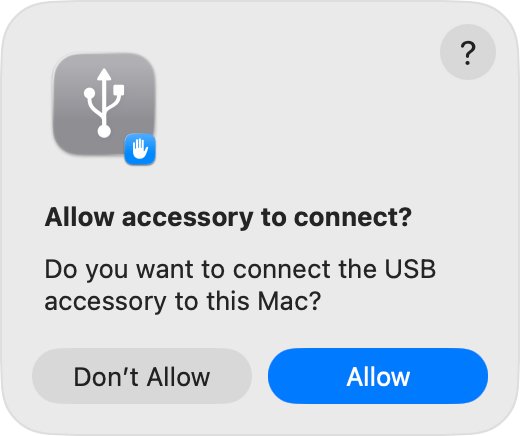
MacBook Air not detecting external display after the accessory prompt
Mac laptops with Apple silicon ask you to allow a new accessory before it connects. If you clicked Don't Allow, the display stays dark until you allow it.
- Unlock the Mac. A locked Mac cannot approve a new accessory.
- Unplug the display and plug it back in, then click Allow in the alert that appears.
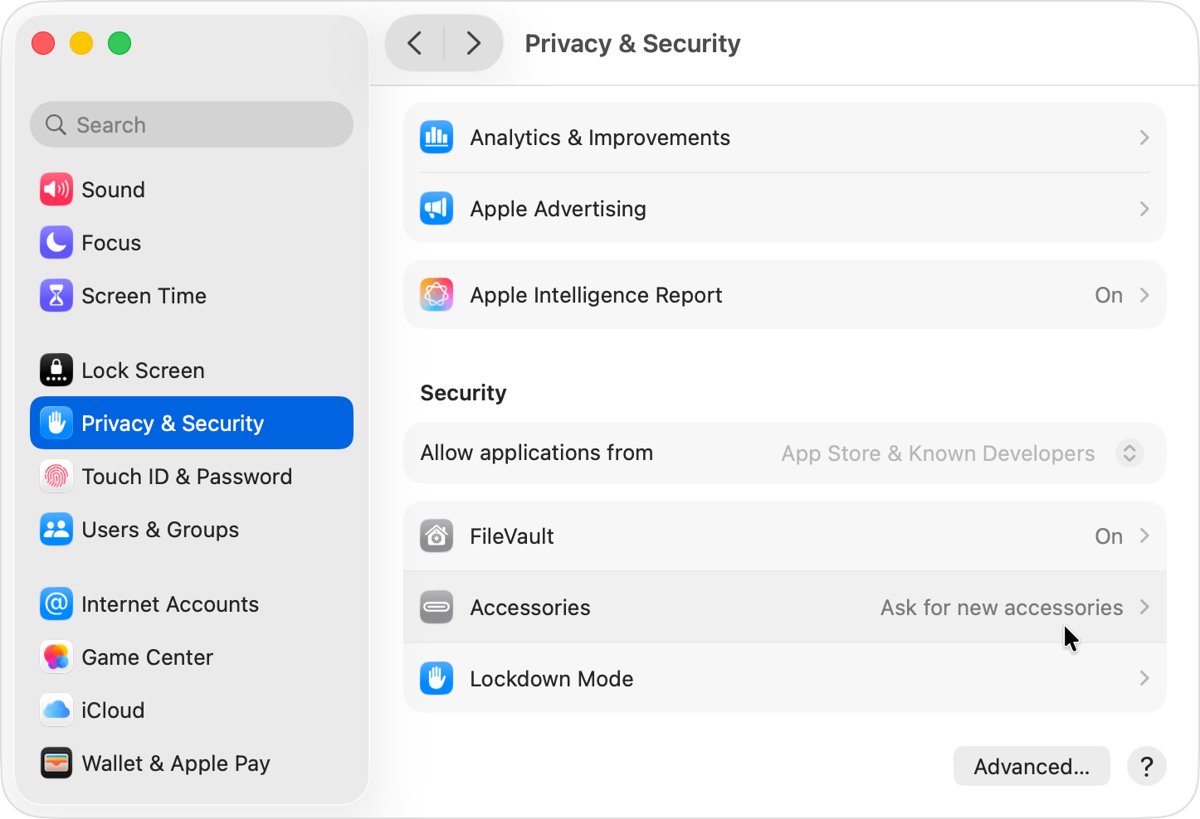
- If no alert appears, choose Apple menu > System Settings and click Privacy & Security.
- Scroll down and click Accessories.
- Use the menu next to Allow accessories to connect and choose Ask for new accessories or Automatically allow when unlocked.
- Reconnect the display and approve it when asked.
If the Mac has been locked for 3 or more days, unlock it before a display you allowed earlier will work again.
Mac not recognizing external monitor through a USB-C hub or dock
- Disconnect the hub or dock and plug the display's cable straight into a Thunderbolt or HDMI port on the Mac.
- If the display now works, the hub or dock is the problem. Check that it supports video output at your display's resolution.
- If the display works through the hub only as a mirror of the built-in screen, keep it connected directly to the Mac.
- On Mac mini (2024 or later) and Mac Studio with M1 Max or M2 Max, use a port with the Thunderbolt symbol on the back, not a front USB-C port.
- Check the Thunderbolt or USB-C adapter supports DisplayPort Alt Mode, Thunderbolt 3 or Thunderbolt 4.
Docks built on DisplayLink chips need the DisplayLink Manager app from Synaptics before any display on them appears. Get it from the official DisplayLink for Mac download, and only for a dock that says DisplayLink.
Use MacBook with lid closed and external monitor
A closed MacBook drives an external display only when it has power and an external keyboard and mouse or trackpad.
- Connect an external keyboard and mouse or trackpad, and allow them if the Mac asks.
- Connect the Mac to power. A display that charges the Mac over USB-C counts as power.
- Connect the display and allow it to connect with the lid still open.
- Close the lid. The external display becomes the main screen.
- On a MacBook Air or 14-inch MacBook Pro with M3, connect the second display only after the lid is closed.
On an M3 MacBook with two displays, opening the lid makes the second external display go dark. Disconnect both displays and reconnect them to reset the order.
How to tell if a Mac recognizes an external display
- Choose Apple menu > System Settings, then click Displays.
- Look for the external display's name next to the built-in display at the top of the pane.
- Check that Arrange appears. It shows only when an external display is connected.
- Click the external display and open the Use as menu to confirm it is set as an extended display, main display or mirror.
- Drag a window to the edge of the screen; it should move onto the external display if the desktop is extended.
If the display is listed but the monitor shows no picture, the Mac sees it and the problem is resolution, refresh rate or brightness, not detection.
How to extend or mirror a Mac display to an external monitor
- Open System Settings > Displays.
- Click the external display's name.
- Open the Use as menu and choose to extend the desktop, mirror the built-in display, or make the external display the main display.
- Click Arrange to drag the display icons into the same positions as the screens on your desk.
- Set Resolution to Default for the sharpest picture on the external display.
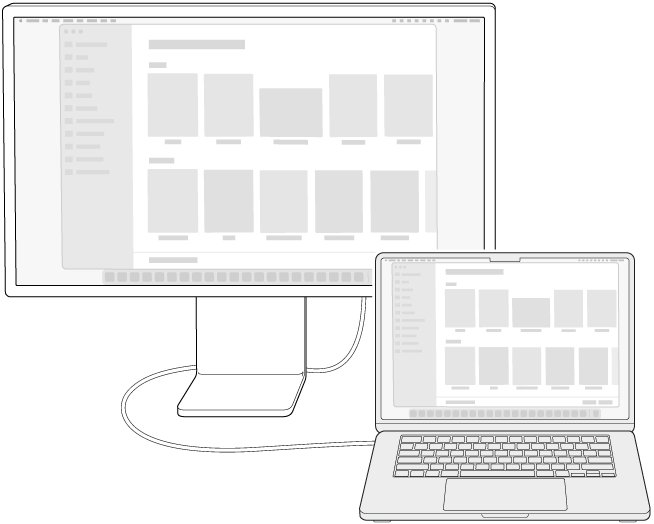
Mac external display not working
Mac detect displays not working
The Mac cannot see the display at all, usually a cable, power or adapter problem.
- Disconnect the display from the Mac and from its power, then reconnect both.
- Swap in a cable you know carries video, and remove any adapter you can.
- Restart the Mac with the display connected.
- Install the latest macOS in System Settings > General > Software Update; it also updates Apple display firmware.
External display goes black after changing resolution or refresh rate
The setting is higher than the display, cable or Mac supports.
- Disconnect the display and reconnect it.
- In Displays, set Resolution to Default and lower Refresh rate to a rate listed in the monitor's manual.
External display is blurry on Mac
A scaled resolution is in use instead of the display's native resolution.
- Open System Settings > Displays and select the external display.
- Set Resolution to Default.
- Use the monitor's own menu to adjust sharpness if it has that control.
External display is dark but listed in Displays
Brightness is turned all the way down on the display.
- On an Apple display with an Apple keyboard, press the Brightness Up key.
- On a third-party monitor, raise brightness with the monitor's own buttons.
- A third-party monitor may have no slider in Displays settings at all, and you can fix missing brightness adjustment on Mac when it should have one.
MacBook Pro not recognizing second external monitor
The second display is over the chip's limit or comes through a hub.
- Check the display limit for your chip in the table above.
- Connect the highest-resolution display first, directly to the Mac.
- Connect the second display to a different one of the MacBook Pro ports, not to the same hub.
If every display fails on every port and cable, contact Apple Support; the Mac's video output may need service.
Mac not detecting external display FAQ
Why is my Mac not detecting displays?
The usual causes are a loose or unsuitable cable, an adapter without video support, a display over your Mac's limit, a hub in the chain, or an accessory you did not allow. Reconnect directly, then hold Option in Displays settings and click Detect Displays.
Where is the Detect Displays button on Mac?
Open System Settings, click Displays, then press and hold the Option key. The Night Shift button changes to Detect Displays while you hold Option. Click it to scan for connected displays.
Why is my MacBook Air not detecting an external display?
A MacBook Air with M1 or M2 supports only one external display, and an M3 model needs the lid closed for a second one. Also check that you allowed the display in Privacy & Security > Accessories and that the cable carries video.
Why is my MacBook Pro not recognizing an external monitor?
Check the cable, the port and the display limit for your chip. A 13-inch MacBook Pro with M1 or M2 supports one external display. Connect the monitor directly to a Thunderbolt or HDMI port and click Detect Displays.
Why is my Mac not connecting to an external display through a hub?
Many hubs and docks cannot pass video at the display's resolution, and some only mirror. Connect the display straight to the Mac. A DisplayLink dock also needs the DisplayLink Manager app before its displays appear.
Can an M1 MacBook Air use two external monitors?
Not natively. MacBook Air models with M1 or M2 support one external display. Apple lists two displays for M3 models with the lid closed and for M4 and M5 models with the lid open.
Does my MacBook need to be plugged in to use an external display with the lid closed?
Yes. With the lid closed, the MacBook must be connected to power and have an external keyboard and mouse or trackpad. Otherwise the external display stays dark.