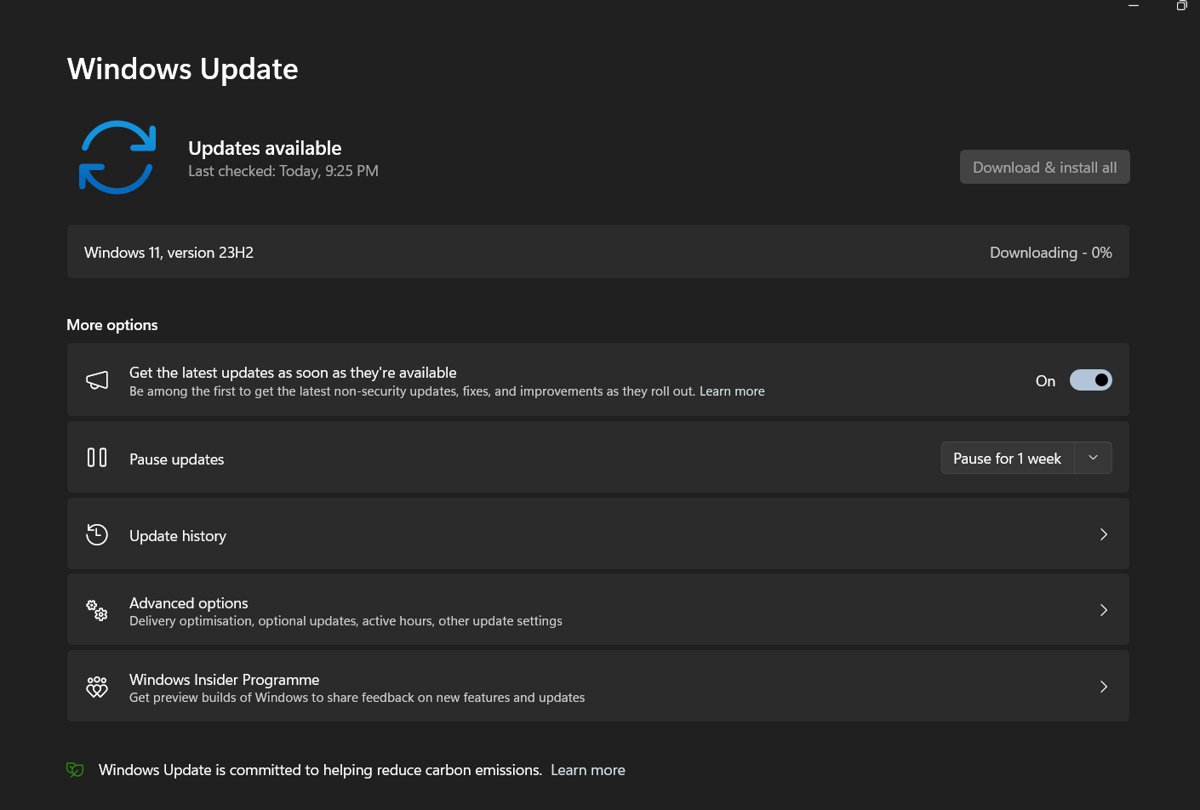
To fix Windows Update when it is stuck, restart the PC, run the Windows Update troubleshooter, then clear the update cache in C:\Windows\SoftwareDistribution and check for updates again.
This guide covers every step in order for Windows 11 and Windows 10, from quick checks to DISM, SFC, reinstalling Windows through Windows Update and removing an update that leaves the PC stuck at restart.
Fix Windows Update stuck: Step-by-step troubleshooting (Win10/11)
These five steps clear most stuck downloads and installs. Save your work first, because two of them restart the PC.
- Select Start > Power > Restart so no other app is holding the update.
- Select Start > Settings > System > Troubleshoot > Other troubleshooters, then select Run next to Windows Update.
- Press Win + R, type
services.mscand press Enter. Right-click Windows Update and select Stop. - Open
C:\Windows\SoftwareDistributionand delete everything inside it, then right-click Windows Update in Services and select Start. - Select Start > Settings > Windows Update > Check for updates and install what it finds.
If the update still stops at the same point, use the table below to jump to the step that matches your symptom.
Windows Update stuck at 0%, 100% or 99%: what to do
| What you see | Likely cause | Go to |
|---|---|---|
| Stuck at 0% downloading | No connection, low disk space or a stopped service | Connection, power and disk space checks |
| Stuck at 100% downloading | Damaged files in the update cache | Clear the SoftwareDistribution folder |
| Stuck between 51% and 99% installing | Large update still working, or a damaged component | Wait, check again, then run DISM and SFC |
| Same update fails again and again | Corrupt update components | Reset Windows Update components |
| Stuck on the restart screen or in a loop | The new update will not finish booting | Uninstall the latest update from Windows RE |
| Error code 0xC1900101 | An incompatible driver | Disconnect hardware and update drivers |
| Settings shows Reinstall your current version of Windows | System files or components are damaged | Fix problems using Windows Update |
Run the Windows Update troubleshooter on Windows 11 and Windows 10
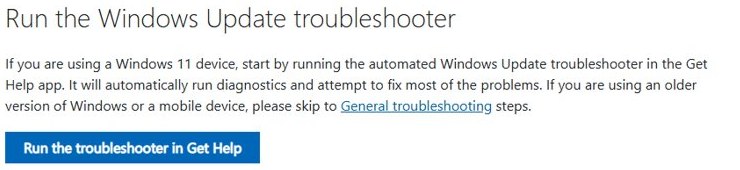
The troubleshooter restarts the update services and repairs common settings automatically. On Windows 11 it runs through the Get Help app.
- On Windows 11, select Start > Settings > System.
- Select Troubleshoot, then Other troubleshooters.
- Find Windows Update and select Run.
- Follow the on-screen prompts and let it apply the fixes it suggests.
- On Windows 10, open Start > Settings > Update & Security > Troubleshoot and run the Windows Update troubleshooter from there.
- Restart the PC and select Check for updates again.
You can run the Windows Update troubleshooter again after each later step, since it often succeeds once the cache is cleared.
Check internet, power, date and disk space for Windows Update
A weak connection, a wrong clock or a full drive stops updates without a clear message. Rule these out before deeper repairs.
- Plug a laptop into power so the installer is not paused on battery.
- Select Start > Settings > Network & internet and confirm you are connected. Reconnect Wi-Fi or Ethernet if not.
- Turn off a VPN for the duration of the update, since Microsoft lists it as a cause of failed installs.
- Select Start > Settings > Time & language > Date & time, turn on Set time automatically and Set time zone automatically, then select Sync now.
- Check free space in File Explorer > This PC. Microsoft asks for at least 16 GB free for a 32-bit OS or 20 GB for a 64-bit OS.
- If space is short, clean up old system files or move files to another drive, then select Check for updates again.
Some updates need an administrator account. If you sign in with a standard account, ask an administrator to install them.
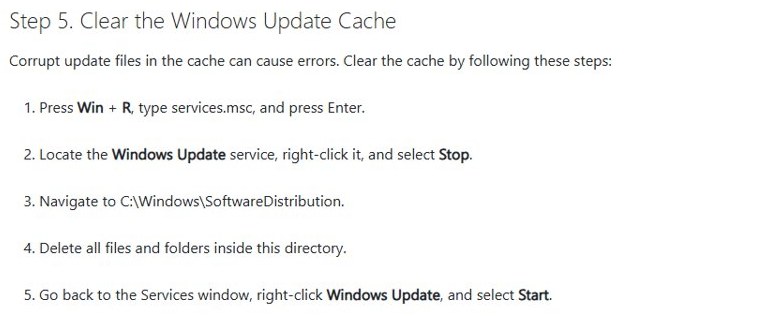
Clear the Windows Update cache (SoftwareDistribution folder)
Windows stores downloaded update files in C:\Windows\SoftwareDistribution. Corrupt files there keep an update stuck at the same percentage, and Windows downloads fresh copies once the folder is empty.
- Press Win + R, type
services.mscand press Enter. - Right-click Windows Update and select Stop.
- Open File Explorer and go to
C:\Windows\SoftwareDistribution. - Select all files and folders inside it and delete them. Approve the administrator prompt if it appears.
- Return to Services, right-click Windows Update and select Start.
- Open Settings > Windows Update and select Check for updates.
Your update history list may look shorter afterwards. Installed updates stay installed.
Reset Windows Update components from Command Prompt
This renames the update cache and the catroot2 signature folder so Windows rebuilds both. Search for command prompt, select Run as administrator and select Yes, then run each line separately.
net stop bits
net stop wuauserv
ren %systemroot%\softwaredistribution softwaredistribution.bak
ren %systemroot%\system32\catroot2 catroot2.bak
net start bits
net start wuauserv
Stops the Background Intelligent Transfer Service and Windows Update, renames both folders to .bak, then starts the services again. Windows creates new, empty folders on the next scan.
You should see: Each net stop and net start line reports that the service stopped or started successfully, and each ren line returns without an error.
Close Command Prompt and restart the PC, then check for updates. If a ren line reports that access is denied, a service is still running: run the matching net stop line again.
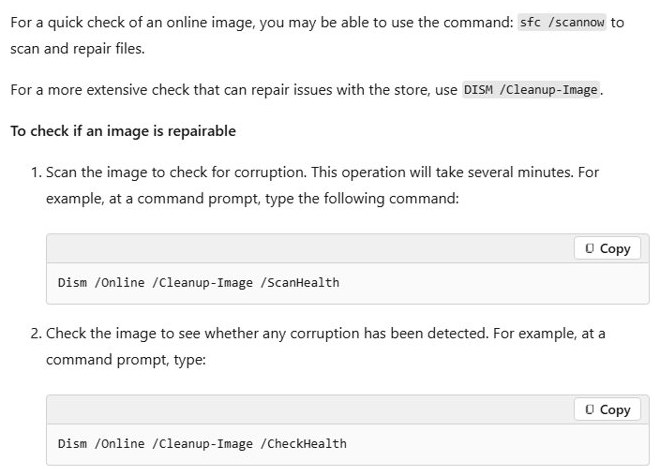
Repair system files with DISM and SFC for Windows Update
Damaged Windows files cause errors such as 0x80070057 and 0x80080005 and can freeze an install. Run DISM first, then SFC, in an administrator Command Prompt.
DISM.exe /Online /Cleanup-image /Restorehealth
sfc /scannow
DISM repairs the Windows component store that updates install from. SFC then checks protected system files and replaces damaged ones from that store.
You should see: DISM ends with "The restore operation completed successfully" or "The operation completed successfully". SFC reaches 100% verification.
If DISM shows no confirmation, run the command again. To check the drive itself, run chkdsk /f C: and approve the restart it asks for.
Disconnect external hardware and update drivers
Docks, external drives and new hardware can block an install, and error 0xC1900101 points to an incompatible driver.
- Unplug external drives, USB storage, docks and any device you do not need to use the PC.
- Select Check for updates again and see whether the update now finishes.
- If it still fails, right-click Start and select Device Manager.
- Expand Network adapters or Display adapters, right-click the adapter and select Update driver > Search automatically for drivers.
- For hardware you added yourself, get the driver from the manufacturer's own website.
- Restart the PC and run Windows Update again.
If an update driver does not help, Microsoft also suggests a clean restart, which starts Windows with a minimal set of drivers and startup programs to rule out software conflicts.
Reinstall the current version of Windows with Windows Update
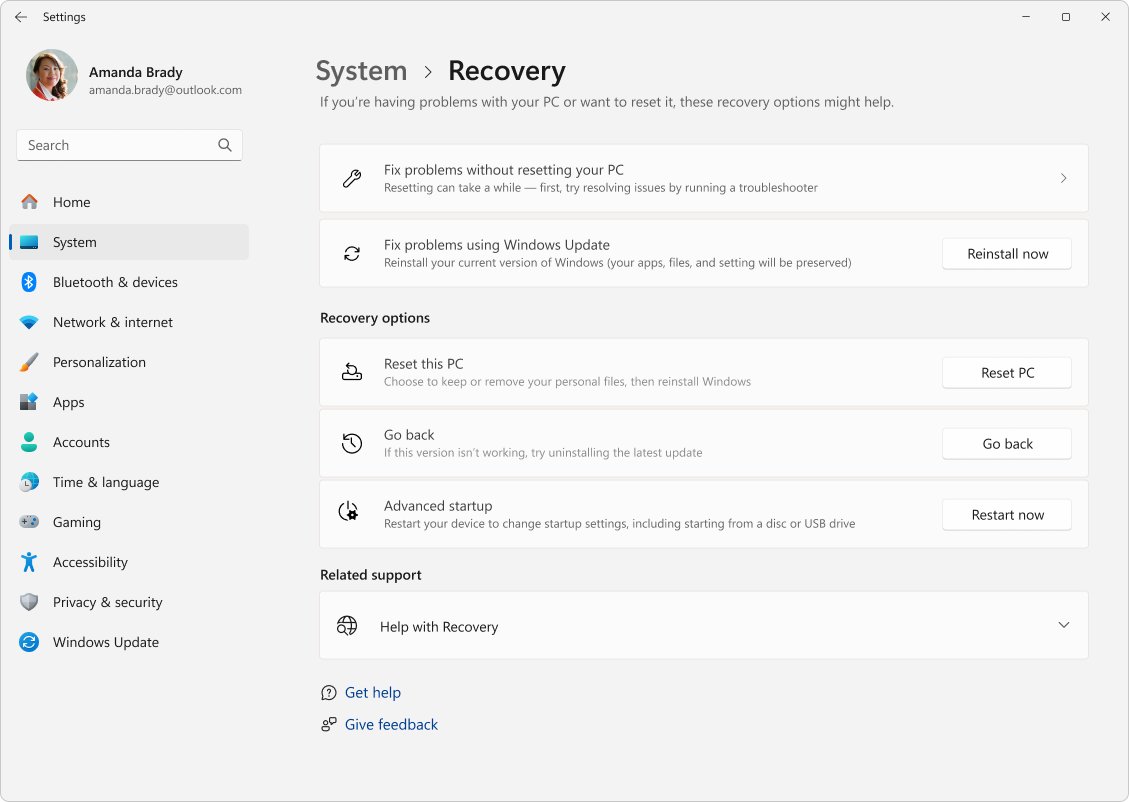
Windows 11 can reinstall its own current version through Windows Update. It repairs system files and components and keeps your apps, files and settings.
- Keep the PC connected to power and the internet for the whole process.
- Select Start > Settings > System > Recovery.
- Under Fix problems using Windows Update, select Reinstall now.
- Choose whether the PC may restart automatically 15 minutes after the install completes.
- Select OK. Windows Update downloads and installs a repair version of the last update that installed successfully.
- Restart the PC when it finishes, if you did not allow an automatic restart.
The option needs Windows 11 with the 2022 update and the February 2024 optional update or later. It is hidden on PCs whose updates are managed by work or school policy.
Windows Update stuck on restart: uninstall the latest update
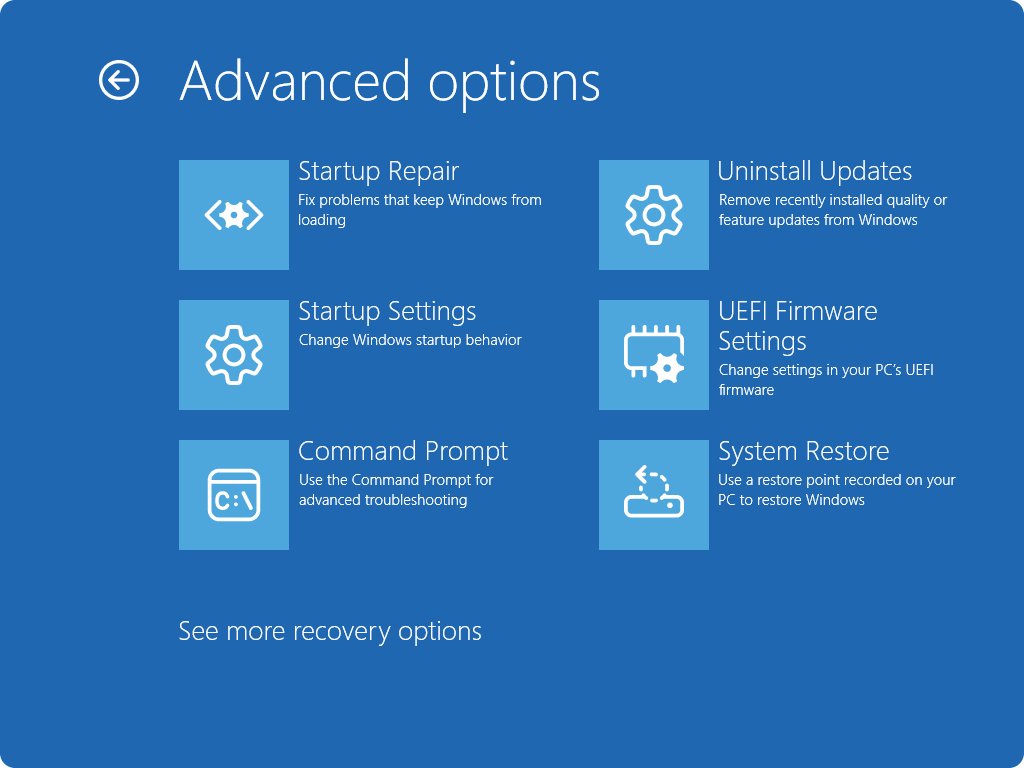
If the PC hangs on the update screen or restarts in a loop, remove the update from the Windows Recovery Environment. Windows opens it automatically after it fails to start several times.
- If Windows still starts, hold Shift and select Power > Restart. Otherwise let it fail to start until Windows RE opens.
- Select Troubleshoot > Advanced options > Uninstall Updates.
- Select Uninstall latest quality update to remove the most recent monthly update, or the feature update option if a version upgrade caused the hang.
- Confirm, then let the PC restart into Windows.
- If Windows starts normally, open Settings > Windows Update > Update history > Uninstall updates to review what is installed.
Some updates cannot be uninstalled. After removing one, clear the update cache before you let Windows retry it.
Windows Update error codes when an update is stuck
A stuck update often leaves an error code in Update history. Match it here to pick the step that fixes it.
| Error code | Cause | Fix to try first |
|---|---|---|
| 0x8007000d | Damaged update files or a corrupt update cache | Troubleshooter, then clear SoftwareDistribution |
| 0x800705b4 | Install took too long or was interrupted | Check the connection, update your antivirus, restart |
| 0x80240034 | Incomplete update or connection problem | Confirm the Windows Update service runs, then troubleshooter |
| 0x800f0922 | Not enough disk space, or .NET Framework problems | Free up space and turn off a VPN |
| 0x80070057 or 0x80080005 | Damaged files or wrong configuration | DISM and SFC, then troubleshooter |
| 0xC1900101 | Incompatible driver | Update network and display drivers |
| 0x80248014 | Update database problem or service not running | Troubleshooter, then start the Windows Update service |
| 0x80070005 | Access denied | Install with an administrator account |
| 0x80070002 | Update failed to install | Restart, troubleshooter, check disk space |
Check Windows Update history after the fix
- Select Start > Settings > Windows Update.
- Confirm the page says you are up to date or shows no pending restart.
- Select Update history and find the update that was stuck.
- Check that it shows Successfully installed with today's date rather than a failure entry.
Windows Update still stuck after these steps
Windows Update stuck at 0% or 100%
Another app, the connection or a full drive is blocking the download.
- Restart the PC so nothing else holds the update.
- Confirm the network connection in Settings > Network & internet.
- Free space until at least 20 GB is available on a 64-bit PC, then check for updates again.
Windows Update got to 51-99% and will not complete
Large updates take longer on slow connections, or a component is damaged.
- Leave the PC on power and online so the install can finish.
- If the percentage does not move after a restart, select Check for updates again.
- Run the troubleshooter, then DISM and SFC.
Fix problems using Windows Update is missing
The PC runs an older build or its updates are managed by policy.
- Install the latest updates you can, then check Settings > System > Recovery again.
- On a work or school PC, ask the IT administrator, because update policies hide the option.
- Use DISM and SFC as the repair route instead.
Windows Update stuck FAQ
How do I fix Windows Update stuck downloading?
Restart the PC, check the internet connection and free disk space, then run the Windows Update troubleshooter. If the download still stalls, stop the Windows Update service, empty C:\Windows\SoftwareDistribution, start the service and check for updates again.
Is it safe to delete the SoftwareDistribution folder contents?
Yes, when the Windows Update service is stopped first. Microsoft's own steps delete everything inside the folder. Windows downloads fresh update files on the next check, and updates that are already installed stay installed.
How much free space does Windows Update need?
Microsoft asks for at least 16 GB free to upgrade a 32-bit OS and 20 GB for a 64-bit OS. A PC with a small drive can use a USB drive to provide extra space during the update.
What do I do if Windows is stuck on the updating screen at restart?
Open the Windows Recovery Environment, which appears after Windows fails to start several times. Select Troubleshoot, Advanced options, Uninstall Updates, then remove the latest quality or feature update and restart.
Does the Windows Update troubleshooter fix stuck updates?
It fixes many of them. It runs diagnostics and attempts repairs automatically through the Get Help app on Windows 11. If it fails, clear the update cache and run DISM and SFC.
Can I reinstall Windows without losing files to fix updates?
Yes. On Windows 11, open Settings, System, Recovery and select Reinstall now under Fix problems using Windows Update. It reinstalls the current version and keeps apps, files and settings.
Does Windows 10 still get updates through Windows Update?
Windows 10 support ended on October 14, 2025. Microsoft no longer provides free software or security updates for it through Windows Update and recommends moving to Windows 11.
Why does Windows Update stay on the same percentage for a long time?
Download and install time depends on connection speed, network settings and the size of the update. If the percentage does not change, check for updates again or run the Windows Update troubleshooter.