To encrypt files on Windows 11, right-click the file or folder, select Properties > Advanced, tick Encrypt contents to secure data, then select OK and Apply.
The Home edition of Windows does not include this option, so this guide also covers Windows 11 Home, BitLocker, external drives, ZIP and PDF files, decrypting, and the reasons encryption can be unavailable.
How to encrypt files on Windows 11
This built-in feature is called the Encrypting File System (EFS). It works on files and folders stored on an NTFS drive.
- In File Explorer, right-click the file or folder and select Properties.
- On the General tab, select Advanced….
- Select the Encrypt contents to secure data check box.
- Select OK to close the window.
- Select Apply, then select OK.
When you encrypt a single file, encrypt its parent folder as well. Microsoft warns that an encrypted file in an unencrypted folder could become decrypted when it is modified.
Windows 11 file encryption: EFS vs BitLocker vs device encryption
Windows 11 offers several types of encryption, and your edition and the place the file is going decide the right one.
| Your situation | Use this | Why |
|---|---|---|
| Windows 11 Pro, selected files or folders on an NTFS drive | EFS | Encrypts only what you pick and separates users of the same PC |
| Windows 11 Home, whole PC | Device encryption | Available on Home when the hardware supports it, and uses BitLocker on the system and fixed drives |
| Windows 11 Pro, protection for a lost or stolen laptop | BitLocker | Encrypts the entire drive and blocks offline access to its data |
| USB flash drive, SD card or external hard drive | BitLocker To Go | Works on NTFS, FAT16, FAT32 and exFAT, and opens on other PCs with a password or smart card |
| Files you send to someone else | 7-Zip AES-256 archive, or a Word or Excel password | The protection stays with the file and the recipient only needs the password |
What is file encryption in Windows 11?
Encryption converts data into a code, so only someone with the correct decryption key can read it. In Windows 11, EFS applies this to individual files with a public-key system.
| Encrypting File System detail | How it behaves |
|---|---|
| Supported file system | NTFS volumes. ReFS does not support it. |
| Folders | A folder is not itself encrypted. New files created inside an encrypted folder are encrypted when they are created. |
| Visibility | An encrypted folder stays visible. Use access permissions to hide it from other users. |
| Items that cannot be encrypted | Compressed files, system files, system directories and root directories. |
| Compressed NTFS files | Windows decompresses a compressed file before it encrypts the file. |
| Use with BitLocker | Both can run together. BitLocker protects the drive against offline attacks, and EFS adds separation between users of the same PC. |
How to encrypt a folder in Windows 11
Encrypting a folder marks it, so files you add later are encrypted without any further steps.
- Close any app that has a file from the folder open.
- Right-click the folder and select Properties.
- On the General tab, select Advanced….
- Select the Encrypt contents to secure data check box, then select OK.
- Select Apply.
- If Windows asks how far to apply the change, choose the option that includes the subfolders and files.
- Select OK to close Properties.
A folder that contains a read-only file will not be encrypted, so clear that attribute first.
Cipher command to encrypt files in Windows 11
Open Command Prompt and use cd to move to the folder that holds the item. The cipher tool works on NTFS volumes and accepts several names or wildcards in one command.
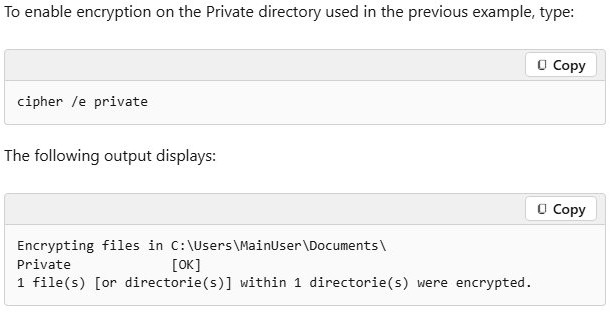
cipher /e PrivateThe /e switch encrypts the named file or folder, and marks a folder so files added afterward are encrypted too. Replace Private with your own file or folder name. Add /s:<directory> to apply the change to all subfolders of that directory.
You should see: The output lists Private with [OK] and reports how many files or directories were encrypted.
How to tell if a file is encrypted in Windows 11
- Open Command Prompt.
- Use
cdto move to the folder that holds the file. - Type
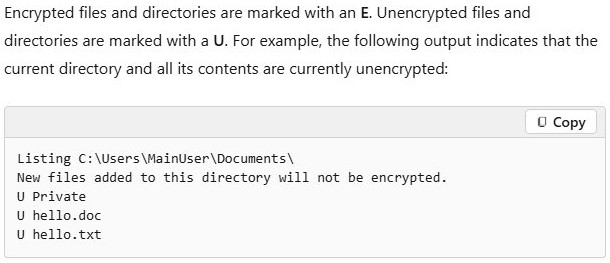
cipherand press Enter. - Read the letter beside each name. E means encrypted and U means unencrypted.
- Read the line under the folder path. It says whether new files added to the folder will be encrypted.
You can also reopen Properties > Advanced… on the file. The Encrypt contents to secure data box stays selected on an encrypted item.
How to back up the EFS certificate and key on Windows 11
EFS depends on the certificate and keys tied to your account. Back them up right after you encrypt your first file, and store the copy away from the PC.
cipher /x D:\efs-backupThe /x switch backs up your current EFS certificate and keys to the file name you give. Replace D: with the letter of a USB drive, and follow any prompts in the Command Prompt window.
You should see: The backup appears on the drive you named. Move it to a safe place, such as a USB drive you keep apart from the PC.
Cipher command switches for Windows 11 file encryption
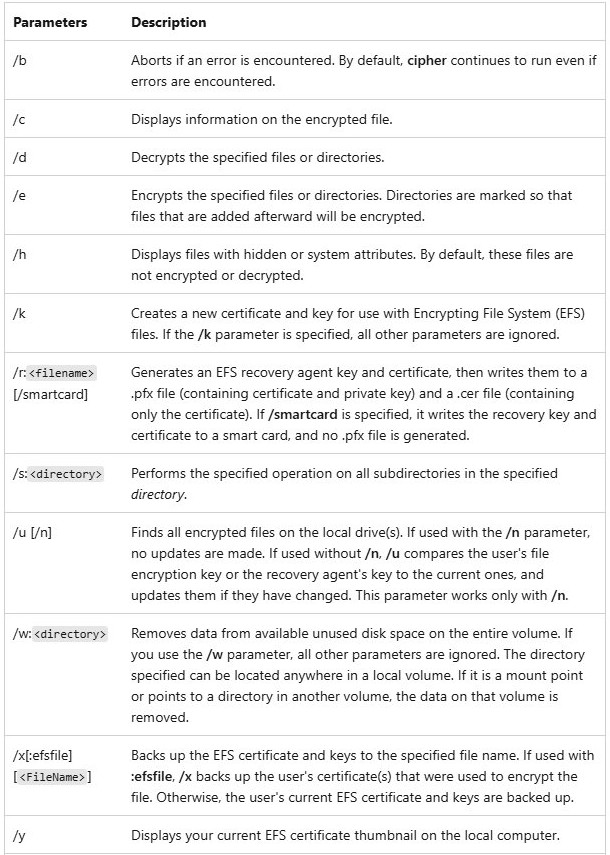
| Switch | What it does |
|---|---|
cipher |
Shows the encryption state of the current folder and its files |
/e |
Encrypts the specified files or folders |
/d |
Decrypts the specified files or folders |
/s:<directory> |
Runs the operation on all subfolders of that directory |
/c |
Displays information about an encrypted file |
/h |
Includes files with hidden or system attributes, which are skipped by default |
/x |
Backs up the EFS certificate and keys to a file |
/y |
Displays the thumbnail of your current EFS certificate |
/k |
Creates a new EFS certificate and key |
/rekey |
Updates encrypted files to use the currently configured EFS key |
/u /n |
Finds all encrypted files on the local drives without changing them |
How to encrypt files in Windows 11 Home
File encryption through Properties is not available in Home, but device encryption is. It covers the operating system drive and fixed drives, not files you select.
- Sign in with an administrator account.
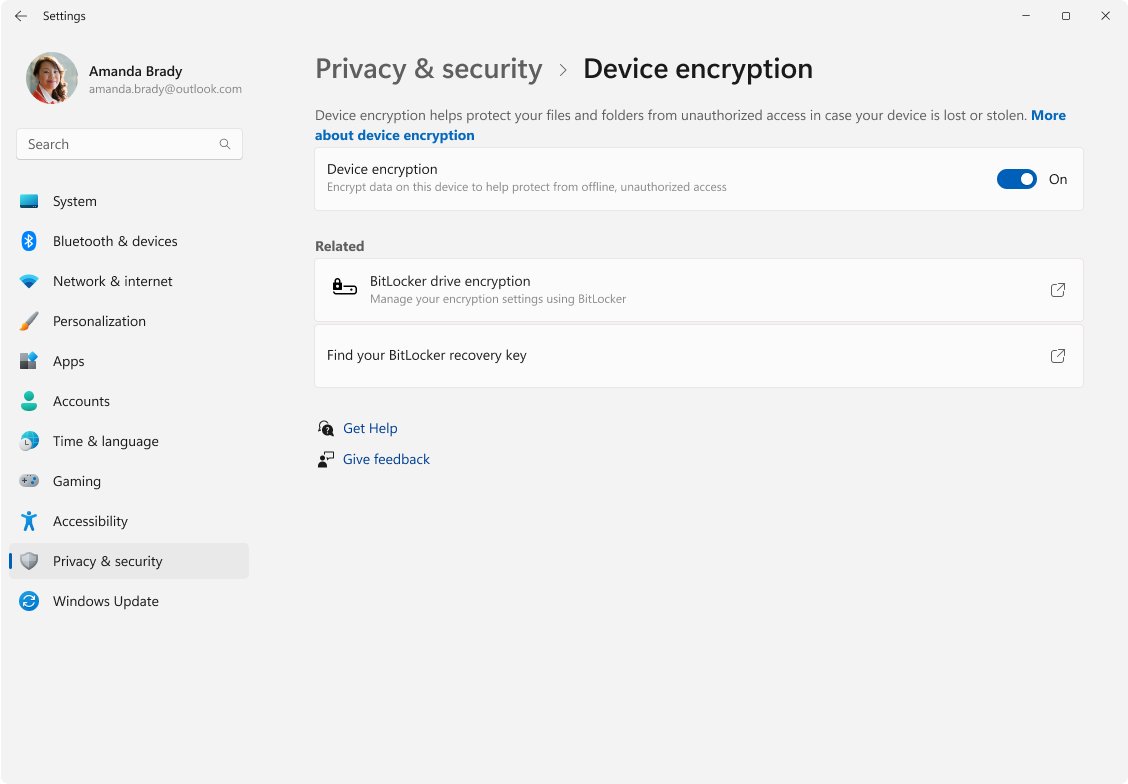
- Open Settings and select Privacy & security.
- Select Device encryption. You can also open it with the
ms-settings:deviceencryptionshortcut. - Switch Device encryption to On.
When you sign in with a Microsoft account, device encryption in Windows 11 can turn on automatically, and the recovery key is attached to that account. It does not turn on automatically with a local account.
To get the Properties option on Home, upgrade to Pro. Open Start > Settings > System > Activation, expand Upgrade your edition of Windows, and select Open Store next to Upgrade in the Microsoft app.
How to encrypt files on Windows 11 Pro with BitLocker
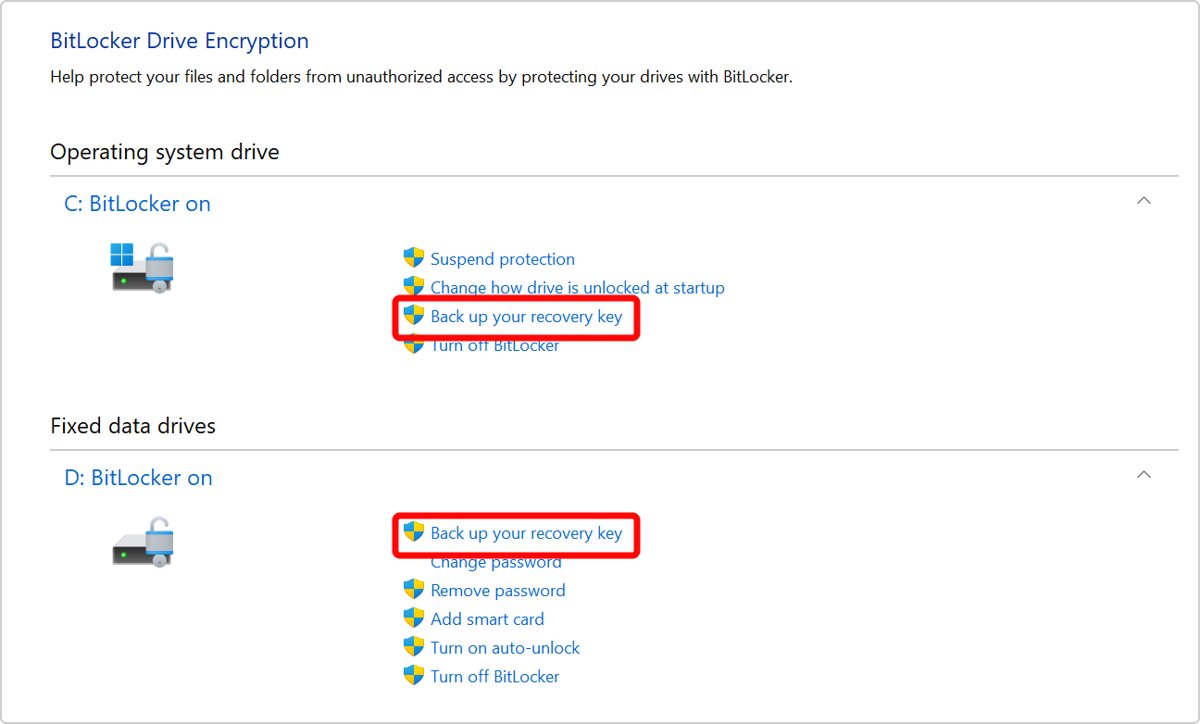
BitLocker is available on Pro, Enterprise and Education. It encrypts a whole drive, so every file on that drive is covered.
- Sign in with an administrator account.
- Open Start, type
BitLocker, and select Manage BitLocker. - Find the drive you want to encrypt and select Turn on BitLocker.
- Choose an unlock option.
- Back up the recovery key when Windows asks.
- Let encryption finish. You can keep using the PC while it runs.
Save the recovery key to your Microsoft account, a USB flash drive, a file or a printout, and keep more than one copy. You can enable and manage BitLocker further from the same app, and find your BitLocker recovery key later if a drive asks for it.
How to encrypt files on an external drive in Windows 11
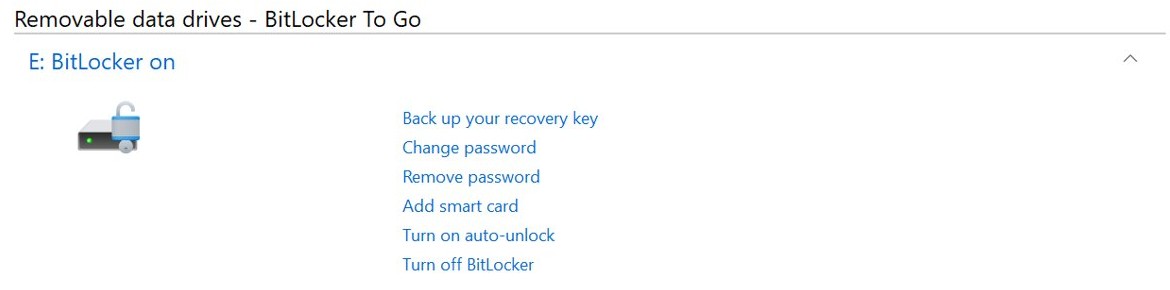
EFS only works on NTFS, so BitLocker To Go is the better fit for USB flash drives, SD cards and external hard drives. Standard users can turn it on for removable drives.
- Connect the external drive.
- Open Start, type
BitLocker, and select Manage BitLocker. - Under Removable data drives – BitLocker To Go, select Turn on BitLocker next to the drive.
- Choose to unlock the drive with a password or smart card.
- Save the recovery key to a folder or your Microsoft account, or print it. A removable drive cannot store its own key by default.
- Let encryption finish before you remove the drive.
The drive locks automatically when you remove it. On another PC, open it with the same password or smart card.
How to encrypt zip files in Windows 11
File Explorer can make and open ZIP files, but Windows does not support operations on encrypted archives. Microsoft suggests non-Microsoft apps such as 7-Zip or WinRAR, and 7-Zip supports AES-256 encryption in both 7z and ZIP formats.
- Install 7-Zip from 7-zip.org.
- In File Explorer, right-click the files or folder and select Show more options.
- Point to 7-Zip and select Add to archive.
- Set the archive format to zip.
- Type the password in both password boxes.
- Set the encryption method to AES-256.
- Select OK.
Test the archive before you delete the originals. You can also password protect a ZIP file from the 7-Zip command line, or on Mac and Linux.
Adding EFS-encrypted files to a regular zipped folder does not keep them safe. Microsoft says they are unencrypted when they are unzipped.
How to encrypt PDF files in Windows 11
Word can export a document as a PDF that asks for a password when it opens.
- Open the document in Word.
- Select File > Save a Copy.
- Select Browse and choose where to save the file.
- Set the file type to PDF.
- Select More Options, then Options.
- Select Encrypt the document with a password, then select OK.
- In Encrypt PDF Document, type the password, retype it, and select OK.
- Select Save.
These steps start from a Word document. For a PDF you already have, use one of the PDF tools that add passwords.
How to encrypt Word and Excel files in Windows 11
An Office password works on any edition of Windows and stays with the file when you email it.
- Open the document in Word.
- Select File > Info > Protect Document > Encrypt with Password.
- Type a password and select OK.
- Retype the password and select OK.
- Save the file so the password takes effect.
In Excel, the path is File > Info > Protect Workbook > Encrypt with Password.
Keep the password somewhere safe. Microsoft cannot retrieve a forgotten Word or Excel password.
How to decrypt files on Windows 11
- Right-click the encrypted file or folder and select Properties.
- On the General tab, select Advanced….
- Clear the Encrypt contents to secure data check box, then select OK.
- Select Apply, then select OK.
From Command Prompt, run cipher /d filename for one item. Run cipher /d /s:<path> with the full path of the topmost folder to remove encryption from a folder tree.
A decrypted file is left in plain text, so anyone with access to the drive and the right permissions can read it.
Tips for encrypting files on Windows 11
| Tip | Why it matters |
|---|---|
| Encrypt the parent folder, not just the file | A modified file in an unencrypted folder could become decrypted |
Run cipher /x soon after your first encryption |
The backup holds the certificate and keys that EFS files depend on |
| Close the file first | Encryption needs exclusive access and fails when another process is using the file |
| Leave system files alone | Windows cannot encrypt system files, system directories or root directories |
| Add BitLocker on a laptop | The EFS root secrets live on the operating system drive, so BitLocker also protects EFS data on other drives |
| Keep BitLocker recovery keys away from the PC | A thief who holds the key and the PC together can bypass encryption |
| Do not store the startup key and recovery key on one USB drive | Losing that drive loses both keys |
Why can't I encrypt files on Windows 11?
Encrypt contents to secure data is missing or unavailable
File encryption is not available in the Home edition of Windows.
- Open Start > Settings > System > Activation and check your edition.
- If it says Home, use device encryption or a 7-Zip or Office password instead.
- To get this option, upgrade to Windows 11 Pro from the same page.
A system file or a whole drive root will not encrypt
Windows cannot encrypt system files, system directories or root directories.
- Copy your data into a regular folder, such as Documents.
- Encrypt that folder with Properties > Advanced….
- To protect a whole drive, use BitLocker or device encryption.
Can't encrypt a read-only or open file
Encryption needs exclusive access to the file, and it fails on read-only files.
- Close every app that is using the file.
- Right-click the file, select Properties, and clear Read-only.
- Select Apply and try to encrypt the file again.
Can't encrypt files on a USB or exFAT drive
EFS works on NTFS volumes, so other file systems do not offer it.
- Right-click the drive in File Explorer, select Properties, and read File system.
- If the drive is not NTFS, use BitLocker To Go on it.
- Alternatively, keep the files in an encrypted 7-Zip archive on the drive.
Device encryption is missing from Settings
The feature is unavailable on the device, or you signed in with a standard user account.
- Sign in with an administrator account and look in Settings > Privacy & security again.
- If it is still missing, run System Information as administrator.
- In System Summary, find Automatic Device Encryption Support or Device Encryption Support.
- If the value is TPM is not usable, check that the TPM is present and enabled in BIOS or UEFI.
- If the value is WinRE is not configured, set up the Windows Recovery Environment.
- If the value is PCR7 binding is not supported, turn on Secure Boot and disconnect docks or external graphics cards during boot.
Windows 11 file encryption FAQ
What is file encryption?
File encryption converts a file's data into a code, so only someone with the correct decryption key can read it. On Windows 11 Pro, the Encrypting File System does this for individual files and folders stored on NTFS drives.
Is encryption available on all versions of Windows 11?
No single type covers every edition. File encryption through Properties and BitLocker are not available on Home, while device encryption runs on Home when the hardware supports it. Pro, Enterprise and Education include BitLocker, and passwords in Office or 7-Zip work on any edition.
Can I encrypt files on an external drive using Windows 11?
Yes. Use BitLocker To Go, which encrypts USB flash drives, SD cards and external hard drives formatted with NTFS, FAT16, FAT32 or exFAT. You unlock the drive with a password or smart card, including on another PC.
What happens if I forget my encryption password?
It depends on the tool. EFS uses certificates and keys tied to your account, so keep a cipher /x backup. BitLocker needs the recovery key or recovery password, and without either the drive stays locked. Microsoft cannot retrieve a forgotten Word or Excel password.
Does encryption affect file performance?
Usually only slightly. Microsoft describes the BitLocker overhead as small, often in single-digit percentages of storage throughput. BitLocker decrypts sectors only as they are read, and the first encryption pass runs in the background while you keep working.
How do I encrypt files in Windows 11 Home?
Turn on device encryption in Settings > Privacy & security > Device encryption if your PC supports it. This covers the whole drive. For selected files on Home, use a password-protected 7-Zip archive or the Encrypt with Password option in Word or Excel.
How do I decrypt files in Windows 11?
Right-click the file, select Properties > Advanced, clear Encrypt contents to secure data, and select OK and Apply. From Command Prompt, run cipher /d followed by the file or folder name. Either route leaves the file in plain text.
How do I encrypt zip files in Windows 11?
Use a non-Microsoft app such as 7-Zip, because Windows does not support operations on encrypted archives. In 7-Zip, choose Add to archive, set the format to zip, enter a password, and pick AES-256 as the encryption method.