Open Device Manager, right-click a device, select Properties and open the Driver tab to view an installed driver's provider, date, version and signer on Windows 11.
To list every installed driver with details at once, run pnputil /enum-drivers or a PowerShell command; the sections below cover both, plus printer, battery and TWAIN drivers.
How to view installed drivers on Windows 11/10
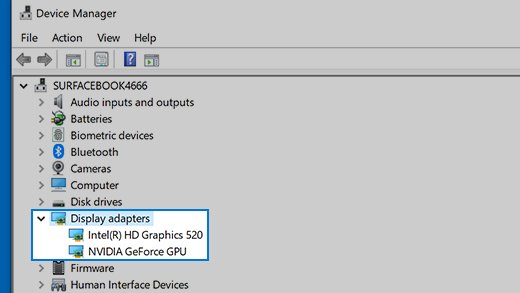
Device Manager shows each device's type, status, manufacturer and driver information. The same steps work on Windows 11 and Windows 10.
- Right-click the Start menu and select Device Manager.
- Select the arrow next to a category, such as Display adapters, to expand it.
- Right-click a device and select Properties.
- Select the Driver tab to read the driver's provider, date, version and digital signer.
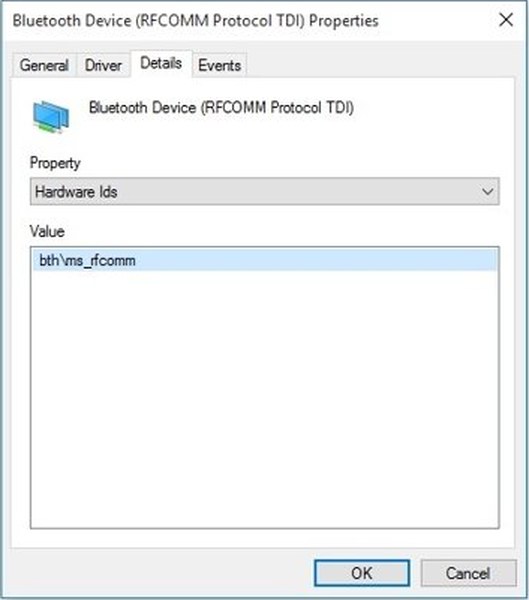
- Select the Details tab for device identification strings and driver configuration values.
Device Manager opens one device at a time. The rest of this page covers the views and commands that show all installed drivers together.
View all installed drivers in Windows 11: Device Manager, pnputil, driverquery or PowerShell
| What you want to see | Use this | What you get |
|---|---|---|
| One device's driver | Device Manager > Properties > Driver | Provider, date, version and signer for that device |
| All third-party driver packages | pnputil /enum-drivers |
Packages in the driver store, whether or not a device uses them |
| Each device and its driver | pnputil /enum-devices /drivers |
Matching and installed drivers per device |
| Windows default drivers as well | Get-WindowsDriver -Online -All |
Default and third-party driver packages |
| A spreadsheet of drivers | Get-CimInstance Win32_PnPSignedDriver |
Device name, version, date, provider, signed state and INF file |
| System drivers with state and type | msinfo32 > Software Environment > System Drivers |
A sortable list with no driver package details |
| Printer drivers | Get-PrinterDriver -Name * |
Printer drivers installed on the PC |
Microsoft recommends PnPUtil and Get-WindowsDriver for a full inventory. Its driver documentation says Device Manager and System Information have limits, and that driverquery can produce misleading output.
View installed drivers by device or by driver in Device Manager
The default Device Manager list groups hardware by category. Two other views put the driver information first, which helps when one driver package serves several devices.
- Right-click the Start menu and select Device Manager.
- Select View > Drivers by device to see driver information organized by device.
- Select View > Devices by driver to see which devices each driver serves.
- Select View > Show hidden devices to add devices that the list leaves out by default.
- Open View again and choose a different view when you want to switch back.
Hidden entries include some device classes and hardware that was physically removed but still has registry entries.
View installed drivers with pnputil /enum-drivers
PnPUtil is built into Windows, and Microsoft calls it the recommended tool for managing driver packages. Most of its commands need administrator rights, so run Command Prompt as an administrator first.
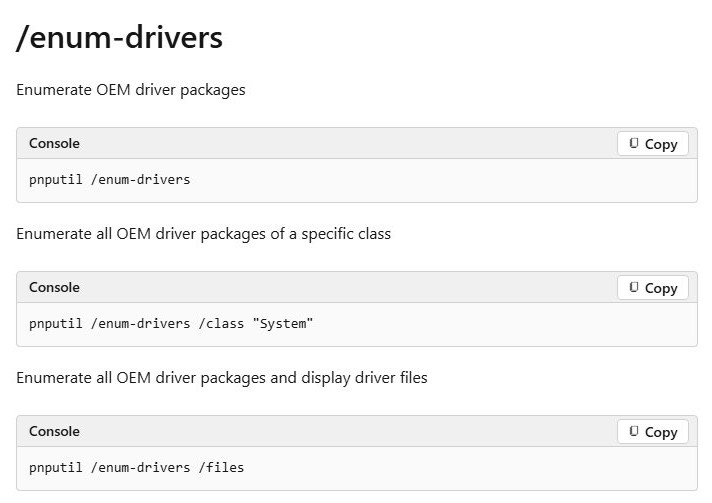
pnputil /enum-driversThis lists all third-party driver packages in the driver store. It leaves out the default drivers that ship with Windows, and it includes packages no device is using.
You should see: One entry per third-party package, each identified by an oem#.inf name, such as oem42.inf.
Add /files to list each package's driver files, which needs Windows 11, version 22H2 or later. Add /class "System" to filter by device class, which needs Windows 11, version 21H2 or later.
To save a report you can open in a spreadsheet, run pnputil /enum-drivers /files /format CSV /output-file MyDriverFileInventory.CSV.
See which driver each device uses with pnputil /enum-devices
/enum-drivers starts from the driver package. This command starts from the hardware, so it answers which driver a given device is running.
pnputil /enum-devices /connected /drivers/connected limits the output to connected devices, and /drivers displays matching and installed drivers. The /drivers flag is available from Windows 10, version 2004.
You should see: Each connected device with its status and driver list. An enabled device shows Started, and a disabled device shows Disabled.
Run pnputil /enum-devices /class "Display" /drivers to narrow the list to one device class.
List installed drivers in Command Prompt with driverquery
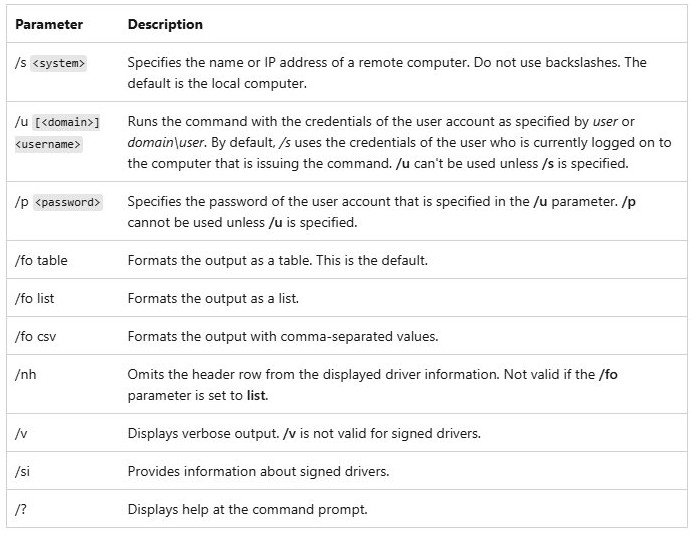
driverquery gives a fast list of installed device drivers and their properties. Microsoft warns that it can produce misleading output, so treat it as a quick look and use PnPUtil for an audit.
driverquery /v /fo list/v adds verbose output and /fo list prints each driver as a block. Use /fo table or /fo csv for other layouts.
You should see: A block of properties for each installed driver on the local computer.
Run driverquery /si instead for signed driver information. You cannot combine /si with /v.
To save the list, run driverquery /fo csv > drivers.csv and open the file in a spreadsheet.
View installed drivers in PowerShell with Get-WindowsDriver
This DISM cmdlet reads driver packages from the running copy of Windows. Open PowerShell as administrator before you run it.
Get-WindowsDriver -Online -All-Online targets the Windows installation you are running, and -All adds the default drivers. Without -All, the cmdlet lists third-party drivers only.
You should see: Basic information for every driver package in the running image.
For detailed information about one package, run Get-WindowsDriver -Online -Driver "oem1.inf" with the oem#.inf name you found in the list.
Export installed drivers to a CSV file with PowerShell
The Win32_PnPSignedDriver class holds digital signature and version details for device drivers. This command writes the most useful columns to a file in your user folder.
Get-CimInstance Win32_PnPSignedDriver | Select-Object DeviceName, DriverVersion, DriverDate, DriverProviderName, IsSigned, Signer, InfName | Export-Csv -Path "$HOME\drivers.csv" -NoTypeInformationDriverDate is the manufacturer's build date, IsSigned is true for a signed driver, and InfName is the .inf file that installed the device.
You should see: A drivers.csv file in your user folder, with one row per device driver.
To narrow the result to one device class, run Get-CimInstance Win32_PnPSignedDriver | Where-Object DeviceClass -eq "DISPLAY".
View system drivers in System Information (msinfo32)
System Information lists drivers with sortable columns, which makes grouping by state or type easy. It does not list or parse driver packages, so use PnPUtil for that.
- Right-click Start and select Run.
- Enter
msinfo32and select OK. - Expand Software Environment and select System Drivers.
- Select a column heading to sort the list by state or type.
- To save a text report, run
msinfo32 /report %USERPROFILE%\sysinfo.txtfrom Command Prompt.
View installed printer drivers in Windows 11
Device Manager can hide printers by default because their device class is marked not to display. PowerShell gives the complete printer driver list and does not need administrator rights.
- Open PowerShell from the Start menu.
- Run
Get-PrinterDriver -Name *to list the printer drivers installed on the PC. - Run
Get-PrinterDriver -Name "Microsoft XPS Document Writer v4" | Format-Listwith your driver's name to see its full details. - To see the driver a printer is using, open Device Manager and expand Printers or Print queues.
- Right-click the printer, select Properties and open the Driver tab.
If the listed driver is old, you can install or update the printer driver from Settings or the printer maker's site.
How do I find recently installed drivers in Windows 11?
Drivers delivered by Windows Update appear alongside other updates when you view installed updates in Settings. That list shows when each one was installed.
- Select Start > Settings > Windows Update.
- Select Update history.
- Expand the driver updates group and read the name and install date of each driver.
- For one device, open its Properties in Device Manager and select the Events tab.
Do not sort by driver date to find new installs. Microsoft says the date is descriptive information the provider sets, and it can be any date the provider chooses.
What driver version, date, provider and signer mean in Device Manager
| Driver detail | What it tells you | PowerShell property |
|---|---|---|
| Provider | The company that supplied the driver, such as Microsoft | DriverProviderName |
| Date | A date the provider chooses, so an old date does not prove an old driver | DriverDate |
| Version | The number to compare against the manufacturer's download page | DriverVersion |
| Signer | Who signed the driver, if it is signed | Signer, IsSigned |
| INF name | The .inf file that installed the device; third-party packages use oem#.inf |
InfName |
| Device status | Whether the device has a problem, with an error code if it does | Status |
Windows Update now shows the publisher's name and driver version number. Older driver updates show a combined name of publisher, device class and version.
How to know what drivers to install on Windows 11
Windows Update is Microsoft's preferred source, and it installs most drivers automatically. A manufacturer's site fills the gap when Windows Update has nothing for the device.
- Select Start > Settings > Windows Update > Advanced options.
- Turn on Receive updates for other Microsoft products.
- Under Additional options, select Optional updates, choose the driver updates and select Download and install.
- Run
pnputil /enum-devices /problem /deviceidsas administrator to list devices with problems and their hardware IDs. - Search the device manufacturer's support site for the driver that matches your model and Windows version.
Once you have the right package, you can manually install the device driver from Device Manager. Avoid driver download sites other than the manufacturer's own.
How to check if driver is installed
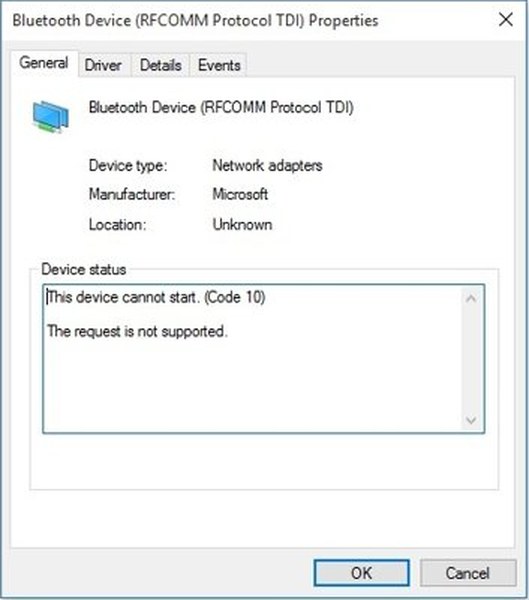
A device with a driver problem carries a yellow exclamation point in Device Manager, and its Properties dialog gives the error message.
- Open Device Manager and expand the device's category.
- Look for a yellow exclamation point next to the device name.
- Right-click the device and select Properties.
- Read the Device status area for an error code.
- Run
pnputil /enum-devices /problemto list every device with a problem at once.
No listed problem and a version on the Driver tab mean the driver is installed. You can compare that version with the manufacturer's current release.
Back up installed drivers with pnputil /export-driver
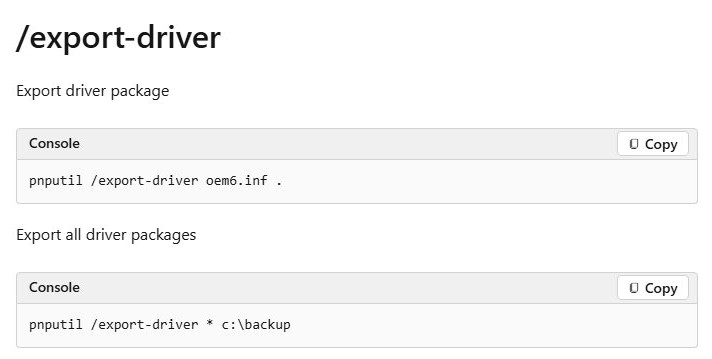
A driver list tells you what is installed, and an export keeps the packages themselves. Create the target folder first, then run the command as administrator.
pnputil /export-driver * C:\backup* exports all third-party driver packages from the driver store to the folder you name. Use one name, such as oem6.inf, in place of * to export a single package.
You should see: A copy of each exported package inside C:\backup.
How to download and install Battery driver in Windows 11/10
The battery driver appears under Batteries in Device Manager. Microsoft documents removing it and scanning for hardware for Surface devices; on other laptops, get any battery driver from the PC maker's support page.
- Plug the PC in so it stays on while the battery driver is removed.
- Open Device Manager and expand Batteries.
- Right-click the battery entry, such as Microsoft ACPI-Compliant Control Method Battery, and select Uninstall device.
- Select the computer name at the top of the list, open Action and select Scan for hardware changes.
- Open Start, select Power and select Restart.
- Open the battery entry's Driver tab to read the installed version.
Do not use these steps on a Surface Pro X. Microsoft warns that the only way to restore uninstalled drivers on that device is a full system reset.
How to install TWAIN driver on Windows 11
Microsoft no longer ships TWAIN data sources with Windows, so the TWAIN driver comes from the scanner's maker. It usually arrives as part of the maker's scanner software.
- Find the scanner's model number on its label.
- Open the maker's support or drivers page and search for that model.
- Select Windows 11 and download the scanner software package.
- Run the installer and connect the scanner when it asks.
- Restart the PC if prompted.
- Check Settings > Apps > Installed apps for the maker's scanning software.
You can also fix TWAIN driver errors such as a missing TWAIN-compliant device after the install.
View all installed drivers Windows 11: drivers missing from the list
A printer driver is not in Device Manager
Printers belong to a device class that Device Manager can hide by default.
- Select View > Show hidden devices in Device Manager.
- Run
Get-PrinterDriver -Name *in PowerShell to read the full printer driver list.
A device you removed is not listed
Hardware that was physically removed becomes a non-present device, which is hidden.
- Open Device Manager and select View > Show hidden devices.
- Expand the device's category and look for the removed entry.
pnputil lists only a few drivers
/enum-drivers covers third-party packages, not the drivers built into Windows.
- Run
Get-WindowsDriver -Online -Allin an administrator PowerShell window. - Run
pnputil /enum-devices /driversto see the driver attached to each device.
A pnputil command fails
Most PnPUtil commands need administrator rights, and some flags need a newer Windows build.
- Reopen Command Prompt with Run as administrator.
- Remove any flag your build does not support, such as
/files, which starts at Windows 11, version 22H2. - Run the command again.
A device shows a yellow exclamation point
Device Manager has found a driver or device problem and reports it as an error code.
- Read the code in the device's Device status area.
- For Code 1 or Code 10, select Update driver on the Driver tab.
- For Code 28, uninstall the device, then select Scan for hardware changes.
- For Code 52, download the latest driver from the manufacturer, because Windows cannot verify its signature.
When a driver is listed but out of date, you can update or roll back the driver from Device Manager or Windows Update.
Installed drivers on Windows 11 FAQ
How do I see what drivers I have installed in Windows 11?
Run pnputil /enum-drivers for third-party packages or Get-WindowsDriver -Online -All in PowerShell to include default drivers. For one device, open its Properties in Device Manager and select the Driver tab to read the provider, date and version.
How do I see all device drivers?
Run pnputil /enum-devices /drivers from an administrator Command Prompt. It lists each device with its matching and installed drivers. In Device Manager, select View and then Drivers by device for the same information in a window.
How to get list of devices using CMD?
Open Command Prompt and run pnputil /enum-devices. Add /connected to limit the list to connected devices, or /class "Display" to limit it to one device class. An enabled device shows Started and a disabled device shows Disabled.
How to view installed drivers on Windows 10?
Right-click Start, select Device Manager, right-click a device, select Properties and open the Driver tab. pnputil /enum-drivers also works on Windows 10, version 1607 and later, and /drivers for pnputil /enum-devices starts at Windows 10, version 2004.
How to check drivers installed on PC?
Expand each category in Device Manager and look for a yellow exclamation point, which marks a device problem. Then run pnputil /enum-devices /problem to confirm the list of problem devices, and read the error code under Device status.
How to view currently installed drivers?
Run Get-CimInstance Win32_PnPSignedDriver in PowerShell to show the driver in use for each device, including its version, date, provider and signer. Device Manager shows the same details one device at a time on the Driver tab.
How to see Windows drivers?
Run Get-WindowsDriver -Online -All in an administrator PowerShell window. The -All parameter adds the default drivers that come with Windows. Without it, the cmdlet returns third-party drivers only, and pnputil /enum-drivers has the same third-party focus.
How to find drivers installed on PC?
Run pnputil /enum-drivers /files to list each third-party driver package with its files on Windows 11, version 22H2 or later. Save the result as a CSV by adding /format CSV /output-file MyDriverFileInventory.CSV, then search the file in a spreadsheet.