To fix syncing with iCloud paused, plug your iPhone into power, connect to Wi-Fi, turn off Low Power Mode and Low Data Mode, free up iCloud storage if it is full, and let the iPhone sync overnight.
This guide covers the notice at the bottom of the Messages app, every pause message in Photos, how to pause iCloud sync on purpose on iPhone, Mac and Windows, and what to do when the notice stays.
How to fix syncing with iCloud paused on iPhone
These steps clear the most common causes in one pass, whether the notice sits at the bottom of Messages or in Photos.
- Connect your iPhone to a charger and join a Wi-Fi network.
- Open Settings, tap Battery, and turn off Low Power Mode. On iPhone 15 and later, tap Battery, then Power Mode, then turn it off.
- Go to Settings > Wi-Fi, tap the Info button next to your network, and turn off Low Data Mode.
- Go to Settings > your name > iCloud and check whether your storage is full.
- Leave the iPhone on power and Wi-Fi, uninterrupted, overnight.
- Open Messages or Photos in the morning and look for the notice again.
Do not turn off iCloud or iCloud Photos while you do this. Apple warns that switching them off restarts the whole sync, so a paused sync turns into a much longer one.
What does syncing with iCloud paused mean?
The notice means your device has temporarily stopped exchanging data with iCloud. Apple says syncing pauses for a variety of reasons, and most of them are protective rather than faults.
| Where you see it | What has stopped | What it does not mean |
|---|---|---|
| Bottom of the Messages app | Texts and attachments stop updating across your devices through Messages in iCloud | It does not mean your existing messages have been deleted |
| Photos, under your library status | New photos and videos stop uploading, and edits stop reaching your other devices | It does not mean your library is damaged |
| Settings, as iCloud Data Not Syncing | iCloud data is waiting on an action from you, often signing in again | It is a separate message from a temporary pause, and Apple's fix is the badge in Settings |
Why is my iCloud sync paused?
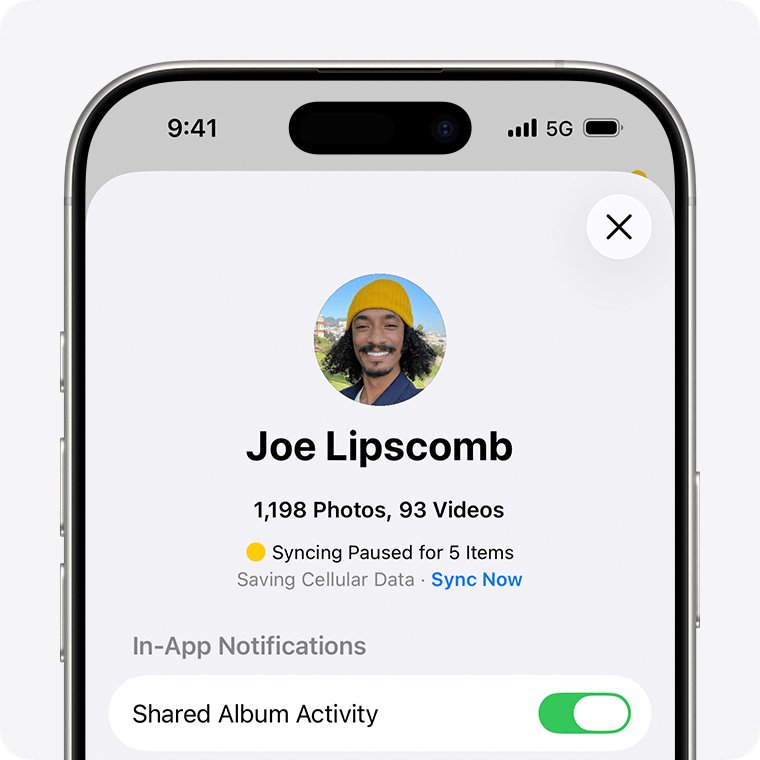
The Photos app names the exact reason in a status message, so check your iCloud Photos sync status first. Open Photos, go to Collections, and tap the profile button to read it below your name and photo count. In iOS 17 or earlier, go to Library, tap All Photos, and scroll to the bottom.
| Status message | Why syncing paused | How to resume |
|---|---|---|
| Low Data Mode or Low Power Mode | To reduce network data use or save battery | Turn the mode off in Settings |
| Optimizing Battery Power, Optimizing System Performance, or Poor Network Connection | To improve power, performance and network connection | Tap Sync Now, or wait a few minutes for it to resume by itself |
| Low Battery | The battery charge is below 20 percent | Charge the device |
| [Device] Needs to Cool Down | To protect the device from overheating | Tap Sync Now if you see it, or let the device cool for a few minutes |
| iCloud storage is full | You went over your iCloud storage limit | Reduce what you store, or upgrade your plan |
| Move Photos to Personal Library to Continue Syncing | A Shared Library owner hit their storage limit | Move the items you added back to your Personal Library |
iPhone syncing with iCloud paused at the bottom of Messages
Apple's status messages live in Photos, and Messages shows only the short notice. Reading the Photos status first is the quickest way to learn the reason. Low Power Mode and Low Data Mode limit background activity across the iPhone, and full storage stops iCloud apps staying up to date.
- Read the status in Photos and clear whatever it names.
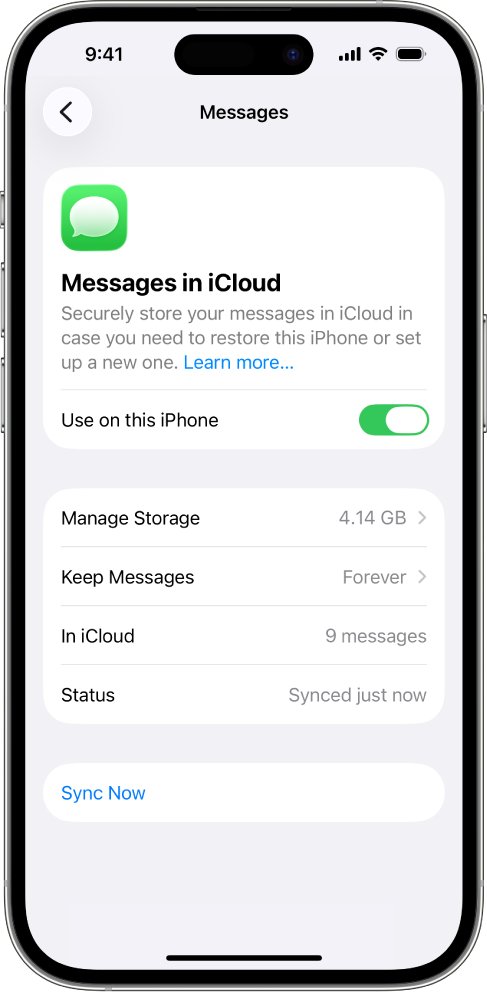
- Go to Settings > your name > iCloud, tap See All, then tap Messages in iCloud.
- Check that Use on this iPhone is on. On iOS 16 to 17.1, tap Show All, tap Messages, and check Sync this iPhone.
- Go to Settings > Messages > Send & Receive and confirm it shows the same Apple Account as your other devices.
- Keep the iPhone on power and Wi-Fi until the notice disappears.
Messages in iCloud can take time to catch up, especially just after you turn it on. Apple notes that you can send and receive messages during that initial sync.
Why does my iCloud sync keep pausing?
A sync that pauses again and again usually has a repeating trigger: a battery that keeps dropping low, a phone that runs hot, or a weak connection. Remove the trigger and the sync can finish in one run.
- Keep the battery above 20 percent, because syncing stops below that level.
- Charge before you reach 20 percent if your iPhone supports Adaptive Power and it is on, because Low Power Mode then turns on by itself below that level.
- Look at the battery icon in the status bar. Yellow means Low Power Mode is active, and it turns off once you charge to 80 percent or higher.
- Move away from poor signal and use a stronger Wi-Fi network, since Poor Network Connection is one of the pause reasons.
- Take the iPhone out of direct heat and let it cool if it feels hot while charging.
- Check Low Data Mode on both Wi-Fi and cellular, since each has its own switch.
iCloud keeps your Low Data Mode choice for each Wi-Fi network up to date across your devices, so turning it on elsewhere can affect the iPhone on the same network.
How to free up iCloud storage when syncing is paused
When iCloud is full, your device stops backing up, new photos stop uploading, and iCloud apps stop staying current across devices. You get 5 GB free, which fills quickly when Messages and Photos both use iCloud.
- Go to Settings > your name > iCloud and check how much storage is left.
- Tap Recommended for You (iOS 17 or later) and follow an option to remove large files or old backups.
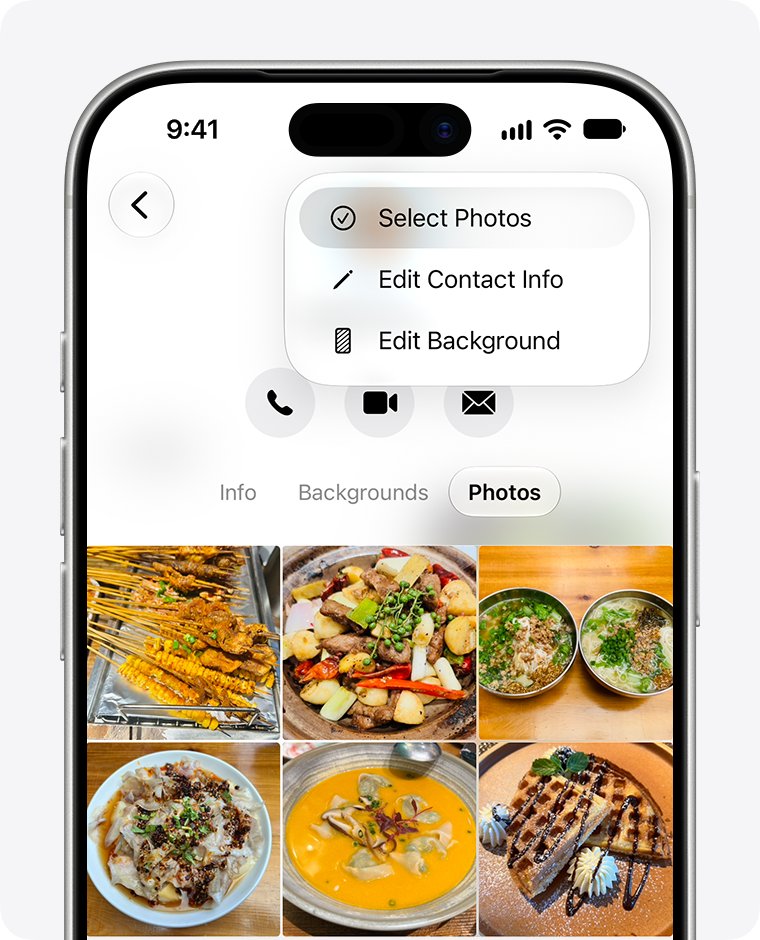
- In Messages, open a conversation and tap the contact's name at the top.
- On iOS 26 or later, tap Photos. On iOS 18 or earlier, tap See All in the Photos section.
- Tap Edit, select the attachments you no longer need, tap Delete, then confirm.
- If you still need more room, upgrade your plan to iCloud+.
If space does not come back after you delete mail, fix iCloud storage that stays full before you pay for a bigger plan.
How to fix sync with iCloud paused using Sync Now
Sync Now is the one-tap route when the pause comes from battery optimization, system performance, a poor connection or heat. It appears only with some status messages.
- Open Photos and tap Collections.
- Tap the profile button in the upper corner.
- Read the status below your name and photo count.
- Tap Sync Now if it appears.
- On iOS 27 or later, you can also go to Settings > your name > iCloud > Photos, tap Sync Immediately, and choose For Today.
If only photos are stuck after this, you can fix iCloud Photos not syncing by checking shared libraries, file types and the Unable to Upload album.
How to pause iCloud sync on iPhone
You can pause iCloud Photos uploads on purpose, for example to save data on a slow connection. The pause lasts one day, and Apple says it is not always available, depending on your library's status.
- Open Photos.
- On iOS 26 or later, tap Collections, tap the profile button, then tap Pause.
- On iOS 18, tap the profile button, then tap Pause.
- On iOS 17 or earlier, tap Library, select All Photos, scroll down, then tap Pause.
How to pause iCloud sync on Mac
The Mac has the same one-day pause for Photos. iCloud Drive has no matching pause in Apple's guide, only its Sync this Mac switch.
- Open Photos on your Mac and select Library in the sidebar.
- Click All Photos, scroll to the bottom, then click Pause.
- To read iCloud Drive's state, hold the pointer over iCloud Drive in the Finder sidebar and click the status or information icon.
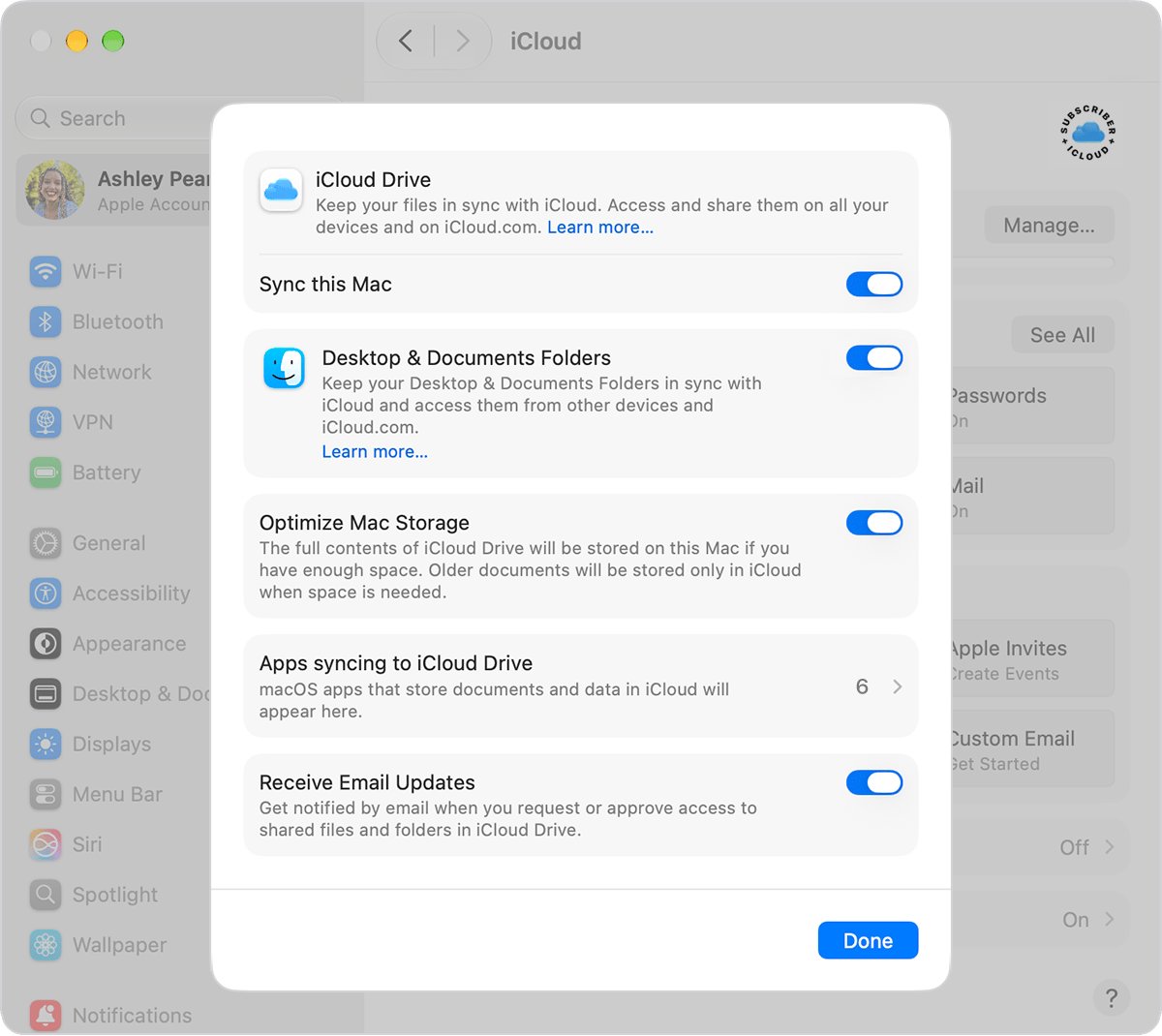
- To change iCloud Drive itself, open System Settings, click your name, click iCloud, then click Drive, where the Sync this Mac switch lives.
How to pause iCloud sync on Windows
Apple's iCloud for Windows guide does not list a pause button. The documented control is the iCloud Drive switch itself, so treat this as turning sync off, not as a timed pause.
- Click the iCloud icon in the Windows notification area to see current upload and download progress. Use Show hidden icons if it is not visible.
- Open iCloud for Windows.
- Click the arrow button to the right of iCloud Drive.
- Turn off iCloud Drive, read any prompt that appears, then click Done.
- Repeat the steps and turn it back on when you want syncing to continue.
If files on your PC never move past a waiting state, you can clear iCloud Drive sync pending. If the app itself hangs, get iCloud for Windows past sign-in and try again.
Syncing with iCloud paused: how to fix it when the notice stays
iPhone setup shows syncing with iCloud paused
A new or restored iPhone has a large amount to download, and large libraries can take a long time.
- Connect to power and Wi-Fi.
- Leave the iPhone uninterrupted overnight.
- Check the status in Photos the next morning.
Settings shows iCloud Data Not Syncing
Your account needs attention before iCloud can continue.
- Open Settings and look for a badge.
- Tap the badge and follow the onscreen instructions.
- Authenticate your account if you are asked to.
- Contact Apple Support if the message remains after you authenticate.
Mail, Contacts and Messages are all out of date
The problem is your connection or an Apple service outage rather than one app.
- Check your Wi-Fi connection on another device or site.
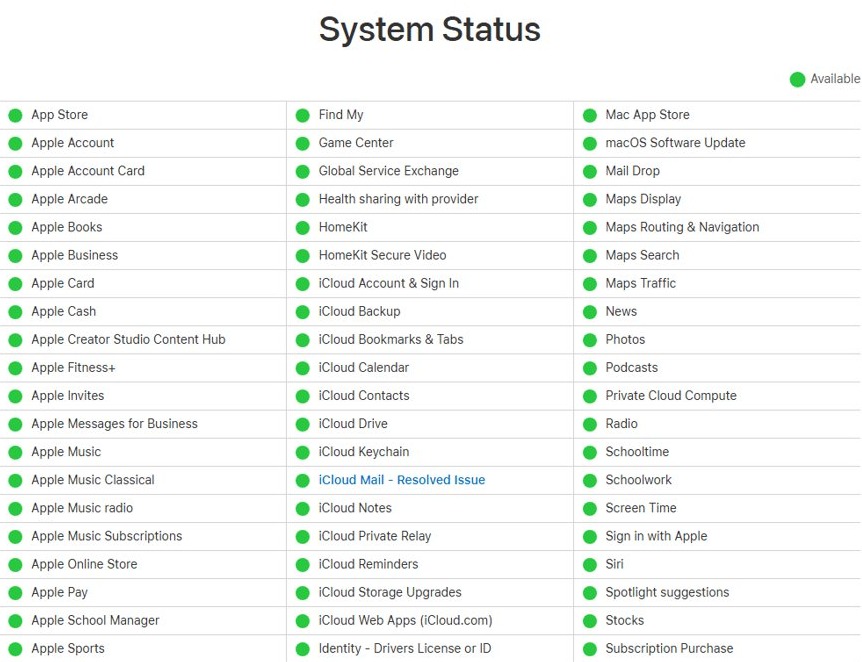
- Open Apple's System Status page at apple.com/support/systemstatus and look for outages.
- Try again once the affected services show as available.
Messages are missing on one device only
That device is signed in to a different Apple Account or has Messages in iCloud turned off.
- Check that every device uses the same Apple Account.
- Check that Messages in iCloud is on for that device.
- On a Mac, open Messages > Settings, click iMessage, and select Enable Messages in iCloud.
The notice stays after a full night on power and Wi-Fi
Apple's next check is outdated software, once power, Wi-Fi and storage are ruled out.
- Go to Settings > General > Software Update.
- Install any update that is available.
- Leave the iPhone on power and Wi-Fi again.
- Contact Apple Support if the notice returns on the latest iOS.
How to tell if iCloud sync has resumed
- Open Photos, tap Collections, tap the profile button, and read the status below your name.
- Take a test photo and look for it on another device signed in to the same Apple Account.
- Send yourself or a friend a message, then open Messages on your iPad or Mac and look for it there.
- Look at the bottom of the Messages list and check that the paused notice has gone.
Syncing with iCloud paused FAQ
What does syncing with iCloud paused mean?
It means your device has temporarily stopped exchanging data with iCloud. Your existing data stays where it is. Sync continues once the cause clears, such as Low Power Mode, Low Data Mode, low battery, heat, a poor connection or full iCloud storage.
Why did my iCloud sync pause?
Apple lists Low Data Mode, Low Power Mode, a battery below 20 percent, overheating, a poor network connection, full iCloud storage, and a Shared Library owner reaching their limit. The status message in the Photos app tells you which one applies.
Why does my iCloud sync keep pausing?
The same trigger keeps coming back, usually a battery falling below 20 percent, Adaptive Power switching on Low Power Mode, a device that runs hot, or a weak connection. Keep the iPhone charging on strong Wi-Fi overnight so the sync can finish in one run.
How do I fix syncing with iCloud paused?
Plug in your iPhone, join Wi-Fi, and turn off Low Power Mode and Low Data Mode. Free up iCloud storage if it is full, tap Sync Now in Photos if it appears, and let the iPhone sync overnight without turning iCloud off.
How do I pause iCloud sync?
Open Photos on your iPhone, tap Collections, tap the profile button, then tap Pause. This pauses library uploads for one day and works on iOS 26 or later. Older iOS versions keep the same button in slightly different places in the Photos app.
How do I pause iCloud sync on a PC?
iCloud for Windows has no pause button in Apple's guide. Open iCloud for Windows, click the arrow next to iCloud Drive, turn iCloud Drive off and click Done. Turn the same switch back on when you want syncing to continue.
How do I pause iCloud sync on Mac?
Open Photos on your Mac, select Library in the sidebar, click All Photos, scroll to the bottom, and click Pause. The pause lasts one day. For iCloud Drive, Apple's guide documents only the Sync this Mac switch in System Settings.
Why does syncing with iCloud pause on a new iPhone?
A new iPhone has a full library and message history to catch up on, and it may hit battery or network limits along the way. Apple advises leaving the device on power and Wi-Fi overnight, since larger files take longer to sync.