To install an Epson printer, connect it to your computer by USB or Wi-Fi, then add it in Settings > Bluetooth & devices > Printers & scanners or run the Drivers and Utilities Combo Package from your model's Epson support page.
This guide covers USB and wireless connections, the two driver routes, Windows Protected Print Mode on Windows 11 24H2, Mac setup, the test page and fixes when the install fails. Epson's own utilities aside, everyday choices such as paper size and the default printer are made in Windows printer preferences.
The fastest way to install an Epson printer on Windows 11
Epson states that Windows 11 installs its own simple driver automatically when the printer is on the same network or connected by USB. Try that first; it needs no download.
- Unpack the printer, fill the ink and load paper as shown on the Start Here sheet, then turn it on.
- Connect it with a USB cable, or join it to the same Wi-Fi network as the PC.
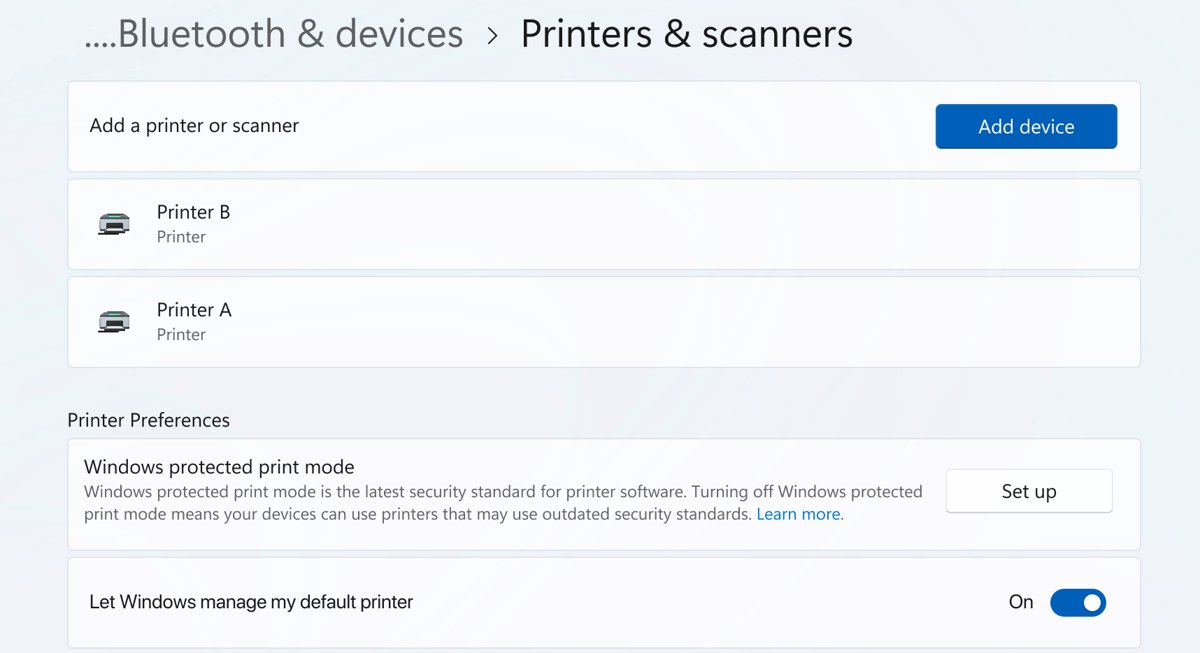
- Select Start > Settings > Bluetooth & devices > Printers & scanners.
- Select Add device next to Add printer or scanner and wait while Windows searches.
- Select Add device next to your Epson model when it appears.
- Open the printer's page, select Printer properties, and select Print Test Page to confirm it works.
If you want Epson's full feature set, such as the scanner utility and maintenance tools, install Epson's software package as well. The steps are in the driver section below.
Epson driver from Windows or from Epson: which to use
| Your situation | Install this way | Why |
|---|---|---|
| You only need to print | Windows Add device with the built-in driver | No download, and it keeps working with Windows Protected Print Mode |
| You need Epson's scan, maintenance or ink tools | Epson's Drivers and Utilities Combo Package | Installs the full driver and Epson's utilities together |
| No CD drive, or the CD is lost | Combo package from the Downloads tab | Epson provides the latest software by download; Mac drivers are download only |
| Windows 11 24H2 or later with Protected Print Mode on | Built-in driver, or turn the mode off before Epson's installer | Epson's installer needs the mode off; Microsoft recommends keeping it on |
| Mac with macOS 12 or later | System Settings > Printers & Scanners | macOS adds most Epson printers without a separate download |
What you need before installing an Epson printer
| Item | Where to find it | Why it matters |
|---|---|---|
| Exact model name, such as ET-2800 | Front or top of the printer, and the box | Epson's support search and downloads are per model |
| Start Here sheet | Epson support page > your model > Manuals > Start Here | Covers unpacking, ink and the first network setup |
| Wi-Fi network name (SSID) and password | Your router label or router settings | Needed for the printer's Wi-Fi Setup Wizard |
| USB cable, if wired | Printer box or a spare USB cable | Epson tells you not to connect it until the installer asks |
| Windows administrator account | Settings > Accounts | Driver installs need administrator rights |
Connect printer to your computer
Pick one connection. Epson printers can use USB and Wi-Fi at the same time, but the software then has to be installed once for each, and the printer shows up twice in the printer list.
| Connection | How to connect | Sign it worked |
|---|---|---|
| USB | Run Epson's installer first and plug in the cable only when it asks; with the Windows built-in driver, plug in and switch on | The printer appears in Printers & scanners |
| Wi-Fi from the control panel | Press Home, select Wi-Fi Setup > Wi-Fi (Recommended) > Wi-Fi Setup Wizard, pick your network and enter the password | A blue Wi-Fi icon shows on the printer's screen |
| Wi-Fi with WPS | Press the WPS button on your router, then on the printer select Wi-Fi Setup > Push Button Setup (WPS) | A blue Wi-Fi icon shows on the printer's screen |
| Wi-Fi through the installer | Run the Combo Package and choose a wireless connection when it asks | The installer finds the printer and finishes setup |
Menu names vary slightly by model; the Wi-Fi labels above are from Epson's ET-2800 instructions. To print a network setup report at the end of the wizard, press the Start button. If the PC still cannot reach it, connect the wireless printer to Windows from Settings by name or IP address.
Install the printer driver
This is Epson's own route and installs the driver plus Epson's utilities. Leave a USB printer unplugged until the installer asks for it.
- Go to Epson's support site and search for your printer's model name.
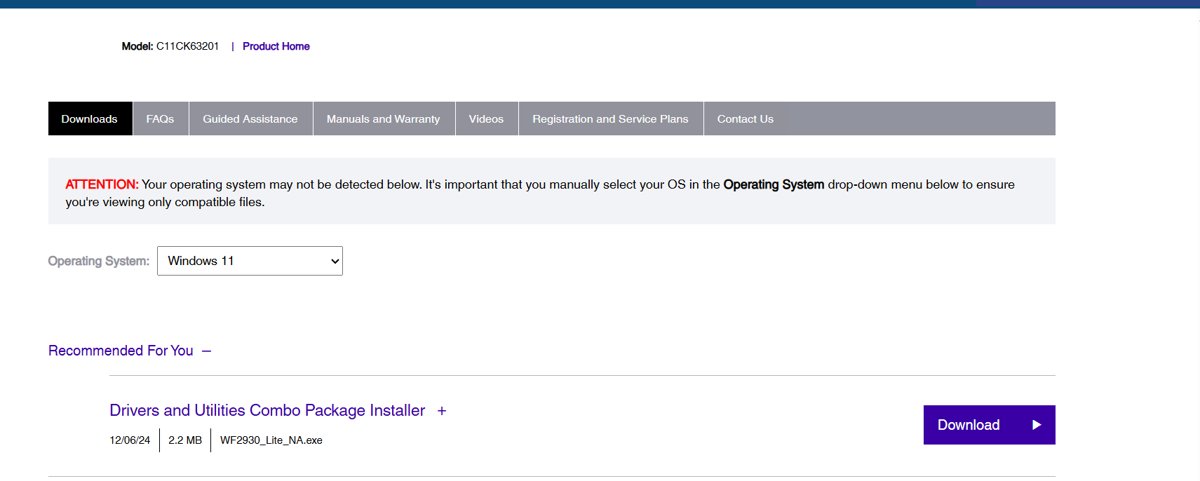
- Open the Downloads tab and select your Windows version in the Operating System drop-down if it is not detected.
- Download the Drivers and Utilities Combo Package and note the file name and folder.
- Open the downloaded file and follow the on-screen instructions.
- Turn on Location services if the installer asks for it during wireless setup.
- Connect the USB cable or confirm the wireless printer when the installer prompts you.
The Epson printer drivers download page lists the package types. If Epson has no Windows 11 driver for an older model, Windows 11's built-in simple driver installs automatically over USB or the network.
Install an Epson printer in Windows 11 24H2 or later
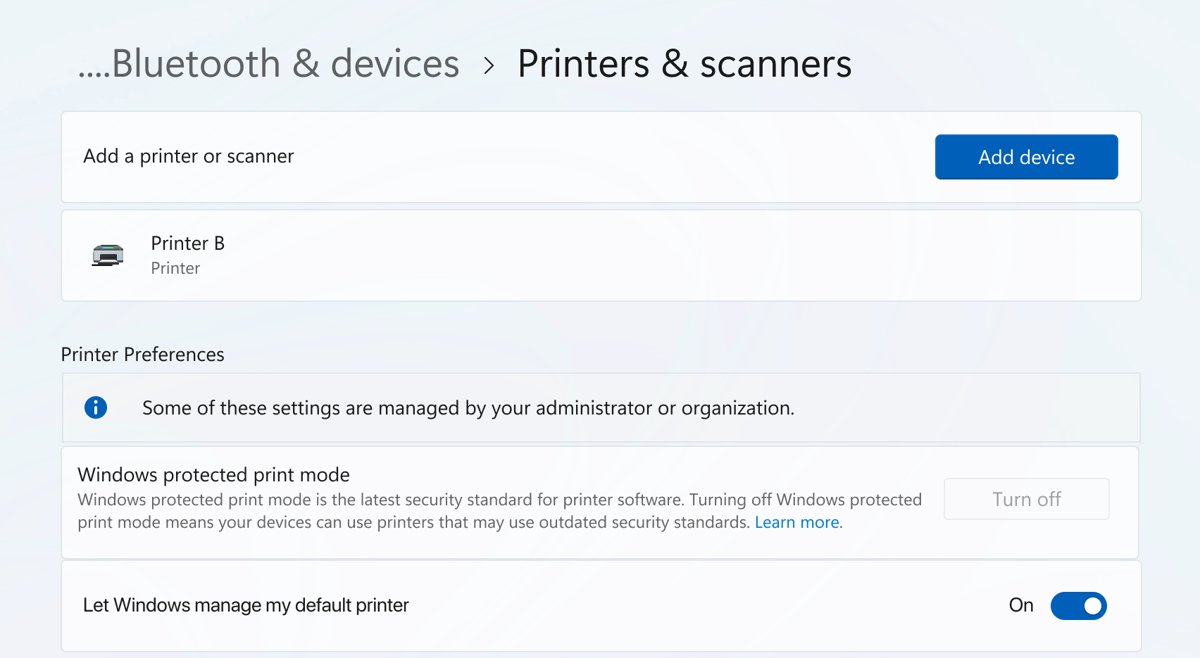
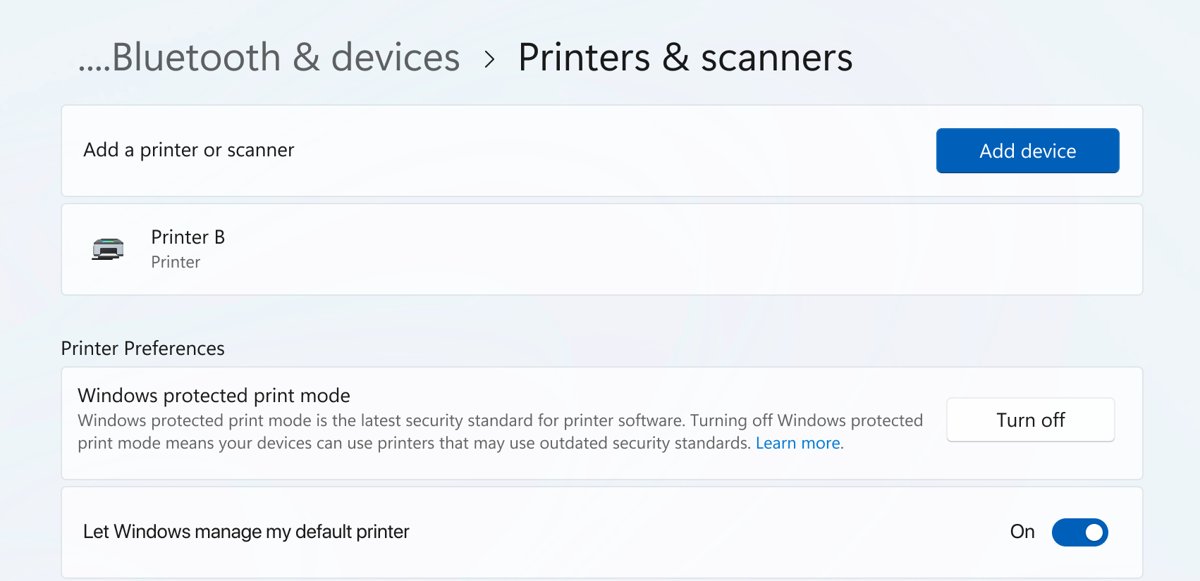
Windows Protected Print Mode accepts only the built-in Windows Ready Print driver. Turning it on removes printers that use third-party drivers, which includes Epson's own driver.
Microsoft recommends keeping the mode on. Most current Epson models are Mopria certified and print through the built-in driver, so use Add device first.
| Situation | What to do | Where |
|---|---|---|
| Protected Print Mode on, printer shows a compatible shield icon | Add the printer with Add device and keep the mode on | Settings > Bluetooth & devices > Printers & scanners |
| You need Epson's full software | Epson says to turn the mode off, then run its software package | Printer preferences > Windows protected print mode > Turn Off > Yes |
| The Turn Off option is unavailable | The mode is set by group policy | Ask your organisation's administrator |
| You turned the mode off and want it back | Turning it on again uninstalls third-party drivers | Windows protected print mode > Set up > Yes, continue |
Add an Epson printer on a Mac
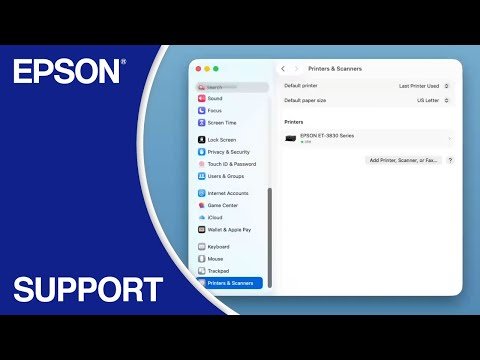
Epson provides Mac drivers by download only, but macOS usually adds an Epson printer without one. Join the printer to Wi-Fi first, or connect the USB cable.
- Open the System Settings app.
- Click Printers & Scanners in the sidebar.
- Click Add Printer, Scanner, or Fax.
- Select your Epson printer from the list and click Add.
- If the printer is not listed, download the Mac software from your model's Downloads tab on Epson's site and run it.
Finalize the installation
A printer that appears in the list is not proven until a page comes out. Finish with a printer test page and set the default.
- Open Settings > Bluetooth & devices > Printers & scanners and select the Epson printer.
- Select Printer properties and, on the General tab, select Print Test Page.
- Check that the test page prints cleanly in every colour.
- Back on the printer's page, select Set as default if you want Windows to use it every time.
- If Set as default is missing, turn off Let Windows manage my default printer under Printer preferences.
On Windows 10 the same settings are under Settings > Devices > Printers & scanners, then select the printer and Manage. You can also list all installed printers to check for duplicates.
Fix an Epson printer installation that fails
Windows does not find the Epson printer
The printer is on a different Wi-Fi network, the USB cable is loose, or the search finished too early.
- Check the USB cable at both ends and try another USB port.
- For Wi-Fi, confirm the blue Wi-Fi icon shows on the printer and that the PC uses the same network name.
- Select Add device again and wait a few minutes for the search to finish.
- Select Add manually next to The printer that I want isn't listed and add it by IP address.
The wireless installation failed in Windows
The printer's saved network settings or the router are holding a stale connection.
- Reset the printer's network settings from its control panel.
- Uninstall the Epson software from Settings > Apps > Installed apps.
- Unplug the router's power cord, wait a short time, and plug it back in.
- Download the Drivers and Utilities Combo Package again and run it.
Epson's installer will not finish on Windows 11 24H2
Windows Protected Print Mode blocks third-party printer drivers.
- Open Printers & scanners and check whether Windows protected print mode is on.
- Add the printer with Add device instead, using the built-in driver.
- Only if you need Epson's full software, turn the mode off and rerun the installer.
The printer installed but nothing prints
A stuck queue, a paused spooler or the wrong default printer.
- Restart the Print Spooler service from Services.
- Open the print queue and cancel any stuck jobs.
- Run the automated printer troubleshooter in the Get Help app.
- Remove the printer in Printers & scanners and add it again.
Epson printer installation FAQ
How do I install an Epson printer without the CD?
Download the Drivers and Utilities Combo Package from the Downloads tab on your model's Epson support page, open it and follow the prompts. Epson offers the latest software this way, and Mac drivers are only available by download.
Is there a Windows 11 driver for my Epson printer?
Search for your model on Epson's support site and choose Windows 11 in the Operating System drop-down. If Epson lists none, Windows 11 installs its built-in simple driver automatically over USB or the same network.
Can I connect an Epson printer by USB and Wi-Fi at the same time?
Yes. Install the Epson software twice, once for each connection type. The printer then appears twice in the printer list, one entry for USB and one for the network.
How do I connect an Epson printer to Wi-Fi with WPS?
Press the WPS button on your router, then on the printer select Wi-Fi Setup and Push Button Setup (WPS). A blue Wi-Fi icon on the printer's screen confirms the connection.
Should I plug in the USB cable before installing Epson software?
No. Epson says to keep the printer disconnected until the installer prompts you to connect it. With the Windows built-in driver instead, plug the printer in and turn it on, and Windows installs it.
Why does Epson ask me to turn off Windows Protected Print Mode?
The mode allows only Microsoft's built-in Windows Ready Print driver, so Epson's own driver cannot install while it is on. Microsoft recommends keeping it on, and Mopria-certified Epson printers print through the built-in driver.
How do I add an Epson printer on a Mac?
Open System Settings, click Printers & Scanners, then Add Printer, Scanner, or Fax. Select the Epson printer and click Add. Connect it to Wi-Fi or plug in the USB cable first.
How do I know the Epson printer installed correctly?
The printer appears in Printers & scanners and prints a clean test page from Printer properties. On a wireless model, a blue Wi-Fi icon on the printer's screen confirms the network connection.