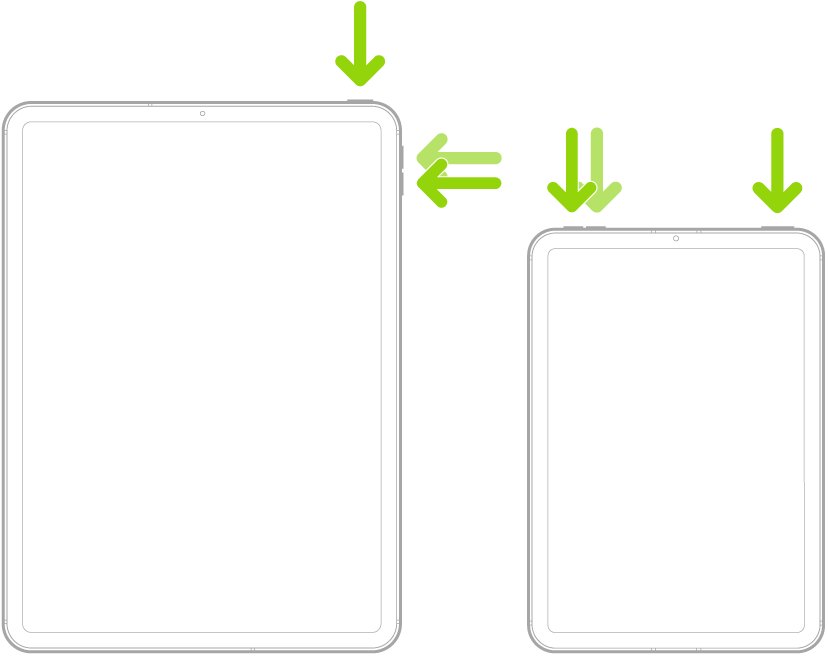
To hard reboot an iPad without a Home button, press and release the volume button nearest the top button, press and release the other volume button, then hold the top button until the Apple logo appears; on an iPad with a Home button, hold the Home and top buttons together until the logo shows.
This guide covers both button layouts, every current iPad family, recovery mode when the reboot fails, and the fixes to try when the iPad keeps freezing.
How to hard reboot an iPad
A hard reboot is what Apple calls a force restart, the same button trick you use to force restart an iPhone. It cuts power to the running software and starts iPadOS again, which clears a frozen screen or an app that will not respond.
First look below the screen. If there is no round Home button, your iPad uses Face ID or Touch ID in the top button, and these steps apply.
- Press and quickly release the volume button nearest to the top button.
- Press and quickly release the volume button farthest from the top button.
- Press and hold the top button.
- Keep holding while the screen goes black.
- Release the top button when the Apple logo appears.
- Wait for iPadOS to finish loading, then unlock the iPad with your passcode.
Do the three presses in quick succession, then keep holding the top button. Letting go before the Apple logo appears cancels the reboot.
Which reset method should you use?
A hard reboot fixes most freezes and deletes nothing. The heavier options only come into play when it does not help.
| Your situation | Use this | Data lost? |
|---|---|---|
| iPad works but feels slow or glitchy | Normal restart from the power off slider | No |
| Screen is frozen or does not respond to touch | Hard reboot (force restart) | No |
| iPad is stuck on the Apple logo after a reboot | Recovery mode, then choose Update | No |
| Problems continue after updating iPadOS | Reset All Settings | Settings only; no data or media |
| Nothing else works, or you are selling the iPad | Erase All Content and Settings, then restore from a backup | Yes, everything on the iPad |
Why does an iPad freeze or stop responding?
| Cause | What you notice | Fix that targets it |
|---|---|---|
| One app has stopped responding | The freeze starts inside the same app each time | Quit and reopen the app |
| Outdated iPadOS | Bugs that a newer update has already fixed | Install the latest update in Software Update |
| Storage almost full | Apps stall, crash or refuse to open | Free space in iPad Storage |
| A changed setting conflicts with the system | Odd behaviour that survives a restart | Reset All Settings |
| Battery fully drained | Black screen that looks frozen | Charge for up to an hour, then force restart |
| Damaged system software | Stuck on the Apple logo or a red or blue screen at startup | Recovery mode Update |
Hard reboot an iPad with a Home button
Older iPads, including the iPad Air 2 and the iPad 9th generation, have a round Home button below the screen. They use a two-button hold instead of the volume sequence.
- Press and hold the top button and the Home button at the same time.
- Keep holding both buttons while the screen turns off.
- Release both buttons when the Apple logo appears.
- Wait for the Lock Screen, then enter your passcode.
Hard reboot iPad Pro, iPad Air, iPad mini and iPad 10
The button method depends on the model, not the name. Match yours below, compare it against the full list of iPad generations, or find the model number on the back cover.
| Your iPad | Button layout | Hard reboot method |
|---|---|---|
| iPad Pro 11-inch (all) and iPad Pro 12.9-inch (3rd generation or later), iPad Pro 13-inch | Face ID, no Home button | Volume near top, volume far from top, hold top button |
| iPad Pro 9.7-inch, 10.5-inch and 12.9-inch (1st and 2nd generation) | Home button | Hold Home and top button |
| iPad Air (4th generation) and later, including M2, M3 and M4 models | Touch ID in top button | Volume near top, volume far from top, hold top button |
| iPad Air 2 and iPad Air (3rd generation) | Home button | Hold Home and top button |
| iPad mini (6th generation) and iPad mini (A17 Pro) | Touch ID button, no Home button | Volume near top, volume far from top, hold top button |
| iPad mini 5 and earlier | Home button | Hold Home and top button |
| iPad (10th generation) and iPad (A16) | Touch ID in top button | Volume near top, volume far from top, hold top button |
| iPad (9th generation) and earlier, including model A2603 | Home button | Hold Home and top button |

How to reboot an iPad normally
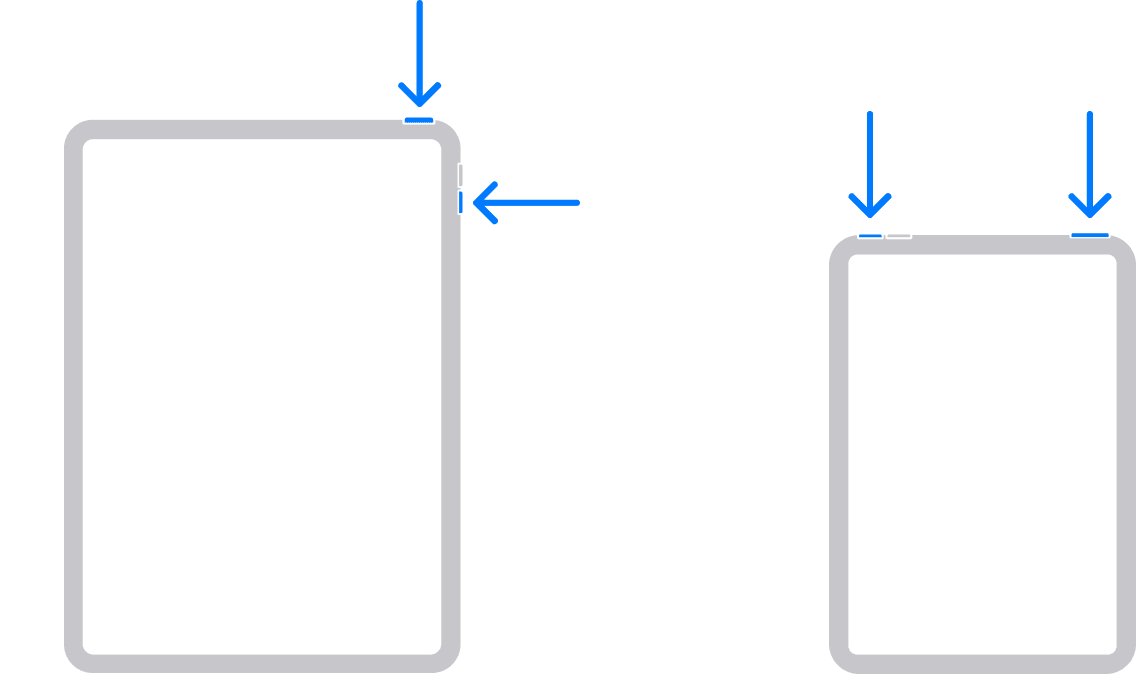
When the screen still responds, a normal restart is gentler. You can also turn off your iPad and leave it off for a while before starting it again.
- Without a Home button, press and hold either volume button and the top button. With a Home button, press and hold only the top button.
- Drag the power off slider when it appears.
- Wait 30 seconds for the iPad to turn off.
- Press and hold the top button until the Apple logo appears.
In iPadOS 18 and later, you can also swipe down from the top-right corner to open Control Center, press and hold the Power button in the top-right corner, then drag the slider.
Did the iPad hard reboot work?
- Confirm the Apple logo appeared and the iPad reached the Lock Screen.
- Unlock the iPad with your passcode.
- Swipe and tap around the Home Screen to confirm touch responds.
- Open the app that froze and check it now loads.
Use recovery mode if the hard reboot fails
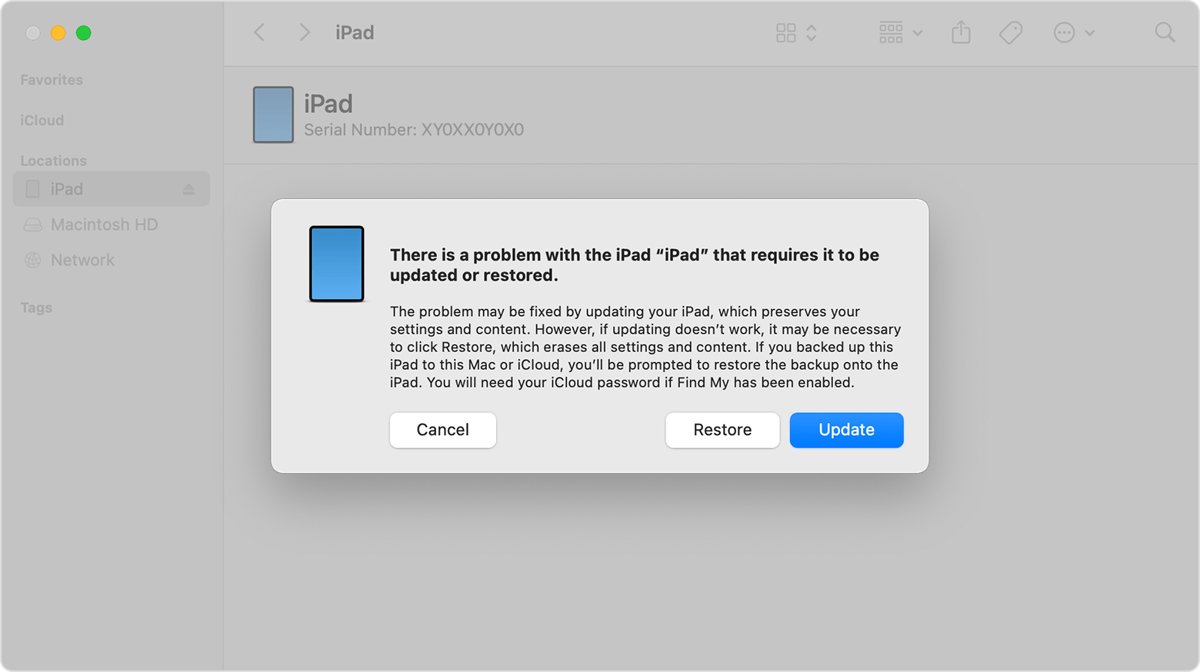
If the iPad turns on but stays on the Apple logo or a red or blue screen, recovery mode reinstalls iPadOS without erasing your data when you choose Update. You need a Mac or a Windows PC and a cable.
- Connect the iPad to the computer. On a Mac with macOS Catalina 10.15 or later, open Finder. On macOS Mojave or earlier, open iTunes. On a PC, open the latest Apple Devices app or iTunes.
- Without a Home button: press and release the volume button closest to the top button, press and release the other volume button, then hold the top button.
- With a Home button: press and hold the Home button and the top button together.
- Keep holding past the Apple logo until the recovery-mode screen appears.
- When the computer offers Restore or Update, choose Update.
- Wait for the download. If it takes more than 15 minutes, the iPad leaves recovery mode; repeat the button steps.
Alternative solutions when a hard reboot is not enough
If the freeze comes back, work down this table from the lightest fix to the heaviest.
| Fix | How to do it | Effect |
|---|---|---|
| Force-close the app that triggers the freeze | Swipe up from the bottom edge and hold to open Exposé, then swipe up on the app | Restarts only that app |
| Update iPadOS to the latest version | Settings > General > Software Update > Download and Install | Installs bug fixes; keeps your data |
| Reset all settings without deleting data | Settings > General > Transfer or Reset iPad > Reset > Reset All Settings | Returns settings to defaults; no data or media deleted |
| Free up storage space | Settings > General > iPad Storage, then delete or offload large items | Gives apps and updates room to run |
| Restore from a backup or factory reset | Settings > General > Transfer or Reset iPad > Erase All Content and Settings | Erases the iPad; restore your backup afterwards |
Back up the iPad to iCloud or a computer before you erase it, so you can restore your apps and data from the Hello screen.
How to stop your iPad freezing in the first place
| Habit | Where to set it | Why it helps |
|---|---|---|
| Turn on automatic updates | Settings > General > Software Update > Automatic Updates | Bug fixes install overnight while charging on Wi-Fi |
| Offload unused apps | Settings > Apps > App Store > Offload Unused Apps | Removes idle apps but keeps their data when storage runs low |
| Keep free storage | Settings > General > iPad Storage | Low storage is a common cause of stalling apps |
| Quit an app that stops responding | Exposé, then swipe up on the app | Clears a stuck app before it locks the whole screen |
| Keep the battery charged | Use the original cable and adapter | A drained iPad shows a black screen that looks frozen |
Quitting apps you are not using does not save battery; iPadOS manages background apps itself. Quit an app only when it misbehaves.
Still not working?
iPad will not reboot when you press the buttons
The presses are too slow, or the battery is completely empty.
- Repeat the volume presses quickly, one after the other, then hold the top button without letting go.
- Plug the iPad into its charger and leave it for up to an hour.
- Try the hard reboot again while it stays connected to power.
iPad stuck on reboot or on the Apple logo
iPadOS cannot finish starting, often after an interrupted update.
- Connect the iPad to a Mac or PC.
- Put it in recovery mode with the button steps above.
- Choose Update, not Restore, so your data stays.
Why is my iPad keep rebooting?
System software that cannot start cleanly, or a hardware fault, makes the iPad restart over and over.
- Run recovery mode and choose Update.
- If the loop continues after the update, back up what you can and contact Apple for service.
iPad screen stays black after a hard reboot
The battery is too low to start, or the hardware has a fault.
- Check the charging cable and power adapter for damage.
- Charge for up to an hour.
- Force restart again; if the screen stays black, request service from Apple.
Frequently asked questions
Does a hard reboot delete anything on my iPad?
No. A hard reboot only restarts iPadOS. Your apps, photos and settings stay in place. Only unsaved work in the frozen app can be lost. Erasing happens only through Erase All Content and Settings or a recovery-mode Restore.
How long should I hold the buttons to force restart an iPad?
Hold the top button, or the Home and top buttons together, until the Apple logo appears, then let go. There is no fixed count; the screen goes black first, and the logo is your signal to release.
How do I hard reboot an iPad with no Home button?
Press and quickly release the volume button nearest the top button, press and quickly release the volume button farthest from it, then press and hold the top button until the Apple logo appears.
How do I hard reboot an iPad Air 2?
The iPad Air 2 has a Home button. Press and hold the Home button and the top button together, and release both when the Apple logo appears.
How do I hard reboot an iPad Pro?
On any iPad Pro with Face ID, press and release volume nearest the top button, press and release the other volume button, then hold the top button until the logo shows. Older iPad Pro models with a Home button use Home plus top button.
How do I hard reboot an iPad mini?
The iPad mini 6th generation and iPad mini (A17 Pro) use the volume-volume-top button sequence. The iPad mini 5 and earlier have a Home button, so hold Home and the top button together until the Apple logo appears.
How do I hard reboot an iPad 10th generation?
The iPad 10th generation has Touch ID in the top button and no Home button. Press and release the volume button near the top button, then the other one, then hold the top button until the Apple logo appears.
What is the difference between a hard reboot and a factory reset?
A hard reboot restarts the iPad and keeps everything on it. A factory reset, Erase All Content and Settings, removes all data and settings and returns the iPad to the Hello screen.
Why is my iPad stuck on the Apple logo after a hard reboot?
iPadOS cannot finish starting. Connect the iPad to a computer, put it in recovery mode and choose Update, which reinstalls iPadOS without erasing your data.
Can I hard reboot an iPad that will not charge?
You can try, but an empty battery gives the reboot nothing to start. Check the cable and adapter, charge for up to an hour, then force restart while it stays plugged in.
Quick summary
Use the hard reboot first for any frozen iPad: volume near top, volume far from top, hold top button, or Home plus top button on older models. It clears most freezes in under a minute without deleting anything, and recovery mode Update or Reset All Settings remain if the problem returns.