To fix photos and videos that will not send via iMessage on iPhone, check that you have Wi-Fi or cellular data, tap the red exclamation point and choose Try Again, then restart the iPhone if the attachment still fails.
This guide covers the quick fix, the iMessage settings and storage checks that stop media from sending, Apple's service status, network resets, and how to confirm attachments are going through again.
Quick fix for iMessage photos and videos not sending
Most failed attachments come down to a weak data connection at the moment you tapped send. These steps retry the message the way Apple recommends.
- Connect to a working Wi-Fi network, or make sure cellular data is on and has signal.
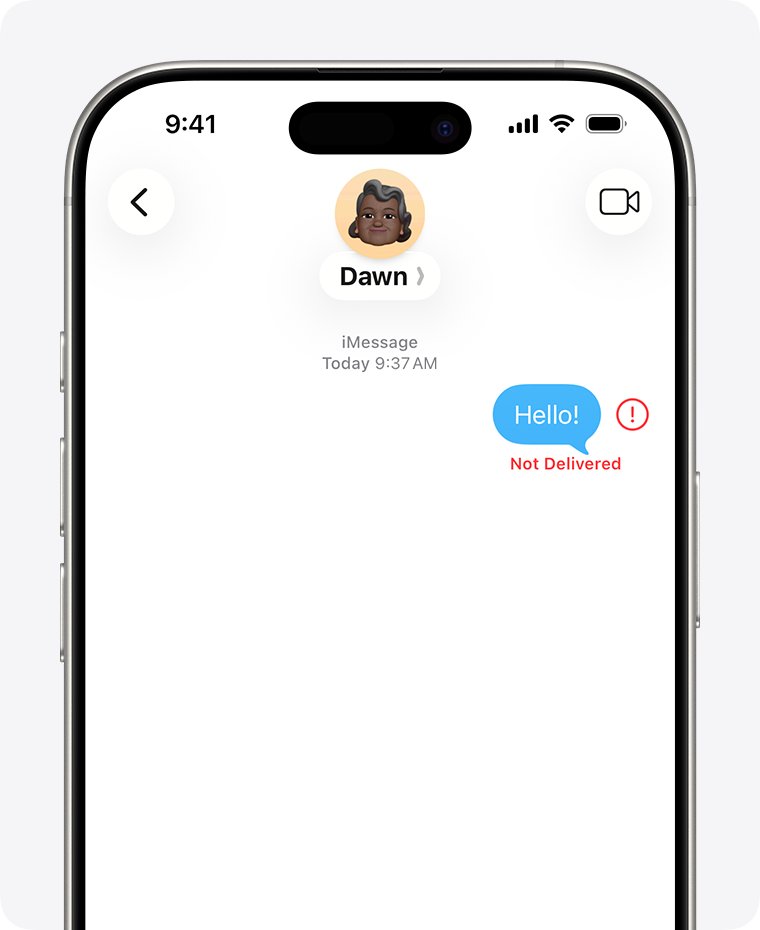
- Open the conversation in Messages and find the photo or video with the red exclamation point.
- Tap the red exclamation point, then tap Try Again.
- If it fails again, tap the red exclamation point and choose Send as Text Message; messaging rates may apply.
- If nothing sends at all, restart the iPhone and send the attachment once more.
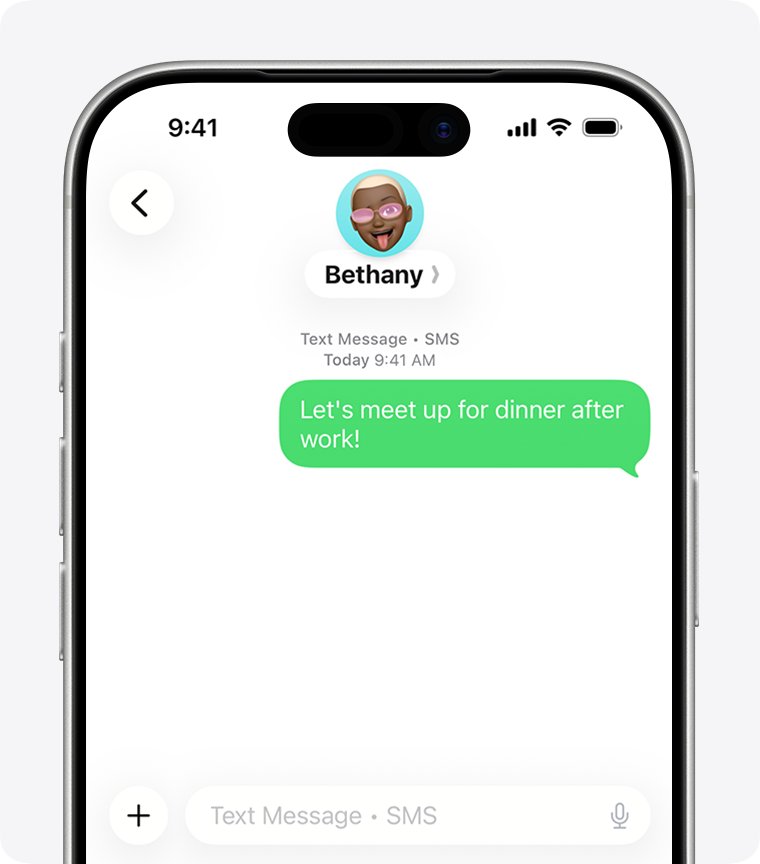
A green bubble after Send as Text Message means the attachment went as MMS or RCS through your carrier, not as iMessage.
iMessage photo not sending: which fix matches your symptom
Pick the row that matches what you see, then jump to that fix. Start at the top if you are not sure.
| What you see | Try this first | Why |
|---|---|---|
| Red exclamation point and Not Delivered under a photo | Check the connection, then tap Try Again | iMessage needs Wi-Fi or cellular data to upload the file |
| Video sits on a progress bar and never finishes | Move to Wi-Fi and retry, or send a shorter clip | Large files take longer to upload on a slow link |
| Photos fail only to green-bubble contacts | Turn on Send Photo Previews or Low Quality Image Mode | Carriers set size limits on MMS attachments |
| Photos fail in a group chat only | Check you are still in the conversation and that Send as Text Message is on | Group MMS depends on carrier support |
| Nothing sends, even text, after setting up a new iPhone | Turn iMessage off and on, then pick your number in Send & Receive | iMessage may not have activated for the new line |
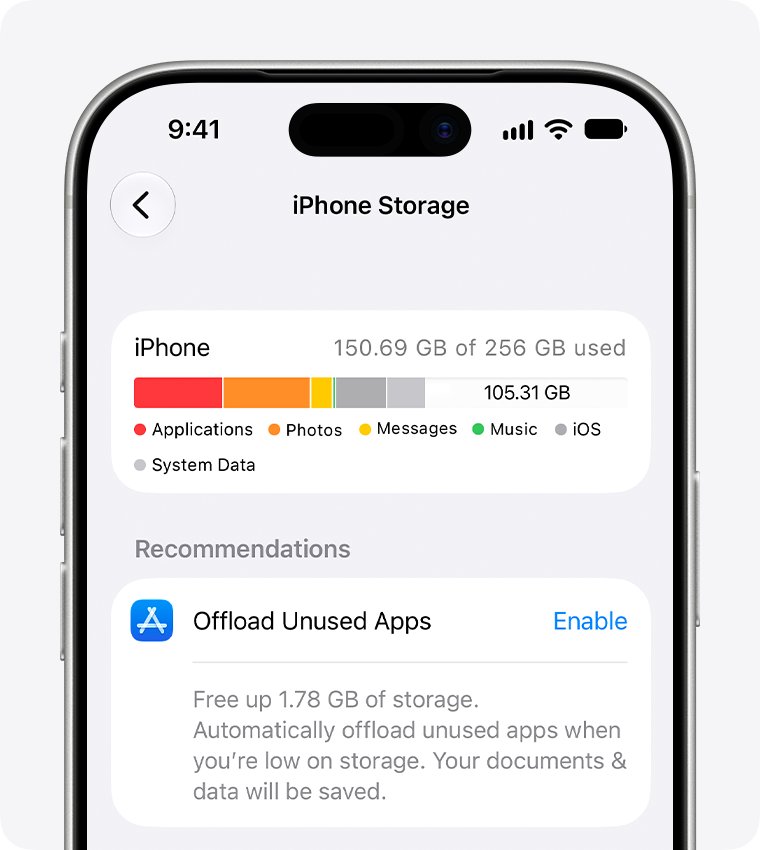
| Storage Almost Full alert | Free space in iPhone Storage | The iPhone needs room to process sent and received media |
| Every iMessage fails for everyone at once | Check Apple's System Status page | An iMessage outage cannot be fixed on the phone |
Basic checks when iMessage won't send pictures
Run these basic checks before changing any settings. They clear the connection and contact problems that cause most failed photo and video messages.
- Load a web page in Safari to confirm the iPhone has a working internet connection over Wi-Fi or cellular data.
- If you are on cellular only, move to Wi-Fi and try again; iMessage uses cellular data when Wi-Fi is unavailable, and data rates may apply.
- Open the contact and confirm the phone number or email address you are sending to is correct.
- Restart the iPhone by turning it off and back on.
- If the iPhone is frozen, force restart it: press and quickly release volume up, press and quickly release volume down, then press and hold the side button until the Apple logo appears.
- Open Messages and send the photo or video again.
If the status bar shows SOS instead of signal bars, sort out cellular service first or switch to Wi-Fi.
iMessage settings that stop photos and videos from sending
Wrong iMessage settings can send your media down the wrong route, or not at all. All of these live under Settings > Apps > Messages on iOS 18 and later.
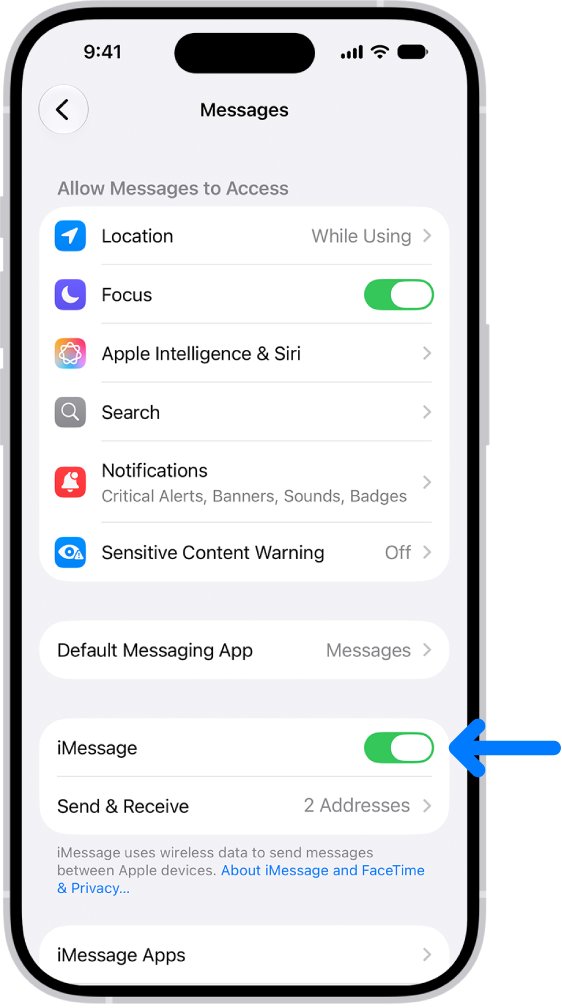
- Open Settings, tap Apps, then tap Messages.
- Confirm the iMessage switch is on. If you need to turn on iMessage from scratch, do that before anything else.
- Tap Send & Receive and check that your phone number or email address is selected under You can receive iMessages to and reply from.
- Go back and turn on Send as Text Message, so Messages falls back to SMS when iMessage is unavailable.
- For large attachments to carrier contacts, turn on Send Photo Previews or Low Quality Image Mode to send smaller images.
- If you use group chats with non-Apple phones, check for a Group Messaging option on the same screen and turn it on.
- Turn iMessage off, wait a few seconds, then turn it back on and resend the attachment.
If you see no Send as Text Message or Group Messaging option, your carrier may not support that feature. Ask the carrier whether it supports MMS, RCS and group messaging on iPhone.
iPhone software and storage considerations for sending videos
An outdated iOS version and a full iPhone both get in the way of media messages. Apple's first advice for any Messages problem is the latest iOS, and the iPhone needs free space to handle images and videos.
- Back up the iPhone to iCloud or your computer.
- Plug the iPhone into power and connect to Wi-Fi.
- Open Settings > General > Software Update, and tap Download and Install if an update is listed.
- After the update, open Settings > General > iPhone Storage to see how much space is left.
- Tap Show All under the recommendations and enable any that free space, such as offloading unused apps.
- Tap Messages in the app list to review large attachments, and delete the ones you no longer need.
- Send the photo or video again.
With Messages in iCloud turned on, attachments you delete on the iPhone are also deleted from your other Apple devices. Save any you want to keep to Photos first.
Troubleshooting Apple's iMessage service status
Sometimes the problem sits on Apple's side. Check Apple's live status page before you reset anything on the phone.
- Open apple.com/support/systemstatus in any browser.
- Find iMessage in the list of services.
- A green circle with Available means the service is running normally, so the fault is on your device or network.
- If iMessage shows an issue, wait for Apple to resolve it, then resend the attachment.
- During an outage, tap the red exclamation point on the failed message and choose Send as Text Message if the photo cannot wait.
Additional troubleshooting steps for iMessage media
These additional steps fix sign-in and timing problems that leave iMessage half-working, so text sends but attachments do not.
- Open Settings > General > Date & Time and turn on Set Time Automatically so the date, time and time zone are correct.
- Open Settings > Apps > Messages and turn off iMessage.
- Open Settings > Apps > FaceTime and turn off FaceTime.
- Restart the iPhone.
- Turn iMessage and FaceTime back on and wait for your number to show a check mark in Send & Receive.
- Send a single photo, then a short video, to the same contact to see whether only large files fail.
If a spinning gear appears next to your number, the iPhone is retrying verification by itself. Leave it on; switching iMessage off and on again does not speed it up.
Advanced steps: reset network settings or restore iPhone
Use these advanced steps only when every check above has failed. Resetting network settings keeps your data, while a restore erases the iPhone first.
- Open Settings > General > Transfer or Reset iPhone and tap Reset.
- Tap Reset Network Settings and confirm. Saved Wi-Fi networks and VPN settings are removed, the device name returns to "iPhone", and cellular data roaming may turn off.
- Rejoin your Wi-Fi network and try sending the photo or video again.
- If media still fails, back up the iPhone, then choose Erase All Content and Settings on the Transfer or Reset iPhone screen.
- During setup, tap From iCloud Backup on the Transfer Your Apps & Data screen and choose your most recent backup.
- Stay on Wi-Fi until the restore progress bar completes, then test Messages.
If the problem continues after a restore, contact Apple Support for iMessage faults, or your carrier when SMS, MMS or RCS attachments fail.
How to check iMessage photos are sending again
- Send a photo to a contact who uses an iPhone, iPad or Mac.
- Confirm the photo appears in a blue bubble with no red exclamation point.
- Look for Delivered under the message, or Read if the contact has read receipts on.
- Send a short video and wait for the progress bar to finish.
- Check the conversation shows the lock icon and Encrypted at the top, which confirms it went as iMessage.
Understanding the problem: iMessage vs MMS for photos and videos
Messages can send an attachment three ways, and each fails for different reasons. The bubble colour tells you which route a photo took.
| iMessage | RCS | SMS/MMS | |
|---|---|---|---|
| Bubble colour | Blue | Green | Green |
| Who receives it | iPhone, iPad, Mac and other Apple devices | Apple and non-Apple phones | Apple and non-Apple phones |
| Connection needed | Wi-Fi or cellular data | Cellular data or Wi-Fi, plus a text plan | Cellular data or Wi-Fi for MMS, plus a text plan |
| Photo and video quality | High resolution photos and videos | High resolution photos and videos | Carrier size limits; the iPhone may compress files |
| Common reason media fails | No data connection, activation or storage issue | Carrier not supporting RCS, or iOS older than 18 | Attachment too large for the carrier, or no MMS support |
| Counts against your text plan | No, but cellular data rates may apply | Yes | Yes |
iPhone not sending pictures or videos: fixes by symptom
Find the behaviour you see, then follow its fix in order.
Red exclamation point with Not Delivered on a photo or video
The attachment could not upload when you sent it.
- Check your Wi-Fi or cellular data connection.
- Tap the red exclamation point, then tap Try Again.
- If it still fails, tap the exclamation point and choose Send as Text Message.
Pictures send as green bubbles or fail to Android contacts
The message goes through your carrier as MMS or RCS, which has its own limits.
- Open Settings > Apps > Messages and turn on Send Photo Previews or Low Quality Image Mode.
- Resend the photo.
- Ask your carrier whether your plan supports MMS or RCS on iPhone.
Photos stopped arriving in a group message
You may have left the conversation or been removed from it.
- Open the group conversation in Messages.
- Look for a note saying you left the conversation; if it is there, ask someone in the group to add you back.
- If the group still misbehaves, start a new group message with the Compose button.
Messages turn green or will not send after moving to a new iPhone
iMessage is not active for the phone line on the new device.
- Open Settings > Cellular and make sure your phone line is turned on.
- Open Settings > Apps > Messages and turn iMessage off, then back on.
- Tap Send & Receive and tap the phone number you want to use.
Photos send on Wi-Fi but not on cellular
Cellular data is off, weak or unavailable, and iMessage and MMS both need it away from Wi-Fi.
- Check that cellular data is turned on and you have signal.
- Move to a spot with better coverage, or connect to Wi-Fi.
- If you have Wi-Fi Calling turned on, plain SMS can still go out over Wi-Fi, but photos need a data connection.
iMessage photos and videos not sending FAQ
Why won't my iPhone send pictures in iMessage?
The usual causes are no Wi-Fi or cellular data at the moment of sending, iMessage switched off or not activated, or too little free storage. Check the connection, tap the red exclamation point and choose Try Again, then restart the iPhone.
Why can I send texts but not photos on iMessage?
Photos and videos are far larger than text, so a weak connection can carry a text but time out on an attachment. Move to Wi-Fi, retry the message, and free space in Settings > General > iPhone Storage if the iPhone is nearly full.
Why do my videos fail to send to Android phones?
Messages to non-Apple phones go as MMS or RCS through your carrier, and carriers set size limits on attachments. Larger files take longer to send, and the iPhone may compress them. Send a shorter clip or turn on Low Quality Image Mode.
What does Low Quality Image Mode do in Messages?
It sends lower quality images, which helps when full-size photos fail over SMS or MMS because of carrier size limits. Turn it on in Settings > Apps > Messages, where newer iOS versions may also show Send Photo Previews.
Does a full iPhone stop iMessage photos from sending?
Apple says the device needs enough space to handle images and videos in messages. Open Settings > General > iPhone Storage, follow the recommendations, and delete large Messages attachments you no longer need.
How do I know if iMessage is down?
Open Apple's System Status page at apple.com/support/systemstatus and find iMessage. A green circle with Available means the service is working, so the problem is on your iPhone or network.
Will resetting network settings delete my photos?
No. Reset Network Settings removes saved Wi-Fi networks, VPN settings and trusted certificates, and renames the device "iPhone", but it does not delete photos, messages or other data.
Do iMessage photos use my cellular data?
Yes, when you are not on Wi-Fi. iMessage sends over cellular data when Wi-Fi is unavailable, and data rates may apply. iMessage photos do not count against the SMS or MMS allowance in your plan.
Bottom line: fixing iMessage photos and videos on iPhone
Retry the failed photo on a strong Wi-Fi connection with Try Again, restart the iPhone, and confirm iMessage is on in Settings > Apps > Messages before trying updates or resets. Most failed attachments are a connection or activation problem; storage, iOS updates and Reset Network Settings fix most of the rest, and a restore is only worth it after Apple's status page shows iMessage is available.