SOS or SOS only in the iPhone status bar means your phone is not connected to your own carrier's cellular network, but it can still place emergency calls through other carriers' networks.
This guide explains the indicator, how it differs from the Emergency SOS feature and Emergency SOS via satellite, and the fixes Apple documents for getting normal service back.
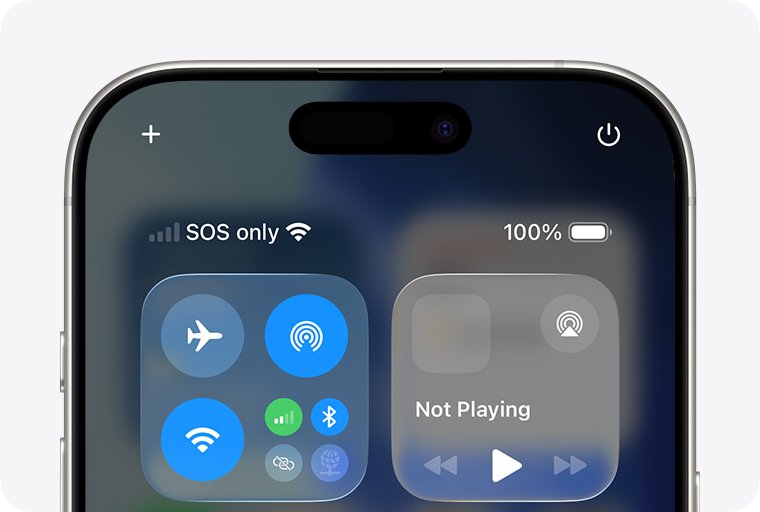
The fastest way to clear SOS on your iPhone
Apple's first fix is to force the phone to search for your carrier again. If your carrier's network is available where you are, this often brings the signal bars back in under a minute.
- Open the Settings app.
- Turn on Airplane Mode and leave it on for at least 15 seconds.
- Turn off Airplane Mode.
- Watch the status bar. If your carrier name or signal bars replace SOS, you are done.
- If SOS stays, work through the numbered fixes below in order.
You can still call emergency services while SOS is showing. Do not wait for the fix to finish if you need help.
Understanding the SOS Indicator on iPhone
The label sits in the status bar, in the spot where your signal bars and carrier name normally appear. Apple uses four different labels for lost service, and each one means something slightly different.
| What you see | What it means | Can you call emergency services? |
|---|---|---|
| SOS or SOS only | Not connected to your carrier, but another carrier's network is in range | Yes, through other carrier networks |
| No Service | Not connected to any cellular network | Only if a network is reachable; on iPhone 14 or later, satellite may work |
| Searching | The phone is still looking for a cellular network | Not guaranteed until a network is found |
| Satellite icon | No cellular or Wi-Fi coverage; a satellite feature is available on supported models | Yes, by text via Emergency SOS via satellite where supported |
Apple states that the SOS status indicator is used in Australia, Canada and the United States. In other countries you are more likely to see No Service in the same situation.
Common Reasons for SOS Display on iPhone
| Cause | Typical sign | Fix to try |
|---|---|---|
| Weak or no coverage from your carrier | SOS appears in rural areas, basements or large buildings | Fix 1: check coverage and reconnect |
| A carrier outage | SOS appears for you and others on the same carrier | Fix 1: ask your carrier about outages |
| A temporary radio glitch | SOS appears where you normally have signal | Fix 2: restart your iPhone |
| Old carrier settings | SOS after moving to a new carrier or SIM | Fix 3: install a carrier settings update |
| SIM or eSIM line turned off, loose or damaged | SOS on one line of a Dual SIM iPhone, or after swapping a SIM | Fix 4: check the line and the SIM |
| Corrupted network settings | SOS persists after a restart | Fix 5: reset network settings |
| Outdated iOS | SOS remains after the fixes above | Fix 6: update iOS |
| Account problem | SOS after a missed payment, a new plan or a blocked device | Contact your carrier |
| Roaming turned off abroad | SOS as soon as you land in another country | Turn on Data Roaming |
Step-by-Step Guide to Fix the SOS Issue on iPhone
Apple's fixes are ordered from least to most disruptive. Match your situation to a row to skip straight to the likely fix.
| Your situation | Start with | Why |
|---|---|---|
| SOS appeared suddenly where you usually have signal | Fix 1, then Fix 2 | Reconnecting or restarting clears most temporary drops |
| You just inserted a new SIM or switched carriers | Fix 3, then Fix 4 | A new carrier needs its own carrier settings |
| You have two lines and only one shows SOS | Fix 4 | The line may simply be turned off |
| SOS survives a restart and a carrier settings check | Fix 5, then Fix 6 | Resets saved network data and loads current software |
| You are travelling internationally | Data Roaming, under Additional Tips | The phone will not join a foreign network without it |
| Nothing works and friends on your carrier have signal | Your carrier, then Apple | Account blocks and hardware faults need them |
1. Check Your Network Coverage
SOS is often just a coverage gap. Only your carrier can confirm coverage, outages and account status for your line.
- Move to an open area, a window or a higher floor, and wait a minute.
- Open Settings, turn on Airplane Mode for at least 15 seconds, then turn it off.
- Ask someone on the same carrier nearby whether they have signal.
- Contact your carrier to confirm there is no outage in your area and that you are inside its coverage map.
- Ask the carrier to confirm your account is active and in good standing, and that your device is not blocked or barred from cellular service.
If you use an iPhone bought in another country, also ask whether local rules require IMEI registration. Apple lists this as a known cause of lost service.
2. Restart Your iPhone
- On iPhone X or later, press and hold either volume button and the side button until the power-off slider appears. On iPhone 6, 7, 8 or SE (2nd or 3rd generation), press and hold the side button.
- Drag the slider, then wait 30 seconds for the iPhone to turn off.
- Press and hold the side button until the Apple logo appears.
- Unlock the phone and wait for the status bar to update.
If the screen is frozen, force restart a Face ID iPhone: press and quickly release volume up, press and quickly release volume down, then press and hold the side button until the Apple logo appears.
3. Check for Carrier Settings Update
Carrier settings tell your iPhone how to talk to your carrier's network. A new SIM from a different carrier always needs that carrier's settings.
- Connect your iPhone to Wi-Fi.
- Open the Settings app.
- Tap General.
- Tap About.
- If an update is available, an option to update your carrier settings appears. Follow it to install the update.
- To see the installed version, look next to Carrier in the About screen.
No prompt means no carrier settings update is waiting. Move on to the next fix.
4. Verify SIM Card Placement and Condition
A line that is switched off, a SIM that is loose, or a damaged card all look the same from the status bar.
- Open Settings and tap Cellular.
- Tap the cellular line you want to check and confirm it is turned on.
- If the line is off, tap Turn On This Line, then check the status bar for service.
- If you use a physical SIM card, remove it and put it back in.
- If the SIM is damaged, does not fit the tray, or came from another device, ask your carrier for a new SIM card.
- If your line does not appear at all, contact your carrier to set up an eSIM or supply a physical SIM.
5. Reset Network Settings
This clears saved network configuration without deleting your photos, apps or messages. It does remove saved Wi-Fi networks and passwords, VPN settings that were not installed by a profile or MDM, and it renames the device back to "iPhone".
- Open Settings and tap General.
- Tap Transfer or Reset iPhone, then tap Reset.
- Tap Reset Network Settings.
- Confirm the reset.
- After the reset, rejoin your Wi-Fi network and check the status bar.
Apple notes that cellular data roaming may also be turned off by this reset. Turn it back on before you travel. Do not tap Delete All eSIMs or Erase All Content and Settings; neither fixes SOS, and the first removes your eSIM line.
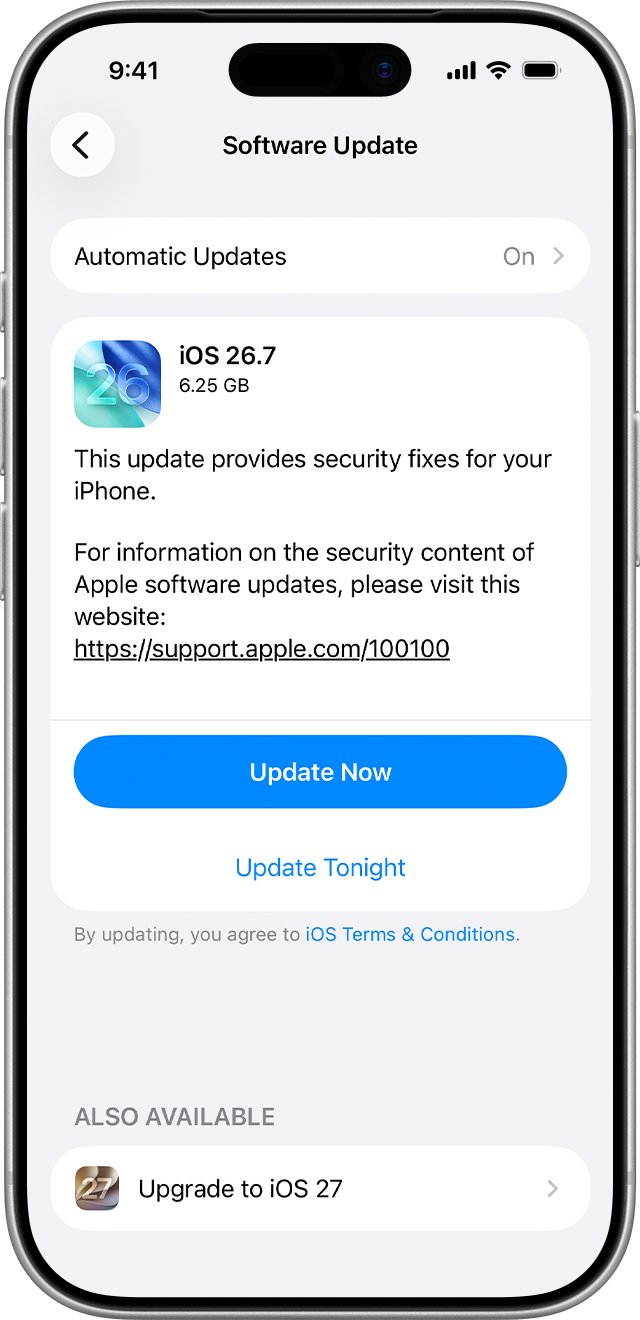
6. Update Your iPhone Software
- Back up your iPhone with iCloud or a computer.
- Plug the iPhone into power and connect to Wi-Fi.
- Open Settings and tap General.
- Tap Software Update.
- If an update is listed, tap Download and Install and follow the onscreen instructions.
On iOS 18 or later, the Apple Support app can also run extra diagnostics that may point to the source of a service problem.
How to check the fix worked
- Look at the status bar: your signal bars and carrier name should replace SOS or SOS only.
- Turn off Wi-Fi briefly and place a normal call to a friend. It should connect over cellular.
- With Wi-Fi still off, send a text message and confirm it is delivered.
- Open Settings > Cellular and confirm each line you use is turned on.
- Turn Wi-Fi back on.
How to Enable and Disable Emergency SOS on iPhone
The SOS status label and the Emergency SOS feature are different things. The label reports your network state and has no on or off switch. It goes away only when your iPhone reconnects to your carrier.
The Emergency SOS feature is a button shortcut that calls emergency services. Its settings live in Settings > Emergency SOS.
| Setting in Emergency SOS | What it does when on |
|---|---|
| Call with Hold and Release | Holding the side button and a volume button, then releasing, starts a countdown to call emergency services |
| Call with 5 Presses | Rapidly pressing the side button five times starts the countdown |
| Emergency contacts | After an emergency call ends, iPhone texts your contacts your location unless you cancel; set them up in the Health app |
Enabling Emergency SOS
- Open Settings and tap Emergency SOS.
- Turn on Call with Hold and Release, Call with 5 Presses, or both.
- Tap Set Up Emergency Contacts in Health to choose who gets alerted.
- To call for help, press and hold the side button and either volume button until the sliders appear and the Emergency SOS countdown ends.
In India, pressing the side button three times quickly starts Emergency SOS instead.
Disabling Emergency SOS
- Open Settings and tap Emergency SOS.
- Turn off Call with Hold and Release if you trigger it by accident.
- Turn off Call with 5 Presses if you trigger it by accident.
- If you started an emergency call by mistake, do not hang up. Wait for a responder and explain you do not need help.
Turning these off does not remove the SOS status label and does not stop you dialling an emergency number manually.
What Emergency SOS via satellite does when there is no signal
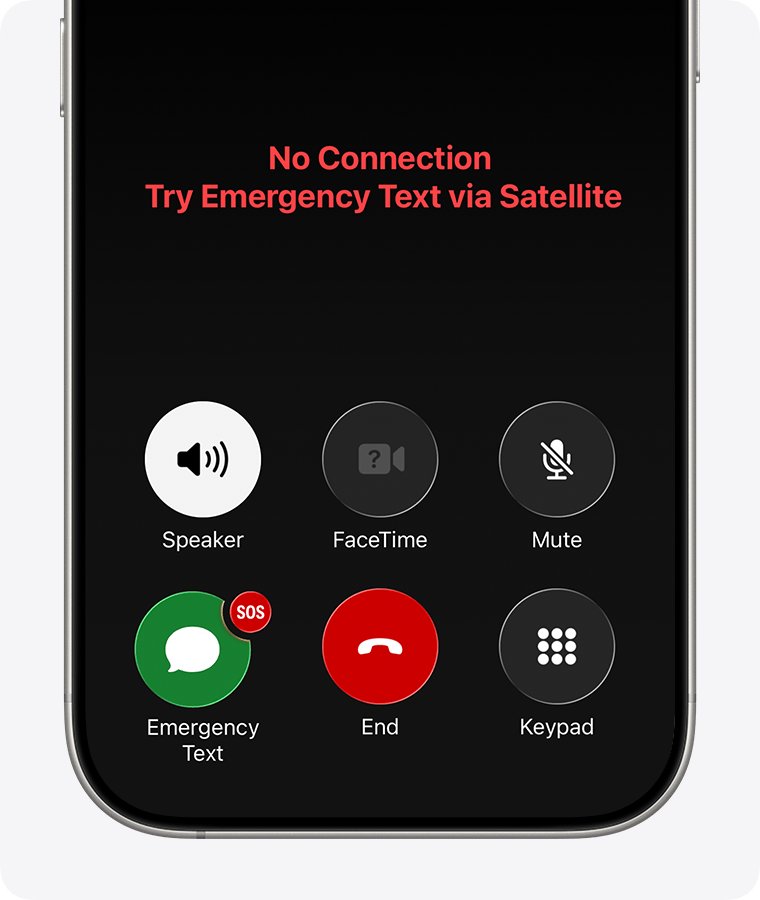
If there is no cellular and no Wi-Fi coverage at all, iPhone 14 or later can text emergency services through a satellite. You need to be outside with a clear view of the sky and horizon.
| Detail | What Apple documents |
|---|---|
| Supported iPhones | iPhone 14 or later, all models |
| Minimum iOS in the U.S. and Canada | iOS 16.1 or later |
| Cost | Free for two years after activating an iPhone 14 or later |
| How to start it | Call the local emergency number first; if the call fails, tap Emergency Text via Satellite, or text 911 in Messages |
| Other way in | Settings > Satellite, or the Cellular button in Control Center > Satellite (shown only without cellular and Wi-Fi coverage) |
| Practice run | With coverage, the Satellite option in Control Center opens the Satellite Connection Demo |
| Countries | U.S., Canada, Mexico, the U.K., Australia, New Zealand, Japan and several European countries |
Set up your Medical ID and emergency contacts in the Health app before a trip, because satellite messages share them automatically.
Additional Tips
| Situation | What to change | Where |
|---|---|---|
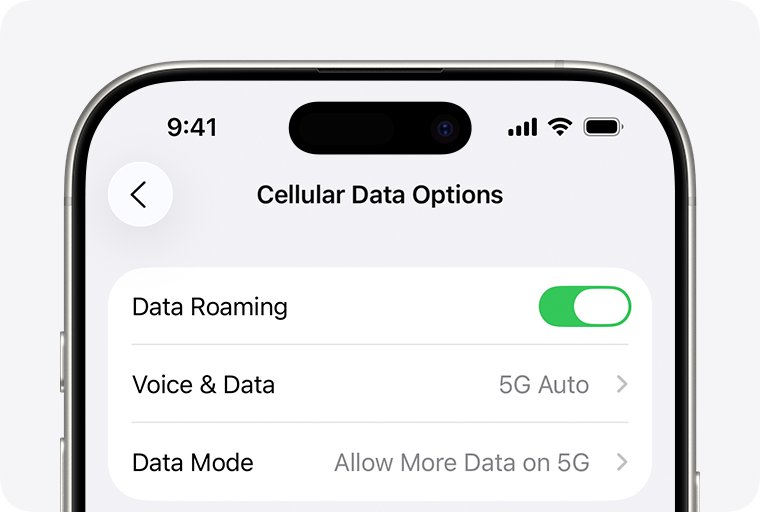
| Travelling internationally | Turn on Data Roaming | Settings > Cellular > Cellular Data Options (on Dual SIM, tap the number first) |
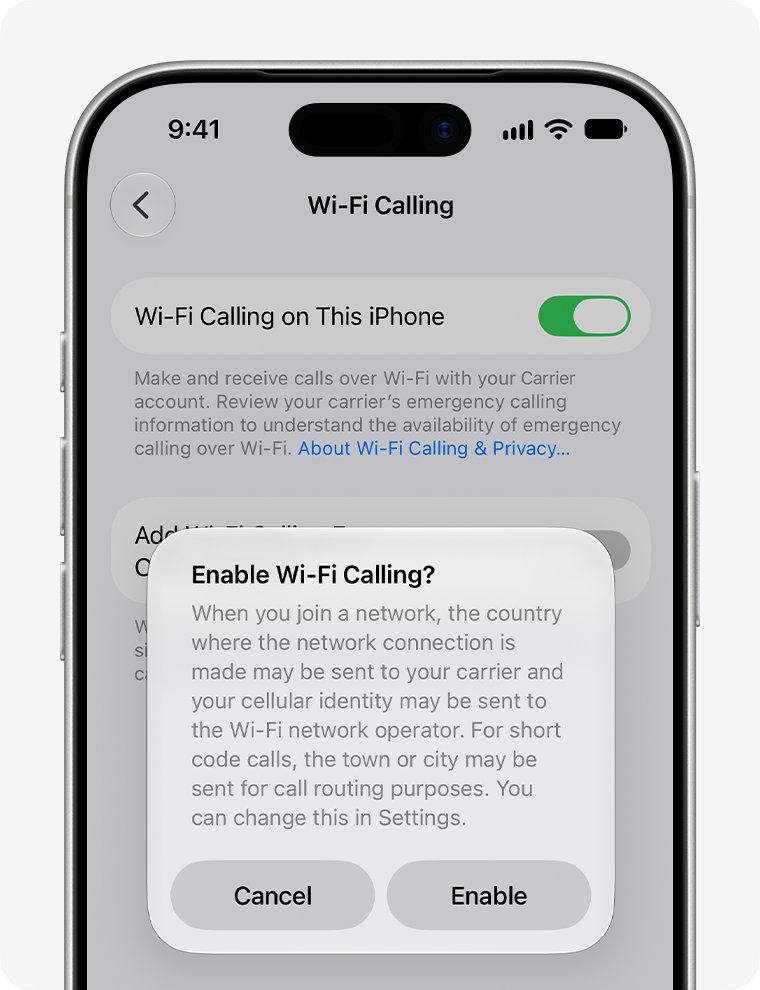
| SOS indoors but Wi-Fi works | Turn on Wi-Fi Calling on This Phone so normal calls use Wi-Fi | Settings > Cellular > Wi-Fi Calling |
| Older iPhone 6 or later shows No Service after 3G shutdowns | Turn on Enable LTE | Settings > Cellular > Cellular Data Options |
| iPhone 5s, 5c or earlier | LTE settings will not help; talk to your carrier about options | Your carrier |
iPhones that support 5G are not affected by carriers phasing out 3G networks.
Troubleshooting Tips for Persistent SOS Problems
SOS stays in the top right corner after every fix
An account block, a carrier-side fault or hardware damage.
- Ask your carrier to confirm the account is active and the device is not blocked or barred.
- Ask the carrier to confirm your plan matches the device.
- If the carrier finds no issue, contact Apple Support about a hardware check.
SOS shows but Wi-Fi works
Wi-Fi does not replace cellular service; SOS reports the cellular side only.
- Open Settings > Cellular > Wi-Fi Calling and turn on Wi-Fi Calling on This Phone.
- Tap Enable and confirm your address for emergency services if asked.
- Open Control Center; "Wi-Fi" in the status bar there means calls now use Wi-Fi Calling.
SOS only on one line of a Dual SIM iPhone
That line is off, or its SIM or eSIM needs attention.
- Open Settings > Cellular and tap the affected line.
- Tap Turn On This Line if it is off.
- If the line is missing, contact your carrier to set up the eSIM again.
SOS right after inserting a new SIM
The iPhone still has the old carrier's settings.
- Connect to Wi-Fi.
- Open Settings > General > About and accept the carrier settings update.
- If the SIM does not fit the tray or came from another phone, ask your carrier for a new one.
SOS the moment you arrive in another country
Data roaming is off, or your plan does not include roaming.
- Open Settings > Cellular > Cellular Data Options.
- Turn on Data Roaming.
- Ask your carrier whether roaming is active on your plan.
Preventative Measures and Best Practices
| Habit | Why it helps |
|---|---|
| Keep Automatic Updates on under Settings > General > Software Update | iOS updates carry network fixes; the phone installs them overnight while charging |
| Check Settings > General > About after any SIM or carrier change | Triggers the carrier settings prompt straight away |
| Turn on Wi-Fi Calling at home and work | Calls keep working in rooms where cellular signal drops to SOS |
| Set up Medical ID and emergency contacts in Health | Emergency SOS and satellite messages share them automatically |
| Try the Satellite Connection Demo before going off the grid (iPhone 14 or later) | You learn how to aim at a satellite while you are safe |
When to Contact Apple Support
Contact your carrier first, and contact Apple Support only after the carrier confirms your account and network are fine but SOS remains. Only your carrier can see account blocks, outages and IMEI registration problems. Apple states that when the carrier finds no issue and a hardware fault is suspected, the iPhone may need service.
Before you book service, back up the phone and note which fixes you already tried.
Frequently Asked Questions
What does SOS mean on iPhone?
SOS means your iPhone is not connected to your own carrier's cellular network but can still make emergency calls through other carriers' networks. Normal calls, texts and cellular data will not work until the phone reconnects.
What does it mean when your iPhone is on SOS?
It means the phone lost your carrier's signal while another network is in range. You are not in an emergency mode and nothing has been called. Toggle Airplane Mode for 15 seconds, then restart the phone if the label stays.
What does SOS mean on iPhone next to the battery or in the top right corner?
That is the status bar, where your signal bars and carrier name normally sit. SOS replaces them when your carrier's network is unavailable. It is a network status label, not a warning about the battery or the phone itself.
What does SOS mean on iPhone 13, 14, 15 or 16?
The meaning is the same on every model: no connection to your carrier, but emergency calls still possible. The difference is that iPhone 14 and later can also text emergency services via satellite when there is no cellular or Wi-Fi coverage at all.
What does SOS mean on iPhone 16e or iPhone 17?
It means the same thing as on older models: your carrier's network is unavailable and only emergency calls can go out. Both are newer than iPhone 14, so Emergency SOS via satellite is also available where Apple supports it.
What does SOS mean on iPhone 12?
On iPhone 12, SOS means your carrier's network is unavailable but emergency calls can use another network. iPhone 12 does not support Emergency SOS via satellite, which requires iPhone 14 or later.
Why does my iPhone show SOS when it is connected to Wi-Fi?
SOS reports cellular service only, so it can appear while Wi-Fi works. Turn on Wi-Fi Calling in Settings > Cellular > Wi-Fi Calling so normal calls go over Wi-Fi while the cellular problem is fixed.
What does SOS mean on iPhone and how to fix it?
It means no connection to your carrier, with emergency calls still allowed. Toggle Airplane Mode, restart, check for a carrier settings update in Settings > General > About, check the SIM, reset network settings, and update iOS, in that order.
Can I turn off the SOS indicator on my iPhone?
No. The SOS label reports network status and has no setting. The Emergency SOS settings only control the button shortcuts that call emergency services. The label disappears once your iPhone reconnects to your carrier.
Why do I see No Service instead of SOS?
Apple uses the SOS label in Australia, Canada and the United States. No Service means the phone is not connected to any cellular network, and Searching means it is still looking for one.


How to fix photos & videos not being sent via iMessage on iPhone - Techdows
[…] the status bar shows SOS instead of signal bars, sort out cellular service first or switch to […]