When the arrow keys scroll the whole sheet in Excel instead of moving from cell to cell, Scroll Lock is on, and pressing the ScrLk key turns it off.
If that is not the cause, the fixes below cover Edit mode, add-ins, keyboard hardware, a code-based Scroll Lock toggle, Office repair and drivers, for Excel on Windows and Mac.
Fix 1: Check and Disable Scroll Lock
With Scroll Lock on, each arrow key press scrolls the worksheet one row or one column while the selected cell stays put. Microsoft states plainly that Scroll Lock must be off for the arrow keys to move between cells.
- Look at the status bar at the bottom of the Excel window. If it shows Scroll Lock, the lock is on.
- If you see no indicator, right-click the status bar and tick Scroll Lock so Excel shows it whenever the lock is active.
- Press the Scroll Lock key, often labelled ScrLk, once.
- Confirm Scroll Lock has disappeared from the status bar.
- Press an arrow key. The green cell border should now move to the next cell.
- In Excel for Mac, press Shift + F14 to toggle Scroll Lock instead.
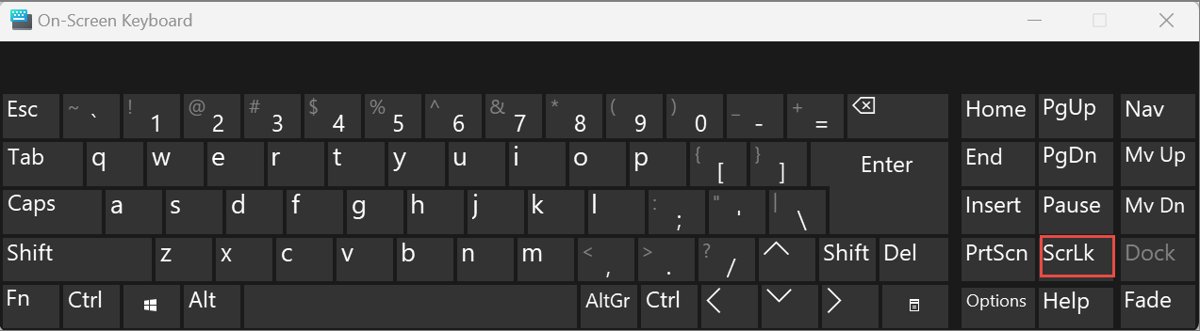
Most laptop keyboards have no ScrLk key. Use the On-Screen Keyboard route in Fix 5 to press it with the mouse.
Understanding the Root Causes
What the arrow keys do when they misbehave points straight at the cause. Match the behaviour you see to a row and jump to that fix.
| What the arrow keys do | Likely cause | Go to |
|---|---|---|
| The sheet scrolls but the selected cell stays the same | Scroll Lock is on | Fix 1, or Fix 5 if there is no ScrLk key |
| The cursor moves between characters inside one cell | Excel is in Edit mode (status bar shows Edit) | Fix 3 |
| The selection grows instead of moving | Extend mode is on (status bar shows Extended Selection) | Fix 3 |
| Arrows fail only in Excel, and only since an add-in was installed | A COM or Excel add-in intercepts keystrokes | Fix 2 |
| Arrows fail in Excel even after add-ins are off | Damaged Office program files | Fix 6 |
| Arrows fail in Notepad, the browser and every other app too | Keyboard hardware, connection or driver | Fix 4 and Fix 7 |
| Keys respond only after being held down, or not at all | Filter keys is ignoring brief keystrokes | Fix 7 |
Fix 2: Reset Excel Settings and Disable Add-ins
Excel has no single reset button, but safe mode is the practical equivalent for testing: it starts Excel without add-ins, toolbar customizations or the AutoCorrect list. If the arrow keys work in safe mode, an add-in or customization is the cause.
- Close Excel completely.
- Press Windows + R, type
excel /safe, and select OK. You can also hold Ctrl while you double-click the Excel shortcut, then select Yes. - Open your workbook and test the arrow keys. If they work, close Excel and start it normally.
- Select File > Options > Add-ins.
- In the Manage list at the bottom, select COM Add-ins, then select Go.
- Clear the check box for one add-in, select OK, and restart Excel to test the arrow keys.
- Repeat with the next add-in. When every COM add-in is clear and the problem remains, pick Excel Add-ins in the Manage list and test those one at a time.
When the arrow keys start working, the last add-in you cleared is the culprit. Check the add-in maker's site for an update, or leave it turned off if you do not need it. Re-enable the others one at a time to confirm none of them conflicts too.
Fix 3: Ensure Excel Is Not in Cell Editing Mode
While you edit a cell, Excel is in Edit mode and the arrow keys move the text cursor inside the cell rather than to a neighbouring cell. The status bar's lower-left corner shows the current mode: Ready, Enter, Edit or Point.
- Look at the lower-left corner of the status bar. Edit means you are editing the cell's contents.
- Press Enter to keep your change and move down, Tab to keep it and move right, or Esc to cancel the edit.
- Confirm the status bar now reads Ready, then press an arrow key.
- If the status bar reads Extended Selection, press F8 once to turn extend mode off.
- If a cell opens in Edit mode every time you type, remember that pressing F2 switches it there on purpose; press F2 again to switch to Enter mode, where arrow keys finish the entry and move.
- To edit in the formula bar instead of the cell, select File > Options > Advanced and clear Allow editing directly in cells under Editing options.
Also check Transition navigation keys near the bottom of the same Advanced page. It swaps in an alternate set of navigation keys, so clear it unless you rely on that legacy layout.
Fix 4: Use the Keyboard Troubleshooter and Test Hardware
First decide whether the problem is Excel or the keyboard. Open Notepad and press the arrow keys there: if the cursor does not move, the keyboard, its connection or its driver is at fault, not Excel.
The built-in Keyboard troubleshooter still exists on Windows 10 and on Windows 11 version 22H2 and older. Microsoft removed it from later Windows 11 releases with no Get Help replacement, so newer PCs go straight to the hardware checks.
- On Windows 10, select Start > Settings > Update & Security > Troubleshoot > Additional troubleshooters, then select Keyboard and run it.
- Unplug a USB keyboard, wait a moment for Windows to unload the driver, and plug it back in.
- Try a different USB port, and check the cable for damage.
- For a wireless keyboard, replace or charge the batteries, then unplug the USB receiver for about 10 seconds and plug it back in.
- Look for dirt or debris under the arrow keys and clean it out.
- Connect a different keyboard. If its arrow keys work in Excel, the original keyboard is faulty.
On a MacBook or a Magic Keyboard, the hardware checks differ; see how to fix a Mac keyboard that is not working.
Fix 5: Turn Off or Toggle "Scroll Lock" Programmatically
Laptops and compact keyboards often lack a ScrLk key. The On-Screen Keyboard is the route Microsoft documents, and a single line of VBA is a backup when the on-screen key is awkward to reach.
- On Windows 11, select Start > Settings > Accessibility > Keyboard and turn on On-Screen keyboard. On Windows 10, select Start > Settings > Ease of Access > Keyboard and turn on Use the On-Screen Keyboard.
- Select ScrLk on the on-screen keyboard, check that Scroll Lock has left Excel's status bar, then close the on-screen keyboard with the X button.
- To toggle it with code instead, press Alt + F11 in Excel to open the Visual Basic for Applications editor.
- Press Ctrl + G to open the Immediate window.
- Type
Application.SendKeys "{SCROLLLOCK}"and press Enter to run the line. - Press Alt + F11 again to return to Excel and check the status bar. If Scroll Lock still shows, use the On-Screen Keyboard steps above.
{SCROLLLOCK} is Microsoft's documented SendKeys code for the Scroll Lock key. Running the line twice turns the lock back on, so check the status bar after each run. Searching Start for On-Screen Keyboard also opens it directly.
Fix 6: Repair or Reinstall Microsoft Office
When the arrow keys work in Notepad but still fail in Excel with every add-in turned off, damaged Office files are the next suspect. Repair fixes the whole Office suite, not just Excel, and keeps your workbooks untouched.
- Save your work and close every Office app.
- On Windows 11, right-click Start and select Installed apps. On Windows 10, right-click Start and select Apps and Features.
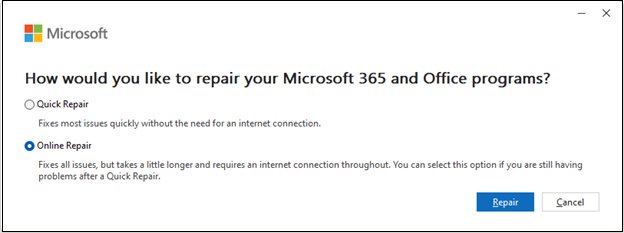
- Find your Microsoft 365 or Office entry. On Windows 11, select the three dots, then Modify; on Windows 10, select Modify.
- Choose Quick Repair and select Repair. It detects and replaces corrupted files without an internet connection.
- Open Excel and test the arrow keys.
- If they still fail, repeat the steps and choose Online Repair, which is the more thorough fix.
Reinstall only when Online Repair does not help. Uninstall Office from the same apps list, restart, and install it again from the Microsoft account that holds your licence.
Fix 7: Check for External Software Conflicts and Update Drivers
Keyboard remapping tools, macro utilities and Windows accessibility features all sit between the key and Excel. A stale or damaged keyboard driver has the same effect across every app.
- Close any keyboard remapping, macro or hotkey utility that runs in the notification area, then test the arrow keys in Excel.
- On Windows 11, open Settings > Accessibility > Keyboard and turn off Filter keys. On Windows 10, use Settings > Ease of Access > Keyboard and turn off Filter Keys.
- Run Windows Update: search for Check for updates, open it, and select Check for updates.
- Right-click Start, select Device Manager, and expand Keyboards.
- Right-click your keyboard, select Update driver, then Search automatically for updated driver software.
- If that finds nothing, right-click the keyboard again, select Uninstall device, confirm with Uninstall, and restart the PC. Windows reinstalls the driver on startup.
Filter keys makes Windows ignore brief or repeated keystrokes, so quick arrow taps can vanish. Get drivers only from Windows Update or the keyboard maker's own site, never from a third-party driver updater.
How to check the arrow keys work again
A fix is confirmed only when all the signs below line up in a real workbook.
- Select cell A1 and press the Right Arrow key. The active cell border should move to B1, and the Name Box should read B1.
- Press the Down Arrow key and confirm the Name Box reads B2.
- Check that the status bar shows Ready and no Scroll Lock or Extended Selection text.
- Type a value, press an arrow key, and confirm Excel commits the value and moves to the next cell.
- Close and reopen Excel normally, not in safe mode, and repeat the test so you know the fix survives a restart.
Additional Tips for Preventing Arrow Key Issues
| Habit | Why it prevents the problem |
|---|---|
| Keep the Scroll Lock status bar indicator switched on | You spot an accidental Scroll Lock press the moment it happens instead of hunting for the cause |
| Keep Cell Mode visible on the status bar | Edit, Enter and Point tell you instantly why the arrows are editing text instead of moving |
| Install add-ins one at a time and test navigation afterwards | A conflicting add-in is identified the same day, not weeks later |
| Leave Transition navigation keys cleared unless you need it | The alternate navigation layout changes how keys behave on the sheet |
| Install Office and Windows updates regularly | Updates replace damaged or outdated program files and drivers |
| Keep the wireless keyboard charged and the receiver in a direct USB port | Weak batteries and flaky connections drop keystrokes |
Fix arrow keys that still misbehave
These symptoms come from what people search when the arrow keys stop working. Run only the fix under yours.
Arrow keys not working properly: the sheet scrolls, the cell does not move
Scroll Lock is on, often switched on by a stray key press or a Fn combination on a laptop.
- Right-click the status bar and make sure Scroll Lock is ticked so the indicator shows.
- Press ScrLk, or select ScrLk on the On-Screen Keyboard.
- Confirm the indicator is gone and an arrow press moves the active cell.
Arrow keys select a range instead of moving one cell
Extend mode is on, which makes the arrow keys extend the selection.
- Look for Extended Selection in the status bar.
- Press F8 once to turn extend mode off.
- Select a single cell and press an arrow key to confirm it moves.
Arrow keys not working on laptop keyboard
A driver problem or Filter keys stops the built-in keyboard, or the laptop has no ScrLk key to clear Scroll Lock.
- Open Notepad and test the arrows. If they work there, go back to Fix 1 and use the On-Screen Keyboard to press ScrLk.
- If they fail everywhere, turn off Filter keys in keyboard accessibility settings.
- In Device Manager, expand Keyboards, right-click the built-in keyboard, and select Update driver.
- Plug in a USB keyboard to confirm whether the built-in keys are faulty.
Arrow keys stopped working on keyboard in every app
Windows is not receiving the keystrokes at all, so no Excel setting will help.
- Unplug and reconnect the keyboard, or try another USB port.
- Replace the batteries or reconnect the wireless receiver.
- Uninstall the keyboard in Device Manager and restart so Windows reinstalls the driver.
Frequently Asked Questions
Questions below come from real searches; the Scroll Lock question on a keyboard without the key is taken from the ranking guides' headings.
How do I fix arrow keys not working in Excel?
Turn off Scroll Lock first: press ScrLk and check that Scroll Lock disappears from Excel's status bar. If the arrows still fail, press Esc to leave Edit mode, start Excel with excel /safe to rule out add-ins, then repair Office.
Why are my arrow keys not working in Excel but work elsewhere?
When the arrow keys work in Notepad but not Excel, the cause is inside Excel. Scroll Lock, Edit mode, extend mode or an add-in is almost always responsible. The status bar shows Scroll Lock, Edit or Extended Selection for the first three.
Why won't arrow keys work on keyboard at all?
If the arrow keys fail in every app, Windows is not receiving the keystrokes. Reconnect the keyboard, try another USB port, replace wireless batteries, turn off Filter keys, and reinstall the keyboard driver from Device Manager.
How do I fix keyboard arrow keys not working on a laptop?
Test the arrows in Notepad first. If they work there, use the On-Screen Keyboard to press ScrLk, since most laptops lack that key. If they fail everywhere, update or reinstall the keyboard driver in Device Manager and test with a USB keyboard.
How do I turn off Scroll Lock without a Scroll Lock key?
Open the On-Screen Keyboard and select ScrLk. On Windows 11 it is under Settings > Accessibility > Keyboard; on Windows 10, under Settings > Ease of Access > Keyboard. In Excel for Mac, press Shift + F14.
Why will my arrow keys not work when I am typing in a cell?
While you edit a cell, Excel is in Edit mode and the arrow keys move the cursor inside the cell. Press Enter, Tab or Esc to leave Edit mode. Pressing F2 switches between Edit and Enter mode while you type.
Why do my arrow keys scroll the page instead of moving cells?
Scroll Lock is on. With it enabled, each arrow press scrolls one row or column while the active cell stays put. Press ScrLk or use the On-Screen Keyboard, and confirm Scroll Lock no longer shows in the status bar.
Can an add-in stop the arrow keys working in Excel?
Yes. Start Excel with excel /safe, which loads no add-ins. If the arrows work there, go to File > Options > Add-ins, choose COM Add-ins > Go, and clear add-ins one at a time until the culprit is found.
Final Note
Check Excel's status bar before trying anything else, because it names the cause in most cases: Scroll Lock, Edit or Extended Selection. Those modes account for arrow keys that scroll, edit text or grow a selection, and each clears with a single key press. Add-ins, Office repair and drivers only matter once the status bar reads Ready and the arrows still do nothing, or when they fail in Notepad too.



![How to Create a Survey in MS Forms [Step-by-Step Guide]](https://techdows.com/wp-content/uploads/2026/10/How-to-Create-a-Survey-in-MS-Forms-Step-by-Step-Guide-600x338.jpg)