Restart the computer, then re-enable HID-compliant touch screen under Human Interface Devices in Device Manager: that pair fixes most Windows 10 and Windows 11 touchscreens.
The sections below cover driver repair, optional driver updates, touch calibration, power settings, and the hardware tests that decide whether the panel itself has failed.
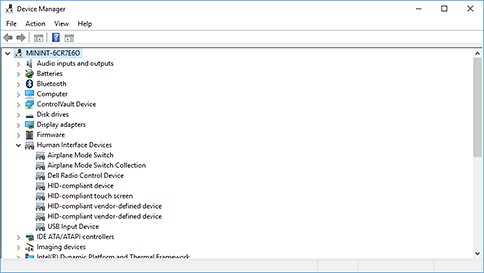
The fastest way to get the touchscreen responding again
Microsoft's first instruction for an unresponsive touchscreen is a restart, because the touch stack reloads with the device.
- Select Start > Power > Restart and wait for the sign-in screen.
- Tap the screen once. If touch is back, stop here.
- Right-click the Start menu and select Device Manager.
- Select the arrow next to Human Interface Devices to expand the category.
- Right-click HID-compliant touch screen and select Enable device.
- Repeat the previous step for every HID-compliant touch screen entry listed.
Enable device only appears when the device is switched off. A greyed-out entry that offers Disable device is already running.
Which fix matches what the touchscreen is doing?
Match the symptom to a row, then jump to that section instead of working through every fix.
| What you see | Start with | Why |
|---|---|---|
| No response anywhere on the panel | Restart, then Device Manager | The device is off, or the touch stack stalled |
| Touch died right after an update | Roll back the driver, or remove the update | A new driver or patch replaced a working one |
| Taps land away from your finger | Calibrate touch input | The digitizer is mapped to the wrong area or screen |
| Touch goes to the second monitor | Tablet PC Settings > Setup | Windows has not been told which display is the touch display |
| Touch stops after sleep | Power Management tab | Windows is switching the device off to save power |
| HID-compliant touch screen is missing | Optional updates, then hardware test | Either the driver never arrived or the panel is not detected |
| Cracked glass, dents, or liquid marks | Manufacturer diagnostics | Software fixes cannot repair a damaged digitizer |
Check Basic Touchscreen and Display Issues
Rule out the physical causes before touching any setting. Dirt, film and a disabled firmware option all look like a broken touchscreen.
- Peel off any screen protector, privacy filter or adhesive film fitted to the display.
- Wipe the panel and its edges with a microfiber cloth, lightly dampened, and let it dry fully before powering on.
- Check the screen edges for trapped debris or moisture around the bezel.
- Restart the computer and press the firmware setup key during startup (F2 on Dell laptops, F10 on many HP notebooks).
- Open the Advanced section, find the Touchscreen option under Display or Built-in Device Options, and set it to enabled.
- Save the change, exit firmware setup and let Windows start.
The firmware key and menu layout differ by brand. If F2 or F10 does nothing, check the maker's support page for the setup key on that model.
Enable the HID-Compliant Touch Screen in Device Manager
Windows lists the touchscreen as HID-compliant touch screen under Human Interface Devices, and a disabled entry there kills touch completely.
- Right-click the Start menu and select Device Manager.
- Select the arrow next to Human Interface Devices.
- Right-click HID-compliant touch screen and select Enable device.
- If the entry is already enabled, select Disable device, confirm, then select Enable device again.
- Handle every HID-compliant touch screen entry the same way when more than one is listed.
- Restart the computer if Windows asks for one.
No HID-compliant touch screen entry at all usually means the driver is missing, not that the panel is dead. Install optional updates next.
Update, Roll Back, or Reinstall Touchscreen Drivers
An outdated or mismatched touch driver is the most common software cause, and Device Manager can pull a replacement from Windows Update.
Start with the update below. The next two sections carry the roll back and reinstall routes in full.
- Right-click the Start menu and select Device Manager.
- Expand Human Interface Devices.
- Right-click HID-compliant touch screen and select Update driver.
- Select Search automatically for updated driver software.
- Let Windows search Windows Update when it offers that option.
- Select Close, then restart the computer.
- Download a replacement driver only from the computer maker's own support site if Windows finds nothing.
Skip any tool that promises to scan for and install drivers from an unknown catalogue. The maker's site and Windows Update are the two supported sources.

Roll back the touchscreen driver after a bad update
Roll Back Driver reinstates the driver that was in place before the last change, and it is the fastest answer when touch died the same day as an update.
- Right-click the Start menu and select Device Manager.
- Expand Human Interface Devices and right-click HID-compliant touch screen.
- Select Properties, then open the Driver tab.
- Select Roll Back Driver.
- Choose a reason when prompted, then select Yes.
- Restart the computer if prompted.
Roll Back Driver is greyed out when Windows holds no previous driver for that device. Reinstall the device instead.
Reinstall the HID-compliant touch screen device
Uninstalling the device forces Windows to fetch a fresh copy of the driver at the next start.
- Save all work and close all apps.
- Right-click the Start menu and select Device Manager.
- Expand Human Interface Devices and right-click HID-compliant touch screen.
- Select Uninstall device, then confirm with the Uninstall button.
- Right-click the Start menu and select Shut down or sign out > Restart.
- Wait for the sign-in screen, then test touch.
Windows reinstalls the device automatically during startup. If the entry does not come back, run the optional-updates steps below.
Run Windows Update and Hardware Troubleshooters
Touch drivers usually arrive as optional updates, so a standard update check can miss them. Microsoft's own fix for a dead touchscreen is to install every optional update, then restart.
- On Windows 11, right-click Start and select Settings > Windows Update > Advanced options.
- Turn Receive updates for other Microsoft products on.
- Under Additional options, select Optional updates, tick every update offered and select Download and install.
- On Windows 10, go to Settings > Update & Security > Windows Update > Advanced options and turn on Receive updates for other Microsoft products when you update Windows, then use the View optional updates link.
- Return to Windows Update and select Check for updates, installing everything offered.
- Restart the computer once installation finishes, even when no update asks for it.
There is no touchscreen troubleshooter in Windows. The Hardware and Devices troubleshooter is on Microsoft's retired list and will be removed, and the Get Help app carries troubleshooters for audio, Bluetooth, camera, network, printers, video playback and Windows Update only.
Calibrate or Reset Touchscreen Settings
Calibration fixes taps that land beside your finger, and it is the tool that tells Windows which physical display receives touch.
- Open Control Panel and select Hardware and Sound.
- Select Tablet PC Settings.
- Select Setup, then choose Touch input.
- Follow the on-screen prompt: tap the screen showing the instruction, or press Enter to move to the next display.
- Work through every display until the prompt closes.
- Test touch, then repeat the setup if input still lands on the wrong monitor.
On a multi-monitor desk this setup step is the fix for touch registering on the wrong screen, not calibration accuracy.
Adjust Power Management Settings
Windows is allowed to switch input devices off to save power, which shows up as touch that dies after sleep and returns after a restart.
- Right-click the Start menu and select Device Manager.
- Expand Human Interface Devices and right-click HID-compliant touch screen.
- Select Properties.
- Open the Power Management tab.
- Clear the Allow the computer to turn off this device to save power checkbox.
- Select OK, then restart the computer.
A device with no Power Management tab is not being powered down by Windows, so move on to the hardware checks.
How to check the touchscreen is genuinely fixed
A single tap on the desktop proves very little. These four checks separate a working digitizer from one that only responds in places.
- Open Device Manager and confirm HID-compliant touch screen appears under Human Interface Devices with no warning symbol.
- Drag a window with one finger from one corner of the screen to the opposite corner.
- Pinch to zoom in an image or a web page to confirm multi-touch registers.
- Close the lid or let the computer sleep, wake it, and tap again to confirm touch survives sleep.
Touch that passes the first three checks but fails after sleep points straight back at the Power Management setting.
Fix the touchscreen when it still will not work
Each symptom below has one likely cause and a fix that starts from where the reader actually is.
The touchscreen stopped working after a Windows update
The update replaced the touch driver, or the update itself is at fault.
- Try Roll Back Driver on HID-compliant touch screen first, as described above.
- If that button is greyed out, select Start > Settings > Windows Update.
- Under More options, select Update history.
- Under Related settings, select Uninstall updates.
- On Windows 10, use Settings > Update & Security > Windows Update > View your update history > Uninstall updates.
- Select the update installed on the day touch failed and select Uninstall. Some updates cannot be removed.
HID-compliant touch screen is missing from Device Manager
The touch driver was never installed, or the panel is not being detected at all.
- Install every optional update, then restart, as described in the Windows Update section.
- Open Device Manager and expand Human Interface Devices again.
- Check firmware setup for a Touchscreen option that has been switched off.
- Run the manufacturer's touchscreen diagnostic if the entry is still absent.
Touch responds in the wrong place or on the wrong monitor
Windows is mapping the digitizer to the wrong display area.
- Open Control Panel > Hardware and Sound > Tablet PC Settings.
- Select Setup, then Touch input, and follow the prompt on each display in turn.
- Disconnect the second monitor and test touch on the built-in display alone.
- Reconnect the monitor and run Setup once more so the mapping is stored with both screens attached.
Touch works, then stops until the next restart
Power management is switching the device off, or the driver is faulting under load.
- Clear Allow the computer to turn off this device to save power on the Power Management tab.
- Update the touch driver from Device Manager.
- Install all optional updates, then restart.
- Uninstall and reinstall the HID-compliant touch screen device if the pattern returns.
The touchpad stopped working as well
A missing or out-of-date driver, which is the usual cause of touchpad failure in Windows.
- Open Device Manager and look under both Human Interface Devices and Mice and other pointing devices.
- Right-click the touchpad entry and select Update driver.
- Select Uninstall device and restart if updating changes nothing, which forces the latest driver to download from Windows Update.
- Contact the computer's manufacturer if neither the touchpad nor the touchscreen returns.
Input hardware on other platforms follows a different route entirely: see How to Fix Mac Keyboard Not Working, MacBook, Magic Keyboard & USB Fixes.
Check for Hardware Problems or Contact Support
Once the driver, updates, calibration and power settings are all ruled out, the next test has to come from the hardware itself.
- Look along the panel for cracked glass, dents, bulging or marks left by liquid.
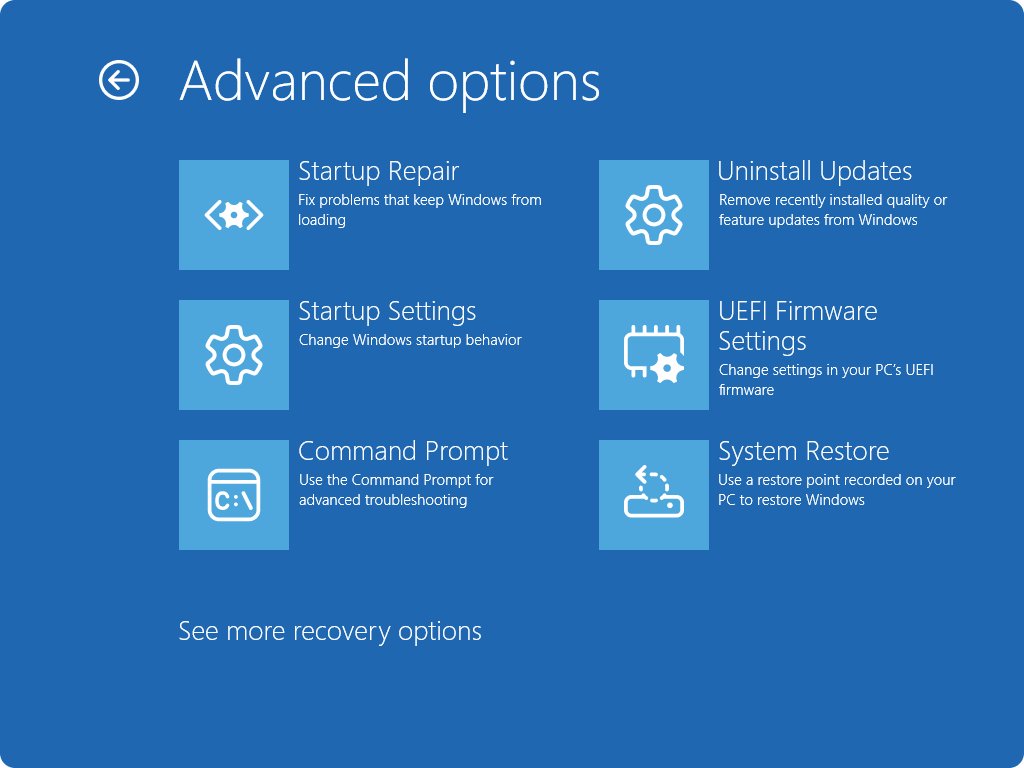
- Run the maker's built-in touchscreen test: the SupportAssist touchscreen diagnostic on Dell computers, or HP PC Hardware Diagnostics UEFI on HP notebooks.
- On an HP notebook, hold the power button for five seconds to power off, then turn it on and press esc repeatedly, and press F2 at the Startup menu.
- Note the error code the test reports.
- Contact the computer's manufacturer with that code if the diagnostic reports a hardware failure.
Touch that fails only inside a Remote Desktop session is not a panel fault at all — see Fix: Remote Desktop Not Working in Windows 10/11.
Bottom Line
Restart, re-enable HID-compliant touch screen, then install every optional update before changing anything else. Those three steps cover the disabled device and the missing driver, which between them account for most dead touchscreens in Windows 10 and Windows 11. A hardware diagnostic from the computer's maker is the only test that proves the panel itself has failed.
Frequently Asked Questions
How do I fix a touch screen that is not working?
Restart the computer first. Then open Device Manager, expand Human Interface Devices and select Enable device on HID-compliant touch screen. If touch is still dead, install all optional updates from Windows Update and restart again.
Why isn't the touch screen working in Windows 10?
The usual causes are a disabled HID-compliant touch screen device, a missing or outdated touch driver, or a firmware setting that switched the panel off. Physical damage and screen film account for most of the rest.
Why is my touchscreen not working after a Windows update?
An update can replace a working touch driver with one that does not suit the panel. Use Roll Back Driver on the Driver tab of HID-compliant touch screen. If that is unavailable, uninstall the update from Update history > Uninstall updates.
Why won't my Windows touchscreen work on one of two monitors?
Windows has to be told which display carries the digitizer. Open Control Panel > Hardware and Sound > Tablet PC Settings, select Setup, choose Touch input, and follow the prompt on each screen in turn.
How do I get the HID-compliant touch screen back in Device Manager?
Install every optional update from Settings > Windows Update > Advanced options > Optional updates, then restart. Windows reinstalls the touch device during startup. If it stays missing, check the firmware setup screen for a disabled Touchscreen option.
Can power settings make the touchscreen stop responding?
Yes. On the Power Management tab of the device properties, Allow the computer to turn off this device to save power lets Windows switch the touchscreen off. Clearing that checkbox stops touch dying after sleep.
How can I fix a touchscreen that responds in the wrong place?
Run touch setup again: Control Panel > Hardware and Sound > Tablet PC Settings > Setup > Touch input. Remove any screen protector first, because thick film shifts where the digitizer registers a finger.
How can I tell if the touchscreen problem is hardware-related?
Run the maker's own test, such as the SupportAssist touchscreen diagnostic on a Dell or HP PC Hardware Diagnostics UEFI on an HP. A reported failure, cracked glass or liquid marks all point at the panel rather than Windows.
Is there a touchscreen troubleshooter in Windows?
No. The Get Help app carries troubleshooters for audio, Bluetooth, camera, network, printers, program compatibility, video playback and Windows Update. The older Hardware and Devices troubleshooter is on Microsoft's retired list.
Should I use a driver updater tool to fix the touchscreen?
No. Use Windows Update, Device Manager, or the driver download page on the computer maker's own support site. Microsoft advises against downloading drivers from any site other than the manufacturer's official one.



How to fix an unresponsive touch screen on iPhone: a step-by-step guide - Techdows
[…] are for iPhone only. A Windows laptop needs its own fixes, such as checking drivers and settings to fix a Windows touchscreen or fix a Windows 11 […]