No, you cannot reset an iPhone with its serial number, because every Apple reset route needs the iPhone itself, your Apple Account password, or a computer connected to the phone.
This guide covers what the serial number is for, where to find it, each reset method that works, what a reset does, and why an iPhone sometimes resets itself.
Can you reset an iPhone with its serial number
Apple has no tool, website or support form that erases an iPhone from its serial number. The serial number identifies the device; it does not prove you own it or unlock it. Pick the reset route that matches your situation instead.
| Your situation | Reset route | What you need |
|---|---|---|
| You can unlock the iPhone | Settings > General > Transfer or Reset iPhone > Erase All Content and Settings | The passcode, plus the Apple Account password if Find My is on |
| Locked out, iOS 17 or later | Forgot Passcode? then Start iPhone Reset on the Lock Screen | Wi-Fi or cellular, Find My on, Apple Account password |
| Locked out, no Forgot Passcode? button | Recovery mode restore from a Mac or Windows PC | A computer and a charging cable |
| iPhone lost, stolen or already sold | Erase This Device at icloud.com/find | The Apple Account the iPhone is signed in to |
| You bought a used iPhone that is locked | The previous owner removes it from their account | The previous owner's help |
None of these routes asks for the serial number. If a website offers to reset or unlock an iPhone from its serial number, it is not an Apple service.
What is the serial number in an iPhone used for
Apple uses the serial number, along with the IMEI, EID and ICCID, to identify your device when you contact Apple for support. It is a label, not a key.
| Number | What it identifies | Can it reset the iPhone? |
|---|---|---|
| Serial number | The physical device, for support and service | No |
| IMEI/MEID | The phone on cellular networks; carriers use it | No |
| EID | The eSIM chip | No |
| ICCID | The SIM card or eSIM profile | No |
| Apple Account password | You, as the owner linked to the device | Yes, it authorizes erase and Activation Lock removal |
How to find the serial number of an iPhone
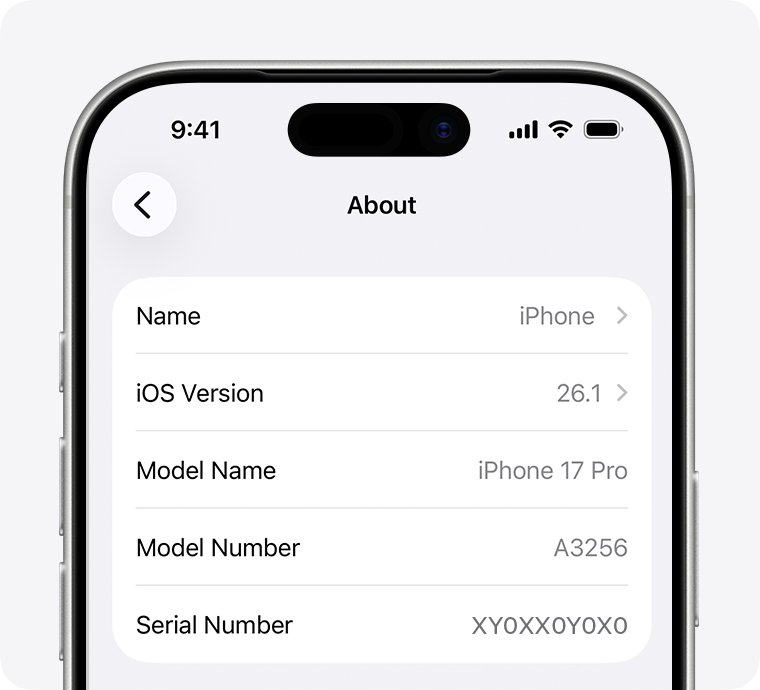
The Settings app is the quickest place to look when the iPhone still unlocks.
- Open the Settings app.
- Tap General, then tap About.
- Find Serial Number near the top of the list.
- Scroll down to see the EID, IMEI/MEID and ICCID.
- Touch and hold the number to copy it into a support form.
On a Mac, connect the iPhone, open the Finder, select it, and click the model name under the device name on the General tab. On a Windows PC, the Apple Devices app or iTunes shows the same details.
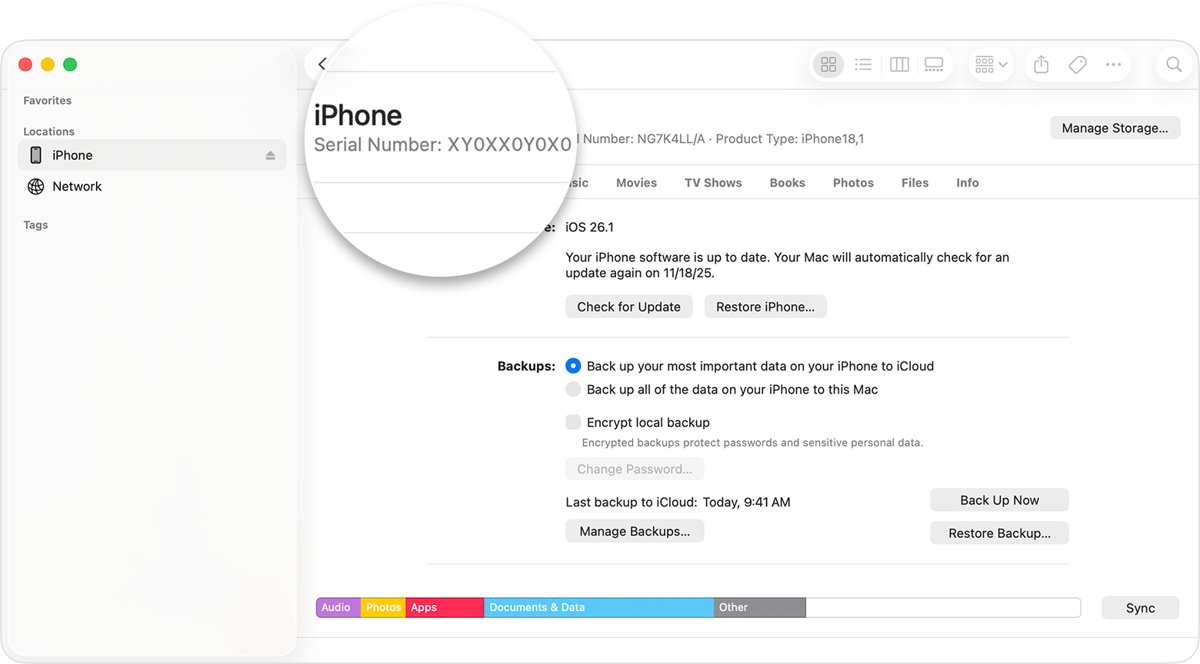
How to get the serial number off a locked iPhone
If the iPhone is locked or will not open Settings, the serial number is still available from your Apple Account and the box.
- Go to account.apple.com in a web browser and sign in with the Apple Account used on the iPhone.
- Choose the Devices section and select the iPhone to see its serial number, EID and IMEI/MEID.
- Or, on another iPhone or iPad signed in to the same account, open Settings, tap your name, scroll down and tap the device name.
- Or check the barcode label on the original packaging.
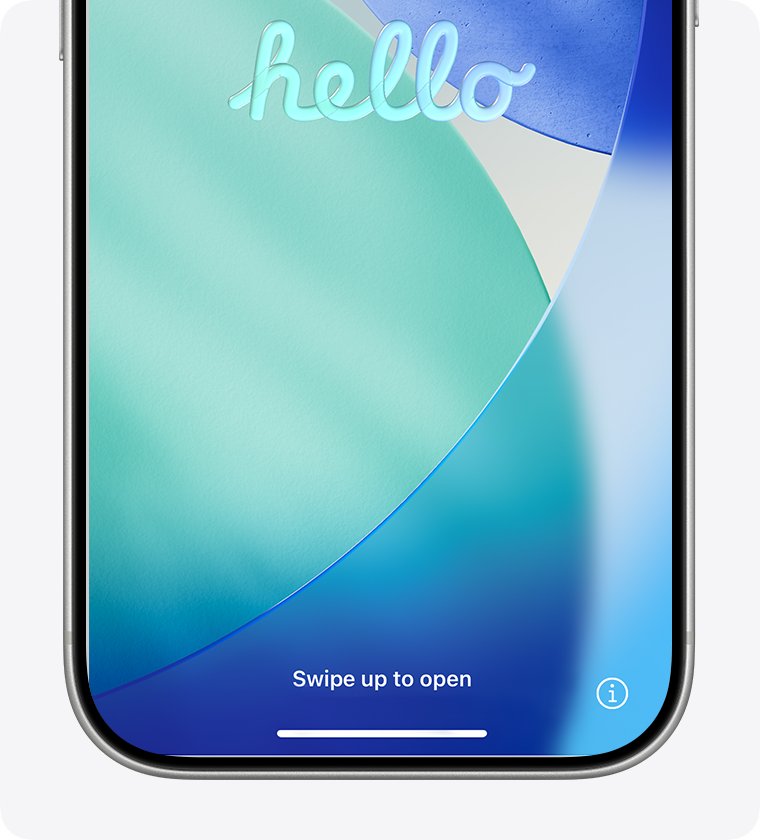
- If the iPhone is erased and showing the Hello screen, tap the Info button in the bottom-right corner.
On iPhone 13 and earlier models with a SIM tray, the IMEI/MEID is printed on the tray, and support can use it in place of the serial number. iPhone 14 models and later have no IMEI/MEID engraving.
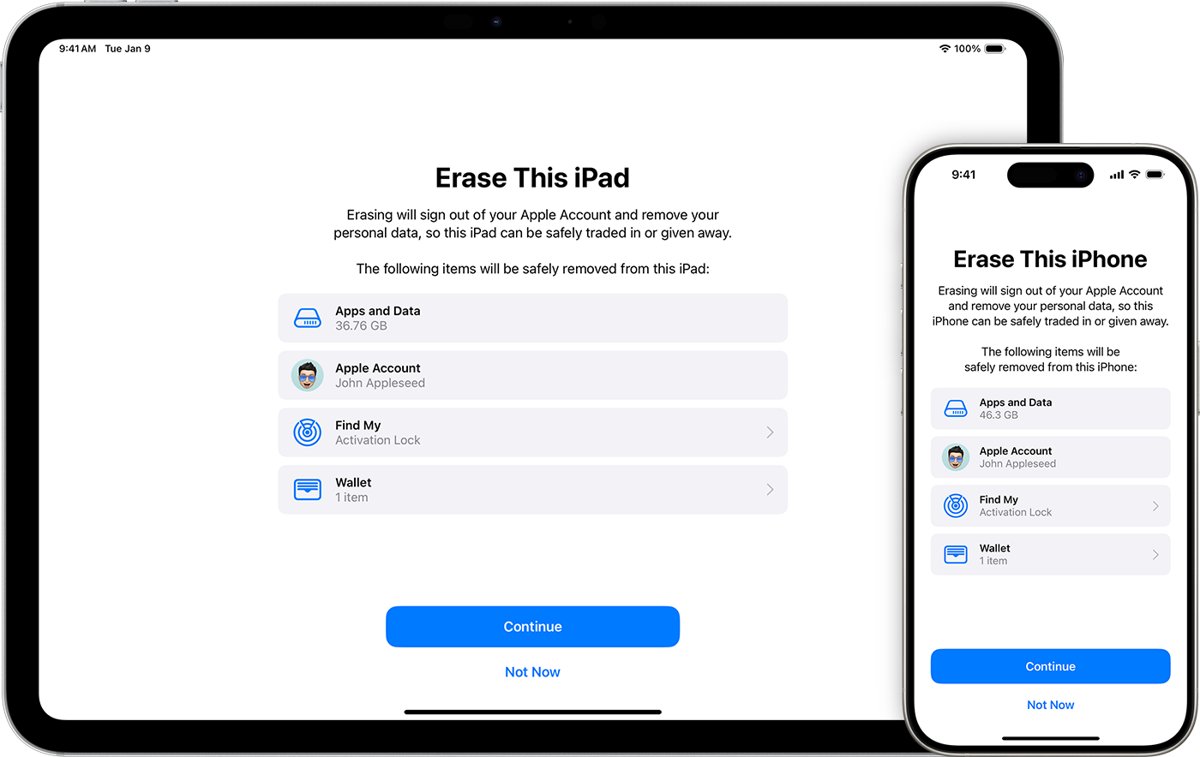
How to factory reset iPhone before selling
Sign out first, then erase. Signing out removes Activation Lock, so the buyer can set the iPhone up with their own account.
- Back up the iPhone to iCloud or your computer.
- Unpair your Apple Watch if one is paired.
- Open Settings, tap your name, scroll down and tap Sign Out.
- On iOS 26, choose Erase this iPhone or Sign Out But Don't Erase; on iOS 18 or earlier, enter your Apple Account password and tap Turn Off.
- Go to Settings > General > Transfer or Reset iPhone and tap Erase All Content and Settings.
- Enter your passcode if asked, then tap Erase iPhone.
- If the iPhone uses an eSIM, choose to erase the device and the eSIM profile.
- Remove the iPhone from your list of trusted devices at account.apple.com.
Erasing turns off Find My and Activation Lock, removes Apple Pay cards, and signs the device out of iCloud, iMessage and FaceTime. Your iCloud data stays in iCloud. The same steps cover the factory reset on any iPhone you plan to keep.
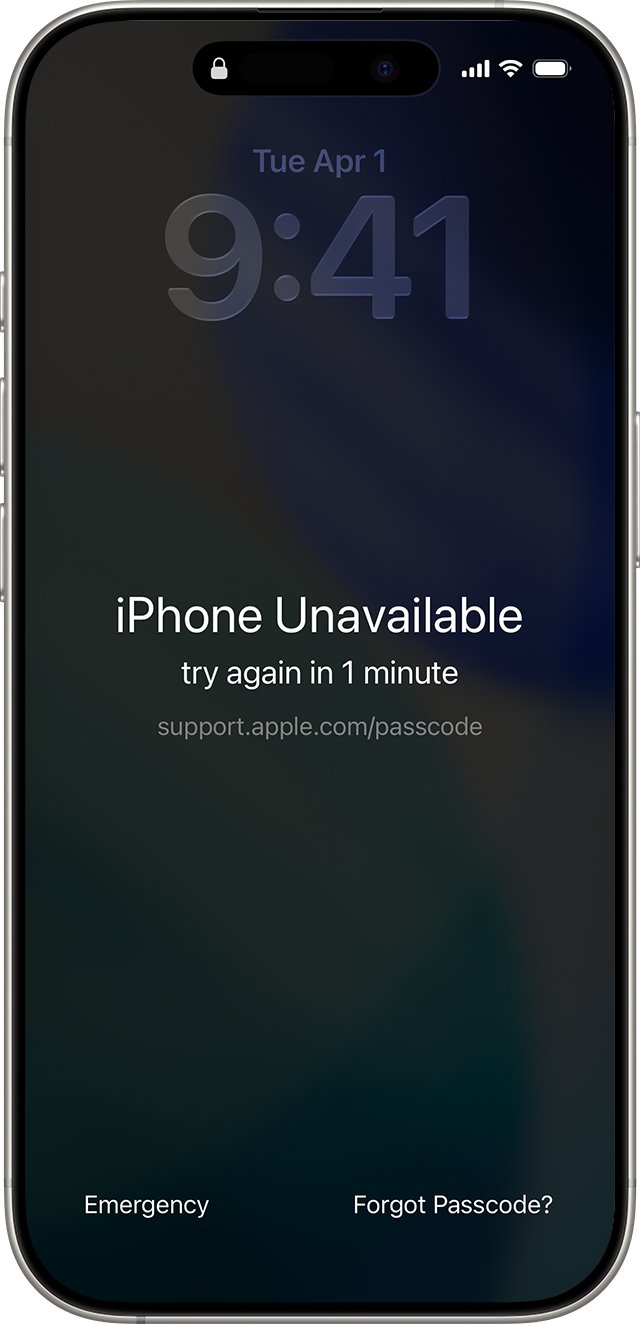
How to reset a locked iPhone with Start iPhone Reset
On iOS 17 or later, a locked-out iPhone can erase itself from the Lock Screen. The Forgot Passcode? button only appears when the iPhone is online, signed in to an Apple Account, and has Find My turned on.
- Enter the passcode on the Lock Screen until iPhone Unavailable appears.
- Tap Forgot Passcode? in the bottom corner.
- If you changed the passcode in the last 72 hours, tap Enter Previous Passcode and use the old one instead of erasing.
- Otherwise, tap Start iPhone Reset on the Security Lockout screen.
- Enter your Apple Account password to sign out of the account on the iPhone.
- Tap Erase iPhone, then set the iPhone up again and restore a backup.
On iOS 15.2 and iOS 16, the same screen shows Erase iPhone instead of Forgot Passcode?. If the button never appears, you can still factory reset a locked iPhone with a computer.
How to reset iPhone with a computer in recovery mode
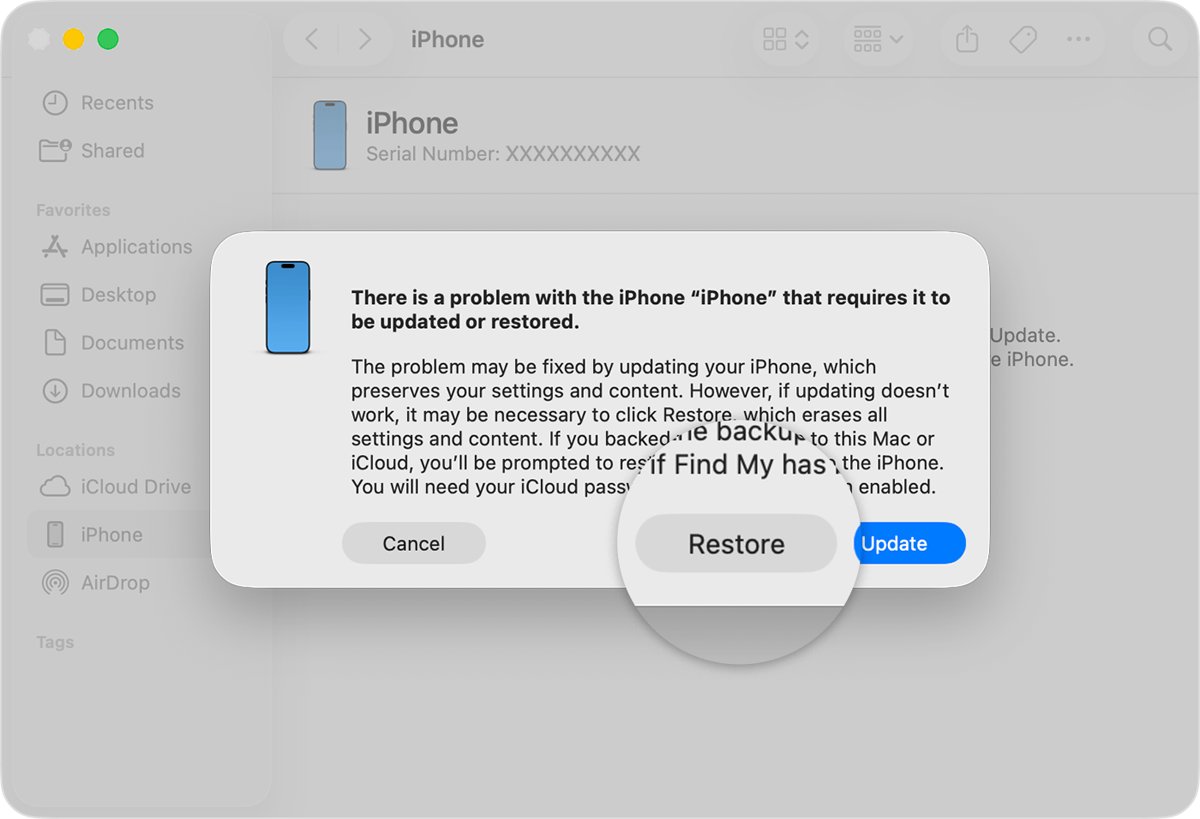
Recovery mode works when the iPhone offers no reset button. It erases the data on the iPhone and can take up to an hour.
- Press and hold the side button and the volume down button until the power off slider appears, then drag it to turn the iPhone off.
- Connect the cable to your Mac or Windows PC.
- Connect the cable to the iPhone while holding the side button, and keep holding it.
- Release the side button when the image of a computer and a cable appears.
- On a Mac, select the iPhone in the Finder sidebar; on a PC, open Apple Devices and select it.
- Select Restore when offered Restore or Update, and follow the onscreen instructions.
- When the Hello screen appears, disconnect the iPhone and set it up.
These steps are for an iPhone with Face ID. If the download takes more than 15 minutes and the iPhone leaves recovery mode, let the download finish, then start recovery mode again.
Reset iPhone remotely with Find My on iCloud.com
Use this when the iPhone is lost, stolen, or already handed over without being erased.
- Go to icloud.com/find and sign in to your Apple Account.
- Select the iPhone in the list of devices.
- Select Erase This Device and follow the onscreen instructions.
- Enter a phone number or message for the Lock Screen if the iPhone is lost.
- To free a sold iPhone from your account, select it again and click Remove This Device.
An online iPhone erases right away; an offline one erases the next time it connects. After a remote erase, Activation Lock stays on, so only your Apple Account password can reactivate it.
How to reset a used iPhone locked to the previous owner
A used iPhone with Activation Lock shows iPhone Locked to Owner when you turn it on. Erasing it again does not unlock an iPhone locked to owner, because Apple's activation servers still link it to the old account.
- Turn on the iPhone and begin setup.
- If it asks for the previous owner's Apple Account, hand it back to the seller to enter their password.
- If the seller is not present, ask them to sign in at icloud.com/find, select the iPhone and click Remove This Device.
- Restart the iPhone and run setup again; it should no longer ask for the previous owner's account.
- If you are the original owner and have lost access to the account, start an Activation Lock support request with your proof of purchase.
Apple advises not to take ownership of a used iPhone until it has been erased and removed from the previous owner's account.
What happens when you reset your iPhone
| Item | After Erase All Content and Settings |
|---|---|
| Photos, contacts, music and apps on the iPhone | Deleted from the device |
| Apple Pay cards | Removed |
| iCloud, iMessage, FaceTime and Game Center | Turned off on the device |
| Data stored in iCloud | Kept in iCloud |
| Find My and Activation Lock | Turned off, if you erased it from Settings |
| eSIM | Kept or deleted, depending on the option you choose |
When the reset finishes, the iPhone restarts to the Hello screen, ready to set up as new or restore from a backup.
How to tell if an iPhone is fully reset
- Turn on the iPhone and check it shows the Hello screen in many languages.
- Begin setup and confirm it does not ask for an Apple Account or show iPhone Locked to Owner.
- Sign in at account.apple.com, open Devices, and check the iPhone is no longer listed.
- Check icloud.com/find and confirm the iPhone is gone from your devices.
If the Lock Screen or Home Screen appears instead of Hello, the iPhone has not been erased.
Why did my iPhone factory reset itself
iPhone erased itself after wrong passcode attempts
The Erase Data setting wipes the iPhone after 10 failed passcode attempts in a row.
- Restore your data from an iCloud or computer backup during setup.
- Open Settings > Face ID & Passcode and enter your passcode.
- Scroll to the bottom and turn off Erase Data if a child or anyone else often tries your phone.
iPhone just reset itself while it was lost or lent out
Someone with your Apple Account used Erase This Device in Find My.
- Check your Apple Account email for the erase confirmation message.
- Change your Apple Account password if you did not start the erase.
- Set up the iPhone and sign in with your Apple Account to clear Activation Lock.
iPhone restarted but nothing was erased
That is a restart, not a reset; your data and settings remain.
- Unlock the iPhone and check your apps and photos are still there.
- Install any update in Settings > General > Software Update.
- If it freezes again, try a soft reset of the iPhone before you erase anything.
Reset iPhone with serial number FAQ
Can I reset my iPhone with the serial number?
No. Apple offers no way to reset an iPhone from its serial number. Erase it from Settings, use Forgot Passcode? on the Lock Screen, restore it in recovery mode with a computer, or erase it remotely at icloud.com/find.
Can I reset an iPad with the serial number?
No. An iPad resets the same ways an iPhone does: Erase All Content and Settings, the Lock Screen reset option, recovery mode with a computer, or Erase This Device in Find My. None of them uses the serial number.
Can I find my iPhone using the serial number?
No. Find My locates an iPhone through the Apple Account it is signed in to, not its serial number. A serial number only helps Apple identify the device, so you cannot track a lost phone by serial number either.
Where is the iPhone serial number located?
Open Settings, tap General, then tap About. The serial number is also shown at account.apple.com under Devices, in the Finder or Apple Devices app when the iPhone is connected, and on the original box.
How do I manually reset an iPhone?
Open Settings, tap General, tap Transfer or Reset iPhone, then tap Erase All Content and Settings. Enter your passcode and Apple Account password when asked, then tap Erase iPhone. Back up first, because the erase deletes everything on the device.
What happens if I start iPhone Reset?
Start iPhone Reset signs the iPhone out of your Apple Account and erases all of its data and settings. The iPhone then restarts to setup, where you can restore a backup and choose a new passcode.
Where can I get my iPhone reset?
You can reset it yourself from Settings, the Lock Screen, or a Mac or Windows PC. If you have no computer and cannot borrow one, Apple says to visit an Apple Store or Apple Authorized Service Provider for help.