A yellowed Apple charging cord is not dangerous by itself if its outer layer is intact, but Apple says to stop using any cable that is frayed, cracked, worn through or otherwise damaged, because damaged cables can cause fire, electric shock or injury.
This guide shows how to inspect a yellowed Lightning or USB-C cable, which signs mean it must be replaced, how Apple says to clean it, and how to fix charging problems that a worn cable causes.
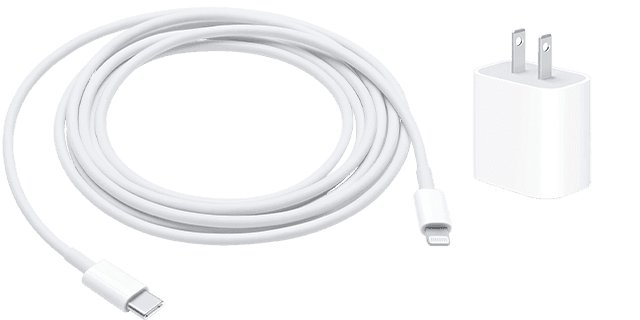
Is an Apple charging cable turning yellow dangerous?
Apple's list of cable damage signs is about the condition of the cable, not its color. Any breakage or visible wear on the outer layer is on that list, and so is discoloration of a power adapter's casing.
Keep using a yellowed cable only if the jacket is smooth and unbroken, the connector is firm, and the cable never gets hot. Replace it at once if the yellow area is cracked, split, swollen, frayed or shows wire underneath. Apple's iPhone safety information says using damaged cables or chargers can cause fire, electric shock, injury, or damage to iPhone or other property, and tells you to stop using the power adapter and any cables if the charge cable becomes frayed or otherwise damaged.
If you are unsure whether the cable is damaged, Apple says you might need service, and you can contact Apple Support by phone or chat. A replacement cable costs less than the risk of charging through a split jacket.
How to tell if your Apple charging cable is damaged
The section next to each connector takes the most bending, so check it closely in good light.
- Unplug the cable from your iPhone, iPad or Mac and from the power adapter.
- Run your fingers along the yellowed section near each connector and feel for cracks, splits or a sticky surface.
- Bend the cable gently next to the connector and look for gaps in the jacket or wire showing through.
- Check the connector housing for cracks, looseness or a joint that has pulled away from the cable.
- Look at the metal contacts on the Lightning or USB-C plug for bent pins, black marks or corrosion.
- Inspect the power adapter too, including its prongs and casing.
- Stop using the cable if you find any of these signs.
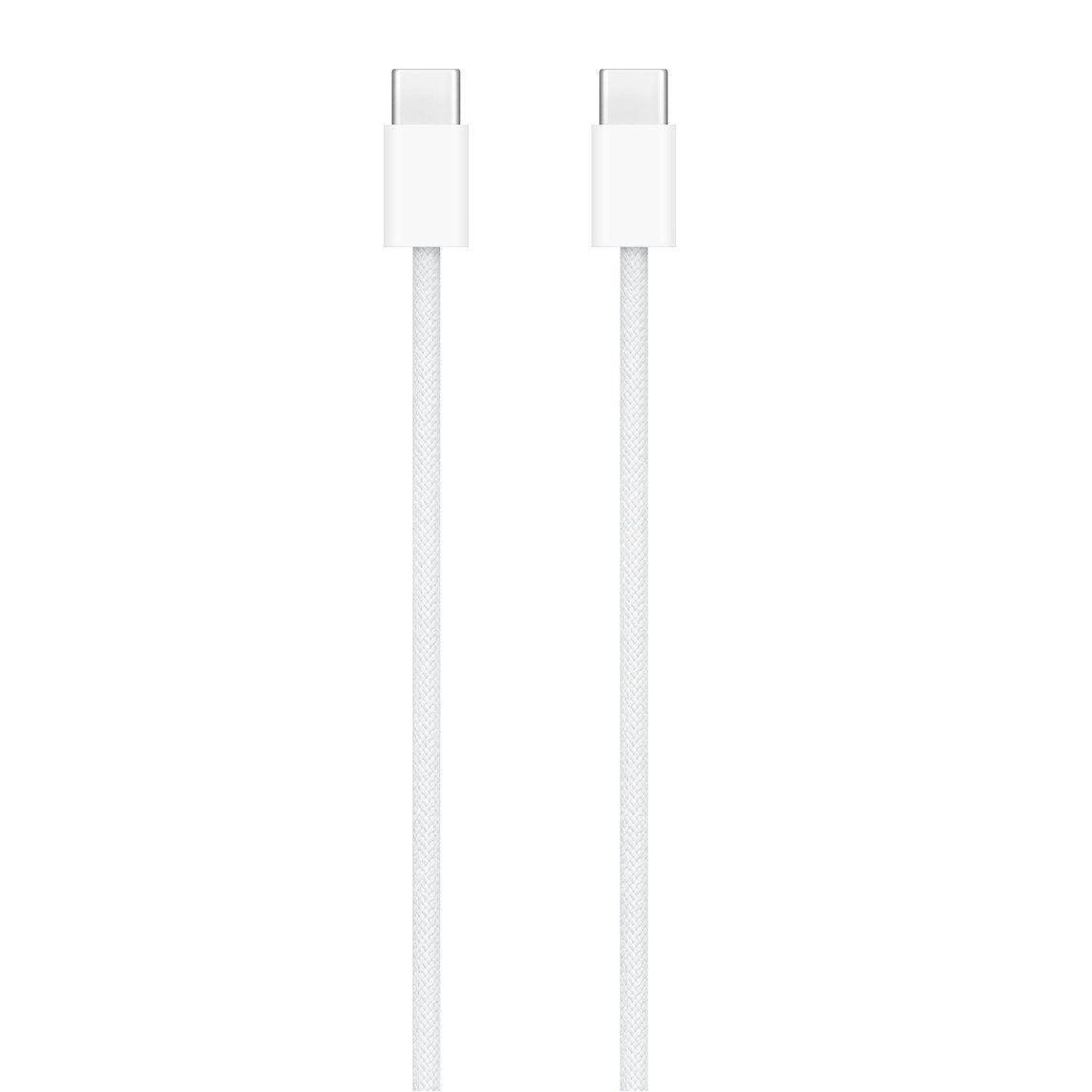
Apple cable damage signs: when to stop using a charger
| What you see | What Apple says | What to do |
|---|---|---|
| Yellow or off-white jacket, smooth and intact | Not listed by Apple as a damage sign for cables | Keep using it and inspect it from time to time |
| Cracks, splits or visible wear on the outer layer | Any breakage or visible wear on a cable's outer layer is a sign of damage | Stop using it and replace the cable |
| Frayed jacket or wires showing near the connector | Stop using the power adapter and any cables if the charge cable becomes frayed | Unplug it and replace it |
| Discolored, cracked or broken power adapter casing | Breakage, visible damage or discoloration of the adapter casing is a sign of damage | Stop using the adapter |
| Bent, loose or broken prongs, or black marks on them | Listed as signs of damage on power adapters | Stop using it, and do not touch a prong stuck in an outlet |
| Sparks or popping sounds | Listed as signs of damage | Unplug only when it is safe, then stop using it |
| The cable or adapter got wet | Never charge when moisture is present | Let everything dry completely before use |
Why do charger cords turn yellow near the connector?
Apple's support pages do not name a cause for cable jackets changing color, so treat the color as a cosmetic clue rather than a diagnosis.
Judge the cable by the jacket and the connector joint, not by the shade of white. The area next to the connector is where pulling and bending put the most strain. Apple warns that pulling on the cable itself, instead of holding the connector, can strain the connector joints or cause breakage, so a worn spot there deserves a close look.
Dirt and skin oils also build up on the parts of a cable you handle most. Cleaning the cable as Apple describes below shows whether you are looking at grime or at a worn jacket.
How to clean a yellowed Apple charging cable
Apple gives one cleaning method for Apple and Beats cables. It does not promise to restore the original color, but it removes surface dirt.
- Unplug both ends of the cable from your device and the power adapter.
- Wipe along the length of the cable with a soft, slightly damp, lint-free cloth.
- If it is still dirty, wipe it again with a soft lint-free cloth wet with soapy water.
- Keep moisture away from both connectors the whole time.
- Wipe the cable with a dry cloth to remove excess moisture.
- Let the cable dry overnight before you use it again.
Apple says not to use aerosol sprays, bleaches or abrasives on its products, and not to spray cleaners directly onto an item. Bleach and hydrogen peroxide products are ruled out for disinfecting as well.
How to unplug a Lightning or USB-C cable without damaging it
Most wear near the connector comes from how the cable is plugged in, unplugged and stored.
- Hold the connector, not the cable, when you unplug it from your device, power adapter or computer.
- Push the USB connector fully into the power adapter before you plug the adapter into the outlet.
- Plug the power adapter directly into a power outlet.
- Keep the iPhone, cable and adapter in a well-ventilated area while charging, not under a blanket or pillow.
- Do not sleep or sit on the charging cable or connector.
- Fold the prongs down on adapters that have folding prongs before you store them.
- Keep ports and connectors free from debris and foreign objects.
Charging cable safety: what Apple says about heat and moisture
| Situation | Risk Apple names | Safe practice |
|---|---|---|
| Charging with a damaged cable or charger | Fire, electric shock, injury, or damage to iPhone or other property | Replace the damaged part before charging again |
| Charging when moisture is present | Fire, electric shock, injury, or damage | Dry the iPhone and cable completely first |
| Long skin contact with a connected cable and connector | Discomfort or injury | Keep the cable and connector away from your skin while charging |
| Charging under a blanket, pillow or your body | Heat-related discomfort or injury | Charge in a well-ventilated area |
| Adapters that do not meet safety standards | Risk of death or injury | Use Apple, Made for iPhone or standards-compliant USB adapters |
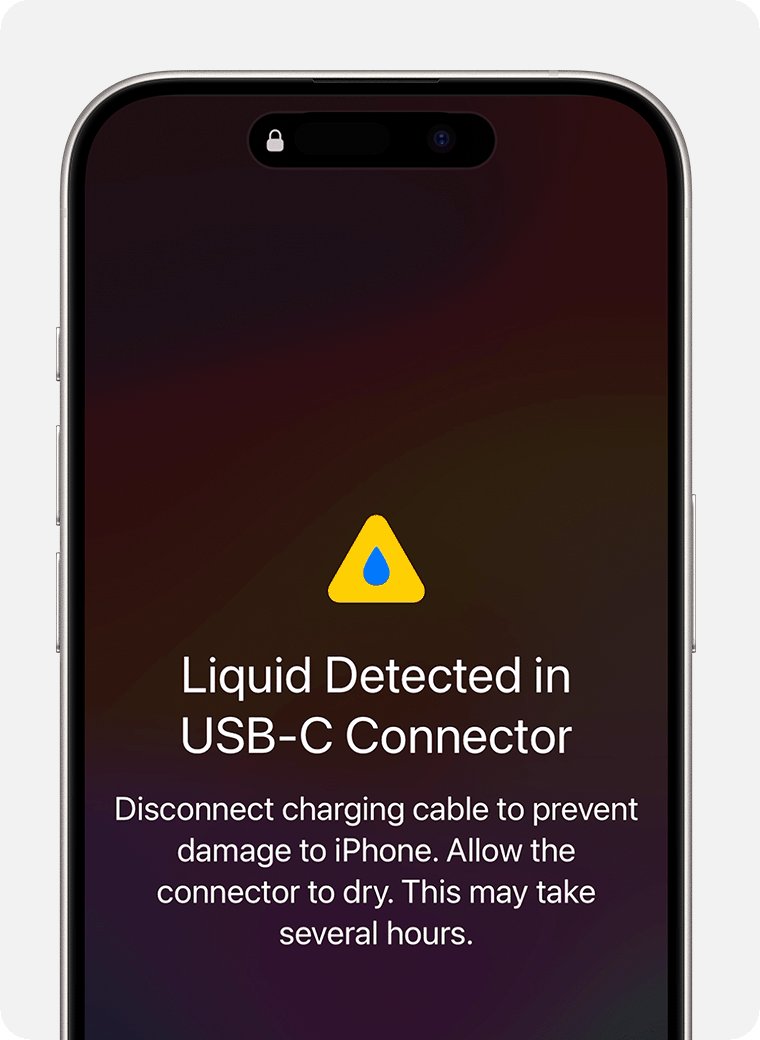
| Charging a wet Lightning or USB-C connector | Corroded pins and permanent damage | Wait for the liquid-detection alert to clear |
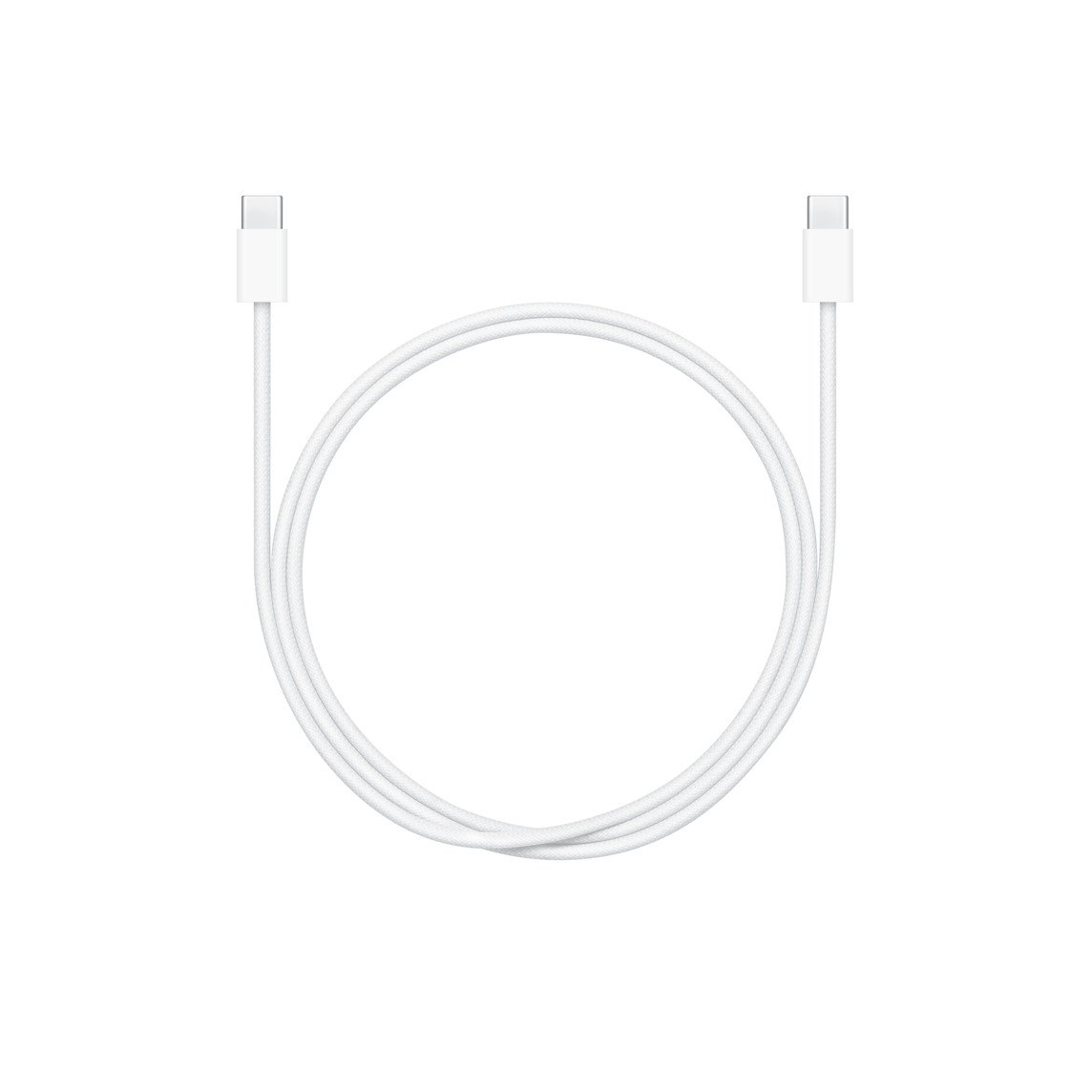
How to replace a damaged Apple charging cable
- Check which connector your device uses. iPhone 15 and later models have a USB-C connector, while earlier iPhone models use Lightning.
- Choose an Apple cable or a Made for iPhone or other third-party cable that complies with USB 2.0 or later and with applicable safety standards.
- For a USB-C iPhone, use a cable that complies with the USB-C standard, such as Apple's woven 60W USB-C Charge Cable (1 m).
- Pair it with a compatible power adapter. A 20W or higher USB-C power adapter charges an iPhone faster.
- Recycle the old cable instead of keeping it as a spare.
- If you are not sure whether the cable or the device is at fault, contact Apple Support for service.
iPhone not charging with a yellowed cable: how to fix it
iPhone won't charge or charges slowly
A worn cable, a loose connection or debris in the charging port.
- Check the cable and USB adapter for damage such as breakage or bent prongs, and stop using damaged accessories.
- Plug into a wall outlet and check that the cable, adapter and outlet are firmly connected, or try a different outlet.
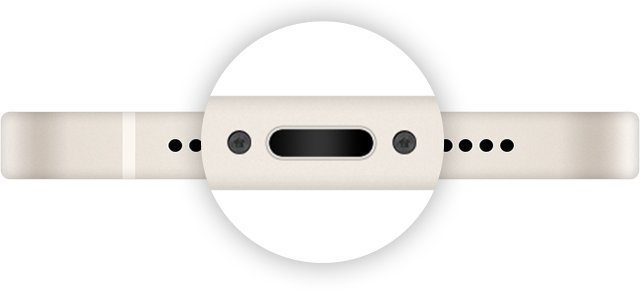
- Remove debris from the charging port on the bottom of the iPhone, then plug the cable in firmly.
- Restart the iPhone and let it charge for half an hour.
- Try a different cable. If the iPhone still will not charge with a known-good cable, work through other iPhone charging fixes before you book service.
"Accessory not supported" or "not certified" alert
The charging accessory might be defective or damaged, or the port might be dirty.
- Connect the iPhone directly to the charger, with no adapters in between.
- Remove any debris from the charging port.
- Restart the iPhone.
- Try a different USB cable or charger.
- Update to the latest version of iOS.
Liquid detected alert every time you use one cable
Liquid is in the connector or under the cable's pins, or the cable is damaged.
- Unplug both ends of the cable.
- Tap the iPhone gently against your hand with the connector facing down, then leave it in a dry area with airflow for at least 30 minutes.
- Do not use heat, compressed air, a cotton swab or a bag of rice to dry it.
- If the alert keeps appearing with only that cable, the cable might be damaged, so replace it.
- If the alert appears with every Apple Lightning or USB-C cable, your iPhone might need service.
Why is my iPhone battery icon yellow?
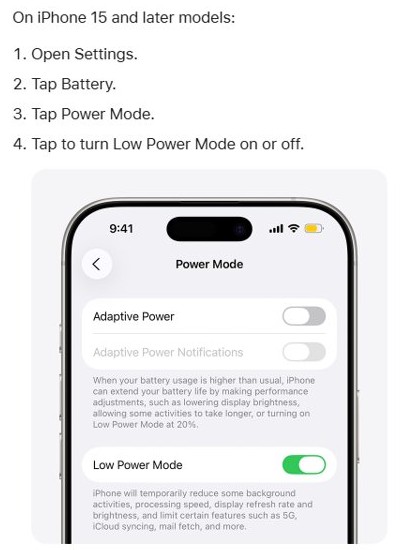
A yellow battery icon is a different thing from a yellowed cable. It means Low Power Mode is on, not that the charger is faulty.
| What you see | What it means | How to change it |
|---|---|---|
| Yellow battery icon in the status bar | Low Power Mode is active | Open Settings > Battery and turn Low Power Mode off |
| Yellow icon on iPhone 15 or later | Low Power Mode is under Power Mode | Open Settings > Battery > Power Mode |
| Icon turns back to normal while charging | Low Power Mode turns off at 80% charge | No action needed |
| Low Power Mode turns on by itself | Adaptive Power turns it on below 20% battery | Turn it off in Settings > Battery |
Yellow charging cord FAQ
Why is my charger cord turning yellow?
Apple does not publish a cause for cable jackets changing color. What matters is the condition of the cable: Apple lists breakage or visible wear on the outer layer as damage, so a yellow cable with a smooth, intact jacket is a cosmetic issue only.
Why do charger cords turn yellow near the connector?
The connector end is the part you handle most and the part that bends most. Apple warns that pulling on the cable instead of the connector strains the connector joints, so check that area for cracks or splits before you keep using the cable.
Is it dangerous to use a yellowed Apple cable?
Not if the jacket is intact and the cable stays cool. It becomes dangerous once the cable is frayed, cracked or otherwise damaged, because Apple says damaged cables can cause fire, electric shock, injury or damage to your iPhone.
Can a damaged charging cable damage my iPhone?
Yes. Apple's iPhone safety information says using damaged cables or chargers can cause damage to iPhone or other property, as well as fire, electric shock or injury. Replace a frayed or cracked cable instead of taping it.
How do I clean a dirty Apple charging cable?
Unplug both ends, wipe the cable with a soft, slightly damp, lint-free cloth, and use soapy water on the cloth if it is still dirty. Keep moisture away from the connectors, dry it with a cloth and leave it to dry overnight.
Why is my iPhone charging yellow?
A yellow battery icon means Low Power Mode is on. It has nothing to do with the cable. Low Power Mode turns off on its own when the iPhone charges to 80% or higher, or you can turn it off in Settings > Battery.
Why is my Apple battery showing yellow?
The battery icon turns yellow when Low Power Mode is active. On iPhone 15 and later, open Settings > Battery > Power Mode to turn it off. On iPhone 14 and earlier, open Settings > Battery and turn off Low Power Mode.