To add an existing email account to a Windows laptop, open Outlook, go to Settings > Accounts > Your accounts, then select Add Account and enter the address.
This guide covers new Outlook for Windows, classic Outlook, Outlook on the web, Apple Mail on a MacBook and Gmail in a browser, plus the server settings and fixes each one needs.
The fastest way to add an existing email account to a laptop
These steps are for new Outlook for Windows, the mail app that ships on current Windows laptops.
- Open Outlook from the Start menu.
- On the View tab, select View settings. From the File tab, select Account info instead.
- Select Accounts > Your accounts.
- Under Email accounts, select Add Account.
- Pick a suggested account from the dropdown, or type the existing email address, then select Continue.
- Enter the password for that account when prompted and select Done.
Gmail, Yahoo and iCloud accounts sometimes need a setting changed on the provider's own website first.
Identify Your Email Client
The route depends on which mail app the laptop runs, not on who supplies the address.
| Your laptop and situation | Use this | Why |
|---|---|---|
| Windows 11 laptop, no mail app chosen yet | New Outlook for Windows | Ships with Windows and handles Microsoft, Gmail, Yahoo and iCloud accounts |
| Windows laptop with Microsoft 365 installed | Classic Outlook | File > Add Account keeps existing profiles, rules and PST files intact |
| Windows laptop running the old Mail and Calendar app | The toggle to new Outlook | Accounts already in Mail are listed for sign-in in new Outlook |
| MacBook or MacBook Air | Apple Mail | Mail > Add Account reads the account settings Apple already holds for that domain |
| Borrowed or shared laptop, nothing installed | Outlook on the web or Gmail in a browser | Nothing is cached locally beyond the browser session |
| An ISP address that only offers POP | Classic Outlook with manual server settings | POP accounts often fail automatic setup and need server names typed in |
Understanding Email Accounts and Their Types
Every mail app asks the same first question: who runs the mailbox. That answer decides whether setup is automatic.
| Account type | Examples | How a laptop connects |
|---|---|---|
| Microsoft consumer account | Outlook.com, Hotmail.com, Live.com | Signs in directly; IMAP and POP are off by default and use OAuth2 |
| Work or school account | Microsoft 365, Exchange | Signs in with the organisation's credentials and any policy it enforces |
| Google account | Gmail, Google Workspace | Uses Sign in with Google; IMAP access is always on and cannot be disabled |
| Apple account | iCloud Mail, me.com, mac.com | May require an app password before a non-Apple mail app accepts it |
| Other webmail | Yahoo, AOL | Usually needs a provider-generated app password in place of the normal password |
| ISP or custom domain | Addresses from a broadband provider or a business domain | Needs the provider's IMAP or POP server names, ports and encryption type |
One extra consideration: adding an account to a mail app never creates a mailbox. If no mailbox exists yet, create an Outlook email account first, then come back to these steps.
Pre-requisites Before Adding an Email Account
Collect these before opening any mail app. Half of failed setups are a missing detail rather than a broken account.
| What you need | Detail | Why it matters |
|---|---|---|
| Gather your account details | Full email address and current password | Automatic setup matches the domain after the @ symbol to a known provider |
| App password, if the provider asks | A generated passcode from the provider's security page | Outlook shows "Please create an app password" when the normal password is refused |
| Check your internet connection | A working connection before setup starts | Sign-in and the first sync both fail silently on a dropped connection |
| Update your operating system and email client | Current Windows or macOS updates and the latest app build | Modern authentication is enforced by Microsoft and Google, and old builds cannot complete it |
| Server names, for POP or custom domains | Incoming server, outgoing server, ports and encryption | Automatic setup cannot guess these for an ISP or business domain |
| Backup existing data (optional) | Copy POP-downloaded mail to a local mailbox first | Removing an account later deletes its cached copies from the laptop |
Step-by-Step Guide to Adding an Email Account on Windows Laptop
This is the full walkthrough for new Outlook, from a cold start to a synced inbox.
- Open the mail app on the laptop. On a current Windows machine that is Outlook; the older Mail and Calendar app offers a toggle that upgrades it to new Outlook and lists its accounts for sign-in.
- Access account settings: on the View tab select View settings, or select Account info on the File tab.
- Select Accounts > Your accounts to reach the list of mailboxes already set up.
- Add a new account by selecting Add Account under Email accounts.
- Choose the account type by picking a suggested address from the dropdown, or type a different one for Gmail, Yahoo, iCloud or a work mailbox.
- Enter the email details, select Continue, then type the password or app password and select Done.
- Finish setup and let the first sync run. The new mailbox appears in the folder pane and starts downloading messages.
To make the new mailbox the default sender, open Manage beside the account name and select Set as primary account.
Add an existing account in classic Outlook for Windows
Classic Outlook is the desktop app installed with Microsoft 365, Outlook 2024, 2021, 2019 and 2016.
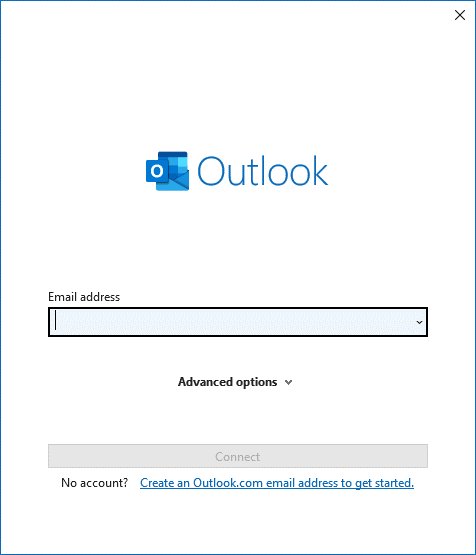
- Open Outlook and select File.
- Select Add Account.
- Type the existing email address and select Connect.
- Enter the password and select OK. For a Gmail account, select Allow on the Google account permissions window.
- Select Done, or add another address and repeat.
A POP or custom-domain address that will not connect automatically needs advanced setup, where the server names are typed in by hand.
Step-by-Step Guide to Adding an Email Account on MacBook
Apple Mail reads account settings from the address domain, so most providers need nothing typed beyond the password.
- Open the Mail app on the Mac.
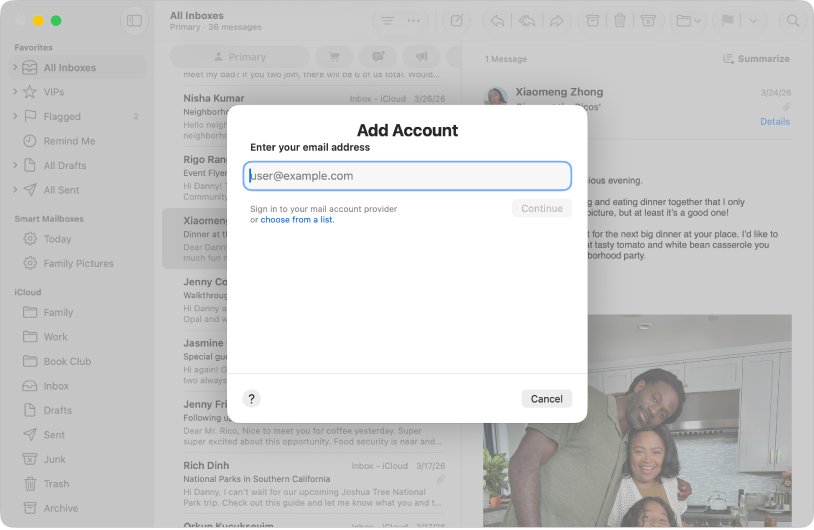
- Choose Mail > Add Account.
- Choose your email service from the list, or select choose from a list and pick the account's domain.
- Enter the account details, starting with the email address, then select Continue.
- Follow the onscreen instructions and enter the password or app password for the account.
- Configure sync settings: choose Mail > Accounts to open Internet Accounts, select the account, and make sure Mail is selected.
Open System Settings > Internet Accounts instead when the account is already used by Contacts or Calendar on that Mac. The macOS 26 and later name for the old System Preferences window is System Settings.
Add an existing email account in Outlook on the web
Outlook on the web runs in any browser, so it suits a laptop where nothing can be installed.
One limit is worth knowing up front. Microsoft states you can no longer add a Gmail mailbox to an Outlook.com account.
- Sign in to Outlook.com in a browser with the account that will hold the extra mailbox.
- Select Settings, then open Accounts.
- Open the Email accounts page to see which mailboxes are already connected.
- Add the other address there, or remove a connected account that no longer works.
- To reach an Outlook.com mailbox from a desktop app instead, select Settings > Mail > Forwarding and IMAP, turn Let devices and apps use IMAP on, and select Save.
Connecting a second mailbox to Outlook.com is not the same as adding a Windows sign-in. For that, see how to add a user account in Windows 11.
Add an existing email account to Gmail in a browser
Gmail on the web pulls mail from another mailbox over POP. Up to five addresses can be added to one Gmail account.
- In the other email account, turn on POP access. For a second Gmail account, open Settings > See all settings > Forwarding and POP/IMAP and select Enable POP for all mail, then Save Changes.
- Sign in to the Gmail account that will receive the mail.
- At the top right, select Settings, then See all settings.
- Open the Accounts and import tab.
- Under Check mail from other accounts, select Add a mail account.
- Type the other email address and select Next.
- Enter the username and password, select Always use a secure connection (SSL) when retrieving mail, then select Add Account.
An Outlook address cannot be added to Gmail on a computer, because Microsoft requires modern authentication that this flow does not use. Google also warns that Gmailify and POP support are changing.
Where account settings live in each mail client
Every app hides the account list somewhere different. Match the row to the app on the laptop.
| App | Path to the account list | What you can change there |
|---|---|---|
| New Outlook for Windows | View > View settings > Accounts > Your accounts | Add, remove, rename or set a primary account |
| Classic Outlook for Windows | File > Account Settings | Server settings, sync window, profiles and passwords |
| Classic Outlook, via Windows | Control Panel > Mail > Email Accounts | Change an account when Outlook itself will not start |
| Apple Mail | Mail > Settings > Accounts | Enable or disable an account, or remove it |
| macOS system level | System Settings > Internet Accounts | Choose which apps use the account |
| Outlook.com in a browser | Settings > Mail > Forwarding and IMAP | Turn POP or IMAP access on for other devices |
| Gmail in a browser | Settings > See all settings > Accounts and import | Add or delete a checked mailbox |
Choose the Correct Email Protocol
IMAP is the right default when the same mailbox is read on a laptop and a phone.
| Behaviour | IMAP | POP |
|---|---|---|
| Where messages live | On the email service; the laptop reads them | Downloaded to the laptop and deleted from the service |
| Reading on a second device | Works everywhere, anywhere in the world | Downloaded messages are not available elsewhere |
| Attachments | Not downloaded automatically | Downloaded with the message |
| Sent mail | Stored on the server | Stored locally on the PC or Mac |
| Speed of checking | Faster, because a message downloads only when opened | Slower, because everything downloads |
| Typical source | Modern webmail services | Many internet service provider accounts |
Choose POP only when a single laptop holds the mailbox and no other device needs it.
Verify Incoming and Outgoing Server Settings
Manual setup needs exact values. These are Microsoft's published settings for an Outlook.com mailbox.
| Setting | Value | Notes |
|---|---|---|
| Username | Your full email address | Not the display name |
| IMAP server and port | outlook.office365.com, port 993 | SSL/TLS encryption |
| POP server and port | outlook.office365.com, port 995 | SSL/TLS encryption |
| SMTP server and port | smtp-mail.outlook.com, port 587 | STARTTLS encryption |
| Authentication method | OAuth2 / Modern Auth | Outlook.com requires it for all three protocols |
| Access toggle | Off by default | Turn IMAP or POP on in Outlook.com settings first |
For any other provider, the pattern is usually imap.<service>.com, pop.<service>.com and smtp.<service>.com. Take the real values from that provider, never from a guess.
Configuring Email Settings for Optimal Performance
Once the account is added, three settings decide how fast and how quietly it behaves.
- Enable security features first. Turn on two-step verification with the provider, then generate an app password if the mail app asks for one.
- Set synchronization limits in classic Outlook: open File > Account Settings > Account Name and Sync Settings and choose how many days of email to synchronize.
- Reduce that synchronization window on a laptop with a small drive, then select Next > Done.
- Lower the check frequency for any POP account running on battery, because POP downloads every new message in full while IMAP downloads one only when it is opened.
- Open Server Settings from the same menu to change the port, encryption type or stored password for an account.
- In Apple Mail, choose Mail > Settings > Accounts, select the account, and clear Enable this account to pause a mailbox without deleting it.
- Set notification and storage behaviour per account, so only the primary mailbox raises an alert and the rest sync quietly.
A shorter sync window is the single biggest saving on a laptop that stores several mailboxes.
Verify Your Account
Confirm the account works in both directions before trusting it.
- Check that the new mailbox appears by name in the folder list, with its own Inbox.
- Confirm existing messages have downloaded, not just an empty folder tree.
- Send a test message from the new address to another mailbox you can open.
- Reply from that other mailbox and confirm the reply arrives in the new account.
- In classic Outlook, open File > Account Settings, select the account, select Change, then Test Account Settings.
- Look for green check marks. Red markers mean one or more settings are still wrong.
Troubleshooting Common Issues When Adding an Email Account to a Laptop
Incorrect Email Settings
Automatic setup guessed the wrong server, port or encryption type for the provider.
- Open Control Panel, search for and open the Mail icon.
- On the Mail Setup – Outlook window, select Email Accounts.
- Select the account and choose Change.
- Compare Incoming mail server and Outgoing mail server with the provider's published values and correct them.
- Select More Settings > Advanced, then check the port numbers and encryption type.
- Select OK, then Test Account Settings and look for green check marks.
Authentication Failures
The provider refuses a plain password and expects modern authentication or a generated app password.
- Confirm the password works by signing in to the provider's own website.
- Turn on two-step verification with that provider, which app passwords require.
- Generate an app password on the provider's security page.
- Paste the app password when the mail app asks for the account password.
- For a Gmail account, use the Sign in with Google option instead of typing credentials.
Connection Problems
The mailbox is reachable but the session is being blocked or repeated too often.
- Confirm the laptop has a working internet connection and can open the provider's webmail.
- For an Outlook.com IMAP error, sign in at account.live.com/activity.
- Under Recent activity, expand the Session Type event matching the error time.
- Select This was me to authorise the IMAP connection.
- Try connecting from the mail app again.
Compatibility Issues
The app or the account is not supported in that combination.
- Update the operating system and the mail app to current builds.
- Check the account type is supported: Gmail on a computer cannot add an Outlook address, and Outlook.com cannot add a Gmail mailbox.
- For an Outlook.com mailbox on a domain other than live.com, hotmail.com or outlook.com, remove the connected IMAP account and set it up as POP instead.
- Ask the provider for their POP and SMTP server names if IMAP is not offered.
Security Software Interference
A mail-scanning feature in a security suite sits between the app and the mail server and breaks the encrypted session.
- Confirm the failure is not the account by signing in to the provider's webmail in a browser.
- Open the security product's own settings and find its email or SSL scanning feature.
- Follow the vendor's documented steps for adding a mail client exception; never turn the protection off.
- Check any company firewall or VPN policy that blocks ports 993, 995 or 587.
- Report the block to the security vendor's support if their documented exception does not clear it.
Account Lock or Suspension
The provider has locked the mailbox after unusual sign-in activity or a failed payment.
- Sign in to the provider's website and read any notice shown on the account page.
- Complete the identity check the provider offers, such as a code to a recovery phone or address.
- Reset a forgotten Microsoft account password with Microsoft's sign-in helper.
- Reset a work or school password using the security info registered with that organisation.
- Add the account to the laptop again once the provider confirms it is unlocked.
Fix an existing email account that will not move to a new computer
Old messages do not appear after adding the account to a new laptop
The account uses POP, so the messages were downloaded to the old computer and removed from the service.
- Check the old laptop for the account and confirm the messages are still there.
- Copy the messages to a local mailbox on the old machine before removing anything.
- Set the account up as IMAP on the new laptop if the provider offers it.
- Ask the provider whether a server copy was kept, then re-sync.
- Export the old mailbox and import it on the new laptop when no server copy exists.
Gmail in a browser refuses an Outlook or Hotmail address
Microsoft requires modern authentication, which the Gmail web flow for other accounts does not use.
- Stop trying to add the Outlook address under Check mail from other accounts.
- Add the Outlook address in the Gmail mobile app instead, which supports the sign-in method.
- Or add both mailboxes to new Outlook on the laptop and read them side by side.
Outlook.com will not connect a Gmail mailbox
Microsoft has withdrawn the option to add a Gmail mailbox to an Outlook.com account.
- Add the Gmail account to new Outlook on the laptop rather than to Outlook.com.
- Use the Outlook mobile app to show both mailboxes together on a phone.
- Remove the old connected Gmail entry from Outlook.com if it is still listed and failing.
Outlook keeps asking for a password that is known to be correct
The provider expects an app password, or the stored credential is stale.
- Generate an app password on the provider's security page, such as AOL's third-party app password tool.
- Paste that passcode in place of the account password.
- In classic Outlook, open File > Account Settings > Server Settings and update the stored password there.
- Remove and re-add the account if the prompt continues.
- Read the AOL Mail sign-in guide for an AOL address that still refuses.
Additional Tips for Managing Multiple Email Accounts
Several mailboxes in one app only stay usable if each one has a job.
| Situation | What to do | Where |
|---|---|---|
| One address should send by default | Select Manage beside the account, then Set as primary account | New Outlook for Windows |
| Messages from a checked account get lost | Turn on Label incoming messages when adding it | Gmail in a browser |
| An account is needed occasionally | Clear Enable this account to pause it without deleting anything | Apple Mail |
| A laptop is short of disk space | Shorten the days of email to synchronise per account | Classic Outlook sync settings |
| Old mail should move to a new service | Use Import mail and contacts to transfer messages | Gmail in a browser |
| Up to five extra addresses are wanted in one inbox | Add each under Check mail from other accounts | Gmail in a browser |
Security Best Practices When Adding an Email Account
Adding a mailbox to a laptop puts years of correspondence on that device. These six habits cover it.
| Practice | What to do | Why it matters |
|---|---|---|
| Use strong, unique passwords | Give each mailbox its own long password, stored in a password manager | A reused password lets one breach reach the mailbox that resets everything else |
| Enable two-factor authentication (2FA) | Turn on two-step verification with the provider before setup | App passwords can only be created on accounts that already have it |
| Secure your network connection | Add the account over a trusted network and keep SSL or TLS selected | Gmail cannot connect accounts that do not support secure connections |
| Configure email client security settings | Choose Sign in with Google or modern authentication over typed credentials | Google no longer supports apps that require sharing the account username and password |
| Update software regularly | Keep Windows, macOS and the mail app current | Outlook.com now requires OAuth2 for IMAP, POP and SMTP |
| Be wary of phishing and malicious links | Never enter mail credentials on a page reached from an email link | Setup prompts should only appear inside the mail app or on the provider's own site |
How to remove an account you added by mistake
Removing an account deletes its offline cached content from the laptop.
- In new Outlook, open View > View settings > Accounts > Your accounts.
- Find the account under Email accounts and select Manage beside its name.
- Under Account details, select Remove.
- For a Gmail, Yahoo, iCloud or other non-Microsoft account, choose Remove from only this device rather than Remove from all devices.
- In Apple Mail, choose Mail > Settings > Accounts, select the account, then use the remove button.
- In Gmail on the web, open Settings > See all settings > Accounts and import and select Delete beside the checked account.
Remove from all devices can permanently delete calendar or other items that exist only in the Microsoft Cloud. Choose it deliberately.
Frequently Asked Questions
How do you add an existing email to Outlook?
Open Outlook, select View settings on the View tab, then Accounts > Your accounts. Under Email accounts, select Add Account, type the existing address, select Continue and enter the password. The mailbox appears in the folder list once the first sync finishes.
How do you add an existing email account to Gmail?
Turn on POP access in the other account first. In Gmail, open Settings > See all settings > Accounts and import, then select Add a mail account under Check mail from other accounts. Enter the address, the credentials and select Add Account.
How do you add an existing email to a new computer?
Install or open the mail app, then add the account with its address and password. IMAP accounts re-download everything from the server. POP accounts do not, because those messages were already removed from the service by the old computer.
How do you add an email to an existing account?
In new Outlook, existing accounts and new ones use the same path: View settings > Accounts > Your accounts > Add Account. Outlook.com can also hold a second connected mailbox, although Microsoft no longer allows a Gmail mailbox there.
How do you add an email to Mail on a Mac?
Open the Mail app and choose Mail > Add Account. Enter the email address, or select choose from a list and pick the account's domain. Select Continue and follow the instructions to enter the password.
How many additional email accounts can one Gmail account check?
Gmail on a computer allows up to five email addresses to be added to one account under Check mail from other accounts. Each one needs POP access enabled at its own provider before Gmail can pull messages from it.
How do you add an existing email group in Outlook?
That is a contact group, not a mail account, so these steps do not apply. Open the group in Outlook's contacts list and add the new address to its member list. The account steps on this page only affect mailboxes.
How do you add someone to an existing email chain?
Open the most recent message in the conversation and choose Reply All. Add the new address to the To or Cc line before sending. Everyone on the thread then sees the addition, and later replies include the new recipient.
How do you add a From field to a new email?
Add the second account to the mail app first. Once more than one mailbox is set up, the compose window lets you pick which address a message is sent from, so the recipient sees the address you chose.
How do you create an additional email address instead of adding one?
Creating a mailbox and adding one are separate jobs. Sign out of Outlook.com and select Create free account to make a new Outlook.com address, then use the steps on this page to add it to the laptop's mail app.
How do you add an existing email account to a new HP laptop?
The brand of laptop makes no difference. Open Outlook on the new machine, go to View settings > Accounts > Your accounts, select Add Account and sign in. Apple Mail steps apply instead on a MacBook.
Does adding an email account to a laptop delete it from other devices?
No. Adding an IMAP account leaves the mailbox untouched everywhere else. Removing one can differ: choosing Remove from all devices in Outlook deletes the account and its Microsoft Cloud data across Outlook clients.
Bottom Line
Add the existing address in new Outlook on a Windows laptop, or in Apple Mail on a MacBook, and let automatic setup do the work. Both apps detect the provider from the address and use modern authentication, which is what Microsoft and Google now require. Typing server names by hand is only for POP accounts and custom domains that automatic setup cannot resolve.






How do I get my e-mail from Metrocast.net - Techdows
[…] client uses the same values, whether you add an existing email account to a laptop, a Mac, an iPhone or an Android phone. Choose manual or advanced setup so you can type the server […]