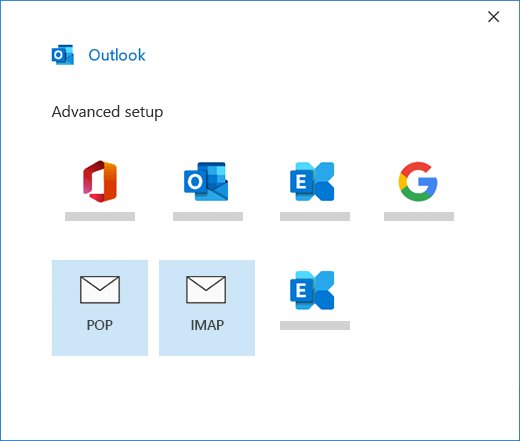
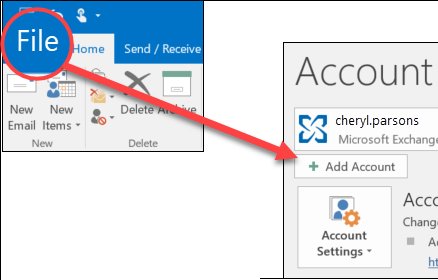
To set up a POP3 or IMAP account in classic Outlook, select File > Add Account, enter your address, choose Advanced options > Let me set up my account manually, then pick POP or IMAP and enter your provider's server settings.
This guide covers new and classic Outlook for Windows, Outlook for Mac and mobile, common server settings for Gmail, Yahoo, iCloud and Outlook.com, and fixes for failed setups.
The fastest way to add a POP3 or IMAP account in classic Outlook
Manual setup is the route when Outlook cannot find your settings on its own. Have your incoming and outgoing server names and ports ready.
- Open classic Outlook and select File, then Add Account under Account Information.
- Enter your email address and select Advanced options.
- Tick Let me set up my account manually and select Connect.
- Choose POP or IMAP.
- Enter the incoming and outgoing server settings from your provider and select Next.
- Enter your password, or an app password if your provider requires one, and select Connect.
- Select Done to start using the account.
POP3 vs. IMAP: Which one should you use?
IMAP keeps your mail on the server and syncs every change across devices. POP3 downloads mail to one computer and syncs in one direction only.
| Your situation | Use this | Why |
|---|---|---|
| You read mail on a phone and a computer | IMAP | Read status, folders and sent mail sync everywhere |
| You use one computer only | POP3 or IMAP | POP3 was designed for a single computer |
| Your server mailbox is small and fills up | POP3 | It downloads mail to the PC instead of keeping it all online |
| You need sent items on every device | IMAP | POP3 keeps sent items only on the device that sent them |
| Your provider offers only one | Whatever it supports | iCloud Mail, for example, does not support POP |
| You need calendar and contacts sync | Neither; use Exchange or the provider's own account type | POP and IMAP sync email only |
What you need to set up POP3 or IMAP in Outlook
| Item | Example | Where to get it |
|---|---|---|
| Email address and password | [email protected] | Your account; an app password if the provider requires one |
| Account type | POP or IMAP | Your email provider |
| Incoming server and port | outlook.office365.com, port 993 | Provider's settings page |
| Outgoing (SMTP) server and port | smtp.office365.com | Provider's settings page |
| Encryption type | SSL/TLS or STARTTLS | Provider's settings page |
| POP or IMAP access turned on | Outlook.com: off by default | The provider's webmail settings |
If you still need a mailbox, you can create an Outlook.com account first and then turn on POP or IMAP access for it.
Common POP3, IMAP, and SMTP settings
Most providers use the same standard ports. Microsoft's own reference lists 143 or 993 for IMAP and 110 or 995 for POP, with the encrypted port being the second in each pair.
| Protocol | Outlook.com server | Port | Encryption |
|---|---|---|---|
| IMAP (incoming) | outlook.office365.com | 993 | SSL/TLS |
| POP (incoming) | outlook.office365.com | 995 | SSL/TLS |
| SMTP (outgoing) | smtp-mail.outlook.com | 587 | STARTTLS |
| Username | Your full email address | – | OAuth2/Modern Auth |
Outlook.com disables POP and IMAP access by default. Turn it on under Settings > Mail > Forwarding and IMAP, switch on Let devices and apps use POP or Let devices and apps use IMAP, and select Save.
Set up a POP3 or IMAP account in Outlook for Windows
New Outlook for Windows adds accounts from its Settings window. Use the classic steps at the top of this guide if you are on classic Outlook.
- In new Outlook, on the View tab select View settings, or select File > Account info.
- Select Accounts > Your accounts.
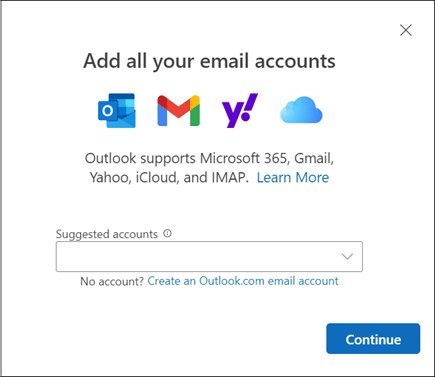
- Under Email accounts, select Add Account.
- Pick a suggested account or type a different email address, then select Continue.
- Enter your password, or the app password from your provider, and select Done.
If new Outlook cannot connect, switch to classic Outlook and use Let me set up my account manually, which lets you type every server setting.
Set up a POP3 or IMAP account in Outlook for Mac
- In Outlook for Mac, select the Outlook menu, then Settings.
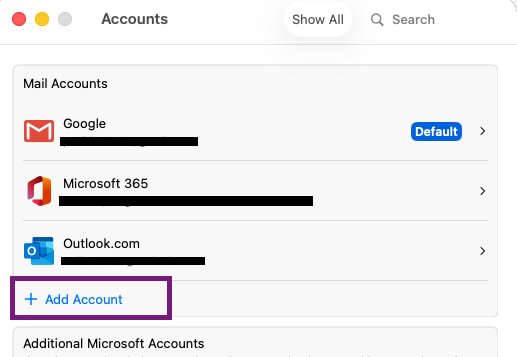
- Select Accounts in the side panel, then + Add Account.
- Type your email address and select Continue.
- If Outlook sends you to your provider's site, sign in and select Allow so Outlook can access your mail.
- Follow the remaining prompts and select Done.
For later accounts, select Tools > Accounts and use + Add Account at the bottom of the list.
Can you set up POP3 or IMAP in Outlook on the web?
No. Outlook on the web (Outlook.com) can no longer connect new third-party accounts such as Gmail or Yahoo, so add them in Outlook for Windows, Mac or mobile instead. Microsoft removed connected accounts from Outlook.com. Outlook.com can still act as a POP or IMAP source for other apps once you turn on access in its settings.
Set up POP3 or IMAP in Outlook for iPhone, iPad, or Android
Outlook for Android accepts both POP and IMAP. Outlook for iOS accepts IMAP only; Microsoft states you cannot add a POP account there.
- On Android, open Outlook and go to Settings > Add Account > Add Email Account.
- Enter your email address, tap Continue, and choose IMAP or POP3 when asked for a provider.
- Turn on Advanced settings, enter your password and server settings, and tap the checkmark.
- On iPhone or iPad, go to Settings > Accounts > Add Account > Email Account.
- Enter your email address, tap Add Account, and choose IMAP if Select your email provider appears.
- Enter your password, turn on Use Advanced Settings, fill in the server settings, and tap Sign In.
On mobile, POP and IMAP accounts sync email only, not calendar or contacts.
Provider examples: Gmail, Yahoo, iCloud, and custom domains
| Provider | Incoming | Outgoing (SMTP) | Password |
|---|---|---|---|
| Gmail (IMAP) | Use Sign in with Google; IMAP is always on | Handled by the sign-in | Google account sign-in, not a shared password |
| Gmail (POP) | pop.gmail.com, port 995, SSL | smtp.gmail.com, port 587, TLS | Turn on POP in Gmail's Forwarding and POP/IMAP tab first |
| Yahoo Mail (IMAP) | imap.mail.yahoo.com, port 993, SSL | smtp.mail.yahoo.com, port 465 or 587, SSL | Generate an app password |
| iCloud Mail (IMAP only) | imap.mail.me.com, port 993, SSL | smtp.mail.me.com, port 587, SSL/TLS | App-specific password |
| Custom domain | From your host, often mail.yourdomain.com | Often smtp.yourprovider.com | Ask your host or IT admin |
On Windows with Outlook 2021 or later, Apple lets you authorize Outlook with your Apple Account instead of typing iCloud server settings.
How to update or repair account settings in Outlook
Change settings here after a password change, a provider change, or when sending and receiving stop working.
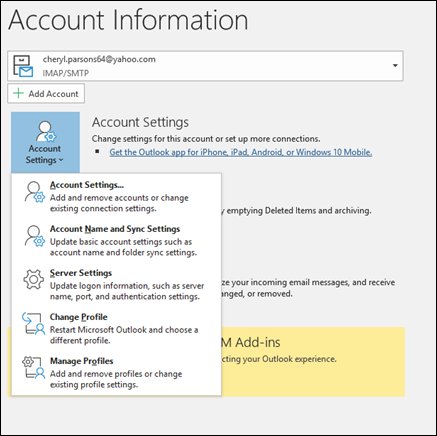
- In classic Outlook, select File and pick the account in the dropdown under Account Information.
- Select Account Settings, then Server Settings.
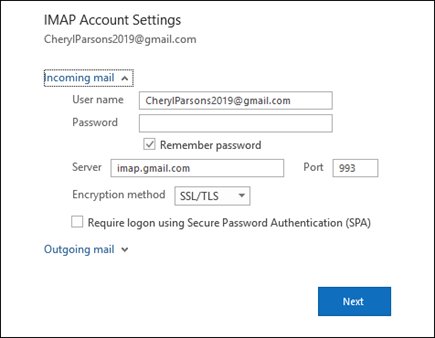
- Select Incoming mail or Outgoing mail and correct the server, port, encryption or password.
- Select Next > Done.
- If Outlook will not open, type
control panelin the taskbar search, open Mail, and select Email Accounts. - Select the account, select Change, then More Settings > Advanced to check the port numbers and encryption type.
How to check the POP3 or IMAP account works in Outlook
- In Control Panel > Mail > Email Accounts, select the account and then Change.
- Select Test Account Settings.
- Look for green check marks, which mean both sending and receiving passed.
- Red markers mean a setting is wrong; recheck it and test again.
- Send a test message to yourself and confirm it arrives in the Inbox.
Troubleshooting common setup problems in Outlook
Automatic setup failed even though the password is right
The provider requires an app password instead of your normal password.
- Generate an app password on your provider's website.
- Copy it and paste it into Outlook when asked for the account password.
- If setup still fails, use Let me set up my account manually.
Classic Outlook never asks for a password
Secure Password Authentication is ticked on the IMAP details page.
- Untick Require logon using Secure Password Authentication (SPA).
- If that fails, open Control Panel > Mail > Email Accounts and select New on the Email tab.
- Enter your name, address and password, select Next, and finish setup.
Outlook keeps asking for a password
Caps Lock is on, the username is not the full address, or the password changed.
- Check that Caps Lock is off and the username is your full email address.
- Update the stored password under Account Settings > Server Settings.
- Ask your administrator if a work password has expired.
No new email arrives
Outlook is offline or a server setting is wrong.
- Look for Working Offline at the bottom of the window and turn off Work Offline on the Send/Receive tab.
- Check your internet connection in a browser.
- Compare your server settings with your provider's reference.
IMAP connection error with Outlook.com in several apps
Outlook.com may block an IMAP sign-in it does not recognize.
- Go to account.live.com/activity and sign in.
- Expand the matching Session Type event and select This was me.
- Connect from your IMAP client again.
POP3 and IMAP security and backup tips
| Tip | Why it matters |
|---|---|
| Always choose an encrypted port, such as 993, 995 or 587 | Your password and mail travel encrypted |
| Use app passwords or provider sign-in, never a shared main password | Gmail no longer accepts apps that need your Google password |
| Back up POP mail on the PC | POP downloads mail into a local Outlook data file on one computer; losing that PC can lose the mail |
| Use Remove from this device, not all devices, when removing an account | Remove from all devices can delete cloud-only calendar items |
| Choose Keep Gmail's copy when using Gmail POP | The server copy stays as a backup |
When to contact your email provider
| Situation | Who to contact |
|---|---|
| You do not know your server names, ports or account type | Your email provider or ISP |
| Test Account Settings still shows red markers after rechecking | Your email provider |
| You need to change or reset your email password | Your provider's website or help desk |
| A Microsoft 365 or Exchange work account must use POP or IMAP | Your Microsoft 365 admin, who decides whether access is enabled |
| Gmail, Yahoo or iCloud setup keeps failing | That provider's help pages for app passwords and sign-in |
Outlook POP3 and IMAP quick reference setup checklist
| Step | Done when |
|---|---|
| Choose IMAP or POP3 | IMAP for several devices, POP3 for one PC |
| Turn on POP or IMAP at the provider | The webmail setting is On and saved |
| Collect server names, ports and encryption | Incoming, outgoing and SSL details are written down |
| Get an app password if needed | Copied and ready to paste |
| Add the account manually in Outlook | Outlook shows the account in the folder pane |
| Run Test Account Settings | Green check marks for sending and receiving |
Outlook POP3 and IMAP FAQ
How do I set up a POP3 email account in Outlook?
In classic Outlook, select File, then Add Account, enter your address and choose Advanced options. Tick Let me set up my account manually, select Connect, choose POP, enter the server settings from your provider, and finish with your password.
What is a POP3 account?
A POP3 account downloads email from your provider's server to one device. Sync runs one way only, so read status, folders and sent items do not carry over to your other devices.
Is POP3 a protocol?
Yes. POP3, the Post Office Protocol version 3, is an older email protocol designed for one computer. It downloads messages from a server to a client, unlike IMAP, which keeps mail on the server and syncs both ways.
What is a POP3 server?
It is the incoming mail server your email app downloads messages from. Examples include outlook.office365.com on port 995 for Outlook.com and pop.gmail.com on port 995 for Gmail.
Where do I find POP3 settings?
Your email provider publishes them, usually on a help page called POP, IMAP or server settings. For an Exchange mailbox, sign in to Outlook Web App and open Settings, then Mail, then POP and IMAP.
How do I set up POP3 email on Android?
In Outlook for Android, go to Settings, Add Account, Add Email Account. Enter your address, tap Continue, choose POP3, turn on Advanced settings, enter your password and server details, and tap the checkmark.
Can I configure POP3 in Outlook mobile on iPhone?
No. Microsoft states you cannot add a POP email account to Outlook for iOS. Use IMAP on iPhone and iPad, or Outlook for Android if you need POP on a phone.
How do I change an account from IMAP to POP3 in Outlook?
Outlook does not convert an existing account between types. Remove the IMAP account from Outlook, turn on POP access at your provider, and add the account again manually, choosing POP.

![6 best free virtual webcam software for Windows [2026 update]](https://techdows.com/wp-content/uploads/2026/10/6-best-free-virtual-webcam-software-for-Windows-2026-update-600x338.jpg)