Windows 11 has no HDCP switch to flip: HDCP turns on automatically when a streaming or playback app requests it and your graphics adapter, cable and display all support it.
This guide covers how to make that handshake succeed, what HDCP 2.2 means for Netflix 4K, the Microsoft Wireless Display Adapter setting, driver updates, and fixes for blank screens and blocked playback.
Enabling HDCP on Windows 11
Windows uses Output Protection Manager to let an app protect video on its way to the display. The app asks for protection, and the graphics driver switches HDCP on for that output, so your job is to make sure every link in the chain supports it.
- Connect the display with an HDMI or DVI cable directly to the PC, without a splitter, dongle or dock in between.
- Install updates from Settings > Windows Update, including any graphics driver under Advanced options > Optional updates.
- Restart the PC after the updates finish.
- Open the protected content in a supported app, such as the Netflix app or Microsoft Edge.
- Let the video start playing; HDCP is negotiated at this point without any further action from you.
If the video plays at full quality on the external screen, HDCP is working. If it shows an error or a black picture, work through the hardware checks and fixes below.
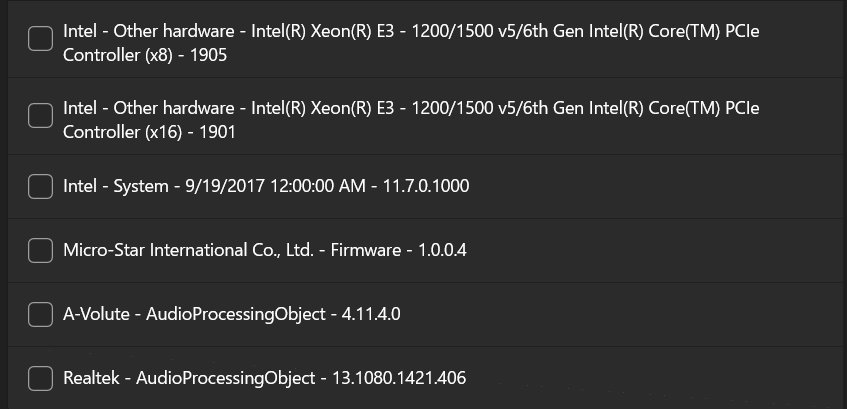
Understanding HDCP
HDCP stands for High-bandwidth Digital Content Protection. It encrypts the digital video signal between the PC and the screen so protected films and shows cannot be copied off the cable.
| Term | What it means on Windows 11 |
|---|---|
| HDCP | Protection for digital video on HDMI and DVI outputs |
| DPCP | DisplayPort Content Protection, the protection type Windows lists for DisplayPort outputs |
| Output Protection Manager (OPM) | The Windows component an app uses to request protection on a display output |
| HDCP on / off | The two HDCP levels OPM can set; the app sets them, not a Settings toggle |
| HDCP 2.2 | The version Netflix requires on any external display used for 4K streaming |
A graphics adapter does not have to support any protection type. It does have to report honestly which ones each output supports, which is why one port can play protected video and another cannot.
Checking your hardware
HDCP only works when the PC, the cable path and the display all support it. One unsupported link breaks the chain.
| Part | What to check | Where to find it |
|---|---|---|
| Display or TV | HDCP support, and HDCP 2.2 for 4K streaming | The manual or the display maker's website |
| Video port | An HDMI, DVI or DisplayPort output on the PC | The ports on the PC or laptop |
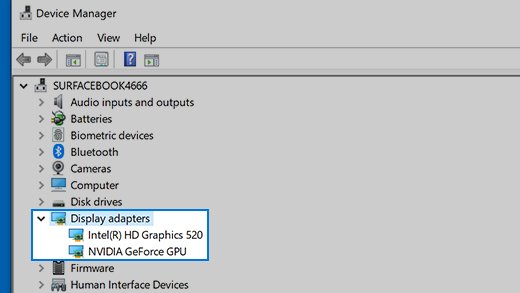
| Graphics adapter | Maker and model | Device Manager > Display adapters |
| Docks, splitters, adapters | Whether they pass protected video | The accessory maker's website |
| Wireless display adapter | HDCP setting in the companion app | The Microsoft Wireless Display Adapter app |
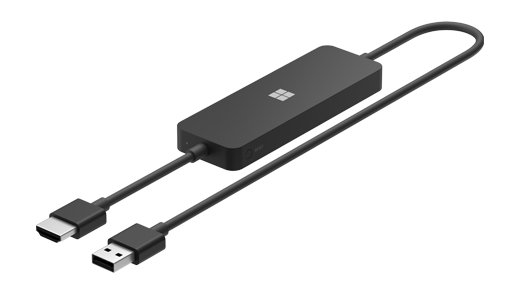
Older Microsoft Wireless Display Adapter models note that full functionality is not available with non-HDCP devices, so the display behind them must support HDCP too.
Checking your Windows 11 system
Find out which graphics adapter drives the screen, then bring Windows and its graphics driver up to date.
- In the search box on the taskbar, type device manager and open Device Manager.
- Expand Display adapters and note the maker and name of each adapter listed.
- Open Settings > Windows Update and select Check for updates.
- Select Advanced options, make sure Receive updates for other Microsoft products is On, then open Optional updates.
- Select any listed display driver and choose Download and install.
- Restart the PC, even if no update asked for it.
If Windows Update has no newer driver, get one only from the graphics or PC maker's official website.
HDCP 2.2 Netflix 4K requirements on Windows 11
Netflix is the most common reason people look for HDCP settings. Ultra HD only plays when every item below is in place.
| Requirement | What Netflix asks for |
|---|---|
| Plan and quality | A plan with Ultra HD, playback quality set to Auto or High |
| Connection | A steady 15 megabits per second or faster |
| Windows | Windows 11 with the latest updates installed |
| App or browser | Microsoft Edge, Google Chrome or the Netflix app for Windows |
| Graphics | an NVIDIA GeForce 1050 or newer, AMD Radeon RX 400 series or newer, Intel 7th generation Core or newer, or AMD Ryzen |
| Drivers | The latest graphics drivers |
| Display | A 4K 60Hz built-in screen, or a 4K 60Hz external display with an HDCP 2.2 compatible connection |
| Multiple monitors | Every active display must meet the same requirements |
| Codec | The HEVC video extension from Microsoft Store on devices that lack it |
The multiple-monitor rule catches many people: one older second screen without HDCP 2.2 holds the whole PC back.
Enable HDCP on Microsoft Wireless Display Adapter
The Microsoft 4K Wireless Display Adapter has an Enable HDCP setting in its companion app. Streaming apps such as Netflix, YouTube and Amazon video may refuse to play until it is on.
- Select Start > All Apps > Microsoft Store.
- Search for Microsoft Wireless Display Adapter, select the app and choose Get.
- Connect to the adapter and open the app.
- Select Update & security and install any adapter update with Update.
- Turn on Enable HDCP in the app.
- Disconnect, reconnect to the adapter and start the video again.
If video becomes pixelated after you turn HDCP on, try turning it off again, as Microsoft suggests for the 4K adapter.
How to check if HDCP is working on Windows 11
Windows Settings has no HDCP status page. The practical test is protected playback on the screen you care about.
- Disconnect any extra monitors that you have not confirmed support HDCP.
- Open a protected title in the Netflix app or Microsoft Edge on the external display.
- Check that the picture appears, rather than a black frame or an error message.
- For 4K, set Netflix playback quality to Auto or High and confirm the title plays in Ultra HD.
- Reconnect the other monitors one at a time and repeat to find any screen that breaks playback.
Troubleshooting HDCP issues
Protected video shows a black screen on an external monitor
A dock, dongle, splitter or cable in the path does not carry protected video, or the display lacks HDCP.
- Disconnect all docks, dongles and adapters from the PC.
- Connect the monitor directly with a secure cable, then try a different cable.
- Plug the monitor into another video output port on the PC if one is available.
- Confirm HDCP support with the display maker.
Netflix will not play in 4K on Windows 11
One of the 4K requirements is missing, often a second display without HDCP 2.2.
- Disconnect every display that is not 4K 60Hz with HDCP 2.2.
- Update the graphics driver from Windows Update or the GPU maker.
- Install the HEVC video extension from Microsoft Store if your device does not have it.
- Use Microsoft Edge, Google Chrome or the Netflix app.
Streaming apps will not play through the Microsoft Wireless Display Adapter
The adapter firmware is out of date or HDCP is off in the adapter app.
- Update the adapter from Update & security in its app.
- Close and relaunch the streaming app.
- Disconnect from the adapter, restart the PC and reconnect.
- On the 4K adapter, make sure Enable HDCP is turned on.
Playback broke after a graphics driver update
The new display driver misbehaves with your display.
- Press Windows logo key + Ctrl + Shift + B to reset the graphics driver.
- Restart the PC if that does not help.
- Open Device Manager, expand Display adapters, right-click the adapter and select Properties.
- On the Driver tab, select Roll Back Driver.
Nothing displays on the second screen at all
Windows is not extending to the display, or the display is on the wrong input.
- Press Windows logo key + P and select Extend or Duplicate.
- Set the display to the HDMI input it is connected to.
- Reinstall the display driver: in Device Manager, right-click the adapter, select Uninstall device, tick Attempt to remove the driver for this device and select Uninstall.
- Restart, then right-click the adapter, select Update driver and choose Search automatically for updated driver software.
HDCP Windows 11 FAQ
Does Windows 11 have an HDCP setting?
No. Windows 11 has no HDCP toggle in Settings. A playback app requests protection through Output Protection Manager, and the graphics driver turns HDCP on for that output when the display supports it.
What is HDCP?
HDCP, or High-bandwidth Digital Content Protection, encrypts the digital video signal between a PC and its display. Streaming services and players use it to stop protected video being copied from the cable.
Which ports use HDCP on Windows?
Windows applies HDCP to HDMI and DVI outputs. For DisplayPort outputs, Microsoft's documentation names DisplayPort Content Protection (DPCP) as the protection type.
Do I need HDCP 2.2 for Netflix 4K on a PC?
Yes, for an external screen. Netflix needs a 4K 60Hz built-in screen, or a 4K 60Hz external display with an HDCP 2.2 compatible connection, plus a supported graphics chip and the latest drivers.
Why does a second monitor stop Netflix playing in 4K?
Netflix requires every active display to meet its 4K requirements. If one connected monitor lacks HDCP 2.2 or 4K 60Hz, disconnect it while you stream in Ultra HD.
How do I know if my monitor supports HDCP?
Check the monitor's manual or the maker's website for HDCP, and for HDCP 2.2 if you want 4K streaming. Windows itself does not show the HDCP version of a connected display.
Does the Microsoft Wireless Display Adapter support HDCP?
Yes. The Microsoft 4K Wireless Display Adapter has an Enable HDCP setting in its app, and older models lose full functionality with non-HDCP displays. The TV or monitor behind the adapter must also support HDCP.
Can a graphics driver update fix HDCP errors?
Often, yes. Netflix lists the latest graphics drivers as a 4K requirement. Install driver updates from Windows Update optional updates or the graphics maker's official site, and roll back if a new driver causes problems.