To access Microsoft Bing, type bing.com into the address bar of any web browser and search from the box on the page; there is nothing to install on a computer.
This guide covers every other route too: Microsoft Edge, Windows Search, the Microsoft Bing app on iPhone, iPad and Android, making Bing your default search engine, and opening Copilot Search in Bing.
Access Bing Directly in a Web Browser
Bing is a website, so every browser on every device can open it. You do not need an account to search.
- Open any browser, such as Microsoft Edge, Chrome, Safari or Firefox.
- Click the address bar at the top of the window.
- Type bing.com and press Enter.
- Type your question or keywords into the search box on the Bing homepage.
- Press Enter to see the results, then use the tabs such as Images, Videos or News to narrow them.
Add the page to your bookmarks or favorites if you want Bing one click away without changing your search engine.
Which way to open Bing fits your device?
| Your situation | Use this | Why |
|---|---|---|
| Any computer, any browser, just once | Go to bing.com | No setup and no sign-in needed |
| You use Microsoft Edge | Type in the Edge address bar | Edge sends address-bar searches to Bing by default |
| You want Bing for every search in Chrome or Safari | Make Bing the default search engine | Every address-bar search then goes to Bing |
| Windows 11 or Windows 10 PC | Press the Windows key and type | Web results in Windows Search are powered by Bing |
| iPhone, iPad or Android phone | Install the Microsoft Bing app | Adds voice search, camera search, Copilot Search and Rewards |
| You want AI answers with cited sources | Open bing.com/copilotsearch | Copilot Search in Bing summarizes results and links its sources |
Sign In to Bing with a Microsoft Account
Searching works without signing in. Sign in when you want Microsoft Rewards points, synced search history on the privacy dashboard, or personalized results.
Use a personal Microsoft account, such as an Outlook.com address. A work or school account also works on Bing, but some features differ.
- Go to bing.com.
- Select Sign in on the Bing page.
- Enter the email address or phone number of your Microsoft account.
- Enter your password or approve the sign-in on your phone.
- Check that your name or initials now appear where Sign in was.
Avoid staying signed in on a shared or public computer. Sign out from the same account menu when you finish, or use a private browsing window.
Access Bing from Microsoft Edge
Microsoft Edge uses Bing as its default search engine, so any search you type in the Edge address bar opens Bing results. Microsoft has long promoted Edge on Bing as the best browser for it.
- Open Microsoft Edge.
- Click the address bar and type what you want to find, not a web address.
- Press Enter to open the Bing results page.
- Select the Copilot icon in the upper-right corner of Edge if you want to ask Copilot instead of searching.
- If Edge opens a different search engine, follow the Edge row in the default search engine table below to switch back to Bing.
Make Bing Your Default Search Engine
Setting Bing as the default sends every address-bar search to Bing. If Bing is missing from a browser's list, visit bing.com and run one search first; Chrome and Edge add recently used search engines as options.
| Browser | Path to the setting | What to choose |
|---|---|---|
| Microsoft Edge (Windows) | Settings and more (…) > Settings > Privacy, search, and services > Search and connected services > Address bar and search | Pick Bing in Search engine used in the address bar |
| Google Chrome (computer) | More (three dots) > Settings > Search engine > Change | Select Bing as the new default search engine |
| Google Chrome (Android) | More > Settings > under Basics, tap Search engine | Tap Bing |
| Safari (Mac) | Safari menu > Settings > Search tab | Choose Bing in the Search engine menu |
| Safari (iPhone and iPad) | Settings app > Safari > Search Engine | Tap Bing |
Safari on a Mac has a separate Private Browsing search engine option on the same Search tab. Set it to Bing too if you want private windows to match.
Access Bing on Windows
Windows Search is the quickest route to Bing on a PC. Microsoft states that when you use Windows Search to search the web or get search suggestions, the results are powered by Bing.
This is also why Bing appears on computers where nobody chose it: it is built into Windows Search and is Edge's default engine.
- Press the Windows key, or select Search on the taskbar.
- Type your question or keywords.
- Look for the web suggestions among the matching apps, files and settings.
- Select a web suggestion to open the full Bing results in a browser.
- To personalize results with your Microsoft account, open Settings > Privacy & security > Search permissions on Windows 11, or Settings > Search > Permissions & History on Windows 10.
Access Bing on iPhone and iPad
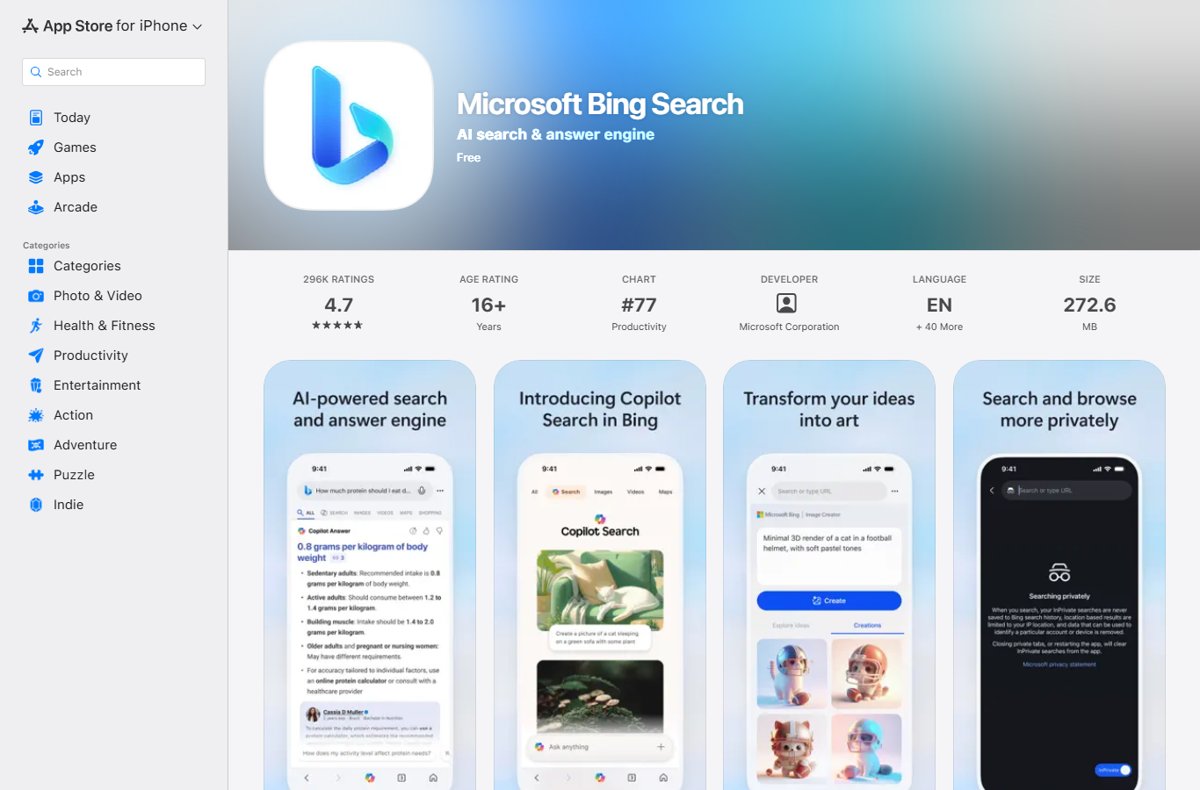
You can open bing.com in Safari, but the free Microsoft Bing app adds voice search, camera search, Copilot Search, Image Creator and Rewards. The current App Store listing requires iOS 18.0 or iPadOS 18.0 or later.
- Open the App Store on your iPhone or iPad.
- Search for Microsoft Bing and confirm the developer is Microsoft Corporation.
- Tap Get to install the free app.
- Open the app and type in the search box, or tap the microphone icon to search by voice.
- Sign in with your Microsoft account inside the app if you want Rewards points.
- To make Safari itself use Bing, open Settings > Safari > Search Engine and tap Bing.
Access Bing on Android
Microsoft describes the Microsoft Bing app for Android as a free search app that combines traditional search, Copilot, visual and voice search, and Microsoft Rewards.
- Open the Google Play Store on your phone or tablet.
- Search for Microsoft Bing and check that the developer is Microsoft.
- Tap Install, then Open.
- Search with the text box, the microphone icon or the visual search icon.
- To use Bing in Chrome instead, open Chrome, tap More > Settings, tap Search engine under Basics, and choose Bing.
Any mobile browser also works: open it, type bing.com in the address bar, and search.
Use Bing’s Main Search Features
The tabs across the Bing results page switch the type of result. Pick the tab before you refine the query, because each tab has its own filters. Below the last result, the Bing related searches block suggests other ways to phrase the query.
| Feature | Where to find it | Use it for |
|---|---|---|
| Web search | Search box on bing.com | Web pages, answers and instant tools such as a calculator or unit converter |
| Images | Images tab | Photos and graphics, with filters including license type |
| Videos | Videos tab | Video results from across the web |
| News | News tab | Current headlines from news publishers |
| Maps | Maps tab | Places, addresses and local businesses |
| Shopping | Shopping tab | Products and prices from stores |
| Translator | bing.com/translator | Translating text between languages |
| Search history | … menu in the upper right > History | Finding a search you ran earlier |
Advanced search operators and filters cover exact phrases, site-only results and file-type searches.
Access Bing Copilot
Microsoft calls the AI part of Bing Copilot Search in Bing. It gives summarized answers with cited sources and is grounded on Bing search results. Availability varies by device, market and browser version.
- Go to bing.com/copilotsearch to open Copilot Search directly.
- Or run a normal search on Bing and click the Copilot icon to open Copilot Search with the same query.
- Read the summarized answer and open the cited sources to check it.
- In Microsoft Edge, sign in with a personal Microsoft account, then select the Copilot icon in the upper-right corner to open Copilot in a side pane.
- On a phone, use Copilot Search in the Microsoft Bing app, or Copilot in Edge for mobile.
Access Bing with Voice Search and Visual Search
Voice search takes a spoken question. Visual search takes a picture and finds similar images, products, objects or text in it.
| Where you are | Voice search | Visual search |
|---|---|---|
| bing.com on a computer | Select Search by voice in the search box and allow microphone access if the browser asks | Select Search using an image, or go to bing.com/visual-search and use Drag and drop image here, Take photo, Paste image or URL or Browse |
| Microsoft Edge | Use the voice features in the Copilot pane | Right-click the page, select Visual Search, then frame the area you want to search |
| Microsoft Bing app (iPhone, iPad, Android) | Tap the microphone icon | Tap the visual search icon to use the camera or upload a photo |
Use Microsoft Rewards with Bing
Microsoft Rewards is free and pays points for searching with Bing while signed in. Offers and earning limits vary by country or region.
- Sign in to bing.com with your Microsoft account.
- Open rewards.bing.com and join Microsoft Rewards if you have not already.
- Search on Bing while signed in to the same account to earn search points.
- Complete the daily activities on the Bing Rewards dashboard.
- Answering the daily Bing homepage quiz earns extra points.
- Redeem points on the Redeem tab once your balance covers a reward.
Points expire if you go 12 months without earning or redeeming any. A VPN or a sign-in with a different account can stop searches from counting.
Access Bing in Different Countries and Languages
Bing picks a country and language from your location and browser. You can override both in Bing's settings, which changes the market your results come from.
- Go to bing.com and open the settings menu from the menu icon in the upper-right corner.
- Select Settings, then More, to open the full settings page.
- Open Country/region and select the market you want results from.
- Open Language and set the Display language and the Search results languages.
- Save the change so Bing keeps it on this browser.
Features such as Copilot Search and some Rewards offers are not available in every market, so a country change can add or remove them.
Access Bing at Work or School
Bing works in any browser on a managed device, but your organization can change what you see. These are the differences Microsoft documents.
| What changes | What Microsoft documents | What it means for you |
|---|---|---|
| Copilot with a work account | Signing in to Copilot with a Microsoft Entra ID work account applies Enterprise Data Protection | Prompts are not used to train the AI model and stay within your organization |
| Copilot controls | IT admins can allow or block sites Copilot works with and apply data loss prevention policies | Some Copilot features may be missing or limited |
| SafeSearch | Schools and organizations can map Bing to strict.bing.com on their network | SafeSearch is locked to Strict and cannot be changed |
| Search history | Work or school accounts clear history from the Bing Search History page, not the privacy dashboard | Use Clear all under Manage or clear your search history |
How to check you are really using Bing
- Type a test word in the address bar and press Enter.
- Check that the results page address begins with bing.com/search.
- Look for the Bing tabs, such as Copilot, Images and Videos, above the results.
- In Edge, confirm Bing shows in Search engine used in the address bar.
- If you signed in, confirm your name appears instead of Sign in.
Fix Common Problems Accessing Bing
Searches automatically go to Bing when you did not choose it
Edge uses Bing by default and Windows Search web results are powered by Bing.
- In Edge, open Settings and more > Settings > Privacy, search, and services > Search and connected services > Address bar and search.
- Pick the engine you prefer in Search engine used in the address bar.
- In other browsers, change the default search engine using the table in the default search section.
Chrome will not keep Bing, or another engine keeps coming back
Google says a search engine setting that fails to change can be a sign of malware or an unwanted extension.
- Open Chrome and select More > Settings > Reset settings.
- Select Restore settings to their original defaults, then Reset settings.
- Set Bing again under Settings > Search engine.
- Run a scan with your security software if the setting changes again.
The Copilot icon is missing in Microsoft Edge
Copilot in Edge needs a signed-in personal Microsoft account, and work devices can restrict it.
- Sign in to Edge with your personal Microsoft account.
- Look for the Copilot icon in the upper-right corner again.
- Open bing.com/copilotsearch as an alternative route.
- On a work device, ask your IT admin whether Copilot is enabled.
SafeSearch is stuck on Strict
Accounts of users under 18 may be set to Strict, and schools can force strict.bing.com on the network.
- Go to bing.com, open the menu icon in the upper right, then Settings > More.
- Choose Moderate or Off under SafeSearch and select Save.
- If the option will not change, the network or your account age is enforcing it.
Bing settings or search history will not save
Bing stores these preferences with JavaScript and cookies.
- Allow JavaScript and cookies for bing.com in your browser settings.
- Reload bing.com and change the setting again.
- Sign in if you want the setting tied to your Microsoft account.
Searches do not earn Microsoft Rewards points
Points only count for the signed-in Rewards account, in a supported market, without a VPN.
- Confirm you are signed in to Bing with the same account as rewards.bing.com.
- Turn off any VPN and search again.
- Check that you have not already reached the daily search limit on the dashboard.
Use Bing Safely and Privately
Bing records searches in your search history, and a signed-in account links that history to you. These steps keep that under your control.
- On bing.com, select the … menu in the upper right and choose History to review your searches.
- On the Search History page, turn off the toggle under Show new searches here to stop recording new searches.
- Select Clear all under Manage or clear your search history to delete past searches.
- If you use a Microsoft account, open the privacy dashboard at account.microsoft.com/privacy, select Browsing and search, then Clear all activities in the search history section.
- Set SafeSearch to Strict, Moderate (the default) or Off in Bing settings to control explicit results.
- Sign out when you finish on a shared computer.
Best Way to Access Bing
On a computer, type bing.com or search from the Edge address bar; on a phone, install the free Microsoft Bing app. The website needs no setup on any browser, Edge already sends searches to Bing, and the app is the only route that bundles voice search, camera search, Copilot Search and Rewards in one place.
Frequently Asked Questions
How do I open Microsoft Bing?
Type bing.com into the address bar of any browser and press Enter. On Windows you can also press the Windows key and type, because web results in Windows Search are powered by Bing. On a phone, install the free Microsoft Bing app.
How do I get Bing on my computer?
You do not need to install anything. Open any browser and go to bing.com, or make Bing the default search engine so every address-bar search uses it. Microsoft Edge already uses Bing by default on Windows.
How do I download Microsoft Bing?
The Microsoft Bing app is free on the App Store for iPhone and iPad and on Google Play for Android. On a computer Bing is a website, so there is nothing to download. Microsoft’s separate Bing Wallpaper app only changes your desktop background.
How do I put Microsoft Bing on my desktop?
Add bing.com to your browser favorites, or set Bing as your browser's default search engine so it is always one search away. On Windows, the search box on the taskbar already returns Bing web results for anything you type.
How do I log into Bing?
Go to bing.com, select Sign in, and enter your Microsoft account email or phone number, then your password. Signing in is optional for searching. It is needed for Microsoft Rewards points and account-linked search history.
How do I access Bing Chat in Microsoft Edge?
Bing Chat is now Copilot. Sign in to Edge with a personal Microsoft account and select the Copilot icon in the upper-right corner to open it in a side pane. Earlier Edge builds showed it in the sidebar, as in Bing Chat in the Edge sidebar.
Why is Microsoft Bing on my computer?
Bing is built into Windows. Microsoft states that web results and search suggestions in Windows Search are powered by Bing, and Microsoft Edge uses Bing as its default search engine. You can change Edge's search engine in its Address bar and search settings.
Why does my browser automatically go to Bing?
Your browser's default search engine is set to Bing, which is the default in Microsoft Edge. Change it under Settings, Privacy, search, and services, Search and connected services, Address bar and search. In Chrome, if the setting will not change, reset Chrome settings and check for malware.
Do I have to use Bing?
No. You can choose another search engine in Edge, Chrome, Safari and Firefox at any time. Web results in Windows Search are powered by Bing, so searching from the taskbar still uses it even when your browser does not.
How do I search on Microsoft Bing?
Type your words into the search box on bing.com and press Enter, then pick a tab such as Images, Videos, News or Maps to narrow the results. Use quotation marks for an exact phrase and site: to search one website.
Where is Bing on my computer?
Bing is not a program in your Start menu. It lives at bing.com in your browser, behind the Edge address bar, and behind the web suggestions in Windows Search on the taskbar.






How to Enable and Use Microsoft Bing AI Search? - Techdows
[…] Making Bing the default sends every address-bar search to Bing, so the Copilot icon is always one click away. The full walkthrough is in how to access Microsoft Bing. […]