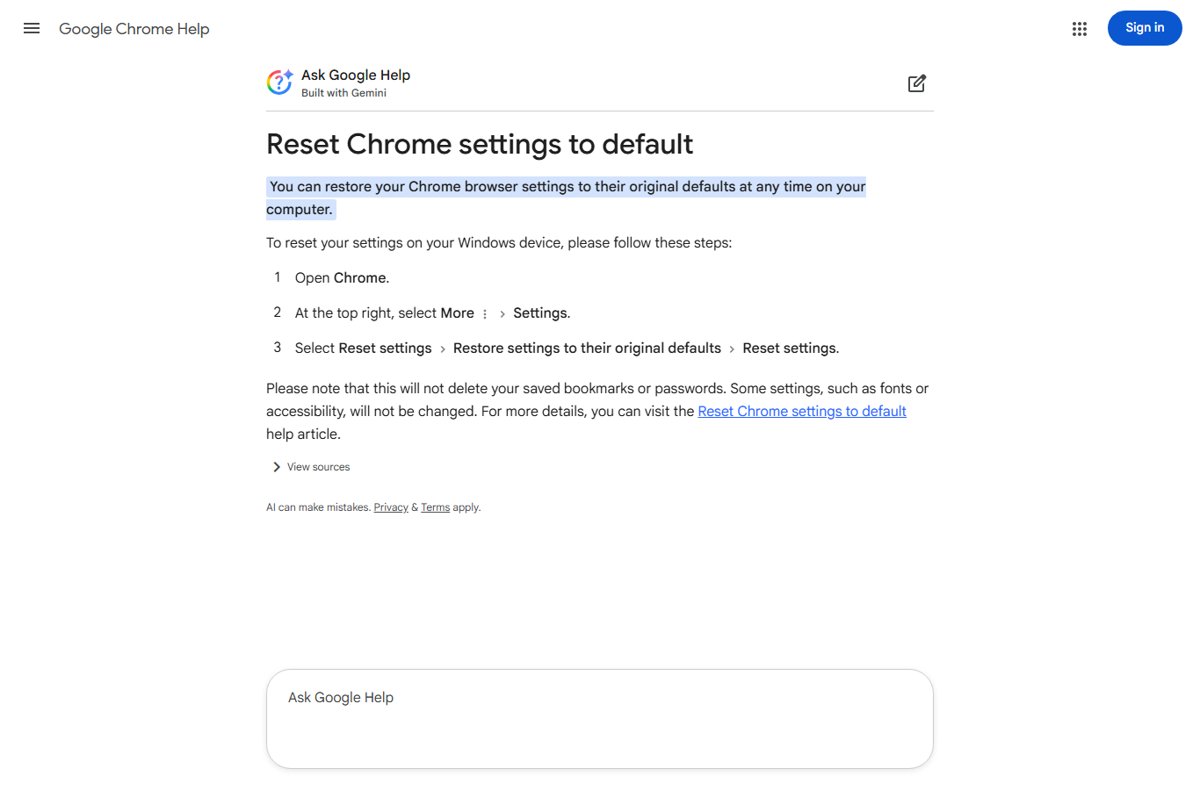
To reset Chrome settings to defaults, open More > Settings > Reset settings > Restore settings to their original defaults and select Reset settings.
This guide covers what that reset changes and keeps, how to reset every setting with a fresh profile or reinstall, the Android equivalent and fixes when the reset does not stick.
Reset common settings to defaults on Chrome
Chrome's built-in reset works on Windows, Mac, Linux and ChromeOS. Bookmarks and saved passwords are not deleted or changed.
- Open Chrome on your computer.
- Select More (three dots) at the top right, then Settings.
- Select Reset settings in the left menu.
- Select Restore settings to their original defaults.
- Select Reset settings in the confirmation dialog.
If you are signed in to Chrome, the reset applies to your profile on every device where you are signed in.
What resetting Chrome settings changes and keeps
| Item | After the reset |
|---|---|
| Default search engine | Back to the default; in some countries Chrome asks you to choose one |
| Homepage and startup tabs | Back to the default |
| New tab page | Back to the default page |
| Pinned tabs | Unpinned |
| Content settings | Site permissions such as pop-ups and microphone return to defaults |
| Cookies and site data | Cleared, which signs you out of many sites |
| Extensions and themes | Reset to default |
| Bookmarks | Kept |
| Saved passwords | Kept |
| Fonts and accessibility settings | Kept; Google notes the reset is not a full reset |
How to get ready before you reset Chrome settings
A reset returns several preferences to their defaults and signs you out of many sites, so a few minutes of preparation saves rebuilding Chrome from memory afterwards.
- Write down your startup pages and pinned tabs, since the reset returns them to the default and unpins every tab.
- List the extensions and theme you use, because the reset sets extensions and themes back to their defaults.
- Make sure you can sign back in to the websites you use, since the reset clears cookies and site data.
- Check which Google Account Chrome is signed in to, because the reset applies to that profile on every device where you are signed in.
- Leave bookmarks and saved passwords alone; the reset does not delete or change them.
Which Chrome reset should you use?
| Your situation | Use this | What you lose |
|---|---|---|
| Search engine or homepage changed without your consent | Reset settings | Site permissions, cookies, pinned tabs; extensions and themes reset |
| You want history and cache gone too | Reset settings plus Delete browsing data for All time | History, cookies, cached files and any items you tick |
| You want a clean Chrome with nothing carried over | A new Chrome profile, then delete the old one | Everything stored in the old profile on this computer |
| Settings menu is missing or will not open | Uninstall and reinstall Chrome | Profile data too, if you tick the delete option |
| Chrome on an Android phone | Clear Chrome's storage in Android Settings | All Chrome data stored on the phone |
Reset every setting to defaults on Chrome
Reset settings leaves some preferences in place. A new Chrome profile starts with every setting at its default, and removing the old profile erases its bookmarks, history, passwords and settings from the computer.
Sign in with your Google Account first if you want to keep synced bookmarks and passwords in the new profile.
- Select Profile at the top right of Chrome.
- Select Add Chrome profile and choose a name, photo and colour scheme.
- Sign in with your Google Account in the new profile, or continue without an account.
- Select Profile again and, under Other Chrome profiles, select Manage Chrome profiles.
- Select the old profile, then More > Delete at its top right.
- Select Delete to confirm.
To wipe data in your current profile instead, select More > Delete browsing data, set the time range to All time, tick Cookies and other site data and the other items, and select Delete data. If you are signed in, that also removes the data from your Google Account and other devices.
Reset Chrome by reinstalling it on Windows 11 and Windows 10
Uninstalling is also the way to reset Chrome without opening it, since the steps run from Windows Settings. Google recommends a reinstall when the settings menu is missing or will not open.
- Close every Chrome window.
- Open Settings from the Start menu.
- On Windows 11, go to Apps > Installed apps, select More next to Google Chrome and select Uninstall.
- On Windows 10, go to Apps, select Google Chrome under Apps & features and select Uninstall.
- On Windows 10, tick Also delete your browsing data to remove profile data such as bookmarks and history.
- Select Uninstall to confirm and approve the permission prompt.
- Download Chrome again from google.com/chrome and install it.
Data saved to your Google Account stays on Google's servers after an uninstall and returns when you sign in again.
Reset Chrome settings to default on Android
Chrome for Android has no Reset settings button. Clearing the app's storage in Android Settings returns Chrome to its first-run state. Menu names vary by phone maker.
- Open your phone's Settings app.
- Tap Apps and select Chrome.
- Open Chrome's storage page.
- Tap Clear cache to delete only temporary data, or Clear storage to delete all of Chrome's data on the phone.
- Confirm, then open Chrome and set it up again.
Clear storage permanently deletes Chrome's local data, so sign in to Chrome first if you want synced bookmarks and passwords to return.
Check that the Chrome reset worked
- Open a new tab and confirm the default new tab page appears.
- Open More > Settings and check that the search engine and startup pages show the defaults.
- Check that pinned tabs are gone from the tab strip.
- Open Privacy and security > Site settings and confirm permissions show their default options.
- Open your bookmarks and passwords to confirm they are still there.
Chrome reset problems and fixes
Settings menu missing or won't open
Chrome itself has a problem, or another installed program is changing its settings.
- Uninstall Chrome from Windows Settings > Apps.
- Download Chrome again from google.com/chrome and reinstall it.
- If the problem returns, uninstall programs you installed around the time it started.
Chrome reset my browser settings by itself
Chrome checks at every launch whether a program changed your settings, and prompts you to reset them when it finds a change.
- Review the search engine, homepage and startup pages in Settings.
- Set them back to what you want.
- Uninstall any recently installed program you do not recognise.
Search engine or homepage changes back after a reset
An unwanted program or extension keeps hijacking Chrome's settings.
- Turn off extensions you did not install.
- Uninstall unfamiliar programs from Windows Settings > Apps.
- Run Reset settings again.
Reset Chrome settings FAQ
How do I reset Chrome settings to default?
Open Chrome, select More > Settings > Reset settings, choose Restore settings to their original defaults, and confirm with Reset settings. The search engine, homepage, new tab page, pinned tabs, content settings, cookies, extensions and themes return to defaults.
Does resetting Chrome delete bookmarks and passwords?
No. Google states that resetting Chrome settings does not delete or change saved bookmarks or passwords. It does clear cookies and site data, so expect to sign in to many websites again after the reset.
How do I completely reset Chrome?
Create a new Chrome profile, then delete the old one from Manage Chrome profiles. That starts every setting at its default. For an even cleaner start, uninstall Chrome with its browsing data removed and reinstall it from google.com/chrome.
How do I reset Chrome settings on Android?
Chrome for Android has no reset button. Open the phone's Settings app, tap Apps > Chrome, open its storage page and tap Clear storage. This permanently deletes Chrome's local data, so sign in afterwards to restore synced items.
How do I reset Chrome settings without opening Chrome?
Uninstall Chrome from Windows Settings > Apps, which does not require opening the browser, then reinstall it. On Windows 10, tick Also delete your browsing data during the uninstall to remove the old profile as well.
How do I reset Chrome settings on Windows 10?
Use the same steps as on any computer: More > Settings > Reset settings > Restore settings to their original defaults > Reset settings. If Chrome will not open, uninstall it from Settings > Apps > Apps & features and reinstall it.
Does a Chrome reset affect my other devices?
Yes, if you are signed in. Google says the reset changes the listed settings to defaults on all devices where you are signed in with that Chrome profile, not only on the computer where you ran it.
Does resetting Chrome remove extensions?
Google lists extensions and themes among the items reset to default. Check the extensions you rely on after the reset and turn them back on if they are off. Experimental flags are separate, and you can reset Chrome flags on their own page.
Does resetting Chrome factory reset your phone or computer?
No. Resetting Chrome only restores Chrome's own settings in your browser profile. It does not reset Windows 10, Windows 11, macOS or Android, and your apps and personal files stay where they are. A factory reset of the device is a separate tool in the operating system's settings.