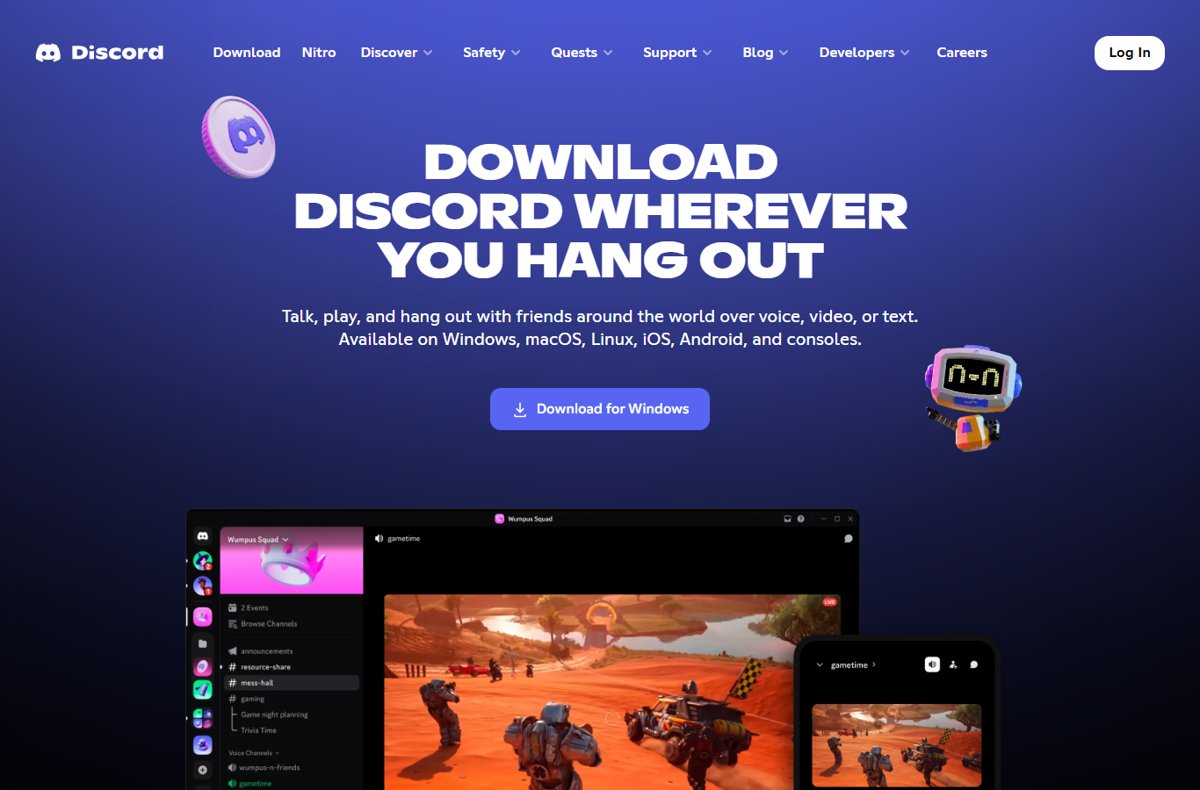
To get Discord on Windows 11, open discord.com/download, download the x64 (or ARM64) installer, run DiscordSetup.exe, and sign in or register when the app opens.
This guide covers the download and install, the Microsoft Store route, joining servers, friends, screen sharing, events and Activities, plus the fix for a mic that works in Discord but not in game chat.
How to download and install Discord on Windows PC
The Discord desktop app is free, and it keeps itself updated after the first install.
- Open Microsoft Edge or another browser and go to discord.com/download.
- Under Download for desktop, select x64 for a PC with an Intel or AMD processor, or ARM64 for a Snapdragon or other Arm PC.
- Save the file when the browser asks. It downloads as DiscordSetup.exe.
- Open DiscordSetup.exe from the browser's downloads list.
- Wait while the installer sets up Discord; the app opens when it finishes.
- Log in with your email or phone number and password, or choose to register a new account.
- Verify your email address when Discord asks, then pick or join your first server.
If the installer closes or shows an error instead of opening the app, you can fix Discord installation errors by clearing the leftover Discord folders.
Discord system requirements for Windows 11
Every Windows 11 PC meets Discord's desktop requirement, because Windows 11 itself needs a 64-bit processor. The table matters when you install Discord on an older PC as well.
| Item | What Discord needs | Notes |
|---|---|---|
| Windows version | Windows 10 or later | Windows 7, 8 and 8.1 lost support on March 15, 2024 |
| Windows type | 64-bit Windows | 32-bit Windows lost support on June 15, 2024; old installs get no updates |
| Processor build | x64 or ARM64 installer | Check the processor under Settings > System > About |
| Windows 11 N or KN edition | Media Feature Pack recommended | Free from Microsoft; may improve Discord video quality; restart after installing |
| Browser (no install) | Chrome 108+, Edge 86+, Firefox 142+, Opera 72+ | Useful on PCs where you cannot install apps |
A PC still on Windows 7 or 8.1 needs a newer Windows before the app updates again. If its hardware qualifies, you can download and install Windows 11 first.
Discord also runs test builds: the Public Test Build on the download page and the earlier Discord Canary build. Stay on the stable build for everyday use.
How to install Discord from downloads on PC
Closed the browser before the installer ran? The file stays in your Downloads folder until you delete it.
- Open File Explorer from the taskbar.
- Select Downloads in the left pane.
- Sort by Date modified if the folder is long, so the newest file sits at the top.
- Double-click DiscordSetup.exe.
- Wait for the installer to finish and open the Discord sign-in screen.
- Delete DiscordSetup.exe from Downloads afterwards; Discord updates itself and does not need it again.
How to install Discord from the Microsoft Store on Windows 11
Discord is also listed in the Microsoft Store. This route suits PCs where you prefer Store-managed apps.
- Open Microsoft Store from Start or the taskbar.
- Type Discord in the search box at the top and press Enter.
- Open the Discord app listing in the results.
- Select the install button under the app name and wait for the download to finish.
- Select Open, or find Discord in the Start menu, and sign in.
How to use Discord on your PC
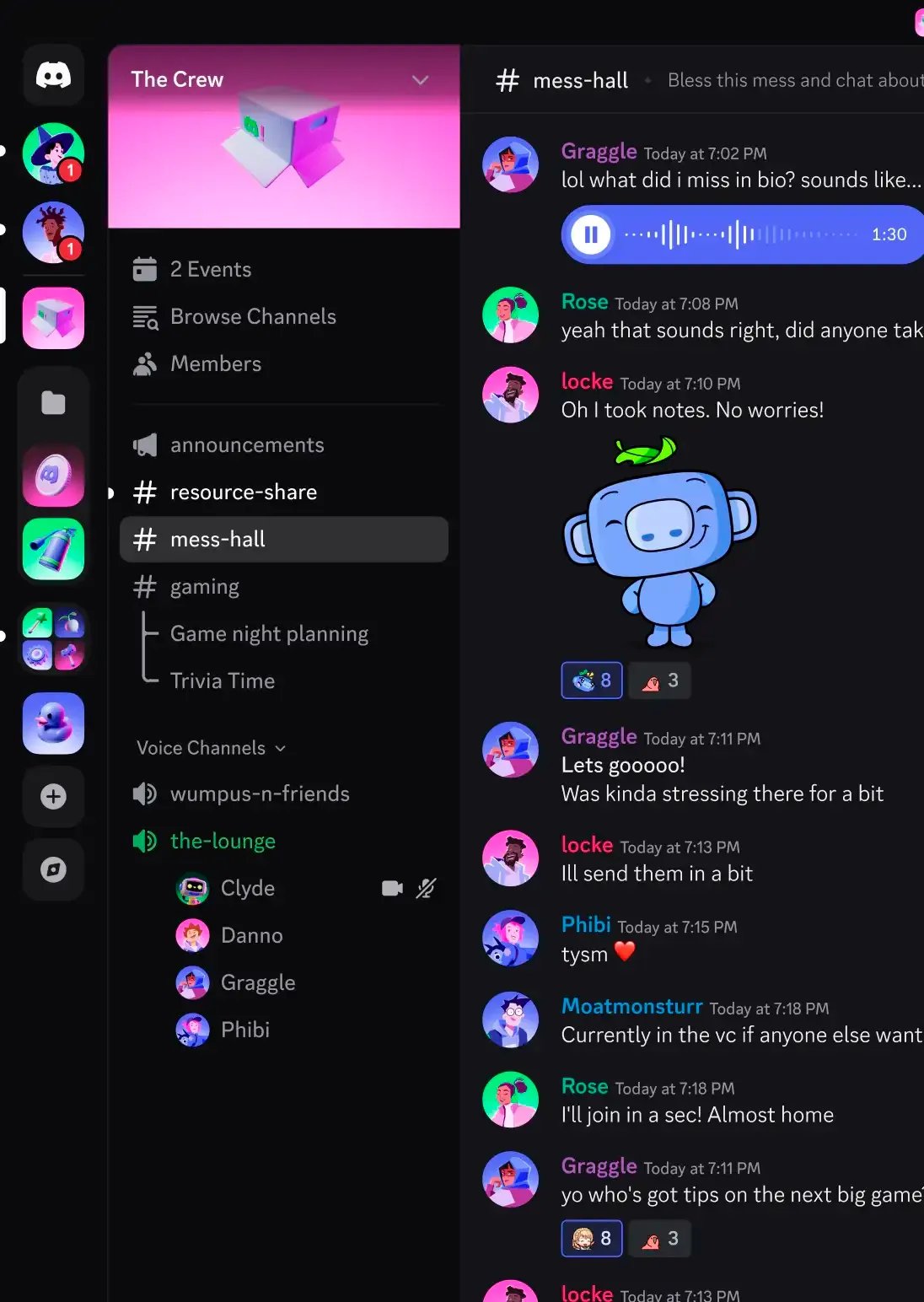
Discord is built around servers: invite-only spaces split into text channels for typed chat and voice channels you drop in and out of.
- To join a server, select the + icon at the bottom of the server list on the left.
- Select Join a Server, paste the invite link, and select Join Server.
- Pick a text channel from the channel list (names start with #) and type in the message box at the bottom.
- Click a voice channel to join it and talk with everyone connected there.
- Use the mute and deafen icons to the right of your avatar in the bottom-left corner when you need quiet.
- Select the cogwheel next to your avatar to open User Settings for your profile, notifications and devices.
Opening an invite link in a browser works too. Discord lets you set a server nickname and DM preferences there, then select Accept to join.
How to add friends on Discord on PC
- Select the Discord logo in the upper-left corner.
- Make sure the Friends tab is selected, then select Add Friend.
- Type or paste the person's username exactly as it appears on their profile.
- Select Send Friend Request.
- Open the Pending tab to check the request is waiting for them.
Once they accept, their name appears in your friends list and you can message or call them directly.
How to create a Discord server on PC
- Scroll to the bottom of the server list and select the Add a Server icon.
- Select Create My Own for a blank server, or pick one of the templates.
- Type a server name.
- Upload an icon if you want one; it must be at least 128×128 pixels.
- Select Create.
- Copy an invite from the new server and send it to the people you want in it.
You can skip the setup prompts and change the name or icon later in the server's settings.
How to screen share on Discord on Windows 11
Every account can stream at up to 720p and 30fps. Nitro raises the limit to 4K at 60fps.
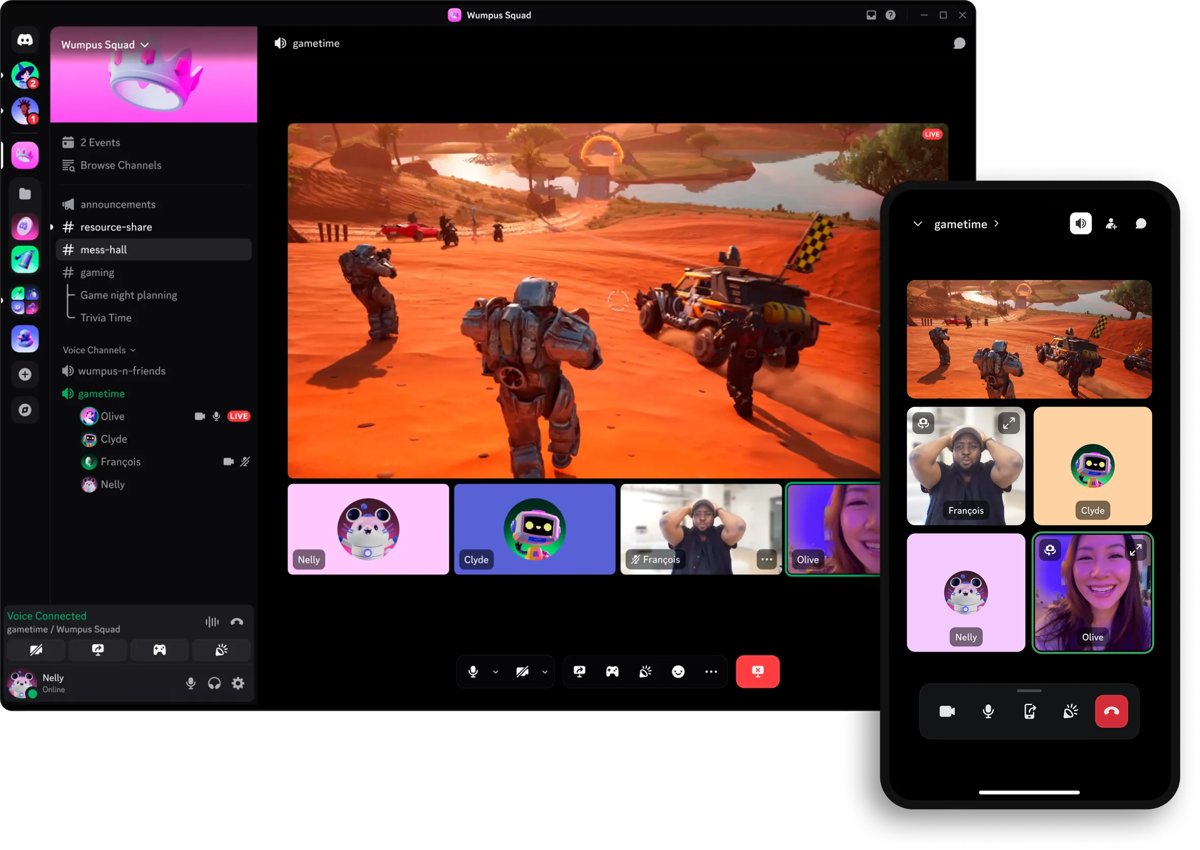
- Join a voice channel where you have permission to screen share.
- Select the Screen streaming icon in the voice status panel near the bottom-left corner.
- Choose one application window, or an entire screen.
- Select Go Live at the bottom of the window.
- In a direct message, start a call with the phone or video icon in the top header, then select Share Your Screen instead.
- Hover over the picture-in-picture window to change stream settings or end the stream.
How to create, edit, and delete events on Discord
Scheduled events tell server members when a voice chat, stage talk or offline meetup starts. Members who select Interested are notified when it goes live.
- Select the down arrow next to the server name at the top of the channel list.
- Select Create Event.
- Choose Voice Channel, Stage Channel or Somewhere Else, then pick the channel or enter a text channel, link or place.
- Fill in the event details and select Create Event (select Next first if Discord shows it).
- To edit it, open Events in the channel list, select the ellipsis under the event, and choose the edit option.
- To delete it, open the same ellipsis menu and choose the cancel option.
- When it is time, select Start Event from that menu to notify everyone marked Interested.
You need the Create Events permission to create events and change your own, and Manage Events to edit, cancel or start anyone's. A server holds up to 100 scheduled events, and voice channel events cap at 99 participants.
How to play Discord channel games via desktop and web
Discord's channel games are Activities: games and watch-together apps that run inside a call or chat. The steps are the same in the desktop app and in Discord on the web.
- Join a voice channel in a server, or start a voice call in a DM or group chat.
- Select the App Launcher button at the bottom of the call; in focused view it may sit in the bottom-left corner.
- Pick an Activity from the menu, or search for one by name.
- Authorise the app if Discord asks; this happens the first time you use it.
- Ask friends to join the same voice channel and select the Activity you started.
- In a text chat instead, select App Launcher to the right of the chat bar, choose the app and select Launch.
On the web, sign in at discord.com/login in a supported browser and use the same App Launcher button.
How to change Discord mic and speaker settings on Windows 11
Select the cogwheel in the bottom-left corner to open User Settings, then select Voice & Video in the sidebar.
| Setting | Where | Use it when |
|---|---|---|
| Input Device | Voice & Video > Voice tab | Discord picks up the wrong microphone |
| Output Device | Voice & Video > Voice tab | You hear calls through the wrong speakers or headset |
| Mic Test | Select Let's Check on the Voice tab | You want to hear yourself before joining a call |
| Input mode | Voice tab | Nobody hears you because Push to Talk is on by accident |
| Audio Subsystem | Scroll down Voice & Video | Audio fails; switch between Standard and Legacy |
| Reset Voice and Video Settings | Debugging tab | Settings are tangled and you want the defaults back |
How to check if Discord calls are end-to-end encrypted
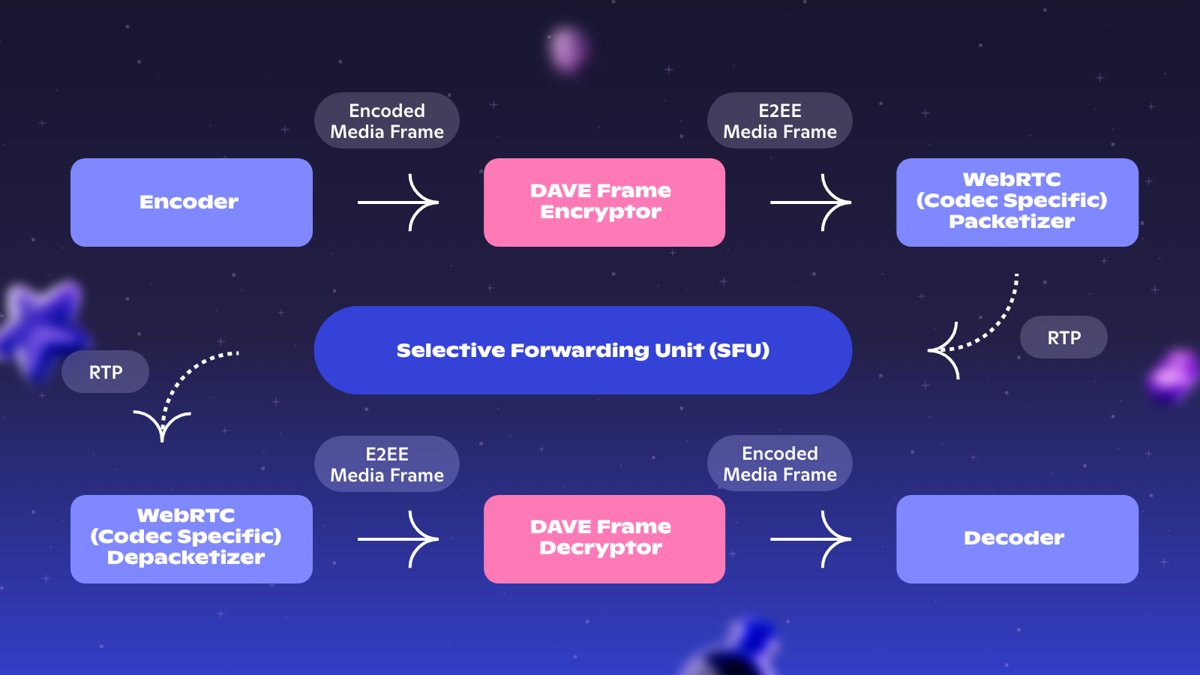
Since March 2, 2026, audio and video in DMs, group DMs, voice channels and Go Live streams must use end-to-end encryption. Stage channels and stream previews are not end-to-end encrypted.
- Join the call or voice channel in the desktop app.
- Open the call's Voice/Video Details from the voice panel.
- Look for the green lock icon with the words End-to-end encrypted.
- Open the Privacy tab to see the Voice Privacy Code for the call.
- Compare that code with the other participants over a different channel, such as a phone call.
- To check one person, select View Verification Code, compare it with them, then select Mark as Verified.
An outdated Discord client that lacks this encryption is refused from non-stage voice calls, so keep the app updated.
Where is Discord installed on Windows 11
The desktop app installs for your Windows account only, in your local app data folder rather than Program Files.
- Press Windows key + R to open Run.
- Type
%LocalAppData%\Discordand press Enter. - Look for the version folders; the newest one holds the current Discord app.
- Open Run again and type
%AppData%\Discordto see the folder that stores your Discord settings and cache. - Open Start and type Discord; the app listed there is the one you installed.
Mic works on Discord, but not in game chat [Fix]
Discord uses the microphone picked in its own Input Device list. Most games use the Windows default recording device, so the two can disagree.
Friends hear you on Discord, but players in game chat do not
Windows has a different microphone set as the default recording device.
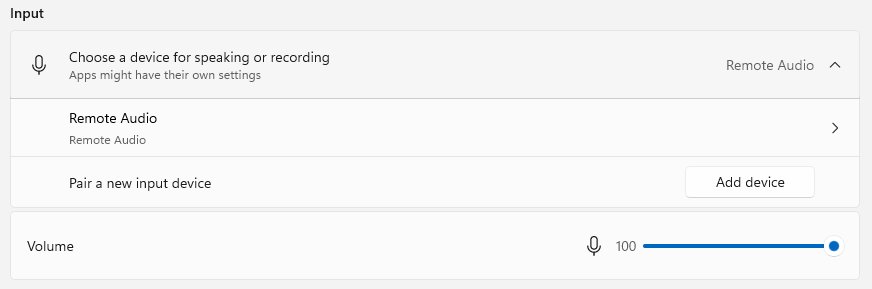
- Select Start > Settings > System > Sound.
- Under Input, go to Choose a device for speaking or recording and select the microphone Discord uses.
- Close and reopen the game.
- Open the game's audio or voice chat settings and pick the same microphone if it lists devices.
The game does not detect a microphone at all
Windows privacy settings block desktop apps from the microphone.
- Select Start > Settings > Privacy & security > Microphone.
- Turn on Microphone access.
- Turn on Let desktop apps access your microphone; games and Discord are desktop apps.
- Restart the game and test voice chat again.
Game chat hears you, but very quietly
The Windows input volume for the microphone is set low.
- Select Start > Settings > System > Sound.
- Under Input, select your microphone to open its properties.
- Select Start test, speak normally, then select Stop test.
- Drag the Input volume slider up and test again.
Discord not installing on Windows 11
The installer fails or closes without opening Discord
Files left by an earlier Discord install block the new one.
- Quit Discord from the system tray, and end every Discord process in Task Manager.
- Press Windows key + R, type
%AppData%, and delete the Discord folder. - Press Windows key + R, type
%LocalAppData%, and delete the Discord folder there too. - Restart the PC and run a fresh copy of DiscordSetup.exe from discord.com/download.
Windows says a Discord file is still in use
A Discord process is still running in the background.
- Open Task Manager and end every Discord entry, then close any browser tab running Discord.
- Check the Startup apps page in Task Manager and disable Discord there for now.
- Restart Windows and run the installer again.
Discord stopped updating on an older PC
The PC runs Windows 7, 8, 8.1 or a 32-bit Windows that Discord no longer supports.
- Check the Windows version and processor under Settings > System > About.
- Move to 64-bit Windows 10 or Windows 11 to get updates again.
- Until then, sign in at discord.com/login in a supported browser.
Discord on Windows 11 FAQ
What is Discord used for?
Discord is used for text, voice and video chat in invite-only servers and direct messages. People use it for gaming groups, study groups, clubs and online communities, with screen sharing, scheduled events and in-call Activities on top.
Is downloading and installing the same thing?
No. Downloading saves the DiscordSetup.exe file to your PC, usually in the Downloads folder. Installing happens when you run that file and it sets up the Discord app, which you then open from the Start menu.
How do I install Discord from my downloads?
Open File Explorer, select Downloads in the left pane, and double-click DiscordSetup.exe. The installer sets up Discord and opens the sign-in screen. You can delete the setup file afterwards, because Discord updates itself.
Is Discord free on Windows 11?
Yes. The Discord app and the core features, including servers, voice chat and screen sharing, are free. Nitro is an optional paid subscription that adds extras such as streaming at up to 4K and 60fps instead of 720p and 30fps.
Can I use Discord on Windows 11 without installing it?
Yes. Sign in at discord.com/login in Microsoft Edge 86 or later, Chrome 108 or later, Firefox 142 or later, or Opera 72 or later. The Discord web client works for chat, voice channels and Activities without installing anything.
Is Discord safe for children?
Discord requires users to be at least 13, and up to 16 in some countries. Parents of teens can use Family Center, which gives a dashboard and weekly email summaries of a connected teen's activity while respecting the teen's privacy.
Does Discord listen to your calls?
Since March 2, 2026, Discord requires end-to-end encryption for audio and video in DMs, group DMs, voice channels and Go Live streams. Only call participants can decrypt them. Stage channels and stream previews are not end-to-end encrypted.
How is Discord better than other online messaging platforms?
Discord keeps permanent servers with separate text and voice channels, so a group can drop into voice without starting a call each time. It also adds screen sharing, scheduled events and in-call Activities in the same free app.
Does Discord still work on Windows 7 or 32-bit Windows?
Not with updates. Discord dropped Windows 7, 8 and 8.1 on March 15, 2024 and 32-bit Windows on June 15, 2024. Old installs may still open, but they get no updates or support, so use the browser instead.