You change the NAT type of a Windows PC on your router, not in Windows: turn on UPnP, forward the game's ports, or set NAT filtering to Open, and the type moves from Strict or Moderate toward Open.
Below are the router steps, how to read the current NAT type on Windows 10 and Windows 11, the Windows settings that can still block a game, and fixes for Double NAT, Teredo and UPnP errors.
How to change NAT type on PC
The router shares one public IP address across every device in your home, so it decides which incoming game traffic reaches your PC. Turning on UPnP is the quickest change, because the game then asks the router to open the ports it needs.
- Open a web browser on the PC while it is connected to your home network.
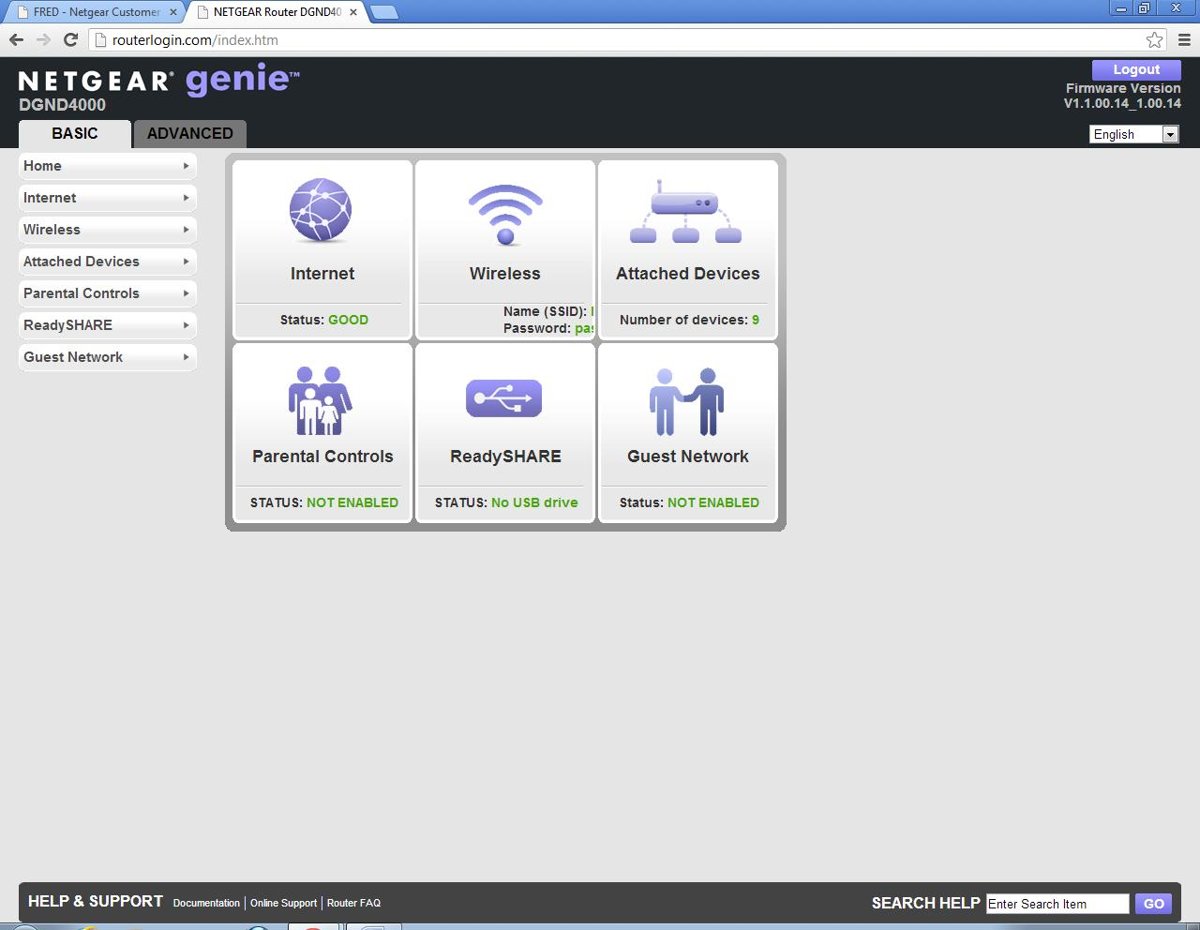
- Go to the router's setup page, for example
routerlogin.neton a NETGEAR router, or the Default Gateway address of your connection. - Sign in with the router's admin user name and password.
- Open the UPnP page (on NETGEAR: ADVANCED > Advanced Setup > UPnP) and select the Turn UPnP On check box.
- Select Apply, then restart the modem and the router.
- Restart the game or launcher on the PC and check the NAT type again.
If the type is still Strict or Moderate, forward the game's ports or switch NAT filtering to Open with the methods further down.
UPnP vs port forwarding vs DMZ for NAT type on PC
| Your situation | Use this | Why |
|---|---|---|
| You play many games and want it to just work | UPnP on the router | Each game opens and closes its own ports, so there is nothing to maintain |
| UPnP is off, missing or reports errors | Port forwarding to the PC's static IP | Opens only the ports the game lists and keeps the rest of the firewall in place |
| You own a NETGEAR router and want the simplest open setting | NAT Filtering set to Open | One switch on the WAN Setup page; NETGEAR notes it makes the firewall much less secure |
| Nothing else gives an Open NAT and only one PC games | DMZ server | Sends all unsolicited inbound traffic to one PC, which removes the router's firewall protection for it |
| Two routers in the chain (ISP gateway plus your own) | Remove the Double NAT first | No port rule helps while a second NAT layer sits in front of your router |
| School, work or other network you do not control | Ask the network administrator | Only the administrator can open ports on that router |
What is Network Address Translation (NAT)?
Network Address Translation lets every device in your home share the single public IP address your ISP assigns to the router. The router tracks which device opened each connection and drops unsolicited traffic from the internet unless a rule says where it belongs.
Games turn that behaviour into a NAT type. The stricter it is, the fewer players your PC can connect to directly.
| NAT type | What it means for online play | Usual cause |
|---|---|---|
| Open | You can host matches and connect to players on any NAT type | UPnP working, ports forwarded, or Open NAT filtering |
| Moderate | You can join most players, but hosting and some voice chat can fail | Some ports open, others still filtered by the router |
| Strict | You connect mainly to players who have an Open NAT; parties and hosting often fail | UPnP off, no forwarded ports, or a Double NAT |
| Unavailable or "Teredo is unable to qualify" | Xbox network multiplayer and party chat fail in select games | Teredo blocked by the router, a VPN adapter or a changed Windows service |
How to check NAT type on Windows 10 and Windows 11
Check the type before you change anything, then again after each change, so you know which step made the difference.
- On Windows 10, open Settings > Gaming > Xbox Networking.
- Read the NAT type line, and the Server connectivity line for Xbox network games.
- On Windows 11, open the game's own network or multiplayer settings screen, where many PC games show the NAT type.
- On a NETGEAR router, open ADVANCED > Advanced Setup > UPnP and select Refresh under the UPnP Portmap Table.
- Look for your PC's IP address in that table; an entry shows the game opened its ports through UPnP.
- Recheck the NAT type after every router change instead of making several changes at once.
How to set a static IP address on Windows 11 for port forwarding
Port forwarding and DMZ rules point at the IP address of your Windows PC. If the router hands your PC a different address later, the rule stops working and the NAT type drops back to Strict.
- Open Settings > Network & internet and select Wi-Fi or Ethernet, then the network you are connected to.
- Note the value next to IPv4 address; this is the address the router rules will use.
- For Wi-Fi, go to Wi-Fi > Manage known networks and select the network; for Ethernet, stay on the Ethernet page.
- Next to IP assignment, select Edit and choose Manual.
- Turn on IPv4 and enter the IP address, Subnet mask and Gateway.
- Enter a Preferred DNS address and select Save.
Pick an address outside the router's DHCP pool so no other device receives it. A DHCP reservation in the router's settings gives the same result without changing Windows.
Change NAT type to open on PC with port forwarding
Port forwarding opens only the ports a game needs and sends them to your PC. NETGEAR's own guidance prefers it over UPnP and DMZ for that reason.
- Find the ports your game or launcher needs on the publisher's support site; the Xbox network and Steam lists are in the next table.
- Sign in to the router at
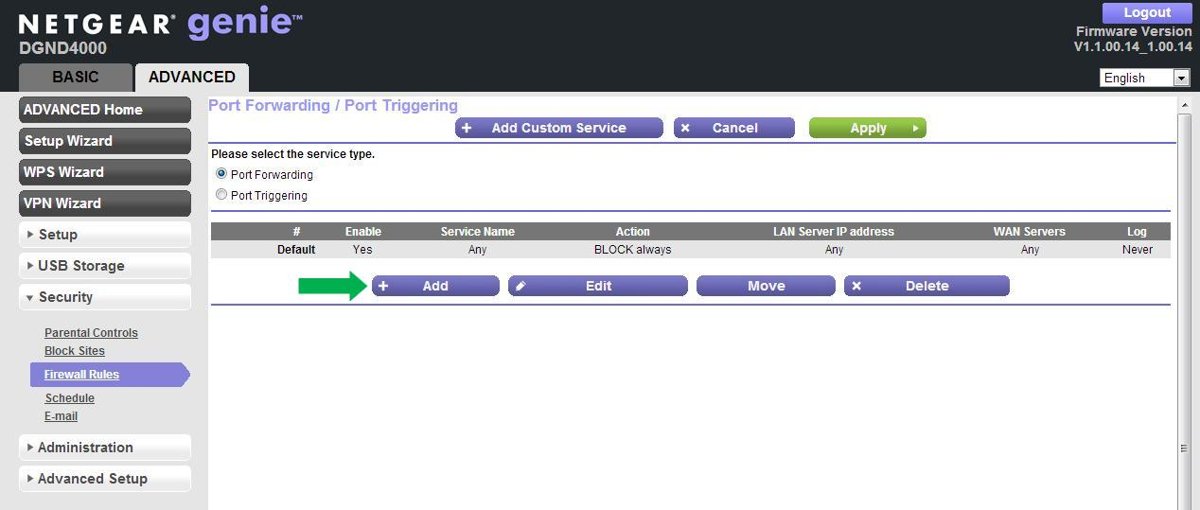
routerlogin.net(NETGEAR) or your router's setup address. - Select ADVANCED > Advanced Setup > Port Forwarding/Port Triggering and make sure Port Forwarding is selected.
- Select Add Custom Service and enter a Service Name, such as the game's name.
- Set Service Type to the protocol the game lists, or TCP/UDP if you are unsure.
- Enter the port or range in External Starting Port and External Ending Port.
- Enter your PC's static IP address in Internal IP address and select Apply.
- Restart the game and check the NAT type again.
Rules are checked from the top of the list down, and the first match wins, so delete old rules that send the same ports to another device.
Xbox network and Steam ports to forward on PC
| Service | Ports | Protocol | Used for |
|---|---|---|---|
| Xbox network | 88 | UDP | Connecting to the Xbox network |
| Xbox network | 3074 | UDP and TCP | Connecting to the Xbox network |
| Xbox network | 53 | UDP and TCP | Connecting to the Xbox network |
| Xbox network | 80 | TCP | Connecting to the Xbox network |
| Xbox network | 500, 3544, 4500 | UDP | Connecting to the Xbox network |
| Steam | 27015-27050 | UDP and TCP (remote) | Signing in and downloading content |
| Steam | 27000-27250 | UDP (remote) | Game traffic |
| Steam | 27031-27036 UDP, 27036 TCP | Local | Steam Remote Play |
| Steam | 3478, 4379, 4380, 27014-27030 | UDP (remote) | Steamworks P2P networking and Steam Voice Chat |
| Steam dedicated or listen server | 27015 | UDP and TCP (local) | Gameplay traffic and the SRCDS Rcon port |
Some games need extra ports, so check the game developer's support site as well. Steam's ports cannot be remapped to a custom range.
How to change NAT type to open with the router's NAT filtering setting
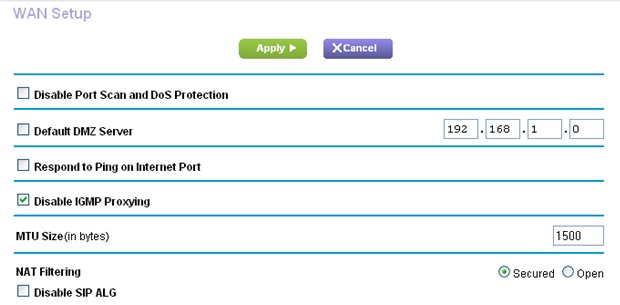
NETGEAR routers have a NAT Filtering option with two values. Secured protects the network but can block some games and peer-to-peer apps; Open lets nearly every internet application work but gives a much less secure firewall.
- Sign in to the router at
routerlogin.netorrouterlogin.com. - Select ADVANCED > Setup > WAN Setup.
- Under NAT Filtering, select Open.
- Select Apply to save the change.
- Restart the game and check the NAT type again.
Other router brands name this setting differently or leave it out. Look for NAT filtering, NAT type or firewall strictness in the router's manual.
Set a DMZ server for an open NAT type on PC
A DMZ server forwards all inbound traffic to one IP address on your network and removes the router's firewall protection for that device. Use it only when UPnP, port forwarding and NAT filtering have all failed.
- Give the PC a static IP address first, as shown earlier.
- Sign in to the router and select ADVANCED > Setup > WAN Setup on a NETGEAR router.
- Select the Default DMZ Server check box.
- Enter the PC's static IP address.
- Select Apply, then check the NAT type in the game.
- Keep Windows Defender Firewall turned on while the PC sits in the DMZ.
Windows 11 change NAT type settings: private network profile and firewall
Windows has no NAT type switch, but two settings decide whether Windows itself lets a game's inbound traffic through. A new network starts as Public in Windows 11, which applies stricter rules.
- Open Settings > Network & internet and select Wi-Fi or Ethernet, then your network.
- Under Network profile type, select Private network for your home network.
- Open the Windows Security app and select Firewall & network protection.
- Select Allow an app through firewall, then select Change settings.
- Select the check box next to your game, or select Allow another app and browse to the game's program file.
- Select OK and restart the game.
You can set the network profile to Private on Windows 10 as well. Turning on Network discovery helps file and printer sharing on the home network, but it does not change the router's NAT type.
NAT type still strict on PC after changing router settings
"Double NAT detected"
Two devices are doing NAT: the ISP's gateway (a modem with a built-in router) and your own router behind it.
- Check whether the ISP's box is a plain modem or a gateway with its own Wi-Fi and router features.
- If it is a gateway, ask the ISP to put it in bridge mode, or set your own router to Access Point mode.
- Restart the modem, then the router, then the PC.
- Check the NAT type again before you add any port rules.
"UPnP Not Successful" or UPnP turned on but NAT stays Strict
The router's UPnP table holds stale entries, or the router firmware needs an update.
- Update the router's firmware from the manufacturer's support site.
- Sign in to the router, turn UPnP off and save the change.
- Restart the PC, the modem and the router.
- Turn UPnP back on and save; if the router has a Zero Config setting, turn that on too.
- Restart the modem and router again, then retest the NAT type.
"Teredo is unable to qualify" next to NAT type
Select Xbox network games, such as Forza Horizon 4, need a Teredo IP address, and something on the PC or router is blocking it.
- On Windows 10, select Fix it on the Xbox Networking page.
- Update the router and make sure its Teredo connectivity is enabled; the router manual names the setting.
- Press Win + R, type
services.mscand press Enter. - Open IP Helper and select Start if its status is not Running.
- Disconnect any VPN client and retest, because a connected VPN or its network adapter can block Teredo.
Server connectivity shows "Blocked"
The PC cannot make a Teredo IPsec connection to the Xbox Quality of Service server.
- Make sure Windows Defender Firewall is turned on and using its default policy.
- Check that the PC's date, time and time zone are correct.
- On Windows 11, open Settings > Network & internet > Advanced network settings > Network reset and select Reset now.
- Restart the PC and check Server connectivity again.
NAT stays Strict on a school, work or public network
The router belongs to someone else, and many university and business networks block game ports.
- Ask the network administrator to open the ports your game lists.
- Switch to your home connection for multiplayer if the ports cannot be opened.
- Do not use a DMZ or Open NAT filtering on a router you do not manage.
Is it safe to set NAT type to open on PC?
Port forwarding is the safest way to get an Open NAT; keep DMZ and Open NAT filtering as last resorts. Forwarded ports open only what one game needs. NETGEAR warns that malware can use UPnP to change router settings, and a DMZ exposes the whole PC to the internet, so either needs Windows Defender Firewall and current updates on that PC.
If you leave UPnP on, review the UPnP security trade-offs and check the router's port map table now and then for entries you do not recognise.
How to change NAT type back to strict or moderate
- Sign in to the router's setup page.
- Delete the custom services you added under Port Forwarding/Port Triggering.
- On WAN Setup, clear Default DMZ Server and set NAT Filtering back to Secured.
- Clear Turn UPnP On if you no longer want games to open ports themselves.
- Select Apply and restart the router.
To bring UPnP back later, you can enable UPnP on the router again in the same menu.
NAT type on Windows PC FAQ
How do I change NAT type on Windows 11?
Change it on the router, because Windows 11 has no NAT type setting. Turn on UPnP or forward the game's ports to your PC's static IP address, then set the Windows network profile to Private so the firewall does not block the game's inbound traffic.
How do I change NAT type on Windows 10?
Use the same router settings as on Windows 11: UPnP, port forwarding or Open NAT filtering. Windows 10 adds a check at Settings > Gaming > Xbox Networking, which shows the NAT type and offers a Fix it button for Teredo problems in Xbox network games.
How do I change my NAT type to open?
Turn on UPnP on the router first. If the type stays Strict or Moderate, forward the ports your game lists to the PC's static IP address, or set NAT filtering to Open. A DMZ server also gives an Open NAT but removes the router's firewall protection for that PC.
How do I check my NAT type on PC?
On Windows 10, open Settings > Gaming > Xbox Networking and read the NAT type line. On Windows 11, check the game's own network or multiplayer screen, or open the router's UPnP port map table to see whether your PC's ports were opened.
Is there a way to change the NAT type without router access?
Not fully, because the router sets the NAT type. Without its admin password you can only remove blocks on the PC: set the network to Private, allow the game through Windows Firewall and disconnect any VPN. On a school or work network, ask the administrator to open the ports.
What is NAT type in Windows?
It is the label a game or the Xbox network gives your connection, based on how the router handles incoming traffic. Open accepts connections from any player, Moderate from many, and Strict mainly from players with an Open NAT. Windows reports the type but does not set it.
How do I switch NAT type back to strict?
Reverse the router changes. Delete the port forwarding rules, clear Default DMZ Server, set NAT Filtering back to Secured and turn UPnP off if you want games to stop opening ports. Select Apply and restart the router to finish.