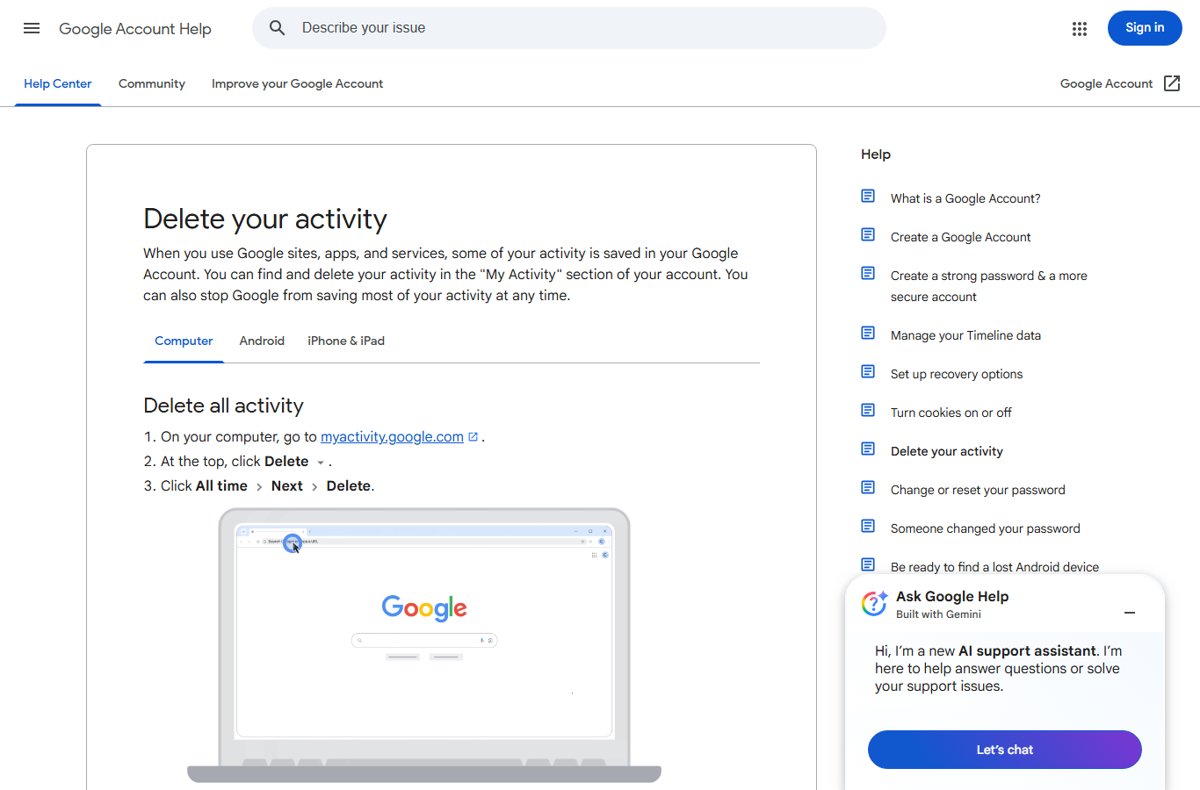
To view or delete your Google search history, open myactivity.google.com; for Bing, use the Microsoft privacy dashboard at account.microsoft.com/privacy; for your browser, press Ctrl + H in Chrome or Edge.
This guide covers Google, Bing, Chrome, Edge, Firefox and Safari on computers and iPhone, plus YouTube and Maps, private windows, and why deleted searches sometimes come back.
The fastest way to find and delete your search history
Your searches are usually saved in two places at once: the search engine's account history and your browser's history. Match where you searched to a row, then clear both if you want the search gone everywhere.
| Where you searched | Open this | Delete it with |
|---|---|---|
| Google, signed in to a Google Account | myactivity.google.com | Delete at the top, then a range such as All time, then Next and Delete |
| Bing, signed in to a Microsoft account | account.microsoft.com/privacy, then Browsing and search | Clear all activities in the Search history section |
| Bing, not signed in | Any Bing.com page, select … at the upper right, then History | Select a search and choose Clear, or select Clear all |
| Chrome on a computer | More > History > History | More > Delete browsing data, tick Browsing history, then Delete data |
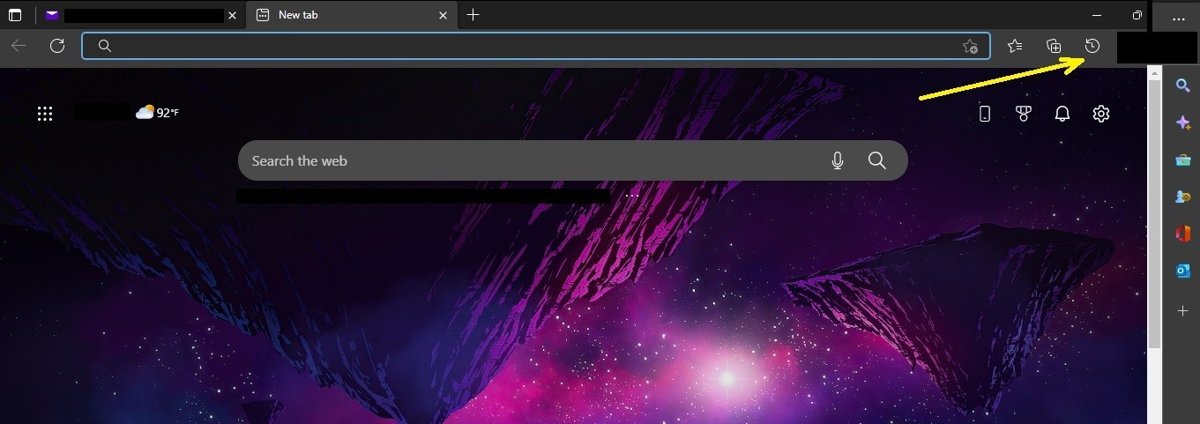
| Microsoft Edge | Press Ctrl + H | Settings and more > Settings > Privacy, search, and services > Clear browsing data > Choose what to clear |
| Safari on iPhone | The History button on the Start Page | Settings > Apps > Safari > Clear History and Website Data |
| Safari on Mac | The History menu | History > Clear History, then pick how far back |
Clearing only one of the two places leaves the other copy intact. Deleting from My Activity does not touch the history stored in your browser, and clearing the browser does not touch your Google or Microsoft account. Yahoo keeps its own account copy too; sign in and you can find your Yahoo search history under Settings on a results page.
What “Search History” Usually Means
Search history is not one list. Four separate records can hold the same search, and each one is cleared in a different place.
| Type of history | Where it is stored | What it contains | Where to clear it |
|---|---|---|---|
| Browser history | On the device, and in your Google, Microsoft or Apple account if sync is on | Pages you opened, including search results pages | The browser's own history or clear-data screen |
| Search engine history | Your Google Account (Web & App Activity) or Microsoft account | The words you searched for while signed in | My Activity for Google, the privacy dashboard for Bing |
| Search suggestions and autocomplete | Built from your browser history, account history and trending searches | The predictions that drop down as you type | Clear the underlying history, or turn predictions off |
| Device and app search history | Inside individual apps such as YouTube, Google Maps and the Google app | Searches made inside that app | Each app's own history screen |
How to View Your Search History in Google
Google saves your searches to your account while Web & App Activity is on. The record lives on the web, so the same page works on Windows, Mac, Android, iPhone and iPad. You can also open My Activity on Android from Settings > Google > Manage your Google Account > Data & privacy.
- Open myactivity.google.com in any browser and sign in to your Google Account.
- Scroll down to see your activity, newest first.
- Select the Search icon and filter by Google product to show only your Google Search entries.
- Select the Calendar icon to narrow the list to a preset or custom date range.
- Select an entry to see its details, or select the search text to run it again.
The Google app on iPhone and iPad also keeps recent searches on the device. Open the Google app, tap the search bar, then tap View all to see them.
How to Delete Google Search History
All of these start at myactivity.google.com, or at myaccount.google.com > Data & privacy > History settings for the account-wide controls.
| What you want | Steps |
|---|---|
| Delete individual Google searches | On myactivity.google.com, find the search and select the Delete icon on that item. |
| Delete searches from a custom date range | Select the Calendar icon, choose the range, then select Delete next to the search bar and confirm with Delete Results. |
| Delete all Google search history | Select Delete at the top, choose All time, select Next, then Delete. |
| Set Google search history to auto-delete | Go to Data & privacy > History settings, select the activity, select Auto-delete, choose a retention period, then Next and Confirm. |
| Turn off Google search history | Go to Data & privacy > History settings, select Web & App Activity, then Turn off or Turn off and delete activity. |
| Delete on-device searches in the Google app on iPhone | Tap the search bar, tap View all, swipe left on a search and tap Delete, or tap Clear all > Clear on-device history. |
Turning off Web & App Activity stops new saving. Only Turn off and delete activity also removes what is already stored.
How to View or Delete Bing Search History
Bing's steps depend on whether you were signed in when you searched. Signed-in history lives on the Microsoft privacy dashboard; signed-out history is tied to the browser and device.
- To view Bing search history, open any Bing.com page, select … in the upper-right corner, then select History.
- Select Open history page to filter your searches by type or date.
- If you are not signed in, select individual searches and choose Clear, or select Clear all under Manage or clear your search history.
- If you use a personal Microsoft account, go to account.microsoft.com/privacy, select Browsing and search, and select Clear all activities in the Search history section.
- If you use a work or school account, select Clear all under Manage or clear your search history on the Search History page.
- To stop Bing from saving search history, turn off the toggle under Show new searches here on the Search History page.
Turning the toggle off only stops new entries. Your existing Bing history stays until you clear it.
How to View or Delete Browser Search History
Every search you run opens a results page, and your browser records that page like any other visit. If sync is on, deleting on one device also deletes it on your other signed-in devices.
| Browser | View history | Delete all or a time range | Delete one entry |
|---|---|---|---|
| Google Chrome on a computer | More > History > History, or type @history in the address bar |
More > Delete browsing data, set Time range, tick Browsing history, select Delete data | Tick the entry on the History page, then Delete > Remove |
| Chrome on Android | More > History | More > Delete browsing data, choose Time range, tick Browsing history, tap Delete data | Tap Remove to the right of the entry |
| Chrome on iPhone or iPad | More > History | More > Delete Browsing Data, choose the time range, tap Delete Browsing Data | On the History page, tap Edit, tick entries, tap Delete, then Done |
| Microsoft Edge | Press Ctrl + H | Settings and more > Settings > Privacy, search, and services > Clear browsing data > Choose what to clear, pick Time range, select Clear now | Clear a time range that covers the visit |
| Mozilla Firefox | For one tab's back-and-forward list, use the tab history menu | Type clear history in the address bar to run the quick action, or use the Forget toolbar button for the last 5 minutes, 2 hours or 24 hours |
Clear a time range that covers the visit |
| Safari on iPhone and iPad | Start Page > History button | Settings > Apps > Safari > Clear History and Website Data, confirm the timeframe, tap Clear History | History > More > Select Websites, select entries, tap the Trash button |
| Safari on Mac | History menu | History > Clear History, open the pop-up menu and choose how far back | Clear a time range that covers the visit |
Chrome's History page shows the last 90 days and leaves out Incognito pages. Vivaldi keeps typed address-bar entries separately, covered under deleting Vivaldi’s typed history.
How to Delete Search History on iPhone
On an iPhone, searches can sit in Safari, in Chrome and in the Google app at the same time. Clear each one you use, starting with Safari.
- Open Settings, tap Apps, then tap Safari.
- Scroll down and tap Clear History and Website Data.
- Confirm the timeframe you want to clear, then tap Clear History.
- If you use Chrome, open it and tap More > Delete Browsing Data, pick the time range, then tap Delete Browsing Data.
- If you use the Google app, tap the search bar, tap View all, then tap Clear all > Clear on-device history.
- Open myactivity.google.com in Safari and delete the searches saved to your Google Account.
Clearing Safari history this way does not remove your AutoFill information. If iCloud syncs Safari, the history is also removed from your other Apple devices. To remove only recent searches, clear your iPhone search history with a shorter timeframe such as the last hour.
How to Delete Search Suggestions in the Address Bar
Suggestions come from your own history and from trending searches. Clearing your history removes the personal ones; the trending ones need their own setting.
| Where the suggestion appears | Remove a single suggestion | Turn off search suggestions |
|---|---|---|
| Google search box on Android | Touch and hold the prediction, then tap Report this; Google reviews it but may not remove it | Google app > Profile picture > Settings > Other settings > Autocomplete settings > turn off Autocomplete with trending searches |
| Google Search, based on your past searches | Delete the search from myactivity.google.com | Turn off Search personalization so predictions no longer draw on past searches |
| Microsoft Edge address bar | Clear browsing history for the time the search was made | Settings and more > Settings > Privacy, search, and services > Search and connected experiences, then turn off Show me search and site suggestions using my typed characters |
| Bing.com search box | Clear the search from your Bing history | Bing Settings > Search, clear See search suggestions as you type; it switches back on if you clear cookies |
| Safari Smart Search field | Clear history; recent searches are removed with it | Use a private window so recent searches are not kept |
| YouTube search box | Delete the search from YouTube history | Pause YouTube search history |
How to View or Delete Search History in Popular Apps
Apps keep their own search lists, which is why a search can survive after you clear the browser.
| App | View search history | Delete it | Stop saving it |
|---|---|---|---|
| YouTube app | Profile picture > Settings > Manage all history | Tap the close icon beside a search, or use Delete for a time frame, which also deletes watch history from that period | Controls tab, clear Include your searches on YouTube |
| Google Maps on a computer | Menu > Maps history | Remove next to an entry, or Delete > Delete today, Delete custom range or Delete all time | Turn off Web & App Activity in your Google Account |
| Google Maps, one place | Open the place, then Your Maps history in the left panel | Delete next to recent history | Same as above |
| Google app on iPhone | Search bar > View all | Swipe left and tap Delete, or Clear all | More > Turn on incognito |
After you delete YouTube searches, they stop appearing as suggestions in the search box and stop shaping your recommendations.
How to Use Private Browsing to Avoid Saving Local History
A private window keeps searches off the device, not off the internet. Websites, your employer or school, and your internet provider can still see the traffic.
| Browser | Open a private window | What is not saved |
|---|---|---|
| Chrome | Press Ctrl + Shift + N on Windows, or Command + Shift + N on Mac | Site data and the record of sites visited, once all Incognito windows close |
| Microsoft Edge | Settings and more > New InPrivate window, or right-click the Edge icon on the taskbar | Browsing history, download history, cookies, cache, form data and site permissions; Bing searches are not tied to your Microsoft account |
| Safari on iPhone | Tap More, then New Private Tab; on iOS 17 and earlier, use the Tabs button and the Private group | Pages you visit, search history and AutoFill information |
| Safari on Mac | File > New Private Window | Pages visited, AutoFill, recent searches in the Smart Search field and the downloads list |
If you sign in to your Google Account inside a private window, searches can still be saved to that account.
What Deleting Search History Does—and Does Not—Remove
Each delete button covers only its own copy. Use this table to see what is left after each action.
| Action | Removes | Does not remove |
|---|---|---|
| Deleting from Google My Activity | Searches saved to your Google Account | Browser history, and deletions on offline devices until they sync |
| Clearing Bing history on the privacy dashboard | Search history associated with your Microsoft account | Signed-out searches, and copies held briefly in Microsoft backup systems |
| Clearing browsing data in Chrome or Edge | History on the device and on synced devices | Your Google or Microsoft account activity |
| Clearing history in Safari | Visited pages, recent searches, frequently visited sites and the downloads list | Downloaded files, AutoFill information and records kept by websites themselves |
| Turning off Web & App Activity or the Bing toggle | Nothing already stored; it stops new saving | Existing history until you delete it |
| Using a private window | Local history for that session | What websites, networks, employers and internet providers can observe |
How to Clear Search History on a Shared or Work Device
On a shared or managed computer, your history can outlive your session in the browser, in your accounts and in the organisation's own logs. Clear what you control before you leave.
- Do your searching in a private window where possible, so nothing is written to the browser's history.
- In Edge, open Settings and more > Settings > Privacy, search, and services > Clear browsing data, and select Choose what to clear every time you close the browser.
- In Chrome, open More > Delete browsing data, choose All time, tick Browsing history, and select Delete data.
- If you signed in to Bing with a work or school account, select Clear all under Manage or clear your search history on the Search History page.
- Delete account-level searches at myactivity.google.com or account.microsoft.com/privacy.
- Sign out of your Google and Microsoft accounts in the browser before you walk away.
Your employer or school can still see network activity on a managed device, even in a private window.
How to check your search history is really gone
- Reopen myactivity.google.com and filter to Search; the deleted range should show no entries.
- Reopen the Bing Search History page and confirm the list is empty or missing the searches you cleared.
- Press Ctrl + H in Chrome or Edge and search the history list for a word from the deleted search.
- Click in the address bar and type the first letters of the old search; it should no longer appear as a personal suggestion.
- On a second synced device, open its history page and confirm the same entries are gone.
Troubleshooting: Why Search History Still Appears
Searches still show after deleting them from Google
My Activity and the browser keep separate copies.
- Clear your browser history for the same time range.
- In the Google app on iPhone, also clear on-device history under View all > Clear all.
- Keep other signed-in devices online so the deletion can sync to them.
Bing keeps saving new searches after you cleared them
Clearing deletes past entries but does not stop new ones.
- Open the Bing Search History page.
- Turn off the toggle under Show new searches here.
Why can't I view my search history?
Nothing was saved to the place you are checking.
- Check that you are signed in to the same Google or Microsoft account you searched with.
- Remember that signed-out Bing searches do not appear on the Microsoft privacy dashboard.
- Check whether Web & App Activity is off in Data & privacy > History settings.
- In Chrome, look back no further than 90 days, and note that Incognito visits are never listed.
Old searches still appear as suggestions while typing
Suggestions come from trending searches and app histories, not only your browser.
- Turn off Autocomplete with trending searches in the Google app's Autocomplete settings.
- In Edge, turn off Show me search and site suggestions using my typed characters.
- Delete the search from YouTube's Manage all history if it appears in the YouTube search box.
Quick Privacy Tips for Future Searches
| Goal | Setting to use |
|---|---|
| Keep Google history, but not forever | Auto-delete under Data & privacy > History settings |
| Stop Google saving searches at all | Turn off Web & App Activity |
| Stop Bing adding new searches | Turn off Show new searches here |
| Wipe Edge history automatically | Choose what to clear every time you close the browser |
| One search you do not want recorded locally | A private window: Incognito, InPrivate or Private Browsing |
| Search in the Google app without saving | More > Turn on incognito |
| Stop YouTube search suggestions from your past | Clear Include your searches on YouTube |
Frequently Asked Questions
How do I view my search history?
Open myactivity.google.com for Google searches, or the Bing History page (select … then History on Bing.com) for Bing searches. For the pages your browser recorded, press Ctrl + H in Chrome or Edge, or open the History menu in Safari.
How do I find search history on my computer?
Your computer's copy lives in the browser. Press Ctrl + H in Chrome or Edge to open the history list, or type @history in Chrome's address bar to search it. On a Mac, open the History menu in Safari.
How do I search my search history?
Use the search bar on Chrome's History page, or type @history followed by a word in the address bar. On myactivity.google.com, use the Search icon to filter by product and the Calendar icon to filter by date.
How do I see my Bing search history?
On any Bing.com page, select … in the upper-right corner and then History. Select Open history page to filter by type or date. If you were signed in, the same history also appears on the Microsoft privacy dashboard under Browsing and search.
Why can't I view my search history?
Usually nothing was saved where you are looking. You may be signed in to a different account, Web & App Activity may be off, the search may have been made in a private window, or it may be older than the 90 days Chrome's History page shows.
Can people see my search history?
Anyone using your unlocked device or signed-in account can open your history. On a network, websites, your employer or school, and your internet provider can observe activity even in a private window, because private browsing only stops the device from saving it.
Can anyone see my search history after I delete it?
Deleted searches no longer appear in your account or browser. Microsoft notes that some copies may stay in its backup systems for a limited time, and network operators may have logged traffic before you deleted anything.
Why does search history exist?
Search history powers personal suggestions, lets you revisit past searches, and personalises results. Google uses Web & App Activity for this, and Microsoft uses signed-in Bing history. You can turn off either setting or set Google history to auto-delete.
Does deleting browser history delete Google search history?
No. Clearing Chrome, Edge or Safari history removes the local and synced browser copy only. Searches saved to your Google Account stay in My Activity until you delete them there, and the reverse is also true.
How do I delete search history on iPhone?
Open Settings, tap Apps, tap Safari, then tap Clear History and Website Data and confirm the timeframe. Clear Chrome and the Google app separately if you use them, and delete account searches at myactivity.google.com.







How to Delete Search History on iPhone: A Step-by-Step Guide - Techdows
[…] app and tap Turn on incognito. The same account-level history drives Google results on a computer; Search History: How to View or Delete It covers the desktop […]
How To Access Microsoft Bing - Techdows
[…] you use a Microsoft account, open the privacy dashboard at account.microsoft.com/privacy, select Browsing and search, then Clear all activities in the […]
How To See All Bing Related Searches - Techdows
[…] keeps a search history that you can view, switch off or clear. Open the history page and turn off the toggle under Show new searches here to stop new searches […]
2 Ways to Completely Delete Bing Search History [Browser & Microsoft Account] - Techdows
[…] To clear only this device while keeping other devices intact, turn sync off first under Settings > Profiles > Sync > Turn off sync. For the general version of this job across services, see how to view or delete search history. […]
How to view YouTube comment history Android & iOS - Techdows
[…] the public comments you have posted across YouTube. It is separate from your watch history and your Google search history, and pausing either of those does not touch […]