Reopen Notepad from the Start menu: Windows 11 Notepad restores your previously open tabs with their unsaved content, so select the tab and press Ctrl + S to save it.
Classic Notepad on Windows 10 keeps no such copy, so the sections below also cover clipboard history, earlier file versions, the Recycle Bin, Windows File Recovery and Notepad++ backups.
How to recover an unsaved Notepad file in Windows 11
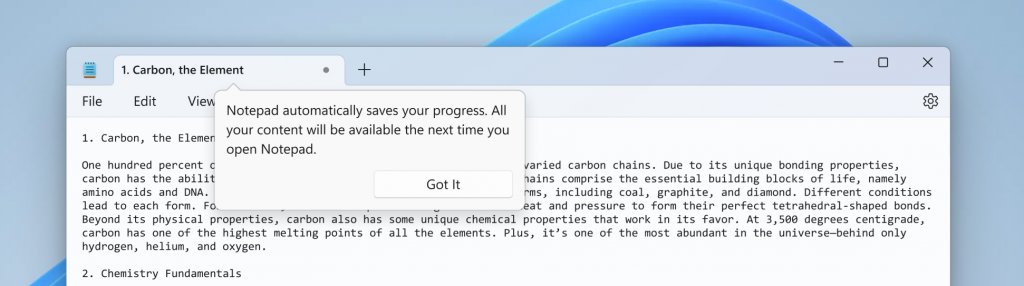
Windows 11 Notepad saves its session automatically, so closing the window does not throw away unsaved tabs. This has been part of Notepad since version 11.2307.22.0.
- Select Start, type Notepad, and select Notepad from the results.
- Look along the tab bar for the tab you lost. Unsaved tabs come back with the text and edits they held.
- Select that tab and press Ctrl + S.
- Pick a folder, type a file name, and select Save.
- If Notepad opens a single empty tab instead, work through the session restore checks below.
Can I recover unsaved Notepad files?
It depends on which Notepad you used and what happened to the text. Find your case below.
| What happened | What works | Why |
|---|---|---|
| Closed the Windows 11 Notepad window with unsaved tabs | Reopen Notepad | Session state restores open tabs and unsaved content |
| Closed one tab and chose not to save | Clipboard history, if you copied the text | Closing a single tab discards what you chose not to save |
| Closed classic Notepad on Windows 10 with Don't Save | Clipboard history only | Classic Notepad keeps no copy of discarded text |
| Saved the file once, then lost or overwrote it | File History or OneDrive version history | Both keep earlier copies of saved files |
| Deleted a saved .txt file | Recycle Bin, then Windows File Recovery | Deleted files stay recoverable until the space is reused |
| Used Notepad++ instead of Notepad | Notepad++ session snapshot backup | Notepad++ keeps its own backup copies when the option is on |
If the text was in Word rather than Notepad, you can recover an unsaved Word document through Word's own recovery files.
New features in Notepad in Windows 11
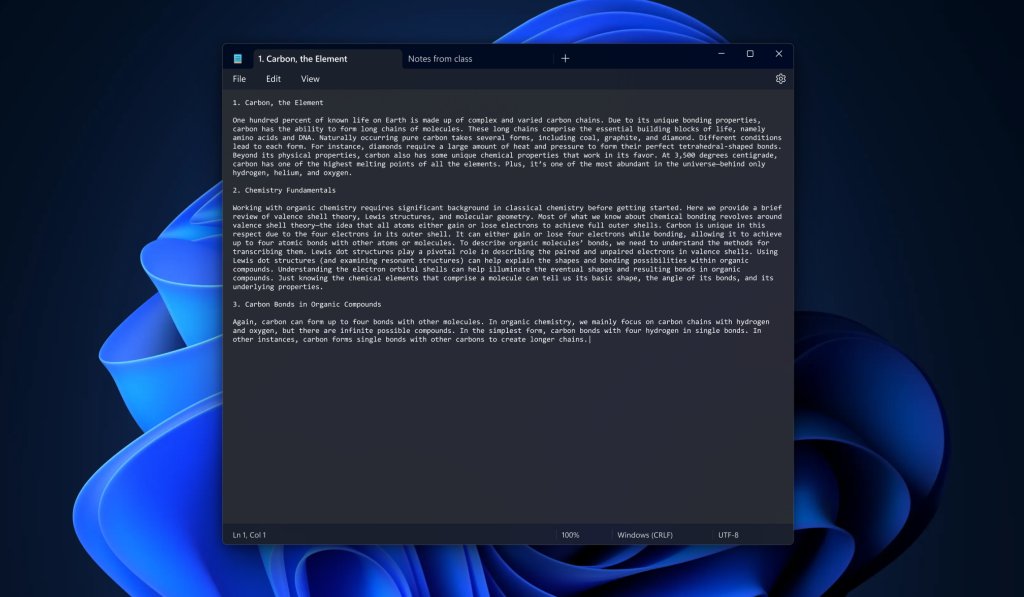
Two Windows 11 Notepad features decide whether unsaved text survives: tabs and automatic session saving. Both arrive through Microsoft Store updates to the Windows Notepad app.
| Feature | What it means for unsaved text |
|---|---|
| Tabs | Several documents stay open in one window, and each tab is saved on its own |
| Automatic session saving (Notepad 11.2307.22.0 and later) | Closing Notepad brings no save prompt; open tabs, unsaved content and edits return the next time you open it |
| Save choice when closing a tab | Closing a single tab still asks whether to save or discard its changes |
| Session saving switch in app settings | Turning it off gives a fresh start every time, and unsaved tabs are not kept |
| Session state kept apart from files | Restored tabs never change your saved .txt files until you save them |
Notepad has also picked up other new features in Windows 11, but only the two above affect recovery.
Notepad not restoring unsaved tabs in Windows 11
Notepad only restores what it saved while the feature was on. Turning it on now protects the next session but does not bring back text closed while it was off.
- Open Notepad and select the Settings gear icon in its window.
- Find the option that controls what Notepad opens when it starts, and choose the one that opens content from the previous session.
- If Notepad has no tabs or no such option, open Microsoft Store, select Library, then select Get updates to update Windows Notepad.
- Close Notepad with the window's close button rather than closing each tab, so the session is saved as a whole.
- Reopen Notepad and check that your tabs return.
Recover unsaved Notepad text with clipboard history
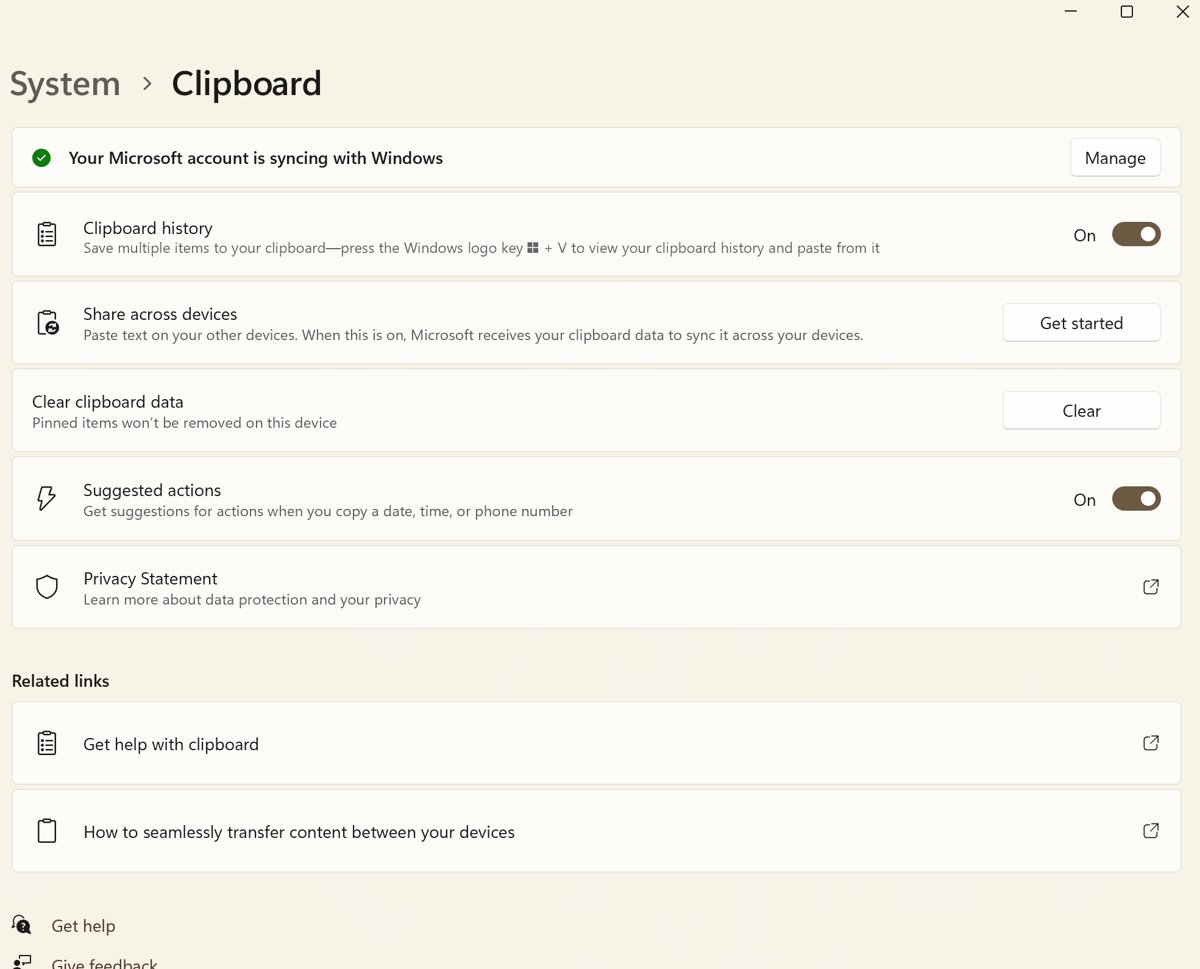
If you copied the text at any point before it was lost, clipboard history can still hold it. It keeps the last 25 copied entries, up to 4 MB each, and clears them when the PC restarts unless you pinned them.
- Press Windows logo key + V.
- If you see a prompt to turn it on, select Turn on; history starts from that moment and cannot show earlier copies.
- Scroll the list for the text you copied from Notepad.
- Open Notepad, click in a new tab, and select the entry to paste it.
- Press Ctrl + S and save the file right away.
Recover unsaved Notepad file in Windows 10
Classic Notepad on Windows 10 asks whether to save when you close it and keeps no copy after you select Don't Save. Act before anything else overwrites what is left.
- Press Alt + Tab and check the taskbar: the Notepad window, or its save prompt, can still be open behind other windows.
- If the prompt Do you want to save changes is still showing, select Save.
- If Notepad is closed, press Windows logo key + V and look for the text in clipboard history.
- If you saved the file at least once, search for it in File Explorer, then restore an earlier copy with File History or OneDrive.
- Retype anything you cannot find and save it with Ctrl + S before you keep working.
Search for lost .txt files in File Explorer
A note you saved under an unexpected name or folder looks lost but is still on the drive. Searching every drive for text files sorted by date finds it fastest.
- Press Windows logo key + E to open File Explorer, then select This PC.
- Type
*.txtin the search box and press Enter. - Switch the view to Details and select the Date modified column header so the newest files appear first.
- Open the likely matches in Notepad to check their content.
- Once you find it, use Save as to store it in a folder you will remember.
Recover corrupted Notepad files with ease
A corrupted .txt file opens empty, cut short, or full of symbols. Notepad has no repair option, so replace the file with an earlier copy from File History or OneDrive.
- Open File Explorer and go to the folder that holds the file.
- Right-click the folder and select Restore previous versions. For a folder at the top of a drive, right-click the drive instead.
- On the Previous Versions tab, pick a version from before the file broke.
- Expand Restore and select Restore to to save the old copy beside the current file, or select Restore to replace it.
- If the file lives in your OneDrive folder, right-click it, select Version history, select the ellipses (…) next to an earlier version, and select Restore.
Previous versions only exist if File History was on before the damage, and OneDrive keeps version history for 30 days. If the text shows as strange symbols but the length looks right, change Notepad's character encoding before you assume it is corrupted.
Restore a deleted Notepad file from the Recycle Bin
Files deleted from a local drive go to the Recycle Bin first, so check it before you try any recovery tool.
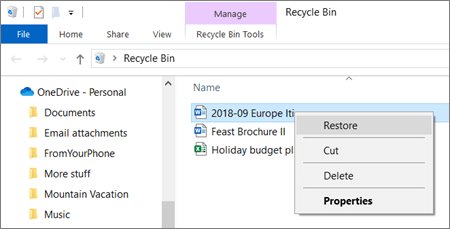
- Double-click Recycle Bin on the desktop.
- If the icon is missing, open Settings > Personalization > Themes > Desktop icon settings, tick Recycle Bin, and select OK.
- Sort by Date deleted and find the .txt file.
- Right-click the file and select Restore to put it back in its original folder.
Recover deleted .txt files with Windows File Recovery
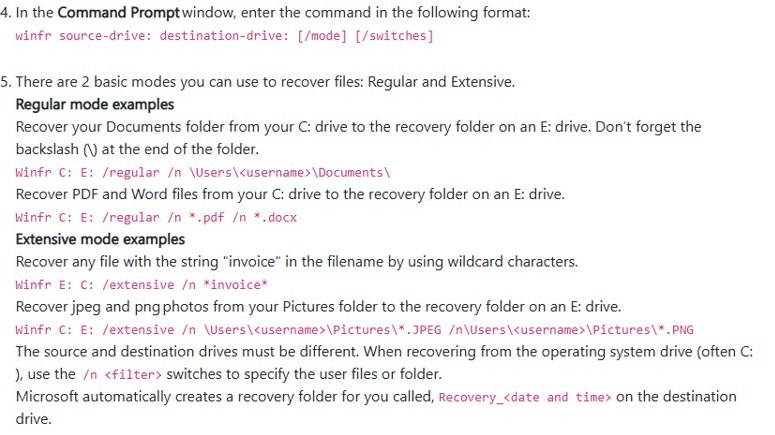
Microsoft's Windows File Recovery tool is a free command-line app from Microsoft Store that searches a drive for deleted files by name or type. Stop saving files to the source drive until you finish.
winfr C: E: /regular /n *.txtInstall Windows File Recovery from Microsoft Store, open it, and select Yes when Windows asks to allow changes. C: is the drive the file was deleted from, and E: is a different drive that receives the results, because the source and destination must differ. /regular suits recently deleted files on NTFS; use /extensive for older deletions, formatted drives, or FAT and exFAT drives.
You should see: A folder named Recovery_ followed by the date and time on the destination drive, holding the .txt files the scan found.
Notepad++ recover unsaved file
Notepad++ is a separate app with its own safety net: the session snapshot and periodic backup feature. When it is on, Notepad++ reopens unsaved tabs and keeps backup copies in a folder of its own.
- Open Notepad++ and check the tab bar first; with session snapshot on, unsaved tabs reopen on their own.
- If the tab is missing, select Settings > Preferences and open the Backup section.
- Check that session snapshot and periodic backup is ticked, and note the backup path shown there.
- Open that backup folder in File Explorer and sort it by Date modified.
- Open the newest matching file in Notepad++ and save it under a new name with File > Save As.
How to stop losing unsaved Notepad notes
- Press Ctrl + S as soon as you start a note and give it a name, so later saves are one keystroke.
- On Windows 11, keep Notepad's option to open content from the previous session turned on in Notepad Settings.
- Save .txt files inside your OneDrive folder so Version history keeps earlier copies.
- Turn on File History from Control Panel > System and Security > Save backup copies of your files with File History.
- Press Windows logo key + V and select Turn on so copied text is kept until the next restart.
- In Notepad++, tick session snapshot and periodic backup under Settings > Preferences > Backup.
Unsaved Notepad file recovery FAQ
Can I recover unsaved Notepad files?
Yes, on Windows 11 if you closed the Notepad window: reopen Notepad and the unsaved tabs return, then save them with Ctrl + S. Text discarded with Don't Save, or closed in classic Windows 10 Notepad, is gone unless clipboard history still holds a copy.
How do I retrieve unsaved Notepad text after closing it?
Open Notepad from Start and look for the tab in the tab bar, because Windows 11 Notepad restores unsaved content from the last session. If nothing returns, press Windows logo key + V to check clipboard history for text you copied before closing.
How do I restore unsaved Notepad notes on Windows 10?
Check whether the Notepad window or its save prompt is still open behind other windows, and select Save if it is. Once classic Notepad closes without saving, it keeps no copy, so clipboard history is the only remaining source for that text.
How do I recover Notepad++ unsaved files?
Reopen Notepad++, which restores unsaved tabs when session snapshot and periodic backup is on. If a tab is missing, open Settings > Preferences > Backup, note the backup path, and open the newest file from that folder in Notepad++.
Is there any way to recover an unsaved Notepad document?
Only where a copy exists: Windows 11 Notepad's saved session, clipboard history, File History, OneDrive version history, or a Notepad++ backup. Windows itself does not keep hidden copies of text you never saved, so the sooner you check those sources the better.
What happens when a file gets corrupted?
The data inside it no longer matches what was written, often after a crash, power cut or drive fault during a save. A corrupted .txt file can open empty, cut short or full of symbols, and the fix is restoring an earlier copy.
Did Microsoft get rid of Notepad?
No. Microsoft removed WordPad, starting with Windows 11 version 24H2, and recommends Windows Notepad for plain text documents such as .txt files. Notepad keeps receiving features such as tabs and automatic session saving through Microsoft Store updates.
Is there a Notepad in Windows 11?
Yes. Notepad comes with Windows 11; select Start, type Notepad and select it from the results. It updates through Microsoft Store as Windows Notepad, which is where tabs and automatic session saving arrive.