To alter SafeSearch on Bing, open Bing.com, select the menu icon in the upper-right corner, choose Settings > More, pick Strict, Moderate or Off, and select Save.
This guide covers what each filter level blocks, how to change SafeSearch from Windows 11 and Windows 10, how to lock it for a child, a PC or a whole network, and what to do when the setting will not change.
Accessing Bing Search Settings
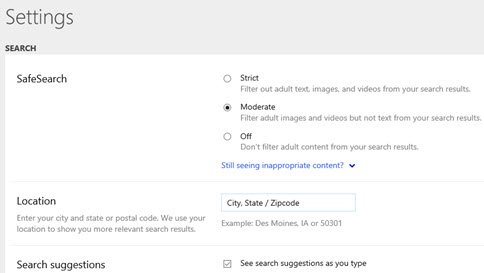
The SafeSearch control sits on the Bing Settings page, so accessing Bing search settings and accessing SafeSearch settings are the same trip. This works in any desktop browser.
- Open your browser and go to Bing.com.
- Select the menu icon in the upper-right corner of the Bing page.
- Select Settings, and then select More.
- Under SafeSearch, choose Strict, Moderate or Off.
- Scroll to the bottom of the menu and select Save.
Skipping Save is the most common reason a new level never takes effect. Your next search uses the saved level.
Understanding the Importance of Safe Search
SafeSearch is the Bing filter that keeps explicit content out of search results. It matters beyond the Bing homepage, because the same filter feeds several Microsoft surfaces.
| Where SafeSearch applies | What it controls | Who can change it |
|---|---|---|
| Bing.com in a browser | Explicit text, images and videos in web, image and video results | Anyone, unless a lock below applies |
| Windows Search web previews | Previews in the Start menu search pane; adult results show a See web results button instead | The Windows user, in Settings |
| Microsoft Edge sidebar search | Results in the search app inside the Edge sidebar (edgeservices.bing.com) | A network or PC administrator, through a strict.bing.com mapping |
| Accounts of users under 18 | May be set to Strict automatically to comply with local law | Not the user |
| Child accounts in Microsoft Family Safety | Bing searches are filtered and mature sites blocked by default | The family organizer |
Some SafeSearch features vary by country or region, so a level you see in one market may behave differently in another.
Managing Safe Search for Different Users or Devices
The Bing.com setting is easy to change back, which is fine for your own browsing. To keep a filter in place for someone else, pick the route that matches who or what you are protecting.
| Your situation | Use this | Why |
|---|---|---|
| You want a different level for your own searches | Bing.com Settings > More | Takes effect on the next search, reversible any time |
| You want Windows search previews filtered too | Windows Search permissions > SafeSearch | Choosing Strict here also forces Strict in Bing in the browser |
| Your child has a Microsoft account | Microsoft Family Safety content filters | Filters Bing and blocks mature sites on the child's signed-in devices |
| One shared or family PC must always be Strict | The hosts file mapped to strict.bing.com | Only an administrator on that PC can undo it |
| Every device on a home, school or office network | A DNS CNAME from www.bing.com to strict.bing.com | Guarantees Strict for all users and disables the SafeSearch controls |
How to Enable Safe Search on Bing: Step-by-Step Instructions
Enabling SafeSearch means choosing Strict or Moderate. Moderate is the default, so most readers who want tighter filtering are switching to Strict.
- Go to Bing.com and select the menu icon in the upper-right corner.
- Select Settings > More.
- Select Strict to filter explicit text, images and videos, or Moderate to filter explicit images and videos only.
- Select Save at the bottom of the menu.
- Run a fresh search to load results with the new filter.
If this browser is shared, set the same level in Windows too, as shown in the Windows section below. The Windows Strict choice overrides the Bing.com page.
How to Disable Safe Search on Bing
Disabling SafeSearch means choosing Off, which stops Bing filtering explicit content. The option is unavailable when a network, a PC administrator, a family organizer or an age rule has locked the filter.
- Go to Bing.com and select the menu icon in the upper-right corner.
- Select Settings > More.
- Under SafeSearch, select Off.
- Select Save at the bottom of the menu.
- On Windows, open Settings > Privacy & security > Search permissions and make sure SafeSearch is not set to Strict, because that choice overrides Off in the browser.
Configuring Safe Search Filters on Bing from Windows
Windows has its own SafeSearch switch for web previews in Start menu search. It also talks to Bing: Strict in Windows is shared with Bing in your browser and wins over the Bing.com setting. Moderate or Off in Windows hands control back to the Bing.com page.
| Windows version | Path | Then |
|---|---|---|
| Windows 11 | Start > Settings > Privacy & security > Search permissions | Under SafeSearch, choose Strict, Moderate or Off |
| Windows 10 | Start > Settings > Search > Permissions & History | Under SafeSearch, choose Strict, Moderate or Off |
The change applies immediately; there is no separate save button on this page.
Choosing a Safe Search Filter
The three levels differ only in what they remove. Match the level to who uses the browser most.
| Level | What it filters | Best for |
|---|---|---|
| Strict | Explicit text, images and videos | Children, shared family PCs, classrooms |
| Moderate (default) | Explicit images and videos, but not text | Most adults who want visual content filtered |
| Off | Nothing; explicit content can appear | Adults doing research where filtering hides relevant results |
Turn on search filtering for a child with Microsoft Family Safety
Family Safety filters work only while the child uses a supported browser, currently Microsoft Edge, signed in to their Microsoft account. When the filter is on, unsupported browsers are blocked so it cannot be bypassed.
- Sign in to your Microsoft account in a browser.
- Select Family Safety from the menu on the left.
- Find the family member, open their options and select Go to overview.
- Select Edge as the platform.
- Turn on the Filter inappropriate websites and searches toggle.
- Optionally add URLs under Blocked sites or Allowed sites, or turn on Only use allowed websites or Always allow educational websites.
In the Microsoft Family Safety app, the same controls sit under the family member's Content filters.
Lock Strict SafeSearch on one PC with the hosts file
Mapping www.bing.com to strict.bing.com in the hosts file forces Strict results on that PC, whatever the Bing.com setting says. Only users who are administrators on the PC can undo it, which makes it a solid choice for a child's computer.
- Press the Windows key, type
cmdand press Enter. - Type
ping strict.bing.com, press Enter and note the IP address it returns. - Press the Windows key and type Notepad, right-click Notepad and choose Run as administrator, then select Yes.
- In Notepad, open the hosts file at
C:\Windows\System32\drivers\etc\hosts. - At the end of the file, add a line with the IP followed by
www.bing.com, for example204.79.197.220 www.bing.com. - If the PC uses Microsoft Edge, add a second line with the same IP followed by
edgeservices.bing.comto cover the Edge sidebar. - Save the file.
The hosts file needs the real IP address; a CNAME entry does not redirect there. If Windows is installed elsewhere, type cd /d %systemroot%\system32\drivers\etc at a command prompt to find the folder.
Force Strict SafeSearch for a whole network
This is the route Microsoft recommends for schools outside the Bing in the Classroom program, and it suits homes and businesses too. Results still look like normal www.bing.com results, but Strict is guaranteed and the SafeSearch controls are disabled.
- Open the DNS settings of your router, proxy server or DNS server.
- Create a DNS entry that makes
www.bing.coma CNAME forstrict.bing.com. - Create a second entry that makes
edgeservices.bing.coma CNAME forstrict.bing.comto cover the Edge sidebar. - Save the configuration and apply it on the router or server.
Additional Tips
These details decide whether a lock holds or quietly fails.
| Tip | Why it matters |
|---|---|
| Use a CNAME, not the IP, in network DNS | The CNAME keeps working if the strict.bing.com IP changes |
| Use the IP, not a CNAME, in the hosts file | The hosts file cannot follow a CNAME, so the redirect fails |
| Never block the www.bing.com IP address | Blocking it can cut off other Microsoft domains |
| Map edgeservices.bing.com as well | Without it, the Edge sidebar search is not forced to Strict |
| Re-check the hosts entry now and then | A hosts entry holds a fixed IP, so rerun ping strict.bing.com if Strict stops applying |
| Set Windows SafeSearch to match on shared PCs | Windows Strict overrides Bing.com; Moderate or Off defers to it |
Implementing Changes and Checking They Worked
A saved change applies to your next search. Confirm it rather than assuming.
- Reopen Bing Settings > More and confirm the SafeSearch level you chose is still selected.
- Run a new search in a fresh tab so no cached result page is reused.
- For a hosts or DNS lock, open the Bing Settings page and confirm the SafeSearch controls no longer change results.
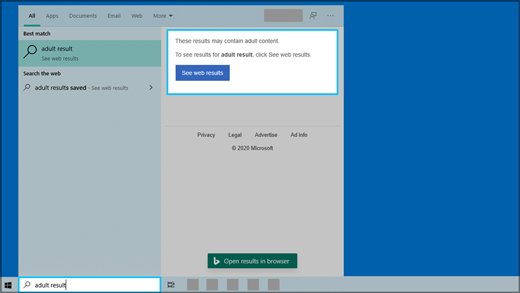
- For Windows, type a query in Start menu search; adult results should show a See web results button instead of a preview when the filter applies.
- For Family Safety, check the child's Bing searches through activity reporting.
Troubleshooting Safe Search Settings Issues on Bing
SafeSearch is stuck on Strict: verify your account settings
Accounts of users under 18 may be set to Strict automatically, and Family Safety filters Bing for child accounts by default.
- Check which Microsoft account is signed in to Bing and the browser.
- If it is a child account, ask the family organizer to review Filter inappropriate websites and searches in Family Safety.
- If the account belongs to someone under 18, Strict may be required by local law and cannot be changed.
The setting reverts after you save it: clear browser cache and cookies
Browsers use cookies to remember site preferences, and damaged or blocked Bing cookies stop a preference from sticking.
- In Edge, open Settings and more > Settings > Privacy, search, and services.
- Select Cookies > See all cookies and site data and search for bing.com.
- Select the down arrow next to the site and select Delete.
- Make sure bing.com is not listed under Not allowed to save and read cookies.
- Reopen Bing Settings > More, set your level again and select Save.
Off is saved but results are still filtered: check browser and search settings
Windows SafeSearch set to Strict is shared with Bing and overrides the Bing.com page.
- Open Settings > Privacy & security > Search permissions on Windows 11, or Settings > Search > Permissions & History on Windows 10.
- Under SafeSearch, choose Moderate or Off.
- Return to Bing and run the search again.
Explicit text still appears in results: use the correct SafeSearch setting
Moderate filters explicit images and videos but not text.
- Open Bing Settings > More.
- Select Strict, which filters text as well.
- Select Save and repeat the search.
The SafeSearch options are disabled or ignored: check for network or device restrictions
A router, proxy or hosts file maps www.bing.com to strict.bing.com, which disables the controls.
- On a school or work network, ask the network administrator; the lock is deliberate.
- On your own PC, open the hosts file as an administrator and look for a line ending in
www.bing.comoredgeservices.bing.com. - Remove those lines only if you own the PC and set them yourself, then save the file.
- On your home router, remove the CNAME for www.bing.com in the DNS settings if you added it.
The Settings menu does not load or save properly: update your browser
An outdated browser can fail to run the Bing Settings page correctly.
- In Edge, select Settings and more > Help and feedback > About Microsoft Edge.
- Select Download and install if an update is available.
- Select Restart, then try Bing Settings > More again.
Additional Tips for Safe Browsing on Bing
SafeSearch filters results, but a few other controls round out safer searching.
| Tip | Where to do it |
|---|---|
| Review a child's Bing searches | Family Safety activity reporting |
| Limit a child to approved sites only | Family Safety > Only use allowed websites |
| Keep school sites reachable under a strict list | Family Safety > Always allow educational websites |
| Review or clear your own past queries | See how to see Bing search history |
| Narrow results without loosening the filter | Use Bing search operators and filters |
| Flag a result that should not appear | The Feedback link at the bottom of Bing pages |
Frequently Asked Questions
What is SafeSearch in Bing settings?
SafeSearch is the Bing setting that filters explicit content out of search results. It has three levels: Strict filters explicit text, images and videos; Moderate, the default, filters explicit images and videos; and Off applies no filtering.
How do I get to SafeSearch settings on Bing?
Go to Bing.com, select the menu icon in the upper-right corner, then select Settings and More. The SafeSearch options appear on that page, with a Save button at the bottom of the menu.
How do I change SafeSearch settings in Microsoft Windows?
On Windows 11, open Start > Settings > Privacy & security > Search permissions and pick a level under SafeSearch. On Windows 10, the path is Start > Settings > Search > Permissions & History. Strict in Windows also forces Strict in Bing.
How do I remove SafeSearch settings on Bing?
Open Bing Settings > More, select Off under SafeSearch and select Save. If Off is missing or ignored, the filter is locked by Windows, Family Safety, an age rule, a hosts file entry or your network, and it has to be changed there.
Why can't I change my SafeSearch setting on Bing?
A lock is overriding Bing.com. Common causes are Windows SafeSearch set to Strict, a Family Safety child account, an under-18 account set to Strict under local law, or a strict.bing.com mapping on the PC or network.
How do I edit SafeSearch settings for my child?
Use Microsoft Family Safety. Sign in, select Family Safety, open the child's overview, choose Edge and turn on Filter inappropriate websites and searches. Bing searches are filtered by default for child accounts.
Does changing SafeSearch on Bing affect Microsoft Edge's sidebar?
Not automatically. The Edge sidebar search uses edgeservices.bing.com, so a hosts file or DNS lock must map that address to strict.bing.com as well as www.bing.com to force Strict there.
Which SafeSearch setting is the default on Bing?
Moderate is the default. It filters explicit images and videos but not text. Users under 18 may be set to Strict automatically to comply with local law.
Conclusion and Best Practices
Change your own level on Bing.com under Settings > More, and use Family Safety, the hosts file or a DNS CNAME when the filter has to stay on for someone else. The Bing.com setting is reversible in seconds by anyone at the keyboard, while the other routes need an organizer or administrator to undo.