Sudo is the Linux command that lets a permitted user run a single command as root, or as another user, by typing sudo in front of it and entering their own password.
Below are the permissions that make sudo necessary, its syntax and option switches, the 15-minute password cache, how to give an account sudo rights, and fixes for the errors sudo prints most often.
How to use sudo in Linux
Sudo is usually read as "superuser do". It checks the rules in /etc/sudoers, asks for your password, and then runs the command with root privileges.
- Open a terminal on the Linux desktop, or connect to the machine over SSH.
- Type
sudo, a space, and the command that needs root rights, for examplesudo apt updateon Ubuntu or Debian. - Press Enter.
- At the
[sudo] password for <username>:prompt, type your own account password, not the root password. - Press Enter again. Nothing appears on screen while you type the password, which is normal.
- Run further
sudocommands in the same terminal without a password for the next 15 minutes.
If sudo replies with an error instead of a password prompt, the account has no sudo rights yet. The error fixes further down cover each message.
Understanding Linux user permissions
Linux gives every file an owner, a group and a set of Linux file permission bits. A regular account can change its own files, but most system files belong to root.
| Term | What it means | Why it matters for sudo |
|---|---|---|
| root (user ID 0) | The superuser account. Root can read, change or delete any file and run any command. | Sudo runs your command as root unless you name another user. |
| Regular user | The account you sign in with. It can change files it owns and files whose permissions allow it. | Installing software, editing files in /etc and managing services all need sudo. |
| Group | A set of accounts that share access, such as sudo on Ubuntu and Debian or wheel on Fedora and Red Hat Enterprise Linux. |
Membership of that group is what grants full sudo rights on those systems. |
| Owner (u), group (g), others (o) | Every file has three permission sets: one for its owner, one for members of its group, and one for everyone else. | A "Permission denied" error means the set that applies to you does not allow the action. |
| Read (r), write (w), execute (x) | The three permission letters. In numeric form read is 4, write is 2 and execute is 1, so 7 means all three. | System files are usually writable by root only, so changing them needs sudo. |
| Root account on Ubuntu | Disabled by default: root has a password hash that matches no possible password, so it cannot log in directly. | On Ubuntu, sudo is the normal route to root rights. |
Sudo and the terminal
Sudo is a command-line tool, so you use it in a terminal window, an SSH session or a shell script. The first sudo command in a terminal asks for your password, and later ones reuse it.
- Open the terminal and run a command that needs root, such as
sudo apt update. - Read the prompt.
[sudo] password for <username>:asks for your password, not root's. - Type the password blind. Sudo turns off echo, so no dots or stars appear.
- Press Enter. A wrong password prints
Sorry, try again.and sudo asks again, up to 3 tries by default. - Run more sudo commands in the same terminal. They skip the prompt until the time limit runs out.
- Open a second terminal tab and run sudo there. It asks again, because sudo caches the password per terminal.
sudo cd /some/folder does nothing useful, because your shell stays where it was when the command exits. Use sudo -D /some/folder command to run a command in another directory.
Sudo syntax
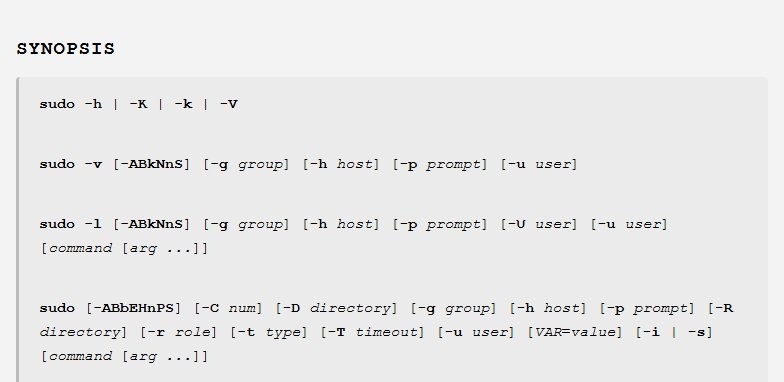
Every sudo command has the same shape: options for sudo first, then the command and its own arguments.
sudo [options] command [arguments]Options such as -u user or -g group go between sudo and the command. Everything after the command name is passed to that command. A double dash (--) ends sudo's options, so anything after it goes to the command. Without -u, the command runs as root.
You should see: the command's normal output. sudo whoami prints root, which shows the command ran with root privileges.
sudo -u yaz ls ~yaz lists another user's home folder as that user, and sudo -g adm more /var/log/syslog reads a log as the adm group.
Environment variables can go before the command as VAR=value, but the sudoers policy decides which ones are allowed through.
The “su” in sudo
The su part comes from the older su command, short for substitute user, which switches to another account and defaults to root. Sudo adds a rules file, per-command logging and your own password instead of root's.
| Question | su | sudo |
|---|---|---|
| What it does | Starts a shell, or runs one command with -c, as another user (root by default) |
Runs one command as root or another user, as /etc/sudoers allows |
| Whose password | The target account's password, so root's password for a root shell | Your own password |
| Works on a fresh Ubuntu install | Not for root, because the root account is locked | Yes, for the account created during installation |
| What gets logged | Failed attempts go to the btmp file | Each command, who ran it and when |
| How long it lasts | Until you type exit |
One command, then you are back in your own account |
| Root shell version | su - or su --login starts a full login environment |
sudo -i starts root's login shell; sudo -s runs your shell as root |
sudo su and sudo -i both leave you in a root shell, and commands typed there are no longer logged one by one. Debian's own documentation discourages switching to root that way for that reason.
The sudo time limit
After you enter the password, sudo remembers it for 15 minutes by default, separately for each terminal. The timestamp_timeout setting in sudoers changes that period.
| Command or setting | Effect |
|---|---|
| Default behaviour | 15 minutes without a new password prompt, counted per terminal |
sudo -v |
Asks for the password if needed and extends the cache for another 15 minutes, without running a command |
sudo -k |
Ends the cached password for the current terminal, so the next sudo command asks again |
sudo -K |
Removes every cached credential for your account, in every terminal |
Defaults timestamp_timeout=30 |
Sets the cache to 30 minutes for every user; fractions such as 2.5 also work |
Defaults:alice timestamp_timeout=30 |
Sets the cache to 30 minutes for the user alice only |
timestamp_timeout=0 |
Asks for the password on every sudo command |
A negative timestamp_timeout |
Keeps the cache until the system reboots |
How to change the sudo timeout in Linux
- Open a terminal and run
sudo visudo -f /etc/sudoers.d/timeoutto create a separate rules file. - Add the line
Defaults timestamp_timeout=30, replacing 30 with the number of minutes you want. - Save the file and close the editor. visudo checks the syntax before it saves anything.
- If visudo shows What now?, type
eto fix the line orxto leave without saving. - Run
sudo -kto clear the current cache. - Run any sudo command, enter your password, and the new limit applies from then on.
Keeping the setting in /etc/sudoers.d means a sudo package update that replaces /etc/sudoers does not undo it.
Sudo option switches
| Option | Long form | What it does |
|---|---|---|
-u user |
--user=user |
Runs the command as that user instead of root |
-g group |
--group=group |
Runs the command with that primary group |
-i |
--login |
Starts the target user's login shell, reads its .profile and moves to its home folder |
-s |
--shell |
Runs the shell from your SHELL variable as the target user |
-l |
--list |
Lists the commands you may run with sudo on this machine |
-U user |
--other-user=user |
Used with -l to list another user's sudo rights |
-e |
--edit |
Edits files instead of running a command, the same as sudoedit |
-v |
--validate |
Refreshes the password cache without running a command |
-k |
--reset-timestamp |
Forgets the cached password for this terminal |
-K |
--remove-timestamp |
Forgets every cached password for your account |
-E |
--preserve-env |
Asks to keep your environment variables, if the policy allows it |
-H |
--set-home |
Sets HOME to the target user's home folder |
-b |
--background |
Runs the command in the background |
-D directory |
--chdir=directory |
Runs the command in that directory |
-n |
--non-interactive |
Never prompts; exits with an error if a password is needed |
-S |
--stdin |
Reads the password from standard input instead of the terminal |
-p prompt |
--prompt=prompt |
Shows a custom password prompt; %u inserts your user name |
-V |
--version |
Prints the sudo version |
-h |
--help |
Prints a short help message |
Useful sudo commands
| Command | What it does |
|---|---|
sudo apt update && sudo apt upgrade |
Refreshes the package lists and installs updates on Ubuntu or Debian |
sudo !! |
Runs the previous command again with sudo, using the bash history shortcut !! |
sudo -l |
Shows which commands your account may run as root |
sudo -u username command |
Runs a command as another user, for example to test that user's file access |
sudoedit /etc/hosts |
Edits a root-owned file: sudo copies it, opens the copy in your editor as you, then copies it back |
sudo -i |
Opens a root login shell; type exit to return to your own account |
sudo sh -c "echo text > /etc/file" |
Writes command output into a root-owned file, because the redirection runs inside the root shell |
sudo shutdown -r +15 "quick reboot" |
Restarts the machine in 15 minutes with a warning message |
sudo visudo |
Opens /etc/sudoers safely, with a syntax check before saving |
sudo passwd |
Sets a root password, which enables the root account on Ubuntu; sudo passwd -l root locks it again |
sudo adduser username |
Creates a new user account on Ubuntu or Debian and prompts for its password |
sudo -k |
Forgets your cached password at once, for example before you walk away |
How to add a user to the sudo group in Linux
On Ubuntu and Debian, members of the sudo group can run any command with sudo. On Fedora and Red Hat Enterprise Linux, the same group is called wheel.
- Sign in with an account that already has sudo rights, or become root with
su --loginif you know the root password. - On Ubuntu or Debian, run
sudo adduser username sudo, replacing username with the account name. - On Fedora or Red Hat Enterprise Linux, run
sudo usermod --append -G wheel username. - Ask the user to sign out completely and sign back in, because group membership is only read at login.
- To test without signing out, the user can run
newgrp sudo(ornewgrp wheel) for one shell session. - Have the user run
sudo whoami. The outputrootmeans the account now has sudo rights.
On Fedora and RHEL, the %wheel ALL=(ALL) ALL line in /etc/sudoers must not start with #, or wheel membership grants nothing.
How to edit the sudoers file with visudo
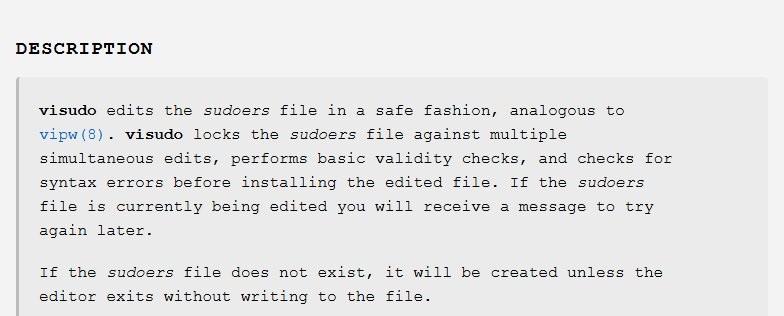
The /etc/sudoers file decides who may run what. Edit it only with visudo, which locks the file, checks the syntax and will not save a broken version.
- Run
sudo visudoto edit /etc/sudoers, orsudo visudo -f /etc/sudoers.d/myrulesto keep your rules in their own file. - Add a rule in the form
username host=(run_as_user:run_as_group) command. For example,user1 ALL=/usr/bin/dnf, /sbin/rebootlets user1 run only those two commands as root. - Start the line with
%to apply it to a group, as in%wheel ALL=(ALL) ALL. - Save and close the editor. visudo checks the file before it replaces the old one.
- If it shows What now?, type
eto return to the faulty line orxto exit without saving. AvoidQ, which saves the broken file. - Run
sudo visudo -cto check the whole sudoers setup at any time.
Name files in /etc/sudoers.d without a dot and without a trailing ~, because sudo skips such files.
NOPASSWD: before a command list removes the password prompt for those commands. Debian's documentation calls that usually a bad idea, since anyone who takes over the account then gets root.
How to check if a user has sudo access in Linux
- Run
groups. On Ubuntu or Debian,sudoin the list means the account is in the sudo group; on Fedora or RHEL, look forwheel. - Run
idfor the numeric view, which looks likeuid=1001(foo) gid=1001(foo) groups=1001(foo),27(sudo). - Run
sudo -lto list the exact commands the account may run on this machine. - Run
sudo whoami. An account with full sudo rights seesroot. - To check another account, run
sudo -l -U usernamefrom an account with full sudo rights.
How to use sudo in WSL
In Windows Subsystem for Linux, the user name and password you create on a distribution's first launch become its Linux administrator, with the right to run sudo.
- Open the Linux distribution, such as Ubuntu, from the Start menu.
- On first launch, create a Linux user name and password. They are separate from your Windows account.
- Run
sudo apt update && sudo apt upgradeand enter that Linux password when asked. - If you forgot the password, open PowerShell and run
wsl -u rootto open the default distribution as root. - For another distribution, run
wsl -d <DistroName> -u rootinstead. - Run
passwd <username>, enter the new password twice, then typeexit.
Each distribution keeps its own accounts, so a reinstall or reset means creating the user again. If Linux is not on the PC yet, install WSL 2 on Windows first.

How to enable sudo in Windows 11
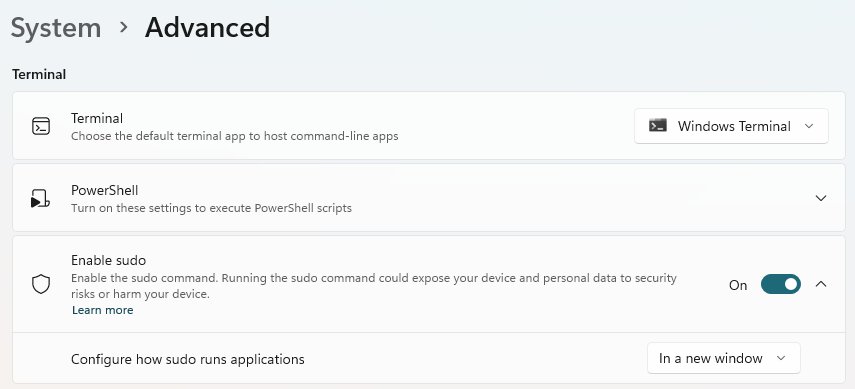
Windows 11 version 24H2 and later include Sudo for Windows, which runs a command as administrator from a normal console window. It is a Windows feature, not the Linux sudo, and it saves you from having to run Command Prompt as administrator first.
- Open Settings and select System > Advanced.
- Turn Enable sudo on.
- Choose how sudo runs: In a new window (the default), Input closed, or Inline.
- Open a command prompt or PowerShell window and type
sudobefore the command, for examplesudo netstat -ab. - Approve the User Account Control prompt to run the command as administrator.
Sudo for Windows cannot run commands as other users yet, and Microsoft recommends the default new-window mode unless you accept the risks of the other two. You can open Terminal in Windows 11 to try it.
User is not in the sudoers file. This incident will be reported
"username is not in the sudoers file. This incident will be reported."
The account is not in the sudo or wheel group and no sudoers rule names it. The attempt is logged as "user NOT in sudoers".
- Sign in as an account that has sudo rights, or run
su --loginand enter the root password. - On Ubuntu or Debian, run
adduser username sudo(withsudoin front if you are not root). - On Fedora or RHEL, run
usermod --append -G wheel username. - In WSL, open PowerShell, run
wsl -u root, and add the user from that root shell. - Sign out completely, sign back in, and run
sudo whoamito test.
"Sorry, user username is not allowed to execute … as root"
The account has a sudoers entry that does not cover that command, or it was just added to a group and the current login predates the change.
- Sign out completely and sign back in so the new group membership loads.
- To skip signing out, run
su - $USERornewgrp sudoin the terminal. - Run
sudo -lto see which commands your account is allowed to run. - Ask the administrator to add the command to your sudoers rule with
visudoif it is missing.
"sudo: command not found" on Debian
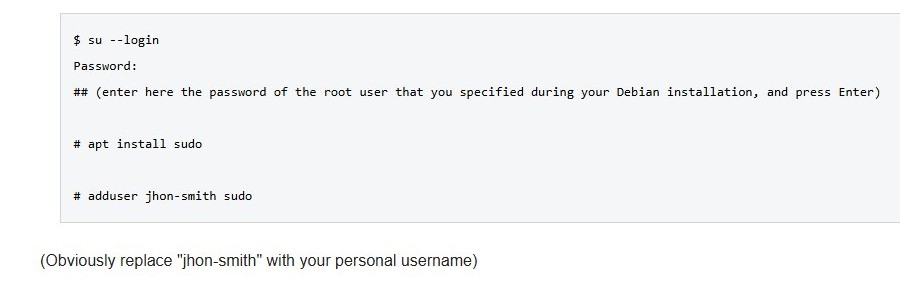
If a root password was set during the Debian install, sudo is not installed and the user is not in the sudo group.
- Run
su --loginand enter the root password chosen during installation. - Run
apt install sudo. - Run
adduser username sudo, replacing username with your account name. - Type
exit, sign out of the desktop or SSH session, and sign back in.
Sudo not working in Linux
Sudo password not working: "Sorry, try again"
Sudo wants your own account password, not the root password, and it gives up after 3 wrong tries by default.
- Type your own sign-in password slowly; nothing appears on screen while you type.
- Check that Caps Lock is off and the keyboard layout is the one you set the password with.
- If the password is forgotten, ask another administrator to run
sudo passwd usernameand set a new one. - In WSL, run
wsl -u rootin PowerShell, thenpasswd <username>.
"Permission denied" when redirecting output with sudo
In sudo echo text > /etc/file, your own shell opens the file for the > redirection before sudo runs, so root rights never apply to it.
- Wrap the whole command in a root shell:
sudo sh -c "echo text > /etc/file". - For longer edits, open the file with
sudoedit /etc/fileinstead.
"sudo: a terminal is required to read the password"
Sudo needs a password but the command runs from a script or tool with no terminal and no askpass helper.
- Run the command from an interactive terminal instead.
- In a script, add
-nso sudo fails at once instead of waiting for a password. - Use
-Sto read the password from standard input, or-Awith an askpass helper set in SUDO_ASKPASS.
Sudo stopped working after editing /etc/sudoers
The file was saved with a syntax error, often by editing it with a normal text editor instead of visudo.
- If you know the root password, run
su -c visudo. - Fix or remove the line visudo points to, then save.
- Run
visudo -cto check every sudoers file. - Make future changes in files under /etc/sudoers.d with
visudo -f.
Sudo in Linux FAQ
What does sudo stand for?
Sudo is usually read as "superuser do". It runs a command with superuser (root) privileges, or as another user, after checking the rules in /etc/sudoers. The su part comes from su, the older substitute-user command that switches accounts.
What is the sudo password?
The sudo password is your own account password, not a separate password and not the root password. On Ubuntu, the account created during installation can use sudo with the password chosen at setup. Nothing appears on screen while you type it.
Is sudo the same as root?
No. Root is the superuser account itself, while sudo is a program that runs single commands with root's privileges on your behalf. A user allowed to run every command through sudo is effectively root, but each command is logged under that user's own name.
How long does sudo remember my password?
Sudo remembers your password for 15 minutes by default, separately in each terminal. Run sudo -k to end the cache early or sudo -v to extend it. Administrators can change the period with timestamp_timeout in a sudoers file edited through visudo.
What is the difference between sudo and su?
su switches to another account, root by default, and asks for that account's password. Sudo runs one command as root with your own password and logs it. On Ubuntu the root account is locked, so sudo works there while su to root does not.
How do I run a command as another user with sudo?
Add -u and the user name before the command, for example sudo -u yaz ls ~yaz. The sudoers policy must allow you to run commands as that user. Use sudo -u username -i to open that user's login shell instead.
How do I see what sudo lets me do?
Run sudo -l. It lists the commands your account may run on the current machine and as which users. Add a second -l for a longer format, or use sudo -l -U username from an administrator account to check someone else.
How do I enable the root account on Ubuntu?
Run sudo passwd and set a password for root. Ubuntu ships with root locked, so this is the step that lets root log in directly. Run sudo passwd -l root to lock the account again later.
Can I use sudo on Windows?
Yes, on Windows 11 version 24H2 and later. Turn on Enable sudo under Settings > System > Advanced, then type sudo before a command in a console window. It runs the command as administrator after a User Account Control prompt, not as root.