To completely delete Bing search history, clear the browsing data in your browser and then select Clear all activities under Search history on the Microsoft privacy dashboard.
This guide covers both routes for Edge, Chrome, Safari and the Bing Search History page, how to confirm the history is gone, what deletion leaves behind, and fixes when old searches keep coming back.
The fastest way to completely delete Bing search history
Bing search history lives in two separate places, and clearing one does not touch the other. Microsoft states that data deleted on the privacy dashboard is not deleted from your device.
| Where the history lives | Method | What it removes |
|---|---|---|
| Your browser on this device | Method 1: clear browsing data in Edge, Chrome, Safari or another browser | Visited Bing result pages, address bar entries, cookies and cached Bing pages on this device and its synced devices |
| Your Microsoft account in the cloud | Method 2: Clear all activities under Search history on the Microsoft privacy dashboard | Every Bing search saved while you were signed in to Bing with that Microsoft account |
Do both if you search Bing while signed in. Searches made while signed out never reach the dashboard, so for those Method 1 and the Clear all button on the Bing Search History page are the only routes.
What “Bing Search History” Actually Means
When you search with Bing, Microsoft collects the search terms along with your IP address, location, cookie identifiers, the date and time and your browser configuration.
That data ends up in different stores depending on whether you were signed in and which browser you used.
| Record | Where it is kept | Where you clear it |
|---|---|---|
| Signed-in Bing searches and the results you clicked | Your Microsoft account, shown on the privacy dashboard | Privacy dashboard > Browsing and search > Search history > Clear all activities |
| Signed-out Bing searches | The Bing Search History page for this device, tied to its cookies | Bing Search History page > Manage or clear your search history > Clear all |
| Work or school account searches | That organisation's account | Bing Search History page > Manage or clear your search history > Clear all |
| Bing result pages you visited | The browser's own history, and every synced device if sync is on | The browser's clear-browsing-data tool |
| Edge browsing history synced to Microsoft | Your Microsoft account, if history sync or personalised experiences is on | The Browsing history area of the privacy dashboard |
| Data used for personalised search | Microsoft systems; identifiers stop being used for personalisation after 18 months | Deleted whenever you clear search history, including data held longer |
Microsoft says it is moving to keep data from signed-in users for up to 5 years to improve its products, after removing sensitive information. Clearing your search history deletes that data too.
Method 1: Delete Bing Search History from Your Browser
Microsoft Edge is shown here because it is the browser most Bing users search from. The paths for Chrome, Safari and the rest follow in the next section.
Decide first whether you want to clear only this device or every synced device. With sync on, Edge clears synced items everywhere; with sync off, it clears only this device.
- In Microsoft Edge, select Settings and more (the three dots) > Settings.
- Select Privacy, search, and services.
- Under Clear browsing data, select Choose what to clear next to Clear browsing data now.
- Open the Time range list and pick the widest range to remove every Bing visit.
- Tick Browsing history, Cookies and other site data and Cached images and files.
- Leave Passwords and Autofill form data unticked unless you want those gone too.
- Select Clear now.
To clear only this device while keeping other devices intact, turn sync off first under Settings > Profiles > Sync > Turn off sync. For the general version of this job across services, see how to view or delete search history.
Where to clear Bing history in Chrome, Safari, Firefox and on your phone
Every browser keeps its own history, so repeat Method 1 in each browser you have used to search Bing.
| Browser | Path | Notes |
|---|---|---|
| Microsoft Edge (Windows, Mac) | Settings and more > Settings > Privacy, search, and services > Choose what to clear | Clears only the profile you are using now |
| Google Chrome on a computer | More (three dots) > Delete browsing data > pick a time range such as All time > Delete data | You can also type Delete browsing data into the address bar and select the action chip that appears |
| Google Chrome on Android | More > Delete browsing data > choose the time range > More options for extra data types > Delete data | The default range is 15 minutes, so widen it before deleting |
| Safari on Mac | History > Clear History, then choose how far back from the pop-up menu | Also clears Safari's recent searches list and, with iCloud, the history on your other Apple devices |
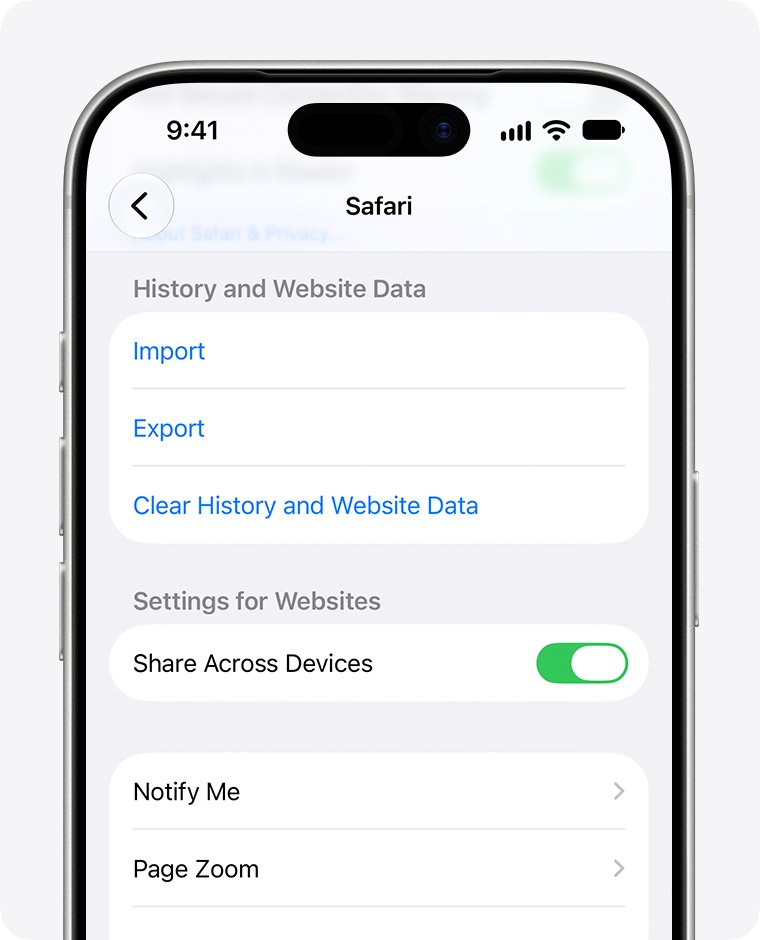
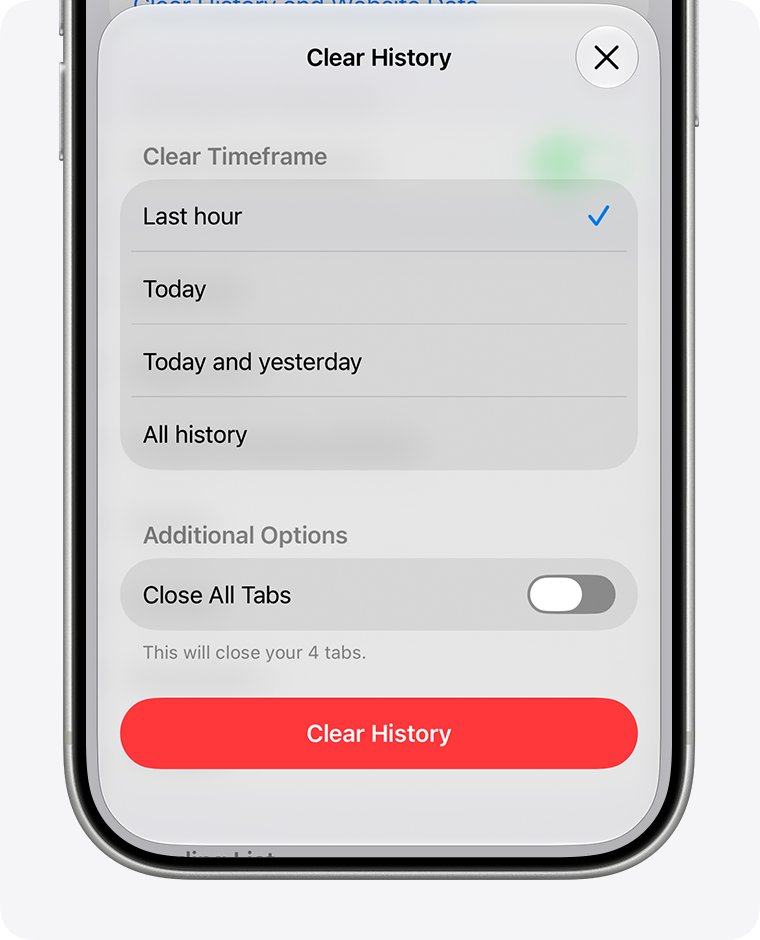
| Safari on iPhone | Settings > Apps > Safari > Clear History and Website Data > confirm the timeframe > Clear History | A grey button means there is nothing to clear or Screen Time restrictions apply |
| Mozilla Firefox | Use Firefox's clear-history option from its History menu and pick the widest time range | Mozilla's own instructions are on support.mozilla.org |
Chrome and Android both remove the deleted data from every device signed in to the same Google Account.
Method 2: Delete Bing Search History from Your Microsoft Account
If you are signed in to Bing with a Microsoft account, your searches are stored against that account. The browser has no reach into this copy.
- Go to the Microsoft privacy dashboard at account.microsoft.com/privacy and sign in with the account you use on Bing.
- Select Browsing and search.
- Find the Search history section.
- Select Clear all activities.
- To remove Edge browsing history synced to the same account, clear the browsing history section on the same page.
- Open bing.com/profile/history afterwards. Under Manage or clear your search history, select Clear all to wipe any signed-out searches kept for this device.
To remove one search instead of everything, open the Bing Search History page, select the search under Activity and select Clear. With a work or school account, use Clear all on the Bing Search History page instead of the dashboard.
How to Confirm Bing Search History Is Deleted
Check each store you cleared. The dashboard can take a while to update, so a fresh page load is the proof.
- Check your browser history. Open the history page in each browser you cleared. No Bing result pages from the cleared period should be listed.
- Type a word you searched earlier into the address bar. Old Bing searches should no longer appear as suggestions from history.
- Check the Microsoft privacy dashboard. Reload Browsing and search and confirm the Search history section shows no activity for the cleared period.
- Check the Bing Search History page. On any Bing.com page, select … in the upper-right corner, then History, and confirm the pane is empty.
- Repeat the browser check on each synced phone or computer if sync was off when you cleared.
What Deleting Bing Search History Does Not Remove
Clearing history is thorough inside each store, but each store is separate and some records sit outside your control.
| Left behind | Why | What to do |
|---|---|---|
| Copies in Microsoft's backup systems | Microsoft says some copies are retained in backups for a limited time after you clear | Nothing; they expire on Microsoft's schedule |
| Records held by your ISP, employer or network | They sit on infrastructure that neither the browser nor Microsoft account manages | Ask the network owner; a managed work network follows its own policy |
| Searches from another Microsoft account | The dashboard only shows the account you signed in with | Sign in with each account and clear it separately |
| Signed-out searches | They are never added to the privacy dashboard | Use Clear all on the Bing Search History page and clear browser data |
| Browser history on the device after a dashboard clear | Data deleted on the dashboard is not deleted from your device | Run Method 1 as well |
| Saved passwords, favourites and autofill entries | Edge only removes the data types you tick | Leave them unticked to keep them, or tick Passwords and Autofill form data to remove them |
| Histories kept by the websites you visited | Apple notes that clearing browser history does not clear records sites keep themselves | Use each site's own account or privacy settings |
Clearing Cookies and other site data also removes stored sign-in info, so it signs you out of most websites, including Bing.
Best Privacy Practices for Bing Going Forward
Turning off search history stops new entries being added, but it does not delete anything already saved. Clear first, then change these settings.
| Practice | Where | Effect |
|---|---|---|
| Pause or turn off future Bing search history | Bing Search History page > Show new searches here > turn off the toggle | Nothing new is added; enable JavaScript and cookies if the toggle will not move |
| Use private or InPrivate browsing | Edge: open Settings and more and start a new InPrivate window | Edge deletes history, cookies and site data when you close all InPrivate windows |
| Clear data automatically when Edge closes | Privacy, search, and services > Choose what to clear every time you close the browser | Chosen data types are wiped on each exit |
| Do not sign in when you do not need personalisation | Sign out of Bing before searching | Signed-out searches never reach your Microsoft account |
| Stop typed text going to Bing as suggestions | Edge: Privacy, search, and services > Search and connected experiences > Address bar and search > Search suggestions and filters | Turn off Show me search and site suggestions using my typed characters |
| Check Microsoft Edge sync and Windows account settings | Edge: Settings > Profiles > Sync; Windows 11: Settings > Privacy & security; Windows 10: Settings > Privacy | Controls whether browsing history is copied to your Microsoft account |
| Review Microsoft privacy settings regularly | The privacy dashboard home page | Shows what is stored now across Bing, Edge and other services |
| Clear data on shared devices after each session | Method 1 with Time range set to cover the session, or an InPrivate window | The next person sees no suggestions or history from your searches |
Bing's InPrivate search mode is explained in Bing InPrivate Search in Microsoft Edge.
Troubleshooting: Why Bing History Still Appears
Old Bing searches still show in the address bar
You cleared the wrong browser. Each browser keeps its own history, so clearing Edge leaves Chrome untouched.
- List every browser on the device that has been used for Bing searches.
- Run the clear-browsing-data path from the table above in each one.
- Set the time range to the widest option in each browser.
- Retype an old search term to confirm the suggestion has gone.
History is gone in one Edge window but visible in another
You cleared the wrong profile. Microsoft notes that Edge clears browsing history only for the profile currently in use.
- Note which Edge profile each window belongs to.
- Switch to the other profile.
- Run Method 1 again in that profile.
- Repeat for every Edge profile on the device.
Deleted history came back on this device
Sync restored old data from another device that still held it.
- Open Settings > Profiles > Sync in Edge and confirm sync is on.
- Clear browsing data with sync on, so the deletion reaches every synced device.
- Sign in on the other devices and confirm their history is empty.
- If you want to stop sharing history, select Turn off sync afterwards.
Searches still appear on the Bing Search History page after clearing the dashboard
Those searches were made while signed out, so they belong to this device rather than your account.
- Open the Bing Search History page.
- Under Manage or clear your search history, select Clear all.
- Clear Cookies and other site data in the browser as well.
- Reload Bing and check History again.
The Search history toggle will not turn off
JavaScript or cookies are blocked in the browser.
- Allow JavaScript and cookies for bing.com in the browser settings.
- Reload the Bing Search History page.
- Turn off Show new searches here.
- Reload again to confirm the toggle stays off.
The privacy dashboard shows no search history at all
You were not signed in when searching, you signed in with another account, or the data is not available yet.
- Confirm the account shown on the dashboard matches the one signed in on Bing.
- Check the Bing Search History page, which also lists signed-in activity.
- Keep the device on, plugged in and on a non-metered connection so data can upload.
- Check again later; Microsoft shows data once it becomes available.
Frequently Asked Questions
How do I completely delete my Bing search history?
Clear browsing data in every browser you use, then open the Microsoft privacy dashboard, select Browsing and search and choose Clear all activities under Search history. Finish with Clear all on the Bing Search History page to remove signed-out searches kept for this device.
Does clearing browser history delete Bing search history from my Microsoft account?
No. Browser clearing only removes data stored on the device and its synced devices. Signed-in Bing searches stay on your Microsoft account until you clear them on the privacy dashboard, which in turn does not delete anything from your device.
Where do I see my Bing search history?
On any Bing.com page, select … in the upper-right corner and then History. Select the More options icon in the History pane and choose Open history page to filter by type or date. Signed-in history also appears on the Microsoft privacy dashboard.
Can I delete a single Bing search instead of all of them?
Yes. On the Bing Search History page, select the search under Activity and then select Clear. Only that entry is removed, and the rest of your search history stays in place.
Does turning off Bing search history delete past searches?
No. Turning off Show new searches here only stops new searches being added. Existing history stays until you clear it on the Bing Search History page or on the Microsoft privacy dashboard.
How long does Microsoft keep Bing search history?
Microsoft stops using identifiers linked to an account or device for search personalisation after 18 months, and says it will keep signed-in users' data for up to 5 years with sensitive information removed. You can delete it at any time from the privacy dashboard.
Is Bing search history really gone after I clear it?
It is removed from the dashboard and Microsoft begins removing it from its systems. Microsoft states that some copies can remain in its backup systems for a limited time after you clear your search history.
Does InPrivate browsing save Bing searches?
Edge deletes browsing history, cookies and site data when you close all InPrivate windows, and it does not collect info about the websites you visit in InPrivate. If you sign in to Bing inside the window, your searches can still be saved to that account.
How do I clear Bing history on a work or school account?
Open the Bing Search History page while signed in with the work or school account. Under Manage or clear your search history, select Clear all. That deletes the search history associated with that account.
Will deleting Bing history sign me out of websites?
Only if you also clear Cookies and other site data. Cookies hold sign-in info, so removing them signs you out of most sites. Clearing only Browsing history keeps you signed in.
Quick Checklist to Completely Delete Bing Search History
Work down this list once and every copy you control is gone. Skip a row only if it does not apply to you.
| Step | Where | Done when |
|---|---|---|
| Clear browser data in every browser and profile | Method 1 and the browser table | No Bing pages in history and no old search suggestions |
| Clear signed-in search history | Privacy dashboard > Browsing and search > Clear all activities | The Search history section is empty |
| Clear signed-out searches | Bing Search History page > Clear all | The Bing History pane is empty |
| Repeat for each Microsoft account | Privacy dashboard, signed in as each account | Every account shows no search history |
| Stop new history | Show new searches here toggle, InPrivate, or sign out | New searches no longer appear in history |
The verdict: run both methods, because the browser and the Microsoft account each hold a copy the other cannot reach.






How to view, download or delete your Microsoft Copilot prompt history - Techdows
[…] prompt history, so clearing one does not clear the other. Bing searches are separate again; you can delete Bing search history from the browser or your […]
How to Delete Search History on iPhone: A Step-by-Step Guide - Techdows
[…] Safari or Edge removes local history, but Bing can also keep searches in your Microsoft account. 2 Ways to Completely Delete Bing Search History covers both parts, and How To See Bing Search History shows how to check what is […]